# AI Agent Skills
URL: https://docs.zymtrace.com/ai-assistant/agent-skills
```mdx-code-block
import Tabs from '@theme/Tabs';
import TabItem from '@theme/TabItem';
```
# AI Agent Skills & perf engineer subagents
**Zymtrace AI Agent Skills** (plus a subagent) let your AI coding assistant profile and optimize the efficiency of your CPU and GPU-accelerated workloads with Zymtrace through the [MCP](../mcp/): find the bottleneck and apply the fix in your source. They also operate the platform itself, installing the backend and profiler, exposing the gateway, upgrading, and troubleshooting. Describe what you want in plain English and the assistant runs the right workflow, confirming each change with you.
The skills install from a single source into **Claude Code, OpenAI Codex, and Cursor**. Source and issues: [github.com/zystem-io/zymtrace-skills](https://github.com/zystem-io/zymtrace-skills).
Once installed, describe what you want in plain English:
```
"GPU utilization is 90%+ but tokens/sec is flat. Am I kernel-bound or launch-overhead bound?"
"Is my vLLM server actually GPU-bound, or is host-side tokenization/sampling the bottleneck?"
"My training step has GPU-idle gaps. Find the sync points and D2H copies stalling the pipeline."
"Inference latency regressed after the last deploy. What changed in the hot path?"
"Rank my GPU workloads by wasted GPU time and apply the highest-ROI fix."
```
## Available skills
| Skill | What it does |
|-------|-------------|
| `install-zymtrace-backend` | Install the backend on Kubernetes (Helm) or Docker Compose. Handles license, databases, and air-gapped registries. |
| `upgrade-zymtrace-backend` | Bump image tags, chart versions, or both, with built-in rollback and verification. |
| `expose-zymtrace-backend` | Expose the gateway via NodePort, AWS ALB, NGINX Ingress, or cloud LoadBalancer, TLS included. |
| `install-zymtrace-profiler` | Install the profiler on Kubernetes, Docker, or bare-metal. CPU + CUDA GPU profiling (CUDA 12.x+). |
| `troubleshoot-zymtrace-backend` | Diagnose "no data appearing", license errors, ingest crashes, slow queries, and storage issues. |
| `troubleshoot-zymtrace-profiler` | Diagnose agent-side failures: CrashLoopBackOff, OOMKilled, NVML missing, PC sampling, license rejected. |
| `configure-zymtrace-mcp` | Connect your assistant to the Zymtrace MCP server so you can analyze profiles with natural-language queries. |
| `optimize-cpu-workloads` | Find what's eating CPU on a CPU deployment: rank the top consumers (process / function / container / host / pod), read the flamegraph, name the pattern, and apply the fix in your source. The default when you name an entity with no accelerator hint. |
| `optimize-gpu-workloads` | Analyze a GPU/CUDA workload or inference/training job (vLLM, SGLang, Triton, TensorRT-LLM): pull GPU + matching CPU flamegraphs, find the hot kernel or host-side bottleneck, and apply the fix. |
| `optimize-memory-allocation` | Analyze JVM memory allocation profiles (Java only): find what allocates the most and why GC is busy, then apply the fix. Enables allocation profiling first if it isn't on yet. |
## Available subagents
:::note
Invoke the subagent by name from any assistant that supports subagents.
:::
| Subagent | What it does |
|----------|-------------|
| `zymtrace-perf-engineer` | Autonomous, hands-off investigation that **fixes, not just analyzes**. Ranks the top consumers or drills into a named entity, pulls its metrics, then the CPU flamegraph (and the GPU flamegraph for GPU workloads), recaps, then locates the hot frame in your source and applies the fix (asking for the path if it isn't local), all without stopping to confirm each step. Run several in parallel to triage multiple workloads at once. |
## Install the plugin
```bash
claude plugin marketplace add zystem-io/zymtrace-skills
claude plugin install zymtrace@zymtrace-skills
```
Skills become available as `/zymtrace:install-zymtrace-backend`, `/zymtrace:optimize-gpu-workloads`, and so on. Run `/skills` (and `/agents` for the subagent) to see what loaded.
```bash
codex plugin marketplace add zystem-io/zymtrace-skills
```
Then run `/plugins` in Codex and install **Zymtrace** from the marketplace. The skills load on your next thread.
1. Open **Dashboard → Settings → Plugins**.
2. Under **Team Marketplaces**, click **Import**.
3. Paste the repository URL `https://github.com/zystem-io/zymtrace-skills` and continue.
4. Review the parsed **Zymtrace** plugin, set access as you like, and save.
### Other tools
The plugin ships in the Claude Code plugin format, which several other assistants also read. The same marketplace works with them:
| Tool | Install |
|------|---------|
| Augment (Auggie CLI) | `auggie plugin marketplace add zystem-io/zymtrace-skills` → `auggie plugin install zymtrace@zymtrace-skills` |
| GitHub Copilot CLI | `copilot plugin install zystem-io/zymtrace-skills:zymtrace` |
For any other MCP-capable assistant (Claude Desktop, Cline, Windsurf, Amazon Q Developer, VS Code + Copilot), you don't need the plugin to analyze profiles. Connect the [MCP endpoint](#connecting-to-zymtrace) directly. If the tool supports skills or rules, you can also copy the Markdown skill files from [the repo's `zymtrace/skills/`](https://github.com/zystem-io/zymtrace-skills/tree/main/zymtrace/skills) into its skills/rules directory.
## Connecting to Zymtrace
The `optimize-*` skills and the `zymtrace-perf-engineer` subagent query live profiles through the Zymtrace **MCP server**; `configure-zymtrace-mcp` automates the connection. This section is the reference.
### MCP endpoint
Your MCP endpoint is your Zymtrace gateway URL + `/mcp`:
```
https://zymtrace.your-company.com/mcp
```
Zymtrace is self-hosted, so this URL is specific to your deployment. See [Configure MCP](../mcp/configure-mcp) for the per-tool setup (Claude Code, Codex, Cursor).
### Authentication
| Deployment | What's needed |
|------------|---------------|
| Service-token auth **off** (default) | Nothing: the connection is open within any network that can reach the gateway. |
| Service-token auth **on** | A Zymtrace **service token**, passed as a `Bearer` header. Generate one in the Zymtrace UI (Settings → Service Tokens); see [Service Tokens](../authentication/service-tokens). |
The token is always referenced from an environment variable (e.g. `$ZYMTRACE_MCP_TOKEN`, or `${env:ZYMTRACE_MCP_TOKEN}` in Cursor's `mcp.json`); it is never written to disk in plaintext or pasted into the conversation. For production exposures behind an ALB / Ingress, service-token auth is recommended.
---
# Configure AI Assistant
URL: https://docs.zymtrace.com/ai-assistant/configure-ai-assistant
```mdx-code-block
import Tabs from '@theme/Tabs';
import TabItem from '@theme/TabItem';
```
# Configure Zymtrace AI Assistant
The AI Assistant feature enables AI-powered analysis capabilities directly in the Zymtrace UI. You can configure one or multiple AI providers to get intelligent insights about your performance data.
## Supported Providers
Zymtrace supports the following AI providers:
| Provider | Get API Key |
|----------|-------------|
| **Anthropic Claude** | [console.anthropic.com](https://console.anthropic.com/) |
| **Google Gemini** | [aistudio.google.com/apikey](https://aistudio.google.com/apikey) |
| **OpenAI** | [platform.openai.com/api-keys](https://platform.openai.com/api-keys) |
| **Custom LLM** | Any OpenAI-compatible chat completions endpoint (e.g., Groq, Together AI, self-hosted models) |
## Key Advantages
**Flexible AI Integration**: Zymtrace provides flexibility for custom AI inferences, allowing you to integrate any OpenAI-compatible LLM endpoint. This includes popular providers like Groq, Crusoe, Together AI, and self-hosted models. This means you can:
- Use self-hosted models for enhanced privacy and control
- Leverage enterprise-grade AI infrastructure
- Maintain data sovereignty with on-premises deployments
- Customize models for domain-specific performance analysis
- Reduce costs by using optimized, specialized models
Whether you're using cloud-hosted LLMs, on-premises AI infrastructure, or specialized models fine-tuned for your specific use case, Zymtrace seamlessly integrates with your preferred AI setup.
## Prerequisites
- Zymtrace backend version `25.12.3` or later
- API key from at least one supported AI provider
## Configuration
### Enable AI Assistant with Helm
[](https://artifacthub.io/packages/helm/zymtrace/backend?modal=values)
:::info Helm Chart Source
The Helm chart source code is available on GitHub: [zystem-io/zymtrace-charts](https://github.com/zystem-io/zymtrace-charts/tree/main/charts/)
:::
To enable the AI Assistant, set `aiAssistant.enabled=true` and provide API key(s) for your chosen provider(s). You can configure one or multiple providers:
```bash
helm upgrade --install backend zymtrace/backend \
--namespace zymtrace \
--set aiAssistant.enabled=true \
--set aiAssistant.anthropic.apiKey="$ANTHROPIC_API_KEY" \
--set aiAssistant.gemini.apiKey="$GEMINI_API_KEY" \
--set aiAssistant.openai.apiKey="$OPENAI_API_KEY" \
--reset-then-reuse-values \
--debug \
--atomic
```
:::tip
You only need to configure the providers you want to use. For example, to use only Anthropic Claude, simply omit the other `--set` flags.
:::
### Using a Values File
For more maintainable configuration, use a custom values file:
```yaml title="custom-values.yaml"
aiAssistant:
enabled: true
# Anthropic Claude - https://console.anthropic.com/
anthropic:
apiKey: "sk-ant-api03-..."
# Google Gemini - https://aistudio.google.com/apikey
gemini:
apiKey: "AIzaSy..."
# OpenAI - https://platform.openai.com/api-keys
openai:
apiKey: "sk-proj-..."
# Custom LLM - Any OpenAI-compatible endpoint (e.g., Groq, Together AI, self-hosted models)
customLLM:
url: "https://your-llm-endpoint.com/v1/chat/completions"
apiKey: "your-custom-api-key"
models: "model-1,model-2,model-3"
```
Then install or upgrade with:
```bash
helm upgrade --install backend zymtrace/backend \
--namespace zymtrace \
-f custom-values.yaml \
--debug \
--atomic
```
:::tip Using Kubernetes Secrets
For production deployments, consider using external secrets management (like External Secrets Operator or Sealed Secrets) rather than storing API keys directly in values files.
:::
### Enable AI Assistant with Docker Compose
Add the following environment variables to your `docker-compose.yml` file for the `web` service:
```yaml title="docker-compose.yml"
services:
web:
# ... other configuration ...
environment:
# Enable one or more AI providers
WEB__ASSISTANT__API_KEYS__ANTHROPIC: "${ANTHROPIC_API_KEY}"
WEB__ASSISTANT__API_KEYS__GEMINI: "${GEMINI_API_KEY}"
WEB__ASSISTANT__API_KEYS__OPENAI: "${OPENAI_API_KEY}"
# Custom LLM configuration (e.g., Groq, Together AI, self-hosted models)
WEB__ASSISTANT__CUSTOM_LLM__URL: "${CUSTOM_LLM_URL}"
WEB__ASSISTANT__CUSTOM_LLM__API_KEY: "${CUSTOM_LLM_API_KEY}"
WEB__ASSISTANT__CUSTOM_LLM__MODELS: "${CUSTOM_LLM_MODELS}"
```
Then set the environment variables before starting the containers:
```bash
export ANTHROPIC_API_KEY="sk-ant-api03-..."
export GEMINI_API_KEY="AIzaSy..."
export OPENAI_API_KEY="sk-proj-..."
docker compose up -d
```
Alternatively, create a `.env` file in the same directory as your `docker-compose.yml`:
```bash title=".env"
ANTHROPIC_API_KEY=sk-ant-api03-...
GEMINI_API_KEY=AIzaSy...
OPENAI_API_KEY=sk-proj-...
CUSTOM_LLM_URL=https://your-llm-endpoint.com/v1/chat/completions
CUSTOM_LLM_API_KEY=your-custom-api-key
CUSTOM_LLM_MODELS=model-1,model-2,model-3
```
:::warning
Never commit `.env` files containing API keys to version control. Add `.env` to your `.gitignore` file.
:::
## Advanced Configuration
### MCP Server Configuration
Configure MCP (Model Context Protocol) servers that the AI Assistant can use for enhanced profiling analysis or other tasks.
```yaml title="custom-values.yaml"
aiAssistant:
enabled: true
mcpServers:
# Optional: Add additional MCP servers
- name: custom-mcp
endpoint: "http://my-mcp-server:8080/mcp"
authToken: "my-secret-token"
```
If no authentication is required, comment out or omit `authToken`.
The MCP servers configuration is provided as a JSON array via environment variable:
```yaml title="docker-compose.yml"
services:
web:
environment:
WEB__ASSISTANT__MCP_SERVERS: '[{"name":"custom-mcp","endpoint":"http://my-mcp-server:8080/mcp","auth-token":"secret"}]'
```
**JSON Format:**
```json
[
{
"name": "custom-mcp",
"endpoint": "http://my-mcp-server:8080/mcp",
"auth-token": "my-secret-token"
}
]
```
**Fields:**
- `name`: Identifier for the MCP server
- `endpoint`: Full URL to the MCP server endpoint
- `auth-token`: Authentication token
## Configuration Reference
### API Keys and Providers
| Parameter | Description | Default |
|-----------|-------------|---------|
| `aiAssistant.enabled` | Enable AI Assistant features (Helm only) | `false` |
| `aiAssistant.anthropic.apiKey` | Anthropic Claude API key | - |
| `aiAssistant.gemini.apiKey` | Google Gemini API key | - |
| `aiAssistant.openai.apiKey` | OpenAI API key | - |
| `aiAssistant.customLLM.url` | Custom LLM endpoint URL (OpenAI-compatible) | - |
| `aiAssistant.customLLM.apiKey` | Custom LLM API key | - |
| `aiAssistant.customLLM.models` | Comma-separated list of available custom models | - |
### Advanced Configuration
| Parameter | Description | Default |
|-----------|-------------|---------|
| `aiAssistant.mcpServers` | Array of MCP server configurations (Helm only) | None |
## Verify Configuration
After deploying, you can verify the AI Assistant is enabled:
1. Open the Zymtrace UI in your browser
2. Navigate to any flamegraph or performance view
3. Look for the AI Assistant icon or panel
4. Try asking a question about your performance data
## Troubleshooting
### AI Assistant not appearing in UI
- Verify `aiAssistant.enabled` is set to `true` (Helm deployments)
- Check that at least one API key is configured
- Ensure you're using Zymtrace backend version `25.12.0` or later
- Check the web service logs for any API key validation errors:
```bash
kubectl logs -l app=zymtrace-web -n zymtrace
```
### API errors or rate limiting
- Verify your API key is valid and has not expired
- Check your API provider's usage dashboard for rate limits
- Ensure your API key has the necessary permissions/scopes
### Connection issues
- If using a proxy, ensure the web service can reach the AI provider's API endpoints
- Check network policies if running in a restricted Kubernetes environment
## Security Considerations
- **API keys are stored as Kubernetes Secrets** when using Helm, providing encryption at rest (if enabled in your cluster)
- **Rotate API keys periodically** according to your organization's security policies
- **Use separate API keys** for development and production environments
- **Monitor API usage** through your provider's dashboard to detect any anomalies
---
# Overview
URL: https://docs.zymtrace.com/ai-assistant/
# AI Assisted Profiling
Zymtrace provides context-aware AI analysis for your CPU and GPU profiling data. Ask questions in natural language, get actionable optimization recommendations, and turn complex flamegraphs into concrete performance improvements.
## Reducing Mean Time to Dopamine
Flamegraphs are powerful but dense. Even experienced engineers can spend hours staring at call stacks before finding the optimization that matters. GPU profiles add another layer: CUDA kernels, tensor operations, memory transfers, and framework overhead all interleave in ways that require specialized knowledge to untangle.
This skill gap slows everyone down. Junior engineers struggle to know where to start. Senior engineers spend time on interpretation instead of implementation. And the dopamine hit of actually shipping a performance fix gets delayed by hours or days of analysis.
AI analysis compresses this loop. Describe what you're investigating, get targeted recommendations, and move straight to the fix. The goal isn't to replace profiling expertise—it's to make that expertise accessible faster, so more of your team can turn profiles into shipped improvements.
## Context-Aware Analysis
Unlike generic AI assistants, Zymtrace's AI integration understands your profiling context:
- **Profile metadata**: Hosts, Namespaces, Deployments, Pods, containers and main executables
- **Flamegraph structure**: Call stacks, resource attribution, and function-level timing
- **GPU-specific patterns**: CUDA kernel launches, memory copy operations, tensor core utilization
- **Historical context**: How current profiles compare to previous captures
This context enables precise answers. When you ask "why is inference slow?", the AI examines your actual profile data—not just general ML performance advice.
## What You Can Do
- **Identify bottlenecks** — Point to hotspots in your flamegraph and get explanations of why that code path is expensive, whether it's expected, and what alternatives exist.
- **Get optimization recommendations** — Receive specific suggestions: batching strategies, memory layout changes, kernel fusion opportunities, or framework configuration tweaks.
- **Investigate regressions** — Compare profiles across deployments and understand what changed. The AI highlights meaningful differences versus noise.
- **Learn as you go** — Ask follow-up questions about GPU architecture, framework internals, or profiling methodology. Build intuition alongside getting answers.
## Supported Providers
Configure your preferred AI provider:
- Anthropic Claude
- Google Gemini
- OpenAI GPT
- Custom inference endpoints
## Flexible Inference Options
Zymtrace supports both **cloud-hosted** and **self-hosted** AI inferences, giving you complete control over your AI infrastructure:
**Cloud Providers**: Use managed AI services from Anthropic, Google, or OpenAI for immediate setup and global scale.
**Self-Hosted/Custom**: Deploy your own models or use specialized providers like Groq, Together AI, or any OpenAI-compatible endpoint. Perfect for:
- Enterprise data governance and compliance
- Custom fine-tuned models for domain-specific analysis
- Cost optimization with specialized hardware
- Air-gapped or restricted environments
You bring your own API key. Your profiling data is sent to the AI provider only when you explicitly request analysis. Zymtrace doesn't share profile data with third parties by default.
:::tip Prefer your IDE?
If you'd like AI-powered profiling analysis directly in your development environment, check out [MCP integration](../mcp/configure-mcp). Connect Zymtrace to Claude Desktop, Cursor, Cody, or any MCP-compatible client.
:::
## Get Started
---
# Using the AI Assistant
URL: https://docs.zymtrace.com/ai-assistant/using-ai-assistant
# Using the AI Assistant
Zymtrace has two built-in AI assistants:
| | General AI Assistant | Flamegraph AI Assistant |
| --- | --- | --- |
| Where | **AI Assistant** in the sidebar | **AI Assistant** button above a CPU or GPU flamegraph |
| Scope | All profiling data in the project, through the [Zymtrace MCP server](../mcp/index.md) | The flamegraph you're viewing |
| Best for | Open questions across your fleet: "Where is most of the CPU time going?" | Explaining and optimizing a specific profile |
Both use the AI provider configured in [Configure AI Assistant](./configure-ai-assistant.md).
## General AI Assistant
The general AI Assistant is a built-in client for the [Zymtrace MCP server](../mcp/index.md). It works like connecting Claude Code or another MCP client from your terminal, with no setup. Ask a question and it finds the relevant workloads, pulls the profiling data it needs, and uses existing [recommendations](../features/recommendations.md) where they apply.
To start a conversation:
1. Open **AI Assistant** in the sidebar.
2. Choose an analysis mode: **General CPU Performance Analysis**, **General GPU Performance Analysis**, or **General Memory Allocation Analysis**.
3. Type a question, or pick one of the suggested prompts.
You can switch models from the model picker, attach files with **+**, and start over with **New Chat**.
## Flamegraph AI Assistant
The flamegraph AI Assistant analyzes the flamegraph on screen. Click **AI Assistant** above a CPU or GPU flamegraph to open it next to the flamegraph. The current flamegraph is attached to your message as **Flamegraph Data**.
Ask a question or pick a suggestion such as **Analyze the flamegraph**.
:::tip Prefer your IDE or terminal?
Connect your own AI assistant to the same data with the [Zymtrace MCP server](../mcp/configure-mcp.md).
:::
---
# Zymtrace RESTful APIs
URL: https://docs.zymtrace.com/api/
# Zymtrace RESTful APIs
Every Zymtrace instance ships with a built-in **API Explorer**, an interactive REST API reference you can use to explore endpoints, read documentation, and send live requests directly from your browser.
## Opening the API Explorer
Click **API Explorer** in the top navigation bar of your Zymtrace instance.
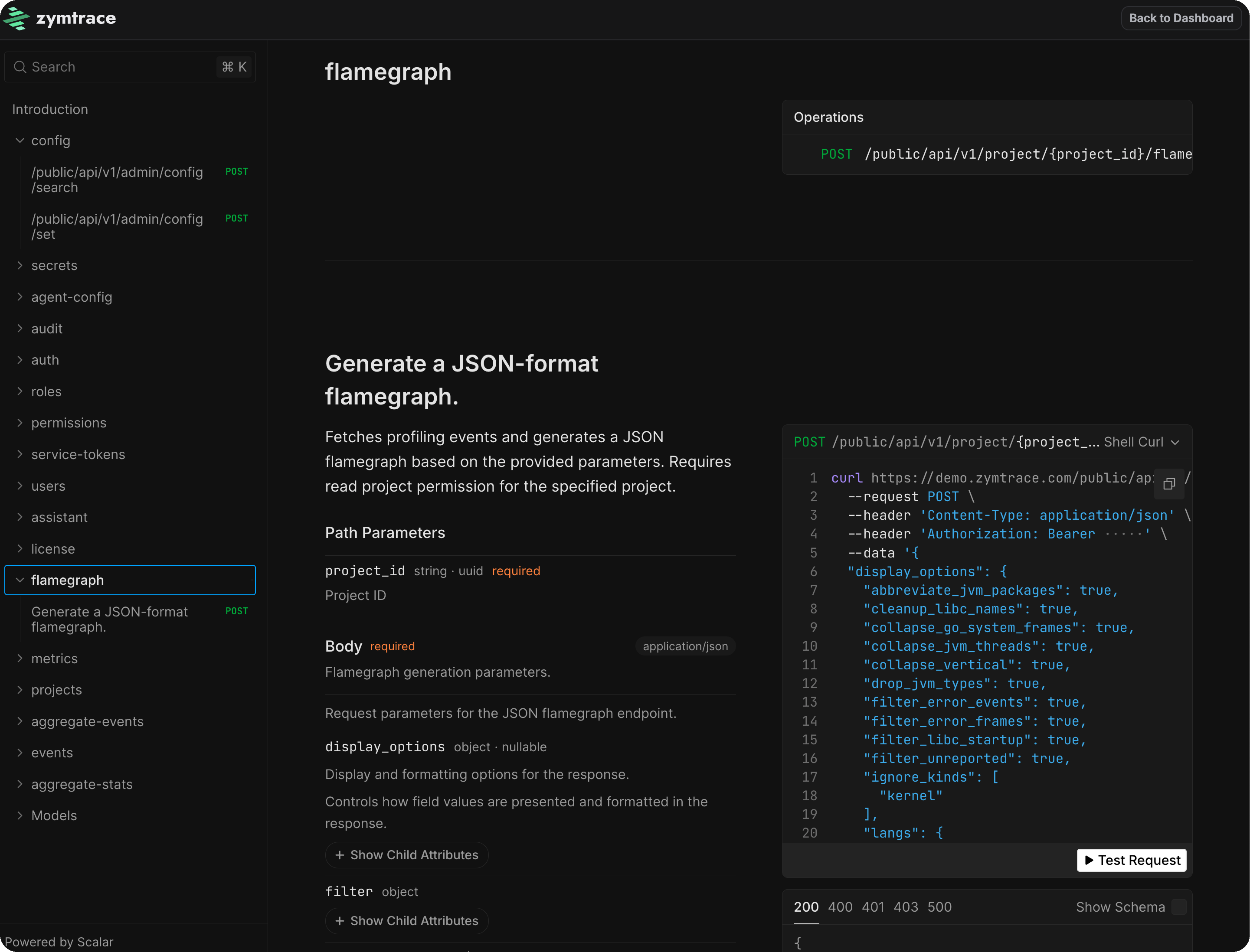
The API is versioned under `/public/api/v1/` and organized into the following categories:
| Category | Description |
|---|---|
| `flamegraph` | Generate JSON-format flamegraphs for a project |
| `metrics` | Query CPU and GPU profiling metrics |
| `aggregate-stats` | Aggregate statistics by container, host, executable, and more |
| `aggregate-events` | Aggregate profiling events across your fleet |
| `events` | Fetch raw profiling events |
| `projects` | Create and manage projects |
| `users` | Manage user accounts and profiles |
| `auth` | Authentication and session management |
| `roles` | Role management |
| `permissions` | Permission management |
| `service-tokens` | Create and revoke API service tokens |
| `config` | System configuration |
| `secrets` | Secret management |
| `agent-config` | Profiler agent configuration |
| `audit` | Audit logs |
| `license` | License information |
## Authentication
If authentication is enabled on your instance, API requests require a bearer token. Generate a service token from **Profile → Account → Service Tokens** and use it as the bearer token. See [Service Tokens](../authentication/service-tokens.md) for step-by-step instructions.
Enter the token in the **Authorization** field at the top of the API Explorer, then use the **Test Request** button on any endpoint to send a live request.
## Example Request
Generate a JSON flamegraph for a project:
```bash
curl https://demo.zymtrace.com/public/api/v1/project/123e4567-e89b-12d3-a456-426614174000/flamegraph/json \
--request POST \
--header 'Content-Type: application/json' \
--header 'Authorization: Bearer ' \
--data '{
"filter": {
"end_ts": 4102444800000,
"event_kind": "on_cpu",
"frame_mask": {
"patterns": []
},
"query": null,
"start_ts": 946684800000
},
"num_samples": null,
"num_stat_buckets": null,
"synthetic_frames": [
"deployment"
]
}'
```
A successful response returns the flamegraph data as JSON.
---
# Platform Architecture
URL: https://docs.zymtrace.com/architecture
# Platform Architecture
The Zymtrace platform is self-hosted, deployed entirely within your infrastructure, whether that's cloud, on-prem, or hybrid. This gives you full control over your data and setup. The platform consists of two main components:
1. **Zymtrace profiler**: An eBPF-based agent installed on each machine running your applications. It collects CPU and GPU performance profiles, and host metrics, all via eBPF — polling `/proc` is expensive due to repeated filesystem reads. Data is sent to the backend using the custom stateful protocol designed for the high throughput demands of fleet-wide profiling, or the stateless OTel Profiles protocol. [Learn more →](#wire-protocol).
2. **Backend services**: The backend services store, process, and analyze performance profiles and metrics. All our core backend services are written in **Rust** :crab:. The front-end is a combination of **ReactJS** and **WASM**. All data is also accessible via a [REST API](#api) and [MCP](/mcp/configure-mcp), directly from your Zymtrace instance.
The diagram below depicts a high-level architecture of the components:
:::info
**Need a hosted Zymtrace backend?**
We can provision a dedicated cloud deployment for you. Email us at [team@zymtrace.com](mailto:team@zymtrace.com) or [request access here](https://www.zymtrace.com/getstarted)
:::
## Components overview
### Zymtrace profiler
The [Zymtrace profiler](./install/profiler/install-profiler.md) runs on each node, deployed either as a Kubernetes DaemonSet or as a standalone binary on a standard VM. It collects performance profiles of resource-intensive processes on the node, aggregates and compresses them, and sends them to the backend via gRPC. TLS is supported by default, with an option to disable it if needed.
Here's a more detailed description of how the profiler works:
1. **Unwinder eBPF programs** are loaded into the kernel.
2. The kernel verifies the safety of the BPF program. If approved, the program is attached to probes and triggered upon specific events.
3. The eBPF programs collect data and pass it to userspace via **maps**.
4. The agent retrieves the collected data from maps. This data includes process-specific and interpreter-specific meta-information, which helps the eBPF unwinder programs perform mixed-stack unwinding across different languages (e.g., Python calling into C libraries).
5. The agent pushes stack traces, metrics, and metadata to the **Zymtrace gateway service** for routing to the appropriate backend services for analysis.
6. Easily identify & optimize the most inefficient functions across your entire infrastructure.
### Zymtrace GPU profiler
GPU utilization, temperature, power: those metrics are easy to collect, but they don't explain the inner workings of the GPU or why it is idling. That's why we didn't start with [NVML](https://developer.nvidia.com/management-library-nvml) or [DCGM](https://developer.nvidia.com/dcgm) metrics. We started deeper, closer to the hardware. That's where real insight lives, not just in metrics.
Zymtrace profiles NVIDIA CUDA and AMD ROCm workloads at the kernel level and correlates GPU activity with the CPU traces that launched those kernels, without requiring recompilation. For NVIDIA workloads, it also disassembles CUDA SASS mnemonics and exposes GPU stall reasons.
AWS Neuron accelerators, including Inferentia and Trainium, are also supported. Support for Google TPUs and Cerebras is coming soon.
**Learn more:** [GPU Profiler deep dive →](/gpu-profiler-architecture)
## Zymtrace backend services
The Zymtrace backend is designed to store, process and visualize profiling data efficiently. Below is an overview of the key backend services and their roles:
#### **gateway service**
The `gateway` service acts as the main entry point for all user requests, using Envoy Proxy for request routing and load balancing. It routes requests to the appropriate backend services (UI, ingest, symDB) and handles mTLS when configured.
#### **UI service**
The `UI` service serves the web-based user interface for Zymtrace, built with ReactJS and WASM. Users access the UI through the gateway service, which routes web requests to this service.
#### **ingest service**
The `ingest` service receives profiling data and metrics from the Zymtrace profiler via the gateway service, and stores them in ClickHouse for ultra-fast querying and analysis.
In addition to CPU and GPU profiling data, the ingest service handles metrics from:
- **GPU performance metrics**: utilization, memory, temperature, SM efficiency, SM occupancy, Tensor Core utilization, PCIe throughput
- **AWS Neuron**: metrics from Inferentia and Trainium accelerators
- **NVIDIA Dynamo / Triton**: inference server metrics
- **vLLM**: LLM serving metrics
- **SGLang**: structured generation serving metrics
- **Host metrics**: CPU, memory, disk throughput and latency, collected via eBPF rather than polling `/proc` — polling `/proc` is expensive due to repeated filesystem reads
Every metric data point is correlated to the underlying CPU and GPU profiles, so you can move directly from a metric anomaly to the exact code path responsible. Data is received over the [wire protocol](#wire-protocol).
#### **symDB service**
The `symDB` service handles symbol resolution upon request. It retrieves native symbols stored in S3/Minio or fetches them from the `global symbolization` service. This service is critical for converting raw profiling data into meaningful stack traces by resolving both native and interpreted symbols. **Learn more:** [Symbolization deep dive →](./symbols/symbolization.md)
#### **identity service**
Zymtrace provides the granularity to segregate your profiling data into different projects within an organization. The identity service currently manages these projects. It associates incoming profiling data from the `ingest` service with the correct project, laying the foundation for future user authentication and role-based access control.
#### **worker service**
The `worker` service currently handles the [Slack integration](./integrations/slack.md). It is not enabled by default, see [here](./install/backend/helm-docker.md#worker-service-beta) for how to enable it.
:::note
The `worker` service is currently in beta. To help ensure a smooth rollout, it is being released with a limited feature set. More functionality will be added soon.
:::
### Wire protocol
By default, the profiler communicates with the backend using a custom stateful wire protocol that is **6x more compute-efficient** than the OpenTelemetry Profiles proto. Because the protocol is stateful, the agent only transmits new information rather than re-sending context with every payload, which is what the stateless OTel proto requires. This keeps agent CPU overhead and network egress minimal at fleet scale.
You can switch between the custom Zymtrace protocol and OTel Profiles protocol at any time without losing data. See [Profiler ENV & CLI Args](/install/profiler/profiler-configuration). The OTel Profiles specification [recently reached alpha](https://opentelemetry.io/blog/2026/profiles-alpha/); the Zymtrace founders were core contributors, part of the team that donated the profiler and helped define the spec inside the OpenTelemetry project.
Zymtrace is fully OTel-compliant for resource attributes and metadata. All profiling data is tagged using OpenTelemetry resource attributes, usable directly in filters and queries.
:::tip
To switch to the OTel Profiles protocol, set `-zymtrace-protocol=false`. See [Profiler ENV & CLI Args](/install/profiler/profiler-configuration) for all configuration options.
:::
### Storage
| Storage | Purpose | |
|---|---|---|
| **ClickHouse** | Profiling events and analytics | [Guide](/databases/clickhouse) |
| **PostgreSQL** | User data, metadata, project configuration | [Guide](/databases/postgres) |
| **S3 / MinIO** | Native debug symbols | [Guide](/databases/object-storage) |
### MCP
Zymtrace implements the [Model Context Protocol](https://modelcontextprotocol.io/), letting AI agents in your IDE query profiling data using natural language. [Learn more →](/mcp/configure-mcp)
```bash
claude mcp add zymtrace \
--transport http \
https://your-zymtrace-instance.com/mcp \
--header "Authorization: Bearer YOUR_TOKEN_HERE"
```
### API
Every piece of data in Zymtrace is accessible via a REST API. Click **API Explorer** inside your Zymtrace instance to browse and test every endpoint interactively.

## Get started
### Zymtrace backend (Self-Hosted)
Refer to our [self-hosted installation guide](/install/backend/helm-docker) for detailed instructions.
### Zymtrace profiler
Refer to the [profiler host agent installation guide](/install/profiler/install-profiler) for more details.
---
# Admin CLI
URL: https://docs.zymtrace.com/authentication/admin-cli
# Admin CLI
The identity service ships with `zymtrace-cli`, an administrative tool for managing users and roles directly, without
logging in to the UI.
Use it if you:
- lost your admin password
- misconfigured OIDC provider
- have an account without the right roles
If you have shell access to the identity service (SSH to the host, or `kubectl exec` into the pod), you can restore
access with a few commands.
All operations are recorded in the audit log with `origin=cli`.
## Running the CLI
In Kubernetes deployments, execute the CLI inside the identity pod:
```bash
kubectl exec -it -n your-zymtrace zymtrace-identity-XXX-XX -- bin/zymtrace-cli --help
```
Find your identity pod name with `kubectl get pods -n | grep identity`.
## Restoring access
A typical lockout recovery:
```bash
# 1. Find your account
zymtrace-cli identity user list --query admin@company.com --include-roles
# 2. Reset its password (prompts for the new password with input hidden)
zymtrace-cli identity user reset-password --user-id
# 3. Make sure it has the System Admin role
zymtrace-cli identity roles set --user-id --admin
```
Or create a fresh admin account from scratch:
```bash
# Prompts for the password with input hidden
zymtrace-cli identity user create --email recovery@company.com
zymtrace-cli identity roles set --user-id --admin
```
:::info OIDC deployments
When OIDC is enabled, local login additionally requires the `auth:local:login`
permission. The built-in `System Admin` role includes it (`**:*`), so an account recovered with `roles set --admin` can
always log in locally at
`https://zymtrace.company.com`.
:::
## Command reference
All commands accept `-e/--endpoint ` (default `http://127.0.0.1:7829`, which is correct when running inside the
identity pod; otherwise, you need to specify the correct address).
### Create a user
```console
$ zymtrace-cli identity user create --email jane@company.com --password 'secure-password' --given-name Jane --family-name Doe
User 01a0345e-3959-7162-8336-ad512287d145
email: jane@company.com
given_name: Jane
family_name: Doe
created_at: 2026-08-24T15:23:05.433+00:00
updated_at: 2026-08-24T15:23:05.048296+00:00
```
Omit `--password` to read it from stdin: on a TTY you get an interactive prompt with input hidden; otherwise it is read
from the pipe:
```bash
echo 'secure-password' | zymtrace-cli identity user create --email jane@company.com
```
New users start with only the default `Default Project Viewer` role; grant more with `zymtrace-cli identity roles set`.
### List users
```console
$ zymtrace-cli identity user list --query jane --include-roles
User 01a0345e-3959-7162-8336-ad512287d145
email: jane@company.com
given_name: Jane
family_name: Doe
created_at: 2026-08-24T15:23:05.433+00:00
updated_at: 2026-08-24T15:23:05.048296+00:00
roles: Default Project Viewer
Page 0: 1 users (1 total, 1 pages)
```
Other filters: `--org-id `, `--page N`, `--page-size N` (max 100).
### Reset a password
Interactively, with input hidden:
```bash
zymtrace-cli identity user reset-password --user-id 01a0345e-3959-7162-8336-ad512287d145
```
Or non-interactively, via `--password` or a pipe (note that both can leak the password into shell history or process
listings):
```bash
zymtrace-cli identity user reset-password --user-id 01a0345e-3959-7162-8336-ad512287d145 --password 'new-password'
echo 'new-password' | zymtrace-cli identity user reset-password --user-id 01a0345e-3959-7162-8336-ad512287d145
```
### List roles
```console
$ zymtrace-cli identity roles list --name "System Admin"
Role 00000000-0000-0000-0000-000000000001
name: System Admin
is_locked: true
users: 13
perms: **:*
1 roles
```
Filters: `--org-id `, `--user-id ` (only roles assigned to that user),
`--name ` (exact match, repeatable). Without filters, all roles are listed.
### Set a user's roles
Replaces the user's entire role assignment with the given set. Role names are validated before anything is changed:
```console
$ zymtrace-cli identity roles set --user-id 01a0345e-3959-7162-8336-ad512287d145 --admin --role "System Viewer"
User 01a0345e-3959-7162-8336-ad512287d145
email: jane@company.com
...
roles: System Admin, System Viewer
```
`--admin` is shorthand for including the built-in `System Admin` role. Unknown role names fail without modifying
anything:
```console
$ zymtrace-cli identity roles set --user-id 01a0345e-... --role "Nonexistent Role"
Error: roles not found: Nonexistent Role
```
Pass no roles to revoke everything:
```bash
zymtrace-cli identity roles set --user-id 01a0345e-3959-7162-8336-ad512287d145
```
---
# Advanced Configuration
URL: https://docs.zymtrace.com/authentication/advanced-config
# Advanced Configuration
This guide covers advanced authentication configuration options that apply to both local and OIDC authentication methods.
## Cookie Configuration
Cookie settings control how authentication sessions are managed in Zymtrace.
These settings apply when using `local` or `oidc` authentication.
[](https://artifacthub.io/packages/helm/zymtrace/backend?modal=values)
custom-values.yaml
```yaml
auth:
cookie:
# Refresh token cookie lifespan (in seconds)
# Default: 31536000 (1 year)
refreshMaxAgeSec: 31536000
# Path for refresh token cookie
refreshPath: /
# Login/access token cookie lifespan (in seconds)
# Default: 60 (1 minute)
loginMaxAgeSec: 60
# Path for login cookie (typically /api/v1/oauth2 for OIDC)
loginPath: /
# SameSite cookie attribute: "strict", "lax", or "none"
sameSite: lax
# Secure flag (requires HTTPS)
secure: true
# HttpOnly flag (prevents JavaScript access)
httpOnly: true
# OIDC cookie TTL during OAuth flow (in seconds)
cookieTtlSec: 60
```
:::tip Cookie Security
- Always set `secure: true` in production (requires HTTPS)
- Keep `httpOnly: true` to prevent XSS attacks
- Use `sameSite: lax` or `sameSite: strict` for CSRF protection
:::
## Token Validation
Token validation settings control how JWT tokens are verified throughout the system.
These settings apply to both `local` and `oidc` authentication.
[](https://artifacthub.io/packages/helm/zymtrace/backend?modal=values)
custom-values.yaml
```yaml
auth:
validation:
# List of valid token issuers (optional)
# If empty or not specified, auto-derived from ingress host
# Example: If your ingress host is company.example.com, issuer will be https://company.example.com
issuers: [ ]
# Or specify explicitly:
# issuers:
# - "https://zymtrace.company.com"
# List of valid token audiences (optional)
# If empty or not specified, defaults to ["zymtrace"]
audiences: [ ]
# Or specify explicitly:
# audiences:
# - "domain"
# - "some-api"
# Signing keys for token verification (REQUIRED)
keys:
# Option A: Pass keys inline
privateKey: |
-----BEGIN PRIVATE KEY-----
...
-----END PRIVATE KEY-----
publicKey: |
-----BEGIN PUBLIC KEY-----
...
-----END PUBLIC KEY-----
# Option B: Reference an existing Kubernetes Secret (recommended for production)
# privateKeySecretName: "zymtrace-signing-keys"
# privateKeySecretKey: "private-key" # key name inside the secret
# publicKeySecretName: "zymtrace-signing-keys"
# publicKeySecretKey: "public-key" # key name inside the secret
```
:::tip Using an existing Kubernetes Secret
If you manage secrets externally (e.g. via AWS Secrets Manager, Vault, or Sealed Secrets), use `privateKeySecretName` and `publicKeySecretName` to reference them directly instead of passing key material inline.
First, create the Kubernetes Secret (run once before deploying):
```bash
kubectl create secret generic zymtrace-signing-keys \
--namespace zymtrace \
--from-literal=private-key="-----BEGIN PRIVATE KEY-----
-----END PRIVATE KEY-----" \
--from-literal=public-key="-----BEGIN PUBLIC KEY-----
-----END PUBLIC KEY-----"
```
Then reference it in your values file:
```yaml
auth:
validation:
keys:
privateKeySecretName: "zymtrace-signing-keys"
privateKeySecretKey: "private-key"
publicKeySecretName: "zymtrace-signing-keys"
publicKeySecretKey: "public-key"
```
The chart injects the key material from the named secret at deploy time, so the values file never contains sensitive key material.
If `privateKeySecretName`/`publicKeySecretName` are not set, the chart falls back to the inline `privateKey`/`publicKey` values.
**The chart does not pre-check whether the referenced secret exists** — doing so would require cluster read privileges at render time. If the secret is missing, the pods will fail to start. Always verify your deployment is healthy after applying:
```bash
kubectl get pods -n zymtrace
```
:::
:::tip Auto-Derived Values
Most deployments can leave `issuers` and `audiences` empty to use auto-derived defaults:
- **Issuers**: Automatically set to your ingress host URL (e.g., `https://company.example.com`)
- **Audiences**: Automatically set to `["zymtrace"]`
Only specify these explicitly if you know why you need it.
:::
## OIDC Configuration
By default, `scopes` and `extraParams` are configured to support the usual GCP authentication flow.
If you're using a different OIDC provider, you can customize the configuration using the following example.
[](https://artifacthub.io/packages/helm/zymtrace/backend?modal=values)
custom-values.yaml
```yaml
auth:
type: "oidc"
oidc:
provider:
# REQUIRED: OAuth2 client credentials from your OIDC provider
clientId: "your-client-id"
clientSecret: "your-client-secret"
# REQUIRED: Your OIDC provider's issuer URI
# Examples:
# Google: https://accounts.google.com
# Okta: https://dev-123456.okta.com
# Azure AD: https://login.microsoftonline.com/{tenant-id}/v2.0
issuerUri: "https://accounts.google.com"
# REQUIRED: Redirect URI after authentication
# Must match what's registered in your OIDC provider
# Auto-derived from ingress host if not specified
redirectUri: "https://company.example.com/api/v1/oauth2/callback"
# OAuth2 scopes to request
scopes:
- openid
- email
- profile
# Additional OAuth2 parameters (optional)
# These are passed as query parameters to the OIDC provider
extraParams:
- prompt=consent # Force consent screen on Google
- access_type=offline # Request refresh token from Google
```
## Branding
You can customize the text your users see when authenticating with Zymtrace.
custom-values.yaml
```yaml
auth:
info:
displayName: "my custom zymtrace deployment"
pictureUri: null
```
---
# Basic Authentication
URL: https://docs.zymtrace.com/authentication/basic-auth
# Basic Authentication
Basic authentication uses HTTP Basic Auth for simple access.
[](https://artifacthub.io/packages/helm/zymtrace/backend?modal=values)
```yaml
auth:
type: "basic"
basic:
enabled: true # Must be explicitly enabled
username: "api-user"
password: "your-secure-password"
```
:::info Limited Use
Basic authentication is deprecated and will be removed in a future release.
Use `local` or `oidc` for user authentication.
Basic auth is disabled by default and must be explicitly enabled.
:::
---
# Local Authentication
URL: https://docs.zymtrace.com/authentication/local
# Local Authentication
Local authentication uses Zymtrace's built-in identity service to manage authentication and authorization.
This is ideal for self-hosted deployments where you don't have an existing identity provider.
## Configuration
Add the following to your `custom-values.yaml`:
[](https://artifacthub.io/packages/helm/zymtrace/backend?modal=values)
:::info Helm Chart Source
The Helm chart source code is available on GitHub: [zystem-io/zymtrace-charts](https://github.com/zystem-io/zymtrace-charts/tree/main/charts/)
:::
```yaml
auth:
type: "local"
admin:
email: admin@company.com
password: "your-secure-password"
roles:
- "System Admin"
```
Refer to the [Generating Signing Keys](#generating-signing-keys) section below to create a pair of keys for your production deployment.
## Generating Signing Keys
When deploying to production environments, update token signing keys. Generate them using OpenSSL:
```bash
# Generate ED25519 keys
openssl genpkey -algorithm ED25519 -out /tmp/private.pem
openssl pkey -in /tmp/private.pem -pubout -out /tmp/public.pem
# View the keys
cat /tmp/private.pem
cat /tmp/public.pem
```
Then add the keys to your `custom-values.yaml`:
custom-values.yaml
```yaml
auth:
validation:
# Optional: specify token issuers (defaults to gateway host)
issuers:
- "https://zymtrace.company.com"
# Optional: specify token audiences (defaults to "zymtrace")
audiences:
- "zymtrace"
# Token signing keys — choose one option below
keys:
# Option A: pass keys inline
privateKey: |
-----BEGIN PRIVATE KEY-----
-----END PRIVATE KEY-----
publicKey: |
-----BEGIN PUBLIC KEY-----
-----END PUBLIC KEY-----
# Option B: reference an existing Kubernetes Secret
# privateKeySecretName: "zymtrace-signing-keys"
# privateKeySecretKey: "private-key"
# publicKeySecretName: "zymtrace-signing-keys"
# publicKeySecretKey: "public-key"
```
:::danger Keep Keys Secret
Keep private keys secret. Never pass them inline in values files committed to version control — use Option B (an existing Kubernetes Secret) instead.
:::
## Deployment
Deploy your backend with the local authentication configuration:
```bash
helm upgrade --install backend zymtrace/backend \
--namespace zymtrace \
-f custom-values.yaml \
--debug \
--atomic
```
## Accessing the System
1. Navigate to your Zymtrace URL: `https://zymtrace.company.com`
2. Log in with the admin credentials you configured
3. Create additional users
Once logged in, you can access your profile and account settings:
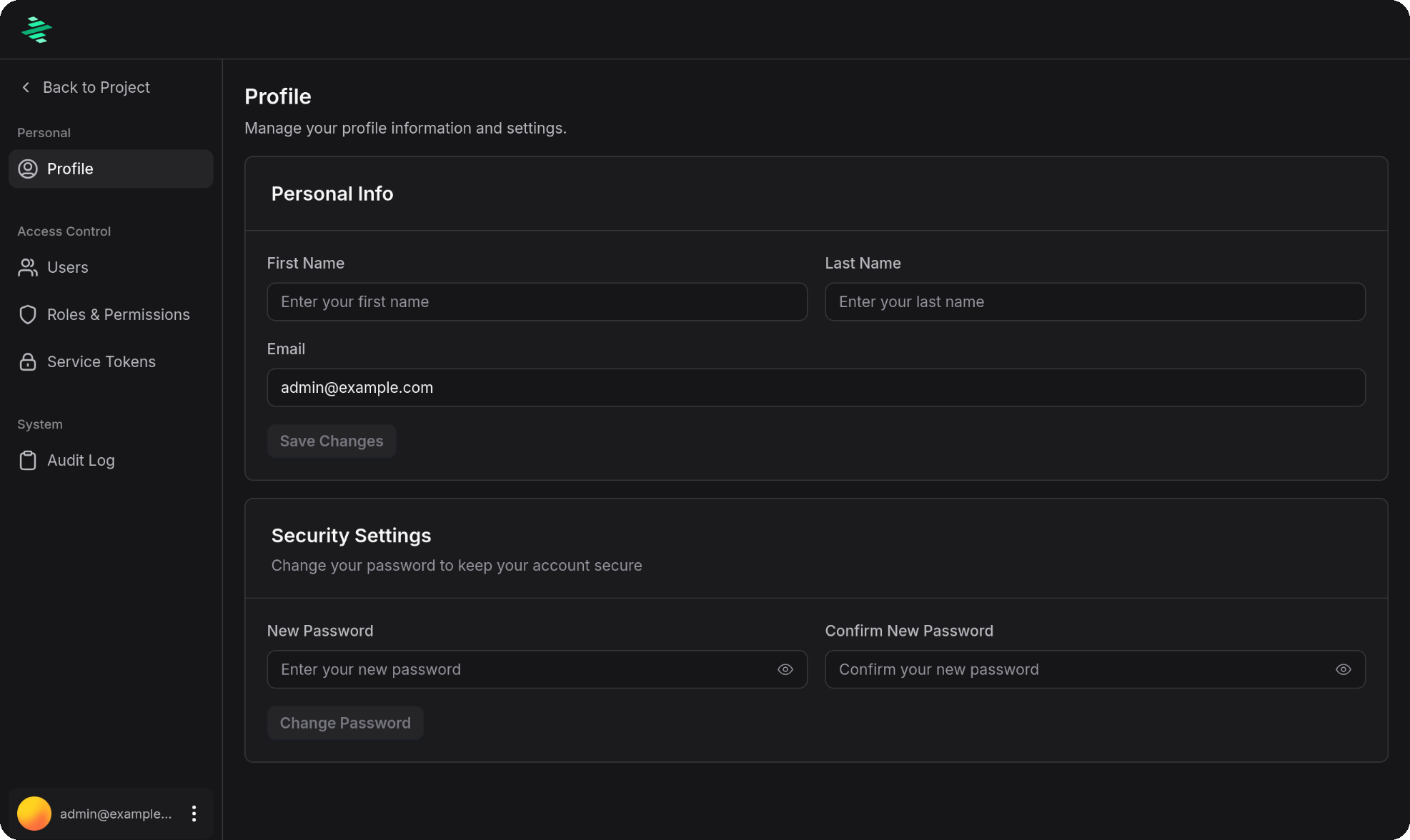
:::tip Advanced Configuration
For cookie settings and token validation options that apply to both local and OIDC authentication, see the [advanced configuration guide](advanced-config).
:::
---
# OIDC Authentication
URL: https://docs.zymtrace.com/authentication/oidc
# OIDC Authentication
```mdx-code-block
import Tabs from '@theme/Tabs';
import TabItem from '@theme/TabItem';
```
OIDC authentication integrates with external identity providers like Google,
Okta, Azure AD, or any OpenID Connect-compatible service.
## Configuration
Add the following to your `custom-values.yaml`.
[](https://artifacthub.io/packages/helm/zymtrace/backend?modal=values)
custom-values.yaml
```yaml
auth:
type: "oidc"
# Admin user (required)
admin:
email: admin@company.com
password: "your-secure-password"
roles:
- "System Admin"
# OIDC provider configuration
oidc:
provider:
# REQUIRED: OAuth2 client credentials from your OIDC provider
clientId: "your-client-id"
clientSecret: "your-client-secret"
# REQUIRED: Your OIDC provider's issuer URI
# Examples:
# Google: https://accounts.google.com
# Okta: https://dev-123456.okta.com
# Azure AD: https://login.microsoftonline.com/{tenant-id}/v2.0
issuerUri: "https://accounts.google.com"
# REQUIRED: Redirect URI after authentication
# Must match what's registered in your OIDC provider
# Auto-derived from ingress host if not specified
redirectUri: "https://company.example.com/api/v1/oauth2/callback"
```
:::note Issuer Configuration
The `issuers` field must match your actual deployment URL.
If you're deploying to `https://company.example.com`, use that exact URL.
The issuer is used to validate JWT tokens and must match the domain where your Zymtrace gateway is accessible.
:::
## Setting Up OIDC Providers
### Google Cloud Console Setup
1. Go to [Google Cloud Console](https://console.cloud.google.com/)
2. Create a new project or select an existing one
3. Navigate to **APIs & Services** → **Credentials**
4. Click **Create Credentials** → **OAuth 2.0 Client ID**
5. Select **Web application**
6. Add authorized redirect URI: `https://company.example.com/api/v1/oauth2/callback`
7. Copy the **Client ID** and **Client Secret**
### Configuration for Google
custom-values.yaml
```yaml
auth:
type: "oidc"
oidc:
provider:
clientId: "YOUR-CLIENT-ID.apps.googleusercontent.com"
clientSecret: "GOCSPX-YOUR-CLIENT-SECRET"
issuerUri: "https://accounts.google.com"
redirectUri: "https://company.example.com/api/v1/oauth2/callback"
scopes:
- openid
- email
- profile
extraParams:
- prompt=consent
- access_type=offline
```
### Okta Setup
1. Log in to your [Okta Admin Console](https://developer.okta.com/)
2. Navigate to **Applications** → **Applications**
3. Click **Create App Integration**
4. Select **OIDC - OpenID Connect** and **Web Application**
5. Add sign-in redirect URI: `https://company.example.com/api/v1/oauth2/callback`
6. Copy the **Client ID** and **Client Secret**
### Configuration for Okta
custom-values.yaml
```yaml
auth:
type: "oidc"
oidc:
provider:
clientId: "YOUR-OKTA-CLIENT-ID"
clientSecret: "YOUR-OKTA-CLIENT-SECRET"
issuerUri: "https://dev-YOUR-OKTA-DOMAIN.okta.com"
redirectUri: "https://company.example.com/api/v1/oauth2/callback"
scopes:
- openid
- email
- profile
```
### Azure AD Setup
1. Go to [Azure Portal](https://portal.azure.com/)
2. Navigate to **Azure Active Directory** → **App registrations**
3. Click **New registration**
4. Add redirect URI: `https://company.example.com/api/v1/oauth2/callback`
5. Go to **Certificates & secrets** → Create a new client secret
6. Copy the **Application (client) ID** and **Client Secret**
### Configuration for Azure AD
custom-values.yaml
```yaml
auth:
type: "oidc"
oidc:
provider:
clientId: "YOUR-APPLICATION-CLIENT-ID"
clientSecret: "YOUR-CLIENT-SECRET"
issuerUri: "https://login.microsoftonline.com/YOUR-TENANT-ID/v2.0"
redirectUri: "https://company.example.com/api/v1/oauth2/callback"
scopes:
- openid
- email
- profile
```
## Deployment
Deploy your backend with the OIDC configuration:
```bash
helm upgrade --install backend zymtrace/backend \
--namespace zymtrace \
-f custom-values.yaml \
--debug \
--atomic
```
## Accessing the System
1. Navigate to your Zymtrace URL: `https://zymtrace.company.com`
2. Click the OIDC login button
3. Authenticate through your OIDC provider
4. You'll be redirected back to Zymtrace
Once authenticated, you can access your profile and account settings:

:::tip Advanced Configuration
For cookie settings and token validation options, see the [advanced configuration guide](advanced-config).
:::
---
# Quick Start
URL: https://docs.zymtrace.com/authentication/overview
# Authentication Configuration
This guide explains how to configure both user and agent authentication in Zymtrace.
Authentication protects profiling data and restricts access to authorized users.
## Quick Start
Use this minimal `auth` section in your `custom-values.yaml` to enable local authentication.
All other fields will fall back to the defaults defined in `values.yaml`.
[](https://artifacthub.io/packages/helm/zymtrace/backend?modal=values)
:::info Helm Chart Source
The Helm chart source code is available on GitHub: [zystem-io/zymtrace-charts](https://github.com/zystem-io/zymtrace-charts/tree/main/charts/)
:::
custom-values.yaml
```yaml
auth:
# Enable built-in local authentication
type: "local"
# Admin user for first login
admin:
email: admin@example.com
password: "your-secure-password"
roles:
- "System Admin"
# Optional: enable service tokens for agents/CLI
serviceToken:
enabled: true
```
Refer to the [local authentication guide](local#generating-signing-keys) to create a pair of keys when deploying to production.
## Authentication Methods
Zymtrace supports several authentication methods:
| Auth Type | Description | Use Case |
|-----------------------|------------------------------------------------|----------------------------------------|
| `none` | No authentication required | Development, testing, trusted networks |
| [`local`](local) | Built-in authentication with username/password | Self-hosted deployments, on-premises |
| [`oidc`](oidc) | OpenID Connect integration | Enterprise SSO, Google, Okta, Azure AD |
| [`basic`](basic-auth) | HTTP Basic authentication | Simple API access, service-to-service |
:::tip Production Recommendation
For production environments, we recommend using `oidc` for enterprise SSO integration or `local` for built-in
authentication. Always use HTTPS/TLS when authentication is enabled.
:::
## Common Configuration
### Admin User Configuration
Regardless of authentication type, an admin user is created automatically and has full access.
```yaml
auth:
admin:
email: admin@example.com
password: admin
roles:
- "System Admin"
```
:::warning Security
Change default admin credentials immediately after deployment.
:::
### Service Token Configuration
[Service tokens](service-tokens) enable programmatic access for agents, CLI tools, and automation.
```yaml
auth:
serviceToken:
enabled: true # Enable service token generation and authentication
```
:::info When to Enable
Enable when:
- Using CI/CD pipelines
- Running agents outside trusted networks
- Building custom API integrations
:::
:::warning Security
Running the agent with `-disable-tls` exposes the token publicly.
:::
---
# Role-Based Access Control
URL: https://docs.zymtrace.com/authentication/rbac
# Role-Based Access Control (RBAC)
Zymtrace uses Role-Based Access Control (RBAC) to manage user permissions.
Roles are assigned to users, and each role contains a set of permission
patterns that define what actions the user can perform.
:::tip Quick Start
Assign built-in roles to users via **Profile picture** → **Account** → **Users** → select user → **Edit** → add roles → **Save**
:::
## How RBAC Works
1. **Roles** are assigned to one or more **users**
2. **Roles** contain **permission patterns** (not individual permissions)
3. **Permission patterns** use wildcards to match multiple permissions
4. **Services** validate requests by matching required permissions against patterns in the token
## Permission Patterns
Permission patterns use a hierarchical format with wildcard support:
```
resource:subresource:action
```
**Wildcard Types:**
- `*` - matches a single level (e.g., `project:*` matches `project:create`, `project:read`)
- `**` - matches multiple levels (e.g., `**:read` matches `project:read`, `admin:user:read`, etc.)
**Examples:**
```bash
# Allow all project operations
project:*
# Allow reading anything
**:read
# Allow all admin operations
admin:**
# Allow all service token operations
service:token:*
# Allow everything (admin role)
**:**
```
## Built-in Roles
Zymtrace includes three default roles:
- `System Admin` (full system access with all permissions)
- `System Editor` (can edit all system resources)
- `System Viewer` (read-only access to all system resources)
- `Default Project Viewer` (all users have read-only access to the default project)
## Permission Model
Understanding available permissions is essential for creating custom roles.
### Service Token Permissions
| Description | Permission |
|-----------------------|------------------------|
| Create service tokens | `service:token:create` |
| View service tokens | `service:token:read` |
| Revoke service tokens | `service:token:revoke` |
### Project Permissions
| Description | Permission |
|-------------------------|------------------|
| Create new projects | `project:create` |
| View project details | `project:read` |
| Modify project settings | `project:update` |
| Delete projects | `project:delete` |
### Admin User Permissions
| Description | Permission |
|----------------------|---------------------|
| Create user accounts | `admin:user:create` |
| View user accounts | `admin:user:read` |
| Modify user accounts | `admin:user:update` |
| Delete user accounts | `admin:user:delete` |
### Admin Role Permissions
| Description | Permission |
|-------------------------|-----------------------------|
| Create custom roles | `admin:role:create` |
| View role definitions | `admin:role:read` |
| Modify role permissions | `admin:role:update` |
| Delete custom roles | `admin:role:delete` |
| Assign roles to users | `admin:role:assignment:set` |
### Audit Permissions
| Description | Permission |
|------------------------|--------------------|
| View audit log entries | `admin:audit:read` |
### Authentication Permissions
| Description | Permission |
|-------------------------------|--------------------|
| Log in with local credentials | `auth:local:login` |
## Common RBAC Patterns
Here are practical role configurations for common use cases:
### Read-Only Viewer
Perfect for stakeholders who need access but shouldn't make changes.
```
**:read
```
### CI/CD Agent Role
For automated deployments and monitoring systems.
```
service:token:read
project:read
```
### Project Manager
Can view and modify project settings, but cannot manage users or roles.
```
project:read
project:update
```
### Analyst Role
Can create and view resources but cannot delete.
```
project:create
project:read
admin:audit:read
```
User roles can be managed in the admin page.
## Managing User Roles
1. Log in as an admin user
2. Navigate to **Profile picture** → **Account** → **Users**
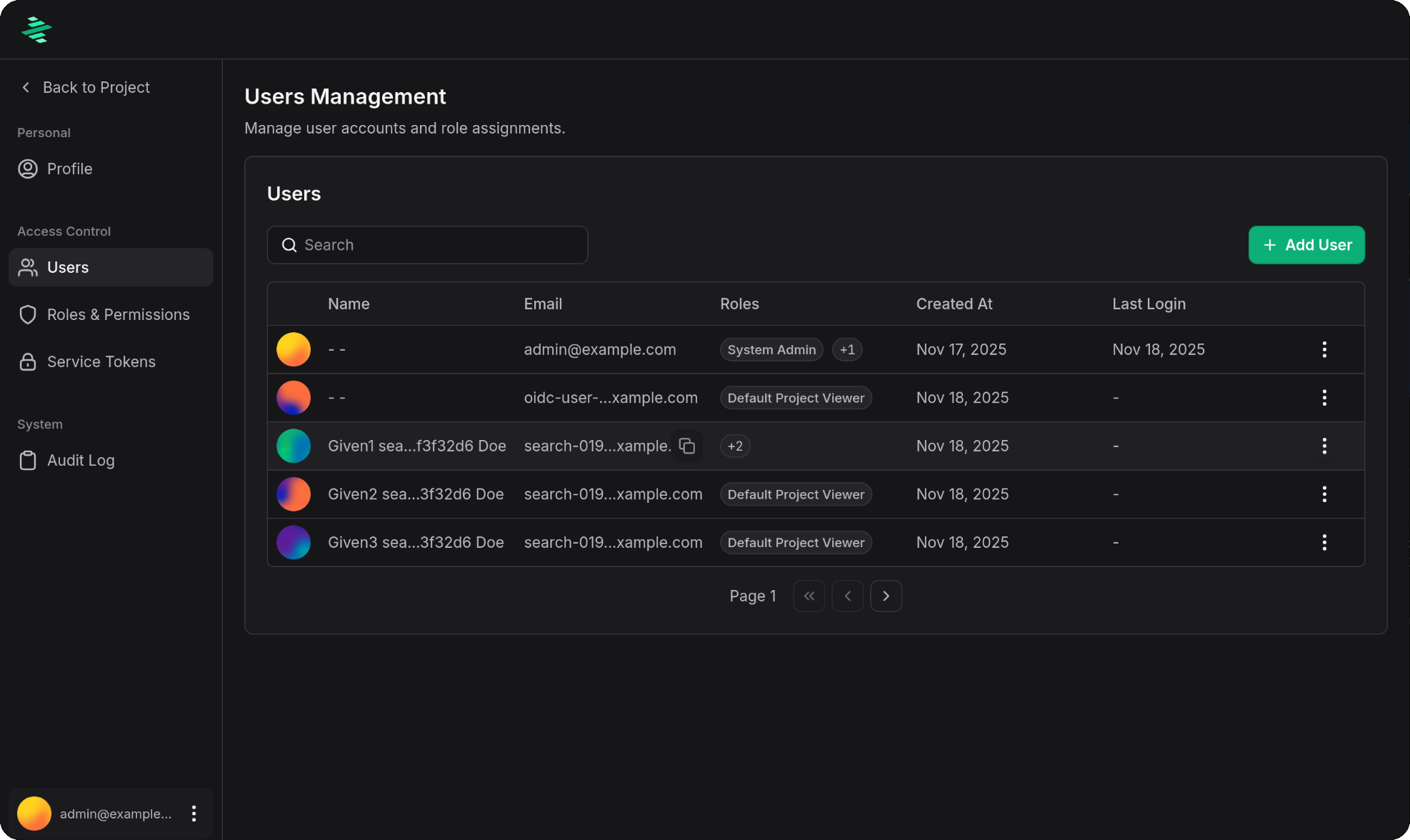
3. Select a user and click three vertical dots
4. Click **Edit**
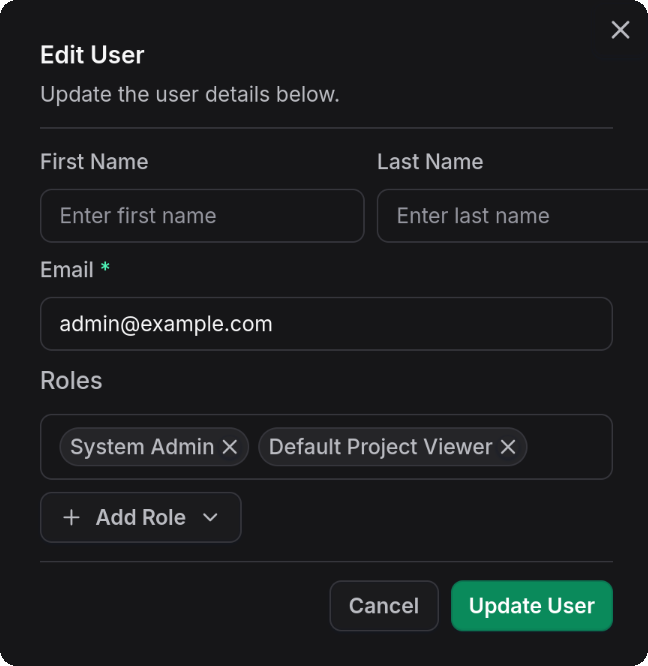
5. Add or remove roles
6. Save changes
:::tip Changes Don't Immediately Take Effect
Role changes apply when the user's next access token is issued.
Access tokens are short-lived (typically 5 minutes), so changes take effect quickly.
:::
## Creating Custom Roles
Custom roles allow fine-grained access control tailored to your organization's needs.
1. Navigate to **Profile picture** → **Account** → **Users**
2. Click **Role & Permissions**
3. Click **Add Role**
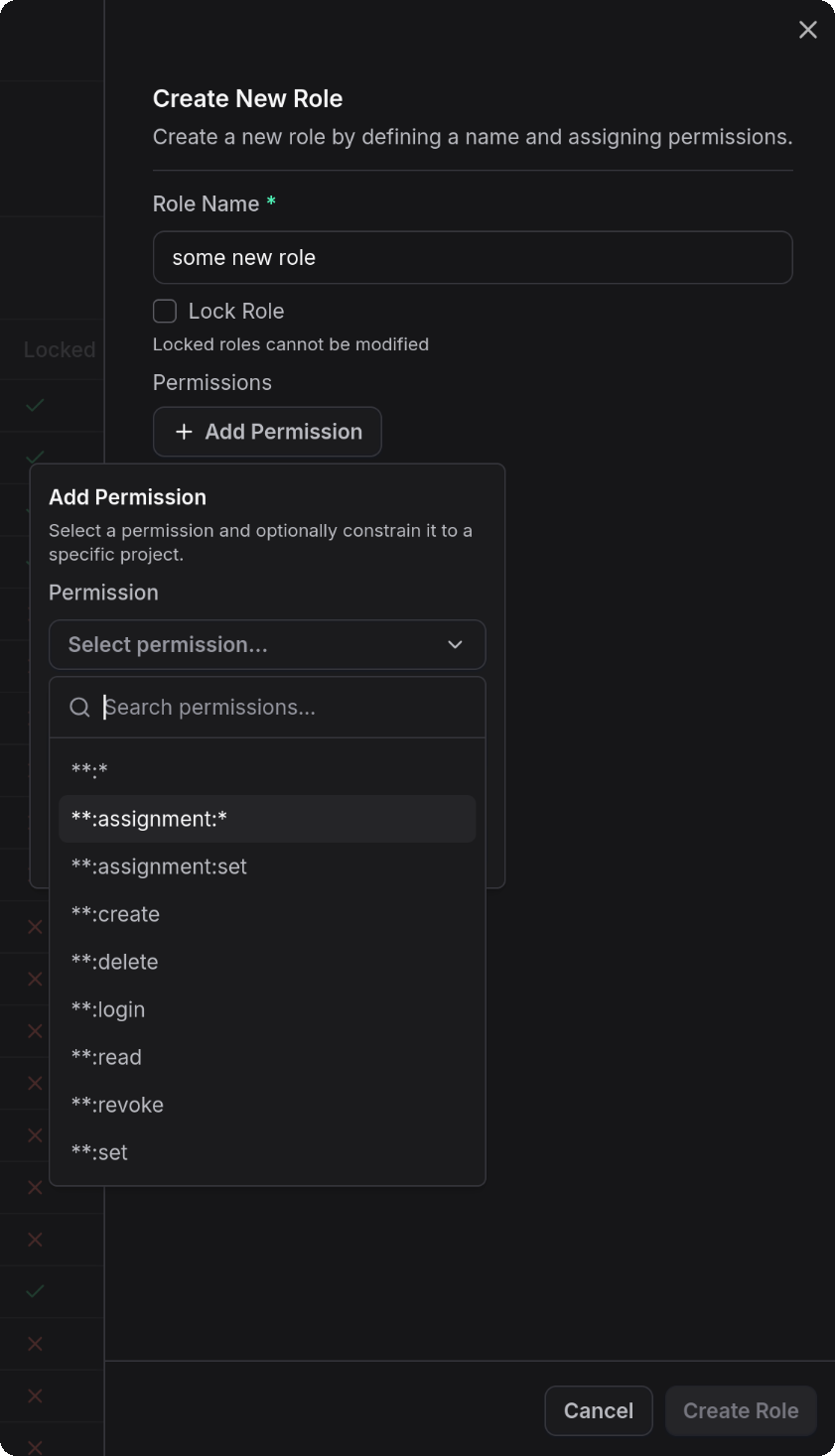
4. Add permission patterns and role name
5. Save the role
## Roles with Constraints
Roles can be restricted to specific projects, enabling fine-grained project-level access control.
### Project-Scoped Roles
When creating or editing a role, you can specify a list of projects the role grants access to:
1. Navigate to **Profile picture** → **Account** → **Users**
2. Click **Role & Permissions**
3. Click **Add Role** or edit an existing role
4. Add permission patterns
5. Under **Project Access**, select which projects this role applies to
6. Save the role
### Example: Project Lead
A project-scoped role that allows users to manage a specific project:
```
project:read
project:update
```
Apply this role with project constraint to **"Project A"** to allow leadership to modify only that project's settings.
## Audit Logging
All permission-related actions are logged to the audit log:
* Role assignments and removals
* Role creation, modification, and deletion
* Permission checks that result in denial
* Service token creation and revocation
* Admin actions on user accounts
---
# Service Tokens (Profiler & CLI)
URL: https://docs.zymtrace.com/authentication/service-tokens
# Service Tokens (Profiler & CLI)
Service tokens enable authenticated access for the [Zymtrace CLI](../symbols/upload-symbols.md), [Profiling Agent](../install/profiler/install-profiler.md), [MCP](../mcp/mcp-token.md), as well as programmatic API access to Zymtrace.
When authentication is enabled (`local` or `oidc`) along with service token authentication,
both the Zymtrace profiler and Zymtrace CLI can be authenticated using a service token.
:::info Prerequisites
Ensure that `auth.serviceToken.enabled` is set to `true` in your Helm values.
This enables the service token functionality required for Zymtrace profiler and Zymtrace CLI authentication.
See the [overview page](overview#service-token-configuration) for configuration details.
:::
## Getting a Service Token
1. Log in to Zymtrace as an admin or user with `service:token:create` permission
2. Navigate to **Your profile picture** → **Account** → **Service Tokens**
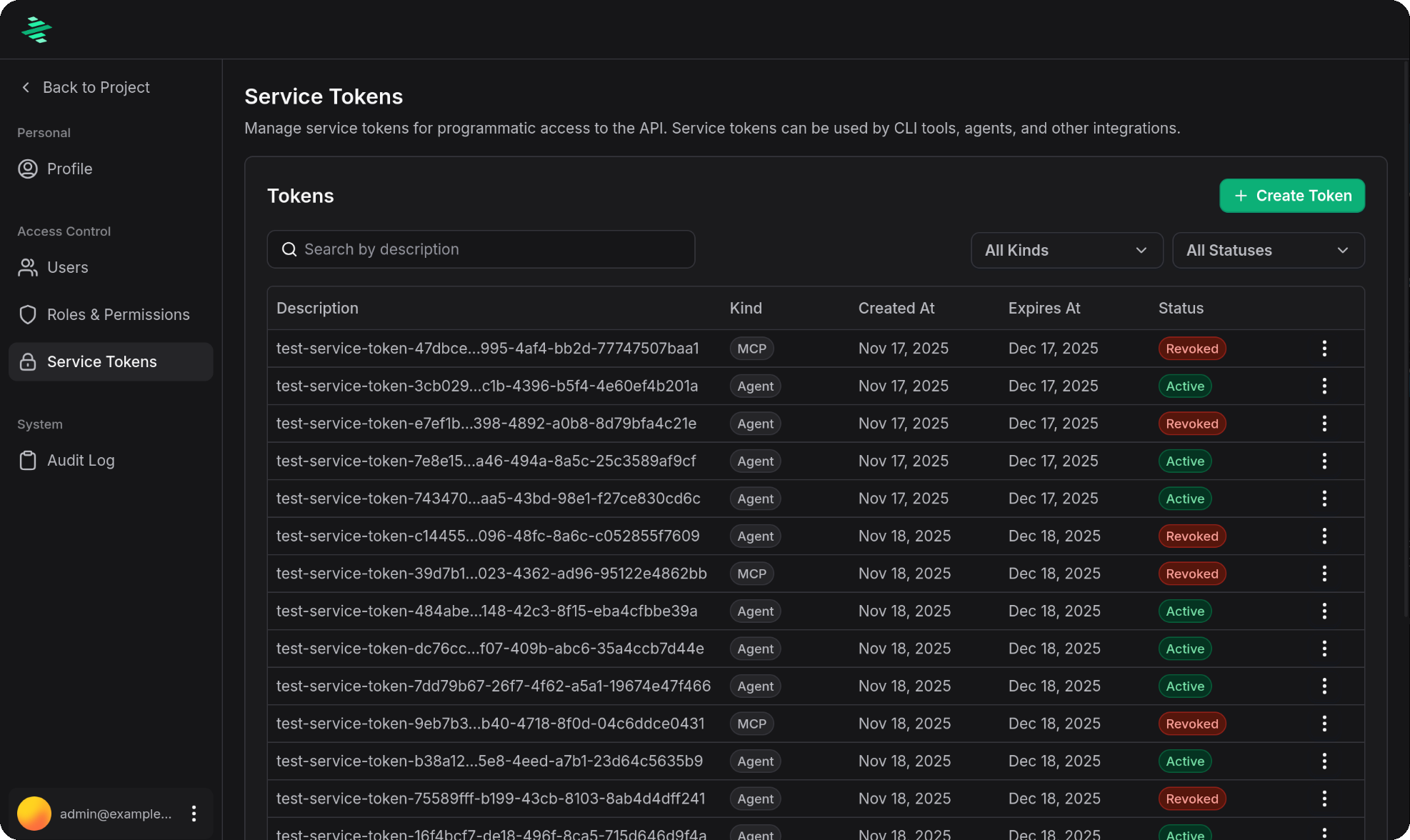
3. Click **Create Token**
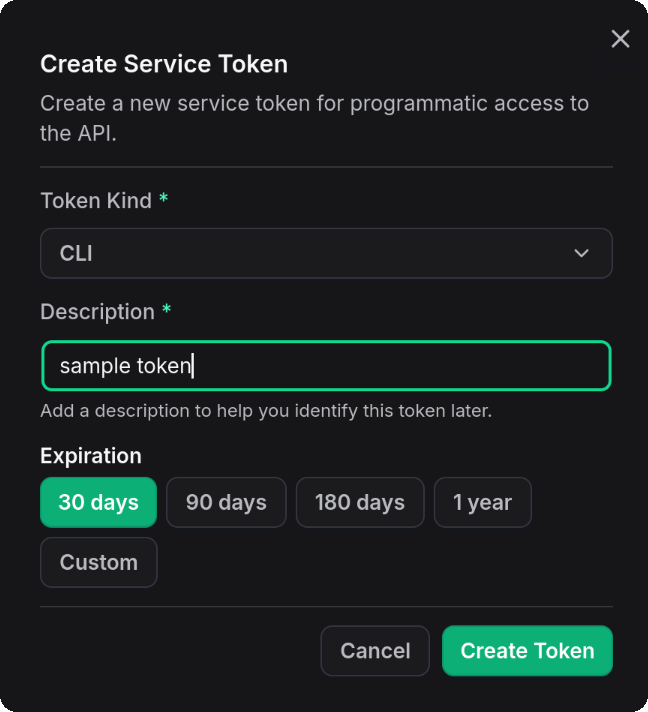
4. Provide a descriptive name for the token (e.g., "Production Profiler - Server01" or "CI/CD CLI Access"), select when the token should expire
and click 'Create Token'
5. Copy the token and store it securely (it won't be shown again)
6. Save the token in a secure location
## Using Tokens with Zymtrace Profiler
Pass the token to the profiler using the `-auth-token` flag:
```bash
# Using CLI flag
sudo ./zymtrace-profiler \
-collection-agent=your-gateway-host.com:443 \
-auth-token="your-service-token-here"
```
You can also set the token via the `ZYMTRACE_AUTH_TOKEN` environment variable:
```bash
export ZYMTRACE_AUTH_TOKEN="your-service-token-here"
sudo ./zymtrace-profiler \
-collection-agent=your-gateway-host.com:443
```
### Helm (Kubernetes) {#profiler-token-helm}
For Helm deployments, source the token from a Kubernetes Secret with `profiler.authToken` instead of passing it as a CLI arg. The chart exposes it to the agent as `ZYMTRACE_AUTH_TOKEN`, keeping it out of the rendered pod spec.
Let the chart create the Secret from a plain value:
```bash
helm install profiler zymtrace/profiler \
--namespace zymtrace \
--set profiler.authToken.value="your-service-token-here"
```
Or reference an existing Secret you manage (takes precedence over `.value`; `key` defaults to `auth-token`):
```bash
kubectl create secret generic my-zymtrace-token \
--namespace zymtrace \
--from-literal=auth-token="your-service-token-here"
helm install profiler zymtrace/profiler \
--namespace zymtrace \
--set profiler.authToken.existingSecret.name=my-zymtrace-token \
--set profiler.authToken.existingSecret.key=auth-token
```
See the [profiler install guide](../install/profiler/install-profiler.md#helm-auth-token) for details.
:::warning Token Security
- Never commit service tokens to version control
- Rotate tokens periodically
- Use separate tokens for different environments (dev, staging, production)
- Revoke tokens if they are compromised
:::
For AI assistant integration via MCP, see the [MCP documentation](../mcp/) page.
## Token Management
### Viewing Tokens
View all service tokens in Zymtrace settings page:
1. Navigate to **Your profile picture** → **Account** → **Service Tokens**
2. See token name, type, creation date, and expiration
### Revoking Tokens
To revoke a service token:
1. Navigate to **Your profile picture** → **Account** → **Service Tokens**
2. Find the token you want to revoke
3. Click the three dots menu
4. Select **Revoke**
5. Confirm the revocation
:::warning Immediate Effect
Revoking a token takes effect immediately. Any Zymtrace profiler instances or CLI tools using the token will lose access.
:::
---
# Troubleshooting
URL: https://docs.zymtrace.com/authentication/troubleshooting
# Troubleshooting Authentication
This guide covers common authentication issues and their solutions.
## Authentication Not Working
**Symptom**: Users cannot log in or agents are rejected
1. Check that auth type is correctly set:
```bash
kubectl get configmap -n zymtrace zymtrace-auth-config -o yaml | grep "AUTH"
```
2. Verify signing keys are configured:
```bash
kubectl get configmap -n zymtrace zymtrace-auth-config -o yaml | grep "PRIVATE_KEY"
```
3. Check service logs:
```bash
# Identity service logs
kubectl logs -n zymtrace -l app=identity --tail=100
# Gateway logs
kubectl logs -n zymtrace -l app=gateway --tail=100
```
## OIDC Redirect Issues
**Symptom**: Authentication fails after redirect from OIDC provider
1. Verify redirect URI matches exactly what's registered:
```yaml
# In your OIDC provider console
Redirect URI: https://company.example.com/api/v1/oauth2/callback
# In your values.yaml
redirectUri: "https://company.example.com/api/v1/oauth2/callback"
```
2. Check for trailing slashes or protocol mismatches (http vs https)
3. Ensure `issuerUri` matches your OIDC provider exactly
## Token Validation Failures
**Symptom**: Tokens are rejected even when valid
1. Verify issuer and audience configuration:
```bash
kubectl get configmap -n zymtrace zymtrace-config -o yaml | grep "ISSUER"
kubectl get configmap -n zymtrace zymtrace-config -o yaml | grep "AUDIENCE"
```
2. Check that public key matches private key:
```bash
# Test key pair (outside cluster)
echo "test" | openssl dgst -sha256 -sign private.pem | \
openssl dgst -sha256 -verify public.pem -signature -
```
3. Ensure gateway URL is accessible and matches issuer
## Cookie Issues
**Symptom**: Users logged out frequently or unable to stay logged in
1. Verify cookie settings match your deployment:
```yaml
# For HTTPS deployments
secure: true
# For HTTP deployments (development only)
secure: false
```
2. Check browser console for cookie warnings
3. Verify SameSite settings for cross-domain scenarios
## Service Token Issues
**Symptom**: Agents or CLI tools cannot authenticate with service tokens
1. Verify service tokens are enabled:
```bash
kubectl get configmap -n zymtrace zymtrace-auth-config -o yaml | grep "SERVICE_TOKEN"
```
2. Check that the token hasn't expired
3. Verify the token is being passed correctly to the agent:
```bash
# Check agent logs for authentication errors
kubectl logs -n zymtrace -l app=agent --tail=50
```
4. Ensure the token has the correct permissions (see [RBAC guide](rbac))
## Permission Denied Errors
**Symptom**: Users receive "permission denied" errors when accessing features
1. Check user's assigned roles:
- Navigate to **Profile picture** → **Account** → **Users**
- Verify the user has appropriate roles
2. Verify role permissions:
- Navigate to **Role & Permissions**
- Check that the role has the required permission patterns
## Deployment Validation
Use these commands to validate your authentication deployment:
```bash
# Check all auth-related environment variables
kubectl get configmap -n zymtrace zymtrace-auth-config -o yaml | grep -E "(AUTH|OIDC|IDENTITY|WEB__AUTH)"
# Test gateway connectivity
kubectl port-forward svc/zymtrace-gateway 8080:80 -n zymtrace
curl -v http://localhost:8080/
# Check identity service status
kubectl get pods -n zymtrace -l app=identity
kubectl logs -n zymtrace -l app=identity --tail=50
```
## Common Error Messages
### "Invalid token"
**Cause**: Token has expired, is malformed, or signing keys don't match
**Solution**:
- For users: Log out and log back in
- For agents: Generate a new service token
- Verify signing keys are configured correctly
### "Insufficient permissions"
**Cause**: User's roles don't include required permissions
**Solution**:
- Assign appropriate roles to the user
- Create a custom role with required permissions
- See [RBAC guide](rbac) for permission patterns
### "OIDC provider unreachable"
**Cause**: Cannot connect to OIDC provider's issuer URI
**Solution**:
- Verify `issuerUri` is correct and accessible
- Check network connectivity from the cluster
- Verify firewall rules allow outbound HTTPS
### "Redirect URI mismatch"
**Cause**: The redirect URI in your config doesn't match what's registered in the OIDC provider
**Solution**:
- Ensure both URIs match exactly (including protocol and trailing slashes)
- Update OIDC provider configuration if needed
- Redeploy with corrected configuration
## Getting Help
If you continue to experience issues:
1. Collect logs from identity and gateway services
2Contact support at [support@zymtrace.com](mailto:support@zymtrace.com)
3Include your authentication configuration (without secrets)
---
# Changelog
URL: https://docs.zymtrace.com/changelog
# zymtrace Changelog
## v26.10.2
### Tweaks
- cudaprofiler: Improve the host-side overhead of CUDA profiling
- CUDA graph launches are sampled separately via the new `ZYMTRACE_CUDAPROFILER__GRAPH_SAMPLING__*` settings (default target 20); a sampled graph launch profiles every kernel in the graph
- Per-kernel CUPTI callbacks are only enabled while a sampled launch is in flight
- The sampler tuning also applies to ROCm profiling; the `ZYMTRACE_ROCMPROFILER__*` defaults are unchanged
- Lower default sampling targets per OS thread
- profiler: improve native unwinding overhead by caching mapping and stack delta lookups in eBPF (about 128 KiB per core)
- web: fix overlapping GPU timeline samples on the same stream nesting under the wrong parent instead of branching at their shared stack prefix
- ui: fix pages of new projects not showing data until reloaded
- ui: fix a crash when clicking a MIG device in the MIG dashboard
## v26.10.1
### Major
- profiler: add PC sampling for AMD GPUs, showing where time is spent inside ROCm kernels
- profiler: support Python 3.15
- web: application recommendations now fully replace the previous per-trace recommendations
- Recommendations are now kept up to date by background workers
- The "Seed now" button is gone; seeding happens automatically
- Upgrading deletes the stored per-trace recommendations and their suppressions
- all: record each host's type, such as its cloud instance type, and allow filtering by `host.type`
- all: estimate the annual CPU cost of traces, functions, top entities and recommendations
- Priced per instance type in Settings → Cost Estimates
- Beta: gated behind the "Costs" feature flag
- all: add K8s Capacity IQ
- Compares Kubernetes CPU and memory requests and limits against the containers' observed usage
- Suggests better values to apply to reduce resource waste and save costs
- Beta: gated behind the "K8s Capacity IQ" feature flag
### Tweaks
- profiler: support Linux 7.1 kernels
- backend: Slack notifications for XID errors link to the affected GPU
- backend: accept integer literals in agent config rule expressions (e.g. SLURM ID)
- cudaprofiler: update to CUPTI 13.4 Update 1, which fixes CPU usage that kept growing during long-running activity tracing
- While active, CUPTI 13.4 blocks live migration of vGPUs
- helm: support disabling automatic TTL management and allow control of `materialize-ttl-after-modify`
- profiler: fix AWS and Azure hosts not reporting their cloud metadata, such as the instance type
- Reading EC2 instance tags needs the `ec2:DescribeTags` permission; without it, the profiler logs one warning per start
- profiler: fix an issue where the profiler would ignore trailing command line options
- profiler: fix rare cases where a silently broken backend connection could stall the profiler's exports for several minutes and raise its memory usage
- ui: bring back force-scheduling recommendations, with a confirmation dialog
- ui: metric graphs and their tooltips list the largest series first
- ui: fix switching percentiles in percentile metric graphs
- ui: fix filtering by Slurm job ID in basic query mode
- ui: allow filtering agent config rules by Slurm job ID and user
- ui: add expired status filter to service tokens page
- ui: fix an issue where pressing Cmd+K in the API Explorer opened the app command menu instead of the API Explorer search
- ui: fix an issue where the update button in the provider and MCP server dialogs could get stuck in disabled state
- ui: fix text inputs only reacting to clicks on part of the field
- ui: browser tabs now show the name of the current page
- all: various smaller tweaks and reliability improvements
## v26.10.0
### Tweaks
- backend: an application running on many clusters or hosts now gets one recommendation, not one per subset
- backend: upgrading clears existing application recommendations
- They refill on their own or via "Seed now"
- ui: application recommendations switch to all time when the selected range has none
- ui: application recommendations can be listed 10, 20, 50 or 100 per page
- ui: application recommendations "All" tab previews the top entries of each event kind
- all: various smaller tweaks and reliability improvements
## v26.9.5
### Tweaks
- profiler: add -insecure flag to use TLS but skip certificate validation
## v26.9.4
### Major
- web: add an MCP endpoint for timeline patterns
### Tweaks
- all: the global filter bar now also filters application recommendations
- backend: application recommendation prompts include derived thread, subtree and function tables by default
- backend: application recommendations now request savings estimates bounded by measured work
- backend: the "Seed now" button seeds each application from its heaviest recommended trace still running
- mcp: the `recommendations` MCP tool returns application recommendations when that mode is enabled
- profiler: improve reliability of Java StubRoutines frame naming for OpenJDK
- profiler: tolerate stale `eh_frame_hdr` and fall back to walking `eh_frame` in that case
- profiler: fully support changing on-CPU sampling rate on the fly
- ui: restore error frames in flamegraph exports from the support dialog
- ui: switching projects on an application recommendation no longer shows "resource not found"
- ui: the application recommendations list keeps its time scope when returning from a recommendation
- all: various smaller tweaks and reliability improvements
## v26.9.3
### Major
- all: add new application scoped recommendation mode (beta)
### Tweaks
- ui: truncate long frame names on flamegraph hover tooltip
- ui: adjusted agent config rule editor to only write explicitly set settings
- ui: fix a crash on the recommendations page in Firefox when switching to the CPU or CUDA tab
- ui: add ability to enable high-res profiling directly from the CUDA timeline page
- ui: fix alt-shading on the timeline
- ui: add a command palette for quick navigation to pages and actions (Ctrl+K)
- profiler: fix Node.js profiles showing no JavaScript frames on Linux 6.11 and newer in some cases
- profiler: fix issues when running profiler with OTEL protocol in some configurations
- profiler: allow overriding samples per second from the agent config at runtime
- backend: improve handling of functions that appear on several lines in hot traces and recommendations
- backend: use configured display options consistently, including for raw API requests
- all: various smaller tweaks and reliability improvements
## v26.9.2
### Major
- web: ROCm profiling views and dashboards are now enabled by default
- web: feature flags are now stored in the backend and managed from Settings → Feature Flags
### Tweaks
- all: migrate the bundled object storage from MinIO to Silo
- drop-in replacement, existing volumes are taken over in place
- no action required unless you mirror images or override the storage image
- if you do, switch to `pgsty/silo:RELEASE.2026-09-03T13-18-01Z`
- cudaprofiler: support cuda 13.4
- ui: keep the session on transient token refresh failures instead of logging out
- ui: fix stack frame references matching shorter frame names
- ui: add differential functions view for allocation profiles
- backend: send slack notification (if configured) on XID errors on CUDA hosts
- backend: bump bundled ClickHouse to 25.3.14.14
- backend: fix hot traces API and MCP endpoints not applying correct time filters
- profiler: support off-CPU profiling on Linux 7.0
- profiler: upgrade profiler to Go 1.27 and support symbolizing / unwinding it
- all: various smaller tweaks and reliability improvements
## v26.9.1
### Tweaks
- ingest: reduce active agent counting contention
- cudaprofiler: fix a crash on process exit when CUDA work is flushed after thread-local state was torn down (seen with PyTorch)
## v26.9.0
### Major
- ui: add standalone assistant page
### Tweaks
- all: add grace period on license expiry during which profiles are still ingested
- cudaprofiler: attribute `cudaSynchronizeEvent` calls to a stream
- profiler: support Zing versions from 26.04 to 26.07
- profiler: demangle auto-generated rocblas kernel names
- profiler: sanitize GPU-related autogenerated paths
- ui: timeline shows separate lane for sync events, since they overlap with kernels
- ui: add separate set of settings for collapsed sync lanes in timeline
- ui: timeline sidebar is now resizable
- all: various smaller tweaks and reliability improvements
## v26.8.5
### Major
- all: add AMD GPU profiling and metrics
- backend: add slack integration for recommendations
### Tweaks
- all: add tiered retention support for CH
- backend: cache more query results to improve request latency
- cli: add commands to manage user identities and roles
- ui: add a memory lane to timeline
- ui: add aggregation settings to timeline
- ui: allow enabling high-resolution profiling from an existing rule's edit dialog
- ui: block saving GPU profiler overrides until automatic CUDA profiling is enabled
- ui: highlight potentially small leafs in the timeline
- ui: make collapsed timeline view more customizable
- ui: show GPU time and GPU share for pods, deployments, containers, and executables on the dashboard and top entities pages
- ui: show the project selection screen instead of switching you to another project when you cannot access the requested one
- ui: zoom into the timeline on load if too many nodes are drawn
- all: various smaller tweaks and reliability improvements
## v26.8.4
### Tweaks
- ui: sort CPU recommendations by occupied cores consistently across the recommendations page, previews, dashboard insights, and the profile sidebar
- ui: list recommendations in flyouts across all time instead of only the selected range, so older recommendations stay visible
- ui: show recommendation graphs with surrounding time context and highlight the detected region
- ui: add support for dismissing and restoring recommendations
- all: various smaller tweaks and reliability improvements
## v26.8.3
### Tweaks
- backend: cache exact SymDB lookups, taking ~50 ms off hot flamegraph queries
- backend: add aggregation settings to diff native functions across executables
- profiler: upscale off-CPU samples so that samples from different but same-length time ranges with different sampling rates are comparable
- profiler: reduce eBPF map memory usage substantially (~60–70 MiB per agent) using new kernel features
- profiler: reduce CPU use by using `PROCMAP_QUERY` instead of parsing `/proc/$PID/maps` on kernels that support it
- profiler: further reduce CPU usage of the Zing unwinder
- profiler: improve unwinding reliability of Go frames that call into the vDSO
- ui: improve rendering of dense timeline regions
- ui: add help overlay for controls on timeline view
- ui: high-resolution profiling is now saved as its own short-lived agent config rule with a duration, separate from other settings and their expiry
- ui: diff pages now keep aggregation settings in the URL so shared links preserve them
- all: various smaller tweaks and reliability improvements
## v26.8.2
### Major
- ui: add GPU infrastructure view
### Tweaks
- profiler: don't warn about a missing CUDA implant on machines without a GPU
- ui: fix display options divergence banner re-appearing after discarding URL settings
- web: fix the MCP endpoint rejecting remote clients with `403 Forbidden: Host header is not allowed`
- Accepted hosts are configurable via `rest.mcp-allowed-hosts` or Helm equivalent
- web: speed up dashboard GPU top functions computation when large amounts of GPU events are present
- all: various smaller tweaks and reliability improvements
## v26.8.1
### Major
- mcp: significantly improve MCP
- Add new tools to discover the environment and find optimization opportunities
- Reworked many existing tools to make more intuitive to use for LLMs
### Tweaks
- profiler: reduce CPU usage by ~15%
- profiler: reduce memory usage by ~20%
- profiler: improve Python unwinder reliability in some edge cases
- ui: reorganize navigation entries and move profile pages into separate views
- ui: stream the GPU timeline in chunks so it renders while events are still loading
- all: various smaller tweaks and reliability improvements
## v26.8.0
### Tweaks
- profiler: add `--json-log` option to output logs as json
- profiler: rate limit log messages per call site
- web: improve recommendation query performance in distributed deployments
- all: various smaller tweaks and reliability improvements
## v26.7.3
### Tweaks
- backend: backend services now expose their metrics on health ports (Prometheus format)
- profiler: improve Python unwinding when `kernel.numa_balancing` is active
- ui: add recommendations sidebar to CPU and GPU profiles
- ui: add off-CPU tab to the diff top functions view
- ui: timeline density chart and its summary now show GPU time instead of event count
- ui: fix top entities page showing stale data after switching projects with an absolute time range
- ui: fix login form clipping on short viewports
- ui: fix create agent rule always opening the CUDA profiler editor instead of the selected rule type
- all: various smaller tweaks and reliability improvements
## v26.7.2
### Major
- profiler: add off-cpu profiling and scheduler latency
- profiler: add high resolution profiling and timeline view
### Tweaks
- all: add off-CPU rate to agent config
- all: add Zing offsets to `AgentConfig`
- all: support Zing 26.02
- backend: significantly improve performance of profile lookups in large deployments
- profiler: enable GPU metrics by default
- profiler: reduce Kubernetes API server and etcd load by serving pod metadata lookups from cache
- profiler: support automatic injection of CUDA profiler on `arm64`
- ui: fix preset providers not appearing in recommendations settings after adding them on the providers tab
- ui: fix provider preset detection in provider list
- ui: greatly improve navigation, sorting, filtering speed on the diff top functions page
- ui: keep diff filters intact when redirected back to a page after login
- ui: reorganize sidebar navigation with denser layout
- ui: show all-time recommendations on the dashboard recommendation card when the selected time range has none
- all: various smaller tweaks and reliability improvements
## v26.7.1
### Tweaks
- ui: fix agent config query bar focus handling
- all: various smaller tweaks and reliability improvements
## v26.7.0
### Major
- ui: promote CUDA profiler injection and GPU profiler config settings from experimental to beta
- ui: promote agent configuration from beta to general availability
### Tweaks
- profiler: support JDK26 unwinding
- cudaprofiler: work around CUPTI reporting invalid timestamps
- ui: add CSV export in agent inventory view
- ui: expose load ratio in the recommendations config
- ui: add stall reason description to flamegraph flyout
- ui: split agent configuration into categorized tabs
- ui: add JSON export for flamegraphs and events on profile views
- ui: add K8S pod label filter to recommendations page
- backend: attach read perms to newly created CLI access tokens
- backend: improve Python internals web filter, to reduce noise in flamegraph
- backend: document OpenAPI query field in the web event filter
- backend: add recommendation force-scheduling endpoint
- backend: add ability to change recommendation status through API
- backend: fix an OpenAPI name clash for event/flamegraph JSON frames
- all: various smaller tweaks and reliability improvements
## v26.6.1
## Major
- all: the recommendation engine is now in public beta
- Simply head to the new "Recommendations" tab in the UI and follow the instructions to set it up
- profiler: add experimental support for injecting the GPU profiler into CUDA processes
- This is an alternative to setting `CUDA_INJECTION64_PATH`, in cases where environment
variables can't be modified
- The processes into which to inject are configured via the agent config settings
in the UI
## Tweaks
- ui: stop auto-scrolling the AI assistant chat during responses and add a scroll-to-bottom indicator
- ui: add trace tag filters in the recommendations view
- ui: add performance trend plots for recommendations
- ui: expose load ratio in the recommendations config
- web: fix bug where only one top function was shown in frame details page
- profiler: collect more GPU metrics
- all: various smaller tweaks and reliability improvements
## v26.6.0
### Major
- all: support attaching arbitrary Kubernetes pod labels to profiles
- Profiler
- Users can now add `-k8s-pod-labels` flag to the profiler CLI
- Comma-separated list of Kubernetes pod labels to extract the values of and attach to host metadata
- Note: values should be reasonably low cardinality
- UI
- New in-context filter options are now available on most pages to filter
by these pod labels
- all: the recommendation feature is now available as private beta
- If you would like to participate, please contact us!
- mcp: integrate all major OpenAPI endpoints into MCP
### Tweaks
- profiler: support more exotic Python builds with PGO but stripped `.cold` symbols
- For example, this allows unwinding for Python 3.13 from deadsnakes PPA
- ui: break down inference metrics by consumer
- ui: display total count in agent inventory
- web: improve query performance on GPU pages (and also in general)
- all: various smaller tweaks and reliability improvements
## v26.5.0
### Major
- ui: add agent inventory view
- Shows information and version of all profilers that are currently reporting into zymtrace
- Accessed via `Settings` → `Profiler Inventory`
### Tweaks
- profiler: fix symbolization for inlined frames
- profiler: fix an issue that could cause missing Python frames for CUDA processes
- ui: fix an issue that could cause the time range to be reset after login redirect
- web: improve vLLM + SGlang metrics readability by switching to rate aggregation
- all: various smaller tweaks and reliability improvements
## v26.4.5
### Major
- profiler: add support for Zing versions >25.02
- ui: rework query filter handling
- add grouping of filter fields and add search support in basic query mode
- support using global filter queries on metric pages
- add in-context filters to selected pages
### Tweaks
- assistant: add stop button to chat window
- assistant: don't set temperature for OpenAI-compatible providers
- backend: reduce noise in logging output of all backend services
- cudaprofiler: add experimental option to use hardware event system on Blackwell+
- enable via `ZYMTRACE_CUDAPROFILER__INTERNAL__TRY_ENABLE_HES=true`
- cudaprofiler: correctly associate GPU events to the exact CPU thread that initiated them
- profiler: improve logic to find NVML on ARM64 + NixOS
- profiler: add user-defined job tag environment variable for tagging processes
- ui: add display option to hide system libraries
- ui: fix an issue that could cause chart tooltips to be cut off in some cases
- all: many smaller tweaks and reliability improvements
## v26.4.4
### Tweaks
- cudaprofiler: fix issue preventing profiler from being loaded in some cases on ARM64
- cudaprofiler: significantly improve profiler efficiency on ARM64 systems
- profiler: improve unwinding reliability for Python 3.13+ on ARM64
- ui: fix an issue that could cause charts to overflow on Safari
## v26.4.3
### Tweaks
- cudaprofiler: fail gracefully if `libcupti` or `libnvperf_host` can't be loaded
- ui: fix an issue that could cause the port to not be included in the agent installation script
## v26.4.2
### Tweaks
- helm: support using existing K8S secrets for license and TLS keys
## v26.4.1
### Major
- profiler: add support for extracting SLURM jobs container metadata
- requires `cgroup/v2` plugin to be enabled in `cgroup.conf`
### Tweaks
- backend: fix function performance trend for frames such as `Garbage Collector`
- backend: allow to filter profiles by GPU name or UUID
- ui: support `!` in CEL queries
- ui: order `Top Functions` by self cores by default to sync with dashboard
- ui: add new `Aggregation Settings`
- Option to strip parameters and return types (default: on)
- Option to abbreviates package names to their first character (default: off)
- ui: disable Go + JVM GC + scheduler frame grouping by default
- cudaprofiler: improve accuracy + formatting of stall reasons
- cudaprofiler: improve reconnect behavior if profiler restarts
- cudaprofiler: reduce storage and network cost of CUDA traces
- all: add support for filtering events by CPU architecture
- all: various smaller tweaks and reliability improvements
## v26.4.0
### Major
- profiler: add support for `NVIDIA Dynamo-Triton` as application type for automated metrics detection and extraction
- enabled (or disabled) via the `-enable-triton-metrics` flag
- cudaprofiler: extract NVTX regions if available
- cudaprofiler: add support for profiling memory and synchronization operations
### Tweaks
- ui: add 'show root' group-by option for flamegraphs
- ui: improve space utilization of chat messages inside the ai-assistant chat window
- ui: allow AI assistant configuration via UI
- ui: add sync toggle to metric dashboard group-by dropdown
- ui: `matches()` CEL function now supports array backed columns
- profiler: support versioned libruby filenames (e.g. `libruby.so.3.2.10`)
- profiler: support statically linked Ruby
- profiler: reduce memory usage and improve handling of kernel stacks
- cudaprofiler: improve sampling accuracy
- web: add stall reason aggregation
- web: fix computation of cores used on diff page
- all: various smaller tweaks and reliability improvements
## v26.3.2
- backend: fix MCP compatibility with latest Cursor versions
- all: various smaller tweaks and reliability improvements
## v26.3.1
- assistant: fix issue where MCP sessions could stop working when used via assistant
- web: further improve metrics accuracy in certain edge cases
- all: various smaller tweaks and reliability improvements
## v26.3.0
- profiler: fix issue where hotspot stub frames could stop being shown after extended time
- cudaprofiler: build against older glibc to enhance compatibility with older workloads
- web: improve metrics accuracy under specific circumstances
## v26.2.7
- helm: support configuring the priority class of the profiler daemon set
- profiler: fix bug that could cause CPU metrics CPU usage to be higher than
the number of cores the machine has
- profiler: improve logic for scanning for NVML + add more config options to tweak it
- profiler: report working set size metric (as displayed by K8S tooling) as well
- ui: fixed an issue that could cause the table header to not be shown correctly when the table is scrolled
- ui: fixed GPU stats not showing up correctly on the metric pages
- ui: fixed an issue that could cause the datetime input in the time range picker to show an invalid state when manually entering a date
- ui: fixed an issue that could cause the top entities view to not be updated correctly when the filter query changed
- ui: improve the placement of the "Apply" button in the time range picker popover
- web: fixed an issue that could cause MCP sessions to break after a while
## v26.2.6
- profiler: support dynamically linked NodeJS
- profiler: support Perl 5.42
- profiler: refactor kernel symbolization
- slight memory use reduction
- symbol information is now updated upon BPF program loads, similar to kernel modules
- profiler: handle failures to place uprobes more gracefully
- profiler: support Go 1.26.0
- profiler: fix bug where script name was not propagated to all GPU traces
- profiler: check PCI devices to determine if NVIDIA GPUs are present
- cudaprofiler: fix rare bug that could cause profiles to not be exported after a long time,
even though they were captured by the implant
- cudaprofiler: fix rare segfault due to an Nvidia bug in CUPTI 12/13
- cudaprofiler: update CUPTI version used for CUDA 13 workloads to 13.1
- web+profiler: allow to group flamegraph by GPU
- web+profiler: add `-cluster-name` option and ability to filter by it in the UI
- ui: add new metrics dashboard pages
- ui: fix an issue where a custom font size could cause parts of the UI to not be rendered correctly
- ui: fix an issue that could cause the last value of a series to not be shown correctly in the metrics chart
- ui: fix an issue that could cause the query bar to show different percentage values between basic and advanced query modes
- ui: add indicator for active event kind in query bar
- ui: add project scoping for agent config rules
- ui: add MIG metrics dashboard to the GPU metrics page
- ui: add support for value autocomplete inside query input in agent config
- ui: add a description for each of the available agent config settings
- ui: fixed an issue that could cause display options to not be persisted correctly when accepting divergent options from the URL
- assistant: fix MCP access from the assistant
- assistant: add Gemini 3+ preview models
- ui: fix an issue that could cause the aggregation type to not be shown correctly on the metric charts
## v26.2.5
- profiler: correctly ensure periodic resend of frame metadata
## v26.2.4
- profiler: retry loads of NVML to support environments where the Nvidia driver is installed
after profiler startup
## v26.2.3
- ui: fix an issue that could cause the core count inside the host stats to show with decimal digits
- profiler: performance and stability improvements for alloc profiling
## v26.2.2
- backend: implement new metrics schema
- mcp: support for allocation profiles
- profiler: fix bug in Java alloc profiling if multiple different JDKs are used simultaneously
- profiler: fix duplicate frames in native unwinder on ARM64
- profiler: improve performance of zing (alloc) symbolization by ~10-20%
- profiler: improve export and retry behavior when running into size limits
- profiler: support JVMTI based alloc profiling for HotSpot JDK (Zulu, Amazon builds, etc) for x86
- ui: fix an issue that could cause the host stats to not be shown correctly in the host stats overview
- ui: fix an issue where entity actions could potentially not include all relevant filters when they were executed
- web: add endpoint to store/load assistant config
## v26.2.1
- ui: fixed an issue that could cause the wrong URL params to be applied when using the actions inside the top entities table
- profiler: make errors encountered during metrics startup non-fatal
- profiler: ensure periodic frame / exe data resends for when function records are TTL'ed out in ClickHouse
- web: improve default NodeJS frame filters
- profiler: improve behavior when frame and executable reporting fails due to network errors
- retry requests and invalidate internal caches to accelerate resends
## v26.2.0
- profiler: support getting GPU utilization for MIG devices
- profiler: support .NET 9.0 and 10.0
- profiler: support Node v24.11.1 and up
- profiler: support Node on ARM64
- profiler: don't load network probes on unsupported systems
- profiler: significantly improve Java alloc profiling for Zing
- web: fix OpenAPI schema for web metrics filter
- web: allow changing settings and secrets with disabled auth
- assistant: limit the flamegraph data to below 200k tokens
- profiler/web: support dynamic agent configuration via the web UI (beta)
- add support for per host and per process settings (via CEL expressions also used for our search)
- add support for updating config settings without restarting the agent
- only some settings are supported as of yet, the remaining ones will be added incrementally
## v26.1.2
- assistant: add suggested prompts separated by CPU and GPU context
- profiler: add support for metrics reporting for AWS Neuron (Inferentia/Trainium) devices
- requires a supported EC2 instance host with one or more Neuron devices
- enabled via the `-enable-neuron-metrics` flag
- profiler: add (per process) network throughput metrics
- these are enabled by default, and can be disabled via `-enable-network-metrics=false`
- by default, they exclude local traffic (`127.0.0.1` etc), which can be included with `-track-local-traffic`
- profiler: make I/O throughput metrics per process
- profiler: add support for `SGLang` as application type for automated metrics detection and extraction
- enabled (or disabled) via the `-enable-sglang-metrics` flag
- all: replace `jemalloc` with `mimalloc`
- allows deploying the backend on non-4K page machines
## v26.1.1
- web: allow kernel functions to be viewed in top functions page
- web: add CEL array type support
- web: add ability to group by deployment name
- web: improve metrics performance using pre-filtering by `meta_id`
- ui: fix an issue that could cause the sandwich graph on the top-function page to not show up correctly after re-loading the data
- ui: fix handling of non-ascii chars in metric attributes
- ui: fix querybar autocomplete suggestions not showing up correctly in Firefox
- ui: fix an issue that caused the middle truncation of text to not work correctly in Firefox
- profiler/symdb: improve handling of file size limit if `-dwarf` is passed
- profiler: add allocation profiling for Java (Zing + OpenJDK)
- enabled via `-alloc-profile ` flag, instructing the profiler to profile allocations every ` bytes`
- for example, `-alloc-profile 8mib`
- profiler: reduce likelihood of incorrect executable paths (e.g. just `/`) showing up
- this could happen due to the kernel reporting incorrect paths directly after `execve`
## v26.1.0
- assistant: add support for PDF uploads
- assistant: show consumed tokens at bottom of answer
- assistant: add support for image uploads
- profiler: fix edge cases in metrics collection
- processes that were fully idle for a full collection cycle would sometimes report incorrect metrics data
- systems that were launching a lot of processes might've reported incorrect metrics data
- both of those bugs are fixed now
- profiler: fix GPU metrics collection in the presence of more than one GPU
- profiler: automatically detect and extract metrics from supported applications
- currently `vLLM` is supported
- enabled (or disabled) via the `-enable-vllm-metrics` flag
- web: add metric activity aggregation endpoint
- cudaprofiler: fix several bugs
- added better handling of CUDA graphs
- fix stack trace correlation when PC offsets are disabled for GPU profiling
- fix segfault (within CUDA's code) on old, buggy CUDA driver versions
- cudaprofiler: use (and ship) CUPTI 13 if runtime CUDA version supports it
- ingest: fix unbalanced metrics sharding
- helm: adjust service config to route by request, not connection
- ensures that MCP requests are always routed to the same web replica
- ui: integrate API explorer into the web app
- ui: sort "[__other__]" entry to the bottom in metric charts/tooltips
## v25.12.6
- profiler: add module names to Python `` frames
- profiler: rework stack unwinding mechanism
- can unwind stacks that are much much longer than before now
- some Python / Java stack traces were cut off in the middle before
- profiler: fix an issue where in rare cases the profiler could crash during shutdown when GPU
metrics collection is enabled
- cudaprofiler: significant performance improvements
- cudaprofiler: fix possible segfault on certain CUDA versions
- cudaprofiler: print version on load if logging is enabled to ease troubleshooting
- web: fix off by one in `/events` endpoint in the public API (beta)
- web: updated top field values endpoint with pagination support
- web: fix bug that could cause simplified function names to not appear on the top function page
- web: reduce histogram query memory consumption
- backend: fix decoding of older license keys with `zing-jdk` feature
- assistant: improve user-facing error messages
- assistant: simplify custom LLM configuration
- assistant: call tree + improved default prompts
- ui: hide Python runtime frames by default
- ui: add fullscreen mode for diff top functions view
- ui: add search support for flamegraph on top functions view
- ui: initial AI Assistant for CPU flamegraph
- ui: add buttons to export CPU / GPU events, and profiler diagnostic data in the `Support` dialog
- these can be sent to the zymtrace team for support
- ui: add documentation links to agent installation steps
- ui: add service and kernel version to host details page
- ui: add Slack support option to `Support` dialog
## v25.12.5
- migrate: fix migration checksum checks for manually managed distributed Clickhouse deployments
## v25.12.4
- profiler: add ARM64 support for cudaprofiler
- profiler: don't export PC samples by default
- these are still captured, and used to disassemble instructions
- but as they're high cardinality, exporting the addresses is turned off
by default now, to reduce resource costs of ingest and clickhouse
- this can still be enabled by running the workload with `env ZYMTRACE_CUDAPROFILER__ENABLE_PC_OFFSETS=true`
- profiler: fix unwinding for PGO builds of interpreters
- the previous fix for this had a small bug which is fixed now
- ui: add differential functions view for GPU functions
- ui: fix a bug that could cause wrong GPUs to show up on container/pod details pages
- ui: fix an issue that could cause the wrong filter to be applied when using the actions inside the chart tooltip
## v25.12.3
- ui: fixed an issue that could prevent navigation from the "Top Entities" section on the Efficiency IQ page
- profiler: remove special coloring of cuda launch frames
## v25.12.2
- profiler: fix bug that could cause cuda launch function frames to appear on CPU flamegraph
- ui: adjust truncation of legend entries in charts to use end truncation instead of middle truncation
- ui: apply sorting to tooltip entries in metric charts
- ui: add select all and deselect all buttons to language filter dropdown
- gateway: update Envoy to `v1.36.3`
- Versions ≥ `v1.50.0` support automatically raising ulimits to their hard limit, which is
important in K8S clusters using containerd ≥ 2.0, where default limits are very conservative now
- storage: don't use `EXCHANGE TABLE` ClickHouse DDL
- allows deploying ClickHouse on filesystems without support for atomic file renames (`renameat2`)
- ui: display CPU utilization metrics in cores instead of percentages
## v25.12.1
- ui: add light mode support
- ui: show description of SASS instruction on hover for GPU profiles
- ui: fixed an issue that could cause chart legend entries to not be truncated correctly in Firefox
- ui: enable transport compression for flamegraph WASM blob
- backend: replace gRPC health checks with HTTP health checks
- symdb: retry auto upload for broken executables after a day
- interval can be configured via `SYMDB__BROKEN_EXECUTABLE_RETRY_AFTER` env variable (in seconds)
- profiler: make auto upload size limits configurable
- these limits only apply if `-dwarf` is given
- `ZYMTRACE_MAX_SYMBFILE_SIZE` (for the symbol file) and `ZYMTRACE_MAX_INPUT_FILE_SIZE` (for the size of the binary file that we extract symbols from) can be used to configure this
- both are in bytes
- profiler: add support for NVIDIA MIG devices (for metrics)
- profiler: fix bug that could cause available compute graph (and idle time of a machine) to drop significantly, if GPU profiling was active and GPU was heavily used
- cudaprofiler: fix rare segfaults in CUDA caused by incompatible version of CUPTI already being loaded in some processes
- PyTorch based processes sometimes would load an incompatible libcupti.so, which could lead to segfaults
- cudaprofiler: enable sampling of kernel launches by default
- cudaprofiler: expose stack trace sampling config via env vars
## v25.11.6
- mcp: improve time ranges and limit retries if no data found
- profiler: fix unwinding for LTO/PGO builds of interpreters
- `.cold` parts of a split interpreter loop are now supported
- profiler: add source location mapping for GPU profiling with PC sampling
- profiler: add arguments to control how NVML is located
- `-nvml-path` allows the NVML path to be specified explicitly
- `-nvml-auto-scan` allows opting into an automatic scan for the NVML library
- profiler: fixed an issue where in rare cases the profiler could crash during symbol extraction
- cudaprofiler: flush PC samples more frequently, and track hardware buffer being full
- cudaprofiler: support disassembling more SASS instructions
- web/profiler: allow top GPU stall reasons to be viewed in top functions list
- ui: show description of stall reason in tooltip for GPU flamegraph
- makes the stall reasons more descriptive, and offers possible solutions for reducing their impact
- ui: improve click-to-copy handling for text elements
- ui: add script/container name support for GPU consumer metrics
- ui: persist aggregation and language settings in both URL and local storage
- allows sharing links without overwriting local settings; conflicting settings can be accepted, discarded, or kept diverged
## v25.11.5
- profiler: fix bug that caused GPU implant instrumentation to not work when profiler runs in docker container
## v25.11.4
- profiler: support zing 25.01 with JDK 11 and 17 (21 was already supported)
- symblib: fix Rust function name demangling which failed in some cases
- mcp: suggest using local time instead of UTC
- profiler: reduce allocations in parseFDE()
- profiler: place uprobes on GPU implant dynamically (https://github.com/zystem-io/zymtrace/pull/1453)
- implant no longer needs to be mapped into the kubernetes container (for the profiler)
- ui: fix rendering bug in flamegraph where child node could be wider than its parent
- cudaprofiler: several improvements (https://github.com/zystem-io/zymtrace/pull/1448)
- fix bug with force flushing incomplete kernels
- don't delay process synchronizations during startup for CUDA processes, leading to better CPU stack traces for the first few frames
- support building with CUDA 13
- allow to bypass GPU presence checks in profiler
- profiler: support zing 25.01 with jdk 11 and 17 (21 was already supported) (https://github.com/zystem-io/zymtrace/pull/1441)
- symblib: Fix Rust function name demangling which failed in some cases
- mcp: Suggest using local time instead of UTC
- profiler: Reduce allocations in parseFDE()
- brings parseFDE down from 60% of all allocs to 0.3%
- mcp: enable `collapse_go_system_frames`, `collapse_jvm_threads`, `filter_error_events`, `filter_unreported` to reduce number of tokens in the flamegraph response
- ui: add new display option `collapse_go_system_frames`
- default enabled and inverted in UI: "Show Go system frames"
- aggregates GC frames into "Garbage Collector"
- aggregates scheduler frames into "Scheduler"
- ui: fix frame filter for java standard library functions
- it was previously filtering out functions too aggressively
- profiler: improve zing symbolization
- adds support for the GC in zing, leading to more debug information being resolved, and thus deeper / longer stack traces
- profiler: place uprobes on GPU implant dynamically
- implant is now detected and instrumented regardless of its path
- cudaprofiler: several improvements
- improve flushing of CUPTI activity records
- don't delay process synchronizations during startup for CUDA processes, leading to better CPU stack traces for the first few frames
- support building with CUDA 13
- allow to bypass GPU presence checks in profiler
## v25.11.3
- mcp: change flamegraph culling to root-based culling as in the UI
- ui: new display option 'filter_error_frames'
- filters error frames by default, thus allows the profiler to send error frames by default to improve CPU usage accuracy
- all: add oidc/local auth support along with service tokens
## v25.11.2
- profiler: increase the maximum number of unwound frames from 128 to 256
- this avoids unwind errors with long stack traces and thus improves CPU attribution
- profiler: improve log message when falling back from BTF to binary analysis
- profiler: print out system info if attaching to tracepoints fails
- mcp: add topentities as tool, resource and resource template
## v25.11.0
- profiler: reworked PID reporting mechanism, significantly reducing CPU usage
- Especially high impact on systems that spawn many short-lived processes
- profiler: prefer DWARF symbols over Go symbols during automatic symbol upload
- Improves symbol quality for Go executables with DWARF debug info when running the profiler with `-dwarf` argument
- profiler: more efficient stack delta extraction for native executables
- Significantly reduces the peak memory usage of the profiler in the presence of large native executables
- ui: add new display option `collapse_jvm_threads`
- aggregates GC threads into "Garbage Collector" (see with grouped by "Thread Name" in the flamegraph)
- aggregates all GC frames into a single one called "Garbage Collector"
- also aggregates JVM JIT frames and threads in the same fashion
- turned on by default
## v25.10.12
- profiler: optimize performance
## v25.10.11
- ui: switch to relative mode if `matches` is used on column incompatible with `absolute` mode
## v25.10.10
- profiler: fixed an issue that prevented the script name attribute to be set for GPU traces
- ui: support `matches` for regex matches in advanced query mode
## v25.10.9
- web: better errors if regex syntax is invalid in `matches` CEL query
- backend: add local login and RBAC support with CRUDs
- profiler: fix version matching logic for zing offsets
- profiler: add support for more zing versions
- we now additionally support these versions
- JDK 1.8.X with zing 24.02.X
- JDK 1.8.X with zing 24.08.X
- JDK 1.8.X with zing 25.02.X
- JDK 11.0.X with zing 23.02.X
- JDK 11.0.X with zing 23.08.X
- JDK 11.0.X with zing 24.02.X
- JDK 11.0.X with zing 24.08.X
- JDK 11.0.X with zing 25.02.X
- JDK 17.0.X with zing 24.02.X
- JDK 21.0.X with zing 24.01.X
- JDK 21.0.X with zing 24.03.X
- JDK 21.0.X with zing 24.04.X
- JDK 21.0.X with zing 24.05.X
- JDK 21.0.X with zing 24.07.X
- JDK 21.0.X with zing 24.09.X
- JDK 21.0.X with zing 24.10.X
- JDK 21.0.X with zing 24.12.X
- JDK 21.0.X with zing 25.01.X
## v25.10.8
- ui: fix possible crash during flamegraph rendering
## v25.10.7
- profiler: add support for OpenJDK 25
- profiler: fix retry logic for fetching container name(s)
- gpu: support `CUkernel`s properly in addition to `CUfunc`s
- ui: add detail pages for `namespace`, `pod` and `deployment`
- profiler: fix aggregations for metrics (script names were wrongly merged)
---
# aws-aurora
URL: https://docs.zymtrace.com/databases/aws-aurora
import Tabs from '@theme/Tabs';
import TabItem from '@theme/TabItem';
# AWS Aurora PostgreSQL Setup
This guide covers setting up AWS Aurora PostgreSQL with IAM authentication for Zymtrace on Amazon EKS.
:::info Disclaimer
Most of the instructions in this guide are specific to AWS setup rather than Zymtrace itself. We've documented our own experience setting up AWS Aurora with EKS to make it easier for users who want to use this configuration. The zymtrace-specific configuration is minimal - it's primarily about connecting to your PostgreSQL database once it's properly configured in AWS.
:::
This guide covers setting up AWS Aurora PostgreSQL with IAM authentication for Zymtrace on Amazon EKS.
## Prerequisites
1. AWS EKS cluster with OIDC provider configured
2. Aurora PostgreSQL cluster with IAM authentication enabled
3. IAM role with RDS connect permissions
4. Kubernetes service account annotated with IAM role ARN
## Setup Steps
### Step 1: Enable IAM Authentication on Aurora
Enable IAM database authentication on your Aurora PostgreSQL cluster:
```bash
aws rds modify-db-cluster \
--db-cluster-identifier your-aurora-cluster \
--enable-iam-database-authentication
```
Or via the AWS Console:
- Navigate to RDS → Databases → Your Aurora Cluster
- Modify → Additional configuration → Database authentication
- Enable "IAM database authentication"
### Step 2: Create Database User and Configure Permissions
Connect to Aurora using the master user and create the IAM-enabled database user.
There are two approaches for setting up database permissions, depending on whether you want to use automatic database creation or manual database creation.
#### Option 1: Using autoCreateDBs Mode
If you plan to use `autoCreateDBs: true` in your Helm configuration, you only need to grant the `CREATEDB` permission. The required databases will be created automatically by Zymtrace on startup.
```sql
-- Create IAM database user with CREATEDB permission
CREATE USER zymtrace_user LOGIN CREATEDB;
GRANT rds_iam TO zymtrace_user;
```
#### Option 2: Manual Database Creation
If you prefer to create the databases manually (using `autoCreateDBs: false`), follow these steps:
```sql
-- Create IAM database user
CREATE USER zymtrace_user LOGIN;
GRANT rds_iam TO zymtrace_user;
-- Create the three required databases
CREATE DATABASE zymtrace_identity;
CREATE DATABASE zymtrace_symdb;
CREATE DATABASE zymtrace_web;
-- Grant all privileges on databases
GRANT ALL PRIVILEGES ON DATABASE zymtrace_identity TO zymtrace_user;
GRANT ALL PRIVILEGES ON DATABASE zymtrace_symdb TO zymtrace_user;
GRANT ALL PRIVILEGES ON DATABASE zymtrace_web TO zymtrace_user;
```
Grant schema privileges for each database:
```sql
-- For zymtrace_identity database
\c zymtrace_identity
GRANT ALL ON SCHEMA public TO zymtrace_user;
ALTER DEFAULT PRIVILEGES IN SCHEMA public GRANT ALL ON TABLES TO zymtrace_user;
ALTER DEFAULT PRIVILEGES IN SCHEMA public GRANT ALL ON SEQUENCES TO zymtrace_user;
-- Repeat for zymtrace_symdb and zymtrace_web
\c zymtrace_symdb
GRANT ALL ON SCHEMA public TO zymtrace_user;
ALTER DEFAULT PRIVILEGES IN SCHEMA public GRANT ALL ON TABLES TO zymtrace_user;
ALTER DEFAULT PRIVILEGES IN SCHEMA public GRANT ALL ON SEQUENCES TO zymtrace_user;
\c zymtrace_web
GRANT ALL ON SCHEMA public TO zymtrace_user;
ALTER DEFAULT PRIVILEGES IN SCHEMA public GRANT ALL ON TABLES TO zymtrace_user;
ALTER DEFAULT PRIVILEGES IN SCHEMA public GRANT ALL ON SEQUENCES TO zymtrace_user;
```
:::tip Database Permissions
The database user needs ALL privileges on the schema for migrations to work properly. The `ALTER DEFAULT PRIVILEGES` commands ensure that future tables and sequences created by Zymtrace will have the correct permissions.
:::
### Step 3: Create IAM Policy
Get your Aurora cluster resource ID:
```bash
aws rds describe-db-clusters \
--db-cluster-identifier your-aurora-cluster \
--query 'DBClusters[0].DbClusterResourceId' \
--output text
```
This outputs something like: `cluster-ABCDEFGHIJKL01234`
Create IAM policy file `aurora-connect-policy.json`:
```json
{
"Version": "2012-10-17",
"Statement": [
{
"Effect": "Allow",
"Action": "rds-db:connect",
"Resource": "arn:aws:rds-db:::dbuser:/zymtrace_user"
}
]
}
```
Replace:
- `` with your AWS region (e.g., `us-west-2`)
- `` with your AWS account ID
- `` with the cluster resource ID from above
Create the policy:
```bash
aws iam create-policy \
--policy-name ZymtraceAuroraConnectPolicy \
--policy-document file://aurora-connect-policy.json
```
### Step 4: Create IAM Role with OIDC Trust Policy
The OIDC role is what allows your Kubernetes pods to authenticate as an AWS IAM role without storing any AWS credentials. Here's how it works:
1. Some Zymtrace pods need to access Aurora with IAM authentication
2. IAM authentication requires AWS credentials to generate database auth tokens
3. OIDC is the secure bridge that lets Kubernetes service accounts assume AWS IAM roles
4. The flow:
- Pod uses Kubernetes service account `zymtrace-aurora-sa`
- Service account has annotation pointing to AWS IAM role
- EKS OIDC provider tells AWS "this Kubernetes service account is allowed to assume this IAM role"
- Pod gets temporary AWS credentials to generate RDS IAM auth tokens
- Pod uses those tokens to connect to Aurora
Get your EKS cluster's OIDC provider:
```bash
aws eks describe-cluster \
--name your-cluster-name \
--query "cluster.identity.oidc.issuer" \
--output text
```
This outputs something like: `https://oidc.eks.us-west-2.amazonaws.com/id/EXAMPLED539D4633E53DE1B71EXAMPLE`
Create trust policy file `trust-policy.json`:
```json
{
"Version": "2012-10-17",
"Statement": [
{
"Effect": "Allow",
"Principal": {
"Federated": "arn:aws:iam:::oidc-provider/oidc.eks..amazonaws.com/id/"
},
"Action": "sts:AssumeRoleWithWebIdentity",
"Condition": {
"StringEquals": {
"oidc.eks..amazonaws.com/id/:sub": "system:serviceaccount::zymtrace-aurora-sa",
"oidc.eks..amazonaws.com/id/:aud": "sts.amazonaws.com"
}
}
}
]
}
```
Replace:
- `` with your AWS account ID
- `` with your AWS region (e.g., `us-west-2`)
- `` with the ID from the OIDC issuer URL (the part after `/id/`)
- `` with your Kubernetes namespace (e.g., `zymtrace`)
Create the IAM role:
```bash
# Create role
aws iam create-role \
--role-name zymtrace-aurora-role \
--assume-role-policy-document file://trust-policy.json
# Attach policy
aws iam attach-role-policy \
--role-name zymtrace-aurora-role \
--policy-arn arn:aws:iam:::policy/ZymtraceAuroraConnectPolicy
```
### Step 5: Choose Authentication Method
You have two options for providing IAM credentials to the Zymtrace pods:
#### IRSA (IAM Roles for Service Accounts)
This approach provides fine-grained, pod-level IAM permissions using Kubernetes service accounts.
**Benefits:**
- Granular permissions per service account
- Better security isolation
- Follows AWS best practices
Create the service account with IAM role annotation:
```bash
kubectl create serviceaccount zymtrace-aurora-sa -n
kubectl annotate serviceaccount zymtrace-aurora-sa -n \
eks.amazonaws.com/role-arn=arn:aws:iam:::role/zymtrace-aurora-role
```
Verify the service account:
```bash
kubectl get serviceaccount zymtrace-aurora-sa -n -o yaml
```
Should show the annotation:
```yaml
metadata:
annotations:
eks.amazonaws.com/role-arn: arn:aws:iam:::role/zymtrace-aurora-role
```
In your Helm values, reference the service account:
```yaml
postgres:
mode: "aws_aurora"
aws_aurora:
host: "your-cluster.cluster-xxxxx.eu-west-2.rds.amazonaws.com"
user: "zymtrace_user"
database: "zymtrace"
region: "eu-west-2"
autoCreateDBs: false
serviceAccount: "zymtrace-aurora-sa"
```
#### Node-Level IAM
This approach assigns the IAM role directly to your EKS worker nodes. All pods on those nodes inherit the same permissions.
This approach is simple and generally recommended for development/testing environments where all pods can share the same permissions.
**Setup steps:**
1. Get your node group's IAM role:
```bash
aws eks describe-nodegroup \
--cluster-name \
--nodegroup-name \
--query 'nodegroup.nodeRole' \
--output text
```
This outputs something like: `arn:aws:iam::123456789012:role/eksctl-cluster-nodegroup-ng-NodeInstanceRole-ABC123`
2. Attach the Aurora connect policy to the node role:
```bash
aws iam attach-role-policy \
--role-name \
--policy-arn arn:aws:iam:::policy/ZymtraceAuroraConnectPolicy
```
3. In your Helm values, leave the `serviceAccount` field empty:
```yaml
postgres:
mode: "aws_aurora"
aws_aurora:
host: "your-cluster.cluster-xxxxx.eu-west-2.rds.amazonaws.com"
user: "zymtrace_user"
database: "zymtrace"
region: "eu-west-2"
autoCreateDBs: false
serviceAccount: "" # Empty - pods will use node IAM role
```
:::warning Security Note
This gives Aurora access to ALL pods on the worker nodes, not just Zymtrace.
:::
:::tip Using Node-Level IAM
If you assigned the IAM role directly to your worker nodes (Option B in Step 5), set `serviceAccount: ""` or omit it entirely. The pods will automatically use the node's IAM role to authenticate to Aurora.
:::
Deploy Zymtrace:
```bash
helm upgrade --install backend zymtrace/backend \
-f your-values.yaml \
--namespace \
--debug \
--atomic
```
## Verification
Check the migration job logs:
```bash
kubectl logs -l app.kubernetes.io/component=migrate -n
```
Check service pods:
```bash
kubectl get pods -n
```
All pods should be running and using the `zymtrace-aurora-sa` service account.
## Troubleshooting
### Connection fails with "no password supplied"
- Verify service account exists and has IAM role annotation
- Check trust policy matches service account namespace
- Verify pod is using the correct service account:
```bash
kubectl get pod POD_NAME -o jsonpath='{.spec.serviceAccountName}'
```
### IAM authentication failed
- Verify database user has `rds_iam` role granted:
```sql
SELECT usename, useconfig FROM pg_user WHERE usename = 'zymtrace_user';
```
- Check IAM policy has correct cluster resource ID
- Ensure OIDC provider is configured on EKS cluster
---
# clickhouse
URL: https://docs.zymtrace.com/databases/clickhouse
# ClickHouse Configuration
```mdx-code-block
import Tabs from '@theme/Tabs';
import TabItem from '@theme/TabItem';
```
ClickHouse serves as the primary analytics database for storing profiling data and metrics. It provides high-performance columnar storage optimized for analytical queries.
## Data Retention
The Helm chart renders the `clickhouse.retention` value into a retention YAML file and mounts it into the database
migration job. The migration job applies the file after schema migrations on every install and upgrade, updating TTL
clauses and related MergeTree settings on existing profiling and metrics tables.
The default Helm configuration deletes profiling data, metrics, and settled recommendations after 720 hours (30 days):
```yaml
clickhouse:
retention:
common:
delete: { after-hours: 720 }
recommendations:
delete: { after-hours: 720 }
```
Set `delete: disabled` to retain a section's data indefinitely. ClickHouse processes expired data asynchronously during
merges, so rows can remain visible after the configured time has elapsed.
### Retention sections
The configuration requires `common` and `recommendations` sections:
- `common` configures profiling and metrics tables.
- `recommendations` configures recommendations tables.
The optional top-level `apply` key controls how the migration job runs retention `ALTER` statements. `sync` (the
default) waits for every replica and fails the migration once ClickHouse's `distributed_ddl_task_timeout` elapses
(180 seconds by default). `async` submits the statements without waiting. Use `async` when TTL changes on large
tables or clusters exceed the timeout.
The following example applies retention asynchronously, deletes common data after 7 days, moves it to the `cold`
volume after 1 day, and recompresses it with ZSTD level 7 after 3 days. Recommendations remain for 60 days.
```yaml
clickhouse:
retention:
apply: async
common:
policy: tiered
delete: { after-hours: 168 }
tiers:
- move: { after-hours: 24, to: { volume: cold } }
- recompress: { after-hours: 72, codec: { zstd: 7 } }
settings:
merge-with-ttl-timeout-sec: 14400
ttl-only-drop-parts: true
recommendations:
delete: { after-hours: 1440 }
```
`policy` must name a ClickHouse storage policy available on every target server. Each `move` destination must be a disk
or volume defined by that policy.
:::warning ClickHouse Cloud
ClickHouse Cloud does not support custom storage policies or TTL `TO DISK`/`TO VOLUME` moves, so the `policy` and
`tiers[].move` options only apply to self-hosted deployments. ClickHouse Cloud manages data tiering automatically;
see [Implementing a hot/warm/cold architecture](https://clickhouse.com/docs/concepts/features/operations/delete/ttl#implementing-a-hotwarmcold-architecture).
`delete` retention works on all deployments.
:::
| Field | Values | Behavior |
|-----------------------------------------|------------------------------------------------------------------------------------------------|---------------------------------------------------------------------------------------------------|
| `apply` (top-level) | `sync` (default) or `async` | `sync` waits for retention `ALTER`s on every replica; `async` submits them without waiting. |
| `policy` | ClickHouse storage policy name | Sets the table's `storage_policy`. Required when tier rules move data outside the current policy. |
| `delete` | `disabled` or `{ after-hours: HOURS }` | Removes expired data or retains it indefinitely. `HOURS` must be a positive integer. |
| `tiers[].move` | `{ after-hours: HOURS, to: { volume: NAME } }` or `{ after-hours: HOURS, to: { disk: NAME } }` | Moves data to a ClickHouse volume or disk. |
| `tiers[].recompress` | `{ after-hours: HOURS, codec: CODEC }` | Recompresses data with `lz4`, `{ lz4hc: LEVEL }` (`1`–`12`), or `{ zstd: LEVEL }` (`1`–`22`). |
| `settings.merge-with-ttl-timeout-sec` | Non-negative integer | Sets the minimum delay between delete-TTL merges. ClickHouse defaults to 14400 seconds. |
| `settings.ttl-only-drop-parts` | Boolean | Drops complete expired parts instead of deleting rows where supported. Defaults to `true`. |
| `settings.materialize-ttl-after-modify` | Boolean | Rewrites existing parts right after TTL rules change. Defaults to `true`. |
### Existing data after TTL changes
By default, ClickHouse rewrites every existing part as soon as the migration job changes a section's TTL rules, so the
new rules apply to existing data immediately. On large tables this rewrite is expensive. Set
`settings.materialize-ttl-after-modify: false` on a section to skip it: newly written and merged parts follow the new
rules, while existing parts keep the expiry they were written with until a merge rewrites them.
:::warning
With `materialize-ttl-after-modify: false`, increasing a `delete` offset does not protect existing data: parts written
under the old rules are still deleted at the old offset. Parts written before the table had any TTL rule do not expire
until a merge rewrites them.
:::
### Override retention settings
Helm deep-merges `clickhouse.retention` with the chart defaults, so a values file only needs the fields it changes.
Overriding `common` keeps the default `recommendations` section, and vice versa. Individual fields can also be set on
the command line:
```bash
helm upgrade --install backend zymtrace/backend \
--namespace zymtrace \
--set clickhouse.retention.common.delete.after-hours=168
```
Misspelled section names and sections without a `delete` rule fail at template time; the migration job validates the
remaining fields before applying any changes.
### Skip retention management
Set `global.skipClickHouseRetention: true` to stop the migration job from changing TTL rules and the related table
settings on existing tables, for example when you manage TTLs directly in ClickHouse. Schema migrations still run, and
`clickhouse.retention` is ignored.
```bash
helm upgrade --install backend zymtrace/backend \
--namespace zymtrace \
--set global.skipClickHouseRetention=true
```
## Configuration Modes
### Connect to existing ClickHouse
This mode connects to your existing ClickHouse cluster, including ClickHouse Cloud, on-premises clusters, and single-node instances.
**Supported ClickHouse Deployments**
- **ClickHouse Cloud**: Managed ClickHouse service with automatic scaling and management
- **ClickHouse Clusters**: Multi-node distributed setups with shards and replicas
- **Single-node ClickHouse**: Standalone ClickHouse server installations
## Database Setup Options
You have two options for setting up the required databases:
1. **Manual Setup**: Create databases and users manually using SQL commands.
2. **Automatic Setup**: Enable `autoCreateDBs` to let Zymtrace create databases during migration
### Option 1: Manual Database Setup
When connecting to an existing ClickHouse cluster, we strongly recommend that you **create a dedicated user, assign appropriate permissions**, and create a new database for `zymtrace`.
If you're using a distributed ClickHouse cluster with multiple shards/replicas, you have two options:
1. **Use the `{cluster}` macro** (recommended): A common convention where `{cluster}` is configured as a macro that resolves to your cluster name
2. **Find the actual cluster name**: Query your ClickHouse installation to get the specific cluster name
```sql
-- Check if the {cluster} macro is available
SELECT * FROM system.macros;
-- Find available clusters in your ClickHouse installation
SELECT cluster FROM system.clusters;
```
#### SQL Commands for Database Setup
Choose the appropriate commands based on your ClickHouse deployment.
:::danger **Caution**:
This script will drop the `zymtrace_profiling` database if it exists. Run it only if this is your first time setting up Zymtrace with ClickHouse, or if you intentionally want to reset the database, knowing that this will permanently delete any existing data.
:::
##### ClickHouse Cloud and Single Node
For single-node ClickHouse installations or ClickHouse Cloud:
```sql
-- Clean slate: remove any existing profiling database
DROP DATABASE IF EXISTS zymtrace_profiling SYNC;
DROP DATABASE IF EXISTS zymtrace_metrics SYNC;
CREATE DATABASE zymtrace_profiling;
CREATE DATABASE zymtrace_metrics;
CREATE USER IF NOT EXISTS zymtrace_user
IDENTIFIED WITH sha256_password BY 'YOUR NEW PASSWORD HERE';
GRANT
SELECT,
INSERT,
UPDATE,
ALTER,
DELETE,
CREATE,
DROP,
SHOW,
OPTIMIZE,
TRUNCATE,
SYSTEM SYNC REPLICA
ON zymtrace_profiling.* TO zymtrace_user;
GRANT
SELECT,
INSERT,
UPDATE,
ALTER,
DELETE,
CREATE,
DROP,
SHOW,
OPTIMIZE,
TRUNCATE,
SYSTEM SYNC REPLICA
ON zymtrace_metrics.* TO zymtrace_user;
```
Note that `SYSTEM SYNC REPLICA` is only strictly required when running in ClickHouse Cloud and
optional when using a self-hosted single node instance.
##### Distributed ClickHouse Cluster Setup
For ClickHouse clusters with multiple shards/replicas, you can use either the `{cluster}` macro or specify the actual cluster name:
**Using the `{cluster}` macro (recommended)**
```sql
-- Clean slate: remove any existing profiling database
DROP DATABASE IF EXISTS zymtrace_profiling ON CLUSTER '{cluster}' SYNC;
DROP DATABASE IF EXISTS zymtrace_metrics ON CLUSTER '{cluster}' SYNC;
CREATE DATABASE zymtrace_profiling ON CLUSTER '{cluster}';
CREATE DATABASE zymtrace_metrics ON CLUSTER '{cluster}';
CREATE USER IF NOT EXISTS zymtrace_user ON CLUSTER '{cluster}'
IDENTIFIED WITH sha256_password BY 'YOUR NEW PASSWORD HERE';
GRANT ON CLUSTER '{cluster}'
SELECT,
INSERT,
UPDATE,
ALTER,
DELETE,
CREATE,
DROP,
SHOW,
OPTIMIZE,
TRUNCATE,
SYSTEM SYNC REPLICA
ON zymtrace_profiling.* TO zymtrace_user;
GRANT ON CLUSTER '{cluster}'
SELECT,
INSERT,
UPDATE,
ALTER,
DELETE,
CREATE,
DROP,
SHOW,
OPTIMIZE,
TRUNCATE,
SYSTEM SYNC REPLICA
ON zymtrace_metrics.* TO zymtrace_user;
GRANT ON CLUSTER '{cluster}' REMOTE, CLUSTER ON *.* to zymtrace_user;
```
Alternative: Using the actual cluster name
Replace `your_cluster_name` with your actual cluster name from the `system.clusters` query above:
```sql
-- Clean slate: remove any existing profiling database
DROP DATABASE IF EXISTS zymtrace_profiling ON CLUSTER your_cluster_name SYNC;
DROP DATABASE IF EXISTS zymtrace_metrics ON CLUSTER your_cluster_name SYNC;
CREATE DATABASE zymtrace_profiling ON CLUSTER your_cluster_name;
CREATE DATABASE zymtrace_metrics ON CLUSTER your_cluster_name;
CREATE USER IF NOT EXISTS zymtrace_user ON CLUSTER your_cluster_name
IDENTIFIED WITH sha256_password BY 'YOUR NEW PASSWORD HERE';
GRANT ON CLUSTER your_cluster_name
SELECT,
INSERT,
UPDATE,
ALTER,
DELETE,
CREATE,
DROP,
SHOW,
OPTIMIZE,
TRUNCATE,
SYSTEM SYNC REPLICA
ON zymtrace_profiling.* TO zymtrace_user;
GRANT ON CLUSTER your_cluster_name
SELECT,
INSERT,
UPDATE,
ALTER,
DELETE,
CREATE,
DROP,
SHOW,
OPTIMIZE,
TRUNCATE,
SYSTEM SYNC REPLICA
ON zymtrace_metrics.* TO zymtrace_user;
GRANT ON CLUSTER your_cluster_name REMOTE, CLUSTER ON *.* to zymtrace_user;
```
:::tip Cluster Configuration
- **`{cluster}` macro**: A common naming convention where `{cluster}` is configured as a macro that resolves to your cluster name. This approach works across different cluster configurations without hardcoding names.
- **Actual cluster name**: Replace `your_cluster_name` with the actual cluster name from your `system.clusters` query. Common examples include `production_cluster`, `default_cluster`, or `ch_cluster`.
:::
Make sure to replace `YOUR NEW PASSWORD HERE` with a secure password.
Reference - https://clickhouse.com/docs/sql-reference/statements/grant
### Option 2: Automatic Database Setup
Alternatively, you can enable `autoCreateDBs: true` in your configuration to let Zymtrace automatically create the required databases during migration. This option requires that your ClickHouse user has CREATE permissions on the server.
**When to use automatic setup:**
- Development environments where quick setup is preferred
- When you have administrative access to grant broad CREATE permissions
- Testing scenarios where database recreation is acceptable
**When to use manual setup:**
- Production environments requiring strict permission control
- When following security best practices with minimal required permissions
- Enterprise environments with database administration policies
:::tip info
When using ClickHouse Cloud, ensure you use port `8443` and enable secure connection. For ClickHouse clusters, specify the cluster name to enable distributed queries.
:::
### Helm Configuration
#### ClickHouse Cloud / Single Node
This configuration applies to both ClickHouse Cloud and standalone single-node ClickHouse installations.
```yaml
clickhouse:
mode: "use_existing"
use_existing:
host: "https://abc123def.us-east-1.aws.clickhouse.cloud:8443" # For ClickHouse Cloud,
# OR "http://clickhouse.internal.company.com:8123" # For single-node
user: "default" # For Cloud, or "zymtrace_user" for single-node
password: "your-cloud-password" # For Cloud, or "secure-password" for single-node
database: "zymtrace"
secure: true # For Cloud, or false/true for single-node depending on TLS
# clusterName not needed for Cloud or single-node
# autoCreateDBs: true # or create the DBs yourself using the SQL above
```
#### ClickHouse Cluster (On-premises)
This configuration applies to distributed ClickHouse clusters with multiple nodes, shards, or replicas.
```yaml
clickhouse:
mode: "use_existing"
use_existing:
host: "https://your-instance.region.provider.clickhouse.cloud:8443" # Complete URL with protocol and port
user: "default" # Your ClickHouse username
password: "your-password" # Your ClickHouse password
database: "zymtrace" # Database prefix - creates zymtrace_profiling and zymtrace_metrics
secure: true # Enable TLS/secure connection (required for ClickHouse Cloud)
clusterName: "" # Optional: ClickHouse cluster name for distributed setups (e.g., "production_cluster").
# Required when using ClickHouse clusters with multiple shards/replicas.
# You can use either the actual cluster name or "{cluster}" macro if configured.
# When enabled, we use the ON CLUSTER macro for distributed queries across cluster nodes.
# Leave empty for ClickHouse Cloud or single-node ClickHouse instances.
autoCreateDBs: false # When true, zymtrace migration will automatically create the required databases.
# NOTE: For autoCreateDBs to work, the database user must have CREATE DATABASE permission.
# Grant with: GRANT CREATE ON *.* TO your_user;
```
#### HTTP Interface Requirement
:::warning Protocol Requirement
Only the ClickHouse HTTP interface is supported due to limitations in the official ClickHouse Rust client. The native protocol port is not supported. Always use the HTTP interface port:
- **HTTP**: Port 8123 (typically for internal/dev environments)
- **HTTPS**: Port 8443 (recommended for production and ClickHouse Cloud)
:::
#### URL Format Requirements
The `host` field must include:
- **Protocol**: `http://` or `https://`
- **Hostname/IP**: The ClickHouse server address
- **Port**: The HTTP interface port
### Next Steps
After configuring ClickHouse, proceed to configure the other storage components:
[Configure Postgres](./postgres.md) |
[Configure Object Storage](./object-storage.md)
### Deploy new ClickHouse instance
This mode deploys and manages ClickHouse within your cluster.
ClickHouse Create Mode Configuration
```yaml
clickhouse:
mode: "create"
create:
image:
repository: clickhouse/clickhouse-server
tag: "25.3.2.39"
config:
user: "clickhouse"
password: "clickhouse123"
database: "zymtrace"
service:
http:
port: 8123
native:
port: 9000
replicas: 1
resources:
requests:
cpu: "500m"
memory: "1Gi"
limits:
cpu: "2000m"
memory: "4Gi"
storage:
type: "persistent" # "persistent" or "empty_dir"
size: 30Gi
className: ""
```
---
# Google Cloud SQL Proxy
URL: https://docs.zymtrace.com/databases/gcp-cloudsql
# Google Cloud SQL with IAM Authentication for GKE
:::info Disclaimer
Most of the instructions in this guide are specific to Google Cloud Platform (GCP) infrastructure setup rather than Zymtrace itself. We've documented our own experience setting up Cloud SQL with GKE to make it easier for users who want to use this configuration. The zymtrace-specific configuration is minimal - it's primarily about connecting to your PostgreSQL database once it's properly configured in GCP.
:::
The Cloud SQL Proxy acts as a secure tunnel, handling IAM authentication and encryption transparently while providing Zymtrace with a standard PostgreSQL connection. This guide demonstrates how to set up Google Cloud SQL PostgreSQL with IAM authentication for use with GKE clusters. This configuration provides secure, password-less database access using Google Cloud's Workload Identity.
:::tip Info
This document assumes you're setting up Cloud SQL from scratch. If you already have an existing Cloud SQL instance or GKE cluster, feel free to skip to the relevant sections that apply to your setup.
:::
## Overview
### What You'll Accomplish
By following this guide, you will:
- Create a Cloud SQL PostgreSQL instance with IAM authentication
- Set up Workload Identity between GKE and Cloud SQL
- Configure automatic database creation (optional)
- Deploy Zymtrace that securely connects to Cloud SQL without managing passwords
### Architecture
```
┌─────────────────┐ ┌──────────────────┐ ┌─────────────────┐
│ GKE Pod │───▶│ Cloud SQL Auth │───▶│ Cloud SQL │
│ │ │ Proxy │ │ PostgreSQL │
│ zymtrace │ │ │ │ │
│ K8s SA │ │ IAM Auth │ │ IAM User │
└─────────────────┘ └──────────────────┘ └─────────────────┘
│ │ │
└────────────────────────┼───────────────────────┘
Workload Identity Binding
```
## Prerequisites
Before you begin, ensure you have:
| Requirement | Description |
|-------------|-------------|
| **GKE Cluster** | Running with Workload Identity enabled (or ability to enable it) |
| **CLI Tools** | `gcloud` and `kubectl` installed and authenticated |
| **Permissions** | IAM roles for Cloud SQL, GKE, and service account management |
### Required IAM Roles
Your user account needs these roles:
- `roles/cloudsql.admin` - To create and manage Cloud SQL instances
- `roles/container.admin` - To manage GKE clusters and node pools
- `roles/iam.serviceAccountAdmin` - To create and manage service accounts
- `roles/resourcemanager.projectIamAdmin` - To bind IAM policies
## Configuration
### Environment Setup
First, set up your environment variables. Replace the example values with your actual project details:
```bash
# Project and instance configuration
export PROJECT_ID="your-project-id"
export REGION="us-central1"
export INSTANCE_NAME="zymtrace-postgres"
export DATABASE_VERSION="POSTGRES_17"
# GKE configuration
export CLUSTER_NAME="your-gke-cluster"
export NAMESPACE="your-namespace"
# Service account configuration
export SA_NAME="cloudsql-proxy-sa"
export K8S_SA_NAME="cloudsql-k8s-sa"
```
## Implementation Steps
### Step 1: Create Cloud SQL Instance
Create a new PostgreSQL instance with recommended settings for production use:
```bash
gcloud sql instances create $INSTANCE_NAME \
--database-version=$DATABASE_VERSION \
--region=$REGION \
--cpu=2 \
--memory=7680MB \
--storage-size=50GB \
--storage-type=SSD \
--storage-auto-increase \
--enable-bin-log \
--maintenance-release-channel=production \
--deletion-protection \
--project=$PROJECT_ID
```
Set a password for the default postgres user (required for initial setup):
```bash
gcloud sql users set-password postgres \
--instance=$INSTANCE_NAME \
--password="$(openssl rand -base64 32)"
```
:::tip
The postgres password is only used for initial database setup. Zymtrace will use IAM authentication.
:::
### Step 2: Configure Service Accounts
Create a Google Cloud service account for Cloud SQL access:
```bash
# Create the service account
gcloud iam service-accounts create $SA_NAME \
--display-name="zymtrace Cloud SQL Proxy Service Account" \
--description="Enables zymtrace IAM authentication to Cloud SQL from GKE"
# Grant required Cloud SQL permissions
gcloud projects add-iam-policy-binding $PROJECT_ID \
--member="serviceAccount:$SA_NAME@$PROJECT_ID.iam.gserviceaccount.com" \
--role="roles/cloudsql.client"
gcloud projects add-iam-policy-binding $PROJECT_ID \
--member="serviceAccount:$SA_NAME@$PROJECT_ID.iam.gserviceaccount.com" \
--role="roles/cloudsql.instanceUser"
```
### Step 3: Database Setup
#### Create IAM Database User
Create a database user that corresponds to your service account:
```bash
gcloud sql users create $SA_NAME@$PROJECT_ID.iam \
--instance=$INSTANCE_NAME \
--type=cloud_iam_service_account
```
#### Configure Database Permissions
There are two approaches for setting up database permissions, depending on whether you want to use automatic database creation or manual database creation.
##### Option 1: Using autoCreateDB Mode (recommended, if possible)
If you plan to use `autoCreateDBs: true` in your Helm configuration, you only need to grant the `CREATEDB` permission. The databases will be created automatically by Zymtrace on startup.
Connect to your instance:
```bash
# Connect as postgres user
gcloud sql connect $INSTANCE_NAME --user=postgres --database=postgres
```
Run this SQL command:
```sql
-- Grant CREATEDB permission (allows zymtrace to create databases automatically)
ALTER USER "your-sa-name@your-project.iam" CREATEDB;
-- Exit psql
\q
```
That's it! When you deploy Zymtrace with `autoCreateDBs: true`, the required databases (`zymtrace_identity`, `zymtrace_symdb`, and `zymtrace_web`) will be created automatically with the correct permissions.
##### Option 2: Using Manual Database Creation Process
If you prefer to manually create and manage databases (using `autoCreateDBs: false`), follow these steps:
Connect to your instance:
```bash
# Connect as postgres user
gcloud sql connect $INSTANCE_NAME --user=postgres --database=postgres
```
Run these SQL commands:
```sql
-- Step 1: Create the databases manually
CREATE DATABASE zymtrace_identity OWNER your-sa-name@your-project.iam;
CREATE DATABASE zymtrace_symdb OWNER your-sa-name@your-project.iam;
CREATE DATABASE zymtrace_web OWNER your-sa-name@your-project.iam;
-- Step 2: Alter schema
\c zymtrace_identity
ALTER SCHEMA public OWNER TO "your-sa-name@your-project.iam";
\c zymtrace_symdb
ALTER SCHEMA public OWNER TO "your-sa-name@your-project.iam";
\c zymtrace_web
ALTER SCHEMA public OWNER TO "your-sa-name@your-project.iam";
-- Exit psql
\q
```
:::tip Database Creation Issues
The above SQL commands don't always work consistently in Cloud SQL with IAM users. If you encounter permission errors when creating databases with the IAM user as owner, try this:
Run this command first as a superuser (postgres or admin user):
```sql
GRANT "your-sa-name@your-project.iam" TO postgres;
```
Then proceed with the original database creation commands.
Create the databases first, then change ownership:
```sql
-- Create databases without specifying owner
CREATE DATABASE zymtrace_identity;
CREATE DATABASE zymtrace_symdb;
CREATE DATABASE zymtrace_web;
-- Then alter ownership
ALTER DATABASE zymtrace_identity OWNER TO "your-sa-name@your-project.iam";
ALTER DATABASE zymtrace_symdb OWNER TO "your-sa-name@your-project.iam";
ALTER DATABASE zymtrace_web OWNER TO "your-sa-name@your-project.iam";
-- Then alter schema ownership
\c zymtrace_identity
ALTER SCHEMA public OWNER TO "your-sa-name@your-project.iam";
\c zymtrace_symdb
ALTER SCHEMA public OWNER TO "your-sa-name@your-project.iam";
\c zymtrace_web
ALTER SCHEMA public OWNER TO "your-sa-name@your-project.iam";
```
If these approaches still don't work, consider contacting GCP support.
:::
:::tip info
Important**: Replace `your-sa-name@your-project.iam` with your actual service account name (e.g., `cloudsql-proxy-sa@your-project.iam`).
:::
### Step 4: Configure GKE Workload Identity
#### Verify Node Pool Scopes
Check if your node pool has the required OAuth scopes:
```bash
gcloud container node-pools describe default-pool \
--cluster=$CLUSTER_NAME \
--region=$REGION \
--format="value(config.oauthScopes)"
```
The output should include `https://www.googleapis.com/auth/cloud-platform`.
:::warning Node pool scope limitation
If your existing node pool doesn't have the `cloud-platform` scope, you **cannot** update it after creation. Node pool scopes are immutable. You'll need to create a new node pool with the correct scopes.
:::
#### Create Node Pool with Required Scopes (if needed)
If your existing node pool lacks the required scopes, create a new node pool specifically for the Cloud SQL proxy:
```bash
# Create a new node pool with cloud-platform scope
gcloud container node-pools create cloudsql-pool \
--cluster=$CLUSTER_NAME \
--region=$REGION \
--scopes=https://www.googleapis.com/auth/cloud-platform \
--num-nodes=1 \
--machine-type=e2-medium \
--enable-autorepair \
--enable-autoupgrade
```
Add the node selector to your custom-values.yaml to ensure the proxy pod is scheduled on this new node.
```yaml
postgres:
mode: "gcp_cloudsql"
nodeSelector:
cloud.google.com/gke-nodepool: cloudsql-pool
```
#### Enable Workload Identity
If not already enabled, enable Workload Identity on your cluster:
```bash
# Check current status
gcloud container clusters describe $CLUSTER_NAME \
--region=$REGION \
--format="value(workloadIdentityConfig.workloadPool)"
# Enable if needed (takes 10-30 minutes)
gcloud container clusters update $CLUSTER_NAME \
--workload-pool=$PROJECT_ID.svc.id.goog \
--region=$REGION
```
#### Set Up Identity Binding
Create Kubernetes resources and bind them to Google Cloud:
```bash
# Create namespace
kubectl create namespace $NAMESPACE
# Create Kubernetes service account
kubectl create serviceaccount $K8S_SA_NAME -n $NAMESPACE
# Annotate for Workload Identity
kubectl annotate serviceaccount $K8S_SA_NAME -n $NAMESPACE \
iam.gke.io/gcp-service-account=$SA_NAME@$PROJECT_ID.iam.gserviceaccount.com
# Create the binding
gcloud iam service-accounts add-iam-policy-binding \
--role roles/iam.workloadIdentityUser \
--member "serviceAccount:$PROJECT_ID.svc.id.goog[$NAMESPACE/$K8S_SA_NAME]" \
$SA_NAME@$PROJECT_ID.iam.gserviceaccount.com
```
## Verification and Testing
### Verify Workload Identity
Check that Workload Identity is properly configured:
```bash
# Verify cluster configuration
gcloud container clusters describe $CLUSTER_NAME \
--region=$REGION \
--format="value(workloadIdentityConfig.workloadPool)"
# Check service account annotation
kubectl get serviceaccount $K8S_SA_NAME -n $NAMESPACE -o yaml
# Verify IAM binding
gcloud iam service-accounts get-iam-policy $SA_NAME@$PROJECT_ID.iam.gserviceaccount.com
```
### Test Database Connection
Create a test pod to verify connectivity:
```bash
kubectl run postgres-test --rm -it --image=postgres:17 -n $NAMESPACE -- bash
```
Inside the test pod, connect to the database:
```bash
psql -h postgres-proxy -p 5432 -U "your-sa@your-project.iam" -d zymtrace_identity
```
Run test queries:
```sql
-- Verify connection and user
SELECT current_user, current_database();
```
## Helm Install
After completing the verification and testing steps above, you need to configure your Helm deployment with the nodeSelector to ensure the Cloud SQL proxy runs on the node pool with proper scopes.
### Configure custom-values.yaml
Add the nodeSelector configuration to your `custom-values.yaml`:
```yaml
postgres:
mode: "gcp_cloudsql"
gcp_cloudsql:
instance: "PROJECT_ID:REGION:INSTANCE_NAME" # e.g., "local-bebop-448118-g4:us-central1:zymtrace-cloudsql-psql-1"
user: "SERVICE_ACCOUNT_NAME@PROJECT_ID.iam" # e.g., "cloudsql-proxy-sa@local-bebop-448118-g4.iam"
database: "zymtrace"
autoCreateDBs: true # Set to false if you manually created databases
workloadIdentity:
enabled: true
proxy:
# IMPORTANT: Use nodeSelector to ensure proxy runs on node pool with cloud-platform scope
nodeSelector:
cloud.google.com/gke-nodepool: cloudsql-pool
serviceAccount: "cloudsql-k8s-sa" # Your Kubernetes service account name
```
### Deploy and Restart
Deploy your Helm chart with the updated configuration:
```bash
# Deploy or upgrade with the new configuration
helm upgrade --install backend zymtrace/backend \
-f custom-values.yaml \
-n $NAMESPACE \
--debug \
--atomic
# Restart the proxy deployment to ensure it gets scheduled on the correct node pool
kubectl rollout restart deployment zymtrace-postgres-proxy -n $NAMESPACE
```
### Verify Proxy Deployment
Check that the proxy is running on the correct node pool:
```bash
# Check which node the proxy is running on
kubectl get pods -l app=postgres-proxy -n $NAMESPACE -o wide
# Verify the node has the correct node pool label
kubectl get nodes -l cloud.google.com/gke-nodepool=cloudsql-pool
```
For complete YAML configuration examples, refer to the [storage configuration guide](../databases/postgres.md).
:::warning Common Error Without nodeSelector
If you don't configure the nodeSelector properly, you'll see authentication scope errors like:
```
025/05/26 13:31:09 [xx:us-central1:zymtrace-cloudsql-psql-1] failed to connect to instance: failed to get instance: Refresh error: failed to get instance metadata (connection name = "xx:us-central1:zymtrace-cloudsql-psql-1"): googleapi: Error 403: Request had insufficient authentication scopes.
Details:
[
{
"@type": "type.googleapis.com/google.rpc.ErrorInfo",
"domain": "googleapis.com",
"metadata": {
"method": "google.cloud.sql.v1beta4.SqlConnectService.GetConnectSettings",
"service": "sqladmin.googleapis.com"
},
"reason": "ACCESS_TOKEN_SCOPE_INSUFFICIENT"
}
]
More details:
Reason: insufficientPermissions, Message: Insufficient Permission
```
This happens because the proxy is running on a node pool without the `cloud-platform` scope. The nodeSelector ensures the proxy runs on the correct node pool.
:::
## Troubleshooting
### Common Issues
| Issue | Symptoms | Solution |
|-------|----------|----------|
| **Authentication Scope Error** | "Insufficient authentication scopes" | Verify node pool has `cloud-platform` scope |
| **Permission Denied** | Database connection fails | Check IAM database user and CREATEDB permission |
| **Workload Identity Issues** | Service account authentication fails | Verify annotation and IAM binding |
| **Proxy Connection Fails** | Cannot connect to postgres-proxy | Check proxy pod logs and configuration |
### Diagnostic Commands
```bash
# Check proxy pod status
kubectl get pods -l app=postgres-proxy -n $NAMESPACE
# View proxy logs
kubectl logs -l app=postgres-proxy -n $NAMESPACE
# Test Workload Identity from pod
kubectl run test-wi --rm -it --image=google/cloud-sdk:slim \
--serviceaccount=$K8S_SA_NAME -n $NAMESPACE -- \
gcloud auth list
```
### Expected Proxy Logs
When the Cloud SQL proxy is working correctly, you should see log messages similar to this:
```bash
kubectl logs -n your-namespace zymtrace-postgres-proxy-6db65b7446-56nqp
```
Expected output:
```
2025/05/26 13:39:58 Authorizing with Application Default Credentials
2025/05/26 13:39:58 [local-bebop-448118-g4:us-central1:zymtrace-cloudsql-psql-1] Listening on [::]:5432
2025/05/26 13:39:58 The proxy has started successfully and is ready for new connections!
2025/05/26 13:40:14 [local-bebop-448118-g4:us-central1:zymtrace-cloudsql-psql-1] Accepted connection from 10.56.4.1:46902
2025/05/26 13:40:14 [local-bebop-448118-g4:us-central1:zymtrace-cloudsql-psql-1] client closed the connection
```
---
# object-storage
URL: https://docs.zymtrace.com/databases/object-storage
# Object Storage Configuration
```mdx-code-block
import Tabs from '@theme/Tabs';
import TabItem from '@theme/TabItem';
```
Object storage is used for storing large binary files such as debugging symbols and other artifacts. Zymtrace supports S3-compatible storage solutions including MinIO, AWS S3, and Google Cloud Storage.
## Configuration Modes
### Connect to existing S3-compatible storage
This mode connects to your existing MinIO, AWS S3, or Google Cloud Storage.
#### MinIO Configuration
[](https://artifacthub.io/packages/helm/zymtrace/backend?modal=values)
MinIO Configuration
MinIO is a high-performance, S3-compatible object storage solution that can be deployed on-premises or in the cloud. Configure your existing MinIO instance with the following settings:
```yaml
storage:
mode: "use_existing"
use_existing:
type: "minio"
minio:
endpoint: "" # must be a URL, HTTP/HTTPS
user: ""
password: ""
buckets:
symbols: "zymtrace-symdb"
```
**Required fields:**
- `endpoint`: Complete URL to your MinIO server (e.g., `https://minio.example.com` or `http://192.168.1.100:9000`)
- `user`: MinIO access key
- `password`: MinIO secret key
##### Bucket Creation
```bash
mc mb minio/zymtrace-symdb
```
##### Testing Connectivity
```bash
mc config host add minio http://minio.company.com:9000 ACCESS_KEY SECRET_KEY
mc ls minio/zymtrace-symdb
```
##### Configuration Example
###### Development Environment
```yaml
storage:
mode: "use_existing"
use_existing:
type: "minio"
minio:
endpoint: "http://minio.dev.company.com:9000"
user: "dev-access-key"
password: "dev-secret-key"
buckets:
symbols: "zymtrace-symdb-dev"
```
#### AWS S3 Configuration
[](https://artifacthub.io/packages/helm/zymtrace/backend?modal=values)
AWS S3 supports two authentication methods. Static keys are the most straightforward option. IAM authentication avoids long-lived credentials and is better suited for production EKS deployments.
##### IAM Authentication
Instead of static access keys, Zymtrace can authenticate to S3 using AWS IAM — either via **IRSA** (pod-level, recommended) or the **EC2 node instance profile** (node-level, simpler for dedicated clusters).
##### Required IAM Policy
Both options require the following permissions on your S3 bucket:
```json
{
"Version": "2012-10-17",
"Statement": [
{
"Effect": "Allow",
"Action": [
"s3:GetObject",
"s3:PutObject",
"s3:DeleteObject",
"s3:ListBucket",
"s3:GetBucketLocation"
],
"Resource": [
"arn:aws:s3:::YOUR_BUCKET_NAME",
"arn:aws:s3:::YOUR_BUCKET_NAME/*"
]
}
]
}
```
##### IRSA
IRSA binds an IAM role directly to a Kubernetes service account. Credentials are injected into the pod as a projected token — no IMDS hop required. Use this when your cluster is shared with other workloads.
**1. Create the IAM policy and role:**
```bash
ACCOUNT_ID=$(aws sts get-caller-identity --query Account --output text)
CLUSTER_NAME="your-cluster"
NAMESPACE="your-namespace"
BUCKET_NAME="your-bucket-name" # must match storage.buckets.symbols in helm values
SA_NAME="zymtrace-s3-sa"
REGION="us-west-2"
# Get OIDC provider
OIDC=$(aws eks describe-cluster --name $CLUSTER_NAME --region $REGION \
--query "cluster.identity.oidc.issuer" --output text | sed 's|https://||')
# Create S3 policy
S3_POLICY_ARN=$(aws iam create-policy \
--policy-name zymtrace-s3-policy \
--policy-document "{\"Version\":\"2012-10-17\",\"Statement\":[{\"Effect\":\"Allow\",\"Action\":[\"s3:GetObject\",\"s3:PutObject\",\"s3:DeleteObject\",\"s3:ListBucket\",\"s3:GetBucketLocation\"],\"Resource\":[\"arn:aws:s3:::${BUCKET_NAME}\",\"arn:aws:s3:::${BUCKET_NAME}/*\"]}]}" \
--query "Policy.Arn" --output text)
# Create IAM role with IRSA trust policy
ROLE_ARN=$(aws iam create-role \
--role-name zymtrace-s3-role \
--assume-role-policy-document "{\"Version\":\"2012-10-17\",\"Statement\":[{\"Effect\":\"Allow\",\"Principal\":{\"Federated\":\"arn:aws:iam::${ACCOUNT_ID}:oidc-provider/${OIDC}\"},\"Action\":\"sts:AssumeRoleWithWebIdentity\",\"Condition\":{\"StringEquals\":{\"${OIDC}:sub\":\"system:serviceaccount:${NAMESPACE}:${SA_NAME}\",\"${OIDC}:aud\":\"sts.amazonaws.com\"}}}]}" \
--query "Role.Arn" --output text)
aws iam attach-role-policy --role-name zymtrace-s3-role --policy-arn $S3_POLICY_ARN
```
**2. Create and annotate the service account:**
```bash
kubectl create serviceaccount $SA_NAME -n $NAMESPACE
kubectl annotate serviceaccount $SA_NAME \
eks.amazonaws.com/role-arn=$ROLE_ARN \
-n $NAMESPACE
```
**3. Set helm values:**
```yaml
storage:
mode: "use_existing"
use_existing:
type: "s3"
s3:
region: "us-west-2"
useIAM: "aws"
serviceAccount: "zymtrace-s3-sa" # must match SA_NAME above
buckets:
symbols: "your-bucket-name"
```
:::warning Aurora IAM + S3 IAM together
When using both `postgres.mode: aws_aurora` and `storage.use_existing.s3.useIAM: "aws"`, application pods run under the Aurora service account (`postgres.aws_aurora.serviceAccount`). Because EKS pods can only be bound to a single service account, the S3 IAM policy must also be attached to the Aurora IAM role so those pods can access S3:
```bash
aws iam attach-role-policy \
--role-name \
--policy-arn
```
Set `storage.use_existing.s3.serviceAccount` to a dedicated SA (annotated with an S3-only role) for the bucket-check job.
This is an EKS constraint, not a Zymtrace requirement. If attaching both policies to the Aurora role conflicts with your least-privilege requirements, use [static keys](#static-key-configuration) or the [node instance profile](#node-instance-profile) for S3 access instead.
:::
##### Node Instance Profile
Attach the S3 policy to your EKS worker node IAM role. All pods on those nodes will inherit S3 access automatically via IMDS. This is the simpler option for dedicated Zymtrace clusters where all node workloads are trusted.
**1. Attach the S3 policy to your node IAM role:**
```bash
NODE_ROLE_NAME="your-node-role" # e.g. eksctl-my-cluster-nodegroup-NodeInstanceRole-...
BUCKET_NAME="your-bucket-name"
ACCOUNT_ID=$(aws sts get-caller-identity --query Account --output text)
REGION="us-west-2"
S3_POLICY_ARN=$(aws iam create-policy \
--policy-name zymtrace-s3-policy \
--policy-document "{\"Version\":\"2012-10-17\",\"Statement\":[{\"Effect\":\"Allow\",\"Action\":[\"s3:GetObject\",\"s3:PutObject\",\"s3:DeleteObject\",\"s3:ListBucket\",\"s3:GetBucketLocation\"],\"Resource\":[\"arn:aws:s3:::${BUCKET_NAME}\",\"arn:aws:s3:::${BUCKET_NAME}/*\"]}]}" \
--query "Policy.Arn" --output text)
aws iam attach-role-policy --role-name $NODE_ROLE_NAME --policy-arn $S3_POLICY_ARN
```
**2. Increase the IMDS hop limit to 2** so pods can reach the metadata service.
EKS nodes default to IMDSv2 with a hop limit of 1, which blocks pods from reaching IMDS. If you skip this step, pods will log:
```
WARN 🚧 [warn]: failed to load region from IMDS | err: failed to load IMDS session token: dispatch failure: timeout: HTTP read timeout
```
```bash
for id in $(aws ec2 describe-instances \
--region $REGION \
--filters "Name=tag:eks:cluster-name,Values=${CLUSTER_NAME}" \
"Name=instance-state-name,Values=running" \
--query "Reservations[*].Instances[*].InstanceId" \
--output text); do
aws ec2 modify-instance-metadata-options \
--instance-id "$id" \
--http-put-response-hop-limit 2 \
--http-tokens required \
--region $REGION
done
```
Applies immediately to running nodes, but will revert on node replacement. Also update the launch template to persist the setting.
1. Open **EC2** → **Instances**
2. Select all nodes in your node group
3. **Actions** → **Instance settings** → **Modify instance metadata options**
4. Set **Metadata response hop limit** to `2`
5. Click **Save**
Persists the setting for all future nodes created by the node group.
1. Open **EC2** → **Launch Templates**
2. Find the launch template used by your EKS node group
3. **Actions** → **Modify template (Create new version)**
4. Under **Advanced details** → set **Metadata response hop limit** to `2`
5. Click **Create template version**
6. Open **EKS** → your cluster → **Compute** → select the node group → **Edit**
7. Update the launch template version to the new version
8. Roll the node group to apply (cordon + drain + replace nodes)
**3. Set helm values:**
```yaml
storage:
mode: "use_existing"
use_existing:
type: "s3"
s3:
region: "us-west-2"
useIAM: "aws"
# no serviceAccount needed — credentials come from the node role
buckets:
symbols: "your-bucket-name"
```
:::note
Node instance profile grants S3 access to **all pods on the node**, not just Zymtrace. Use IRSA if your cluster is shared with other workloads.
:::
##### Static Key Configuration
Helm values
```yaml
storage:
mode: "use_existing"
use_existing:
type: "s3"
s3:
region: ""
accessKey: ""
secretKey: ""
buckets:
symbols: "zymtrace-symdb"
```
**Required fields:**
- `region`: AWS region where your S3 bucket is located (e.g., `us-west-2`)
- `accessKey`: AWS access key ID
- `secretKey`: AWS secret access key
##### IAM Permissions
Your AWS user or role needs the following permissions for the specified bucket:
```json
{
"Version": "2012-10-17",
"Statement": [
{
"Effect": "Allow",
"Action": [
"s3:GetObject",
"s3:PutObject",
"s3:DeleteObject",
"s3:ListBucket"
],
"Resource": [
"arn:aws:s3:::zymtrace-symdb",
"arn:aws:s3:::zymtrace-symdb/*"
]
}
]
}
```
##### Configuration Example
```yaml
storage:
mode: "use_existing"
use_existing:
type: "s3"
s3:
region: "us-west-2"
accessKey: "AKIA..."
secretKey: "..."
buckets:
symbols: "zymtrace-symdb-prod"
```
##### Bucket Creation
```bash
aws s3 mb s3://zymtrace-symdb --region us-west-2
```
##### Testing Connectivity
```bash
aws s3 ls s3://zymtrace-symdb --region us-west-2
```
#### Google Cloud Storage Configuration
[](https://artifacthub.io/packages/helm/zymtrace/backend?modal=values)
Google Cloud Storage Configuration
```yaml
storage:
mode: "use_existing"
use_existing:
type: "gcs"
gcs:
endpoint: "https://storage.googleapis.com" # GCS endpoint, defaults to https://storage.googleapis.com
accessKey: ""
secretKey: ""
buckets:
symbols: "zymtrace-symdb"
```
**Required fields:**
- `accessKey`: GCP service account access key
- `secretKey`: GCP service account secret key
##### GCS Service Account Permissions
Your GCP service account needs the following permissions for the specified bucket:
- `storage.objects.create`
- `storage.objects.delete`
- `storage.objects.get`
- `storage.objects.list`
- `storage.buckets.get`
You can assign the **Storage Object Admin** role for the specific bucket, or create a custom role with the minimal required permissions.
##### Bucket Creation
```bash
gsutil mb -c STANDARD -l us-west1 gs://zymtrace-symdb
```
##### Testing Connectivity
```bash
gsutil ls gs://zymtrace-symdb
```
##### Configuration Example
###### Production Environment
```yaml
storage:
mode: "use_existing"
use_existing:
type: "gcs"
gcs:
endpoint: "https://storage.googleapis.com"
accessKey: "service-account@project.iam.gserviceaccount.com"
secretKey: "-----BEGIN PRIVATE KEY-----\n...\n-----END PRIVATE KEY-----\n"
buckets:
symbols: "zymtrace-symdb-prod"
```
## Bucket Configuration
### Bucket Names
Zymtrace uses the following bucket for storing symbols:
- **symbols**: Stores debugging symbols and related metadata (default: `zymtrace-symdb`)
### Bucket Creation
**Automatic Creation**: If you have appropriate permissions, Zymtrace can automatically create the required bucket during initialization.
**Manual Creation**: For production environments, create the bucket manually using your cloud provider's console or CLI tools. See the specific instructions in each storage provider tab above.
## Security Considerations
### Access Control
- **Principle of Least Privilege**: Grant only the minimum required permissions
- **Network Security**: Use HTTPS/TLS for connections to object storage
- **Access Keys**: Use dedicated service accounts with limited scope
### Data Encryption
- **Encryption in Transit**: Always use HTTPS for object storage connections
- **Encryption at Rest**: Enable server-side encryption on your buckets
- **Key Management**: Use managed encryption keys when possible
## Troubleshooting
### AWS S3 Authentication Modes
Zymtrace supports two authentication modes for AWS S3:
| Mode | How it works | When to use |
|------|-------------|-------------|
| **Static Keys** | Long-lived `accessKey` / `secretKey` set in helm values | Simple setups, non-EKS environments |
| **IAM / IRSA** | `useIAM: "aws"` — credentials from EC2 node role (IMDS) or IRSA token | EKS deployments — IRSA is recommended |
### Common Issues
1. **Connection Timeout**: Check network connectivity and firewall rules
2. **Access Denied**: Verify credentials and permissions
3. **Bucket Not Found**: Ensure the bucket exists and is accessible
4. **SSL/TLS Errors**: Verify certificate configuration for HTTPS endpoints
### AWS: IMDS Timeout (failed to load region from IMDS)
**Symptom:** Logs contain warnings like:
```
WARN 🚧 [warn]: failed to load region from IMDS | err: failed to load IMDS session token: dispatch failure: timeout: HTTP read timeout
```
**Cause:** This occurs when `useIAM: "aws"` is set and the pod tries to fetch credentials from the EC2 metadata service. EKS nodes default to IMDSv2 with a hop limit of 1, which blocks pods inside containers from reaching IMDS.
**Fix A — IRSA (recommended):** Use IRSA so credentials are injected directly into the pod via a projected service account token — no IMDS required. See [IAM / IRSA setup](#irsa) above.
**Fix B — Increase hop limit:** Increase the IMDSv2 hop limit to 2 on all nodes so pods can reach IMDS:
```bash
for id in $(aws ec2 describe-instances \
--region \
--filters "Name=tag:eks:cluster-name,Values=" \
"Name=instance-state-name,Values=running" \
--query "Reservations[*].Instances[*].InstanceId" \
--output text); do
aws ec2 modify-instance-metadata-options \
--instance-id "$id" \
--http-put-response-hop-limit 2 \
--http-tokens required \
--region
done
```
Also update your node group **launch template** to persist this setting across node replacements.
### AWS: Access Denied with IAM Authentication
**Symptom:** S3 operations fail with `AccessDenied` despite `useIAM: "aws"` being set.
**Checklist:**
- The IAM role has the S3 policy attached (`s3:GetObject`, `s3:PutObject`, `s3:DeleteObject`, `s3:ListBucket`)
- For IRSA: the role trust policy matches the exact namespace and service account name
- For IRSA: the service account has the `eks.amazonaws.com/role-arn` annotation
- For IRSA: `storage.use_existing.s3.serviceAccount` is set to the annotated service account name
- The bucket name in `storage.buckets.symbols` matches the bucket in the IAM policy resource ARN
### Next Steps
After configuring object storage, proceed to configure the other storage components:
[Configure ClickHouse](./clickhouse.md) |
[Configure Postgres](./postgres.md)
### Deploy new MinIO instance
This mode deploys and manages MinIO within your cluster.
MinIO Create Mode Configuration
```yaml
storage:
mode: "create"
create:
image:
repository: minio/minio
tag: "RELEASE.2024-12-18T13-15-44Z"
config:
user: "minio"
password: "minio123"
service:
api:
port: 9000
console:
port: 9001
replicas: 1
resources:
requests:
cpu: "200m"
memory: "512Mi"
limits:
cpu: "1000m"
memory: "1Gi"
storage:
type: "persistent"
size: 20Gi
className: ""
buckets:
symbols: "zymtrace-symdb"
```
---
# postgres
URL: https://docs.zymtrace.com/databases/postgres
# Postgres Configuration
```mdx-code-block
import Tabs from '@theme/Tabs';
import TabItem from '@theme/TabItem';
```
Postgres handles identity management and symbol database storage. It stores user authentication data and debugging symbol metadata.
## Configuration Modes
[](https://artifacthub.io/packages/helm/zymtrace/backend?modal=values)
### Connect to existing Postgres
This mode connects to your existing Postgres database, AWS Aurora PostgreSQL or GCP Cloud SQL.
#### Standard Postgres Configuration
Standard Postgres Configuration
```yaml
postgres:
mode: "use_existing"
use_existing:
host: "" # host:port
user: ""
password: ""
database: "zymtrace" # Database name
secure: false # Enable TLS/secure connection
autoCreateDBs: false # When true, zymtrace migration will automatically create the required databases.
# NOTE: For autoCreateDBs to work, the database user must have CREATEDB permission.
# Grant with: ALTER USER "your-user" CREATEDB;
```
**Setting up the Postgres use_existing mode**
Postgres setups can vary based on security needs like data classification and role usage. The example below is a simplified guideline.
:::tip
Note that unlike typical applications, which require only `INSERT` and `SELECT` permissions, the Zymtrace database migration job requires DDL access.
If you're setting up Zymtrace for the first time, the most straightforward approach is to create one role with both DDL and DML permissions.
:::
#### Database Setup Options
You have two options for setting up the required databases:
1. **Manual Setup**: Create databases and users manually using SQL commands
2. **Automatic Setup**: Enable `autoCreateDBs` to let Zymtrace create databases during migration
##### Option 1: Manual Database Setup
For manual database setup, use the SQL commands below. This approach gives you full control over user permissions and database ownership.
The commands below assume you're connected to the database using a role with superuser privileges.
```sql
CREATE ROLE zystem LOGIN PASSWORD 'metsyz';
CREATE DATABASE zymtrace_identity OWNER zystem;
CREATE DATABASE zymtrace_symdb OWNER zystem;
CREATE DATABASE zymtrace_web OWNER zystem;
\c zymtrace_identity
ALTER SCHEMA public OWNER TO zystem;
\c zymtrace_symdb
ALTER SCHEMA public OWNER TO zystem;
\c zymtrace_web
ALTER SCHEMA public OWNER TO zystem;
```
##### Option 2: Automatic Database Setup
Alternatively, you can enable `autoCreateDBs: true` in your configuration to let Zymtrace automatically create the required databases during migration. This requires the database user to have `CREATEDB` permission.
**When to use automatic setup:**
- Development environments where quick setup is preferred
- When you have administrative access to grant broad CREATE permissions
- Testing scenarios where database recreation is acceptable
**When to use manual setup:**
- Production environments requiring strict permission control
- When following security best practices with minimal required permissions
- Enterprise environments with database administration policies
#### Security Considerations
##### Database Permissions
Zymtrace requires both DDL (Data Definition Language) and DML (Data Manipulation Language) permissions:
- **DDL permissions**: Required for database schema migrations
- **DML permissions**: Required for normal application operations
##### User Role Management
For production environments, consider creating separate roles for:
- **Migration role**: Has DDL permissions for schema updates
- **Application role**: Has minimal DML permissions for runtime operations
#### Configuration Examples
##### Development Environment
For development setups with simplified security:
```yaml
postgres:
mode: "use_existing"
use_existing:
host: "postgres.dev.company.com:5432"
user: "zymtrace_dev"
password: "dev-password"
database: "zymtrace"
secure: false
autoCreateDBs: true
```
##### Production Environment
For production setups with enhanced security:
```yaml
postgres:
mode: "use_existing"
use_existing:
host: "postgres.prod.company.com:5432"
user: "zymtrace_prod"
password: "secure-prod-password"
database: "zymtrace"
secure: true
autoCreateDBs: false # Manually create databases for production
```
#### AWS Aurora with IAM Authentication
:::info RDS Compatibility
These instructions should also apply to traditional AWS RDS PostgreSQL instances as it supports IAM authentication.
:::
AWS Aurora IAM Authentication Configuration
```yaml
postgres:
mode: "use_existing"
use_existing:
host: "" # host:port
user: "" # Database username for IAM authentication
useIAM: "aws" # Enable AWS IAM authentication
awsRegion: null # Override the default region when using IAM (optional)
database: "zymtrace" # Database name prefix
secure: true # Enable TLS/secure connection (required for IAM auth)
autoCreateDBs: false # When true, zymtrace migration will automatically create the required databases.
# NOTE: For autoCreateDBs to work, the database user must have CREATEDB permission.
# Grant with: ALTER USER "your-user" CREATEDB;
```
**Prerequisites for AWS Aurora IAM Authentication:**
1. Enable IAM database authentication on your Aurora cluster
2. Create a database user for IAM authentication
3. Configure AWS IAM policies for database access
4. Set up AWS credentials or IAM roles for your Kubernetes cluster
#### Setting up AWS Aurora IAM Authentication
##### Step 1: Enable IAM Database Authentication
Enable IAM database authentication on your Aurora PostgreSQL cluster:
```bash
# For Aurora cluster
aws rds modify-db-cluster \
--db-cluster-identifier your-aurora-cluster \
--enable-iam-database-authentication
```
Or via the AWS Console:
- Navigate to RDS → Databases → Your Aurora Cluster
- Modify → Additional configuration → Database authentication
- Enable "IAM database authentication"
##### Step 2: Create Database User and Databases
Connect to your PostgreSQL database using the master user and create the IAM database user:
```sql
-- Create IAM database user
CREATE USER zymtrace_user LOGIN;
GRANT rds_iam TO zymtrace_user;
-- Create the three required databases
CREATE DATABASE zymtrace_identity;
CREATE DATABASE zymtrace_symdb;
CREATE DATABASE zymtrace_web;
-- Grant all privileges on databases to the IAM user
GRANT ALL PRIVILEGES ON DATABASE zymtrace_identity TO zymtrace_user;
GRANT ALL PRIVILEGES ON DATABASE zymtrace_symdb TO zymtrace_user;
GRANT ALL PRIVILEGES ON DATABASE zymtrace_web TO zymtrace_user;
```
**Grant schema privileges** (connect to each database and run):
```sql
-- For zymtrace_identity database
\c zymtrace_identity
GRANT ALL ON SCHEMA public TO zymtrace_user;
ALTER DEFAULT PRIVILEGES IN SCHEMA public GRANT ALL ON TABLES TO zymtrace_user;
ALTER DEFAULT PRIVILEGES IN SCHEMA public GRANT ALL ON SEQUENCES TO zymtrace_user;
-- For zymtrace_symdb database
\c zymtrace_symdb
GRANT ALL ON SCHEMA public TO zymtrace_user;
ALTER DEFAULT PRIVILEGES IN SCHEMA public GRANT ALL ON TABLES TO zymtrace_user;
ALTER DEFAULT PRIVILEGES IN SCHEMA public GRANT ALL ON SEQUENCES TO zymtrace_user;
-- For zymtrace_web database
\c zymtrace_web
GRANT ALL ON SCHEMA public TO zymtrace_user;
ALTER DEFAULT PRIVILEGES IN SCHEMA public GRANT ALL ON TABLES TO zymtrace_user;
ALTER DEFAULT PRIVILEGES IN SCHEMA public GRANT ALL ON SEQUENCES TO zymtrace_user;
```
:::tip Database Permissions
The database user needs ALL privileges on the schema for migrations to work properly. The `ALTER DEFAULT PRIVILEGES` commands ensure that future tables and sequences created by Zymtrace will have the correct permissions.
:::
##### Step 3: Configure IAM Policy
Create an IAM policy that allows `rds-db:connect` action:
```json
{
"Version": "2012-10-17",
"Statement": [
{
"Effect": "Allow",
"Action": [
"rds-db:connect"
],
"Resource": [
"arn:aws:rds-db:REGION:ACCOUNT_ID:dbuser:CLUSTER_RESOURCE_ID/zymtrace_user"
]
}
]
}
```
**Finding your cluster resource ID:**
```bash
aws rds describe-db-clusters \
--db-cluster-identifier your-aurora-cluster \
--query 'DBClusters[0].DbClusterResourceId' \
--output text
```
This outputs something like: `cluster-ABCDEFGHIJKL01234`
**Complete example ARN:**
```
arn:aws:rds-db:us-west-2:123456789012:dbuser:cluster-ABCDEFGHIJKL01234/zymtrace_user
```
Create the policy:
```bash
aws iam create-policy \
--policy-name ZymtraceAuroraConnectPolicy \
--policy-document file://aurora-connect-policy.json
```
##### Step 4: Create IAM Role with OIDC Trust Policy
**Option A: Using EKS Service Accounts (Recommended)**
Create a trust policy for the IAM role. First, get your EKS cluster's OIDC provider:
```bash
aws eks describe-cluster \
--name your-cluster-name \
--query "cluster.identity.oidc.issuer" \
--output text
```
This outputs something like: `https://oidc.eks.us-west-2.amazonaws.com/id/EXAMPLED539D4633E53DE1B71EXAMPLE`
Create a file named `trust-policy.json`:
```json
{
"Version": "2012-10-17",
"Statement": [
{
"Effect": "Allow",
"Principal": {
"Federated": "arn:aws:iam::ACCOUNT_ID:oidc-provider/oidc.eks.REGION.amazonaws.com/id/OIDC_ID"
},
"Action": "sts:AssumeRoleWithWebIdentity",
"Condition": {
"StringEquals": {
"oidc.eks.REGION.amazonaws.com/id/OIDC_ID:sub": "system:serviceaccount:default:zymtrace-aurora-sa",
"oidc.eks.REGION.amazonaws.com/id/OIDC_ID:aud": "sts.amazonaws.com"
}
}
}
]
}
```
Replace:
- `ACCOUNT_ID` with your AWS account ID
- `REGION` with your AWS region (e.g., `us-west-2`)
- `OIDC_ID` with the ID from the OIDC issuer URL (the part after `/id/`)
- `default` with your namespace if different
Create the IAM role and attach the policy:
```bash
# Create IAM role with trust policy
aws iam create-role \
--role-name zymtrace-aurora-role \
--assume-role-policy-document file://trust-policy.json
# Attach the Aurora connect policy
aws iam attach-role-policy \
--role-name zymtrace-aurora-role \
--policy-arn arn:aws:iam::ACCOUNT_ID:policy/ZymtraceAuroraConnectPolicy
# Create Kubernetes service account with IAM role annotation
kubectl create serviceaccount zymtrace-aurora-sa
kubectl annotate serviceaccount zymtrace-aurora-sa \
eks.amazonaws.com/role-arn=arn:aws:iam::ACCOUNT_ID:role/zymtrace-aurora-role
```
**Option B: Using EC2 Instance Profile**
Attach the IAM policy to your EKS node group's instance profile. Note: This grants database access to all pods on the nodes.
##### Step 5: Configure Zymtrace Helm Values
Create your Helm values file with the Aurora IAM authentication configuration:
```yaml
postgres:
mode: "use_existing"
use_existing:
host: "your-cluster.cluster-xxxxx.us-west-2.rds.amazonaws.com" # Aurora cluster endpoint
user: "zymtrace_user" # The IAM database user created in Step 2
password: "" # Must be empty string when using IAM authentication
useIAM: "aws" # Enable AWS IAM authentication
awsRegion: "us-west-2" # Your AWS region
database: "zymtrace" # Database name prefix
secure: true # Required - IAM authentication requires TLS
autoCreateDBs: false # Set to false if databases were created manually
services:
common:
serviceAccountName: "zymtrace-aurora-sa" # The service account with IAM role annotation
```
:::warning Configuration Requirements
- **password**: Must be `""` (empty string, not omitted) when using IAM authentication
- **secure**: Must be `true` - IAM authentication requires TLS connection
- **serviceAccountName**: Must match the service account created in Step 4
- **autoCreateDBs**: Set to `false` if you created databases manually in Step 2
:::
Deploy Zymtrace:
```bash
helm install zymtrace-backend zymtrace/backend \
-f your-values.yaml \
--namespace default
```
#### Verification
After deploying Zymtrace, verify the setup is working correctly:
**1. Check service account annotation:**
```bash
kubectl describe serviceaccount zymtrace-aurora-sa
```
Should show:
```
Annotations: eks.amazonaws.com/role-arn: arn:aws:iam::ACCOUNT_ID:role/zymtrace-aurora-role
```
**2. Check IAM authentication is enabled on Aurora:**
```bash
aws rds describe-db-clusters \
--db-cluster-identifier your-cluster \
--query 'DBClusters[0].IAMDatabaseAuthenticationEnabled'
```
Should return: `true`
**3. Check database migration logs:**
```bash
kubectl logs -l app=db-migration
```
Should show successful database connection and migrations without password-related errors.
**4. Test database connection from a pod:**
```bash
kubectl run -it --rm postgres-test \
--image=postgres:16 \
--restart=Never \
--serviceaccount=zymtrace-aurora-sa \
-- psql "host=your-aurora-endpoint.rds.amazonaws.com port=5432 dbname=zymtrace_identity user=zymtrace_user sslmode=require"
```
#### Security Considerations
- **TLS Connection**: IAM authentication requires a secure TLS connection (`secure: true`)
- **Token Expiration**: IAM tokens have a 15-minute lifetime and are automatically refreshed
- **Least Privilege**: Grant only the minimum required database permissions to IAM users
- **Network Security**: Use VPC security groups to restrict database access
#### Troubleshooting
**Common Issues:**
1. **Connection Timeout**
- Ensure Aurora security group allows port 5432 from your EKS cluster
- Check VPC security group rules
- Verify Aurora is in same VPC or network is configured correctly
2. **IAM Authentication Failed**
- Verify the database user exists and has `rds_iam` role:
```sql
SELECT usename, useconfig FROM pg_user WHERE usename = 'zymtrace_user';
```
- Check IAM policy has correct cluster resource ID
- Verify trust policy has correct OIDC provider URL
3. **"no password supplied" error**
- Ensure `password: ""` in Helm values (empty string, not omitted)
- Verify service account has IAM role annotation
- Check pod is using the correct service account:
```bash
kubectl get pod POD_NAME -o jsonpath='{.spec.serviceAccountName}'
```
4. **"permission denied for schema public"**
- Run the schema privilege commands from Step 2
- Ensure `ALTER DEFAULT PRIVILEGES` was executed for all three databases
- Grant permissions manually:
```sql
\c zymtrace_identity
GRANT ALL ON SCHEMA public TO zymtrace_user;
```
5. **SSL/TLS Errors**
- Ensure `secure: true` is set in Helm configuration
- IAM authentication requires TLS connection
- Check Aurora has SSL/TLS enabled (default for Aurora)
6. **Token generation errors**
- Verify OIDC provider is configured for your EKS cluster:
```bash
aws iam list-open-id-connect-providers
```
- Check trust policy matches service account namespace
- Ensure service account name in trust policy matches actual service account
7. **Database does not exist errors**
- Verify all three databases were created: `zymtrace_identity`, `zymtrace_symdb`, `zymtrace_web`
- Check database names in Aurora:
```bash
psql -c "\l" -h your-endpoint -U postgres
```
8. **Migration job fails**
- Check if user has sufficient privileges on all schemas
- Verify `ALTER DEFAULT PRIVILEGES` was executed
- Check migration job logs:
```bash
kubectl logs -l app=db-migration --tail=100
```
#### Quick Reference
**Complete setup checklist:**
- [ ] IAM database authentication enabled on Aurora cluster
- [ ] Database user `zymtrace_user` created with `rds_iam` role
- [ ] Three databases created: `zymtrace_identity`, `zymtrace_symdb`, `zymtrace_web`
- [ ] Schema privileges granted with `ALTER DEFAULT PRIVILEGES`
- [ ] IAM policy created with `rds-db:connect` permission
- [ ] IAM role created with OIDC trust policy
- [ ] Kubernetes service account created and annotated with IAM role ARN
- [ ] Helm values configured with `password: ""`, `secure: true`, and correct `serviceAccountName`
- [ ] Security groups allow port 5432 from EKS cluster
**Key configuration values:**
```yaml
postgres:
mode: "use_existing"
use_existing:
host: "your-cluster.cluster-xxxxx.REGION.rds.amazonaws.com"
user: "zymtrace_user"
password: "" # Empty for IAM auth
useIAM: "aws"
awsRegion: "REGION"
database: "zymtrace"
secure: true # Required
autoCreateDBs: false
services:
common:
serviceAccountName: "zymtrace-aurora-sa"
```
#### GCP Cloud SQL Configuration
GCP Cloud SQL Configuration
```yaml
postgres:
mode: "gcp_cloudsql"
gcp_cloudsql:
instance: "" # PROJECT:REGION:INSTANCE format, e.g. zymtrace-cloudsql-psql-1
user: "" # IAM account, e.g zt-db-762@local-bebop-448118-g4.iam (without gserviceaccount.com suffix)
database: "zymtrace" # Database prefix for zymtrace_identity, zymtrace_profiling, and zymtrace_web databases
autoCreateDBs: false # When true, zymtrace migration will automatically create the required databases.
# NOTE: For autoCreateDBs to work, the IAM database user must have CREATEDB permission.
# Grant with: ALTER USER "zt-db-762@local-bebop-448118-g4.iam" CREATEDB;
workloadIdentity:
enabled: true # Enable Workload Identity for authentication
proxy:
image:
repository: gcr.io/cloud-sql-connectors/cloud-sql-proxy
tag: "2.15.0"
# Use nodeSelector if you created a dedicated node pool with cloud-platform scope
nodeSelector:
cloud.google.com/gke-nodepool: cloudsql-pool
resources:
requests:
cpu: "100m"
memory: "128Mi"
limits:
cpu: "500m"
memory: "556Mi"
port: 5432
serviceAccount: "zymtrace-cloudsql-sa" # Kubernetes service account bound to GCP service account via Workload Identity
```
**Prerequisites for GCP Cloud SQL:**
1. Set up Workload Identity between your Kubernetes service account and GCP service account
2. Grant the GCP service account Cloud SQL Client role
3. Ensure the IAM database user has appropriate permissions in your Cloud SQL instance
For detailed setup instructions including creating the Cloud SQL instance, configuring Workload Identity, and setting up IAM authentication, refer to the [GCP Cloud SQL setup guide](gcp-cloudsql.md).
### AWS Aurora PostgreSQL
This mode provides native support for AWS Aurora PostgreSQL with IAM authentication.
AWS Aurora Configuration
```yaml
postgres:
mode: "aws_aurora"
aws_aurora:
host: "" # Aurora cluster endpoint
user: "" # Database user for IAM authentication
database: "zymtrace" # Database prefix
region: "" # AWS region
autoCreateDBs: false
serviceAccount: "" # Kubernetes service account with IAM role
```
**Prerequisites:**
1. AWS EKS cluster with OIDC provider configured
2. Aurora PostgreSQL cluster with IAM authentication enabled
3. IAM role with RDS connect permissions
4. Kubernetes service account annotated with IAM role ARN
For detailed setup instructions including creating the Aurora cluster, configuring IAM authentication, and setting up OIDC integration, refer to the [AWS Aurora setup guide](aws-aurora.md)
### GCP Cloud SQL PostgreSQL
This mode provides native support for GCP Cloud SQL PostgreSQL with Workload Identity authentication.
GCP Cloud SQL Configuration
```yaml
postgres:
mode: "gcp_cloudsql"
gcp_cloudsql:
instance: "" # PROJECT:REGION:INSTANCE format
user: "" # IAM account (without gserviceaccount.com suffix)
database: "zymtrace" # Database prefix
autoCreateDBs: false
workloadIdentity:
enabled: true
proxy:
image:
repository: gcr.io/cloud-sql-connectors/cloud-sql-proxy
tag: "2.15.0"
resources:
requests:
cpu: "100m"
memory: "128Mi"
limits:
cpu: "500m"
memory: "556Mi"
port: 5432
serviceAccount: "zymtrace-cloudsql-sa"
```
For detailed setup instructions, refer to the [GCP Cloud SQL setup guide](gcp-cloudsql.md).
### Deploy new Postgres instance
This mode deploys and manages Postgres within your cluster.
Postgres Create Mode Configuration
```yaml
postgres:
mode: "create"
create:
config:
user: "postgres"
password: "postgres123"
service:
port: 5432
resources:
requests:
cpu: "200m"
memory: "512Mi"
limits:
cpu: "1000m"
memory: "1024Mi"
storage:
type: "persistent"
size: 20Gi
className: ""
```
---
# Allocation Profiling
URL: https://docs.zymtrace.com/features/allocation-profiling
# Allocation Profiling
Zymtrace can sample memory allocations alongside CPU profiles, letting you attribute heap pressure and GC overhead back to the call paths that produced it.
**Why Zymtrace's approach is different:**
- **No library injection** — we don't load any shared library into the target JVM. Your application's process image is untouched.
- **Low overhead** — sample-based, interval-driven collection (e.g. one sample per `16mib` allocated) keeps the cost down for steady-state production workloads.
- **On-demand, time-limited** — turn it on when you need it, off (or auto-expired) when you don't. Rules carry an expiry so allocation profiling never runs longer than you intended.
- **Scoped via rules** — target a specific container, deployment, host, or project with a CEL expression. No global toggles, no agent restarts.
:::info Language support
Allocation Profiles is currently only supported for **Java** (OpenJDK, Zulu, and Zing). Need it for Python or another language? Reach out on [Slack](https://join.slack.com/t/zymtrace/shared_invite/zt-3fdidjufl-q~NHxDzQlzal2B9mujfaoQ) or email [support@zymtrace.com](mailto:support@zymtrace.com).
:::
The Allocation Profiles view shows a memory-allocation flamegraph, a per-thread breakdown, and (when enabled) an AI Assistant pass that summarises the hottest allocation paths and suggests concrete fixes.
## How it works
Zymtrace uses a custom sampling method built on what is backing JVMTI. This gives us the benefits of low-overhead JVMTI allocation sampling without the drawbacks — namely, we don't have to load any shared libraries into the target process. Supported for **OpenJDK**, **Zulu**, and **Zing**; the JVMTI-backed path is used by default and can be disabled with `-use-jvmti=false`.
Sampling is interval-based: you specify a size (e.g. `16mib`) and Zymtrace records one allocation sample per that many bytes allocated. Smaller intervals give finer detail at higher overhead; larger intervals are cheaper and suitable for steady-state production workloads.
## Enabling allocation profiling
There are two ways to turn allocation profiling on. **We recommend the UI** — it lets you toggle it on-demand and scope the configuration to specific hosts or processes without redeploying the agent.
### Option 1 (recommended): from the UI
In the UI, allocation profiling is enabled via an **agent rule** — a CEL expression that targets specific containers, deployments, hosts, or projects, with the sampling rate and JVMTI flag attached. Rules are evaluated top-to-bottom, take effect on the next profiler reporter interval, and don't require an agent restart.
There are two ways to create an agent rule:
**Agent Config page** — go to **Settings → Agent Config**. You'll see the existing rules and can click **+ Add Rule** to author one directly with a CEL expression and configuration settings.
**Shortcut from the Allocation Profiles page** — open the **Allocation Profiles** page, add filters for the specific app, container, or deployment you care about, and click the **Create Agent Rule** shortcut. The filters are translated into the CEL expression for you, so you only have to pick the sampling rate.
### Option 2: via profiler configuration
Pass `-alloc-profile ` (or set `ZYMTRACE_ALLOC_PROFILE=`) on the profiler at startup. This applies globally to whatever the agent profiles and requires redeploying the DaemonSet / restarting the binary to change.
```bash
sudo ./zymtrace-profiler \
-collection-agent=gateway.company.com:443 \
-alloc-profile=16mib
```
Common values:
- `-alloc-profile=512kib` — fine-grained sampling, higher overhead
- `-alloc-profile=16mib` — typical default for production workloads
| CLI Argument | Environment Variable | Description |
|--------------|---------------------|-------------|
| `-alloc-profile` | `ZYMTRACE_ALLOC_PROFILE` | Enable allocation profiling. Takes a sampling interval size, e.g., `-alloc-profile 16mib`. Default is `""` (disabled). |
| `-use-jvmti` | `ZYMTRACE_USE_JVMTI` | Control whether JVMTI is used as the sampling backend. Default is `true` (when supported). Set to `false` to disable. |
## Related
- [Profiler ENV and CLI Args](../install/profiler/profiler-configuration.md) — full profiler configuration reference
- [Supported Languages](../install/requirements/supported-languages.md): current Java version coverage
---
# Diff Functions
URL: https://docs.zymtrace.com/features/diff
# Diff Functions
The **Diff Functions View** is designed to provide a precise, function-level comparison of compute usage between two distinct states. It helps you measure performance shifts, identifying both improvements and regressions across different releases, A/B tests, or deployments.
## What Can You Do With Diff Functions View?
When you change your code or deployment configuration, the Diff View is the fastest way to validate its performance impact. It's perfect for detecting performance regressions that might be hidden when a fix in one area shifts a bottleneck to another.
Popular use-cases include:
- **Compare Releases:** Instantly see resource consumption differences between two versions of your application (e.g., `v1` vs. `v2`).
- **A/B Testing:** Quantify the resource cost of a new feature by comparing performance between test groups (`Control` vs. `Experiment`).
- **Blue/Green Deployments:** Track performance shifts when switching traffic between environments to ensure the new deployment is stable and efficient.
- **Code Change Validation:** Measure the exact impact of a specific commit, library update, or configuration change.
## How to Use the Diff Functions View
The view operates by defining a **Baseline** and a **Comparison** scope, presenting the difference in resource usage function by function.
1. **Define Scopes:**
* **Baseline:** Use the left selector (e.g., `container.name: clock-slow` and `Last 1 Hour`) to define the initial state, typically the "before" or older version.
* **Comparison:** Use the right selector (e.g., `container.name: clock-fast` and `Last 1 Hour`) to define the new state, typically the "after" or current version.
* *Tip:* You can compare time ranges (e.g., "Yesterday" vs. "Today"), or a combination of time and filterable entities (e.g., two different containers, like in the screenshot).
2. **Analyze the Table:** The table lists all functions whose resource usage changed between the Baseline and the Comparison.
* **Search and Filter:** Use the `get` search bar to find a specific function or file path (e.g., search for a utility function or a known component).
* **Drill Down:** Click any function to see detailed metrics, flame graphs, and historical trends for that specific function in both the Baseline and Comparison scopes.
## Understanding the Data Columns
The table focuses on the change in "Cores Used" to measure resource consumption, showing both the absolute and percentage change.
| Column | Description |
| :--- | :--- |
| **Function** | The name of the function or file path where the resource usage occurred. |
| **Cores Used (self)** | The difference in CPU time **spent directly** inside this function, excluding its children. |
| **Cores Used (total)** | The difference in CPU time **spent in this function and all its children** (the entire sub-tree of calls). This is usually the best metric for total impact. |
| **Trend** | A link to the historical trend view for the function, allowing you to see the change over a longer timeline. |
### Interpreting the Color Codes
The color of the percentage change indicates the nature of the performance shift:
| Color | Meaning | Description |
| :--- | :--- | :--- |
| **Green** | **Improvement** (Negative Change) | Indicates a **reduction** in resource usage (e.g., CPU consumption is lower). These are positive changes, showing the function is more efficient in the Comparison scope. |
| **Red** | **Regression** (Positive Change) | Indicates an **increase** in resource usage. These are negative changes, showing the function is consuming more resources. **Investigate these entries.** |
| **Purple** | **New/Added** | Marks functions that appeared in the Comparison scope but did not exist in the Baseline. |
| **Removed** | **Removed** | Marks functions that existed in the Baseline but are **no longer present** in the Comparison scope, meaning the function was completely removed in the comparison and its baseline usage is now gone/shifted). |
| **Unchanged** | No Significant Change | Functions with no significant change in resource usage are hidden by default, but can be displayed if filtering is applied. |
## Drilling Down to the Trend (Diff Trend Analysis)
Clicking a function opens the **Diff Function Trend** panel, which provides a time-series comparison of the function's resource consumption across the selected Baseline and Comparison time ranges.
### Key Data Points
* **Function and File:** Clearly identifies the function (e.g., `get_time`) and its location (`/app/clock.py`).
* **Total Time / Self Time:** Displays the overall percentage change for both the time spent in the function *and its children* (**Total Time**), and the time spent *only in the function itself* (**Self Time**).
* **Absolute Change:** Provides the resource consumption averages for both scopes and the absolute difference.
* **Baseline:** The average usage for the Baseline period (e.g., **16.01 mc**).
* **Comparison:** The average usage for the Comparison period (e.g., **8.54 mc**).
* **Change:** The absolute difference (e.g., **-7.47 mc**) and percentage change (e.g., **-46.66%**).
This visualization allows you to confirm if the observed performance shift is **consistent** throughout the entire period or if it's the result of a few large spikes. It also provides a clear visual confirmation of the magnitude of the improvement or regression.
---
# Efficiency IQ
URL: https://docs.zymtrace.com/features/efficiency-iq
# Efficiency IQ
The Efficiency IQ dashboard is your main entry point into Zymtrace. It provides a high-level overview of your system's performance, combining compute utilization, top functions, and top entities in a single view.
Efficiency IQ helps you quickly understand:
* Overall compute utilization across your entire fleet
* How much compute is actively used versus sitting idle
* Top 5 most expensive functions
* Top 5 entities - broken down by Hosts, Deployments, Containers, and Main Executables
### Absolute vs Relative CPU Mode
You can view CPU utilization in **absolute** or **relative** mode:

**Absolute mode** shows real CPU usage percentages — just like what you'd see in tools such as `htop` or `btop`.
For example, if your cluster has 2 machines with 8 cores each, and your profiled service uses 4 cores on each machine, Efficiency IQ will display 50% CPU usage for that service.
**Relative mode** presents CPU utilization in relation to other workloads you're profiling, helping you see which services dominate your compute resources.
### GPU & CPU Toggles
Zymtrace profiles both CPU and GPU. You may toggle between CPU and GPU tabs on the efficiency IQ page and on most pages.
All GPU profiling times are currently relative.

*Zymtrace efficiency IQ*
---
# Filtering Data
URL: https://docs.zymtrace.com/features/filtering-data
# Filtering Data
Zymtrace supports global filters across nearly all pages. Use filters to slice and dice your data efficiently.
Zymtrace is fully OpenTelemetry (OTel) compliant. For all attributes that are defined in the
[OTel semantic convention](https://opentelemetry.io/docs/specs/semconv/), we use the
standardized attribute names.
## Two Filtering Modes
### 1. Click and Apply Filters
Click on any filter category (Pod Name, Deployment Name, Thread Name, Container Name, etc.) to see available options. Each entity shows its compute time consumption as a percentage relative to workloads you are profiling across your entire infrastructure. This enables you to quickly identify the expensive resources, helping you prioritize optimization efforts that deliver quick wins.

Simply click an entity to apply it as a filter, or enter a custom value to filter by name pattern.
### 2. Query Mode
Enter a full query for advanced filtering. Zymtrace supports **[CEL (Common Expression Language)](https://cel.dev/)** syntax, and all entities use **OTEL** resource attributes in the query.
#### Filter Attributes
| Attribute | Category | Description |
|---------------------------|------------|------------------------------------------------------------------------------------|
| `k8s.pod.name` | Kubernetes | Pod name |
| `k8s.pod.label` | Kubernetes | Kubernetes pod labels as `key:value` pairs |
| `k8s.deployment.name` | Kubernetes | Deployment name |
| `k8s.namespace.name` | Kubernetes | Kubernetes namespace |
| `container.name` | Kubernetes | Container name |
| `host.name` | Host | Host machine name |
| `host.arch` | Host | Host architecture (e.g. `amd64`, `arm64`) |
| `gpu.name` | GPU | GPU model name (e.g. `NVIDIA H100 80GB HBM3`) |
| `gpu.uuid` | GPU | GPU unique identifier |
| `process.executable.name` | Process | Main executable being profiled |
| `thread.name` | Process | Thread name |
| `profile.frame.type` | Process | Stack frame type (e.g. `cuda`, `jvm`, `dotnet`, `kernel`, `ruby`, `cpython`) |
| `script.name` | Process | Script name for interpreted languages (e.g. `user/foo.py`). Currently Python only. |
| `cluster.name` | Zymtrace | Cluster name set via `-cluster-name` on the profiler |
| `user.tag` | Zymtrace | Custom `key:value` tags set via `-tags` on the profiler |
| `job.tag` | Zymtrace | User-defined env var used as the custom job tag |
| `slurm.job.id` | SLURM | SLURM job ID |
| `slurm.job.name` | SLURM | SLURM job name |
| `slurm.job.user` | SLURM | Name of the user executing the SLURM job |
#### Pattern Matching with `matches()`
Use the `matches()` function for regex and wildcard pattern matching:
```cel
matches(container.name, "vllm.*") // matches containers starting with "vllm"
```
```cel
matches(k8s.pod.name, ".*backend.*") // matches pods containing "backend"
```
```cel
matches(process.executable.name, "python.*") // matches python executables
```
#### Example Queries
**Example queries:**
```cel
k8s.namespace.name == "production"
```
```cel
host.name == "node-1" || host.name == "node-2"
```
```cel
process.executable.name == "python3" && profile.frame.type == "python"
```
```cel
container.name == "backend" && k8s.namespace.name != "staging"
```
For `k8s.pod.label`, use key access to filter by a specific label:
```cel
k8s.pod.label["app"] == "nginx"
```

## Script Name Filtering
You can also filter by script name in Zymtrace. Python and other script language applications share the same main executable name, making them difficult to differentiate and filter. Multiple Python workloads would all simply show up as python. To solve this, we directly collect the Python script name, enabling you to drill down to the specific application.
This feature is currently limited to Python and we plan to extend support to Java and other high-level languages. Contact us if you need this in other languages.

## SLURM Job Filtering
On SLURM clusters, Zymtrace automatically tags every profile and metric with the job's ID, name, and submitting user (`slurm.job.id`, `slurm.job.name`, `slurm.job.user`), letting you slice your entire fleet by SLURM job. This requires SLURM to be configured with cgroup/v2 process tracking. See [SLURM-Aware GPU Profiling](/gpu/slurm) for how it works and how to enable it.
For example, to focus on all of a user's jobs:
```cel
slurm.job.user == "alice"
```
Or one user's GPU work within a specific job:
```cel
slurm.job.id == "1234" && profile.frame.type == "cuda"
```
## Filter Scope
Filters apply globally across, including:
- Efficiency IQ
- Top Functions
- Top Entities
- CPU Profiles
- GPU Profiles
Once applied, filters persist as you navigate between different views, allowing you to maintain focus on specific entities throughout your analysis.
---
# Using Zymtrace Flamegraphs
URL: https://docs.zymtrace.com/features/flamegraphs/flamegraph-controls
import Tabs from '@theme/Tabs';
import TabItem from '@theme/TabItem';
# Using the Flamegraph
The **Zymtrace** flamegraph is a *mixed-stack* flamegraph, meaning it visualizes call stacks across multiple runtimes. This power comes with complexity — the volume of data can be overwhelming — so we've designed controls to help reduce noise and clutter.
To analyze performance more effectively, use the [filters](../filtering-data.md) to narrow your view to specific workloads or areas of interest.
## Difference between GPU and CPU Flamegraphs
The main difference between CPU and GPU flamegraphs is the introduction of CUDA-specific frames: `CUDA Instruction Offset`, `CUDA Kernel`, `CUDA Kernel Launch`, `CUDA SASS Mnemonic`, and `CUDA Stall Reason`. Additionally, the measurement units differ—GPU flamegraphs use GPU time, while CPU flamegraphs use CPU time (both relative time and absolute CPU core usage). Refer to the [Unit Reference](../unit-reference.md) for detailed explanations. All other controls and features remain the same across both flamegraph types.
The Zymtrace [CPU profiler](../../install/profiler/install-profiler.md) unwinds stacks across the full execution path, from high-level languages through user space to the kernel.

*CPU flamegraph showing function call stacks and CPU time consumption*
Refer to [GPU Profiler architecture](../../gpu-profiler-architecture.md) to learn how it works.
## Interactive Controls
The flamegraph is fully interactive. Here are some of the controls we've built in. These controls are documented in the **"How do I use this?"** button in the bottom-right corner of the GPU and CPU flamegraph pages.
| Action | Control | Description |
| :-------------------- | :------------------------- | :------------------------------------------------- |
| **Pan** | Drag with mouse or minimap | Move the entire graph view. |
| **Pan Horizontally** | `Shift` + Mouse Wheel | Scroll left or right along the X-axis. |
| **Pan Vertically** | Mouse Wheel | Scroll up or down through the call stack (Y-axis). |
| **Zoom** | `Cmd`/`Ctrl` + Mouse Wheel | Zoom in or out on the focused area. |
| **Reset Zoom** | Left-click empty space | Return to the initial unzoomed state. |
| **Focus on Function** | Left-click a node | Focus on a specific function. Clicking on a focused function also resets the zoom |
| **Analyze Function** | Right-click a node | Open the context menu for detailed analysis. |
## Key Components
### Flamegraph Settings
Flamegraph Settings controls how stack traces are displayed in the flamegraph and [top functions](../top-functions.md) views (sandwich view). These settings allow you to balance detail versus simplicity by collapsing repetitive frames, cleaning up function names, and filtering out noise.
By default, the flamegraph is simplified: successive unsymbolized frames and recursive calls are collapsed, libc functions show their common names (e.g., "write" instead of "__GI___libc_write"), etc. You can toggle these options to see more granular details when debugging specific issues, such as viewing frame addresses, enabling verbose function names, or separating collapsed frames.
### CPU % Mode — Absolute vs. Relative
The **CPU % Mode** toggle switches between two visualization modes.
* **Abs (Absolute)** — Displays real CPU usage percentages, similar to `btop`.
* **Rel (Relative)** — Displays CPU usage relative to other profiled workloads.
See [Unit Reference](../unit-reference.md) for additional details.
:::info
The CPU % Mode toggle is not available on GPU profile flamegraphs because GPU profiles use relative times.
:::
### Search
Use the **search bar** to quickly locate functions of interest.
* **Basic search** — Type a function name directly, for example:
```
calculateDiffusion
```
* **Regex search** — Use regular expressions for pattern-based matching:
```
^con.*Call$ // matches functions starting with "con" and ending with "Call"
java.*Thread // matches Java thread-related functions
.*numpy.* // matches NumPy library functions
```
### Group By
The **Group By** dropdown organizes flamegraph data along different dimensions:
* **Main Executable** (default) — Groups by the primary process executable.
* **Script Name** — Groups by application script name (currently supported for Python).
* **Host** — Groups by individual machines.
* **Thread** — Groups by process threads.
### Mirror Section (Mini-map)
The **mirror section** shows a miniature overview of the entire flamegraph.
Click and drag within it to navigate quickly to different regions of the graph.
### Interactive Legend
The **legend** at the bottom shows color mappings for frame types (languages or runtimes).
The legend is interactive — click a frame type to hide or show it, helping reduce visual noise.
---
# Intro to Flamegraphs
URL: https://docs.zymtrace.com/features/flamegraphs/
# Introduction to Flamegraphs
A **flamegraph** is one of the most effective ways to understand how your application uses compute resources across CPUs and GPUs. It shows where your code spends time, why CPUs are busy, and why GPUs might be underutilized. When we profile your application through sampling, we can generate thousands of lines of data that reveal which code paths are hot (i.e., busy on-CPU). Flamegraphs condense this data into a single, interactive visualization, making it easy to identify which parts of your application consume the most compute and how that usage flows through your call stack.
This visualization helps you quickly identify bottlenecks and inefficiencies across your entire system — turning what would be an overwhelming list of stack traces into an immediately comprehensible picture of your code's behavior.
In this tutorial, we'll focus on **CPU flamegraphs**, which show how your program uses the CPU over time. While **Zymtrace** also supports GPU profiling, we covered the differences between CPU and GPU flamegraphs [here](/features/flamegraphs/flamegraph-controls#difference-between-gpu-and-cpu-flamegraphs). For now, let's learn how to spot performance bottlenecks using flamegraphs.
Before diving into how to read a flamegraph, let's review how **Zymtrace** collects and organizes profiling data.

*An illustration of a flamegraph*
## From Stack Traces to Flamegraph
A stack trace is a snapshot of the call stack at a specific moment, capturing the chain of function calls from your application's entry point down to the currently executing code. Think of it as a breadcrumb trail showing exactly how your program arrived at a particular line.
Stack traces are the foundation of profiling; they reveal what your application is executing and, crucially, help you trace back the steps that led to high resource usage.
Profiling platforms rely on stack traces to pinpoint which code is running when your servers are consuming high CPU. Tools like `top` show which processes use the most CPU, but lack the detail to identify the exact lines of code responsible.
To provide code-level insight, **Zymtrace** samples every busy process at `19Hz` by default, using `eBPF` to profile not only your code but also third-party libraries and kernel execution. This whole-system approach means you see everything that contributes to resource usage.
However, interpreting millions of stack traces across your fleet is challenging. This is the problem flamegraphs were invented to solve.
Let's look at a simple example. Imagine an application modeling thermal diffusion. After profiling, Zymtrace might collect results similar to the function call stacks shown below.
| Percentage | Function Calls |
| :--- | :--- |
| **57%** | `startSimulation → setupGrid → calculateDiffusion` |
| **31%** | `startSimulation → loadInitialState → readBoundaryConditions` |
| **26%** | `startSimulation → setupGrid → calculateDiffusion → updateTemp` |
| **15%** | `startSimulation → setupGrid → calculateDiffusion → updateTemp → libpython.so` |
| **9%** | `startSimulation → setupGrid → calculateDiffusion → updateTemp → libpython.so → syscall` |
From this table, you can see that the deep call sequence through `calculateDiffusion → updateTemp → libpython.so` is predominant, indicating that the main performance bottleneck lies in the `calculateDiffusion` function.
While this breakdown works for small examples, production systems generate *millions* of unique stack traces across many processes, libraries, and kernel calls. A **flamegraph** condenses all that data into a single, readable view, making it possible to find bottlenecks at a glance.
## Following the Shape of the Graph
**Zymtrace** uses an **Icicle Graph**, an inverted version of the classic flamegraph. The principles are the same — only the orientation changes. The key elements to look out for are:
1. **Rectangles** — Each rectangle (or "frame") represents a single function call.
2. **Hierarchy (Y-axis)** — The vertical position shows the call stack depth. The **root function** appears at the top, and its **children** are drawn directly below.
3. **Width (X-axis)** — The width of each rectangle represents how much total CPU time that function and its descendants consume. **Wider means costlier.**
:::tip
Note that the x-axis does not represent time; Zymtrace uses left-heavy sorting, where the most expensive child functions appear on the left side of their parent. This design makes hotspots immediately visible.
:::
In more practical terms, use the following rules and actions:
### Width: Finding the Hot Spots
**Rule:** The wider the rectangle, the more total CPU time that function (and its children) consumes.
**Action:** Scan the graph left to right. The widest blocks are your *hotspots* — functions or code paths that take up most of the CPU time. Start your investigation there.
### Hierarchy: Tracing the Source
**Rule:** Functions below a parent consume part of the parent's time.
**Action:** When you see a wide parent function whose width is dominated by a single child, the child is the *true* source of cost.
For example, if `calculateDiffusion` is wide because of calls through `updateTemp`, that deeper call path is your real optimization target.
This vertical inspection helps you separate *who calls what* and *where the time actually goes*.
### Height: Spotting Complexity
**Rule:** Tall stacks mean deep call hierarchies — often a sign of high abstraction or recursion.
**Action:** Deep stacks aren't always bad, but they can signal unnecessary complexity. Consider simplifying overly nested code paths or flattening heavy recursive calls.
## Searching and Navigating in Zymtrace
Large flamegraphs can be overwhelming, so **Zymtrace** includes search and navigation features:
1. Use the **Search bar**
2. Enter a function name or regex pattern.
3. The graph will be filtered to remove any stack traces that don't match the search value and the functions are highlighted.
Refer to the next section for details.
## A Simple Optimization Workflow
In summary, here's a repeatable process for using Zymtrace flamegraphs effectively:
1. **Profile continuously** — Zymtrace automatically captures stack data across your system.
2. **Scan horizontally** — look for wide functions; these are your CPU hotspots.
3. **Drill down vertically** — trace the cost to the child functions causing it.
4. **Check depth** — note deep or complex stacks that may benefit from simplification.
5. **Optimize and measure** — refactor, then use Zymtrace again to confirm improvements.
---
# GPU Topology
URL: https://docs.zymtrace.com/features/gpu-topology
# GPU Topology
GPU Topology shows how the GPUs on a host are connected to each other and to the CPUs, together with their health and utilization. It flags hardware and placement problems that slow workloads down, such as degraded NVLink connections or processes running on the wrong NUMA node, and recommends a fix.
## Host summary
Choose a host from the picker next to the title. The list shows each GPU host with its GPU model, GPU memory, and cluster.
The summary shows the GPUs, the number of NVLink pairs and how many are degraded, the CPU, memory, kernel version, and the host's tags.
## Warp Stall Distribution
This bar shows the share of sampled GPU time spent in each stall reason across all GPUs on the host, such as memory, compute, or synchronization.
## Interconnect Matrix
The matrix shows the connection between every pair of GPUs, using `nvidia-smi topo -m` notation: `NV1` to `NV18` for the number of bonded NVLinks, or the PCIe path `PIX`, `PXB`, `PHB`, `NODE`, or `SYS` when there's no NVLink. GPU labels are colored by NUMA node, and degraded links are marked.
Hover over or click a cell to see the link's lanes, TX and RX throughput, speed, and error rates: Flit CRC errors, replay errors, and link recoveries.
### Reading the matrix
- `NV18` means the pair has 18 bonded NVLinks, not that they're healthy. Check the cell's error rates and throughput.
- One degraded pair usually points to a single link. Degraded links across one GPU's whole row and column point to that GPU's port, cable, or switch path.
- A clean matrix with slow collectives points back to the workload. Check its profile.
- A `SYS` path or rising link errors point to the node. Fix the hardware before tuning code.
## Recommendations
Zymtrace lists topology problems found on the host, each with a fix:
- **NUMA placement:** when a process runs on CPUs that aren't on the same NUMA node as its GPU, Zymtrace shows which CPUs it used and how to pin it to the right node with `numactl`.
- **Interconnect:** when a link degrades or a GPU pair falls back to PCIe, Zymtrace names the affected GPU and its peers, and the next step, such as draining the node, reseating a link, or rechecking with `nvidia-smi topo -m`.
## NUMA Topology & GPU Details
GPUs are grouped by NUMA node, with the CPU threads and memory of each node. Click a GPU to expand it:
- **Device metadata:** UUID, framebuffer, NUMA node, NUMA-affine CPU threads, and NVLink lanes and version.
- **Live metrics:** utilization, memory used, power, temperature, and SM and memory clocks.
- **Workload bottlenecks:** stall reasons for the GPU's top kernels.
- **Device health:** ECC errors, retired pages, row remapping, XID errors, and PCIe error counters.
Each GPU links to its CUDA flamegraph, CUDA top functions, and GPU metrics. Use **More** for the host's health metrics, CPU flamegraph, and CPU and CUDA top functions.
For background and examples, see the blog post [GPU Topology Health: Zymtrace Adds the Missing Hardware Layer](https://zymtrace.com/article/gpu-topology-health/).
---
# Overview
URL: https://docs.zymtrace.com/features/
# Tutorial Overview
Welcome to Zymtrace! This guide covers all the features and capabilities that help you analyze performance, identify bottlenecks, and optimize your applications using continuous profiling data.
## Core Analysis Views
Zymtrace provides five main views for analyzing your application performance:
### [Efficiency IQ](efficiency-iq.md) - Your Performance Dashboard
Your main entry point showing:
- Overall compute utilization across your entire fleet
- Top 5 most expensive functions consuming CPU/GPU resources
- Top 5 entities (hosts, deployments, containers) by resource consumption
- Absolute vs relative CPU usage modes for infrastructure and workload analysis
**Perfect for:** Getting a quick system overview and identifying what needs attention first.
### [Top Functions](top-functions.md) - Function-Level Analysis
Identify the most resource-intensive functions across your applications:
- **CPU View:** Find functions consuming the most CPU time
- **GPU View:** Discover GPU kernels and CPU-side GPU operations
- **Sandwich View:** See callers and callees for any function to understand execution context
- Filter by language, service, or infrastructure component
**Perfect for:** Code-level optimization and understanding execution patterns.
### [GPU & CPU Flamegraphs](flamegraphs/) - Interactive Call Stack Visualization
Explore your application's execution flow with interactive flamegraphs:
- **Mixed-Stack Visualization:** See call stacks across multiple runtimes in a single view
- **Interactive Controls:** Pan, zoom, search, and focus on specific functions
- **CPU & GPU Profiles:** Analyze both CPU performance and GPU utilization patterns
- **Advanced Filtering:** Group by executable, script, host, or thread for targeted analysis
**Perfect for:** Understanding execution flow, identifying bottlenecks, and visualizing performance patterns across your entire stack.
### [Top Entities](top-entities.md) - Infrastructure Analysis
Strategic macro-level view of resource consumption:
- **Hosts:** See which machines are consuming the most resources
- **Namespaces/Pods:** Understand Kubernetes resource distribution
- **Containers:** Identify resource-heavy containers
- **Main Executables:** Track consumption by process or runtime
**Perfect for:** Infrastructure planning, resource allocation decisions, and finding system bottlenecks.
### [Diff Functions](diff.md) - Performance Comparison
Compare performance between different states:
- **Release Validation:** Before vs after deployment comparison
- **A/B Testing:** Compare feature variants or configurations
- **Blue/Green Deployments:** Validate performance during traffic migration
- **Optimization Tracking:** Measure the impact of code changes
**Perfect for:** Detecting regressions, validating optimizations, and measuring change impact.
## Essential Tools
### [Filtering Data](filtering-data.md) - Focus Your Analysis
Master the filtering system to slice and dice your data:
- **Click & Apply:** Quick filtering from dropdown menus
- **Query Mode:** Advanced filtering using CEL syntax and OTEL attributes
- **Global Filters:** Apply filters across all views consistently
### [Unit Reference](unit-reference.md) - Understanding Metrics
Essential guide to Zymtrace measurements:
- **CPU Modes:** Absolute vs relative percentage calculations
- **Time Metrics:** Self time vs total time explained
- **Core Units:** Millicores, cores, kilocores, and megacores
- **GPU Metrics:** Understanding GPU profiling data
## Recommended Workflow
Here's how to effectively use Zymtrace for performance analysis:
### 1. Start with Efficiency IQ
- Get an overview of your system's resource consumption
- Identify the top resource-consuming functions and entities
- Toggle between absolute and relative CPU modes based on your analysis goal
### 2. Apply Filtering
- Use entity filters to focus on specific services, environments, or time periods
- Combine multiple filters for precise analysis (e.g., specific pods + Python functions)
- Switch between click-and-apply and query mode based on complexity
### 3. Deep Dive Analysis
- **For code optimization:** Use Flamegraphs, Top Functions → Sandwich View
- **For infrastructure decisions:** Use Top Entities → drill Flamegraphs or Top functions
- **For release validation:** Use Diff to compare before/after states
:::info Need Help?
If you have questions or need assistance, reach out to us at [support@zymtrace.com](mailto:support@zymtrace.com) or join our community discussions.
:::
---
# Off-CPU Profiling
URL: https://docs.zymtrace.com/features/off-cpu-profiling
# Off-CPU Profiling
CPU profiles show where threads spend time running. Off-CPU profiles show where they spend time waiting: on locks, disk or network I/O, sleeps, or a free CPU. Use them when a service is slow but its CPU usage is low.
In this example, filtered to a Python application, most blocked time comes from worker threads waiting to acquire a lock (`lock_PyThread_acquire_lock` → `futex_wait`).
## Reading an off-CPU profile
Open **CPU → Flamegraph** and select the **Off-CPU** tab. The chart shows blocked time over the selected range, and frame widths in the flamegraph show blocked time instead of CPU time:
- **Blocked Time (total):** time threads spent off-CPU in a function and everything it called.
- **Blocked Time (self):** time threads spent off-CPU in the function itself.
The leaf frames show what threads were waiting on. For example, `futex` usually means a lock or condition variable, `epoll_wait` or `poll` means waiting for network or file I/O, and `nanosleep` means an explicit sleep. Follow the stack up to find the code that's waiting.
### Scheduler latency
**Scheduler latency** frames at the bottom of a stack show the time between a thread being woken up and actually running, that is, time spent waiting for a CPU. A large share of scheduler latency points to CPU contention on the host rather than slow I/O or locks. To hide these frames, click the settings icon next to **Scheduler latency** in the flamegraph legend, clear **Show Scheduler latency Frames**, and click **Apply**.
## Enabling off-CPU profiling
Off-CPU profiling is off by default. Enable it from the UI or with a profiler flag.
### From the UI
1. Go to **Settings → Agent Config** and open the **Off-CPU** tab.
2. Click **Add Rule**.
3. Enter a CEL expression for the hosts to profile, or leave it empty for all hosts.
4. Turn on **Off-CPU profiling**, optionally set an expiry, and click **Add rule**.
The change applies without restarting the profiler. Off-CPU profiling is a host-wide setting, so rules can target hosts but not individual processes.
### With a profiler flag
Pass `-enable-off-cpu` to the profiler, or set `ZYMTRACE_ENABLE_OFF_CPU=true`. With Helm, add it to `profiler.args`:
```bash
helm upgrade --install profiler zymtrace/profiler \
--namespace zymtrace \
--set profiler.args[0]="--collection-agent=ZYMTRACE_URL" \
--set profiler.args[1]="--enable-off-cpu"
```
| CLI Argument | Environment Variable | Description |
|--------------|---------------------|-------------|
| `-enable-off-cpu` | `ZYMTRACE_ENABLE_OFF_CPU` | Enables off-CPU profiling. Default is false. |
| `-off-cpu-sampling-rate` | `ZYMTRACE_OFF_CPU_SAMPLING_RATE` | Off-CPU sampling frequency in Hz. Setting a non-zero value also enables off-CPU profiling. Default is 19. |
See [Profiler ENV & CLI Args](../install/profiler/profiler-configuration.md) for all profiler options.
---
# Recommendations
URL: https://docs.zymtrace.com/features/recommendations
# Recommendations
Zymtrace continuously finds the code paths that burn the most CPU and GPU time, groups them by the application that runs them, and uses the AI model you've configured to write one ranked, evidence-backed performance report per application. Each report names the problem, points to the exact frames, and lists fixes with estimated savings in CPU cores or GPU time.
## Recommendations or the AI Assistant?
| | Recommendations | AI Assistant |
| --- | --- | --- |
| How it runs | Automatically, in the background | On demand |
| Scope | The heaviest code paths across your fleet | The application or time window you choose |
| Best for | An up-to-date, ranked list of where CPU and GPU time goes | Investigating a specific service, incident, or time range |
An application gets a recommendation only when its code accounts for a meaningful share of the project's CPU or GPU time. For anything else, use the [AI Assistant](../ai-assistant/using-ai-assistant.md).
## CPU and CUDA recommendations
CPU and CUDA recommendations are generated separately and listed on their own tabs.
- **CPU:** ranked by CPU time. Savings are estimated in CPU cores.
- **CUDA:** ranked by the GPU time of the kernels each code path launched. The analysis covers both the launching code and the kernels, and savings are estimated in GPU time.
:::note
Recommendations for AMD ROCm are coming soon.
:::
## How it works
Recommendations run continuously. There's nothing to trigger, and new results usually appear within minutes.
```mermaid
flowchart LR
A[Find the heaviest code paths] --> B[Group them by application]
B --> C[Analyze with your AI model]
C --> D[Update as the workload changes]
D --> A
```
1. **Find:** Zymtrace identifies the code paths (hot traces) that use the most CPU or GPU time.
2. **Group:** hot traces are grouped by application: a Kubernetes deployment, a container, or an executable. An application that runs in several clusters gets one recommendation.
3. **Analyze:** the AI model reviews the call trees, source locations, and most expensive functions, then writes a diagnosis and ranked actions with estimated savings.
4. **Update:** recommendations are regenerated automatically as the workload changes.
## Enabling recommendations
Configure recommendations in **Settings → AI Config → Recommendations**. They use the AI provider set up in [Configure AI Assistant](../ai-assistant/configure-ai-assistant.md).
| Setting | Description |
| --- | --- |
| **Automatic recommendations** | Turns recommendations on or off. |
| **Window size** | How much recent profiling data to analyze. Default: 6 hours. |
| **Minimum CPU usage to analyze a trace** | The share of the project's CPU time a code path must use to be analyzed. Default: 0.5%. |
| **Step interval** | How often a new recommendation is produced. Default: every minute. |
| **Provider** and **Model** | The AI model that writes recommendations. |
| **Separate models per step** | Uses a different model for each analysis step. See [Reducing token cost](#reducing-token-cost). |
| **Token limits** | Maximum input and output tokens per hour. Leave empty for no limit. |
### Reducing token cost {#reducing-token-cost}
Each recommendation is produced in two steps:
- **Trace examination:** the in-depth analysis that produces the diagnosis and actions.
- **Summary and classification:** a short title, description, and tags.
Turn on **Separate models per step** to keep a strong model for trace examination and use a smaller, lower-cost model for the summary. This reduces token cost while the strong model still does the analysis. Use **Token limits** to cap spend.
## Reading a recommendation
Open **Recommendations** and choose the **CPU** or **CUDA** tab, or **All** for both. Recommendations are sorted by peak usage, so the heaviest applications come first.
Each recommendation includes:
- **Issue detected:** what's wrong, where it runs, and the time range.
- **Usage over time:** CPU cores or GPU time for each hot trace.
- **Recommended actions:** ranked fixes with estimated savings.
- **Analysis:** the diagnosis and supporting evidence, with source locations.
- **Affected entities:** the clusters, deployments, pods, and hosts involved.
- **Technical details:** the model's confidence, lower-priority ideas, and the hot traces analyzed.
CPU recommendations use the same layout, with usage and savings in CPU cores and an estimated annual cost:
Each recommendation page has these actions:
| Action | Description |
| --- | --- |
| **Dismiss** / **Restore** | Hides or restores a recommendation. |
| **Regenerate** | Runs the analysis again. |
| **Refresh traces** | Re-collects the heaviest hot traces, then runs the analysis again. |
| **Suppress** | Excludes a hot trace you've accepted as expected cost. |
## Recommendations on flamegraphs
Every CPU and CUDA flamegraph has its own recommendations. Click **Recommendations** above the flamegraph to see the auto-generated recommendations that match your current filters.
To get a recommendation for what you're viewing right now, click **Generate recommendation**.
Recommendations also appear on the [Efficiency IQ](./efficiency-iq.md) dashboard and through the [Zymtrace MCP server](../mcp/index.md).
## Slack notifications
Send new recommendations to a Slack channel so your team sees them without opening Zymtrace. See [Slack](../integrations/slack.md).
## Limitations
- **Review before you act.** Each action includes its evidence and a confidence level. Savings are estimates.
- **On-CPU and CUDA only.** Off-CPU and allocation profiles aren't covered yet.
---
# K8s Resource IQ
URL: https://docs.zymtrace.com/features/right-sizing
# K8s Resource IQ
K8s Resource IQ compares the CPU and memory requests and limits of your Kubernetes containers with their observed usage. It shows how much requested capacity you can reclaim, which containers need more, and the values to apply.
## Capacity summary
- **Reclaimable CPU and memory:** capacity requested but not needed, as a total and as a share of what's requested. Capacity needed by under-provisioned containers is shown separately.
- **Requested capacity:** for CPU and memory, how much of the total request is used and how much can be reclaimed.
- **Under-provisioned:** containers that use more than they request.
- **No request set:** containers without a request, and how much the suggested requests would reserve.
- **Cut withheld:** containers where a reduction looked possible but isn't suggested, for example because they're CPU throttled. They keep their current request.
Group the table by **Clusters**, **Namespaces**, **Deployments**, **Pods**, or **Containers**. Each container row shows current usage, requests and limits, the **Recommended** request, and how much it frees up or needs.
## How sizing works
Suggestions are based on usage over the sizing window, the **Last 14 days** by default:
- **CPU** is sized from usage percentiles (P50, P90, and P99) across the window.
- **Memory** is sized from the working set: memory usage minus inactive page cache. Kernel memory counts; cached files don't.
- **Safety checks**, such as CPU pressure and daily memory peaks against the limit, can hold back a reduction.
A container is sized once it has at least 7 days with enough data.
### Getting suggestions sooner
Turn on **Size from fewer than 7 days** to size containers with less history. This is useful in the first 14 days after you deploy Zymtrace, or for new workloads, before a full sizing window is available. Suggestions based on fewer days reflect less of your traffic pattern, so review them before you apply them.
## Applying a suggestion
Open a row's menu and choose **View details** to see:
- **Recommendation:** current and suggested request and limit for CPU and memory, and a `resources` block to paste into your container spec. Suggestions can raise values as well as lower them. For example, a CPU-throttled container gets a higher CPU limit.
- **CPU usage per pod** and **Daily memory peaks** over the sizing window.
- **Live pods** seen in the last hour.
- **Sizing inputs** and **Evidence** behind the suggestion.
To copy the values directly, choose **Copy resources YAML** from the row menu. To see what's using the CPU, choose **Analyze with CPU Flamegraph** or **View CPU Top Functions**.
---
# Top Entities
URL: https://docs.zymtrace.com/features/top-entities
import Tabs from '@theme/Tabs';
import TabItem from '@theme/TabItem';
# Top Entities
The Top Entities view is your strategic starting point for continuous profiling. It provides a macro-level overview of performance data, grouped by infrastructure components across your entire system. This is your primary tool for understanding resource distribution and quickly identifying which part of your infrastructure is consuming the most compute.
## When to Use Top Entities?
This view allows you to answer high-level questions about resource consumption before diving into specific code optimization.
| Question | Value of Top Entities View |
| :--- | :--- |
| **"Which component is the bottleneck?"** | **Pinpoint Resource Hogs:** Instantly see which Host, Namespace, or Pod is consuming the highest percentage of CPU or GPU resources. |
| **"How are resources allocated across my apps?"** | **Validate Infrastructure Decisions:** Quickly confirm if your resource budgeting and horizontal scaling are working as expected across your entire fleet. |
| **"Where should I start optimizing?"** | **Prioritize Effort:** Drill down directly from the most resource-intensive entity to its **Top Functions** to find the exact code consuming the resources. |
| **"Which process is the root cause?"** | **Process-Level Analysis:** Use the **Main Executables** view to track resource consumption by language runtime or process name, regardless of where they run. |
## What is an Entity?
An **entity** in observability refers to any distinct object or component in your system that produces telemetry (profiles, metrics, logs, traces, or events) and can be observed, monitored, and analyzed.
In **Zymtrace**, entities are organized to provide both infrastructure and application context:
- **Hosts** – Physical or virtual machines running your workloads
- **Namespaces** – Kubernetes namespaces organizing your resources
- **Pods** – Kubernetes pods running your containers
- **Deployments** – Kubernetes deployments managing your applications
- **Containers** – Individual containers running your code
- **Main Executables** – The primary process executable
:::tip
**Click any entity to drill down into its [Top Functions](/features/top-functions)** or CPU/GPU flamegraphs, allowing you to move from infrastructure-level analysis to function-level optimization.
:::
## Entity Types
Top Entities can be viewed across different groupings to help you understand resource consumption across your infrastructure.
From a Top Entity page, you can navigate directly to the details page for that entity type, which displays key monitoring metrics. These metrics are collected using eBPF with minimal performance overhead.
Depending on the entity type, you can also access CPU and GPU flamegraphs, as well as top functions, for example, GPU machines will include GPU-specific insights.
Let's look at the detailed monitoring page for some of the entities.
:::info
Note each metric point is interactable, you can either click to expand it or navigate to corresponding profiles for the given data point.
:::
### Hosts
Most entity types provide similar views with consistent metrics across your infrastructure. Below is an example of the detailed monitoring page for **Hosts**.
#### Host Detailed View

*Host-level CPU and memory monitoring metrics*

*GPU utilization and memory monitoring metrics*
### Kubernetes Entities
Zymtrace collects metrics and profiles for the following Kubernetes entities. Each entity type provides a consistent performance view with the same metrics, profiles, and drill-down capabilities. Here's a container list view:

*Containers entity list view*
#### Container Detailed View
You can toggle between host and GPU metrics. Each metric data point is interactive. Click any point to drill down into the corresponding GPU or CPU profiles for that time range.
### Main Executables
**Main Executables** differ from other entity types by grouping data by the primary process executable rather than infrastructure components. This view is particularly useful for:
- **Process-level analysis** – Understand which executables consume the most resources across your entire infrastructure
- **Language runtime comparison** – Compare resource usage across different runtimes (Python, Java, Node.js, etc.)
- **Cross-service patterns** – Identify if certain executables or runtimes consistently consume more resources regardless of where they run
- **Optimize critical processes** – Target the most resource-intensive executables for optimization
This view helps you answer questions like "How much CPU do all my Python processes consume?" or "Are our Java services more resource-intensive than our Go services?"

*GPU utilization and memory monitoring metrics*
#### Top Origins
When viewing a main executable's details, you'll see **Top Origins** showing where this executable is running:
- **Containers** – Which containers are running this executable and their resource consumption
- **Hosts** – Which hosts are running this executable and their resource consumption
This breakdown helps you identify if resource consumption patterns vary by deployment location or if specific instances need attention.
#### Dynamic Shared Objects
The **Dynamic Shared Objects** section lists all libraries (shared objects/DLLs) that were loaded by the main executable. For each library, you can see:
- **Cores Used (self)** – CPU cores consumed by code executing directly in this library
- **Cores Used (total)** – Total CPU cores including functions this library calls
- **Self CPU %** – Percentage of CPU time spent executing code in this library
- **Total CPU %** – Percentage of CPU time including all functions called by this library
- **Self Time** – Time spent in the library's own code
- **Total Time** – Total time including all called functions
This view is essential for identifying which libraries contribute most to your executable's resource consumption, helping you target optimization efforts at the library level.
## Actions
From any entity, you can:
- **View Entity Details** – See detailed information about the entity
- **Analyze with Flamegraph** – View a flamegraph for all functions in this entity
- **View CPU Top Functions** – See the top CPU-consuming functions in this entity
- **View GPU Top Functions** – See the top GPU-consuming functions in this entity
- **Add as Filter** – Filter the entire view to show only data from this entity
---
# Top Functions
URL: https://docs.zymtrace.com/features/top-functions
import Tabs from '@theme/Tabs';
import TabItem from '@theme/TabItem';
# Top Functions
The Top Functions view presents an ordered list of functions that Zymtrace samples most often. From this view, you can spot the most expensive functions across your entire fleet, applying [filters](./filtering-data) to drill down into individual components.
**Click any function to open the [Sandwich view](#sandwich-view)**, which shows the function's callers (what called it) and callees (what it called), giving you the complete execution context to understand and optimize your code.
:::tip
We strongly recommend you add frame type filters in combination with the entity of your choice to narrow down your search. For example, combine `k8s.pod.name == "my-app"` with `profile.frame.type == "python"` to focus on Python functions in a specific pod.
:::
## GPU Top Functions
GOU functions are ranked by how much GPU time they have taken, helping you identify:
- **CPU-side optimization opportunities** - GPU time enqueued by CPU code to determine where to optimize on the CPU side
- **Slow CUDA kernel executions** - Identify kernels that are executing inefficiently on the GPU
- **Kernel fusion opportunities** - Find where multiple kernel launches can be combined for better performance

*GPU Top Functions showing GPU consumption across services*
### Understanding the Data
The table below shows the profiling data displayed for each function:
| Field | Description |
|--------|-------------|
| **Self Time** | For CUDA frames, Self Time reflects the time spent executing this particular function on the GPU, excluding any functions it called. For CPython and Native frames this is always zero because they are not actually executed on the GPU. |
| **Total Time** | For CPython and native frames, Total Time indicates the GPU time consumed by CUDA kernels launched by the function (including its callees); for CUDA frames, it reflects time spent executing the function's body and any functions it called on the GPU. |
| **Self GPU %** | For CUDA frames, Self GPU reflects the percentage of time spent executing this particular function on the GPU, excluding any functions it called. For CPython and Native frames this is always zero because they are not actually executed on the GPU. |
| **Total GPU %** | For CPython and native frames, Total GPU indicates the percentage of GPU time consumed by CUDA kernels launched by the function (including its callees); for CUDA frames, it reflects percentage of time spent executing the function's body and any functions it called on the GPU. |
:::info Frame Types
The data above varies based on the frame type:
- **CUDA frames**: Represent actual GPU kernel execution
- **CPython/Native frames**: Represent CPU code that launches GPU kernels
:::
Learn more about this data in the [Unit Reference](/features/unit-reference).
## CPU Top Functions
Functions are ranked by how frequently they appear in CPU profiling samples, helping you identify:
- **Performance hotspots** - Functions consuming the most CPU time
- **Optimization targets** - Where improvements will have the biggest impact
- **Resource distribution** - How CPU time is spread across your codebase

*CPU Top Functions showing CPU consumption across services*
### Understanding the Data
The table below shows the profiling data displayed for each function:
| Field | Description |
|--------|-------------|
| **Cores Used (self)** | Indicates the amount of CPU cores used per second (on average) in the function's body, excluding the cores used in any functions it called. |
| **Cores Used (total)** | Indicates the amount of CPU cores used per second (on average) in the function's body, including the cores used in any functions it called. |
| **Self CPU %** | Indicates the percentage of CPU time spent in the function's body, excluding the time spent in any functions it called. |
| **Total CPU %** | Indicates the percentage of CPU time spent in the function's body, including the time spent in any functions it called. |
Learn more about this data in the [Unit Reference](/features/unit-reference).
Filters help you drill down from infrastructure-wide view to specific components.
## Sandwich View
The typical flamegraph will break down resource utilization by function, but it can be difficult to see how much time is spent in the function itself vs how much time is spent in the functions it calls. Sandwich view solves this problem by splitting a flamegraph into two sections:
When you click on any function, Zymtrace displays a **sandwich view** showing the complete call context:
- **Callers** - The functions that called the function in question (its "parents")
- **Selected Function** (middle, highlighted) - The function you clicked
- **Callees** - The functions that the function in question called (its "children")
This view helps you understand the complete execution path and identify optimization opportunities by seeing what calls your expensive function and what it calls in return.
---
# Unit Reference
URL: https://docs.zymtrace.com/features/unit-reference
import Tabs from '@theme/Tabs';
import TabItem from '@theme/TabItem';
# Unit Reference
This page explains the key metrics and units used throughout Zymtrace.
## CPU % Mode: Absolute vs Relative
The **CPU % Mode** toggle allows you to switch between two different ways of calculating CPU percentages:
- **Abs (Absolute)** – Shows real CPU usage percentages—just like what you'd see in tools such as `htop` or `btop`. For example, if your cluster has 2 machines with 8 cores each (16 cores total), and your workloads are consuming 4 cores on each machine (8 cores total), Zymtrace will display 50% CPU usage for that service.
- **Rel (Relative)** – Presents CPU utilization in relation to other workloads you're profiling, helping you see which services dominate your compute resources. This shows each entity's percentage of the total consumed compute across all profiled workloads.
Use **Absolute mode** to understand real infrastructure utilization. Use **Relative mode** to understand the distribution of CPU consumption among actively profiled workloads.
### Core Size Reference
Core usage values are displayed with the following units:
- **mc** - millicore (1/1000 core)
- **c** - core
- **kc** - kilocore (1000 cores)
- **Mc** - megacore (1,000,000 cores)
## Self vs Total Time
Understanding the difference between self and total time is crucial for identifying optimization opportunities:
### Self Time
Time spent executing the function's own code only, excluding any functions it calls.
- Indicates if the function itself is expensive
- High self time = optimize the function's algorithm
- Measures the direct cost of the function's instructions
### Total Time
Time including all called functions (the function plus everything it calls).
- Shows the full cost of calling this function
- High total time with low self time = optimize what it calls
- Measures the complete execution path
### Example
```
Function: processData()
Self CPU: 2% (function is fast)
Total CPU: 45% (but calls expensive operations)
→ Optimize what it calls, not the function itself
```
In this example, `processData()` spends very little time in its own code (2%), but the functions it calls consume 43% of CPU time. The optimization opportunity is in the called functions, not `processData()` itself.
## Unit Definitions
Zymtrace uses specific units and metrics to measure and display resource consumption across your infrastructure. Understanding these units is essential to fully utilize the platform. The following sections detail the units used for GPU and CPU profiling.
## GPU Units
| Unit | Description |
|------|-------------|
| **Self Time** | For CUDA frames, Self Time reflects the time spent executing this particular function on the GPU, excluding any functions it called. For CPython and Native frames this is always zero because they are not actually executed on the GPU. |
| **Total Time** | For CPython and native frames, Total Time indicates the GPU time consumed by CUDA kernels launched by the function (including its callees); for CUDA frames, it reflects time spent executing the function's body and any functions it called on the GPU. |
| **Self GPU %** | For CUDA frames, Self GPU reflects the percentage of time spent executing this particular function on the GPU, excluding any functions it called. For CPython and Native frames this is always zero because they are not actually executed on the GPU. |
| **Total GPU %** | For CPython and native frames, Total GPU indicates the percentage of GPU time consumed by CUDA kernels launched by the function (including its callees); for CUDA frames, it reflects percentage of time spent executing the function's body and any functions it called on the GPU. |
:::info Frame Types
The data above varies based on the frame type:
- **CUDA frames**: Represent actual GPU kernel execution
- **CPython/Native frames**: Represent CPU code that launches GPU kernels
:::
### When to Use Self vs Total (GPU)
**Use Self GPU Time** to identify expensive GPU kernels, find kernels that need optimization, or look for inefficient CUDA implementations.
**Use Total GPU Time** to understand the full GPU cost of a function, find which high-level functions trigger expensive GPU operations, or decide what GPU workloads to optimize or replace.
## CPU Units
| Unit | Description |
|------|-------------|
| **Cores Used (self)** | Indicates the amount of CPU cores used per second (on average) in the function's body, excluding the cores used in any functions it called. |
| **Cores Used (total)** | Indicates the amount of CPU cores used per second (on average) in the function's body, including the cores used in any functions it called. |
| **Self CPU %** | Indicates the percentage of CPU time spent in the function's body, excluding the time spent in any functions it called. |
| **Total CPU %** | Indicates the percentage of CPU time spent in the function's body, including the time spent in any functions it called. |
### When to Use Self vs Total (CPU)
**Use Self CPU Time** to identify hot loops or expensive algorithms, find functions that need code optimization, or look for inefficient implementations.
**Use Total CPU Time** to understand the full cost of a code path, find which high-level functions are most expensive, or decide what functionality to optimize or replace.
---
# Quick Start
URL: https://docs.zymtrace.com/getting-started/
import Link from '@docusaurus/Link';
import Tabs from '@theme/Tabs';
import TabItem from '@theme/TabItem';
import CodeBlockWithVersion from '@site/src/components/CodeBlockWithVersion';
# Quick Start
:::info What you'll get
Deploy in minutes. No code changes. Zymtrace immediately shows you what is hurting performance across GPU and CPU workloads, down to the exact function, kernel, and stall reason — with AI-powered fixes and [MCP](/mcp) access from your IDE.
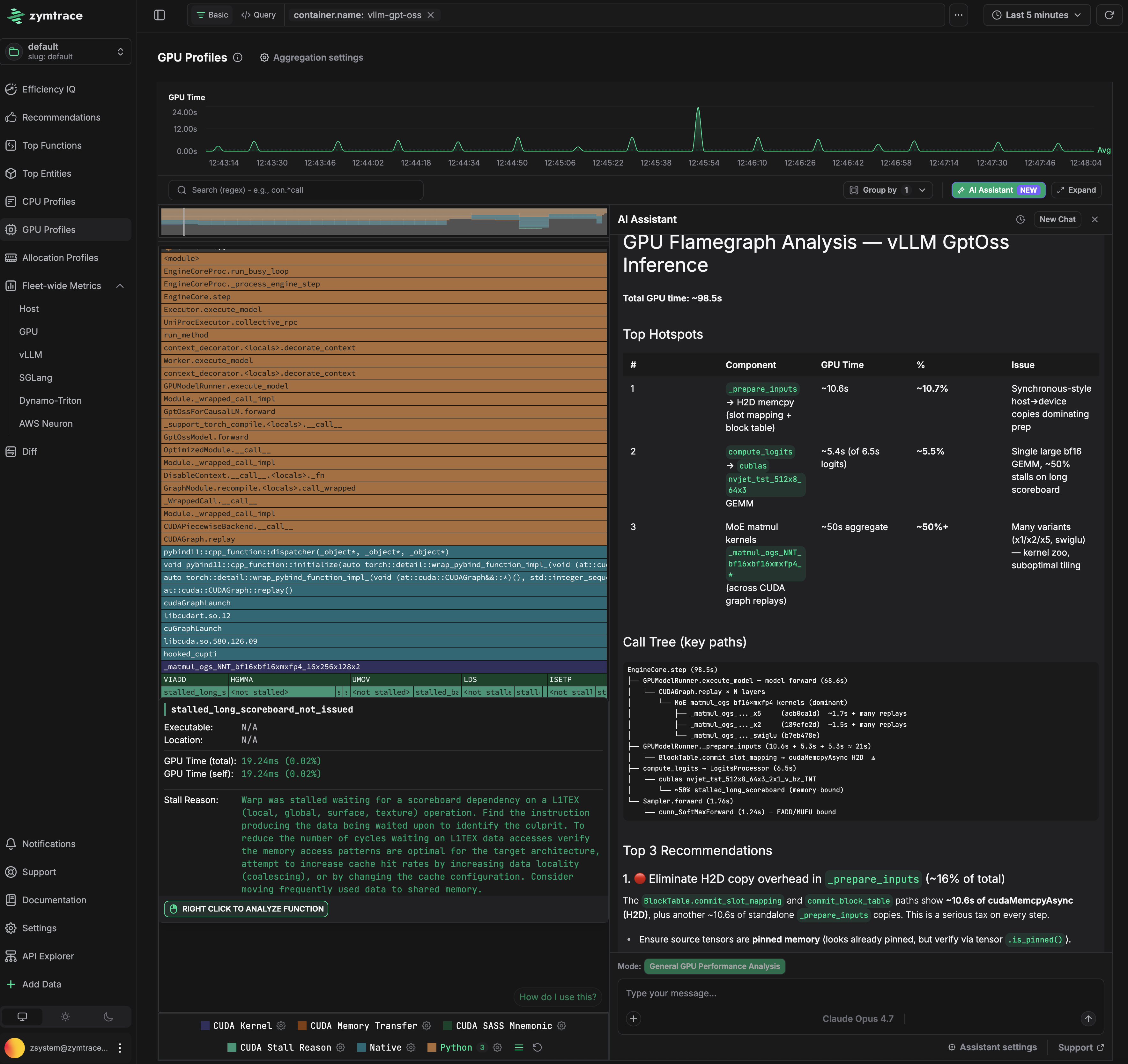
This is a `GPT-OSS` inference run on vLLM. The flamegraph on the left shows the full call path from Python down to CUDA kernels. The AI assistant on the right identified that `hal.matmul` is consuming ~50% of GPU time due to suboptimal kernel tiling, and that `_prepare_inputs` is stalling the GPU with synchronous host-to-device copies on every forward pass. Exact fixes for both are surfaced automatically.
:::
:::tip Get More Value – Let's Talk!
There's a good chance you could unlock more value from Zymtrace, and do it faster by having a quick chat with us about your use cases. We're a team of technical founders, not your typical pushy salespeople, and there's probably a thing or two we can learn from each other.
[Reach out to us here](https://www.zymtrace.com/getstarted) and we’ll set you up with an advanced trial licence.
You're also welcome to continue with the self-guided trial below.
:::
## Get Started in Just 3 Simple Steps!
Zymtrace is shipped with a free perpetual trial license — use it at no cost.
### Step 1: Add the Zymtrace Helm repository
[](https://artifacthub.io/packages/search?repo=zymtrace)
:::info Helm Chart Source
The Helm chart source code is available on GitHub: [zystem-io/zymtrace-charts](https://github.com/zystem-io/zymtrace-charts/tree/main/charts/)
:::
To get started, add the Zymtrace Helm repository by running the following command:
```sh
helm repo add zymtrace https://helm.zystem.io
```
To verify and list available charts and versions, use:
```sh
helm search repo zymtrace --versions
```
### Step 2: Install the backend components
Deploy the backend components using Helm:
```sh
helm upgrade --install backend zymtrace/backend \
--namespace zymtrace \
--create-namespace \
--reset-then-reuse-values \
--debug \
--atomic
```
### Step 3: Install the profiler as a DaemonSet
:::tip
The `collection-agent` arg should point to the gateway service or ingress, if you exposed it.
:::
Deploy the profiler as a DaemonSet using the following command:
**GPU Profiling enabled:**
```bash
helm install profiler zymtrace/profiler \
--namespace zymtrace \
--create-namespace \
--set profiler.cudaProfiler.enabled=true \
--set profiler.args[0]="--collection-agent=zymtrace-gateway.zymtrace.svc.cluster.local:80" \
--set profiler.args[1]="--disable-tls"
```
> **Note:** For NVIDIA GPU metrics, the profiler needs to locate the NVML library: add `--nvml-auto-scan` to the profiler args to detect it automatically, or `--nvml-path=/path/to/libnvidia-ml.so` if you know the exact path.
For a step-by-step guide to GPU profiling on NVIDIA and AMD with Binary, Docker, or Kubernetes, see the [GPU Profiler Quick Start](../install/profiler/gpu-profiler-quick-start.md). For advanced configuration, see [Profiling CUDA Applications](../install/profiler/profiling-gpu-workloads.md) and [AMD GPU Metrics & Profiles](/gpu/amd/gpu-metrics).
**For CPU Profiling only:**
```sh
helm install profiler zymtrace/profiler \
--namespace zymtrace \
--create-namespace \
--debug \
--set profiler.args[0]="--collection-agent=zymtrace-gateway.zymtrace.svc.cluster.local:80" \
--set profiler.args[1]="--disable-tls"
```
We also have [`arm64` and `x86/amd64`](../install/profiler/install-profiler#install-binary) binary distributions of the Zymtrace profiler.
### Step 1: Create directory and download Docker Compose file
Create a project directory and download the Zymtrace Docker Compose configuration:
{
`mkdir Zymtrace && cd Zymtrace
curl -LO https://dl.zystem.io/zymtrace/{current-version}/noarch/docker-compose.yml`
}
### Step 2: Start the backend services
Launch all backend services with Docker Compose:
```sh
docker compose up -d --remove-orphans
```
This will start:
- ClickHouse database
- PostgreSQL database
- MinIO object storage
- Zymtrace backend services (gateway, ingest, symdb, identity, ui, worker)
:::info License Key (Optional)
If you're using a licensed version, create a `.env` file with your license key. This is not required for the free trial version.
```bash
echo 'ZYMTRACE_LICENSE_KEY="paste-key-here"' > .env
```
Replace `paste-key-here` with your actual license key.
:::
### Step 3: Access the UI
Navigate to http://localhost:8080 to access the Zymtrace interface.
For profiler installation with Docker, refer to the [profiler installation guide](../install/profiler/install-profiler.md#install-docker).
## Start Using Zymtrace: Efficiency IQ
Once deployed, access the **Efficiency IQ** page for a high-level overview of your fleet's performance. From this view, you can quickly spot performance spikes and identify emerging usage patterns, allowing you to optimize your system effectively. You can also navigate to flamegraphs and functions page from the Efficiency IQ dashboard.
You're all set!
---
📐 Architecture
Learn about Zymtrace's architecture and components
Learn More
✨ Install Zymtrace Backend
Deploy Zymtrace backend
Learn More
⚡ Install Zymtrace Profiler
Install Zymtrace agent with Helm, Kubernetes manifests, Docker...
Learn More
---
# GPU Profiler Architecture
URL: https://docs.zymtrace.com/gpu-profiler-architecture
# Zymtrace GPU Profiler Architecture
## Overview
Zymtrace GPU profiling is heterogeneous by design, built for multi-silicon fleets: it supports **NVIDIA GPUs**, **AMD GPUs**, and **AWS Neuron** accelerators, all reporting into the same backend and the same views. Support for **Google TPUs** and **Cerebras** is coming soon.
On NVIDIA hardware, Zymtrace provides visibility down to `CUDA kernels`, disassembles `CUDA SASS` mnemonics, exposes GPU stall reasons, and correlates it all back to the `CPU traces` that launched the kernels, without requiring recompilation.
:::note Multi-silicon architecture
This page uses the NVIDIA (CUDA) profiler architecture as the base. The same approach mostly applies to AMD ROCm: a vendor tool library (`libzymtracerocmprofiler.so`) is loaded into the ROCm workload, kernel activity is correlated with the CPU stacks that launched it, and the combined traces flow through the same backend and flamegraph. See [AMD GPU Metrics & Profiles](/gpu/amd/gpu-metrics) for the AMD specifics, and the [Metrics Reference](/gpu/metrics-reference#neuron) for the AWS Neuron metrics.
:::
:::tip
Correlating CPU stack traces to CUDA kernels is a key differentiator in our approach, because most GPU idle cycles happen when the GPU is waiting on the CPU to finish execution.
:::
:::info GPU Metrics
GPU profiling provides detailed, CUDA kernel-level analysis for deep optimization insights. For high-level monitoring, consider starting with [GPU Metrics](/gpu/nvidia/gpu-metrics). Metrics help identify performance trends and anomalies, while profiling validates hypotheses with detailed CUDA kernel execution analysis. Together, they enable a complete GPU performance analysis workflow.
:::
## How the CUDA profiler works
The CUDA profiler is not a standalone component. It's a module within the [Zymtrace profiler](/architecture#zymtrace-profiler), which can be enabled by simply setting a flag. It consists of `libzymtracecudaprofiler.so`, a library that is shipped with the Zymtrace profiler. If enabled, the library is extracted into a specified directory upon startup and can be loaded into your CUDA workload via CUDA's `CUDA_INJECTION64_PATH` environment variable. Refer to the Kubernetes and Docker examples [here](./install/profiler/profiling-gpu-workloads.md).
The Zymtrace CUDA profiler collects information about kernel launches and completions. The profiler also samples high-granularity information about precisely which `GPU instructions (SASS)` are running on the GPU's compute cores and the reasons for what is currently preventing the kernel from making progress (stall reasons). **_These stall reasons provide clear indications on why the kernel is slow._** For example, there are stall reasons indicating that the GPU is waiting for a slow read from global memory or when it is waiting for an oversubscribed math pipeline. This information is pre-aggregated within the CUDA profiler and then sent out to `zymtrace-profiler`.
Within `libzymtracecudaprofiler.so`, we place callbacks on all `CUDA` functions that can launch a `CUDA` kernel. `zymtrace profiler` detects the CUDA profiler and places a `uprobe` on an exported function that is called each time that a kernel is launched. The `uprobe`, in turn, invokes the CPU stack unwinder that we're also using for CPU profiling in general. The `BPF` code additionally collects the necessary information about the kernel launch that is sent along with the stack trace to enable correlation with the data that is collected in the `CUDA` profiler library.
Once both the stack traces collected in `BPF` and the kernel launch/completion data arrive in `zymtrace profiler`, they are merged together and sent out as a single combined stack trace that spans from the user-mode code that enqueued the kernel into the CUDA kernel that got invoked on the GPU and, if enabled, the individual instructions and stall reasons.
These traces are then sent out to our backend, ready to be visualized as a flamegraph within our UI.
## Zymtrace AI flamegraph anatomy
The Zymtrace AI flamegraph displays stack traces from the CPU code down to the CUDA instruction offset. Our flamegraph renderer was built from the ground up in Rust and WebAssembly (WASM).
:::info
Refer to our blog post "[Zymtrace AI Flamegraph: Why We Ditched TypeScript for Rust and WebAssembly](https://zymtrace.com/article/zymtrace-ai-flamegraph/)" to learn more
:::
The diagram below shows the general execution flow of the Zymtrace AI flamegraph.
### use-case: GPT-OSS inference on vLLM
The AI flamegraph below captures a complete inference pass running `GPT-OSS` via `vLLM`, providing end-to-end visibility with zero friction.
Total GPU time for this pass is **98.5s**. Three problems are immediately visible.
**Problem 1: CPU is stalling the GPU in `_prepare_inputs`**
`_prepare_inputs` spends ~10.6s (10.7% of total) doing synchronous host-to-device copies for slot mapping and block table data. The flamegraph traces this directly to `BlockTable.convert_slot_mapping` and `lowest_bias_table`, which issue `cudaMemcpyAsync` calls that block the pipeline before each forward pass. The GPU sits idle waiting for data that the CPU could have staged earlier.
The fix: prefetch the block table and slot mapping to GPU memory before the forward pass begins, or keep them resident on device across steps rather than re-copying each iteration. Ensuring the source tensors use pinned memory (verifiable via `tensor.is_pinned()`) is a prerequisite for async copies to actually overlap with computation.
**Problem 2: Memory-bound GEMM in `compute_logits`**
The bf16 GEMM kernels in `compute_logits` account for ~5.4s, with 20% of that time stalled on `smsp__pcsamp_warps_issue_stalled_long_scoreboard` — warps waiting on L1TEX data dependencies to resolve. The kernel is issuing dependent memory loads faster than L1 can service them, causing the warp scheduler to stall. This points to a memory access pattern that is not cache-friendly for the current tile configuration.
**Problem 3: Suboptimal matmul tiling consuming 50% of GPU time**
`hal.matmul` is the single largest cost at ~50% of total GPU time. The flamegraph shows multiple competing tiling variants (`a16/a16`, `semgu`) being dispatched, which is a signal that vLLM's kernel selection is not converging on an optimal configuration for this batch size and model shape. Running vLLM's profiling-based kernel selection (`--enforce-eager` off, with a warmup sweep) to pre-select the best tiling for the deployment configuration would recover significant time here.
### GPU Time
The flamegraph tooltip contains GPU Time, broken down into total time and self time.
#### GPU Time (Total)
For `CPython` and `native` frames, Total GPU time indicates the GPU time (also shown as a relative percentage) consumed by `CUDA` kernels launched by the function (including its callees). For CUDA frames, it reflects the time spent executing the function's body.
#### GPU Time (Self)
For `CPython` and `native` frames, Self GPU time is always zero, as these frames are not executed on the GPU. For CUDA frames, Self GPU time reflects the time spent executing only the function's own body on the GPU. If PC sampling is enabled, timing is broken down into stall reasons, instructions, and PC offsets, with Self GPU time attributed only to offsets, enabling a fine-grained view of what happened during the kernel execution.
---
# AMD GPU Metrics & Profiles
URL: https://docs.zymtrace.com/gpu/amd/gpu-metrics
# AMD GPU Metrics & Profiles
AMD GPU metrics provide host-wide visibility into accelerator utilization, memory activity, power, temperature, and clocks. Use these metrics to identify an interesting host, device, or time window, then open the corresponding ROCm flamegraph to see the HIP kernels and CPU call stacks behind it.
- **Metrics** reveal trends and resource bottlenecks.
- **Profiling** attributes device time to HIP kernels, memory operations, synchronization, ROCTX ranges, and the CPU stacks that launched them.
## Requirements
- An x86_64 host using the `amdgpu` kernel driver
- A ROCm workload (ROCm 7.x or above)
- The zymtrace profiler running on the host with GPU support enabled by your license
- AMD SMI available to the profiler for metrics collection
- `libdrm_amdgpu.so.1` available for GPU names, memory metrics, and driver information
The profiler searches standard library paths automatically. Use `-amdsmi-path=/path/to/libamd_smi.so` or `-libdrm-path=/path/to/libdrm_amdgpu.so.1` only when the libraries are installed elsewhere.
## Enabling AMD GPU profiling
The profiler ships the ROCprofiler SDK and the zymtrace ROCm tool library. Start each ROCm workload with these environment variables so ROCprofiler loads the tool when the process starts:
```bash
ROCP_TOOL_LIBRARIES=/opt/zymtrace/profiler/libzymtracerocmprofiler.so
ROCPROFILER_REGISTER_LIBRARY=/opt/zymtrace/profiler/librocprofiler-sdk.so.1
```
For a containerized workload, mount the profiler's shared host directory and set both variables:
```bash
docker run \
-v /var/lib/zymtrace/profiler:/opt/zymtrace/profiler:ro \
-e ROCP_TOOL_LIBRARIES=/opt/zymtrace/profiler/libzymtracerocmprofiler.so \
-e ROCPROFILER_REGISTER_LIBRARY=/opt/zymtrace/profiler/librocprofiler-sdk.so.1 \
your-gpu-image
```
AMD profiling cannot attach to an already-running GPU process: the environment variables must be present when the ROCm process starts. The **Add Data** flow in the zymtrace UI generates deployment-specific Docker, Helm, and binary commands.
See the [GPU Profiler Environment Variables](/install/profiler/profiler-gpu-variables?gpu-vendor=amd) AMD tab for the complete reference of `ZYMTRACE_ROCMPROFILER__*` tuning variables.
## Available AMD GPU metrics
| Metric | Description | Unit |
|---|---|---|
| `hw.amd_gpu.utilization` | GPU engine utilization | % |
| `hw.amd_gpu.memory.activity` | Memory-controller activity | % |
| `hw.amd_gpu.multimedia.utilization` | Multimedia engine utilization | % |
| `hw.amd_gpu.memory.utilization` | VRAM currently in use | bytes |
| `hw.amd_gpu.power` | Current power usage | mW |
| `hw.amd_gpu.power_limit` | Configured power limit | mW |
| `hw.amd_gpu.temp` | GPU edge temperature, when the ASIC exposes an edge sensor | °C |
| `hw.amd_gpu.clock.graphics` | Current graphics clock | MHz |
| `hw.amd_gpu.clock.mem` | Current memory clock | MHz |
Metric availability depends on the GPU and AMD SMI support for that ASIC. Without `libdrm`, activity, power, temperature, and clock metrics can still be available, but GPU names, memory metrics, and driver information are unavailable.
See the [Metrics Reference](../metrics-reference.md#amd-gpu) for each metric's type, aggregation, and the chart it drives.
## Drilling down from metrics into ROCm profiles
Metrics, profiles, and CPU code are one connected workflow, not separate views. A typical investigation moves through three levels:
1. **Metrics.** Navigate to **Top Entities**, select an AMD GPU host, and inspect its metrics dashboard. A utilization, memory, power, temperature, or clock anomaly identifies the interesting device and time window. Clicking that data point scopes the analysis to it.
2. **ROCm profiles.** From the data point, open the ROCm flamegraph for that exact window. GPU time is broken down by HIP kernel, joined to the complete CPU call path that launched each one, from the application's Python frames through the framework and math libraries down to the kernel dispatch.
3. **The kernel and its launching CPU code.** Selecting a kernel frame opens its function details: the fully symbolized kernel name, its GPU time and share, its usage trend, the hosts it ran on, and the full CPU stack trace that launched it.
ROCm flamegraphs can contain:
- `rocm` frames for HIP kernel dispatches
- `rocm-memory` frames for memory copies and fills
- `rocm-sync` frames for synchronization operations
- `rocm-roctx` frames for ROCTX ranges
Profiles retain the GPU, stream, host process, and thread identity and are joined to the CPU stack that submitted the operation.
### Example: vLLM GPT-OSS on an MI325X
**Level 1: metrics.** The dashboard for an MI325X host serving vLLM GPT-OSS shows utilization, memory, power, temperature, and clock behavior. Any of these charts is a click away from the profile view for the same device and time window.
**Level 2: the ROCm flamegraph.** GPU time is attributed through the full launch path: the vLLM engine's Python frames (`EngineCore.step`, `GPUModelRunner.execute_model`), the PyTorch dispatcher, the rocBLAS/hipBLASLt stack (`hipblasLtMatmul`, `rocblaslt_matmul`, `TensileLite::hip::SolutionAdapter::launchKernels`), and finally the HIP kernels executing on the device. Every kernel sits directly under the CPU code that launched it.
**Level 3: the kernel.** Selecting a kernel frame opens its function details. Here the kernel is the rocBLAS GEMM, shown with its fully symbolized name:
```
rocBLAS GEMM TN [bf16xbf16→bf16, accum=f32] MT=256x64x64 WG=32x8 w64
```
That one name tells you the transpose configuration (`TN`), the data types (BF16 inputs and output with FP32 accumulation), the macro-tile size (`MT=256x64x64`), and the workgroup shape (`WG=32x8`, wave64). The details panel adds the kernel's GPU time and share, its AMD GPU usage trend over the selected window, the hosts it ran on, and the complete CPU stack trace that launched it, from `EngineCore.step` at the top of the vLLM engine down to the dispatch: the exact application code responsible for the device time.
## Roadmap
zymtrace is building AMD GPU support toward full parity with its NVIDIA capabilities. The following are on the roadmap for AMD GPUs:
- Per-process GPU utilization and memory metrics
- PCIe, NVLink or xGMI throughput metrics
- ECC, SM efficiency, occupancy, and Tensor Core metrics
- MIG-aware profiling
- Instruction-level PC sampling, ISA attribution, and stall reasons
- High-resolution GPU timeline
- AI recommendations for GPU profiles
---
# Inference Server Metrics
URL: https://docs.zymtrace.com/gpu/inference-server-metrics
# Inference Server Metrics
Zymtrace automatically detects and extracts application-level metrics from popular AI inference servers. These metrics complement [GPU metrics](/gpu/nvidia/gpu-metrics) and [CPU profiles](/gpu-profiler-architecture) by surfacing serving-layer performance data (throughput, queue depth, latency, cache efficiency, and more) directly alongside your profiling data. Collection is host-side and works the same on NVIDIA and AMD GPU nodes.
:::info Supported Inference Servers
- **[vLLM](https://github.com/vllm-project/vllm)**: [metrics collected](./metrics-reference#vllm)
- **[SGLang](https://github.com/sgl-project/sglang)**: [metrics collected](./metrics-reference#sglang)
- **[NVIDIA Dynamo-Triton](https://developer.nvidia.com/triton-inference-server)** (NVIDIA hosts): [metrics collected](./metrics-reference#triton)
:::
## How It Works
The profiler scrapes Prometheus-compatible metrics endpoints exposed by the inference server running on the same host. No changes to the inference server are required. The profiler automatically discovers the endpoint and begins collecting metrics at the interval configured by `-collect-metrics-interval` (default: 30s).
Collected metrics are forwarded to the Zymtrace backend alongside profiles and GPU metrics, making it possible to correlate high token latency or low cache hit rates directly with CPU and GPU profiling data.
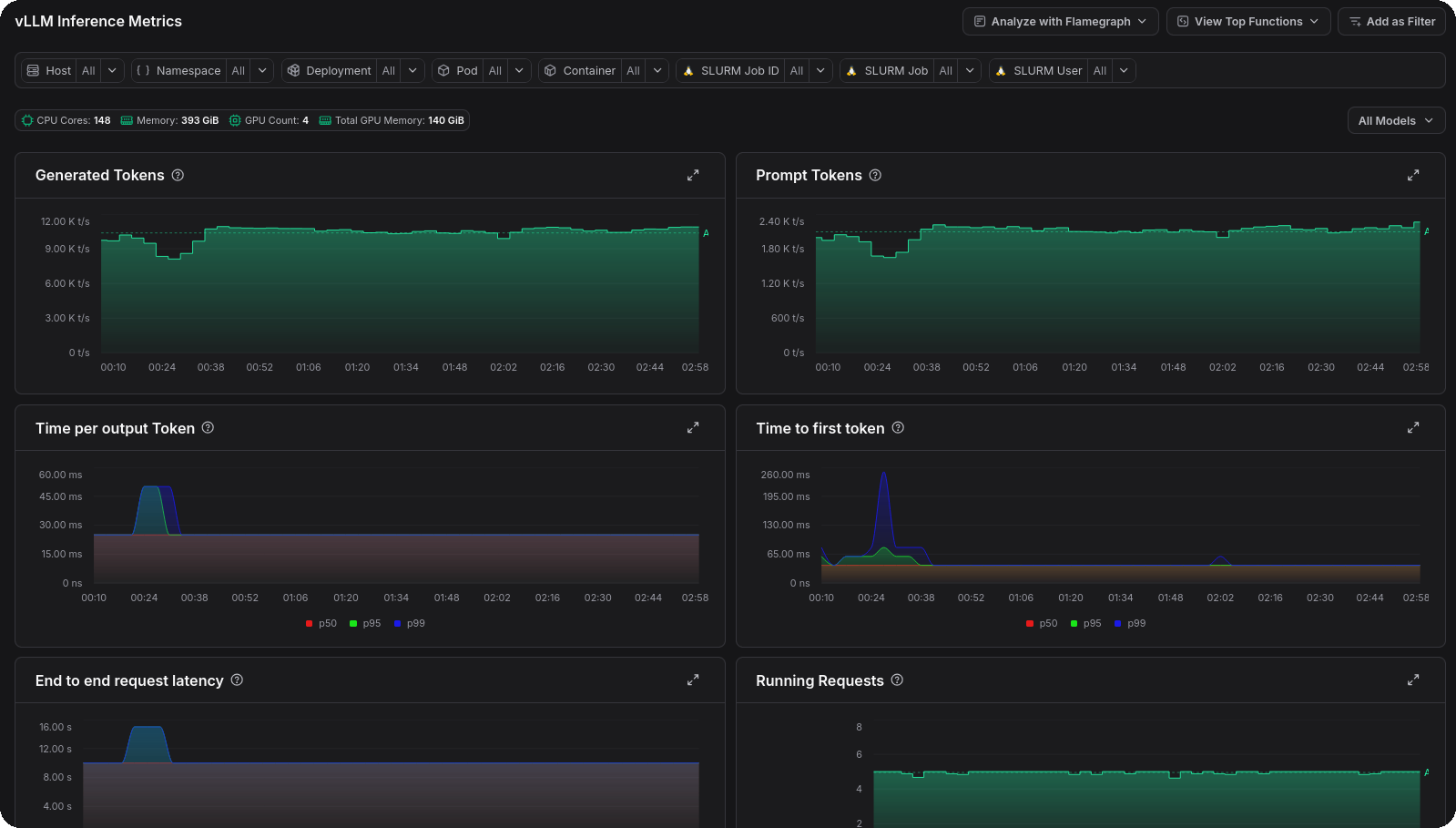
## Enabling Inference Server Metrics
Each inference server has a dedicated flag. All three are **enabled by default**, so no extra configuration is needed when the profiler is running alongside a supported server.
| Inference Server | CLI Flag | Environment Variable | Default |
|-----------------|----------|---------------------|---------|
| vLLM | `-enable-vllm-metrics` | `ZYMTRACE_ENABLE_VLLM_METRICS` | `true` |
| SGLang | `-enable-sglang-metrics` | `ZYMTRACE_ENABLE_SGLANG_METRICS` | `true` |
| NVIDIA Dynamo-Triton | `-enable-triton-metrics` | `ZYMTRACE_ENABLE_TRITON_METRICS` | `true` |
To explicitly disable metrics collection for a specific server, set the flag to `false`:
```bash
# Disable only vLLM metrics
sudo ./zymtrace-profiler \
-collection-agent=gateway.company.com:443 \
-enable-vllm-metrics=false
```
Or via environment variable:
```bash
export ZYMTRACE_ENABLE_VLLM_METRICS=false
sudo ./zymtrace-profiler -collection-agent=gateway.company.com:443
```
## Configuration Reference
See the [Profiler ENV & CLI Args](/install/profiler/profiler-configuration) page for the full list of configuration options, including `-collect-metrics-interval` which controls how frequently all metrics (GPU, host, and inference server) are scraped.
## Viewing metrics
To view the inference metrics in Zymtrace, expand the **Fleet-wide Metrics** entry
in the sidebar, then select **vLLM**, **SGLang**, or **Dynamo-Triton**.
## Digging deeper with profiles
Metrics tell you *what* is slow, profiles tell you *why*. When a metric data point looks anomalous, you can jump straight to the GPU flamegraph for that moment in time.
Click any data point on a metric chart and select **Analyze with GPU flamegraph** from the pop-up menu. Zymtrace will open the flamegraph scoped to that exact timestamp, so you can immediately see which CUDA or HIP kernels were consuming resources when the metric spiked.
The flamegraph below is scoped to a vLLM GPT-OSS container. GPU time is attributed from the vLLM engine loop (`EngineCore.step`, `GPUModelRunner.execute_model`) through CUDA graph replays down to the MoE matmul kernels (`_matmul_ogs_NNT_bf16xbf16xmxfp4_16x256x128x2`) and their SASS instructions and stall reasons. The AI assistant panel analyzes the same data and ranks the hotspots, here flagging host-to-device copy overhead in `_prepare_inputs` as the top optimization opportunity.
---
# Metrics Reference
URL: https://docs.zymtrace.com/gpu/metrics-reference
# Metrics Reference
Zymtrace collects metrics across five layers: the **host**, **NVIDIA GPUs** (including MIG partitions), **AMD GPUs**, **AWS Neuron** accelerators, and **inference servers** (vLLM, NVIDIA Dynamo-Triton, and SGLang). This page lists every metric by category: its key, type, the aggregation applied, the dimensions it can be grouped by, and the chart it drives.
To enable collection, see [NVIDIA GPU Metrics & Profiles](./nvidia/gpu-metrics.md), [AMD GPU Metrics & Profiles](./amd/gpu-metrics.md), and [Inference Server Metrics](./inference-server-metrics.md). The scrape frequency is controlled by `-collect-metrics-interval`; see [Profiler ENV & CLI Args](/install/profiler/profiler-configuration).
## Conventions
- **Metric key** — the metric identifier queried by the dashboard.
- **Temporal** — aggregation over time: `avg`, `max`, `rate`, `increase`.
- **Spatial** — aggregation across series/hosts: `avg`, `sum`, `max`.
- **Group-by** — the dimensions a chart breaks down by. *by process / script /
container* means the metric is charted per main executable, per script (Python),
and per container.
- Latency histograms report the `p50`, `p95`, and `p99` percentiles.
## Dashboards
Open the dashboards from **Fleet-wide Metrics** in the sidebar.
| Dashboard | Route |
|---|---|
| Host | `/dashboards/host` |
| NVIDIA GPU (incl. MIG) | `/dashboards/cuda` |
| AMD GPU | `/dashboards/rocm` |
| vLLM | `/dashboards/vllm` |
| SGLang | `/dashboards/sglang` |
| Dynamo-Triton | `/dashboards/triton` |
| AWS Neuron | `/dashboards/neuron` |
---
## Host
The **Process / Cgroup** toggle on the memory charts switches between resident-set memory (RSS) per process and working-set memory (WSS) per cgroup.
| Metric key | Type | Temporal | Spatial | Group-by | Chart | Description |
|---|---|---|---|---|---|---|
| `process.utime` | gauge | avg | sum | — | CPU Utilization | User-mode CPU. |
| `process.stime` | gauge | avg | sum | — | CPU Utilization | System/kernel-mode CPU. |
| `process.utime` | gauge | avg | sum | process / script / container | CPU Consumer (User) | User-mode CPU by consumer. |
| `process.stime` | gauge | avg | sum | process / script / container | CPU Consumer (System) | System-mode CPU by consumer. |
| `process.wss` | gauge | avg | sum | pod / container / deployment / namespace | Memory Consumer (Cgroup) | Working-set memory by cgroup entity. |
| `process.rss` | gauge | avg | sum | process / script / container | Memory Consumer (Process) | Resident-set memory by consumer. |
| `process.wss` | gauge | max | sum | — | Memory Utilization (Cgroup) | Total WSS across containers. |
| `process.rss` | gauge | max | sum | — | Memory Utilization (Process) | Total RSS across processes. |
| `io.read_throughput` | gauge | avg | sum | process / script / container | Disk Bytes Read | Bytes/s read per consumer. |
| `io.write_throughput` | gauge | avg | sum | process / script / container | Disk Bytes Written | Bytes/s written per consumer. |
| `io.network.read_throughput` | gauge | avg | sum | process / script / container | Network Bytes Received | Bytes/s received per consumer. |
| `io.network.write_throughput` | gauge | avg | sum | process / script / container | Network Bytes Sent | Bytes/s sent per consumer. |
| `io.read_latency` | histogram | increase | max | — | Disk Latency | Read op latency (p50/p95/p99). |
| `io.write_latency` | histogram | increase | max | — | Disk Latency | Write op latency (p50/p95/p99). |
| `io.discard_latency` | histogram | increase | max | — | Disk Latency | Discard/TRIM op latency (p50/p95/p99). |
| `io.flush_latency` | histogram | increase | max | — | Disk Latency | Flush op latency (p50/p95/p99). |
---
## NVIDIA GPU {#nvidia-gpu}
| Metric key | Type | Temporal | Spatial | Group-by | Chart | Description |
|---|---|---|---|---|---|---|
| `hw.gpu.utilization` | gauge | avg | avg | — | GPU Utilization | % time GPU actively processing. |
| `hw.gpu.process.utilization` | gauge | avg | avg | process / script / container | GPU Consumer | GPU utilization by process. |
| `hw.gpu.memory.utilization` | gauge | max | sum | — | GPU Memory Utilization | % VRAM in use. |
| `hw.gpu.process.memory.utilization` | gauge | max | sum | process / script / container | GPU Memory Consumer | GPU memory by process. |
| `hw.gpu.power` | gauge | avg | sum | — | GPU Power Usage | Current power draw (W). |
| `hw.gpu.temp` | gauge | avg | max | — | GPU Temperature | Current GPU temp (°C). |
| `hw.gpu.clock.sm` | gauge | avg | avg | — | Clock Frequencies | SM clock (MHz). |
| `hw.gpu.clock.mem` | gauge | avg | avg | — | Clock Frequencies | Memory clock (MHz). |
| `hw.gpu.clocks_throttle` | gauge | avg | max | `gpu.throttle_reason` | Clocks Throttle Reasons | Fraction of time each throttle reason active. |
| `hw.gpu.sm.efficiency` | gauge | avg | avg | — | SM Efficiency | SM efficiency (%). |
| `hw.gpu.sm.occupancy` | gauge | avg | avg | — | SM Occupancy | SM occupancy (%). |
| `hw.gpu.tensor_util` | gauge | avg | avg | — | Tensor Core Utilization | Tensor Core utilization (%). |
| `hw.gpu.pcie.rx` | gauge | avg | sum | — | PCIe Transmission Throughput | PCIe received. |
| `hw.gpu.pcie.tx` | gauge | avg | sum | — | PCIe Transmission Throughput | PCIe transmitted. |
| `hw.gpu.nvlink.rx` | gauge | avg | sum | — | NVLink Transmission Throughput | NVLink received. |
| `hw.gpu.nvlink.tx` | gauge | avg | sum | — | NVLink Transmission Throughput | NVLink transmitted. |
| `hw.gpu.tensor_util.dfma` | gauge | avg | avg | — | Tensor Core Breakdown | DFMA (FP64). |
| `hw.gpu.tensor_util.hmma` | gauge | avg | avg | — | Tensor Core Breakdown | HMMA (FP16). |
| `hw.gpu.tensor_util.dmma` | gauge | avg | avg | — | Tensor Core Breakdown | DMMA (INT8 sparse). |
| `hw.gpu.tensor_util.imma` | gauge | avg | avg | — | Tensor Core Breakdown | IMMA (integer). |
| `hw.gpu.fp64_util` | gauge | avg | avg | — | FP & Integer Utilization | FP64. |
| `hw.gpu.fp32_util` | gauge | avg | avg | — | FP & Integer Utilization | FP32. |
| `hw.gpu.fp16_util` | gauge | avg | avg | — | FP & Integer Utilization | FP16. |
| `hw.gpu.integer_util` | gauge | avg | avg | — | FP & Integer Utilization | Integer. |
| `hw.gpu.dram_bw_util` | gauge | avg | avg | — | DRAM Bandwidth Utilization | % DRAM bandwidth vs max. |
| `hw.gpu.hostmem_cache_hit` | gauge | avg | avg | — | L2 Cache Hit Rates | Host memory (PCIe); Grace-coupled only. |
| `hw.gpu.peermem_cache_hit` | gauge | avg | avg | — | L2 Cache Hit Rates | Peer GPU memory (NVLink). |
| `hw.gpu.dram_cache_hit` | gauge | avg | avg | — | L2 Cache Hit Rates | CPU DRAM (C2C). |
| `hw.gpu.hostmem_cache_miss` | gauge | avg | avg | — | L2 Cache Miss Rates | Host memory (PCIe); Grace-coupled only. |
| `hw.gpu.peermem_cache_miss` | gauge | avg | avg | — | L2 Cache Miss Rates | Peer GPU memory (NVLink). |
| `hw.gpu.dram_cache_miss` | gauge | avg | avg | — | L2 Cache Miss Rates | CPU DRAM (C2C). |
| `hw.gpu.c2c.data_rx` | gauge | avg | sum | — | C2C Bandwidth | Chip-to-chip received; Grace/NVL only. |
| `hw.gpu.c2c.data_tx` | gauge | avg | sum | — | C2C Bandwidth | Chip-to-chip transmitted. |
### NVIDIA GPU — MIG partitions {#gpu--mig-partitions}
Scoped to MIG devices.
| Metric key | Type | Temporal | Spatial | Group-by | Chart / usage | Description |
|---|---|---|---|---|---|---|
| `hw.gpu.memory.utilization` | gauge | max | sum | — | Combined MIG — GPU Memory Utilization | VRAM % for selected/all MIG devices. |
| `hw.gpu.utilization` | gauge | avg | avg | — | Combined MIG — GPU Utilization | Active-processing % for MIG devices. |
| `hw.gpu.tensor_util` | gauge | avg | avg | — | Combined MIG — Tensor Core Utilization | Tensor Core % for MIG devices. |
| `hw.gpu.utilization` | gauge | avg | avg | `gpu.uuid`, `gpu.name`, `host.name` | MIG devices table | "Utilization" column + device discovery. |
| `hw.gpu.memory.utilization` | gauge | max | sum | `gpu.uuid`, `gpu.name`, `host.name` | MIG devices table | "Memory" column per MIG device. |
| `hw.gpu.tensor_util` | gauge | avg | avg | `gpu.uuid`, `gpu.name`, `host.name` | MIG devices table | "Tensor Util" column per MIG device. |
---
## AMD GPU {#amd-gpu}
AMD device metrics are reported per device and are not available per process. Metric availability depends on the GPU and AMD SMI support for that ASIC; without `libdrm`, GPU names and memory metrics are unavailable.
| Metric key | Type | Temporal | Spatial | Group-by | Chart | Description |
|---|---|---|---|---|---|---|
| `hw.amd_gpu.utilization` | gauge | avg | avg | — | GPU Utilization | % time GPU actively processing. |
| `hw.amd_gpu.memory.activity` | gauge | avg | avg | — | GPU Memory Activity | How actively the memory controllers service requests (%). |
| `hw.amd_gpu.multimedia.utilization` | gauge | avg | avg | — | Multimedia Engine Utilization | Multimedia encode/decode engine utilization (%). |
| `hw.amd_gpu.memory.utilization` | gauge | max | sum | — | GPU Memory Utilization | GPU memory currently in use (bytes); reported per device, fleet total is the spatial sum. |
| `hw.amd_gpu.power` | gauge | avg | sum | — | GPU Power | Current power usage (mW). |
| `hw.amd_gpu.power_limit` | gauge | max | sum | — | GPU Power | Configured power limit (mW). |
| `hw.amd_gpu.temp` | gauge | avg | max | — | GPU Temperature | GPU edge temperature (°C), where the ASIC exposes an edge sensor. |
| `hw.amd_gpu.clock.graphics` | gauge | avg | avg | — | Clock Frequencies | Current graphics clock (MHz). |
| `hw.amd_gpu.clock.mem` | gauge | avg | avg | — | Clock Frequencies | Current memory clock (MHz). |
---
## AWS Neuron {#neuron}
| Metric key | Type | Temporal | Spatial | Group-by | Chart | Description |
|---|---|---|---|---|---|---|
| `hw.process.neuron.memory.utilization` | gauge | avg | sum | process / script / container | Neuron Runtime Memory Usage by process | Runtime memory by process. |
| `hw.process.neuron.inference_count` | gauge | avg | sum | process / script / container | Neuron Inferences by process | Successful inferences by process. |
| `hw.process.neuron.model_load_count` | gauge | avg | sum | process / script / container | Neuron Model Loads by process | Model loads by process. |
| `hw.process.neuron.flop_count` | gauge | avg | sum | process / script / container | Neuron Device FLOP/s by process | Device FLOP/s by process. |
| `hw.process.neuron.memory.utilization` | gauge | max | sum | — | Neuron Device Memory Usage | Total device memory usage. |
| `hw.neuron.power.utilization` | gauge | max | avg | — | Neuron Device Peak Power Utilization | Peak device power. |
| `hw.neuron.core.inference_count` | gauge | avg | sum | — | Neuron Inferences | Total successful inferences. |
| `hw.neuron.core.model_load_count` | gauge | avg | sum | — | Neuron Model Loads | Total model loads. |
| `hw.process.neuron.flop_count` | gauge | avg | sum | — | Neuron Device FLOP/s | Total device FLOP/s. |
---
## vLLM
Optionally scoped to a selected model.
| Metric key | Type | Temporal | Spatial | Group-by | Chart | Description |
|---|---|---|---|---|---|---|
| `vllm:generation_tokens_total` | gauge | rate / avg | sum | process / script / container | Generated Tokens | Output tokens produced. |
| `vllm:prompt_tokens_total` | gauge | rate / avg | sum | process / script / container | Prompt Tokens | Input tokens processed. |
| `vllm:time_per_output_token_seconds` | histogram | increase | max | process / script / container | Time per output Token | Per-output-token latency (p50/p95/p99). |
| `vllm:time_to_first_token_seconds` | histogram | increase | max | process / script / container | Time to first token | TTFT latency (p50/p95/p99). |
| `vllm:e2e_request_latency_seconds` | histogram | increase | max | process / script / container | End to end request latency | E2E latency (p50/p95/p99). |
| `vllm:num_requests_running` | gauge | avg | sum | process / script / container | Running Requests | In-flight requests. |
| `vllm:kv_cache_usage_perc` | gauge | avg | avg | process / script / container | KV Cache Usage | KV-cache memory utilization %. |
---
## Dynamo-Triton {#triton}
Optionally scoped to a selected model.
| Metric key | Type | Temporal | Spatial | Group-by | Chart | Description |
|---|---|---|---|---|---|---|
| `nv_inference_count` | gauge | avg | sum | process / script / container | Inferences | Inferences performed (excl. cached). |
| `nv_inference_request_success` | gauge | avg | sum | process / script / container | Successful Inferences | Successful requests, all batch sizes. |
| `nv_inference_request_failure` | gauge | avg | sum | process / script / container | Failed Inferences | Failed requests, all batch sizes. |
| `nv_inference_exec_count` | gauge | avg | sum | process / script / container | Model Executions | Model executions (excl. cached). |
| `nv_inference_request_duration_us` | gauge | avg | sum | process / script / container | Request Duration | Cumulative request duration (incl. cached). |
| `nv_inference_queue_duration_us` | gauge | avg | sum | process / script / container | Queue Duration | Cumulative queuing duration (incl. cached). |
| `nv_inference_compute_input_duration_us` | gauge | avg | sum | process / script / container | Compute Input Duration | Cumulative compute-input duration (excl. cached). |
| `nv_inference_compute_infer_duration_us` | gauge | avg | sum | process / script / container | Compute Inference Duration | Cumulative compute-infer duration (excl. cached). |
| `nv_inference_compute_output_duration_us` | gauge | avg | sum | process / script / container | Compute Output Duration | Cumulative compute-output duration (excl. cached). |
| `nv_inference_pending_request_count` | gauge | avg | sum | process / script / container | Pending Requests | Pending requests awaiting execution per model. |
| `nv_model_load_duration_secs` | gauge | avg | sum | process / script / container | Model Load Duration | Model load duration. |
| `nv_pinned_memory_pool_used_bytes` | gauge | avg | sum | process / script / container | Pinned Memory Pool Used | Pinned memory pool used. |
| `nv_pinned_memory_pool_total_bytes` | gauge | avg | sum | process / script / container | Pinned Memory Pool Total | Total pinned memory pool size. |
---
## SGLang
Optionally scoped to a selected model.
| Metric key | Type | Temporal | Spatial | Group-by | Chart | Description |
|---|---|---|---|---|---|---|
| `sglang:generation_tokens_total` | gauge | avg | sum | process / script / container | Generated Tokens | Output tokens produced. |
| `sglang:num_requests_total` | gauge | avg | sum | process / script / container | Requests Processed | Requests processed. |
| `sglang:prompt_tokens_total` | gauge | avg | sum | process / script / container | Prompt Tokens | Input tokens processed. |
| `sglang:gen_throughput` | gauge | avg | sum | process / script / container | Generation Throughput | Tokens/s generation throughput. |
| `sglang:time_to_first_token_seconds` | histogram | increase | max | process / script / container | Time to first token | TTFT latency (p50/p95/p99). |
| `sglang:e2e_request_latency_seconds` | histogram | increase | max | process / script / container | End to end request latency | E2E latency (p50/p95/p99). |
| `sglang:cache_hit_rate` | gauge | avg | avg | process / script / container | Prefix Cache Hit Rate | Prefix cache hit rate. |
| `sglang:num_running_reqs` | gauge | avg | sum | process / script / container | Running Requests | In-flight requests. |
| `sglang:num_queue_reqs` | gauge | avg | sum | process / script / container | Queued Requests | Requests in waiting queue. |
---
## Host summary cards
Metrics behind the host-stats summary cards. Spatial aggregation is `max` (or `sum` depending on the view).
| Metric key | Type | Temporal | Spatial | Group-by | Purpose |
|---|---|---|---|---|---|
| `host.core_count` | gauge | max | max\|sum | — | CPU cores card. |
| `host.memory` | gauge | max | max\|sum | — | Memory card. |
| `gpu.memory` | gauge | max | max\|sum | — | GPU memory card. |
| `gpu.count` | gauge | max | max\|sum | — | GPU count card. |
| `amd_gpu.memory` | gauge | max | max\|sum | — | AMD GPU memory card. |
| `amd_gpu.count` | gauge | max | max\|sum | — | AMD GPU count card. |
| `neuron.memory` | gauge | max | max\|sum | — | Neuron memory card. |
| `neuron.device.count` | gauge | max | max\|sum | — | Neuron device count card. |
| `neuron.core.count` | gauge | max | max\|sum | — | Neuron core count card. |
---
# Multi-GPU Profiling
URL: https://docs.zymtrace.com/gpu/multi-gpu
```mdx-code-block
import Tabs from '@theme/Tabs';
import TabItem from '@theme/TabItem';
```
# Multi-GPU Profiling
Zymtrace is designed from the ground up for multi-GPU, multi-host, multi-workload profiling, regardless of GPU vendor. There is
nothing special you need to do: simply [deploy the profiler](/install/profiler/gpu-profiler-quick-start)
on every node you want to observe and all data flows into the same backend, ready to be explored as a
unified view or sliced by any dimension you care about.
## How It Works
The Zymtrace profiler runs as a lightweight, zero-friction agent on each host. When deployed as a
**Kubernetes DaemonSet** it is placed on every node in the cluster automatically. For bare-metal or
VM deployments you install one profiler binary per host. Either way, every agent sends its data to
the same [backend ingest service](/architecture#ingest-service), which stores and indexes it in
ClickHouse together with all the OTEL resource attributes that identify where the data came from
(host name, pod name, namespace, container, etc.).
```mermaid
flowchart TD
subgraph NodeA["Node A"]
gpuA["GPU 0 · GPU 1 · GPU 2"]
profA["zymtrace profiler"]
gpuA --> profA
end
subgraph NodeB["Node B"]
gpuB["GPU 0 · GPU 1"]
profB["zymtrace profiler"]
gpuB --> profB
end
subgraph NodeC["Node C"]
gpuC["GPU 0"]
profC["zymtrace profiler"]
gpuC --> profC
end
profA & profB & profC --> backend["zymtrace backend: single unified view"]
```
There are no extra multi-GPU flags on the profiler. The same command you use for a single node
works across an entire fleet. Each GPU workload is enabled the same way it would be on a single node:
CUDA workloads are profiled via [injection or attach](/install/profiler/profiling-gpu-workloads); no per-node changes are needed when scaling out.
Each ROCm workload must be started with the [AMD profiling environment variables](/gpu/amd/gpu-metrics#enabling-amd-gpu-profiling). No additional profiler flag is required when moving from one GPU to several GPUs.
:::tip Single backend, any scale
Because every profiler agent reports to the same backend, adding more GPU nodes never requires changes
to your backend setup. Just deploy the agent on the new host and data appears automatically. A mixed
NVIDIA and AMD fleet can use the same backend and the same views.
:::
## Filtering and Grouping Data
Once data is flowing in from multiple nodes, use the [filter system](/features/filtering-data) to
slice it any way you need. The filter bar is available on every page (Efficiency IQ, Top Functions,
Top Entities, Flamegraphs, and Diff) and anything you set persists as you navigate between views.
### Key Attributes for Multi-GPU Workflows
| Attribute | Example Value | Use Case |
|-----------|---------------|----------|
| `host.name` | `gpu-node-42` | Isolate a single physical or virtual machine |
| `cluster.name` | `training-cluster-prod` | Scope to an entire cluster |
| `gpu.name` | `NVIDIA H100 80GB HBM3`, `AMD Instinct MI300X` | Filter by GPU model (or vendor) across all nodes |
| `k8s.namespace.name` | `ml-production` | Scope to a whole Kubernetes namespace |
| `k8s.deployment.name` | `vllm-deployment` | Compare all replicas of a deployment |
| `k8s.pod.name` | `vllm-server-0` | Focus on one pod across any node it runs on |
| `container.name` | `inference-worker` | Drill into a specific container |
| `user.tag` | `gpu_type:h100` | Filter by your own custom tags |
For the full list of supported filter attributes see [Filtering Data](/features/filtering-data#filter-attributes).
## Fleet-Wide Analysis with Top Entities
The [Top Entities](/features/top-entities) view is the natural starting point for fleet-wide GPU
analysis. Switch to the **Hosts** grouping to see every GPU node ranked by CPU or GPU resource
consumption in a single list. From there you can:
- **Spot outliers**: a node consuming far more or far less than its peers is worth investigating.
- **Drill into a specific node**: click any host to see its GPU metrics (utilization, memory, power,
and more) and navigate directly to flamegraphs or top functions for that node.
- **Group by Namespace, Deployment, or Pod**: understand how GPU resources are distributed across
teams, services, or replicas.
- **Filter by `gpu.name`**: compare like-for-like devices across the fleet, or scope a view to one
vendor or device family in a mixed fleet.
## Comparing GPU Nodes with Diff
If you want to compare the performance of two GPU nodes, for example an H100 versus an A100, or an
MI300X versus an MI325X running the same workload, use the [Diff view](/features/diff). Apply a
filter for each node in the two time windows being compared to get a function-level breakdown of
what differs, down to the CUDA or HIP kernels and CPU call paths that account for the difference.
---
# NVIDIA GPU Metrics
URL: https://docs.zymtrace.com/gpu/nvidia/gpu-metrics
# NVIDIA GPU Metrics
GPU metrics complement profiles by providing high-level visibility into GPU performance, resource utilization, and hardware health. Use metrics to form hypotheses about performance issues, then dive deeper with [GPU profiling](/gpu-profiler-architecture) for detailed analysis:
- **Metrics** help you form hypotheses by revealing performance trends and identifying potential bottlenecks
- **Profiling** provides detailed CUDA kernel-level analysis to validate hypotheses and pinpoint optimization opportunities
Together, they enable a complete GPU performance analysis workflow from hypothesis formation to detailed optimization.
:::info Important Usage Notes
Metrics are designed for monitoring purposes. If you need deep visibility into your code and how efficiently it runs on GPUs, use [profiling](/gpu-profiler-architecture). A typical workflow is to start from an interesting data point on high or low power or memory consumption, click on it, and navigate to the corresponding GPU profiles for detailed analysis.
Note that **Tensor Core**, **SM Efficiency**, and **SM Occupancy** metrics are only available on data center GPUs such as H100s and H200s.
:::
## Enabling GPU Metrics
GPU metrics collection is **enabled by default**, so no `--enable-gpu-metrics` flag is required. On NVIDIA hosts, the profiler also needs to locate the NVML library: add `--nvml-auto-scan` to detect it automatically, or `--nvml-path=/path/to/libnvidia-ml.so` if you know the exact path. See the [installation guide](/install/profiler/install-profiler) for Helm, Docker, binary, and systemd instructions.
To turn metrics collection off, set `-enable-gpu-metrics=false`. See [Profiler ENV & CLI Args](/install/profiler/profiler-configuration).
## Available GPU Metrics {#available-gpu-metrics}
Zymtrace collects GPU metrics across four categories — **Performance** (GPU utilization and per-process consumers, SM efficiency/occupancy, Tensor Core utilization), **Memory** (VRAM utilization and per-process consumers), **Hardware** (power, temperature, clocks), and **Data Transfer** (PCIe, NVLink, and C2C throughput). SM Efficiency, SM Occupancy, and Tensor Core metrics are available only on data center GPUs (H100, H200, etc.).
For the complete list — every metric key, type, aggregation, and grouping dimension — see the **[Metrics Reference](../metrics-reference.md#nvidia-gpu)**.
## How GPU Metrics Collection Works
Zymtrace uses NVIDIA's NVML (NVIDIA Management Library) to collect GPU metrics. NVML provides a C API for monitoring and managing NVIDIA GPU devices, enabling us to gather real-time performance, utilization, and health data directly from the GPU hardware.
## Using GPU Metrics with GPU Profiles
Once GPU metrics are enabled, you can navigate to **Top Entities** and select your GPU host to see the metrics dashboard. This view displays real-time and historical data across all categories, giving insight into patterns in utilization, memory usage, and power consumption. By examining these trends, you can identify anomalies that might indicate performance issues. Clicking on specific data points then allows you to drill down into detailed GPU profiles.
For more granular investigation, the metrics also provide process-level breakdowns. Expanding individual metric widgets shows which processes are consuming the most resources. For example, in our analysis, Hugging Face's [GPU Fryer](https://github.com/huggingface/gpu-fryer) consumes roughly 90% of available GPU memory. This immediately suggests a hypothesis: high memory pressure could be contributing to performance degradation. Metrics like this guide the investigation toward examining memory allocation patterns and kernel execution characteristics for the process in question.
Clicking on the relevant data point, you can analyze the data with GPU profiles. The flamegraph above is scoped to a PyTorch ResNet inference script (`script.name: /root/ava_resnet/ava_scorer_v1.py`) and attributes GPU time through the full launch path: the Python module stack (`Sequential.forward`, `Bottleneck.forward`, `ReLU.forward`), the ATen operators behind it (`at::_ops::relu_`, `clamp_min_`), the CUDA runtime and driver (`cudaLaunchKernel`, `cuLaunchKernel`), and finally the CUDA kernel:
```
at::native::vectorized_elementwise_kernel
```
Below the kernel, the flamegraph continues to the instruction level: SASS mnemonics such as `FSETP`, `S2R`, and `IMAD`, and the PC-sampling stall reasons behind them. The selected stall reason here is `smsp__pcsamp_warps_issue_stalled_long_scoreboard`, accounting for 15.99s (1.17%) of GPU time. It means warps were stalled waiting on a scoreboard dependency for an L1TEX (local, global, surface, or texture) memory operation: the kernel is memory-bound on this path.
The built-in AI assistant analyzes the same flamegraph and turns the observation into an actionable recommendation. In this run it flags memory-layout conversion overhead (the `nchwToNhwcKernel` and `nhwcToNchwKernel` cuDNN kernels, roughly 5.7% of total GPU time combined) and suggests running the model in `torch.channels_last` memory format to eliminate the conversions, with an expected end-to-end improvement of 5 to 8%.
## Understanding the Metrics
### Performance Metrics
**GPU Utilization** provides the overall percentage of time your GPU is actively processing workloads. This is a key indicator of how well your GPU resources are being utilized.
**GPU Consumer** breaks down GPU utilization by process, helping you identify which applications or workloads are consuming the most GPU resources.
**SM Efficiency** measures how effectively the Streaming Multiprocessors are being utilized. It indicates the percentage of cycles where the SM has one or more of its assigned warps actively making progress in their execution. Low efficiency might indicate suboptimal kernel configurations or inefficient memory access patterns.
**SM Occupancy** shows the percentage of maximum possible threads that are active on the SMs. While higher occupancy often correlates with better performance, this isn't always the case.
**Tensor Core Utilization** is particularly important for AI/ML workloads, as it shows how well you're leveraging the specialized hardware designed for these operations.
### Memory Metrics
**GPU Memory Utilization** shows how much of your GPU's VRAM is currently in use. Monitoring this metric helps prevent out-of-memory errors and optimize memory allocation strategies.
**GPU Memory Consumer** provides a breakdown of memory usage by process, helping identify which applications consume the most memory.
### Hardware Metrics
**GPU Power Usage** and **GPU Temperature** are crucial for understanding the thermal and power characteristics of your workloads. These metrics help with capacity planning and thermal management strategies.
### Data Transfer Metrics
**PCIe Transmission Throughput** measures data movement between the GPU and system memory, which can become a bottleneck for data-intensive workloads.
**NVLink Transmission Throughput** (available on supported hardware) measures high-speed GPU-to-GPU communication, which is critical for multi-GPU workloads.
---
# MIG-Aware GPU Profiling
URL: https://docs.zymtrace.com/gpu/nvidia/mig-support
# MIG-Aware GPU Profiling
Zymtrace supports NVIDIA Multi-Instance GPU (MIG) devices. When MIG is enabled on a GPU, Zymtrace automatically detects the MIG topology and profiles each instance independently, with no additional configuration required.
## What is MIG?
NVIDIA's [Multi-Instance GPU (MIG)](https://www.nvidia.com/en-us/technologies/multi-instance-gpu/) technology partitions a single physical GPU into up to seven fully isolated instances, each with its own dedicated high-bandwidth memory, cache, and compute cores. MIG is available on Hopper, Blackwell, and Rubin architectures.
MIG is commonly used in multi-tenant AI inference clusters where multiple models or users share the same hardware. Each MIG instance operates with full hardware-level isolation, ensuring that workloads on one slice cannot interfere with workloads on another.
## How it works
Zymtrace detects MIG topology automatically from the host. If MIG is enabled, each instance appears as a separate device in the Zymtrace UI with its own:
- **GPU utilization** metrics
- **Memory utilization** metrics
- **Tensor Core utilization** metrics
- **Full-stack GPU flamegraphs** attributed to that specific instance
From any MIG instance, you can drill directly into a GPU flamegraph scoped to that slice: CPU call stacks correlated with GPU kernel activity, attributed to the exact MIG profile running your workload.
:::tip No configuration needed
MIG detection is fully automatic. No code changes, no sidecars, no instrumentation, and no additional flags are required. If MIG is enabled on the host, Zymtrace sees it.
:::
## Requirements
- NVIDIA GPU with MIG support (Hopper, Blackwell, or Rubin architecture)
- MIG mode enabled on the GPU
- [GPU metrics](/gpu/nvidia/gpu-metrics) enabled in the Zymtrace profiler (on by default)
## Enabling MIG profiling
MIG support is included automatically when GPU metrics are enabled, which is the default. Follow the standard [GPU metrics setup](/gpu/nvidia/gpu-metrics#enabling-gpu-metrics); on NVIDIA hosts the only flag you may need is NVML discovery (`--nvml-auto-scan` or `--nvml-path`).
See the [installation guide](/install/profiler/install-profiler) for Helm, Docker, binary, and systemd instructions.
## Using MIG metrics
Once deployed on a node with MIG-enabled GPUs, navigate to **Top Entities** and select your GPU host. Each MIG instance appears as a separate device in the metrics dashboard, showing per-instance utilization, memory, and Tensor Core metrics.
Clicking on a specific MIG instance lets you drill down into the GPU flamegraph for that slice, enabling you to identify exactly which kernels or CPU code paths are responsible for performance issues on that particular instance.
### Example
Consider three H200 `2g.35gb` MIG instances on the same node running at 85%, 48%, and 93.6% GPU utilization. Averaged at the physical GPU level, they appear reasonable. But the instance at 48% is severely underutilizing its allocated resources. A per-instance flamegraph surfaces exactly what is causing it to leave performance on the table.
## Related
- [GPU Metrics & Profiles](/gpu/nvidia/gpu-metrics) — Enabling and using GPU metrics
- [GPU Profiler Architecture](/gpu-profiler-architecture) — How CUDA profiling works in Zymtrace
- [GPU Profiler Environment Variables](/install/profiler/profiler-gpu-variables) — Configuration reference for GPU profiling
---
# GPU Timeline
URL: https://docs.zymtrace.com/gpu/nvidia/timeline
# GPU Timeline
The timeline view plots what each GPU was doing, moment to moment, over a short window: the CUDA kernels launched on every stream and how much GPU memory each process held. Use it to line up a memory spike with the work running at that moment, or to see how work is distributed across streams and GPUs.
Unlike the [GPU metrics](/gpu/nvidia/gpu-metrics) dashboard, which trends utilization and memory over long ranges, the timeline is a high-resolution, per-kernel view meant for zooming into a few seconds of activity.
:::info Beta feature, requires high-resolution profiling
The timeline is in **Beta**. It is populated only while **high-resolution profiling** is enabled, which has **high overhead** — turn it on for short windows and scope it to the specific hosts or pods you are investigating. See [Enabling high-resolution profiling](#enabling-high-resolution-profiling) below.
:::
## Enabling high-resolution profiling
High-resolution profiling is **off by default**. When enabled, it collects per-kernel-launch CUDA events with nanosecond precision instead of aggregating them, and samples GPU memory far more often than the default `-collect-metrics-interval`. The denser memory sampling increases the volume of memory series sent over the wire and stored.
Enable it from a rule under **Settings → Agent Config**:
1. Open **Settings → Agent Config** and click **+ Add Rule**.
2. Scope the rule with a CEL expression to the process, container, or host you want to inspect.
3. Turn on the **High-Resolution Profiling** setting.
4. Set an expiry so profiling stops on its own. High-resolution rules require one.
:::warning Keep the window short
Per-kernel collection is expensive. High-resolution profiling records every kernel launch instead of sampling them, so its cost scales with your launch rate. On a high-throughput workload it takes roughly 400mc of extra CPU for the profiled scope, on top of the baseline cost in the [profiler resource guide](/install/profiler/profiler-resource-guide). Enable it just long enough to capture the behavior you are chasing, on as narrow a scope as possible, then let the rule expire.
:::
## Opening the timeline
The timeline lives behind an overview chart showing high-resolution event density over your selected range.
Brush a sub-window on that chart to load its detail.
The profiler builds the timeline for that slice and renders it.
If the brushed window holds too many events, the view reports **"Too many events to load"** instead of rendering.
Select a shorter interval, or narrow the query, and try again.
If a range shows **"No high-resolution data in this range"**, high-resolution profiling was not active for those hosts during that time.
Enable it (see above) and capture a fresh window.
## Reading the timeline
Tracks are grouped top-down by **process**, then by **GPU**, then by the streams on that GPU:
```
my-training-job (pid 4812) ← process
GPU 0 ← GPU on that process
Stream 7 ← CUDA stream: kernel launches
Stream 13
GPU Memory ← memory the process held on that GPU
GPU 1
Stream 7
GPU Memory
```
- **Process** groups every GPU a single process touched, labeled with the executable name and pid.
- **GPU** groups the lanes for one physical GPU (or MIG instance). Turn on [Show GPU UUID](#timeline-options) to display the device UUID beneath the GPU name.
- **Stream** lanes show the CUDA kernel launches on that stream, laid out on the shared time axis. Pan and zoom to move through the window.
- **GPU Memory** lanes show how much memory the process held on that GPU over time.
## The leaf indicator {#leaf-indicator}
A kernel launch can be far shorter than one pixel at the zoom level you are looking at. It still draws, but as a sliver that is easy to miss entirely.
Every stream lane carries a thin green strip along its bottom edge.
The strip marks each horizontal position holding a **leaf**, meaning a frame with no frame drawn beneath it (i.e. CUDA operations).
Marks are at least 2 pixels wide, so a leaf too narrow to spot in the rows above still registers in the strip.
Adjacent marks merge, so a dense run of leaves reads as one continuous bar.
Read the strip as a map of where the innermost work actually sits, then zoom into a marked position to resolve the spans behind it.
What counts as a leaf and what doesn't, respects what is currently filtered out.
Hiding frame kinds from the legend or typing in the search box turns shallower frames into leaves, and the strip follows.
A [collapsed](#collapsing-lanes-and-groups) lane keeps its strip, and the strip **still marks leaves that the lane's row budget dropped**.
A collapsed lane therefore keeps telling you where its innermost frames are, even when it does not display them.
A leaf whose start and end timestamps are equal still gets a mark. GPU memory lanes have no strip.
## The GPU memory graph
Each **GPU Memory** lane draws the sampled memory series as a filled area under a line.
Under high-resolution profiling the series is sampled many times per second, so short-lived allocation spikes are visible rather than averaged away.
Hover any point to read its timestamp and byte value.
By default the lane's vertical scale spans the minimum and maximum of the whole captured series, so its height is comparable as you pan.
Enable **Scale GPU memory to current view** to rescale the graph to only what is visible, which exaggerates small variations within the current window.
## Timeline options {#timeline-options}
Open the **Options** popover (gear icon) above the timeline to change how the timeline is drawn. **Reset** restores every default below.
The popover above is showing a customized panel rather than the shipped defaults. Every default is stated below.
### Display
| Option | Default | Effect |
|---|---|---|
| **Show relative offset** | On | Label the time axis as an offset from the start of the window. Turn it off to read absolute wall-clock timestamps instead. |
| **Scale GPU memory to current view** | On | Rescale every GPU memory graph to the min/max of the visible range, updating live as you pan and zoom. When off, the scale spans the whole captured series, which keeps lane heights comparable while you move around. |
| **Show GPU UUID** | On | Add a second header line under each GPU group carrying its device UUID. Useful when one host exposes several identical GPU models. |
| **Show leaf indicator** | On | Draw the [leaf indicator](#leaf-indicator) strip along the bottom of every stream lane. Turn it off to give each lane back the 5 pixels of height the strip occupies. |
### Collapsed lanes {#collapsed-lanes-option}
A [collapsed](#collapsing-lanes-and-groups) stream lane cannot show its whole stack, so these settings decide which part of it survives. One row is one level of the stack. The number beside each mode is how many rows that mode gets.
#### Bottommost rows
This is the default. It counts up from the deepest stack in the lane and keeps that many rows. Nesting stays intact, so a frame three levels above the lane's deepest leaf still sits three rows above it. A stack that ends above the cut is not drawn at all, so a shallow call path can vanish while a deeper one beside it stays.
Reach for it when you want the collapsed lane to read as the bottom slice of the expanded lane, with depth still meaningful across the whole lane.
#### Leaves
This places every frame by its distance to the deepest leaf beneath it. Each stack's innermost frame lands on the bottom row and its callers stack upward from there. A frame drops out once its distance to the deepest leaf in its own subtree reaches the row count.
Reach for it when stack depth varies a lot across the window, because every span keeps its innermost frame no matter how shallow its stack is.
#### The two modes side by side
Take a lane holding two stacks, `A → B → C` and `D → E`, with both modes set to 2 rows.
```mermaid
block-beta
columns 8
t1["expanded lane, depth 3"]:2 space t2["bottommost rows, 2"]:2 space t3["leaves, 2"]:2
A["A"] D["D"] space A1["A"] D1["D"] space A2["A"] space
B["B"] E["E"] space B1["B"] E1["E"] space B2["B"] D2["D"]
C["C"] space space C1["C"] space space C2["C"] E2["E"]
classDef kept fill:var(--ifm-color-primary),stroke:var(--ifm-color-primary-darkest),color:var(--ifm-font-color-base-inverse)
classDef cut fill:var(--ifm-color-emphasis-300),stroke:var(--ifm-color-emphasis-500),color:var(--ifm-font-color-base)
classDef title fill:none,stroke:none,color:var(--ifm-font-color-base)
class A,B,C,D,E,B1,E1,C1,B2,D2,C2,E2 kept
class A1,D1,A2 cut
class t1,t2,t3 title
```
`A` never survives in either mode. The two modes differ on the shallow stack:
- **Bottommost rows** cuts at one fixed depth for the whole lane, so `D` is gone and `E` keeps its absolute depth, leaving the bottom row of that stack empty.
- **Leaves** anchors each stack's innermost frame to the bottom row, so `D → E` survives whole.
#### Row count
Both modes default to 5 rows, and each mode remembers its own number, so switching modes does not overwrite the other value.
The number must be at least 1 and at most the depth of the deepest stack currently loaded. A value outside that range is rejected with an error on the input and the lane keeps its previous setting.
That upper bound is not fixed for the session. It tracks the deepest lane in the whole timeline, so it grows while chunks stream in. Hiding frame kinds from the legend or typing in the search box re-packs the rows, which lowers the depth and pulls the cap down with it.
## Reordering lanes
Stream and GPU memory lanes carry a drag grip (the dotted handle on the left of each lane's label). Drag a lane up or down to reorder it **within its GPU group** — for example, to place the **GPU Memory** lane directly beside the stream you are comparing it against. Neighboring lanes shift aside as the dragged lane's edge passes them, and drop into place when you release.
Lanes can only be reordered among their siblings under the same GPU; you cannot move a lane into a different process or GPU.
## Collapsing lanes and groups {#collapsing-lanes-and-groups}
- Click a **process** or **GPU** header to collapse its subtree and hide everything beneath it.
- Click a **stream** lane's caret (on the right) to collapse it. The lane keeps the number of rows set under [Collapsed lanes](#collapsed-lanes-option), with function names still readable, so it costs much less vertical space while staying legible.
- When a collapsed lane is deeper than its row budget, a **… N more levels collapsed** banner sits on top of its rows. Click the banner to expand that lane back to its full depth.
---
# SLURM-Aware GPU Profiling
URL: https://docs.zymtrace.com/gpu/slurm
# SLURM-Aware GPU Profiling
[SLURM](https://slurm.schedmd.com/) is how most distributed GPU clusters run training and
inference: many jobs from many users, packed onto shared nodes, with a single job often
spanning dozens of nodes and hundreds of GPUs. Zymtrace tags every GPU kernel, CPU sample,
and metric with the SLURM job that produced it, including its ID, name, and owner, so a
distributed job that fans out across the whole cluster still shows up as one job. This works
the same for NVIDIA and AMD nodes. You can slice flamegraphs and metrics by job or user
across every node it touches, with no changes to your job scripts.
## What is SLURM?
[SLURM](https://slurm.schedmd.com/) (Simple Linux Utility for Resource Management) is the
most widely used open-source workload manager for HPC and AI clusters. It maintains a
queue of jobs and schedules them onto compute nodes, allocating CPUs, memory, and GPUs to
each job and enforcing resource limits through Linux cgroups.
Users submit work as batch jobs with `sbatch` or interactively with `srun`, and SLURM
queues, places, and runs each job across the cluster. On GPU clusters, SLURM is the
standard way training and inference jobs land on shared nodes, frequently one job per GPU
or per [MIG](/gpu/nvidia/mig-support) slice on NVIDIA hardware. Because many jobs from many
users share the same hardware, being able to attribute profiles and metrics back to a
specific job and user is essential for understanding who is consuming what.
## How it works
Every profile and metric collected on a SLURM node is enriched with three attributes:
| Attribute | Description |
|--------------------|-----------------------------------------|
| `slurm.job.id` | SLURM job ID |
| `slurm.job.name` | SLURM job name |
| `slurm.job.user` | Name of the user who submitted the job |
When SLURM is configured with cgroup-based process tracking, it places every job's
processes inside a dedicated cgroup hierarchy, one cgroup per job, per step, per task.
On a cgroup v2 host that hierarchy looks like:
```
/system.slice/_slurmstepd.scope/job_/step_/user/task_
```
Zymtrace profiler already reads the cgroup of every process it samples, so it
reads this SLURM job context directly from the kernel. There is no sidecar, no
instrumentation, and no change to your job scripts. The `job_` component yields
`slurm.job.id`, and Zymtrace resolves the job's name and owning user from the same job
metadata SLURM records for the cgroup.
Because attribution is derived from the cgroup, a SLURM tag rides along with every other
dimension. A GPU job appears with its `slurm.job.*` attributes as well as its `gpu.name`,
`host.name`, `container.name`, and (on NVIDIA) [MIG](/gpu/nvidia/mig-support) instance, so
you can go from *"which of Bob's jobs is hottest on the GPU"* straight into the exact CUDA
or HIP kernel.
Attribution applies uniformly across:
- **GPU flamegraphs**: CUDA and HIP kernels, memory operations, and synchronization
correlated with the launching CPU stacks
- **GPU and host metrics**: utilization, memory, power, and the other
[NVIDIA](/gpu/nvidia/gpu-metrics) and [AMD](/gpu/amd/gpu-metrics) device metrics
- **CPU profiles**: native, Python, Go, Java, Node, Ruby, and more
:::tip No zymtrace-side configuration
SLURM detection is fully automatic. Once the profiler is running and SLURM uses cgroup/v2
tracking (below), SLURM jobs show up with no additional flags.
:::
## Requirements
SLURM attribution depends on the per-job cgroup, so the enabling requirement is on the
SLURM side:
- **SLURM configured with cgroup/v2 process tracking**: `proctrack/cgroup` plus
`task/cgroup`, and `CgroupPlugin=cgroup/v2` in `cgroup.conf`. This is the piece Zymtrace
requires. Without cgroup tracking (for example `proctrack/linuxproc` or `task/none`),
SLURM does not create a per-job cgroup and jobs cannot be attributed.
- **A cgroup v2 unified host with systemd**: SLURM creates each job's cgroup as a systemd
scope over dbus. Confirm with `stat -fc %T /sys/fs/cgroup` (expect `cgroup2fs`).
- **The Zymtrace profiler running on the compute nodes.** See the
[profiler installation guide](/install/profiler/install-profiler).
- **GPU profiling enabled for the workload (for the GPU side).** On NVIDIA nodes, enable
[GPU profiling](/install/profiler/install-profiler#helm-enabling-gpu-profiling); on AMD
nodes, start the workload with the
[ROCm profiling environment variables](/gpu/amd/gpu-metrics#enabling-amd-gpu-profiling).
CPU profiling is on by default.
## Enabling cgroup tracking in SLURM
Add the cgroup plugins to `slurm.conf`:
```ini
# slurm.conf
ProctrackType=proctrack/cgroup
TaskPlugin=task/cgroup,task/affinity
JobAcctGatherType=jobacct_gather/cgroup
```
And enable the cgroup/v2 plugin in `cgroup.conf`:
```ini
# cgroup.conf
CgroupPlugin=cgroup/v2
ConstrainCores=yes
ConstrainRAMSpace=yes
ConstrainSwapSpace=no
ConstrainDevices=yes
```
`CgroupPlugin=cgroup/v2` is the setting Zymtrace needs. The `Constrain*` options are the
standard resource-isolation controls and are recommended but not required for attribution.
Restart the control and compute daemons to apply the change (changing `ProctrackType`
requires no running jobs):
```bash
systemctl restart slurmctld
systemctl restart slurmd
```
New jobs submitted after the restart are placed in per-job cgroups and appear in Zymtrace
within seconds.
## Slicing GPU profiles and metrics by SLURM job
SLURM attributes behave like any other Zymtrace dimension. Use them in the global filter
bar in either mode (see [Filtering Data](/features/filtering-data)):
- **Click and apply**: pick a `slurm.job.id`, `slurm.job.name`, or `slurm.job.user` value
from the filter list.
- **Query mode**: write a [CEL](https://cel.dev/) expression.
```cel
slurm.job.id == "1234"
```
```cel
// one user's specific job
slurm.job.user == "bob" && slurm.job.id == "1234"
```
```cel
// wildcard match on job name
matches(slurm.job.name, "train.*")
```
Combine SLURM attributes with any other GPU dimension, for example one user's job on a
particular MIG slice or device model:
```cel
slurm.job.user == "carol" && matches(gpu.name, ".*MIG 3g.40gb")
```
```cel
slurm.job.user == "carol" && gpu.name == "AMD Instinct MI300X"
```
Filters apply globally and persist as you navigate, so a SLURM filter scopes **Efficiency
IQ**, **Top Functions**, **Top Entities**, and both CPU and GPU profiles at once. Because
the filter follows the job rather than any single machine, a multi-node distributed job is
aggregated into one view no matter how many nodes and GPUs it spans. This lets you answer
questions like *"which of a user's jobs is burning the most GPU time across the cluster?"*
or *"show me the combined flamegraph for job 1234"* without changing anything about how the
jobs run.
## Related
- [Filtering Data](/features/filtering-data): full filter attribute reference and CEL syntax
- [MIG-Aware GPU Profiling](/gpu/nvidia/mig-support): per-instance GPU attribution on NVIDIA, common in SLURM GPU clusters
- [NVIDIA GPU Metrics & Profiles](/gpu/nvidia/gpu-metrics) and [AMD GPU Metrics & Profiles](/gpu/amd/gpu-metrics): enabling and using GPU metrics
- [Install the Profiler](/install/profiler/install-profiler): deploy the profiler on your compute nodes
---
# Bring Your Databases
URL: https://docs.zymtrace.com/install/backend/config-storage
# Databases & storage overview
Zymtrace uses **ClickHouse**, **Postgres** and **S3-compatible Object Storage** as its primary storage backends. For a deeper understanding of how these components interact, refer to the [architecture](../../architecture.md) section.
To accommodate different operational needs, **Zymtrace** provides two deployment modes:
1. **Create Mode (`create`)**: Deploys and manages the storage service within your cluster. This is ideal for quick setup and seamless integration with Zymtrace.
2. **Existing Mode (`use_existing`)**: Connects to your existing **ClickHouse, Postgres, or S3 storage**, eliminating the need to manage additional infrastructure.
## Storage Components
### ClickHouse
ClickHouse serves as the primary analytics database for storing profiling data and metrics. It provides high-performance columnar storage optimized for analytical queries.
**Configuration options:**
- **Create Mode**: Deploy a new ClickHouse instance within your cluster
- **Use Existing**: Connect to ClickHouse Cloud, on-premises clusters, or single-node instances
[→ Configure ClickHouse](../../databases/clickhouse.md)
### Postgres
Postgres handles identity management and symbol database storage. It stores user authentication data and debugging symbol metadata.
**Configuration options:**
- **Create Mode**: Deploy a new Postgres instance within your cluster
- **Use Existing**: Connect to existing Postgres database, AWS Aurora PostgreSQL or GCP Cloud SQL
[→ Configure Postgres](../../databases/postgres.md)
### S3-Compatible Object Storage
Object storage is used for storing large binary files such as debugging symbols and other artifacts.
**Configuration options:**
- **Create Mode**: Deploy a new MinIO instance within your cluster
- **Use Existing**: Connect to MinIO, AWS S3, or Google Cloud Storage
[→ Configure Object Storage](../../databases/object-storage.md)
## Deployment Considerations
When choosing between **Create** and **Use Existing** modes, consider:
**Create Mode Benefits:**
- Quick setup and deployment
- Automatic configuration and integration
- Simplified management within your cluster
- Ideal for development and testing environments
**Use Existing Benefits:**
- Leverage existing infrastructure investments
- Better for production environments with established data governance
- Reduced operational overhead for storage management
- Better resource utilization across multiple applications
## Next Steps
1. Choose your deployment mode for each storage component
2. Follow the detailed configuration guides for each storage type
3. Update your `custom_values.yaml` file with the chosen configurations
## Quick Reference
Once you've configured all storage components, deploy the backend using Helm:
```bash
helm upgrade backend zymtrace/backend \
-f custom_values.yaml \
--debug \
--atomic
```
---
# Install Zymtrace Backend
URL: https://docs.zymtrace.com/install/backend/helm-docker
# Install Zymtrace Backend
```mdx-code-block
import Tabs from '@theme/Tabs';
import TabItem from '@theme/TabItem';
import CodeBlockWithVersion from '@site/src/components/CodeBlockWithVersion';
import Version from '@site/src/components/Version';
```
This guide provides detailed instructions for installing and managing the self-hosted Zymtrace backend using Helm charts and Docker Compose.
The backend consists of databases, webservices and the gateway service. Please refer to the [architecture](../../architecture.md) section for specifics.
:::tip Install with an AI assistant
Prefer natural language? Use the [Zymtrace skills](../../ai-assistant/agent-skills.md) in Claude Code, OpenAI Codex, or Cursor to install and configure the backend for you — e.g. _"install the Zymtrace backend on my EKS cluster"_. The assistant runs the Helm or Docker Compose workflow and verifies the result, confirming each change with you.
:::
:::tip
Please review the [prerequisites](../prerequisites.md) before beginning, particularly if you are working in an airgapped environment.
:::
## Orchestrator requirements
Choose your deployment method.
### Kubernetes {#kubernetes}
For Kubernetes deployment, ensure you have:
- Kubernetes cluster (v1.20 or later)
- Helm 3.x installed
- Ingress controller for out-of-cluster access (optional, but recommended)
### Docker {#docker}
For Docker Compose deployment, ensure you have:
- Docker Engine (version 20.10.0 or later)
- Docker Compose (version 2.0.0 or later)
## Deploy Zymtrace backend
:::warning Preserve your values on upgrade
When using `--set` (e.g. updating image tags), always add `--reset-then-reuse-values` to avoid resetting your chart values to defaults.
- Use `--reset-then-reuse-values` when upgrading with `--set` (e.g. image tags, license updates)
- Use `-f ` when doing a full deployment — no reuse flag needed in that case
:::
Choose the deployment method that best suits your environment:
### Deploy with Kubernetes {#deploy-with-kubernetes}
[](https://artifacthub.io/packages/search?repo=zymtrace)
:::info Helm Chart Source
The Helm chart source code is available on GitHub: [zystem-io/zymtrace-charts](https://github.com/zystem-io/zymtrace-charts/tree/main/charts/)
:::
Deploy using Helm Charts.
1. Add the Zymtrace Helm repository
```bash
helm repo add zymtrace https://helm.zystem.io
# List available charts and versions
helm search repo zymtrace --versions
```
2. Install the backend components
```bash
helm install backend zymtrace/backend \
--namespace zymtrace \
--create-namespace
```
Alternatively, use `helm upgrade --install` to install or upgrade in one command:
```bash
helm upgrade --install backend zymtrace/backend \
--namespace zymtrace \
--create-namespace \
--reset-then-reuse-values \
--debug \
--atomic
```
Or use a custom values file for more detailed configuration:
Using custom values
```yaml
# custom-values.yaml
# Global Configuration
global:
imagePullPolicy: IfNotPresent
# Optional: reference an existing Kubernetes Secret for the license key
# instead of passing it inline (recommended for production).
# If not set, falls back to the licenseKey value above.
# Create the secret first (run once before deploying):
# kubectl create secret generic zymtrace-license \
# --namespace zymtrace \
# --from-literal=license-key=""
# licenseKeySecretName: "zymtrace-license"
# licenseKeySecretKey: "license-key"
#
# Note: the chart does not pre-check that the secret exists (this would require
# cluster read privileges at render time). If the secret is missing, pods will
# fail to start — check pod health after deploying: kubectl get pods -n zymtrace
services:
common:
imageTag: "" #latest
nodeSelector: {}
# kubernetes.io/arch: amd64
# custom-values.yaml
clickhouse:
mode: "use_existing" # "create" or "use_existing"
use_existing:
host: zymtrace.eu-west-2.aws.clickhouse.cloud
user: default
password: password
database: zymtrace
secure: true
postgres:
mode: "use_existing"
use_existing:
host: zymtrace.pg.local:5432
user: zymtrace
password: password
database: "zymtrace"
secure: true
storage:
mode: "use_existing"
use_existing:
type: "s3"
minio:
endpoint: "http://minio.zymtrace-db.svc.cluster.local:9000"
user: "minio"
password: "minio123"
s3:
accessKey: "IAM_USER_KEY"
secretKey: "SECRET"
region: "eu-west-2"
# Optional: add annotations and labels to any backend Service or its pods
# Useful for AWS Load Balancer Controller, Linkerd, Prometheus scraping, etc.
# For scraping service metrics with Prometheus, see the Monitoring page.
# services:
# ingest:
# service:
# annotations:
# service.beta.kubernetes.io/aws-load-balancer-type: "external"
# labels:
# app: zymtrace
# podAnnotations:
# prometheus.io/scrape: "true"
ingress:
enabled: true
className: "nginx" # Matches your IngressClass name
annotations:
nginx.ingress.kubernetes.io/ssl-redirect: "true" # required tls both services
hosts:
gateway:
enabled: true
host: "zymtrace.company.com"
paths:
- path: /
pathType: Prefix
annotations:
nginx.ingress.kubernetes.io/backend-protocol: "GRPC"
nginx.ingress.kubernetes.io/proxy-body-size: "0"
nginx.ingress.kubernetes.io/client-body-buffer-size: "1M"
# Start without TLS for initial testing
tls: []
```
```bash
helm install backend zymtrace/backend \
--namespace zymtrace \
-f custom-values.yaml
```
Or with upgrade --install:
```bash
helm upgrade --install backend zymtrace/backend \
--namespace zymtrace \
-f custom-values.yaml \
--debug \
--atomic
```
3. Access the UI
You may now configure your existing ingress controller to access the Zymtrace gateway service, or simply test it by port-forwarding the gateway service:
```bash
kubectl port-forward svc/zymtrace-gateway 8080:80 -n zymtrace
```
Navigate to http://localhost:8080
### Using Existing Kubernetes Secrets
Instead of passing sensitive values inline in your values file, you can reference existing Kubernetes Secrets. This is recommended for production deployments and for environments that manage secrets externally (e.g. AWS Secrets Manager, HashiCorp Vault, Sealed Secrets).
#### License Key
Create the secret once before deploying:
```bash
kubectl create secret generic zymtrace-license \
--namespace zymtrace \
--from-literal=license-key=""
```
Then reference it in your values file instead of setting `licenseKey` inline:
```yaml
global:
licenseKeySecretName: "zymtrace-license"
licenseKeySecretKey: "license-key"
```
#### Token Signing Keys
```bash
kubectl create secret generic zymtrace-signing-keys \
--namespace zymtrace \
--from-literal=private-key="-----BEGIN PRIVATE KEY-----
-----END PRIVATE KEY-----" \
--from-literal=public-key="-----BEGIN PUBLIC KEY-----
-----END PUBLIC KEY-----"
```
```yaml
auth:
validation:
keys:
privateKeySecretName: "zymtrace-signing-keys"
privateKeySecretKey: "private-key"
publicKeySecretName: "zymtrace-signing-keys"
publicKeySecretKey: "public-key"
```
If these values are not set, the chart falls back to the inline `licenseKey` / `privateKey` / `publicKey` values.
:::warning Check pod health after deploying
The chart does not pre-check that referenced secrets exist — doing so would require cluster read privileges at render time. If a secret is missing, pods will fail to start. Always verify after deploying:
```bash
kubectl get pods -n zymtrace
```
:::
### Ingress Controller
We recommend using an ingress controller to route gRPC traffic to the gateway. This service automatically routes request from the agent. Refer to the [service ingress](./ingress.md).
### Enhanced Security with mTLS
For production environments requiring additional security, you can enable mutual TLS (mTLS) authentication. This provides bidirectional certificate-based authentication between clients and the gateway. Refer to the [mTLS configuration guide](./mtls.md) for detailed setup instructions.
### Deploy with Docker {#deploy-with-docker}
Deploy using Docker Compose for single-node installations.
1. Create a project directory and download the Zymtrace compose file:
{
`mkdir Zymtrace && cd Zymtrace
curl -LO https://dl.zystem.io/zymtrace/{current-version}/noarch/docker-compose.yml
docker compose up -d --remove-orphans`
}
:::info License Key (Optional)
If you're using a licensed version, you need to provide your license key by creating a `.env` file in this directory. This is not required if you're using the free limited version.
```bash
echo 'ZYMTRACE_LICENSE_KEY="paste-key-here"' > .env
```
Replace `paste-key-here` with your actual license key.
:::
2. Access the UI
Navigate to http://localhost:8080
Next, [install the profiler](../profiler/install-profiler.md#install-docker).
## Management Commands
Use these commands to monitor and maintain your zymtrace backend deployment:
### Kubernetes Management {#kubernetes-management}
```bash
# View all resources in the namespace
kubectl get all -n zymtrace
# Check pod status
kubectl get pods -n zymtrace
# View service status
kubectl get services -n zymtrace
# Check deployment status
kubectl get deployments -n zymtrace
# View logs for a specific pod
kubectl logs -n zymtrace
# Delete the namespace and all resources
kubectl delete namespace zymtrace
```
### Docker Management {#docker-management}
```bash
# View service status
docker ps | grep Zymtrace
docker compose down
```
## Worker Service (Beta)
The Zymtrace deployment also contains a worker service that enables additional functionality, such as the [Slack integration](../../integrations/slack.md).
To enable the worker in the helm deployment, the value `services.worker.enabled` must be set to `true`, either via the command line:
```
--set services.worker.enabled=true
```
or by setting the same value in the custom values file:
```yaml
services:
worker:
enabled: true
```
---
# Horizontal Pod Autoscaler
URL: https://docs.zymtrace.com/install/backend/hpa
# Horizontal Pod Autoscaler
```mdx-code-block
import Tabs from '@theme/Tabs';
import TabItem from '@theme/TabItem';
```
The Horizontal Pod Autoscaler (HPA) automatically scales Zymtrace services based on resource utilization metrics. This ensures optimal performance during varying workloads by:
- **Scaling up** during high traffic periods to maintain performance
- **Scaling down** during low usage to conserve resources
- **Balancing resource utilization** for cost efficiency
The Zymtrace backend chart supports autoscaling for all microservices including ingest, web, symdb, ui, identity, and worker services.
## Requirements
Before configuring HPA, ensure you have:
- A **Kubernetes cluster** with **Metrics Server** installed and operational
- HPA requires Metrics Server to collect resource utilization data
- Verify with: `kubectl get apiservice v1beta1.metrics.k8s.io`
- If not installed, install with:
```bash
kubectl apply -f https://github.com/kubernetes-sigs/metrics-server/releases/latest/download/components.yaml
```
- Kubernetes version **1.23+** (for autoscaling/v2 API)
- Resource requests/limits defined for your deployments (already included in default configuration)
## 1. Enabling HPA
HPA can be configured at two levels:
1. **Global level** - Apply the same settings to all services
2. **Service-specific level** - Override global settings for individual services
Update your `custom-values.yaml` to enable HPA:
[](https://artifacthub.io/packages/helm/zymtrace/backend?modal=values)
custom-values.yaml
```yaml
services:
common:
hpa:
enabled: true # Enable HPA globally for all services
minReplicas: 1 # Minimum number of replicas
maxReplicas: 10 # Maximum number of replicas
targetCPUUtilizationPercentage: 80 # Scale when CPU reaches 80%
targetMemoryUtilizationPercentage: 80 # Scale when memory reaches 80%
# Optional advanced scaling behavior
# behavior:
# scaleDown:
# stabilizationWindowSeconds: 300 # Wait 5 minutes before scaling down
# policies:
# - type: Percent
# value: 100
# periodSeconds: 15
```
### Service-Specific Configuration
To customize HPA for individual services, add settings under the specific service section:
custom-values.yaml with service-specific settings
```yaml
services:
ingest:
# Other ingest settings...
hpa:
enabled: true
minReplicas: 1 # Start with 2 ingest pods minimum
maxReplicas: 10 # Allow up to 15 replicas for high traffic
targetCPUUtilizationPercentage: 70 # Scale earlier at 70% CPU
targetMemoryUtilizationPercentage: 80
web:
# Other web settings...
hpa:
enabled: true
minReplicas: 1
maxReplicas: 5 # Fewer replicas needed for web service
targetCPUUtilizationPercentage: 80
# Other services can be similarly configured
```
### Explanation of Configuration Parameters
- **`enabled`**: Enables or disables HPA for services
- **`minReplicas`**: Minimum number of pods, even during low usage periods
- **`maxReplicas`**: Maximum number of pods allowed during peak demand
- **`targetCPUUtilizationPercentage`**: CPU utilization threshold that triggers scaling
- **`targetMemoryUtilizationPercentage`**: Memory utilization threshold that triggers scaling
- **`behavior`**: Optional advanced scaling policies (stabilization windows, scale rates, etc.)
## 2. Deploying with HPA Enabled
After configuring your `custom-values.yaml`, deploy or upgrade the Zymtrace backend:
```bash
helm upgrade --install backend zymtrace/backend \
-f custom-values.yaml \
--debug \
--atomic
```
Alternatively, use `--set` in the command line:
```bash
helm upgrade backend zymtrace/backend \
--set services.common.hpa.enabled=true \
--set services.common.hpa.targetCPUUtilizationPercentage=80 \
--set services.common.hpa.targetMemoryUtilizationPercentage=80 \
--reset-then-reuse-values \
--debug \
--atomic
```
Verify that HPAs have been created:
```bash
kubectl get hpa -n zymtrace
```
Expected output:
```
NAME REFERENCE TARGETS MINPODS MAXPODS REPLICAS AGE
zymtrace-ingest Deployment/zymtrace-ingest 45%/80%, 30%/80% 2 15 3 10m
zymtrace-web Deployment/zymtrace-web 15%/80%, 20%/80% 1 5 1 10m
zymtrace-symdb Deployment/zymtrace-symdb 10%/80%, 15%/80% 1 10 1 10m
zymtrace-ui Deployment/zymtrace-ui 5%/80%, 10%/80% 1 10 1 10m
zymtrace-identity Deployment/zymtrace-identity 5%/80%, 10%/80% 1 10 1 10m
zymtrace-worker Deployment/zymtrace-worker 5%/80%, 10%/80% 1 10 1 10m
```
## 3. Monitoring HPA Behavior
Monitor how your HPAs are performing with:
```bash
kubectl describe hpa zymtrace-ingest -n zymtrace
```
This will show recent scaling events, current metrics, and other useful information:
```
Name: zymtrace-ingest
Namespace: zymtrace
Reference: Deployment/zymtrace-ingest
Metrics: ( current / target )
resource cpu: 45% / 80%
resource memory: 30% / 80%
Min replicas: 2
Max replicas: 15
Deployment pods: 3 current / 3 desired
...
Events:
Type Reason Age From Message
---- ------ ---- ---- -------
Normal SuccessfulRescale 10m horizontal-pod-autoscaler New size: 3; reason: CPU utilization above target
```
## 4. Advanced Configuration
### Fine-Tuning Scaling Behavior
For workloads with specific scaling needs, you can configure advanced behavior policies:
Advanced HPA behavior configuration
```yaml
services:
ingest:
hpa:
enabled: true
minReplicas: 2
maxReplicas: 15
targetCPUUtilizationPercentage: 70
behavior:
scaleUp:
stabilizationWindowSeconds: 0 # Scale up immediately
policies:
- type: Percent
value: 100 # Double the pod count
periodSeconds: 60 # Every minute if needed
selectPolicy: Max # Use the policy with highest change
scaleDown:
stabilizationWindowSeconds: 300 # Wait 5 minutes before scaling down
policies:
- type: Percent
value: 20 # Only reduce by 20% at a time
periodSeconds: 60 # Every minute
selectPolicy: Min # Use the policy with smallest change
```
### Custom Metrics (Advanced)
While the default CPU and memory metrics are sufficient for most scenarios, you can also configure HPAs based on custom metrics if you have a metrics provider like Prometheus installed. This requires additional configuration and is beyond the scope of this document.
## 5. Troubleshooting
### Common Issues
1. **HPAs not being created**:
```bash
kubectl logs -n zymtrace -l app.kubernetes.io/name=helm
```
2. **HPAs created but not scaling**:
```bash
kubectl get events -n zymtrace | grep HorizontalPodAutoscaler
```
3. **Metrics not available**:
```bash
kubectl describe apiservice v1beta1.metrics.k8s.io
```
### Disabling HPA
If you encounter issues with HPA, you can disable it:
```yaml
services:
common:
hpa:
enabled: false
```
Then upgrade your deployment:
```bash
helm upgrade --install backend zymtrace/backend \
-f custom-values.yaml \
--debug \
--atomic
```
## References
For further information, refer to:
- [Kubernetes HPA Documentation](https://kubernetes.io/docs/tasks/run-application/horizontal-pod-autoscale/)
- [Kubernetes Metrics Server](https://github.com/kubernetes-sigs/metrics-server)
---
# Service Ingress
URL: https://docs.zymtrace.com/install/backend/ingress
# Configure Ingress
```mdx-code-block
import Tabs from '@theme/Tabs';
import TabItem from '@theme/TabItem';
```
Ingress is used to expose the **Zymtrace gateway service** outside your cluster. The gateway service routes user requests to the UI, profiling and metrics events to the ingest service, and symbols to the symdb service.
For proper functionality, the **`gateway` service** requires an **Ingress with gRPC support**.
```
┌─────────────────┐ ┌─────────────────┐ ┌─────────────────┐ ┌─────────────────┐
│ GPU/CPU │ │ Symbols │ │ User Request │ │ Metrics │
│ Profiling │ │ │ │ │ │ │
│ Events │ │ │ │ │ │ │
└─────────┬───────┘ └─────────┬───────┘ └─────────┬───────┘ └─────────┬───────┘
│ │ │ │
└──────────────────────┼──────────────────────┼──────────────────────┘
│ │
└──────────┬───────────┘
│
▼
┌─────────────────────────┐
│ Ingress LB │
│ (gRPC Support) │
│ │
│ │
└─────────────┬───────────┘
│
▼
┌─────────────────────────┐
│ Gateway Service │
│ (Powered by Envoy) │
│ │
│ • Routes to UI │
│ • Routes to ingest │
│ • Routes to symdb │
└─────────────────────────┘
```
:::info NodePort
The helm chart supports NodePort to enable rapid iteration in test environments. NodePort is great for PoC or to see how Zymtrace works. We recommend using Ingress in production.
[](https://artifacthub.io/packages/helm/zymtrace/backend?modal=values)
```
services:
gateway:
# Service type configuration: ClusterIP, NodePort, or LoadBalancer
service:
type: NodePort
nodePort: "32080"
```
:::
## Ingress requirements
Before setting up ingress, ensure you have:
- A **Kubernetes cluster** with an **Ingress controller** (e.g., [NGINX Ingress Controller](https://kubernetes.github.io/ingress-nginx/)).
- A **DNS setup** for accessing services:
- **Internal DNS**: You can use an internal domain (e.g., `zymtrace.local`) within your private network.
- **External DNS** (Optional): If required, configure a registered domain (e.g., `zymtrace.example.com`).
- An **SSL/TLS certificate**:
- **Production environment**: A valid certificate from a trusted CA.
- **Development environment**: Either disable TLS using `--disable-tls` in the agent config, or use a self-signed certificate and pass `--insecure` to the agent, which keeps TLS but skips certificate validation.
## 1. Enabling gRPC ingress for the gateway service
To expose the gateway service, update the `custom-values.yaml` as shown below:
[](https://artifacthub.io/packages/helm/zymtrace/backend?modal=values)
custom-values.yaml
```yaml
ingress:
enabled: true
className: "nginx" # Specify your ingress controller (e.g., nginx, traefik)
annotations:
nginx.ingress.kubernetes.io/ssl-redirect: "true" # Force HTTPS
nginx.ingress.kubernetes.io/proxy-body-size: "0" # Allow large payloads
nginx.ingress.kubernetes.io/client-body-buffer-size: "1M" # Buffer size
nginx.ingress.kubernetes.io/backend-protocol: "GRPC" # Enable gRPC
hosts:
gateway:
enabled: true
host: "zymtrace.example.com" # Gateway service domain
paths:
- path: /
pathType: Prefix
annotations:
nginx.ingress.kubernetes.io/proxy-body-size: "0" # Allow large payloads for symbol uploads
nginx.ingress.kubernetes.io/client-body-buffer-size: "1M" # Buffer size
tls:
- secretName: zymtrace-tls
hosts:
- "zymtrace.example.com"
```
### Explanation of Configuration
- **`enabled: true`** → Enables ingress for Zymtrace.
- **`className: "nginx"`** → Specifies the ingress controller (change if using Traefik, ALB, etc.).
- **`hosts.gateway.host`** → Domain for the gateway service.
- **`annotations`**:
- Enforces HTTPS (`ssl-redirect`).
- Allows large request bodies (`proxy-body-size: 0`) for symbol uploads and profiling data.
- Configures gRPC support (`backend-protocol: "GRPC"`).
- **`tls`** → Defines TLS certificates for secure communication.
---
## 2. Deploying Ingress
Once `custom-values.yaml` is updated, deploy ingress using Helm:
```bash
helm upgrade --install backend zymtrace/backend \
-f custom-values.yaml \
--debug \
--atomic
```
Verify that ingress is created:
```bash
kubectl get ingress -n zymtrace
```
Expected output:
```
NAME CLASS HOSTS ADDRESS PORTS AGE
zymtrace-gateway nginx zymtrace.example.com 192.168.1.10 80,443 5m
```
---
## 3. Configuring DNS
To access Zymtrace externally outside your kubernetes cluster, set **A records** in your DNS provider to point to the ingress **external IP**.
Find the external IP:
```bash
kubectl get svc -n zymtrace | grep ingress-nginx
```
Example output:
```
ingress-nginx-controller LoadBalancer 192.168.1.10 80:32443/TCP
```
Create the following DNS records:
| Subdomain | Type | Value |
|------------|------|--------|
| zymtrace.example.com | A | `192.168.1.10` |
---
## 4. Enabling Automatic TLS with Cert-Manager (Optional)
To automatically issue **Let's Encrypt** certificates, add this annotation to `custom-values.yaml`:
custom-values.yaml
```yaml
annotations:
cert-manager.io/cluster-issuer: "letsencrypt-prod"
```
Then, redeploy:
```bash
helm upgrade --install backend zymtrace/backend \
-f custom-values.yaml \
--debug \
--atomic
```
Verify that TLS certificates are issued:
```bash
kubectl describe certificate -n zymtrace
```
---
## 5. Testing the Ingress
### Test UI Access
Open your browser and visit:
```
https://zymtrace.example.com/
```
---
## 6. Troubleshooting
### Check Ingress Logs
```bash
kubectl logs -n zymtrace -l app.kubernetes.io/name=ingress-nginx
```
### Verify Ingress Configuration
```bash
kubectl describe ingress -n zymtrace
```
### Test Direct Connectivity
```bash
curl -v -H "Host: zymtrace.example.com" zymtrace.example.com
```
If issues arise, check:
- **Ingress annotations** (ensure `backend-protocol: "GRPC"` is set).
- **TLS settings** (ensure correct certificates are used).
- **DNS records** (confirm they match the ingress external IP).
---
For additional customization, refer to:
- [NGINX Ingress Controller](https://kubernetes.github.io/ingress-nginx/)
- [Traefik Ingress](https://doc.traefik.io/traefik/routing/providers/kubernetes-ingress/)
- [AWS ALB Ingress](https://kubernetes-sigs.github.io/aws-load-balancer-controller/)
---
# Monitoring with Prometheus
URL: https://docs.zymtrace.com/install/backend/monitoring
# Monitoring with Prometheus
```mdx-code-block
import Tabs from '@theme/Tabs';
import TabItem from '@theme/TabItem';
```
The Zymtrace backend services collect internal metrics such as request rates and latencies, ingestion and drop counters, LLM token usage, and allocator statistics. Every service exposes them at `GET /metrics` in the Prometheus text exposition format, for Prometheus or any other compatible scraper.
## Endpoints
Metrics are served on each service's internal HTTP listener:
| Service | Port | Listener |
|----------|------|----------|
| identity | 7831 | health-check |
| ingest | 8377 | health-check |
| symdb | 6109 | health-check |
| web | 9933 | REST API |
All metrics are prefixed with `zt_`. The endpoints are **enabled by default** and are only reachable inside your cluster or Docker network; the Zymtrace gateway never routes `/metrics`, so they are not exposed publicly.
## Scraping in Kubernetes
If your cluster runs the prometheus-operator (e.g. kube-prometheus-stack), enable the bundled PodMonitors in your `custom-values.yaml`:
```yaml
metricReporter:
podMonitor:
enabled: true
# Match your operator's podMonitorSelector, e.g. for kube-prometheus-stack:
additionalLabels:
release: kube-prometheus-stack
# Optional: override the operator's default scrape interval
interval: 30s
```
This creates one PodMonitor per backend service, scraping `/metrics` on every pod.
For annotation-based service discovery, add the conventional Prometheus hints to the pods of each service:
```yaml
services:
ingest:
podAnnotations:
prometheus.io/scrape: "true"
prometheus.io/port: "8377"
prometheus.io/path: "/metrics"
identity:
podAnnotations:
prometheus.io/scrape: "true"
prometheus.io/port: "7831"
prometheus.io/path: "/metrics"
symdb:
podAnnotations:
prometheus.io/scrape: "true"
prometheus.io/port: "6109"
prometheus.io/path: "/metrics"
web:
podAnnotations:
prometheus.io/scrape: "true"
prometheus.io/port: "9933"
prometheus.io/path: "/metrics"
```
## Scraping with Docker Compose
The compose deployment publishes the metrics ports on the host loopback: ingest (`8377`), symdb (`6109`), and web (`9933`) are always available; identity (`7831`) only when the deployment runs in dev mode. A minimal scrape config for a Prometheus running on the same host:
```yaml
scrape_configs:
- job_name: zymtrace
static_configs:
- targets: ["127.0.0.1:8377"]
labels: { service: ingest }
- targets: ["127.0.0.1:6109"]
labels: { service: symdb }
- targets: ["127.0.0.1:9933"]
labels: { service: web }
```
Alternatively, run Prometheus as a container attached to the compose network and target the service names directly (e.g. `ingest:8377`). This also reaches endpoints that are not published on the host, such as `identity:7831`.
---
# mTLS Configuration
URL: https://docs.zymtrace.com/install/backend/mtls
# Configure mTLS (Mutual TLS)
```mdx-code-block
import Tabs from '@theme/Tabs';
import TabItem from '@theme/TabItem';
```
Mutual TLS (mTLS) provides bidirectional authentication where both the client and server authenticate each other using certificates. This configuration sets up the Zymtrace gateway as a TLS server that requires client certificate authentication, providing an additional layer of security for your deployment.
The Zymtrace gateway uses **Envoy Proxy** as the underlying proxy server. When mTLS is enabled, Envoy terminates the TLS connection and handles the client certificate validation, ensuring secure communication between clients and the backend services.
## Overview
When mTLS is enabled:
- The Envoy gateway requires clients to present valid certificates signed by your Certificate Authority (CA)
- Envoy terminates the TLS connection and validates client certificates
- The gateway presents its own certificate to clients for server authentication
- All communication is encrypted and mutually authenticated
- Only clients with valid certificates can access the gateway
- Backend services receive the validated requests from Envoy over internal HTTP
## Prerequisites
Before configuring mTLS, ensure you have:
- **Certificate Authority (CA)**: A CA certificate and private key for signing client and server certificates
- **Server Certificate**: A certificate for the gateway service signed by your CA
- **Server Private Key**: The private key corresponding to the server certificate
- **Client Certificates**: Certificates for clients that need to connect
- **Ingress Controller with SSL Passthrough**: NGINX, Traefik, or compatible ingress controller
## Certificate Requirements
All certificates must be in PEM format. You'll need:
1. **CA Certificate** (`ca.crt`): Used to validate client certificates
2. **Server Certificate** (`server.crt`): Gateway's identity certificate
3. **Server Private Key** (`server.key`): Private key for the server certificate
:::note Certificate Format
Provide certificates in plain text PEM format. The Zymtrace helm automatically converts PEM certificates to base64 encoding when creating Kubernetes secrets. Do not provide pre-encoded base64 certificates as this will cause double encoding issues.
:::
## Configuration
### 1. Enable mTLS in Helm Values
Create or update your `custom-values.yaml` file:
[](https://artifacthub.io/packages/helm/zymtrace/backend?modal=values)
custom-values.yaml
```yaml
services:
gateway:
mtls:
enabled: true
cert: |
-----BEGIN CERTIFICATE-----
# Your server certificate content here
# Copy the entire content of server.crt
-----END CERTIFICATE-----
key: |
-----BEGIN PRIVATE KEY-----
# Your server private key content here
# Copy the entire content of server.key
-----END PRIVATE KEY-----
ca: |
-----BEGIN CERTIFICATE-----
# Your CA certificate content here
# Copy the entire content of ca.crt
-----END CERTIFICATE-----
ingress:
enabled: true
className: "nginx"
hosts:
gateway:
# Regular gateway ingress (non-mTLS)
enabled: true
host: "zymtrace.company.com"
paths:
- path: /
pathType: Prefix
# mTLS gateway ingress
mtls:
enabled: true
host: "mtls.zymtrace.company.com" # Different hostname for mTLS
paths:
- path: /
pathType: Prefix
annotations:
nginx.ingress.kubernetes.io/ssl-passthrough: "true"
nginx.ingress.kubernetes.io/proxy-body-size: "0"
nginx.ingress.kubernetes.io/client-body-buffer-size: "1M"
tls:
- secretName: zymtrace-gateway-tls
hosts:
- "zymtrace.company.com"
```
### 2. Using --set-file for Certificate Files
Alternatively, you can load certificates from files using `--set-file`:
```bash
helm upgrade --install backend zymtrace/backend \
--namespace zymtrace \
--set services.gateway.mtls.enabled=true \
--set-file services.gateway.mtls.cert=server.crt \
--set-file services.gateway.mtls.key=server.key \
--set-file services.gateway.mtls.ca=ca.crt \
--set ingress.enabled=true \
--set ingress.hosts.gateway.mtls.enabled=true \
--set ingress.hosts.gateway.mtls.host="mtls.zymtrace.company.com" \
--reset-then-reuse-values \
--debug \
--atomic
```
### 3. Deploy with mTLS Configuration
```bash
helm upgrade --install backend zymtrace/backend \
--namespace zymtrace \
--create-namespace \
-f custom-values.yaml \
--debug \
--atomic
```
## Ingress Controller Configuration
Different ingress controllers require specific annotations for mTLS support:
### NGINX Ingress Controller
```yaml
annotations:
nginx.ingress.kubernetes.io/ssl-passthrough: "true"
nginx.ingress.kubernetes.io/proxy-body-size: "0"
nginx.ingress.kubernetes.io/client-body-buffer-size: "1M"
```
**Important**: SSL passthrough must be enabled on your NGINX ingress controller for mTLS to work properly.
### Traefik Ingress Controller
```yaml
annotations:
traefik.ingress.kubernetes.io/router.tls.passthrough: "true"
traefik.ingress.kubernetes.io/service.serversscheme: "https"
```
### AWS Application Load Balancer
AWS ALB doesn't support SSL passthrough like NGINX based on our research. Please consult their documentation.
**Note**: AWS ALB has limitations with SSL passthrough. Consider using NGINX or Traefik for mTLS requirements.
## Verification
### 1. Check Ingress Configuration
Verify the mTLS ingress is properly configured:
```bash
kubectl get ingress -n zymtrace
```
Expected output showing both regular and mTLS ingresses:
```
NAME CLASS HOSTS ADDRESS PORTS AGE
zymtrace-gateway-ingress nginx zymtrace.company.com 35.192.XXX.XX 80, 443 24h
zymtrace-gateway-ingress-mtls nginx mtls.zymtrace.company.com 35.192.XXX.XX 80 24h
```
### 2. Test mTLS Connection
Test the mTLS endpoint with a valid client certificate:
```bash
# Test with valid client certificate - should succeed
curl --insecure 'https://mtls.zymtrace.company.com/project/00000000-0000-0000-0000-000000000000/dashboard?start_ts=-1h&end_ts=now&query_mode=basic' \
--cacert certs/ca/ca.crt \
--cert certs/client/client.crt \
--key certs/client/client.key \
--user zsystem:zsystem123
```
You can also describe the mTLS ingress for detailed configuration:
```bash
kubectl describe ingress zymtrace-gateway-ingress-mtls -n zymtrace
```
## Troubleshooting
### Common Issues
1. **SSL Passthrough Not Enabled**
```bash
# Enable SSL passthrough in NGINX ingress controller
kubectl patch configmap nginx-configuration -n ingress-nginx \
--patch '{"data":{"enable-ssl-passthrough":"true"}}'
```
2. **Certificate Format Issues**
- Ensure certificates are in PEM format
- Check for correct BEGIN/END markers
- Verify certificate chain order
3. **Client Certificate Verification Failures**
```bash
# Verify client certificate against CA
openssl verify -CAfile ca.crt client.crt
```
4. **DNS Resolution**
- Ensure mTLS hostname resolves correctly
- Update DNS records for the mTLS endpoint
### Debug Commands
```bash
# Check gateway pod logs
kubectl logs -n zymtrace -l app=zymtrace-gateway
# Verify certificate secrets
kubectl get secrets -n zymtrace | grep tls
# Test certificate chain
openssl s_client -connect mtls.zymtrace.company.com:443 \
-cert client.crt -key client.key -CAfile ca.crt
```
---
# Custom Docker Registry
URL: https://docs.zymtrace.com/install/custom-registry
# Using a Custom Registry
Zymtrace's public container images are published to [Docker Hub](https://hub.docker.com/r/zystemio).
However, organizations with strict security policies or air-gapped environments may need to store and distribute images through a private registry, such as JFrog Artifactory.
To achieve this, you need to pull Zymtrace's official images from Docker Hub, push them to your private registry, and update your Helm charts or Kubernetes manifests to use those images.
Follow the steps below to set up your custom registry.
## Preparing images for your registry
### Step 1: Pull the required images
First, pull the official Zymtrace public images from Docker Hub:
```bash
docker pull docker.io/zystemio/zymtrace-pub-backend:
docker pull docker.io/zystemio/zymtrace-pub-ui:
docker pull docker.io/zystemio/zymtrace-pub-profiler:
```
When using create mode for databases or storage services, you'll also need to pull these supporting images:
```bash
# Only required if using create mode for databases and storage
docker pull docker.io/clickhouse/clickhouse-server:
docker pull docker.io/postgres:
docker pull docker.io/minio/minio:
```
Replace `` with the specific tag version from https://hub.docker.com/r/zystemio
### Step 2: Tag and push images
Tag the images with your registry prefix:
```bash
# zymtrace services
docker tag docker.io/zystemio/zymtrace-pub-backend:/zymtrace-pub-backend:
docker tag docker.io/zystemio/zymtrace-pub-ui:/zymtrace-pub-ui:
docker tag docker.io/zystemio/zymtrace-pub-profiler:/zymtrace-pub-profiler:
# Storage services (only if using create mode)
docker tag docker.io/clickhouse/clickhouse-server:/clickhouse-server:
docker tag docker.io/postgres:/postgres:
docker tag docker.io/minio/minio:/minio:
```
Push the tagged images to your registry:
```bash
# zymtrace services
docker push /zymtrace-pub-backend:
docker push /zymtrace-pub-ui:
docker push /zymtrace-pub-profiler:
# Infrastructure services (only if using create mode)
docker push /clickhouse-server:
docker push /postgres:
docker push /minio:
```
---
## Update Zymtrace Helm charts
### Backend configuration
Update your `backend-custom-values.yaml` to use your registry:
[](https://artifacthub.io/packages/helm/zymtrace/backend?modal=values)
:::info Helm Chart Source
The Helm chart source code is available on GitHub: [zystem-io/zymtrace-charts](https://github.com/zystem-io/zymtrace-charts/tree/main/charts/)
:::
backend-custom-values.yaml
```yaml
global:
imageRegistry: "" # Your registry prefix
appImageRegistry: "" # Same as imageRegistry for unified registry
# Application Services
services:
common:
imageTag: ""
ingest:
image:
repository: zymtrace-pub-backend
migrate:
image:
repository: zymtrace-pub-backend
web:
image:
repository: zymtrace-pub-backend
symdb:
image:
repository: zymtrace-pub-backend
identity:
image:
repository: zymtrace-pub-backend
worker:
image:
repository: zymtrace-pub-backend
ui:
image:
repository: zymtrace-pub-ui
# Infrastructure Services (only include if using create mode)
clickhouse:
mode: "create"
create:
image:
repository: clickhouse-server
tag: ""
postgres:
mode: "create"
create:
image:
repository: postgres
tag: ""
storage:
mode: "create"
create:
image:
repository: minio
tag: ""
```
Install or upgrade Zymtrace backend with your custom registry configuration:
```bash
helm upgrade --install backend zymtrace/backend \
-f custom-values.yaml \
-n zymtrace \
--debug \
--atomic
```
### Profiler configuration
Repeat the same step for the `profiler-custom-values.yaml`
profiler-custom-values.yaml
```yaml
global:
imageRegistry: ""
registry:
requirePullSecret: false
profiler:
image:
repository: zymtrace-pub-profiler
tag: ""
```
Then install or upgrade Zymtrace profiler with your custom registry configuration:
```bash
helm upgrade --install profiler zymtrace/profiler \
-f custom-values.yaml \
-n zymtrace \
--debug \
--atomic
```
:::info
Our public images require a ZYMTRACE_SERIAL number to run the services. Please contact us to get yours.
:::
---
## Verification
Verify that your deployment is using images from your custom registry:
```bash
kubectl get pods -n zymtrace -o=jsonpath='{range .items[*]}{"\n"}{.metadata.name}{":\n"}{range .spec.containers[*]}{.image}{"\n"}{end}{end}'
```
You should see all images referenced with your custom registry prefix instead of the default `docker.io/zystemio`.
---
## Troubleshooting
If you encounter image pull errors:
1. Verify your registry credentials if authentication is enabled
2. Check that all images were successfully pushed to your registry
3. Ensure your Kubernetes cluster can access your registry
For version-related issues:
1. Confirm all image versions match your Zymtrace release
2. Verify that global imageTag settings aren't conflicting with individual service tags
:::tip
For additional help, contact us.
- Join our [Community Slack Channel](https://join.slack.com/t/zymtrace/shared_invite/zt-3fdidjufl-q~NHxDzQlzal2B9mujfaoQ)
- Email us at [support@zymtrace.com](mailto:support@zymtrace.com)
:::
---
# Prerequisites
URL: https://docs.zymtrace.com/install/prerequisites
# Prerequisites
The Zymtrace backend can only be deployed in a containerized environment. You can install it using Kubernetes or Docker Compose.
## Installation Options
There are two ways to install Zymtrace:
- **AI-Assisted Installation** — Use the [Zymtrace skills](https://github.com/zystem-io/zymtrace-skills) and subagent within Claude Code, OpenAI Codex, or Cursor to install Zymtrace via natural language (e.g. _"install Zymtrace on my EKS cluster"_). The assistant runs the right workflow — backend, profiler, exposure, upgrades — and confirms each change with you. See [AI Agent Skills](../ai-assistant/agent-skills.md) for setup and the full skill list.
- **Manual Installation** — Deploy the components yourself with Kubernetes (Helm) or Docker Compose: install the [backend](./backend/helm-docker.md), then add data with the [profiler](./profiler/install-profiler.md).
## Air-Gapped Environments
If you are in an air-gapped environment without internet access, we publish public images on [dockerhub](https://hub.docker.com/u/zystemio) and [ghcr](https://github.com/orgs/zystem-io/packages) that you can mirror into your internal repository.
Refer to [using custom image repository](../install/custom-registry.md)
## Minimum Hardware requirements
- Linux machines
- 8 vCPU and 8GB RAM
---
# gpu-profiler-quick-start
URL: https://docs.zymtrace.com/install/profiler/gpu-profiler-quick-start
# GPU Profiler Quick Start
```mdx-code-block
import Tabs from '@theme/Tabs';
import TabItem from '@theme/TabItem';
import CodeBlockWithVersion from '@site/src/components/CodeBlockWithVersion';
```
:::tip What you'll get
**Within minutes of following this guide, Zymtrace will profile your GPU workload and surface exactly what is slowing it down.**
The flamegraph below is from a ResNet training run. No code changes were made. Zymtrace found that **25% of total GPU time (285s out of 1154s) was being wasted on NCHW to NHWC layout conversions** — cuDNN silently converting tensor memory layouts on every convolution call. The fix is a single line: convert the model and inputs to channels-last format once upfront.
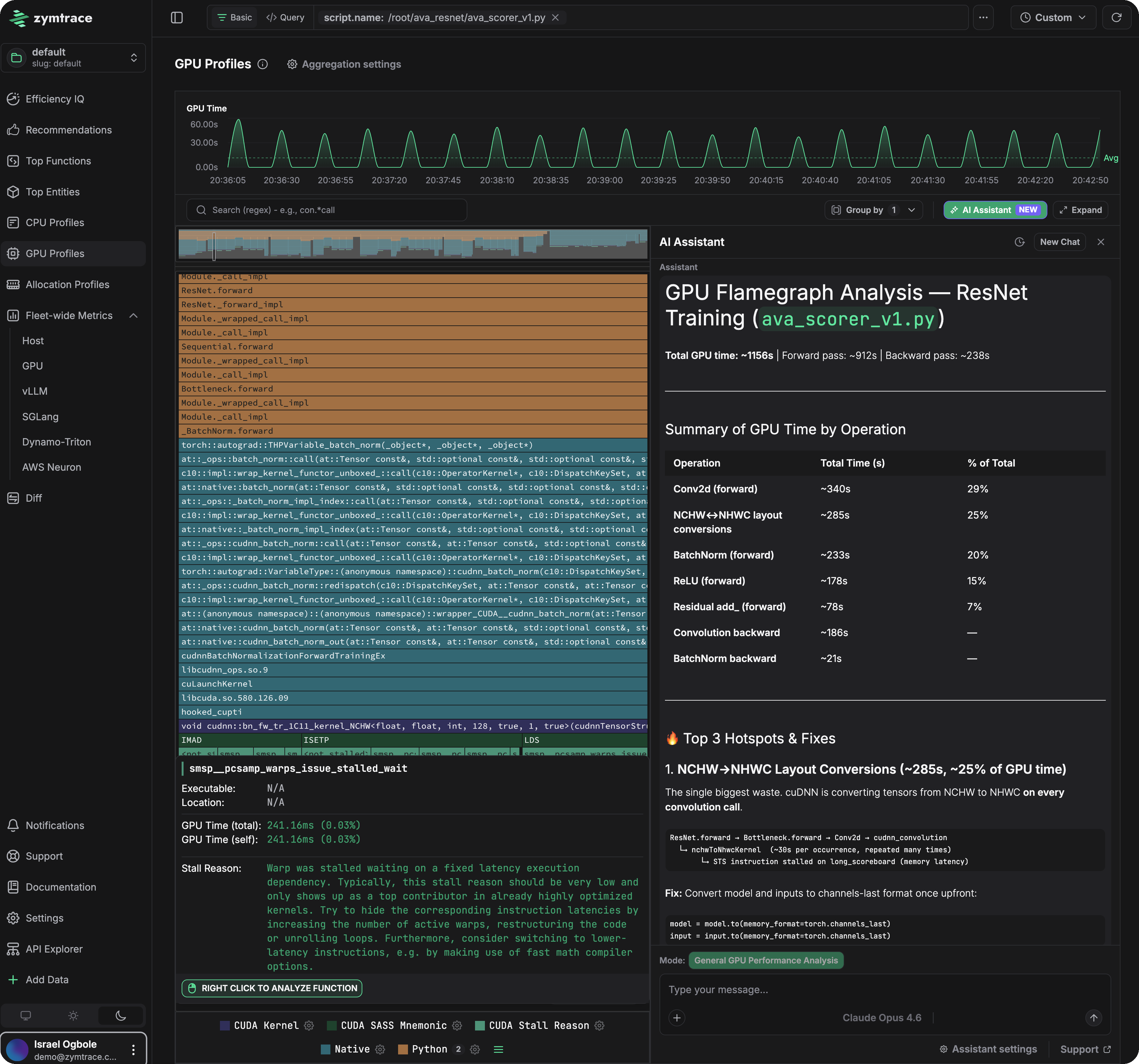
That level of insight — tied directly to the code path responsible — is what this guide gets you to.
:::
This guide walks you through getting the Zymtrace GPU profiler up and running quickly. Choose the deployment method that matches your environment.
:::note Assumptions
This guide assumes you already have the [Zymtrace backend installed](../backend/helm-docker). If not, set that up first.
:::
## Prerequisites
- **Linux x86_64 or arm64**
- **NVIDIA GPU** supported by CUDA 12.x or above, including Blackwell, Grace Blackwell, Hopper, and Grace Hopper ([full list](/system-requirements#supported-gpus)), or **AMD GPU** (ROCm 7.x or above, x86_64 only)
## Installation
Replace `ZYMTRACE_URL` with your Zymtrace backend address (e.g. `zymtrace.company-domain.com:443`).
:::note NVIDIA GPU metrics
For NVIDIA GPU metrics, the profiler needs to locate the NVML library: add `--nvml-auto-scan` to the profiler arguments to detect it automatically, or `--nvml-path=/path/to/libnvidia-ml.so` if you know the exact path.
:::
## Binary/Executable
The simplest way to get started on a single machine.
### 1. Download and extract
{`# For x86_64
curl -LO https://dl.zystem.io/zymtrace/{current-version}/amd64/zymtrace-profiler.tar.gz
# For arm64
# curl -LO https://dl.zystem.io/zymtrace/{current-version}/arm64/zymtrace-profiler.tar.gz
sudo tar -xzvf zymtrace-profiler.tar.gz -C / --no-same-owner`}
### 2. Start the profiler
```bash
sudo /opt/zymtrace/profiler/zymtrace-profiler \
--collection-agent ZYMTRACE_URL
```
:::tip
If TLS is not enabled (e.g. NodePort or local setup), add `--disable-tls`:
```bash
sudo /opt/zymtrace/profiler/zymtrace-profiler \
--disable-tls \
--collection-agent ZYMTRACE_URL
```
:::
### 3. Run your application
:::tip
If you can't (or don't want to) set environment variables on your GPU
workloads, we also support automatic injection now. See [Profiling GPU
Workloads](./profiling-gpu-workloads.md) for more details.
:::
**Basic GPU profiling** (no privileged access required):
```bash
env CUDA_INJECTION64_PATH="/opt/zymtrace/profiler/libzymtracecudaprofiler.so" \
python -u your_script.py
```
**With PC sampling** (requires sudo, see [PC Sampling](#about-pc-sampling)):
```bash
sudo env RUST_LOG="zymtracecudaprofiler=info" \
CUDA_INJECTION64_PATH="/opt/zymtrace/profiler/libzymtracecudaprofiler.so" \
ZYMTRACE_CUDAPROFILER__ENABLE_PC_SAMPLING="true" \
python -u your_script.py
```
Start your ROCm workload with the profiling environment variables. They must be present when the process starts:
```bash
env ROCP_TOOL_LIBRARIES="/opt/zymtrace/profiler/libzymtracerocmprofiler.so" \
ROCPROFILER_REGISTER_LIBRARY="/opt/zymtrace/profiler/librocprofiler-sdk.so.1" \
python -u your_script.py
```
See [AMD GPU Metrics & Profiles](/gpu/amd/gpu-metrics#enabling-amd-gpu-profiling) for details.
## Helm
Recommended for production Kubernetes clusters with GPU nodes.
### 1. Install the profiler with GPU support
```bash
helm repo add zymtrace https://helm.zystem.io
helm install profiler zymtrace/profiler \
--create-namespace \
--namespace zymtrace \
--set profiler.cudaProfiler.enabled=true \
--set profiler.args[0]="--collection-agent=ZYMTRACE_URL"
```
:::tip
If TLS is not enabled, add `--disable-tls`:
```bash
--set profiler.args[1]="--disable-tls"
```
:::
### 2. Configure your GPU workload
:::tip
If you can't (or don't want to) set environment variables on your GPU
workloads, we also support automatic injection now. See [Profiling GPU
Workloads](./profiling-gpu-workloads.md) for more details.
:::
See a [complete Kubernetes Job example](https://gist.github.com/iogbole/bb7d3f4e9a25f6a08444bd0034e8ebff).
**Basic GPU profiling** - add the following volume and environment variables to your pod spec:
```yaml
volumes:
- name: zymtrace-gpu-profiler
hostPath:
path: /var/lib/zymtrace/profiler
type: Directory
containers:
- name: your-container
volumeMounts:
- name: zymtrace-gpu-profiler
mountPath: /opt/zymtrace/profiler
readOnly: true
env:
- name: CUDA_INJECTION64_PATH
value: "/opt/zymtrace/profiler/libzymtracecudaprofiler.so"
```
**With PC sampling** - add `ZYMTRACE_CUDAPROFILER__ENABLE_PC_SAMPLING` and set `privileged: true` on the container (see [PC Sampling](#about-pc-sampling)):
```yaml
containers:
- name: your-container
securityContext:
privileged: true
env:
- name: CUDA_INJECTION64_PATH
value: "/opt/zymtrace/profiler/libzymtracecudaprofiler.so"
- name: ZYMTRACE_CUDAPROFILER__ENABLE_PC_SAMPLING
value: "true"
```
For complete vLLM, SGLang, Dynamo-Triton, and TensorRT-LLM deployments, see [Profiling Inference Engines](./profiling-inference-engines/index.md).
Mount the shared host volume and set the ROCm profiling environment variables in your pod spec. They must be present when the ROCm process starts:
```yaml
volumes:
- name: zymtrace-gpu-profiler
hostPath:
path: /var/lib/zymtrace/profiler
type: Directory
containers:
- name: your-container
volumeMounts:
- name: zymtrace-gpu-profiler
mountPath: /opt/zymtrace/profiler
readOnly: true
env:
- name: ROCP_TOOL_LIBRARIES
value: "/opt/zymtrace/profiler/libzymtracerocmprofiler.so"
- name: ROCPROFILER_REGISTER_LIBRARY
value: "/opt/zymtrace/profiler/librocprofiler-sdk.so.1"
```
See [AMD GPU Metrics & Profiles](/gpu/amd/gpu-metrics#enabling-amd-gpu-profiling) for details.
## Docker
For Docker-based workflows and development environments.
### 1. Start the profiler
{`docker run --cgroupns=host --pid=host --privileged --net=host \\
-v /etc/machine-id:/etc/machine-id:ro \\
-v /var/run/docker.sock:/var/run/docker.sock \\
-v /sys/kernel/debug:/sys/kernel/debug:ro \\
-v /var/lib/zymtrace/profiler:/opt/zymtrace-cuda-profiler \\
--rm -d --name zymtrace-profiler ghcr.io/zystem-io/zymtrace-pub-profiler:{current-version} \\
--collection-agent ZYMTRACE_URL`}
:::tip
If TLS is not enabled, add `--disable-tls` before `--collection-agent`.
:::
### 2. Run your application
:::tip
If you can't (or don't want to) set environment variables on your GPU
workloads, we also support automatic injection now. See [Profiling GPU
Workloads](./profiling-gpu-workloads.md) for more details.
:::
**Basic GPU profiling** (no privileged access required):
```bash
docker run --gpus all \
-v /var/lib/zymtrace/profiler:/opt/zymtrace/profiler:ro \
-e CUDA_INJECTION64_PATH="/opt/zymtrace/profiler/libzymtracecudaprofiler.so" \
--ipc=host \
--rm -d \
```
**With PC sampling** (requires `--privileged`, see [PC Sampling](#about-pc-sampling)):
```bash
docker run --gpus all --privileged \
-v /var/lib/zymtrace/profiler:/opt/zymtrace/profiler:ro \
-e ZYMTRACE_CUDAPROFILER__PRINT_STATS="true" \
-e ZYMTRACE_CUDAPROFILER__QUIET="false" \
-e ZYMTRACE_CUDAPROFILER__ENABLE_PC_SAMPLING="true" \
-e CUDA_INJECTION64_PATH="/opt/zymtrace/profiler/libzymtracecudaprofiler.so" \
--ipc=host \
--rm -d \
```
For complete vLLM, SGLang, Dynamo-Triton, and TensorRT-LLM examples, see [Profiling Inference Engines](./profiling-inference-engines/index.md).
Start your ROCm workload with the AMD devices mounted and the profiling environment variables set. They must be present when the process starts:
```bash
docker run --device /dev/kfd --device /dev/dri --group-add video \
-v /var/lib/zymtrace/profiler:/opt/zymtrace/profiler:ro \
-e RUST_LOG="zymtracerocmprofiler=info" \
-e ROCP_TOOL_LIBRARIES="/opt/zymtrace/profiler/libzymtracerocmprofiler.so" \
-e ROCPROFILER_REGISTER_LIBRARY="/opt/zymtrace/profiler/librocprofiler-sdk.so.1" \
--rm -d \
```
See [AMD GPU Metrics & Profiles](/gpu/amd/gpu-metrics#enabling-amd-gpu-profiling) for details.
## PC Sampling (Optional) {#about-pc-sampling}
PC sampling provides the deepest level of GPU performance insight, including stall reasons, SASS disassembly, and memory offsets. NVIDIA requires privileged access (`sudo` or `--privileged`) for PC sampling due to a security vulnerability ([CVE-2024-0090](https://nvidia.custhelp.com/app/answers/detail/a_id/5551)). We recommend enabling PC sampling in **development environments** and **on-demand in production** when deeper analysis is needed.
See the commands labeled **With PC sampling** in each installation tab above.
## Next steps
- [Profiling GPU Workloads](./profiling-gpu-workloads.md) - full Kubernetes examples and advanced configuration
- [Profiling Inference Engines](./profiling-inference-engines/index.md) - vLLM, SGLang, Dynamo-Triton, and TensorRT-LLM on Kubernetes, Docker, or a binary install
- [Install Zymtrace Profiler](./install-profiler.md) - comprehensive installation options (Helm values, arm64, etc.)
- [GPU Profiler Environment Variables](./profiler-gpu-variables.md) - all available tuning knobs
---
# install-profiler
URL: https://docs.zymtrace.com/install/profiler/install-profiler
# Install Zymtrace Profiler
```mdx-code-block
import Tabs from '@theme/Tabs';
import TabItem from '@theme/TabItem';
import CodeBlockWithVersion from '@site/src/components/CodeBlockWithVersion';
import Version from '@site/src/components/Version';
```
The Zymtrace profiler is a lightweight, OpenTelemetry-compliant agent that collects performance profiles from your applications and systems with minimal overhead (`<1% CPU` and `~256MB RAM` ). It can be deployed in various ways to suit your infrastructure needs. This guide covers installation using Kubernetes manifests, Helm charts, Docker containers, or direct binary installation.
:::tip Install with an AI assistant
Prefer natural language? Use the [Zymtrace skills](../../ai-assistant/agent-skills.md) in Claude Code, OpenAI Codex, or Cursor to install the profiler for you — e.g. _"install the Zymtrace profiler with GPU support"_. The assistant runs the right workflow (Helm, Docker, or binary) and verifies the agent is reporting.
:::
:::tip
Please review the [prerequisites](../prerequisites.md) before beginning, particularly if you are working in an airgapped environment.
:::
## Installation methods
Choose the installation method that best suits your environment. Each method provides the same functionality with different deployment characteristics.
### Install with Kubectl {#install-kubectl}
The profiler agent is deployed as a DaemonSet.
1. Create a namespace
`kubectl create namespace zymtrace`
2. Deploy
`kubectl apply -n zymtrace -f https://helm.zystem.io/k8s-manifests/profiler/deploy.yaml`
:::tip
**Important:** If you need GPU profiling capabilities, we recommend using the Helm installation method instead, which provides more configuration options for enabling GPU profiling.
:::
:::tip
Collection Agent Configuration
By default, the collection agent is set to `zymtrace-gateway.zymtrace.svc.cluster.local:80`.
Remember that the collection agent should point to the Zymtrace gateway service. If you're installing the profiling agent on a different cluster than the one hosting the backend services, you'll need to modify this setting. In this case, we recommend downloading the configuration file first.
```bash
curl -O https://helm.zystem.io/k8s-manifests/profiler/deploy.yaml
```
:::
### Install with Helm {#install-helm}
:::info Helm Chart Source
The Helm chart source code is available on GitHub: [zystem-io/zymtrace-charts](https://github.com/zystem-io/zymtrace-charts/tree/main/charts/)
:::
```bash
# Add the zystem repository
helm repo add zymtrace https://helm.zystem.io
# List available charts and versions
helm search repo zymtrace --versions
# Install
helm install profiler zymtrace/profiler \
--create-namespace \
--namespace zymtrace \
--set profiler.args[0]="--collection-agent=zymtrace-gateway.zymtrace.svc.cluster.local:80" \
--set profiler.args[1]="--disable-tls" \
--set profiler.args[2]="--project=colossus" \
--set profiler.args[3]="--tags=prod;us-east" \
--set "profiler.env.HTTPS_PROXY=http://username:password@proxy:port"
```
#### Authenticating with a service token {#helm-auth-token}
If [service token authentication](../../authentication/service-tokens.md) is enabled on the backend, the profiler needs a token to report profiles. Rather than passing it as the `-auth-token` CLI arg (which stores the token in plain text in the pod spec), the chart sources it from a Kubernetes Secret and exposes it to the agent as the `ZYMTRACE_AUTH_TOKEN` environment variable.
Provide the token as a plain value. When `profiler.authToken.value` is set and no existing Secret is referenced, the chart creates a Secret named `zymtrace-profiler-auth-token` (key `auth-token`) to hold it and keeps the token out of the pod spec:
```bash
helm install profiler zymtrace/profiler \
--create-namespace \
--namespace zymtrace \
--set profiler.args[0]="--collection-agent=zymtrace-gateway.zymtrace.svc.cluster.local:80" \
--set profiler.authToken.value="your-service-token-here"
```
Reference a Secret you create and manage yourself. `profiler.authToken.existingSecret` takes precedence over `profiler.authToken.value`:
```bash
# Create the Secret (key defaults to auth-token)
kubectl create secret generic my-zymtrace-token \
--namespace zymtrace \
--from-literal=auth-token="your-service-token-here"
helm install profiler zymtrace/profiler \
--create-namespace \
--namespace zymtrace \
--set profiler.args[0]="--collection-agent=zymtrace-gateway.zymtrace.svc.cluster.local:80" \
--set profiler.authToken.existingSecret.name=my-zymtrace-token \
--set profiler.authToken.existingSecret.key=auth-token
```
`profiler.authToken.existingSecret.key` defaults to `auth-token`, so you can omit it when your Secret uses that key.
:::warning
Avoid the `-auth-token=` CLI arg (i.e. `profiler.args`) in Helm deployments — it stores the token in plain text in the rendered pod spec. Use `profiler.authToken` instead.
:::
#### Enabling GPU Profiling {#helm-enabling-gpu-profiling}
To enable GPU profiling capabilities with Helm, add the `cudaProfiler.enabled` setting. This deploys the profiling libraries for both NVIDIA (CUDA) and AMD (ROCm) workloads.
GPU metrics collection is enabled by default.
```bash
# Install with GPU profiling and metrics enabled
helm install profiler zymtrace/profiler \
--create-namespace \
--namespace zymtrace \
--set profiler.cudaProfiler.enabled=true \
--set profiler.args[0]="--collection-agent=zymtrace-gateway.zymtrace.svc.cluster.local:80" \
--set profiler.args[1]="--disable-tls" \
--set profiler.args[2]="--enable-vllm-metrics"
```
This will automatically:
- Deploy the necessary GPU profiling libraries
- Configure the volume mounts for sharing libraries between containers
- Extract the profiling libraries to the shared host path
- Make GPU profiling available to all containers that mount the shared volume
- Collect GPU metrics (power usage, memory utilization, temperature, and performance metrics), which is on by default
To connect your GPU workloads, see the [GPU Profiler Quick Start](./gpu-profiler-quick-start.md): CUDA applications use injection, ROCm applications are started with the [AMD profiling environment variables](/gpu/amd/gpu-metrics#enabling-amd-gpu-profiling).
:::tip
GPU metrics collection is enabled by default; set `-enable-gpu-metrics=false` if you only want CUDA profiling without metrics collection. You can profile CUDA applications without collecting GPU metrics.
You can also collect only GPU metrics without profiling.
The `--enable-vllm-metrics` flag enables automatic metrics collection for vLLM-based LLM inference applications. The metrics are correlated with GPU Profilers.
**NVML Library Path:** Add `--nvml-auto-scan` to detect the NVML library automatically, or `--nvml-path=/path/to/libnvidia-ml.so` if you know the exact path. This is only required for GPU metrics collection.
:::
#### Using custom-values.yaml {#using-custom-values}
[](https://artifacthub.io/packages/helm/zymtrace/profiler?modal=values)
Using custom values
You can create a custom values file with your configurations:
```yaml
profiler:
args:
- "--collection-agent=zymtrace-gateway.zymtrace.svc.cluster.local:80" # Point to your gateway service
- "--disable-tls"
- "--enable-vllm-metrics"
- "--project=my-project-123"
- "--tags=prod;ha100;fp16"
# Enable GPU profiling
cudaProfiler:
enabled: true
hostMountPath: "/var/lib/zymtrace/profiler" # Default path
env:
HTTPS_PROXY: "http://user:pass@proxy.company.com:8080"
```
Then install using:
```bash
helm install profiler zymtrace/profiler \
--create-namespace \
--namespace zymtrace \
-f custom-values.yaml
```
#### **Next Step: Hook up your CUDA application**
After enabling the GPU profiling module in the profiler, connect it to your CUDA application by referring to the **[GPU Profiler](./profiling-gpu-workloads.md)** documentation.
### Install with Docker {#install-docker}
{`docker run --cgroupns=host --pid=host --privileged --net=host \\
-v /etc/machine-id:/etc/machine-id:ro \\
-v /var/run/docker.sock:/var/run/docker.sock \\
-v /sys/kernel/debug:/sys/kernel/debug:ro \\
--rm -d --name zymtrace-profiler ghcr.io/zystem-io/zymtrace-pub-profiler:{current-version} \\
--disable-tls --collection-agent :8080`}
:::tip
Be sure to update the collection agent value to point to your gateway service.
:::
#### Enabling GPU Profiling {#docker-enabling-gpu-profiling}
To enable GPU profiling capabilities with Docker, mount an additional volume.
GPU metrics are collected by default.
{`docker run --cgroupns=host --pid=host --privileged --net=host \\
-v /etc/machine-id:/etc/machine-id:ro \\
-v /var/run/docker.sock:/var/run/docker.sock \\
-v /sys/kernel/debug:/sys/kernel/debug:ro \\
-v /var/lib/zymtrace/profiler:/opt/zymtrace-cuda-profiler \\
--rm -d --name zymtrace-profiler ghcr.io/zystem-io/zymtrace-pub-profiler:{current-version} \\
--disable-tls \\
--collection-agent :8080`}
This will automatically:
- Extract the necessary CUDA and ROCm profiler libraries to the host path (`/var/lib/zymtrace/profiler`)
- Make GPU profiling available to your GPU workloads
- Enable GPU metrics collection (on by default)
:::tip
GPU metrics collection is enabled by default; set `-enable-gpu-metrics=false` if you only want CUDA profiling without metrics collection. You can profile CUDA applications without collecting GPU metrics.
You can also collect only GPU metrics without profiling.
**NVML Library Path:** Add `--nvml-auto-scan` to detect the NVML library automatically, or `--nvml-path=/path/to/libnvidia-ml.so` if you know the exact path. This is only required for GPU metrics collection.
:::
To verify the profiler libraries were extracted correctly:
```bash
# Check the contents of the shared volume directory
ls -la /var/lib/zymtrace/profiler
# You should see
# libzymtracecudaprofiler.so
# and, on x86_64 hosts, the AMD libraries:
# libzymtracerocmprofiler.so, librocprofiler-sdk.so.1
```
#### **Next Step: Hook up your GPU application**
After enabling the GPU profiling module in the profiler, connect your CUDA application by referring to the **[GPU Profiler](./profiling-gpu-workloads.md)** documentation, or start your ROCm application with the [AMD profiling environment variables](/gpu/amd/gpu-metrics#enabling-amd-gpu-profiling).
### Install with Binary {#install-binary}
#### x86_64 Installation {#x86-installation}
{`# Download the binaries
curl -LO https://dl.zystem.io/zymtrace/{current-version}/amd64/zymtrace-profiler.tar.gz
# Extract them
sudo tar -xzvf zymtrace-profiler.tar.gz -C / --no-same-owner
# Run the agent (GPU metrics are collected by default)
sudo /opt/zymtrace/profiler/zymtrace-profiler --collection-agent localhost:8080 --disable-tls`}
#### Enabling GPU Profiling {#binary-enabling-gpu-profiling}
Unlike Helm and Docker installations, there are no explicit steps to enable GPU profiling with the binary installation. You can directly start profiling your CUDA application (for ROCm applications, use the [AMD profiling environment variables](/gpu/amd/gpu-metrics#enabling-amd-gpu-profiling) instead):
```bash
env RUST_LOG="zymtracecudaprofiler=info" \
CUDA_INJECTION64_PATH="/opt/zymtrace/profiler/libzymtracecudaprofiler.so" \
python -u matmul.py
```
:::tip
GPU metrics collection is enabled by default; set `-enable-gpu-metrics=false` if you only want CUDA profiling without metrics collection. You can profile CUDA applications without collecting GPU metrics.
You can also collect only GPU metrics without profiling.
**NVML Library Path:** Add `--nvml-auto-scan` to detect the NVML library automatically, or `--nvml-path=/path/to/libnvidia-ml.so` if you know the exact path. This is only required for GPU metrics collection.
:::
#### ARM64 Installation {#arm64-installation}
{`# Download the binaries
curl -LO https://dl.zystem.io/zymtrace/{current-version}/arm64/zymtrace-profiler.tar.gz
# Extract them
sudo tar -xzvf zymtrace-profiler.tar.gz -C / --no-same-owner
# Run the agent (GPU metrics are collected by default)
sudo /opt/zymtrace/profiler/zymtrace-profiler --collection-agent localhost:8080 --disable-tls`}
:::tip
GPU metrics collection (power, memory, temperature, performance) is enabled by default on systems with GPUs. Set `-enable-gpu-metrics=false` if you don't need GPU metrics collection.
**NVML Library Path:** Add `--nvml-auto-scan` to detect the NVML library automatically, or `--nvml-path=/path/to/libnvidia-ml.so` if you know the exact path. This is only required for GPU metrics collection.
:::
:::tip
Be sure to update the `--collection-agent` value to point to your zymtrace gateway service.
:::
## Management
These commands help you monitor and maintain your zymtrace profiler installation. Use them to check the agent's status and logs.
### Kubectl Management {#kubectl-management}
```bash
# Check agent status
kubectl get pods -n zymtrace -l app=zymtrace,component=profiler
# View agent logs
kubectl logs -f -n zymtrace -l app=zymtrace,component=profiler
```
### Helm Management {#helm-management}
:::warning Preserve your values on upgrade
When using `--set` (e.g. updating image tags), always add `--reset-then-reuse-values` to avoid resetting your chart values to defaults.
- Use `--reset-then-reuse-values` when upgrading with `--set` (e.g. image tags)
- Use `-f ` when doing a full deployment — no reuse flag needed in that case
:::
```bash
# Check profiler status (not agent)
helm status profiler -n zymtrace
# Upgrade charts, force a new image pull
helm upgrade profiler zymtrace/profiler -n zymtrace --set global.imagePullPolicy=Always --reset-then-reuse-values \
--debug \
--atomic
# Get pod status
kubectl get pods -n zymtrace -l app=zymtrace,component=profiler
# Upgrade profiler (not agent)
helm upgrade profiler zymtrace/profiler -n zymtrace --reset-then-reuse-values \
--debug \
--atomic
# View profiler values (not agent)
helm get values profiler -n zymtrace
# Uninstall profiler (not agent)
helm uninstall profiler -n zymtrace
```
### Docker Management {#docker-management}
```bash
# View running agents
docker ps | grep zymtrace/profiler
# View agent logs
docker logs
# Stop agent
docker stop
# Remove agent container
docker rm
```
### Setting up systemd service {#systemd-setup}
To manage the profiler as a systemd service:
1. Create the zymtrace directory:
`sudo mkdir -p /opt/zymtrace`
2. Move the downloaded agent binary to the installation directory:
`sudo mv zymtrace-profiler /opt/zymtrace/`
3. Make the binary executable:
`sudo chmod +x /opt/zymtrace/zymtrace-profiler`
4. Create a systemd service file:
`sudo vi /etc/systemd/system/zymtrace.service`
5. Copy and paste the following configuration into the file:
```ini
[Unit]
Description=zymtrace profiler service
After=network.target
[Service]
Type=simple
ExecStart=/opt/zymtrace/zymtrace-profiler --collection-agent localhost:8080 --disable-tls
Restart=always
RestartSec=10
WorkingDirectory=/opt/zymtrace
[Install]
WantedBy=multi-user.target
```
#### GPU Metrics Collection
GPU metrics collection is enabled by default and includes power usage, memory utilization, temperature, and performance metrics. For more details, see the [GPU Metrics](/gpu/nvidia/gpu-metrics) documentation.
> **Note:** For NVIDIA GPU metrics, add `--nvml-auto-scan` to the `ExecStart` line to detect the NVML library automatically, or `--nvml-path=/path/to/libnvidia-ml.so` if you know the exact path.
:::tip
Be sure to update the `--collection-agent` value in the systemd service file to point to your zymtrace gateway service.
:::
6. Enable the service
```bash
# Reload daemon
sudo systemctl daemon-reload
# Start agent
sudo systemctl start zymtrace
# Enable agent start on boot
sudo systemctl enable zymtrace
# Check agent status
sudo systemctl status zymtrace
```
#### Management commands {#binary-management-commands}
Once the systemd service is set up, use these commands to manage the profiler:
```bash
# Check systemd service status
sudo systemctl status zymtrace
# View service logs
sudo journalctl -u zymtrace -f
# Restart service
sudo systemctl restart zymtrace
# Stop service
sudo systemctl stop zymtrace
```
---
# Profiler ENV and CLI Args
URL: https://docs.zymtrace.com/install/profiler/profiler-configuration
# Profiler ENV and CLI Args
This page provides a comprehensive reference for all Zymtrace profiler configuration options, including both command-line arguments and environment variables.
:::tip GPU Profiler Configuration
For GPU-specific profiler environment variables (NVIDIA and AMD), see [GPU Profiler Environment Variables](./profiler-gpu-variables.md).
:::
:::info Configuration Priority
The Zymtrace profiler prioritizes its settings in the following order (highest to lowest):
- Command-line arguments
- Environment variables
- Configuration file
:::
## Configuration Options
| CLI Argument | Environment Variable | Description |
|--------------|---------------------|-------------|
| `-collection-agent` | `ZYMTRACE_COLLECTION_AGENT` | Set the destination for reporting profiling information. This should point to your gateway service. Example: `-collection-agent=example.com:443`. Default is empty. |
| `-disable-tls` | `ZYMTRACE_DISABLE_TLS` | Disable encryption for data in transit. Example: `-disable-tls`. Default is false. |
| `-insecure` | `ZYMTRACE_INSECURE` | Use TLS, but do not validate the certificate of the backend. Use this when the backend has a self-signed certificate or a certificate from a private CA. With this option, any host on the network path can act as the backend and receive the auth token. If possible, add the CA certificate to the trust store of the profiler instead, e.g. with `SSL_CERT_FILE=/path/to/ca-bundle.pem`. Cannot be used together with `-disable-tls`. Example: `-insecure`. Default is false. |
| `-zymtrace-protocol` | `ZYMTRACE_PROTOCOL` | Use the Zymtrace stateful wire protocol instead of the OTel Profiles protocol. The Zymtrace protocol is 6x more compute-efficient and only transmits new information rather than re-sending context with every payload. Example: `-zymtrace-protocol=false`. Default is false. |
| `-project` | `ZYMTRACE_PROJECT` | Project name to associate with profiling data. This is necessary for logical grouping of data in the backend, e.g., a developer who wants to quickly profile a workload and delete it after. The agent automatically creates the project if the specified string doesn't exist in the backend. Alternatively, create the project in the backend and specify the string in the agent. Avoid using spaces. In the near future, RBAC will define who can see or create projects. Example: `-project=my-project`. Default is default. |
| `-auth-token` | `ZYMTRACE_AUTH_TOKEN` | Token used to authenticate with the backend, if service authentication is enabled in the backend. Example: `-auth-token=myauthtoken`. For Helm deployments, prefer `profiler.authToken` to source `ZYMTRACE_AUTH_TOKEN` from a Kubernetes Secret instead of a plain-text arg — see [Authenticating with a service token](./install-profiler.md#helm-auth-token). |
| `-enable-gpu-metrics` | `ZYMTRACE_ENABLE_GPU_METRICS` | Enables GPU metrics collection. Collects GPU utilization, GPU memory utilization, temperature, SM efficiency, SM occupancy, Tensor Core utilization, and PCIe transmission throughput metrics. Default is true. |
| `-enable-host-metrics` | `ZYMTRACE_ENABLE_CPU_METRICS` | Enables host metrics collection. Collects CPU utilization, memory, disk throughput and disk latency metrics. Can be turned off by setting `-enable-host-metrics=false`. Default is true. |
| `-enable-neuron-metrics` | `ZYMTRACE_ENABLE_NEURON_METRICS` | Enables AWS Neuron metrics collection. Default is true. |
| `-enable-sglang-metrics` | `ZYMTRACE_ENABLE_SGLANG_METRICS` | Enables SGLang metrics collection. Default is true. |
| `-enable-vllm-metrics` | `ZYMTRACE_ENABLE_VLLM_METRICS` | Enables vLLM metrics collection. Default is true. |
| `-enable-triton-metrics` | `ZYMTRACE_ENABLE_TRITON_METRICS` | Enables NVIDIA Dynamo-Triton metrics collection. Default is true. |
| `-enable-off-cpu` | `ZYMTRACE_ENABLE_OFF_CPU` | Enables off-CPU profiling. Default is false. Note that explicitly setting `-off-cpu-sampling-rate` to a non-zero value also enables this. |
| `-alloc-profile` | `ZYMTRACE_ALLOC_PROFILE` | Enable allocation profiling (currently Java only). Takes a size, e.g., `-alloc-profile 16mib`. Default is `""` (disabled). See [Allocation Profiling](../../features/allocation-profiling.md) for details. |
| `-collect-metrics-interval` | `ZYMTRACE_COLLECT_METRICS_INTERVAL` | Set the frequency for collecting both GPU and host metrics. Higher frequency intervals result in more data sent over the wire (increased egress costs) and higher storage requirements. Example: `-collect-metrics-interval=10s`. Default is 30s. |
| `-probabilistic-interval` | `ZYMTRACE_PROBABILISTIC_INTERVAL` | Set the time interval for probabilistic profiling. See [Enable probabilistic sampling](/install/requirements/storage#enable-probabilistic-sampling) for details. Example: `-probabilistic-interval=2m30s`. Default is 1m. |
| `-probabilistic-threshold` | `ZYMTRACE_PROBABILISTIC_THRESHOLD` | Set the threshold value for probabilistic profiling. See [Enable probabilistic sampling](/install/requirements/storage#enable-probabilistic-sampling) for details. Example: `-probabilistic-threshold=50`. Default is ProbabilisticThresholdMax. |
| `-reporter-interval` | `ZYMTRACE_REPORTER_INTERVAL` | Set the reporter's interval in seconds. Example: `-reporter-interval=10s`. Default is 5s. |
| `-no-kernel-version-check` | `ZYMTRACE_NO_KERNEL_VERSION_CHECK` | Disable the kernel version check for eBPF support. Default is false. |
| `-tags` | `ZYMTRACE_TAGS` | Set specific tags for attaching to traces. Example: `-tags='cloud_region:us-central1;env:staging'`. Default is empty. |
| `-host-type` | `ZYMTRACE_HOST_TYPE` | Manually specify the host type. If not specified (or empty) the profiler will attempt to extract the host type from the environment. Example: `-host-type='c4.2xlarge'`. Default is empty. |
| `-cluster-name` | `ZYMTRACE_CLUSTER_NAME` | Specify the name of the cluster the profiler is running in (arbitrary string). Can be used to filter profiles in the UI. Default is empty. |
| `-config` | `ZYMTRACE_CONFIG` | Set the path for the configuration file of the Zymtrace profiler. Example: `-config=/etc/zymtrace/config.conf`. Optional. |
| `-pprof` | `ZYMTRACE_PPROF` | Listening address to serve pprof information. Example: `-pprof=localhost:6060`. Default is empty. |
| `-on-cpu-sampling-rate` | `ZYMTRACE_ON_CPU_SAMPLING_RATE` | Set the frequency (in Hz) of on-CPU stack trace sampling. See [Reduce the sampling rate](/install/requirements/storage#reduce-the-sampling-rate) for details. Example: `-on-cpu-sampling-rate=50`. Default is 19. |
| `-off-cpu-sampling-rate` | `ZYMTRACE_OFF_CPU_SAMPLING_RATE` | Set the frequency (in Hz) of off-CPU stack trace sampling. See [Reduce the sampling rate](/install/requirements/storage#reduce-the-sampling-rate) for details. Example: `-off-cpu-sampling-rate=50`. Default is 19 |
| `-tracers` | `ZYMTRACE_TRACERS` | Comma-separated list of interpreter tracers to include. Example: `-tracers=python,nodejs`. Default is "all". |
| `-v` | `ZYMTRACE_VERBOSE` | Run the Zymtrace profiler in verbose mode. Default is false. |
| `-log-rate-limit-interval` | `ZYMTRACE_LOG_RATE_LIMIT_INTERVAL` | Window in which any single log statement is emitted at most a few times. Further occurrences are dropped, and the number of suppressed messages is reported with the next message from the same statement that is logged. Set to `0` to log everything. Rate limiting is always disabled by `-v`/`-verbose` and `-vv`/`-very-verbose`, so that repetitions are visible when debugging. Example: `-log-rate-limit-interval=5m`. Default is 1m. |
| `-machine-id` | `ZYMTRACE_MACHINE_ID` | Manually specify the machine ID. Example: `-machine-id=12345`. Default is 0. |
| `-dwarf` | `ZYMTRACE_DWARF` | Whether to extract full dwarf information (files, line numbers) from auto uploaded binaries. Default is false. |
| `-json-log` | `ZYMTRACE_JSON_LOG` | Whether to output logs formatted as json or not. Default is false. |
| | `ZYMTRACE_MAX_INPUT_FILE_SIZE` | Maximum file size to extract DWARF information from (i.e. size of the binary). Only effective when `-dwarf` is passed. Default is `2 * 1024 * 1024 * 1024` (2GiB) |
| | `ZYMTRACE_MAX_SYMBFILE_SIZE` | Maximum file size of resulting symbol file to upload to symdb. Only effective when `-dwarf` is passed. Default is `50 * 1024 * 1024` (50 MiB) |
All of these options can also be set via our new profiler settings page in the
UI (click on settings in the bottom left). This allows you do additionally
scope profiler configuration options to e.g. only certain hosts, or even only
certain processes on a host.
## Usage Examples
### Using CLI Arguments
```bash
sudo ./zymtrace-profiler \
-collection-agent=gateway.company.com:443 \
-project=my-app \
-tags='env:production;region:us-west' \
-on-cpu-sampling-rate=30 \
-reporter-interval=10s \
-collect-metrics-interval=10s
```
### Using Environment Variables
```bash
export ZYMTRACE_COLLECTION_AGENT="gateway.company.com:443"
export ZYMTRACE_PROJECT="my-app"
export ZYMTRACE_TAGS="env:production;region:us-west"
export ZYMTRACE_SAMPLES_PER_SECOND=30
export ZYMTRACE_REPORTER_INTERVAL=10s
export ZYMTRACE_COLLECT_METRICS_INTERVAL=30s
sudo ./zymtrace-profiler
```
### Mixed Configuration
You can combine both methods, with CLI arguments taking precedence:
```bash
export ZYMTRACE_PROJECT="default-project"
export ZYMTRACE_TAGS="env:staging"
# CLI arguments will override the environment variables above
sudo ./zymtrace-profiler \
-project=override-project \
-collection-agent=gateway.company.com:443
```
---
# GPU Profiler Environment Variables
URL: https://docs.zymtrace.com/install/profiler/profiler-gpu-variables
```mdx-code-block
import Tabs from '@theme/Tabs';
import TabItem from '@theme/TabItem';
```
# GPU Profiler Environment Variables
## Zymtrace GPU profiler
The following environment variables enable and control the behavior of the Zymtrace GPU profiler. You are required to set them as part of your CUDA application startup arguments. Refer to the [docker and K8s manifest](./profiling-gpu-workloads.md) examples.
| Environment Variable | Description |
|---|---|
|`CUDA_INJECTION64_PATH` |Enable CUDA profiler by setting env path to `libzymtracecudaprofiler`, Example: `CUDA_INJECTION64_PATH="/opt/zymtrace/profiler/libzymtracecudaprofiler.so".|
|`NVTX_INJECTION64_PATH` |Enable NVTX support in the profiler by setting env path to `libzymtracecudaprofiler`, Example: `NVTX_INJECTION64_PATH="/opt/zymtrace/profiler/libzymtracecudaprofiler.so".|
| `ZYMTRACE_CUDAPROFILER__COLLECT_PER_GPU` | Whether kernels should be aggregated per GPU or globally. Example: `ZYMTRACE_CUDAPROFILER__COLLECT_PER_GPU=false`. Default is true. |
| `ZYMTRACE_CUDAPROFILER__ENABLE_NVTX` | Turn NVTX support on or off. Note: requires the `NVTX_INJECTION64_PATH` path variable to be set as well. Example: `ZYMTRACE_CUDAPROFILER__ENABLE_NVTX=false`. Default is true. |
| `ZYMTRACE_CUDAPROFILER__ENABLE_PC_SAMPLING` | Override for enabling PC sampling (takes precedence over auto-detection). Example: `ZYMTRACE_CUDAPROFILER__ENABLE_PC_SAMPLING=false`. Default is false. |
| `ZYMTRACE_CUDAPROFILER__INTERNAL__MEASURE_STATS` | Whether to measure additional statistics (printed based on `PRINT_STATS`, see below). Default is false. |
| `ZYMTRACE_CUDAPROFILER__NOOP` | Whether to do nothing at all and exit immediately without profiling. Example: `ZYMTRACE_CUDAPROFILER__NOOP=true`. Default is false. |
| `ZYMTRACE_CUDAPROFILER__PRINT_OVERHEAD` | Whether to print process statistics (CPU, memory usage) to the console. Example: `ZYMTRACE_CUDAPROFILER__PRINT_OVERHEAD=true`. Default is false. |
| `ZYMTRACE_CUDAPROFILER__PRINT_OVERHEAD_INTERVAL` | Time between printing overhead metrics, in seconds (fractions allowed). Example: `ZYMTRACE_CUDAPROFILER__PRINT_OVERHEAD_INTERVAL=10`. Default is 5. |
| `ZYMTRACE_CUDAPROFILER__PRINT_STATS` | Whether to periodically dump profiling stats to console. Example: `ZYMTRACE_CUDAPROFILER__PRINT_STATS=true`. Default is false. |
| `ZYMTRACE_CUDAPROFILER__PRINT_STATS_INTERVAL` | Time between printing stats, in seconds (fractions allowed). Example: `ZYMTRACE_CUDAPROFILER__PRINT_STATS_INTERVAL=10`. Default is 5. |
| `ZYMTRACE_CUDAPROFILER__PROFILE_MEMORY` | Whether to profile memory operations. Default is `true`. |
| `ZYMTRACE_CUDAPROFILER__PROFILE_SYNC` | Whether to profile synchronization operations. Default is `true`. |
| `ZYMTRACE_CUDAPROFILER__QUIET` | If set to false, enable output to the console. Example: `ZYMTRACE_CUDAPROFILER__QUIET=false`. Default is true (silent operation). None of the PRINT_* settings have any effect unless this is false. |
| `ZYMTRACE_CUDAPROFILER__STACK_TRACE_SAMPLING__ENABLED` | Whether to sample kernel launches, rather than profiling all launches. Default is true. |
| `ZYMTRACE_CUDAPROFILER__STACK_TRACE_SAMPLING__TARGET` | How many kernels to profile, per (OS) thread, per `WINDOW_SIZE`. Default is 50. |
| `ZYMTRACE_CUDAPROFILER__STACK_TRACE_SAMPLING__WINDOW_SIZE` | The duration, in seconds (fractions allowed), over which to reach the above defined TARGET sample rate. For example, if this is `1`, that means profile (up to) `$TARGET kernels / second`. Default is 1. |
| `ZYMTRACE_CUDAPROFILER__GRAPH_SAMPLING__*` | Same one as above, default target is 20. |
| `ZYMTRACE_CUDAPROFILER__MEMORY_SAMPLING__*` | Same one as above, default target is 20. |
| `ZYMTRACE_CUDAPROFILER__SYNC_SAMPLING__*` | Same one as above, default target is 20. |
:::important
PC sampling requires appropriate system permissions. Either `CAP_SYS_ADMIN` privileges or `RmProfilingAdminOnly=0` in NVIDIA driver setting.
Check this by running `cat /proc/driver/nvidia/params | grep RmProfilingAdminOnly`
:::
## Zymtrace ROCm profiler
The following environment variables enable the Zymtrace ROCm profiler. They must be set as part of your ROCm application startup: the ROCm profiler cannot attach to an already-running GPU process. Refer to the [AMD GPU Metrics & Profiles](/gpu/amd/gpu-metrics#enabling-amd-gpu-profiling) page for Docker and Kubernetes examples.
| Environment Variable | Description |
|---|---|
| `ROCP_TOOL_LIBRARIES` | Enables the ROCm profiler by pointing ROCprofiler at the Zymtrace tool library. Example: `ROCP_TOOL_LIBRARIES="/opt/zymtrace/profiler/libzymtracerocmprofiler.so"`. |
| `ROCPROFILER_REGISTER_LIBRARY` | Path to the rocprofiler-sdk runtime that ships with the Zymtrace profiler, so the workload loads Zymtrace's copy rather than the host ROCm installation's. Example: `ROCPROFILER_REGISTER_LIBRARY="/opt/zymtrace/profiler/librocprofiler-sdk.so.1"`. |
The following variables control the behavior of the ROCm profiler once it is loaded. All are optional.
| Environment Variable | Description |
|---|---|
| `ZYMTRACE_ROCMPROFILER__COLLECT_PER_GPU` | Whether kernels should be aggregated per GPU or globally. Example: `ZYMTRACE_ROCMPROFILER__COLLECT_PER_GPU=false`. Default is true. |
| `ZYMTRACE_ROCMPROFILER__ENABLE_ROCTX` | Turn ROCTX integration on or off. Example: `ZYMTRACE_ROCMPROFILER__ENABLE_ROCTX=false`. Default is true. |
| `ZYMTRACE_ROCMPROFILER__PROFILE_MEMORY` | Whether to profile memory-related operations (memcpy, memset). Example: `ZYMTRACE_ROCMPROFILER__PROFILE_MEMORY=false`. Default is true. |
| `ZYMTRACE_ROCMPROFILER__PROFILE_SYNC` | Whether to profile synchronization-related operations. Example: `ZYMTRACE_ROCMPROFILER__PROFILE_SYNC=false`. Default is true. |
| `ZYMTRACE_ROCMPROFILER__NOOP` | Whether to do nothing at all and exit immediately without profiling. Example: `ZYMTRACE_ROCMPROFILER__NOOP=true`. Default is false. |
| `ZYMTRACE_ROCMPROFILER__PRINT_STATS` | Whether to periodically dump profiling stats to the console. Example: `ZYMTRACE_ROCMPROFILER__PRINT_STATS=true`. Default is false. |
| `ZYMTRACE_ROCMPROFILER__PRINT_STATS_INTERVAL` | Time between printing stats, in seconds (fractions allowed). Example: `ZYMTRACE_ROCMPROFILER__PRINT_STATS_INTERVAL=10`. Default is 5. |
| `ZYMTRACE_ROCMPROFILER__QUIET` | If set to false, enable output to the console. Example: `ZYMTRACE_ROCMPROFILER__QUIET=false`. Default is true (silent operation). `PRINT_STATS` has no effect unless this is false. |
| `ZYMTRACE_ROCMPROFILER__STACK_TRACE_SAMPLING__ENABLED` | Whether to sample kernel launches, rather than profiling all launches. Note: a HIP graph is sampled as a unit, so skipping one skips the full graph. Default is true. |
| `ZYMTRACE_ROCMPROFILER__STACK_TRACE_SAMPLING__TARGET` | How many kernels to profile, per (OS) thread, per `WINDOW_SIZE`. Default is 200. |
| `ZYMTRACE_ROCMPROFILER__STACK_TRACE_SAMPLING__WINDOW_SIZE` | The duration, in seconds (fractions allowed), over which to reach the above defined TARGET sample rate. For example, if this is `1`, that means profile (up to) `$TARGET kernels / second`. Default is 1. |
| `ZYMTRACE_ROCMPROFILER__MEMORY_SAMPLING__ENABLED` | Whether to sample memory operations, rather than profiling all of them. Default is true. |
| `ZYMTRACE_ROCMPROFILER__MEMORY_SAMPLING__TARGET` | How many memory operations to profile, per (OS) thread, per `WINDOW_SIZE`. Default is 500. |
| `ZYMTRACE_ROCMPROFILER__MEMORY_SAMPLING__WINDOW_SIZE` | The duration, in seconds (fractions allowed), over which to reach the memory sampling TARGET. Default is 1. |
| `ZYMTRACE_ROCMPROFILER__SYNC_SAMPLING__ENABLED` | Whether to sample synchronization operations, rather than profiling all of them. Default is true. |
| `ZYMTRACE_ROCMPROFILER__SYNC_SAMPLING__TARGET` | How many synchronization operations to profile, per (OS) thread, per `WINDOW_SIZE`. Default is 500. |
| `ZYMTRACE_ROCMPROFILER__SYNC_SAMPLING__WINDOW_SIZE` | The duration, in seconds (fractions allowed), over which to reach the sync sampling TARGET. Default is 1. |
:::tip Console output
To see profiler log output, set `ZYMTRACE_ROCMPROFILER__QUIET=false` and use `RUST_LOG` to select the level, e.g. `RUST_LOG=zymtracerocmprofiler=info`.
:::
:::important
The ROCm profiler is available on x86_64 hosts only. For upcoming AMD capabilities, see the [AMD roadmap](/gpu/amd/gpu-metrics#roadmap).
:::
---
# profiler-resource-guide
URL: https://docs.zymtrace.com/install/profiler/profiler-resource-guide
# Zymtrace Profiler Resource Guide
Our profiler consists of two main components:
- **`zymtrace profiler`**: The host agent that manages our BPF unwinders and implements CPU profiling. It's the Zymtrace distribution of the OTel eBPF agent.
- **`zymtrace cuda profiler`**: This is the GPU profiler. A library loaded into your CUDA workload via the `CUDA_INJECTION64_PATH` environment variable.
The Zymtrace profiler ships with the CUDA profiler, so you only need to enable GPU profiling during installation. Refer to [install Zymtrace profiler](./install-profiler.md)
## Resource requirements
Our agents are designed to run with minimal overhead. Here are the resource impacts for each component:
### Zymtrace profiler
| Resource | Zymtrace profiler |
|----------|-------------------|
| CPU Usage | Maximum 1% overhead in testing, typically much lower |
| Host Memory | Up to 256MB, with Java workloads using slightly more |
| Storage | ~8 bytes/event, ~13.1 MB/day/core (at 19 Hz sampling) |
### Zymtrace cuda profiler
On lightly loaded systems or small-to-medium workloads, the impact is usually negligible. For high-throughput or multi-GPU systems, this overhead may be more noticeable and should be factored into performance planning.
| Resource | Zymtrace cuda profiler |
|----------|----------------------|
| CPU Usage | One thread (up to ~1 logical core); ~25 µs per GPU kernel launch (e.g. 0.25 cores for 10k kernels/sec) |
| Host Memory | ~314 MB (hard limit for profiler heap) | Up to ~700 MiB additional host memory |
| GPU Memory | — | Up to ~300 MB per GPU |
| Storage | ~17.4 bytes/event, ~105.6 MB/day (at ~70 events/second) |
#### Illustrative Example
Consider a high-throughput system launching 10,000 GPU kernels per second:
- At ~25 µs overhead per kernel, the GPU profiler introduces approximately 250 ms of extra CPU time per second, or ~0.25 additional CPU cores
- This is in addition to the one dedicated thread the profiler always uses
- CUPTI may add some host memory overhead, though this is dependent on workload type.
---
# profiling-gpu-workloads
URL: https://docs.zymtrace.com/install/profiler/profiling-gpu-workloads
# Profiling GPU Workloads
```mdx-code-block
import Tabs from '@theme/Tabs';
import TabItem from '@theme/TabItem';
import CodeBlockWithVersion from '@site/src/components/CodeBlockWithVersion';
import Version from '@site/src/components/Version';
```
The Zymtrace GPU profiler extends the Zymtrace eBPF profiler to provide deep visibility into GPU applications. It traces GPU performance issues, such as kernel stalls and memory bottlenecks, directly to the PyTorch code, GPU kernels, native code, or scheduler threads that launched them.
Use this page for training workloads and for inference that doesn't run on a popular inference engine. To profile vLLM, SGLang, Dynamo-Triton, or TensorRT-LLM, see [Profiling Inference Engines](./profiling-inference-engines/index.md).
It requires the Zymtrace profiler to be installed and running first.
:::important
The GPU profiler supports any NVIDIA GPU with CUDA 12.x or above on AMD64/x86_64 and ARM64, including Blackwell, Grace Blackwell, Hopper, and Grace Hopper ([full list](/system-requirements#supported-gpus)), and ROCm 7.x or above on x86_64.
:::
## Configuring GPU Profiler Injection
The GPU profiler can be injected into matching processes automatically through the Zymtrace UI, or manually via environment variables.
### Automatic Injection via the UI {#automatic-injection}
The recommended approach is to configure injection directly from the Zymtrace
UI. This eliminates the need to modify container manifests or set environment
variables on each workload.
In the agent configuration settings, two options control GPU profiler
injection:
- **Inject CUDA Profiler** — enables automatic injection of the CUDA profiler library into matching processes.
- **GPU Profiler Config** — configures the profiler settings (equivalent to the `ZYMTRACE_CUDAPROFILER__*` environment variables).
Both settings accept a **process query** as a condition — the same query syntax
used in the Zymtrace query bar. Only processes matching the query will be
injected into. This means you can target specific applications, containers,
namespaces, or any combination of process or host attributes without touching
deployment manifests.
:::tip
As with all agent configuration settings, injection rules and profiler
configuration can be **updated on the fly** through the UI. No restart of the
Zymtrace profiler or target processes is required for changes to take effect.
:::
:::warning
NVTX is not supported in this mode, please use the manual injection mode if you need NVTX support.
:::
### Manual Injection via Environment Variables {#manual-injection}
The traditional approach uses `CUDA_INJECTION64_PATH` (and optionally `NVTX_INJECTION64_PATH`) to preload the profiler library into each process. This method still works and is useful when UI-based injection is not available.
Choose the configuration method that matches your deployment:
### Kubernetes GPU Configuration {#kubernetes-gpu-configuration}
The Zymtrace approach to GPU profiling is similar to [OpenTelemetry's automatic instrumentation](https://opentelemetry.io/docs/platforms/kubernetes/operator/automatic/),but with a key difference: instead of using [Kubernetes Custom Resource Definitions (CRDs)](https://kubernetes.io/docs/concepts/extend-kubernetes/api-extension/custom-resources/) to mutate pods, Zymtrace delivers GPU profiler libraries via a DaemonSet, extracting them to a shared host path. Workloads access these libraries by mounting the shared volume.
:::important
ensure you have the [Zymtrace profiler](./install-profiler.md) installed and running before enabling the GPU profiler.
:::
After installing the Zymtrace profiler with GPU support via Helm, you can configure your application containers to use the GPU profiler:
1. Mount the GPU profiler library into your container:
```yaml
volumes:
- name: zymtrace-gpu-profiler
hostPath:
path: /var/lib/zymtrace/profiler
type: Directory
containers:
- name: your-container
volumeMounts:
- name: zymtrace-gpu-profiler
mountPath: /opt/zymtrace/profiler
readOnly: true
```
2. Set the required environment variables:
```yaml
env:
- name: CUDA_INJECTION64_PATH
value: "/opt/zymtrace/profiler/libzymtracecudaprofiler.so"
- name: NVTX_INJECTION64_PATH
value: "/opt/zymtrace/profiler/libzymtracecudaprofiler.so"
```
#### Example Kubernetes Job {#example-kubernetes-job}
Below is an example of a Kubernetes Job that uses the GPU profiler with a PyTorch application:
```yaml
apiVersion: batch/v1
kind: Job
metadata:
name: pytorch-cifar-training
labels:
app: pytorch-cifar
spec:
parallelism: 1
backoffLimit: 5
template:
metadata:
labels:
app: pytorch-cifar
spec:
restartPolicy: OnFailure
tolerations:
- key: "nvidia.com/gpu"
operator: "Exists"
effect: "NoSchedule"
volumes:
- name: zymtrace-gpu-profiler
hostPath:
path: /var/lib/zymtrace/profiler
type: Directory
containers:
- name: pytorch-cifar
image: pytorch/pytorch:latest
volumeMounts:
- name: zymtrace-gpu-profiler
mountPath: /opt/zymtrace/profiler
readOnly: true
env:
- name: RUST_LOG
value: "zymtracecudaprofiler=info"
- name: ZYMTRACE_CUDAPROFILER__PRINT_STATS
value: "true"
- name: ZYMTRACE_CUDAPROFILER__QUIET
value: "false"
- name: CUDA_INJECTION64_PATH
value: "/opt/zymtrace/profiler/libzymtracecudaprofiler.so"
- name: NVTX_INJECTION64_PATH
value: "/opt/zymtrace/profiler/libzymtracecudaprofiler.so"
command:
- "python"
- "-c"
- |
# PyTorch CIFAR training code
import torch
# ... rest of training code ...
resources:
limits:
nvidia.com/gpu: 1
requests:
memory: "4Gi"
cpu: "2"
```
For complete vLLM, SGLang, Dynamo-Triton, and TensorRT-LLM deployments, see [Profiling Inference Engines](./profiling-inference-engines/index.md).
### Docker GPU Configuration {#docker-gpu-configuration}
For Docker deployments, you need to:
1. Start the Zymtrace profiler:
{`sudo docker run --cgroupns=host --pid=host --privileged --net=host \\
-v /etc/machine-id:/etc/machine-id:ro \\
-v /var/run/docker.sock:/var/run/docker.sock \\
-v /sys/kernel/debug:/sys/kernel/debug:ro \\
-v /var/lib/zymtrace/profiler:/opt/zymtrace-cuda-profiler \\
--rm -d --name zymtrace-profiler ghcr.io/zystem-io/zymtrace-pub-profiler:{current-version} \\
--disable-tls --collection-agent :80 # Point to your gateway service`}
:::important
The volume mount `-v /var/lib/zymtrace/profiler:/opt/zymtrace-cuda-profiler` is critical. When the profiler container starts, it extracts the necessary CUDA profiler libraries to this directory, making them available to your GPU workloads.
:::
2. Once the profiler has successfully extracted the libraries to the shared volume, run your GPU application by mounting the same host volume and pointing the `CUDA_INJECTION64_PATH` to this mounted location to enable GPU profiling
```bash
docker run --gpus all \
-v /var/lib/zymtrace/profiler:/opt/zymtrace/profiler:ro \
-e RUST_LOG="zymtracecudaprofiler=info" \
-e CUDA_INJECTION64_PATH="/opt/zymtrace/profiler/libzymtracecudaprofiler.so" \
your-gpu-image
```
#### ProfilingHugging Face GPU fryer {#profilinng-hg-fryer}
To get started quickly, you may try running the Hugging Face GPU fryer:
```bash
docker run --gpus all --privileged \
-v /var/lib/zymtrace/profiler:/opt/zymtrace/profiler:ro \
-e RUST_LOG="zymtracecudaprofiler=info" \
-e ZYMTRACE_CUDAPROFILER__ENABLE_PC_SAMPLING="true" \
-e CUDA_INJECTION64_PATH="/opt/zymtrace/profiler/libzymtracecudaprofiler.so" \
--rm -d --name gpu-fryer \
ghcr.io/huggingface/gpu-fryer:1.1.0 500
```
For vLLM, SGLang, Dynamo-Triton, and TensorRT-LLM examples, see [Profiling Inference Engines](./profiling-inference-engines/index.md).
:::tip
To verify that the CUDA profiler libraries were successfully extracted to the shared volume, you can check the contents of the `/var/lib/zymtrace/profiler` directory on your host:
```bash
ls -la /var/lib/zymtrace/profiler
```
You should see files including `libzymtracecudaprofiler.so`
:::
### Binary GPU Configuration {#binary-gpu-configuration}
1. Ensure the Zymtrace profiler is running (GPU metrics are enabled by default):
```bash
sudo /opt/zymtrace/profiler/zymtrace-profiler --collection-agent localhost:8080 --disable-tls
```
> **Note:** Add `--nvml-auto-scan` to detect the NVML library automatically, or `--nvml-path=/path/to/libnvidia-ml.so` if you know the exact path. This is only required for GPU metrics collection.
2. Run your GPU application with the required environment variables:
```bash
env RUST_LOG="zymtracecudaprofiler=info" \
CUDA_INJECTION64_PATH="/opt/zymtrace/profiler/libzymtracecudaprofiler.so" \
python -u your-cuda-application.py
```
#### Example Binary Configuration {#example-binary-configuration}
Here's a complete example of running a PyTorch CUDA application with GPU profiling:
```bash
# Ensure the profiler is running
sudo /opt/zymtrace/profiler/zymtrace-profiler --collection-agent localhost:8080 --disable-tls &
# Run your CUDA application with GPU profiling
env RUST_LOG="zymtracecudaprofiler=info" \
ZYMTRACE_CUDAPROFILER__PRINT_STATS="true" \
ZYMTRACE_CUDAPROFILER__QUIET="false" \
CUDA_INJECTION64_PATH="/opt/zymtrace/profiler/libzymtracecudaprofiler.so" \
python -c "
import torch
print('CUDA available:', torch.cuda.is_available())
if torch.cuda.is_available():
x = torch.randn(1000, 1000).cuda()
y = torch.matmul(x, x.T)
print('Matrix multiplication completed on GPU')
else:
print('CUDA not available, running on CPU')
"
```
:::tip
For binary installations, the GPU profiler library is located at `/opt/zymtrace/profiler/libzymtracecudaprofiler.so` by default. GPU metrics collection is enabled by default; set `-enable-gpu-metrics=false` if you only want CUDA profiling without metrics collection.
**NVML Library Path:** Add `--nvml-auto-scan` to detect the NVML library automatically, or `--nvml-path=/path/to/libnvidia-ml.so` if you know the exact path. This is only required for GPU metrics collection.
:::
## Verification
You can verify that the GPU profiler is working by checking for specific log entries:
### Kubernetes Verification {#kubernetes-verification}
```bash
# Check the application logs for GPU profiler status
kubectl logs -n your-namespace
```
You should also see periodic statistics like this in the logs:
```
2025-04-28T15:27:46.401606Z INFO zymtracecudaprofiler: buffers_processed: 0.0/s (total: 0) | bytes_sent: 0.0/s (total: 0) | cubins_loaded: 0.0/s (total: 19) | cubins_size: 0.0/s (total: 44567632) | io_errors: 0.0/s (total: 0) | lru_misses: 15856.5/s (total: 261865856) |
```
### Docker Verification {#docker-verification}
```bash
# Check the container logs
docker logs
```
You should also see periodic statistics like this in the logs:
```
2025-04-28T15:27:46.401606Z INFO zymtracecudaprofiler: buffers_processed: 0.0/s (total: 0) | bytes_sent: 0.0/s (total: 0) | cubins_loaded: 0.0/s (total: 19) | cubins_size: 0.0/s (total: 44567632) | io_errors: 0.0/s (total: 0) | lru_misses: 15856.5/s (total: 261865856) |
```
You can also verify that the profiler libraries were correctly extracted to the host volume:
```bash
# Check the contents of the shared volume directory
ls -la /var/lib/zymtrace/profiler
# You should see
# libzymtracecudaprofiler.so
```
### Binary Verification {#binary-verification}
You should also see periodic statistics like this in the application output:
```
2025-04-28T15:27:46.401606Z INFO zymtracecudaprofiler: buffers_processed: 0.0/s (total: 0) | bytes_sent: 0.0/s (total: 0) | cubins_loaded: 0.0/s (total: 19) | cubins_size: 0.0/s (total: 44567632) | io_errors: 0.0/s (total: 0) | lru_misses: 15856.5/s (total: 261865856) |
```
You can verify that the GPU profiler library is available:
```bash
# Check that the library exists
ls -la /opt/zymtrace/profiler/libzymtracecudaprofiler.so
```
## Troubleshooting
If you encounter issues with the GPU profiler, check the following:
1. Ensure the Zymtrace profiler is running and has successfully extracted libraries to the shared volume
2. Verify the volume mount paths are correct
3. Check that the CUDA_INJECTION64_PATH points to the correct library path
4. Make sure your application is running on NVIDIA GPUs
5. Check the contents of `/var/lib/zymtrace/profiler` to verify the libraries are present
6. Review the application logs for any errors or warnings from the GPU profiler
## Profiling ROCm Workloads
ROCm workloads are profiled by starting the process with the AMD profiling environment variables, which load the Zymtrace ROCm tool through the ROCprofiler SDK:
```bash
ROCP_TOOL_LIBRARIES=/opt/zymtrace/profiler/libzymtracerocmprofiler.so
ROCPROFILER_REGISTER_LIBRARY=/opt/zymtrace/profiler/librocprofiler-sdk.so.1
```
:::note Agent configuration UI
Automatic injection through the agent configuration UI is not yet available for AMD GPUs. ROCm workloads must be started with these environment variables; the profiler cannot attach to an already-running process.
:::
For Binary, Docker, and Kubernetes examples, see the AMD tabs in the [GPU Profiler Quick Start](./gpu-profiler-quick-start.md?gpu-vendor=amd). For the complete `ZYMTRACE_ROCMPROFILER__*` tuning reference, see [GPU Profiler Environment Variables](./profiler-gpu-variables.md?gpu-vendor=amd). For metrics and the drill-down workflow, see [AMD GPU Metrics & Profiles](/gpu/amd/gpu-metrics).
For vLLM and SGLang on AMD GPUs, see the AMD tabs in [Profiling Inference Engines](./profiling-inference-engines/index.md).
### Verification
To see profiler log output from the workload, set `ZYMTRACE_ROCMPROFILER__QUIET=false` together with `RUST_LOG=zymtracerocmprofiler=info`.
---
# dynamo-triton
URL: https://docs.zymtrace.com/install/profiler/profiling-inference-engines/dynamo-triton
# Profiling NVIDIA Dynamo-Triton
```mdx-code-block
import Tabs from '@theme/Tabs';
import TabItem from '@theme/TabItem';
```
Run [NVIDIA Dynamo-Triton](https://developer.nvidia.com/triton-inference-server) with the Zymtrace CUDA profiler injected. Dynamo-Triton runs on NVIDIA GPUs only. The examples serve [zai-org/GLM-4-9B-0414](https://huggingface.co/zai-org/GLM-4-9B-0414) through Triton's vLLM backend, with CUDA graphs enabled. Triton is distributed as a container image, so there are no binary install instructions. Check the [prerequisites](./index.md#prerequisites) first.
:::important Install the Zymtrace profiler first
Install the Zymtrace profiler on your cluster with Helm and enable the CUDA profiler (`--set profiler.cudaProfiler.enabled=true`). It extracts the CUDA profiler library to `/var/lib/zymtrace/profiler` on every GPU node. See [Install with Helm](../install-profiler.md?zymtrace-agent=helm#install-helm).
:::
The manifest keeps the model repository in a ConfigMap, mounts `/var/lib/zymtrace/profiler` from the node, and sets `CUDA_INJECTION64_PATH`, as described in [Kubernetes GPU configuration](../profiling-gpu-workloads.md#kubernetes-gpu-configuration). These are the fields that define the model and enable profiling:
```yaml
apiVersion: v1
kind: ConfigMap
metadata:
name: triton-model-repository
data:
config.pbtxt: |
backend: "vllm"
instance_group [{ count: 1, kind: KIND_MODEL }]
model.json: |
{"model": "zai-org/GLM-4-9B-0414", "gpu_memory_utilization": 0.85, "max_model_len": 8192}
---
# Deployment
spec:
template:
spec:
hostIPC: true
containers:
- name: triton
image: nvcr.io/nvidia/tritonserver:25.11-vllm-python-py3
command: ["tritonserver"]
args: ["--model-repository=/models"]
env:
- name: CUDA_INJECTION64_PATH
value: /opt/zymtrace/profiler/libzymtracecudaprofiler.so
resources:
limits:
nvidia.com/gpu: 1
volumeMounts:
- name: zymtrace-profiler
mountPath: /opt/zymtrace/profiler
readOnly: true
- name: model-repository
mountPath: /models/glm4
readOnly: true
volumes:
- name: zymtrace-profiler
hostPath:
path: /var/lib/zymtrace/profiler
type: Directory
- name: model-repository
configMap:
name: triton-model-repository
items:
- key: config.pbtxt
path: config.pbtxt
- key: model.json
path: 1/model.json
```
Apply the [full manifest](https://gist.github.com/iogbole/2fda4ed7e53f70beb2df949d3eb320ef#file-triton-yaml):
```bash
kubectl apply -f https://gist.githubusercontent.com/iogbole/2fda4ed7e53f70beb2df949d3eb320ef/raw/triton.yaml
# Reach the generate endpoint on localhost:8000 and metrics on localhost:8002
kubectl -n triton port-forward svc/triton 8000:8000 8002:8002
```
:::important Start the Zymtrace profiler first
Run the Zymtrace profiler container on the host. It extracts the CUDA profiler library to `/var/lib/zymtrace/profiler`. See [Install with Docker](../install-profiler.md?zymtrace-agent=docker#install-docker).
:::
Create a model repository with one model, `glm4`, served by the vLLM backend:
```bash
mkdir -p triton-models/glm4/1
cat > triton-models/glm4/config.pbtxt <<'EOF'
backend: "vllm"
instance_group [{ count: 1, kind: KIND_MODEL }]
EOF
cat > triton-models/glm4/1/model.json <<'EOF'
{"model": "zai-org/GLM-4-9B-0414", "gpu_memory_utilization": 0.85, "max_model_len": 8192}
EOF
```
Then start Triton with the repository mounted, `/var/lib/zymtrace/profiler` mounted from the host, and `CUDA_INJECTION64_PATH` set, as described in [Docker GPU configuration](../profiling-gpu-workloads.md#docker-gpu-configuration). Port 8000 serves inference and port 8002 serves metrics:
```bash
docker run --gpus all \
-v ~/.cache/huggingface:/root/.cache/huggingface \
-v "$PWD/triton-models:/models:ro" \
-v /var/lib/zymtrace/profiler:/opt/zymtrace/profiler:ro \
-e CUDA_INJECTION64_PATH="/opt/zymtrace/profiler/libzymtracecudaprofiler.so" \
-p 8000:8000 \
-p 8002:8002 \
--ipc=host \
--rm -d \
--name triton-server \
nvcr.io/nvidia/tritonserver:25.11-vllm-python-py3 \
tritonserver --model-repository=/models
```
## Send requests {#send-requests}
Triton exposes a generate endpoint per model:
```bash
curl http://localhost:8000/v2/models/glm4/generate \
-H "Content-Type: application/json" \
-d '{"text_input": "How does machine learning work?", "parameters": {"stream": false, "max_tokens": 256}}'
```
## Metrics
Triton exposes its Prometheus metrics on port 8002 by default, and Zymtrace collects them alongside the profiles. See [Inference Server Metrics](/gpu/inference-server-metrics).
For PC sampling and verification, see the [overview](./index.md#pc-sampling).
---
# index
URL: https://docs.zymtrace.com/install/profiler/profiling-inference-engines/
# Profiling Inference Engines
Zymtrace profiles inference engines such as [vLLM](https://github.com/vllm-project/vllm), [SGLang](https://github.com/sgl-project/sglang), [NVIDIA Dynamo-Triton](https://developer.nvidia.com/triton-inference-server), and [TensorRT-LLM](https://github.com/NVIDIA/TensorRT-LLM) without code changes. The GPU profiler library is loaded into the engine process when it starts, and the kernels it samples are attributed to the Python and native code that launched them:
- **NVIDIA GPUs:** set `CUDA_INJECTION64_PATH` to the Zymtrace CUDA profiler.
- **AMD GPUs:** set `ROCP_TOOL_LIBRARIES` and `ROCPROFILER_REGISTER_LIBRARY` to the Zymtrace ROCm profiler.
For vLLM, SGLang, and Dynamo-Triton, the profiler agent also collects the engine's own metrics as [inference server metrics](/gpu/inference-server-metrics). For training workloads or custom inference code, see [Profiling GPU Workloads](../profiling-gpu-workloads.md).
## Engines
Each engine has its own page with step-by-step instructions:
| Engine | NVIDIA | AMD | Example model |
|---|---|---|---|
| [vLLM](./vllm.md) | ✓ | ✓ | `zai-org/GLM-4-9B-0414` |
| [SGLang](./sglang.md) | ✓ | ✓ | `zai-org/GLM-4-9B-0414` |
| [NVIDIA Dynamo-Triton](./dynamo-triton.md) | ✓ | — | `zai-org/GLM-4-9B-0414` (vLLM backend) |
| [TensorRT-LLM](./tensorrt-llm.md) | ✓ | — | `Qwen/Qwen3-8B` |
## CUDA and HIP graphs
Zymtrace supports CUDA graphs on NVIDIA and HIP graphs on AMD, which these engines use by default.
On NVIDIA, graph launches are sampled, and a sampled launch profiles every kernel in the graph:
| Environment variable | Description |
|---|---|
| `ZYMTRACE_CUDAPROFILER__GRAPH_SAMPLING__ENABLED` | Sample graph launches rather than profiling every launch. Default is `true`. |
| `ZYMTRACE_CUDAPROFILER__GRAPH_SAMPLING__TARGET` | Graph launches to profile, per OS thread, per second. Default is `20`. |
On AMD, a HIP graph is sampled as a unit through the `ZYMTRACE_ROCMPROFILER__STACK_TRACE_SAMPLING__*` settings. See [GPU Profiler Variables](../profiler-gpu-variables.md?gpu-vendor=amd).
## Prerequisites
- The Zymtrace profiler running with GPU profiling enabled. See [Install Zymtrace Profiler](../install-profiler.md) for Helm, Docker, and binary installs.
- A GPU with at least 40 GB of memory (see [supported GPUs](/system-requirements#supported-gpus)):
- **NVIDIA:** driver 580 or newer. The pinned images are built against CUDA 13.0; newer engine releases may require a newer driver.
- **AMD:** ROCm 7.x or above on an x86_64 host with the `amdgpu` kernel driver.
:::tip
On NVIDIA, if you can't (or don't want to) set environment variables on the engine, use [automatic injection via the UI](../profiling-gpu-workloads.md#automatic-injection) instead. AMD workloads must be started with the environment variables.
:::
## Sending requests
Kernels are only profiled while the engine is doing work. Each engine's page has an example request.
## PC sampling
PC sampling is available on NVIDIA GPUs. To capture SASS instructions and stall reasons, enable it on the engine. NVIDIA requires privileged access for it (see [PC Sampling](../gpu-profiler-quick-start.md#about-pc-sampling)):
- **Kubernetes:** add `ZYMTRACE_CUDAPROFILER__ENABLE_PC_SAMPLING=true` to the container's `env` and set `securityContext.privileged: true`.
- **Docker:** add `-e ZYMTRACE_CUDAPROFILER__ENABLE_PC_SAMPLING="true"` and `--privileged` to `docker run`.
- **Binary:** start the engine with `sudo`, keeping the virtual environment and model cache of your user. For example, with vLLM:
```bash
sudo env "PATH=$PATH" HF_HOME="$HOME/.cache/huggingface" \
ZYMTRACE_CUDAPROFILER__ENABLE_PC_SAMPLING="true" \
CUDA_INJECTION64_PATH="/opt/zymtrace/profiler/libzymtracecudaprofiler.so" \
vllm serve zai-org/GLM-4-9B-0414 --port 8000
```
## Verification
To log the profiler's startup, add these variables to the engine's environment:
- **NVIDIA:** `RUST_LOG="zymtracecudaprofiler=info"` and `ZYMTRACE_CUDAPROFILER__QUIET="false"`. The engine output then includes:
```
INFO zymtracecudaprofiler: loaded zymtrace CUDA profiler version ...
```
- **AMD:** `RUST_LOG="zymtracerocmprofiler=info"` and `ZYMTRACE_ROCMPROFILER__QUIET="false"`. The engine output then includes `zymtracerocmprofiler` log lines.
In Zymtrace, filter on the engine's container, pod, or process to see its GPU flamegraph. For per-method checks and troubleshooting, see [Verification](../profiling-gpu-workloads.md#verification) in Profiling GPU Workloads.
---
# sglang
URL: https://docs.zymtrace.com/install/profiler/profiling-inference-engines/sglang
# Profiling SGLang
```mdx-code-block
import Tabs from '@theme/Tabs';
import TabItem from '@theme/TabItem';
```
Run [SGLang](https://github.com/sgl-project/sglang) with the Zymtrace GPU profiler injected, on NVIDIA or AMD GPUs. The examples serve [zai-org/GLM-4-9B-0414](https://huggingface.co/zai-org/GLM-4-9B-0414) (~19 GB of BF16 weights) with CUDA or HIP graphs enabled, which is SGLang's default. Check the [prerequisites](./index.md#prerequisites) first.
:::important Install the Zymtrace profiler first
Install the Zymtrace profiler on your cluster with Helm and enable the CUDA profiler (`--set profiler.cudaProfiler.enabled=true`). It extracts the CUDA profiler library to `/var/lib/zymtrace/profiler` on every GPU node. See [Install with Helm](../install-profiler.md?zymtrace-agent=helm#install-helm).
:::
The manifest mounts `/var/lib/zymtrace/profiler` from the node and sets `CUDA_INJECTION64_PATH`, as described in [Kubernetes GPU configuration](../profiling-gpu-workloads.md#kubernetes-gpu-configuration). These are the fields that enable profiling:
```yaml
spec:
template:
spec:
hostIPC: true
containers:
- name: sglang
image: lmsysorg/sglang:v0.5.22
command: ["python3", "-m", "sglang.launch_server"]
args: ["--model-path", "zai-org/GLM-4-9B-0414", "--host", "0.0.0.0", "--port", "30000", "--enable-metrics"]
env:
- name: CUDA_INJECTION64_PATH
value: /opt/zymtrace/profiler/libzymtracecudaprofiler.so
resources:
limits:
nvidia.com/gpu: 1
volumeMounts:
- name: zymtrace-profiler
mountPath: /opt/zymtrace/profiler
readOnly: true
volumes:
- name: zymtrace-profiler
hostPath:
path: /var/lib/zymtrace/profiler
type: Directory
```
Apply the [full manifest](https://gist.github.com/iogbole/16c39f0915cb4998a7a201c8c0864ba8#file-sglang-yaml):
```bash
kubectl apply -f https://gist.githubusercontent.com/iogbole/16c39f0915cb4998a7a201c8c0864ba8/raw/sglang.yaml
# Reach the OpenAI-compatible API on localhost:30000
kubectl -n sglang port-forward svc/sglang 30000:30000
```
:::important Start the Zymtrace profiler first
Run the Zymtrace profiler container on the host. It extracts the CUDA profiler library to `/var/lib/zymtrace/profiler`. See [Install with Docker](../install-profiler.md?zymtrace-agent=docker#install-docker).
:::
Mount `/var/lib/zymtrace/profiler` from the host and set `CUDA_INJECTION64_PATH`, as described in [Docker GPU configuration](../profiling-gpu-workloads.md#docker-gpu-configuration):
```bash
docker run --gpus all \
-v ~/.cache/huggingface:/root/.cache/huggingface \
-v /var/lib/zymtrace/profiler:/opt/zymtrace/profiler:ro \
-e CUDA_INJECTION64_PATH="/opt/zymtrace/profiler/libzymtracecudaprofiler.so" \
-p 30000:30000 \
--ipc=host \
--rm -d \
--name sglang-server \
lmsysorg/sglang:v0.5.22 \
python3 -m sglang.launch_server \
--model-path zai-org/GLM-4-9B-0414 \
--host 0.0.0.0 \
--port 30000 \
--enable-metrics
```
:::important Install the Zymtrace profiler first
Install and start the Zymtrace profiler binary on the host. It ships the CUDA profiler library at `/opt/zymtrace/profiler/libzymtracecudaprofiler.so`. See [Install with Binary](../install-profiler.md?zymtrace-agent=binary#install-binary).
:::
Install SGLang into a virtual environment (Python 3.11 or newer) and start it with `CUDA_INJECTION64_PATH` set:
```bash
python3 -m venv ~/sglang-env
source ~/sglang-env/bin/activate
pip install sglang==0.5.22
env CUDA_INJECTION64_PATH="/opt/zymtrace/profiler/libzymtracecudaprofiler.so" \
python3 -m sglang.launch_server \
--model-path zai-org/GLM-4-9B-0414 \
--host 0.0.0.0 \
--port 30000 \
--enable-metrics
```
SGLang publishes ROCm images per GPU family: use the `-mi30x` tag for MI300X and MI325X, and the `-mi35x` tag for MI350X and MI355X.
:::important Install the Zymtrace profiler first
Install the Zymtrace profiler on your cluster with Helm and enable GPU profiling (`--set profiler.cudaProfiler.enabled=true`). It extracts the ROCm profiler libraries to `/var/lib/zymtrace/profiler` on every GPU node. See [Install with Helm](../install-profiler.md?zymtrace-agent=helm#install-helm).
:::
Run SGLang's ROCm image with `/var/lib/zymtrace/profiler` mounted from the node and the ROCm profiling variables set. The AMD GPU device plugin exposes GPUs as `amd.com/gpu`. Add these fields to your SGLang Deployment:
```yaml
spec:
template:
spec:
hostIPC: true
containers:
- name: sglang
image: lmsysorg/sglang:v0.5.22-rocm724-mi30x
command: ["python3", "-m", "sglang.launch_server"]
args: ["--model-path", "zai-org/GLM-4-9B-0414", "--host", "0.0.0.0", "--port", "30000", "--enable-metrics"]
env:
- name: ROCP_TOOL_LIBRARIES
value: /opt/zymtrace/profiler/libzymtracerocmprofiler.so
- name: ROCPROFILER_REGISTER_LIBRARY
value: /opt/zymtrace/profiler/librocprofiler-sdk.so.1
resources:
limits:
amd.com/gpu: 1
volumeMounts:
- name: zymtrace-profiler
mountPath: /opt/zymtrace/profiler
readOnly: true
volumes:
- name: zymtrace-profiler
hostPath:
path: /var/lib/zymtrace/profiler
type: Directory
```
:::important Start the Zymtrace profiler first
Run the Zymtrace profiler container on the host. It extracts the ROCm profiler libraries to `/var/lib/zymtrace/profiler`. See [Install with Docker](../install-profiler.md?zymtrace-agent=docker#install-docker).
:::
Pass the AMD GPU devices through, mount `/var/lib/zymtrace/profiler` from the host, and set the ROCm profiling variables:
```bash
docker run \
--device /dev/kfd \
--device /dev/dri \
--group-add video \
-v ~/.cache/huggingface:/root/.cache/huggingface \
-v /var/lib/zymtrace/profiler:/opt/zymtrace/profiler:ro \
-e ROCP_TOOL_LIBRARIES="/opt/zymtrace/profiler/libzymtracerocmprofiler.so" \
-e ROCPROFILER_REGISTER_LIBRARY="/opt/zymtrace/profiler/librocprofiler-sdk.so.1" \
-p 30000:30000 \
--ipc=host \
--rm -d \
--name sglang-server \
lmsysorg/sglang:v0.5.22-rocm724-mi30x \
python3 -m sglang.launch_server \
--model-path zai-org/GLM-4-9B-0414 \
--host 0.0.0.0 \
--port 30000 \
--enable-metrics
```
:::important Install the Zymtrace profiler first
Install and start the Zymtrace profiler binary on the host. It ships the ROCm profiler libraries in `/opt/zymtrace/profiler`. See [Install with Binary](../install-profiler.md?zymtrace-agent=binary#install-binary).
:::
Start SGLang from a ROCm-enabled environment with the ROCm profiling variables set:
```bash
env ROCP_TOOL_LIBRARIES="/opt/zymtrace/profiler/libzymtracerocmprofiler.so" \
ROCPROFILER_REGISTER_LIBRARY="/opt/zymtrace/profiler/librocprofiler-sdk.so.1" \
python3 -m sglang.launch_server \
--model-path zai-org/GLM-4-9B-0414 \
--host 0.0.0.0 \
--port 30000 \
--enable-metrics
```
See SGLang's [AMD GPU guide](https://docs.sglang.io/docs/hardware-platforms/amd_gpu) to install SGLang for ROCm.
## Send requests {#send-requests}
SGLang exposes an OpenAI-compatible API:
```bash
curl http://localhost:30000/v1/chat/completions \
-H "Content-Type: application/json" \
-d '{"model": "zai-org/GLM-4-9B-0414", "messages": [{"role": "user", "content": "How does machine learning work?"}], "max_tokens": 256}'
```
## Metrics
SGLang only exposes its Prometheus metrics when started with `--enable-metrics`, which every example above sets. Zymtrace then collects them alongside the profiles. See [Inference Server Metrics](/gpu/inference-server-metrics).
For PC sampling (NVIDIA) and verification, see the [overview](./index.md#pc-sampling).
---
# tensorrt-llm
URL: https://docs.zymtrace.com/install/profiler/profiling-inference-engines/tensorrt-llm
# Profiling TensorRT-LLM
```mdx-code-block
import Tabs from '@theme/Tabs';
import TabItem from '@theme/TabItem';
```
Run [TensorRT-LLM](https://github.com/NVIDIA/TensorRT-LLM) with the Zymtrace CUDA profiler injected. TensorRT-LLM runs on NVIDIA GPUs only. The examples serve [Qwen/Qwen3-8B](https://huggingface.co/Qwen/Qwen3-8B) (~16 GB of BF16 weights) with `trtllm-serve`, with CUDA graphs enabled, which is TensorRT-LLM's default. Check the [prerequisites](./index.md#prerequisites) first.
:::important Install the Zymtrace profiler first
Install the Zymtrace profiler on your cluster with Helm and enable the CUDA profiler (`--set profiler.cudaProfiler.enabled=true`). It extracts the CUDA profiler library to `/var/lib/zymtrace/profiler` on every GPU node. See [Install with Helm](../install-profiler.md?zymtrace-agent=helm#install-helm).
:::
The manifest mounts `/var/lib/zymtrace/profiler` from the node and sets `CUDA_INJECTION64_PATH`, as described in [Kubernetes GPU configuration](../profiling-gpu-workloads.md#kubernetes-gpu-configuration). These are the fields that enable profiling:
```yaml
spec:
template:
spec:
hostIPC: true
containers:
- name: trtllm
image: nvcr.io/nvidia/tensorrt-llm/release:1.1.0
args: ["trtllm-serve", "Qwen/Qwen3-8B", "--host", "0.0.0.0", "--port", "8000"]
env:
- name: CUDA_INJECTION64_PATH
value: /opt/zymtrace/profiler/libzymtracecudaprofiler.so
resources:
limits:
nvidia.com/gpu: 1
volumeMounts:
- name: zymtrace-profiler
mountPath: /opt/zymtrace/profiler
readOnly: true
volumes:
- name: zymtrace-profiler
hostPath:
path: /var/lib/zymtrace/profiler
type: Directory
```
Apply the [full manifest](https://gist.github.com/iogbole/2cba56573253f0f9e1caf86d1953929e#file-tensorrt-llm-yaml):
```bash
kubectl apply -f https://gist.githubusercontent.com/iogbole/2cba56573253f0f9e1caf86d1953929e/raw/tensorrt-llm.yaml
# Reach the OpenAI-compatible API on localhost:8000
kubectl -n trtllm port-forward svc/trtllm 8000:8000
```
:::important Start the Zymtrace profiler first
Run the Zymtrace profiler container on the host. It extracts the CUDA profiler library to `/var/lib/zymtrace/profiler`. See [Install with Docker](../install-profiler.md?zymtrace-agent=docker#install-docker).
:::
Mount `/var/lib/zymtrace/profiler` from the host and set `CUDA_INJECTION64_PATH`, as described in [Docker GPU configuration](../profiling-gpu-workloads.md#docker-gpu-configuration). The `--ulimit` settings are NVIDIA's recommendation for the TensorRT-LLM container:
```bash
docker run --gpus all \
-v ~/.cache/huggingface:/root/.cache/huggingface \
-v /var/lib/zymtrace/profiler:/opt/zymtrace/profiler:ro \
-e CUDA_INJECTION64_PATH="/opt/zymtrace/profiler/libzymtracecudaprofiler.so" \
-p 8000:8000 \
--ipc=host \
--ulimit memlock=-1 \
--ulimit stack=67108864 \
--rm -d \
--name trtllm-server \
nvcr.io/nvidia/tensorrt-llm/release:1.1.0 \
trtllm-serve Qwen/Qwen3-8B --host 0.0.0.0 --port 8000
```
:::important Install the Zymtrace profiler first
Install and start the Zymtrace profiler binary on the host. It ships the CUDA profiler library at `/opt/zymtrace/profiler/libzymtracecudaprofiler.so`. See [Install with Binary](../install-profiler.md?zymtrace-agent=binary#install-binary).
:::
TensorRT-LLM `1.1.0` needs the CUDA 13.0 toolkit (with `CUDA_HOME` set), OpenMPI, and PyTorch built for CUDA 13.0. See NVIDIA's [Linux installation guide](https://github.com/NVIDIA/TensorRT-LLM/blob/v1.1.0/docs/source/installation/linux.md) for details.
```bash
sudo apt-get -y install libopenmpi-dev
python3 -m venv ~/trtllm-env
source ~/trtllm-env/bin/activate
pip install torch==2.9.0 torchvision --index-url https://download.pytorch.org/whl/cu130
# Stop pip from replacing the CUDA 13.0 build of PyTorch
python3 -c "import torch; print(f'torch=={torch.__version__}')" > /tmp/torch-constraint.txt
pip install tensorrt_llm==1.1.0 -c /tmp/torch-constraint.txt
env CUDA_INJECTION64_PATH="/opt/zymtrace/profiler/libzymtracecudaprofiler.so" \
trtllm-serve Qwen/Qwen3-8B --host 0.0.0.0 --port 8000
```
## Send requests {#send-requests}
`trtllm-serve` exposes an OpenAI-compatible API:
```bash
curl http://localhost:8000/v1/chat/completions \
-H "Content-Type: application/json" \
-d '{"model": "Qwen/Qwen3-8B", "messages": [{"role": "user", "content": "How does machine learning work?"}], "max_tokens": 256}'
```
## Metrics
For TensorRT-LLM, Zymtrace collects GPU profiles and GPU metrics.
For PC sampling and verification, see the [overview](./index.md#pc-sampling).
---
# vllm
URL: https://docs.zymtrace.com/install/profiler/profiling-inference-engines/vllm
# Profiling vLLM
```mdx-code-block
import Tabs from '@theme/Tabs';
import TabItem from '@theme/TabItem';
```
Run [vLLM](https://github.com/vllm-project/vllm) with the Zymtrace GPU profiler injected, on NVIDIA or AMD GPUs. The examples serve [zai-org/GLM-4-9B-0414](https://huggingface.co/zai-org/GLM-4-9B-0414) (~19 GB of BF16 weights) with CUDA or HIP graphs enabled, which is vLLM's default. Check the [prerequisites](./index.md#prerequisites) first.
:::important Install the Zymtrace profiler first
Install the Zymtrace profiler on your cluster with Helm and enable the CUDA profiler (`--set profiler.cudaProfiler.enabled=true`). It extracts the CUDA profiler library to `/var/lib/zymtrace/profiler` on every GPU node. See [Install with Helm](../install-profiler.md?zymtrace-agent=helm#install-helm).
:::
The manifest mounts `/var/lib/zymtrace/profiler` from the node and sets `CUDA_INJECTION64_PATH`, as described in [Kubernetes GPU configuration](../profiling-gpu-workloads.md#kubernetes-gpu-configuration). These are the fields that enable profiling:
```yaml
spec:
template:
spec:
hostIPC: true
containers:
- name: vllm
image: vllm/vllm-openai:v0.32.0
args: ["--model", "zai-org/GLM-4-9B-0414", "--host", "0.0.0.0", "--port", "8000"]
env:
- name: CUDA_INJECTION64_PATH
value: /opt/zymtrace/profiler/libzymtracecudaprofiler.so
resources:
limits:
nvidia.com/gpu: 1
volumeMounts:
- name: zymtrace-profiler
mountPath: /opt/zymtrace/profiler
readOnly: true
volumes:
- name: zymtrace-profiler
hostPath:
path: /var/lib/zymtrace/profiler
type: Directory
```
Apply the [full manifest](https://gist.github.com/iogbole/0060415b87d6d8ecff8cdc4b5a3143e4#file-vllm-yaml):
```bash
kubectl apply -f https://gist.githubusercontent.com/iogbole/0060415b87d6d8ecff8cdc4b5a3143e4/raw/vllm.yaml
# Reach the OpenAI-compatible API on localhost:8000
kubectl -n vllm port-forward svc/vllm 8000:8000
```
:::important Start the Zymtrace profiler first
Run the Zymtrace profiler container on the host. It extracts the CUDA profiler library to `/var/lib/zymtrace/profiler`. See [Install with Docker](../install-profiler.md?zymtrace-agent=docker#install-docker).
:::
Mount `/var/lib/zymtrace/profiler` from the host and set `CUDA_INJECTION64_PATH`, as described in [Docker GPU configuration](../profiling-gpu-workloads.md#docker-gpu-configuration):
```bash
docker run --gpus all \
-v ~/.cache/huggingface:/root/.cache/huggingface \
-v /var/lib/zymtrace/profiler:/opt/zymtrace/profiler:ro \
-e CUDA_INJECTION64_PATH="/opt/zymtrace/profiler/libzymtracecudaprofiler.so" \
-p 8000:8000 \
--ipc=host \
--rm -d \
--name vllm-server \
vllm/vllm-openai:v0.32.0 \
--model zai-org/GLM-4-9B-0414
```
:::important Install the Zymtrace profiler first
Install and start the Zymtrace profiler binary on the host. It ships the CUDA profiler library at `/opt/zymtrace/profiler/libzymtracecudaprofiler.so`. See [Install with Binary](../install-profiler.md?zymtrace-agent=binary#install-binary).
:::
Install vLLM into a virtual environment (Python 3.11 or newer) and start it with `CUDA_INJECTION64_PATH` set:
```bash
python3 -m venv ~/vllm-env
source ~/vllm-env/bin/activate
pip install vllm==0.32.0
env CUDA_INJECTION64_PATH="/opt/zymtrace/profiler/libzymtracecudaprofiler.so" \
vllm serve zai-org/GLM-4-9B-0414 --port 8000
```
:::important Install the Zymtrace profiler first
Install the Zymtrace profiler on your cluster with Helm and enable GPU profiling (`--set profiler.cudaProfiler.enabled=true`). It extracts the ROCm profiler libraries to `/var/lib/zymtrace/profiler` on every GPU node. See [Install with Helm](../install-profiler.md?zymtrace-agent=helm#install-helm).
:::
Run vLLM's ROCm image with `/var/lib/zymtrace/profiler` mounted from the node and the ROCm profiling variables set. The AMD GPU device plugin exposes GPUs as `amd.com/gpu`. Add these fields to your vLLM Deployment:
```yaml
spec:
template:
spec:
hostIPC: true
containers:
- name: vllm
image: vllm/vllm-openai-rocm:v0.32.0
args: ["--model", "zai-org/GLM-4-9B-0414", "--host", "0.0.0.0", "--port", "8000"]
env:
- name: ROCP_TOOL_LIBRARIES
value: /opt/zymtrace/profiler/libzymtracerocmprofiler.so
- name: ROCPROFILER_REGISTER_LIBRARY
value: /opt/zymtrace/profiler/librocprofiler-sdk.so.1
resources:
limits:
amd.com/gpu: 1
volumeMounts:
- name: zymtrace-profiler
mountPath: /opt/zymtrace/profiler
readOnly: true
volumes:
- name: zymtrace-profiler
hostPath:
path: /var/lib/zymtrace/profiler
type: Directory
```
:::important Start the Zymtrace profiler first
Run the Zymtrace profiler container on the host. It extracts the ROCm profiler libraries to `/var/lib/zymtrace/profiler`. See [Install with Docker](../install-profiler.md?zymtrace-agent=docker#install-docker).
:::
Pass the AMD GPU devices through, mount `/var/lib/zymtrace/profiler` from the host, and set the ROCm profiling variables:
```bash
docker run \
--device /dev/kfd \
--device /dev/dri \
--group-add video \
-v ~/.cache/huggingface:/root/.cache/huggingface \
-v /var/lib/zymtrace/profiler:/opt/zymtrace/profiler:ro \
-e ROCP_TOOL_LIBRARIES="/opt/zymtrace/profiler/libzymtracerocmprofiler.so" \
-e ROCPROFILER_REGISTER_LIBRARY="/opt/zymtrace/profiler/librocprofiler-sdk.so.1" \
-p 8000:8000 \
--ipc=host \
--rm -d \
--name vllm-server \
vllm/vllm-openai-rocm:v0.32.0 \
--model zai-org/GLM-4-9B-0414
```
:::important Install the Zymtrace profiler first
Install and start the Zymtrace profiler binary on the host. It ships the ROCm profiler libraries in `/opt/zymtrace/profiler`. See [Install with Binary](../install-profiler.md?zymtrace-agent=binary#install-binary).
:::
Start vLLM from a ROCm-enabled environment with the ROCm profiling variables set:
```bash
env ROCP_TOOL_LIBRARIES="/opt/zymtrace/profiler/libzymtracerocmprofiler.so" \
ROCPROFILER_REGISTER_LIBRARY="/opt/zymtrace/profiler/librocprofiler-sdk.so.1" \
vllm serve zai-org/GLM-4-9B-0414 --port 8000
```
See vLLM's [ROCm installation guide](https://docs.vllm.ai/en/latest/getting_started/installation/gpu.html) to install vLLM for ROCm.
## Send requests {#send-requests}
vLLM exposes an OpenAI-compatible API:
```bash
curl http://localhost:8000/v1/chat/completions \
-H "Content-Type: application/json" \
-d '{"model": "zai-org/GLM-4-9B-0414", "messages": [{"role": "user", "content": "How does machine learning work?"}], "max_tokens": 256}'
```
## Metrics
vLLM exposes its Prometheus metrics by default, and Zymtrace collects them alongside the profiles. See [Inference Server Metrics](/gpu/inference-server-metrics).
For PC sampling (NVIDIA) and verification, see the [overview](./index.md#pc-sampling).
---
# profiler-resource-req
URL: https://docs.zymtrace.com/install/requirements/profiler-resource-req
# Zymtrace Profiler Resource Guide
Our profiler consists of two main components:
- **`zymtrace profiler`**: The host agent that manages our BPF unwinders and implements CPU profiling. It's the Zymtrace distribution of the OTel eBPF agent.
- **`zymtrace cuda profiler`**: This is the GPU profiler. A library loaded into your CUDA workload via the `CUDA_INJECTION64_PATH` environment variable.
The Zymtrace profiler ships with the CUDA profiler, so you only need to enable GPU profiling during installation. Refer to [install Zymtrace profiler](../profiler/install-profiler.md)
## Resource requirements
Our agents are designed to run with minimal overhead. Here are the resource impacts for each component:
### Zymtrace profiler
| Resource | Zymtrace profiler |
|----------|-------------------|
| CPU Usage | Maximum 1% overhead in testing, typically much lower |
| Host Memory | Up to 256MB, with Java workloads using slightly more |
| Storage | ~8 bytes/event, ~13.1 MB/day/core (at 19 Hz sampling) |
### Zymtrace cuda profiler
On lightly loaded systems or small-to-medium workloads, the impact is usually negligible. For high-throughput or multi-GPU systems, this overhead may be more noticeable and should be factored into performance planning.
| Resource | Zymtrace cuda profiler |
|----------|----------------------|
| CPU Usage | One thread ( ~1 logical core); ~25 µs per GPU kernel launch (e.g. 0.25 cores for 10k kernels/sec) |
| Host Memory | ~314 MB (hard limit for profiler heap) |
| GPU Memory | None. Though CUPTI adds ~300MB overhead. See details below|
| Storage | ~17.4 bytes/event, ~105.6 MB/day (at ~70 events/second) |
#### Illustrative Example
Consider a high-throughput system launching 10,000 GPU kernels per second:
- At ~25 µs overhead per kernel, the GPU profiler introduces approximately 250 ms of extra CPU time per second, or ~0.25 additional CPU cores
- This is in addition to the one dedicated thread the profiler always uses
:::info CUPTI Overhead
We utilize [CUDA Profiling Tools Interface (CUPTI)](https://developer.nvidia.com/cupti), which adds an overhead of ~ 300 MB of GPU memory per GPU. CUPTI may also introduce some host memory overhead, although this depends on the workload type.
:::
---
# storage
URL: https://docs.zymtrace.com/install/requirements/storage
# Manage Storage
All Zymtrace backend services are designed to be stateless, allowing you to leverage Horizontal Pod Autoscaling (HPA) through [Zymtrace Helm chart](../backend/hpa.md) to dynamically adjust compute resources based on demand. While scaling compute resources is straightforward, storage scaling requires more careful planning and configuration. This guide provides detailed recommendations for efficiently scaling your Zymtrace storage to accommodate various workload sizes and retention requirements.
## Storage Estimation
Use the following guidelines to estimate your storage needs during deployment planning:
### CPU Profiling Only
Zymtrace profiler stores \~13.1 MB/Core/day at 19 Hz sampling.
**Formula:**
```
Storage = Number of CPU cores × 13.1 MB × Days of retention
```
For example, to profile 1000 cores with 14 days of data retention:
```
1000 cores × 13.1 MB × 14 days = 183,400 MB ≈ 179.2 GB
```
> The data grows incrementally, so the above figure is primarily for capacity planning purposes.
### GPU Profiling Enabled
Zymtrace CUDA profiler stores \~105.6 MB/GPU/day under typical workloads (\~70 events/second).
**Formula:**
```
Storage = Number of GPUs × 105.6 MB × Days of retention
```
For example, to profile 10 GPU workloads with 14 days of data retention:
```
10 GPUs × 105.6 MB × 14 days = 14,784 MB ≈ 14.4 GB
```
:::tip
GPU profiling generates approximately 7× more data than CPU-only profiling.
:::
## Configure max data retention
Use the Helm chart to define how long profiling data is retained:
```bash
# Delete profiling data after 7 days; set delete=disabled to retain data indefinitely
--set clickhouse.retention.common.delete.after-hours=168
```
See [ClickHouse data retention](../../databases/clickhouse.md#data-retention) for tiered storage,
recompression, and per-section rules.
## Reduce generated data
There are two effective strategies for controlling the volume of profiling data generated by Zymtrace profiler:
### Reduce the sampling rate
Lowering the sampling rate is a simple and direct way to cut down on data volume. For example, reducing the rate to 10Hz effectively halves the amount of data collected. The primary trade-off is a loss of granularity—especially when inspecting short time windows on individual hosts. For instance, zooming into a 5-minute window on a specific machine may not yield a statistically significant flamegraph at lower sampling rates. However, if your goal is to gain a general understanding of where your fleet is spending CPU cycles, this reduction is unlikely to impact the overall insights.
### Enable Probabilistic sampling
Probabilistic sampling allows you to reduce storage costs by collecting a representative sample of profiling data. This method decreases storage costs with a visibility trade-off, as not all Profiling Host Agents will have profile collection enabled at all times.
When configured, it causes a die to be rolled every n seconds (configurable), deciding whether profiling should be enabled on the host or not depending on an equally configurable percentage chance. This keeps the 19Hz sampling rate, but will result in random periods of the profiler being enabled or disabled. This has the upside that it also sheds the number of packages received at the ingest service at the cost of making the sample graphs a bit jumpy if you zoom into the time axis too much. This also requires that your workload is balanced uniformly across your fleet, i.e. all hosts essentially run the same workload. Otherwise, it may skew statistical accuracy.
#### Configure probabilistic sampling
To configure probabilistic sampling, set the `-probabilistic-threshold` and `-probabilistic-interval` options.
Set the `-probabilistic-threshold` option to a unsigned integer between 1 and 99 to enable probabilistic profiling. At every probabilistic interval, a random number between 0 and 99 is chosen. If the probabilistic threshold that you’ve set is greater than this random number, the agent collects profiles from this system for the duration of the interval. The default value is 100.
Set the `-probabilistic-interval `option to a time duration to define the time interval for which probabilistic profiling is either enabled or disabled. The default value is 1 minute.
For example:
```
sudo ./zymtrace-profiler -probabilistic-threshold=70 -probabilistic-interval=5m30s
```
Sets a threshold of 70% and an interval of 5 minutes and 30 seconds:
It is also possible to use the environment variables `ZYMTRACE_PROBABILISTIC_THRESHOLD=70` and `ZYMTRACE_PROBABILISTIC_INTERVAL=5m30s` to define this configuration.
---
# supported-languages
URL: https://docs.zymtrace.com/install/requirements/supported-languages
# Supported Languages
Zymtrace supports both GPU and CPU profiling with comprehensive language coverage.
## GPU Profiling
- **NVIDIA CUDA**: 12.x and above
## CPU Profiling
Zymtrace supports nearly all languages without requiring any code changes:
- **PHP**: 7.3+
- **Python**: 3.6+
- **Java** (or any JVM language): JVM/JDK 7+, including Azul Zing (see table below)
- **Go**
- **Rust**
- **C/C++**
- **Node.js/V8**: 8.1.0+
- **Ruby**: 2.5+
- **.NET**: 7+
- **Perl**: 5.28+
### Azul Zing JVM Support
Zymtrace supports Azul Zing JVM with the following tested and verified version compatibility:
| JDK Version | Supported Zing Versions |
|-------------|------------------------|
| JDK 8.0 | 24.02, 24.08, 25.02 |
| JDK 11.0 | 23.02, 23.08, 24.02, 24.08, 25.02, 25.03, 25.04, 25.05, 25.06, 25.07, 25.08, 25.09, 25.10, 25.12, 26.01, 26.02 |
| JDK 17.0 | 23.08, 23.10, 24.02, 24.08, 25.02, 25.03, 25.04, 25.05, 25.06, 25.07, 25.08, 25.09, 25.10, 25.12, 26.01, 26.02 |
| JDK 21.0 | 23.10, 23.12, 24.01, 24.02, 24.03, 24.04, 24.05, 24.07, 24.08, 24.09, 24.10, 24.12, 25.01, 25.02, 25.03, 25.04, 25.05, 25.06, 25.07, 25.08, 25.09, 25.10, 25.12, 26.01, 26.02 |
:::info Zing Version Coverage
We test the versions listed above in CI. Intermediate versions (e.g., 23.09) that fall between listed versions are highly likely to work as well. Versions newer than 25.02 are yet to be tested. If you need help with a specific Zing version, contact us at support@zymtrace.com or reach out on [Slack](https://join.slack.com/t/zymtrace/shared_invite/zt-3fdidjufl-q~NHxDzQlzal2B9mujfaoQ).
:::
---
# system-req
URL: https://docs.zymtrace.com/install/requirements/system-req
# System Requirements
Before setting up Zymtrace, ensure the following requirements are met. For details on the agent overhead and storage requirements, refer to the [storage requirements](./storage.md) and [profiler resource guide](/install/profiler/profiler-resource-guide).
## Supported systems and kernels
The backend and profiler are compatible with both `x86_64` and `ARM64` CPU architectures. However, the profiler has specific minimum kernel version requirements:
- **AMD64/x86_64:** Kernel 5.10 or higher
- **ARM64:** Kernel 5.10 or higher
## Supported GPUs {#supported-gpus}
**NVIDIA:** GPU profiling and GPU metrics work on any NVIDIA GPU supported by **CUDA 12.x or above**, on both `x86_64` and `ARM64` hosts. This includes:
| Architecture | Examples |
|---|---|
| Blackwell | B200, B300, RTX PRO 6000 Blackwell |
| Grace Blackwell (ARM64) | GB200, GB300 |
| Hopper | H100, H200 |
| Grace Hopper (ARM64) | GH200 |
| Ada Lovelace | L4, L40S, RTX 6000 Ada |
| Ampere | A100, A30, A10, A10G |
| Turing and Volta | T4, V100 |
**AMD:** GPU profiling requires **ROCm 7.x or above** on `x86_64` hosts.
## Checking your kernel
To check your machine's kernel version, run the following command:
```bash
uname -a
```
In addition to meeting the minimum version requirements, the kernel must be compiled with [BPF Type Format (BTF)](https://docs.kernel.org/bpf/btf.html) support. Most modern Linux distributions enable BTF by default. To verify BTF support, check for the presence of the file:
```
/sys/kernel/btf/vmlinux
```
Learn more from this [page](https://github.com/libbpf/libbpf#bpf-co-re-compile-once--run-everywhere).
### System privileges
The Zymtrace profiler requires the `CAP_SYS_ADMIN` capability, which typically means the profiler must run as the `root` user or within a privileged container when deployed in Kubernetes environments. Since eBPF programs access raw kernel memory, running the agent in more restricted environments is not currently possible.
### Operating systems
The backend and profiler are designed specifically for Linux environments and work on the following distributions:
- RHEL 8.2+
- Amazon Linux 2
- Ubuntu 20.10+
- Debian 11+
- Fedora 31+
- OpenSUSE Tumbleweed
- Arch Linux (from kernel 5.7.1.arch1-1)
:::info
Windows OS is not supported. Our software is optimized for Linux environments only.
Also, while Zymtrace may function on other Linux distributions, we only provide official support and testing for the platforms listed above.
:::
### Supported Environments
- Docker Swarm
- Bare metal or cloud/VM environments
- Kubernetes environments:
- AWS Elastic Kubernetes Service (EKS on EC2)
- Google Kubernetes Engine (GKE)
- Azure Kubernetes Service (AKS)
- K3s
- Bare-metal Kubernetes installations
- OpenShift clusters
### Limitations
- Docker-in-Docker environments such as MiniKube are not supported due to eBPF limitations.
- The profiler does not support MacOS
- WSL1 (Windows Subsystem for Linux) is not supported
## Cloud Compatibility
Zymtrace works on any cloud platform as long as you are using standard Linux VMs. The profiling agent does not work on serverless environments.
We plan to add cloud cost correlation in the future. This feature will be limited to AWS and Azure only, as GCP does not provide the billing API functionality we need.
For detailed information about supported programming languages for CPU and GPU profiling, see [Supported Languages](./supported-languages.md).
## Install Zymtrace
### Zymtrace backend (Self-Hosted)
Refer to our [self-hosted installation guide](../backend/helm-docker.md) for detailed instructions.
### Zymtrace profiler
Refer to the [profiler host agent installation guide](../profiler/install-profiler.md) for more details.
---
# slack
URL: https://docs.zymtrace.com/integrations/slack
# Slack
Zymtrace supports sending notifications to Slack. Currently this only supports sending [recommendation](../features/recommendations.md) notifications.
:::note
Slack integration requires the worker service to function. See [here](../install/backend/helm-docker.md#worker-service-beta) for how to enable it.
:::
## Setup
1. Navigate to [https://api.slack.com/apps](https://api.slack.com/apps).
2. Click **"Create New App"**, then **"Blank App"**.
3. Give the app a name, and select the workspace you want to receive messages in.
:::note
The app name is not the name that will be displayed in Slack as the message sender for Zymtrace notifications, but it will still be visible when viewing profile information of the Slack bot.
:::
4. Click **"Continue"**.
5. Once the app is created, navigate to **"OAuth and Permissions"**.
6. Scroll down to **"Scopes"**, and add the following scopes:
- `chat:write`: Required for sending messages.
- `chat:write.customize`: Required for sending messages with a custom username and avatar. This is used to set the username of the message sender to "Zymtrace", and the profile photo to the Zymtrace logo.
- `chat:write.public`: Required for sending messages in public channels. Messages will only be sent in the configured notification channel.
7. On the same page, scroll up to **"OAuth Tokens"**, click **"Install to \"**, then **"Allow"**.
8. Once the bot has been installed, the page will return back to the app settings page. Note the **"Bot User OAuth Token"**.
9. In your Slack workspace, right click on the channel you want to receive Zymtrace messages, click on **"Channel details"** → **"View channel details"**, and then copy the channel ID from the bottom of the modal.
10. Navigate to your Zymtrace instance's UI and open **"Settings"** → **"Slack"**.
11. Enter the configuration:
- Ensure that **"Enabled"** is checked.
- Enter the bot token from step 8. into the **"Bot token"** field.
- Enter the channel ID from step 9. into the **"Channel"** field.
- Optional: enter the external URL of the Zymtrace UI into the **"External web URL"** field. If this is provided, the Slack messages will contain a link to the Zymtrace recommendations page.
12. Save the configuration. A test message will be sent to the channel to check the configuration.
13. Done!
Note that the Slack integration can be disabled at any time by toggling off **"Enabled"** on the Slack settings page.
---
# What is Zymtrace?
URL: https://docs.zymtrace.com/intro
# What is Zymtrace?
AI training and inference fleets lose throughput and leave expensive accelerators idle because bottlenecks can hide across application code, CPU execution, GPU kernels, runtimes, interconnects, and hardware topology. Finding and fixing them across a heterogeneous cluster requires correlating metrics and profiles across layers, hosts, and accelerators.
[Zymtrace](https://zymtrace.com) is the autonomous optimization layer for heterogeneous, multi-silicon AI fleets. Its always-on, zero-friction, cluster-wide introspection captures how workloads execute from application code down to GPU instructions. Hardware-aware analysis identifies the kernels, code paths, and topology issues wasting compute. Profile-guided recommendations and coding agents turn those findings into fixes.
**Squeeze more FLOPs from the hardware you already own, with no code changes, no recompilation, and no system restarts.**
:::info Deep Dive
Read our [GPU profiling launch blog post](https://www.zymtrace.com/article/zero-friction-gpu-profiler) to see how Zymtrace helps organizations unlock efficient AI by identifying performance bottlenecks in CUDA kernels, optimizing inference batch sizes, and eliminating idle GPU cycles, all with zero friction.
:::
## Unified optimization layer for multi-silicon fleets
Silicon-aware and always-on, whether your fleet is all NVIDIA or a mix: Zymtrace supports **NVIDIA** and **AMD** GPUs and **AWS Neuron** accelerators, all reporting into one self-hosted backend and one set of views. Support for **Google TPUs** and **Cerebras** is coming soon.
## GPU topology health
When a performance problem isn't in your code, it's in your hardware. Zymtrace surfaces GPU health, topology, and interconnect issues that waste the compute you paid for:
- **NVLink health**: CRC, replay, and recovery per link
- **ECC and XID**: memory and driver errors, fleet-wide
- **NUMA affinity**: catch non-affine CPU placement
- **Actionable recommendations**: not just an alert
See [GPU Topology](./features/gpu-topology.md).
## Inference, training, and everything underneath
Use Zymtrace to debug and optimize inference and training on the engines you already use, from vLLM and SGLang to distributed training, so you maximize throughput per GPU, per watt.
### Disaggregated inference, end to end
Metrics and profiles collected from the inference engines themselves, across prefill and decode, on heterogeneous accelerators. Drill from a dip in token throughput straight into the stall behind it. See [Inference Server Metrics](/gpu/inference-server-metrics).
### Training and distributed runs
One execution flow across the CPU/GPU boundary, from Python down to the exact GPU instruction. Attribute everything to owners: [SLURM jobs](/gpu/slurm), [MIG instances](/gpu/nvidia/mig-support), Kubernetes namespaces, containers, and custom tags, across [multi-GPU, multi-host fleets](/gpu/multi-gpu).
### Whole-system profiling, every language
Continuous profiles of every process on the box, compiled and interpreted alike, with automatic symbolization of native and GPU frames. See [Supported Languages](/install/requirements/supported-languages).
### Recommendations built on top
Everything above feeds one ranked list: what to change, why it matters, and where to apply it.
## Tracing starts where execution starts: the CPU
Most GPU clusters run under 40% utilization, and the bottleneck is rarely the hardware. Zymtrace picks up execution on the CPU with eBPF and traces it down to the accelerator. An MRI for your stack: it exposes the bottlenecks hiding between the layers, with minimal overhead.
Refer to the [architecture page](architecture.md) for the system design, and the [GPU Profiler Architecture](/gpu-profiler-architecture) for how GPU profiling works across silicon vendors.
## Profile-guided agentic optimization
Zymtrace enriches coding agents with performance data over [MCP](/mcp), so they find the bottleneck and open a pull request:
- **MCP server**: flamegraphs, top functions, and GPU metrics exposed as MCP tools. Any MCP-capable agent can query production directly.
- **Agent skills**: [ready-made skills](/ai-assistant/agent-skills) teach your coding agent the whole optimization workflow: rank consumers, read flamegraphs, interpret stall reasons, apply the fix.
- **AI assistant**: the built-in [assistant](/ai-assistant) reads flamegraphs and produces ranked hotspots with concrete fixes.
## Deploys into your existing stack, unchanged
No re-architecting. No code changes. The agent drops into whatever you already run.
- **Acceleration**: any NVIDIA GPU supported by CUDA 12.x and above, including Blackwell, Grace Blackwell, Hopper, and Grace Hopper ([full list](/system-requirements#supported-gpus)); AMD ROCm 7.x and above; and AWS Neuron. Google TPUs and Cerebras coming soon.
- **ML Frameworks**: PyTorch, JAX
- **CPU Profiling**: Python, C/C++, Java, Go, Rust, Node.js, Ruby, PHP, .NET, Perl
- **Environments**: Cloud, containers, Kubernetes, SLURM, on-premises
## Open standards, no lock-in
Zymtrace is self-hosted. Your profiling data lives in your infrastructure, in databases you control. You can bring existing instances for all three storage backends:
| Storage | Purpose | |
|---|---|---|
| **ClickHouse** | Profiling events and analytics | [Guide](/databases/clickhouse) |
| **PostgreSQL** | User data, metadata, project configuration | [Guide](/databases/postgres) |
| **S3 / MinIO** | Native debug symbols | [Guide](/databases/object-storage) |
Because the data is in your ClickHouse, you can query it with SQL at any time, independently of the Zymtrace UI.
Every piece of data visible in the UI is also accessible via a REST API. Click **API Explorer** inside your Zymtrace instance to browse and test every endpoint interactively.
**OpenTelemetry:** Zymtrace is built by the team that pioneered, open-sourced, and donated the eBPF profiler to OpenTelemetry. The founders were core contributors to the [OTel Profiles specification](https://opentelemetry.io/blog/2026/profiles-alpha/) (recently reached alpha) and helped define it inside the OpenTelemetry project. Zymtrace is fully OTel-compliant for resource attributes and metadata. By default the profiler uses a custom wire protocol that is 6x more compute-efficient than the OTel Profiles proto; you can switch between the Zymtrace and OTel Profiles protocol at any time without losing data. See [Profiler ENV & CLI Args](/install/profiler/profiler-configuration).
## Get started
- [Quick Start](/getting-started): backend plus profiler in three steps with Helm or Docker Compose
- [GPU Profiler Quick Start](/install/profiler/gpu-profiler-quick-start): profile your first GPU workload in minutes
- [Install with an AI assistant](/ai-assistant/agent-skills): let Claude Code, Codex, or Cursor run the install for you
---
# Configure MCP
URL: https://docs.zymtrace.com/mcp/configure-mcp
```mdx-code-block
import Tabs from '@theme/Tabs';
import TabItem from '@theme/TabItem';
```
# Configure MCP
## Prerequisites
Before you begin, ensure you have:
- Zymtrace backend running (version `25.11.0` or higher)
- MCP-compatible AI assistant (Claude Desktop/Code, Cursor, Cody, etc.)
- Authentication credentials (if auth is enabled on your deployment)
## Find Your MCP Endpoint
Your MCP server endpoint is your Zymtrace gateway URL + `/mcp`:
```
https://zymtrace.company.com/mcp
```
Replace `zymtrace.company.com` with your actual Zymtrace deployment URL.
## Get Authentication Credentials
If your Zymtrace deployment has authentication enabled, you need a bearer token. See the [MCP Token guide](./mcp-token) for detailed instructions on obtaining an MCP token.
If authentication is disabled, you can skip this step.
## Configure Your AI Assistant
**With Authentication:**
```bash
claude mcp add zymtrace \
--transport http \
https://your-zymtrace-instance.com/mcp \
--header "Authorization: Bearer YOUR_TOKEN_HERE"
```
**Without Authentication:**
```bash
claude mcp add zymtrace \
--transport http \
https://your-zymtrace-instance.com/mcp
```
Verify connectivity:
```bash
claude mcp list
```
For more details, see the [Claude MCP documentation](https://code.claude.com/docs/en/mcp).
**With Authentication:**
```json
{
"mcpServers": {
"zymtrace": {
"url": "https://your-zymtrace-instance.com/mcp",
"headers": {
"Authorization": "Bearer ${env:ZYMTRACE_MCP_TOKEN}"
}
}
}
}
```
**Without Authentication:**
```json
{
"mcpServers": {
"zymtrace": {
"url": "https://your-zymtrace-instance.com/mcp"
}
}
}
```
For more details, see the [Cursor MCP documentation](https://cursor.com/docs/context/mcp).
## Query Your Performance Data
### Query Structure
For best results, structure your prompts with these components:
| Component | Description | Examples |
|-----------|-------------|----------|
| **Zymtrace** | Always mention Zymtrace | "in Zymtrace", "using Zymtrace" |
| **Profile type** | Specify CPU or GPU | "CPU flamegraphs", "GPU metrics" |
| **Analysis type** | What you want to see | flamegraphs, top functions, top entities |
| **Entity scope** | Where to look | container, namespace, pod, script name |
| **Time range** | When to analyze | last hour, 24 hours, since yesterday |
**Template:**
```
"Analyze [PROFILE_TYPE] [ANALYSIS_TYPE] for [ENTITY] in zymtrace over [TIME_RANGE]"
```
### Example Queries
**Optimization and Tuning:**
```
"Analyze the thermal-diffusion simulation performance using GPU flamegraphs.
What optimizations would you recommend based on the last 6 hours of data?"
"Identify the most expensive CUDA kernels in our vllm inference pipeline
running in the vllm namespace and suggest improvements."
```
**Performance Investigation:**
```
"What are the top 5 CPU-intensive functions in the mortgage-api container
over the last 24 hours?"
"Show me GPU utilization patterns for the ml-training pod since yesterday.
What is the least optimal function and how do I fix it?"
"Which functions in the payment-service pod are consuming the most CPU
over the last 1 hour?"
```
## Troubleshooting
### Connection Issues
**MCP Server Connection Failed**
Verify that:
- Your Zymtrace backend is running and accessible
- The MCP endpoint URL is correct (should end with `/mcp`)
- Your authentication token is valid (if using authentication)
- Network connectivity to the Zymtrace instance
### Token Limit Exceeded
If you encounter token limit errors:
- **Claude Desktop/Code**: Increase token limit in conversation settings
- **Environment variable**: Set `MAX_MCP_OUTPUT_TOKENS=500000`
- **Query optimization**: Use more specific filters to reduce response size
### No Data Returned
If queries return empty results:
- Verify the entity names (container, pod, namespace) are correct
- Check the time range - ensure data exists for that period
- Confirm the profiler is running and sending data to Zymtrace
---
# Demo
URL: https://docs.zymtrace.com/mcp/
# Zymtrace Model Context Protocol (MCP) Server
Zymtrace exposes GPU and CPU profiling data directly to AI agents through the [Model Context Protocol (MCP)](https://modelcontextprotocol.io/). This turns your performance profiles into an interactive, AI-driven workspace where you can query flamegraphs, investigate regressions, and get optimization recommendations directly in your IDE or terminal.
MCP is an open standard that enables AI agents to securely connect to external data sources and tools. With Zymtrace's MCP server, you can analyze performance using natural language.
## Demo
Here's a demo showing how Claude optimized a PyTorch thermal simulation application, making it 7.5x faster:
## What You Can Do
- **Query performance data** using natural language
- **Analyze flamegraphs** for CPU and GPU workloads
- **Identify bottlenecks** and get optimization recommendations
- **Track regressions** across deployments
- **Investigate issues** interactively with AI assistance
## Next Steps
---
# MCP AuthN Token
URL: https://docs.zymtrace.com/mcp/mcp-token
# Obtaining a Zymtrace MCP Token
MCP tokens allow AI assistants to authenticate with the Zymtrace MCP server. If your Zymtrace deployment has authentication enabled, you'll need an MCP token to use the MCP integration.
:::info No Authentication?
If your Zymtrace deployment doesn't have authentication enabled, you can skip token setup entirely and connect directly to your MCP endpoint.
:::
### Prerequisites
You need one of the following:
- Admin role
- User role with `service:token:create` permission
### Steps
1. **Log in** to Zymtrace
2. Navigate to **Your profile picture** → **Account** → **Service Tokens**
3. Click **Create Token**
4. Select **MCP** as the token type
5. Provide a description for the token (e.g., "Claude Desktop Integration")
6. Click **Create**
7. **Copy the token** immediately and store it securely
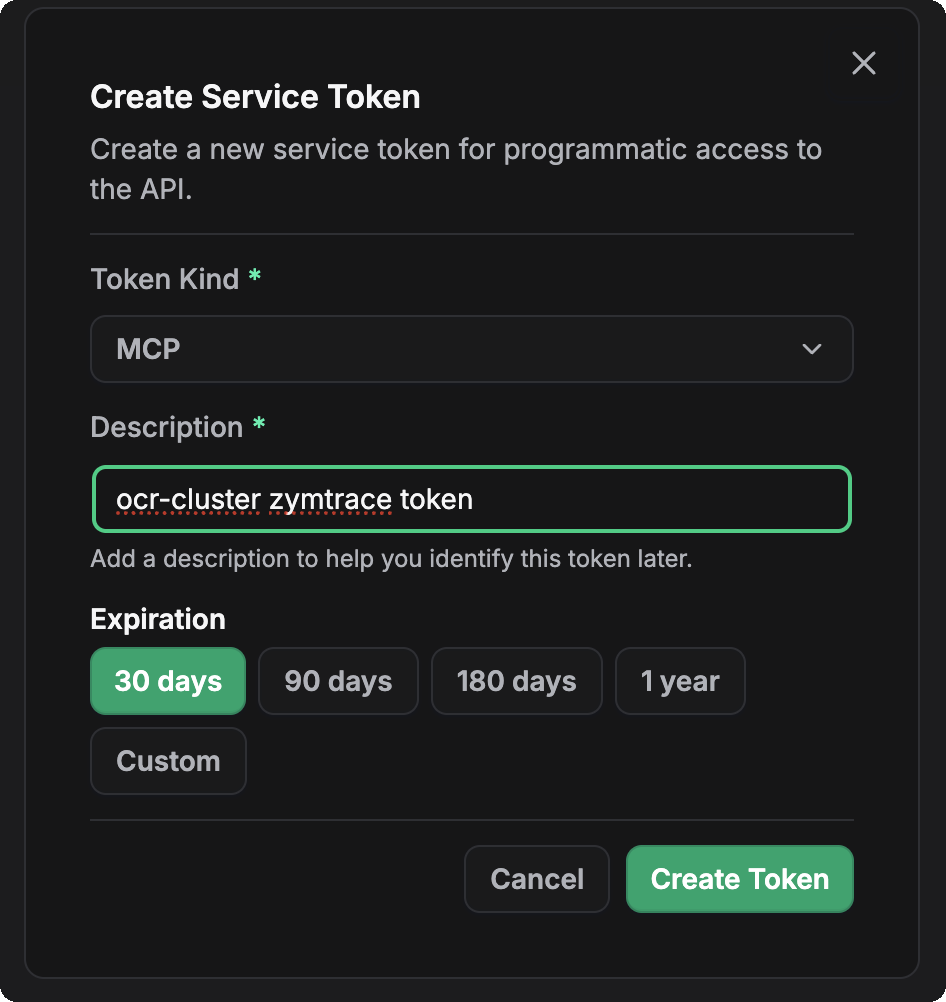
:::warning Token Security
The token is only shown once. If you lose it, you'll need to create a new token.
:::
Once you have your token, return to the [Configure MCP guide](./configure-mcp) to configure your AI assistant.
## Managing Tokens
### Viewing Tokens
To view all your service tokens:
1. Navigate to **Your profile picture** → **Account** → **Service Tokens**
2. You'll see a list showing:
- Token name/description
- Token type (MCP, Agent, etc.)
- Creation date
- Expiration date (if applicable)
### Revoking Tokens
To revoke a token:
1. Navigate to **Your profile picture** → **Account** → **Service Tokens**
2. Find the token you want to revoke
3. Click the **three dots menu** (⋮)
4. Select **Revoke**
5. Confirm the revocation
:::warning Immediate Effect
Revoking a token takes effect immediately. Any AI assistants using the token will lose access and need to be reconfigured with a new token.
:::
## Token Permissions
MCP tokens have read-only access to performance data:
- View flamegraphs
- Query top functions and entities
- Access GPU and CPU metrics
- Read historical performance data
MCP tokens **cannot**:
- Modify system configuration
- Create or delete resources
- Access authentication settings
- Perform administrative actions
## Troubleshooting
### Invalid Token Error
If you receive authentication errors:
- Verify the token was copied correctly (no extra spaces)
- Check that the token hasn't been revoked
- Ensure the token type is set to "MCP"
---
# Support
URL: https://docs.zymtrace.com/support
# Support
## How to engage
All standard support requests should be sent to **[support@zymtrace.com](mailto:support@zymtrace.com)**. Emails sent to this address automatically create a support ticket and enter zymtrace's triage workflow.
You can also [join the zymtrace Slack](https://join.slack.com/t/zymtrace/shared_invite/zt-3fdidjufl-q~NHxDzQlzal2B9mujfaoQ) and ask in the [support channel](https://zymtrace.slack.com/archives/C09K2KFS8G3).
Enterprise customers are also provided with support phone numbers to reach the on-call engineer directly for Sev-1 issues.
## Coverage and severity levels
Support is provided 24x7 for Sev-1 and Sev-2 issues, and during business hours (Monday to Friday, PST) for Sev-3 and Sev-4 issues, unless otherwise agreed.
| Severity | Definition | Coverage | Target Response |
| -------------------- | ------------------------------------------------------------------------------- | -------------- | --------------- |
| **Sev-1 (Critical)** | Production outage or critical loss of functionality with no workaround | 24x7 | 30 minutes |
| **Sev-2 (High)** | Significant production degradation; limited or operationally painful workaround | 24x7 | 4 hours |
| **Sev-3 (Medium)** | Non-critical issue; acceptable workaround available | Business hours | 1 business day |
| **Sev-4 (Low)** | Questions, guidance, minor defects, or feature requests | Business hours | 2 business days |
## Escalation path
Issues are handled through a tiered escalation model:
1. **L1 — Support engineers.** Intake, triage, and reproduction.
2. **L2 — Senior and on-call support.** Deep investigation and mitigation.
3. **L3 — Engineering escalation.** Defects, fixes, and patches.
For prolonged or repeated Sev-1 or Sev-2 incidents, escalation to zymtrace's executive leadership is available on request through the support channel.
## Incident communications
For Sev-1 incidents, zymtrace will provide updates at least hourly, or sooner upon any material change. For Sev-2 incidents, zymtrace will provide regular updates during active investigation. A post-incident root cause analysis (RCA) will be provided following resolution of any Sev-1 or Sev-2 incident.
---
# onpremise-symb
URL: https://docs.zymtrace.com/symbols/onpremise-symb
# On-Premise Symbolization
## Overview
The Zymtrace [global symbolization service](/symbolization#global-symbolization-service) mirrors and processes debuginfo from Linux distro repos and serves the processed symbols via our CDN at `https://symbols.zymtrace.com`. The [backend services](../architecture.md) automatically look up native symbols through this CDN, enabling efficient symbolization with zero configuration required from users.
For customers who do not have direct access to the internet, you can either:
1. Allow firewall access to `https://symbols.zymtrace.com` (the easiest approach), or
2. Clone the entire bucket locally into an S3-compatible storage.
Since Zymtrace already ships with [`MinIO`](https://min.io/), you can use this as your local s3-compatible blob storage. The majority of our customers operate in air-gapped environments, so we provide several methods to clone the symbol bucket.
## Configuration
To use on-premise symbolization, update the Helm configuration:
custom-values.yaml
```yaml
globalSymbolization:
enabled: false
config:
bucketName: ""
accessKey: ""
secretKey: ""
region: ""
endpoint: ""
```
:::info
`region` is specific to AWS S3. We will automatically construct the URL without explicitly setting an endpoint.
:::
But first, you need to clone the bucket.
## Clone the bucket
This guide provides commands and procedures for cloning the `zystem-symbolblobs` bucket from Google Cloud Storage. The bucket contains symbol files used by Zymtrace for providing function names and line numbers in application traces.
Source bucket: `https://zystem-symbolblobs.storage.googleapis.com`
Recommended destination bucket: `zymtrace-symbols`
:::info
This bucket contains ~1TB of data and growing. Ensure your destination storage has sufficient capacity (2-3 TB) and expect the transfer to take several hours depending on your network bandwidth.
:::
```mdx-code-block
import Tabs from '@theme/Tabs';
import TabItem from '@theme/TabItem';
```
## Requirements
- Google Cloud SDK installed
- Sufficient storage space
## Overview
`gsutil` is Google's command-line tool for working with Cloud Storage. This method is particularly efficient for GCS-to-GCS transfers.
## Installation
```bash
# Install Google Cloud SDK
curl https://sdk.cloud.google.com | bash
# Initialize and authenticate
gcloud init
```
## Command
```bash
# Create destination bucket if needed
gsutil mb -c standard -l us-central1 gs://zymtrace-symbols
# Clone with maximum performance
gsutil -o "GSUtil:parallel_process_count=2" \
-o "GSUtil:parallel_thread_count=5" \
-m rsync -r gs://zystem-symbolblobs gs://zymtrace-symbols
```
## Performance Considerations
- The `-m` flag enables multi-threading, critical for TB-scale transfers
- `parallel_process_count` spawns multiple processes for parallel operations
- `parallel_thread_count` uses multiple threads per process
- Adjust these values based on your system's CPU cores and available memory
- For memory-constrained systems, reduce these values to prevent out-of-memory errors
## Monitoring Progress
During the transfer, gsutil will display progress statistics:
```
Copying gs://zystem-symbolblobs/file1.pb [1/1000 files][ 10.5 MiB/ 10.5 MiB]
...
```
You can also use a second terminal to check the destination bucket size:
```bash
gsutil du -sh gs://zymtrace-symbols
```
## Error Handling
If the transfer is interrupted, simply run the same command again. The `rsync` operation will resume where it left off, copying only files that weren't successfully transferred.
## Requirements
- The latest rclone is installed
- Sufficient storage space
- Destination storage system configured in rclone
## Overview
[Rclone](https://rclone.org) is used for syncing files and directories between various cloud storage providers. It's particularly useful for:
- Transferring between different storage providers (e.g., GCS to AWS, Azure, or MinIO)
- Environments where gsutil isn't available or preferred
- Greater control over transfer parameters
## Installation
```bash
# Install rclone on Linux
curl https://rclone.org/install.sh | sudo bash
# Verify installation
rclone --version
```
## Configuration
First, configure rclone to access the source GCS bucket with anonymous access:
```bash
# Setup source config
cat >> ~/.config/rclone/rclone.conf << EOF
[gcs-public]
type = s3
provider = GCS
anonymous = true
endpoint = storage.googleapis.com
EOF
# Configure your destination if not already done
# Example: rclone config
```
## Basic Command (Same Storage Provider)
```bash
# Create destination bucket if needed
rclone mkdir destination:zymtrace-symbols
# Fast clone command
rclone sync gcs-public:zystem-symbolblobs destination:zymtrace-symbols \
--transfers=64 \
--checkers=128 \
--buffer-size=128M \
--s3-chunk-size=64M \
--s3-upload-concurrency=16 \
--fast-list \
--progress
```
## Cross-Cloud Transfer Commands
### GCS to AWS S3
```bash
# Ensure AWS remote is configured
# rclone config
rclone sync gcs-public:zystem-symbolblobs aws:zymtrace-symbols \
--transfers=64 \
--checkers=128 \
--buffer-size=128M \
--s3-chunk-size=64M \
--s3-upload-concurrency=16 \
--fast-list \
--progress
```
### GCS to Azure Blob Storage
```bash
# Ensure Azure remote is configured
# rclone config
rclone sync gcs-public:zystem-symbolblobs azureblob:zymtrace-symbols \
--transfers=64 \
--checkers=128 \
--buffer-size=128M \
--fast-list \
--progress
```
### GCS to MinIO
```bash
# Ensure MinIO remote is configured
# rclone config
rclone sync gcs-public:zystem-symbolblobs minio:zymtrace-symbols \
--transfers=64 \
--checkers=128 \
--buffer-size=128M \
--s3-chunk-size=64M \
--s3-upload-concurrency=16 \
--fast-list \
--progress
```
## Parameter Explanation
- `--transfers=64`: Number of files to transfer in parallel (adjust based on your system)
- `--checkers=128`: Number of checkers to run in parallel (for listing directories)
- `--buffer-size=128M`: Size of in-memory buffer for transfers
- `--s3-chunk-size=64M`: Size of multipart chunks for S3 uploads
- `--s3-upload-concurrency=16`: Number of parts to upload in parallel
- `--fast-list`: Use recursive listing (faster for buckets with many objects)
- `--progress`: Display real-time transfer statistics
## Monitoring and Resuming
- The progress display shows transfer rate, ETA, and percentage complete
- If interrupted, running the same command will resume where it left off
- For additional logging: `--log-file=rclone.log --log-level=INFO`
## Troubleshooting
- Memory issues: Reduce `--transfers` and `--buffer-size`
- Timeouts: Add `--timeout=2h` for longer operation timeout
- Network errors: Add `--retries=10` to automatically retry failed transfers
AWS DataSync is a managed data transfer service that simplifies, automates, and accelerates moving data between storage systems and AWS storage services.
Refer to the official [AWS guide](https://aws.amazon.com/blogs/storage/migrating-google-cloud-storage-to-amazon-s3-using-aws-datasync/)
Google Cloud Storage Transfer Service is a managed service specifically designed for large-scale data transfers. You can use either the Google Cloud Console (UI) or command line to set up and manage transfers.
Refer to the GCP [docs](https://cloud.google.com/storage-transfer-service).
### Console Setup Steps
1. Navigate to Google Cloud Console and open Storage Transfer Service
2. Click "Create Transfer Job"
3. Configure source:
- Select "Cloud Storage bucket" as source type
- Enter `zystem-symbolblobs` as the source bucket
4. Configure destination:
- Select "Cloud Storage bucket" as destination type
- Enter `zymtrace-symbols` as the destination bucket
5. Set schedule options (Run now or schedule recurring transfers)
6. Configure advanced settings if needed
7. Click "Create" to start the transfer
### Monitoring
- Go to Transfer Jobs page to view progress
- Click on job ID to see detailed logs and statistics
- Real-time metrics are available in Cloud Monitoring
### Command
```bash
# Using gcloud CLI
gcloud transfer jobs create \
--source=gcs,gs://zystem-symbolblobs \
--destination=gcs,gs://zymtrace-symbols
```
### Advanced Options
```bash
# Schedule a daily transfer
gcloud transfer jobs create \
--source=gcs,gs://zystem-symbolblobs \
--destination=gcs,gs://zymtrace-symbols \
--schedule-starts=2023-01-01T00:00:00Z \
--schedule-repeats-every=24h
```
### Monitoring via CLI
```bash
# List all transfer jobs
gcloud transfer jobs list
# Check status of a specific job
gcloud transfer jobs describe JOB_NAME
```
## After Cloning
Once you've successfully cloned the symbol bucket, update your `custom-values.yaml` with the appropriate bucket information and deploy your Zymtrace instance. The system will now use your local symbol storage instead of the internet-hosted CDN.
---
# symbolization
URL: https://docs.zymtrace.com/symbols/symbolization
# Symbolization
## What is symbolization?
Symbolization is particularly critical for Zymtrace because we operate as a whole-system profiler. Unlike application performance monitoring (APM) tools and language-specific profilers that require code changes, runtime instrumentation, or language-specific agents, Zymtrace reads raw memory addresses directly from the system without touching your application's runtime or requiring any modifications to your code.
This non-intrusive approach means we collect instruction addresses exactly as they appear in memory during execution. Without symbolization, these profiles would show only hexadecimal addresses that are impossible to interpret or act upon. Symbolization transforms these raw instruction addresses into meaningful source code locations, bridging the gap between low-level system data and high-level developer understanding.
Native frames collected during software profiling require symbols to be useful. A symbol for a particular frame is a list of `` triplets. It is a list because compiler inlining may associate multiple functions and source lines to a single machine frame.
Native frames collected by the Zymtrace whole-system profiler may originate from:
- CUDA runtime and NVIDA GPU kernels
- System libraries (part of container images or the host OS)
- Operating system daemons
- Third-party software
- Native libraries used by in-house software
### The symbolization challenge
Most production workloads strip debug symbols from binaries to reduce container image size and improve load times. Even when symbols are present, their quality varies significantly - many contain only basic function names without file locations or line numbers. This creates a gap between the raw addresses collected during profiling and the detailed source mappings developers need for effective optimization.
### Our symbolization approach
Zymtrace addresses missing or low-quality symbols through a robust three-tier approach:
1. **Automatic symbol upload** – The profiler automatically uploads symbols if available on the local system
2. **Global symbolization service** – Falls back to pre-processed symbols for public libraries when local symbols are missing or insufficient
3. **Manual symbol upload** – CLI tool for uploading proprietary symbols manually or via CI/CD pipeline for maximum quality
## Symbol types and quality levels
All symbols processed and stored by Zymtrace—whether uploaded automatically, manually, or via the global symbolization service—are saved in the GSYM format. GSYM (Generic Symbol Format) is designed for compactness and fast lookups, making it ideal for large-scale symbolization databases and high-performance profiling workflows.
The quality and completeness of symbolization depends on the type of application and available debug information:
### Interpreted languages
Applications written in interpreted languages (Python, JavaScript, Ruby, etc.) have file names and line numbers extracted directly from process memory. The exception is .NET applications, which require additional symbol processing.
### Native applications
Native applications present varying levels of symbol quality depending on available debug information. Understanding these different symbol sources helps explain why some profiles show complete source locations while others only display function names.
#### ELF debug symbols (basic quality)
Executables with ELF (Executable and Linkable Format) debug symbols will only have function names, but no file names and line numbers. This is a hard limitation: ELF symbols simply don't store this information. The ELF format maintains function names and their memory addresses in symbol tables, but source location data like file paths and line numbers are not part of the ELF specification. This will generally be the case for most non-Go executables on production machines, where binaries are typically stripped of richer debug information to reduce container image sizes.
#### Go applications (basic quality)
Go executables (like our profiler) will also always only have function names extracted, from Go's internal reflection data structures. Unlike other languages that rely on external debug symbols, Go embeds metadata directly in the binary that allows runtime reflection. This provides reliable function name resolution even when traditional debug symbols are stripped. However, this is something that we intend to improve in the future, to also extract file names + lines from the Go meta-data, which would significantly enhance the debugging experience for Go services.
#### DWARF debug symbols (full quality)
Executables shipped with full DWARF debug symbols will have file names and line numbers, providing the most complete symbolization possible. DWARF (Debugging With Attributed Record Formats) includes detailed debug information including source file mappings, line number tables, and inline function call chains.
However, we don't enable DWARF symbol extraction in auto upload by default. You can engage it by passing the `-dwarf` flag to the profiler. DWARF is a horrendously complex format; parsing it will increase the peak memory footprint of the profiler by about 100MiB during extraction. DWARF info is also usually not present on production machines since it's typically stripped during deployment to reduce binary size—that's why it's opt-in for automatic uploads but enabled by default for manual uploads where the extraction happens offline.
### Symbol extraction and merging
The symbol extraction code (both automatic and manual) extracts symbols from all available sources and merges them. In auto-upload, DWARF extraction is opt-in; in manual upload, it's the default. The system intelligently combines complementary information—for example, when an executable has both ELF and DWARF symbols, it merges function names from ELF with file and line information from DWARF.
## Automatic symbol upload
The profiler automatically uploads symbols if available on the local system. This first-line approach:
- Scans for available symbols on running binaries
- Uploads whatever debug information is present
- Works seamlessly without user intervention
- Provides immediate symbolization for locally available symbols
However, most production workloads strip symbols or the quality of symbols is not good enough (function names only). The profiler uses global symbolization to address missing symbols or defaults to DWARF for better quality symbols where present.
## Global symbolization service
When automatic symbol upload doesn't provide adequate coverage, Zymtrace's global symbolization service acts as a fallback. This service:
- Crawls Debian, Alpine, and Ubuntu repositories, including popular Docker containers, for debug information
- Processes and stores debug symbols as GSYM files, a compact and efficient format for symbol information
- Indexes and stores these files in Google Cloud Storage
- Provides better quality symbols than are typically available locally
- Allows customers to clone this symbolization database for on-premises use
This approach ensures that common libraries and system components are automatically symbolized even when local debug information is unavailable or of poor quality.
## Manual symbol upload
For proprietary software or when you need to ensure optimal symbol quality, Zymtrace provides a command-line tool for manual symbol upload. This approach offers several advantages:
- **Maximum quality:** Manual upload uses DWARF symbols by default, providing complete file names, function names, and line numbers
- **Proprietary software support:** Upload symbols for internal applications not covered by the global service
- **CI/CD integration:** Automate symbol uploads as part of your build and deployment pipeline
- **Version control:** Ensure symbols match your exact binary versions
- **Custom control:** Override automatic symbolization with your preferred symbols
The manual upload process can be run on-demand for immediate needs or integrated into CI/CD pipelines for automated symbol management. The tool extracts symbols from all available sources and merges them to provide comprehensive coverage.
This process is documented in detail on the [uploading symbols](./upload-symbols.md) page.
## Choosing the right approach
The three-tier symbolization system works together to provide a great symbolization experience.
- **Start with automatic upload** for immediate, zero-configuration symbolization
- **Leverage global symbolization** for extensive coverage of common libraries and system components
- **Use manual upload** for proprietary software, optimal quality, or CI/CD integration
In most cases, the automatic upload and global symbolization service provide excellent coverage with minimal effort. Manual upload is recommended when you need guaranteed symbol quality or are working with proprietary binaries not covered by the global service.
---
# upload-symbols
URL: https://docs.zymtrace.com/symbols/upload-symbols
# Upload Native Symbols
:::info
Uploading custom symbols is only necessary if the debug symbols are manually stripped from your binaries. If your executables retain their debug information, Zymtrace can automatically extract and use these symbols without manual upload.
:::
Zymtrace requires debug symbols to display function names and line numbers in traces from applications written in languages that compile to native code (C, C++, Rust, Go).
- **C/C++** applications must be built with debug symbols (`-g`) for symbolization to work.
- **Rust** applications must be built with `debug = "line-tables-only"` (or a higher debug level that also includes line tables).
- **Go** binaries do not require any special compiler flags and include debug information even if the executable is fully stripped.
The `zymtrace-cli upload-symbols` subcommand allows you to upload debug symbols from both stripped and unstripped executables.
:::tip Authentication
If your Zymtrace instance has authentication enabled, you'll need a service token to upload symbols. See [Service Tokens](../authentication/service-tokens) for setup instructions.
To authenticate, set the `ZYMTRACE_SERVICE_TOKEN` environment variable with your service token:
```bash
ZYMTRACE_SERVICE_TOKEN='your-token' ./zymtrace-cli upload-symbols ...
```
:::
## Download zymtrace-cli
First, download the `zymtrace-cli` tool.
```mdx-code-block
import Tabs from '@theme/Tabs';
import TabItem from '@theme/TabItem';
```
```bash
curl -L https://dl.zystem.io/zymtrace/latest/arm64/zymtrace-cli -o zymtrace-cli
chmod +x zymtrace-cli
```
```bash
curl -L https://dl.zystem.io/zymtrace/latest/amd64/zymtrace-cli -o zymtrace-cli
chmod +x zymtrace-cli
```
:::info
zymtrace-cli is only compatible with Linux machines.
:::
## Usage
Use the help command to get started.
```bash
./zymtrace-cli upload-symbols -h
Usage: zymtrace-cli upload-symbols --project-id --endpoint [DEBUG_OBJECT]
Arguments:
Path to the executable
[DEBUG_OBJECT] Extract symbols from a split debug object instead
Options:
-p, --project-id Project ID to upload to
-e, --endpoint Destination for symbol uploads
-h, --help Display help information
```
- The `project-id` can be found in the Zymtrace UI, within the URL. The default project ID is `00000000-0000-0000-0000-000000000000`.
- The `endpoint` refers to the Zymtrace gateway service. If you are using an ingress controller, this is the gateway ingress.
:::tip
If you're using an ingress controller, ensure you configure it by setting `nginx.ingress.kubernetes.io/proxy-body-size: "0"` to allow unlimited file size uploads, or specify a hard limit, e.g., `5GB`. This example assumes that you are using Nginx. See the ingress [docs](../install/backend/helm-docker.md) for details.
:::
Depending on how you are deploying your executables to production with or without symbols, we need to use one of two different approaches.
### Executables are deployed with symbols (unstripped)
This is the simplest case. All that you need to do is to run:
```bash
# Without authentication
./zymtrace-cli upload-symbols \
--project-id 00000000-0000-0000-0000-000000000000 \
--endpoint http://zymtrace.internal:80 fincore_llm
# With authentication (if enabled)
ZYMTRACE_SERVICE_TOKEN='your-service-token' ./zymtrace-cli upload-symbols \
--project-id 00000000-0000-0000-0000-000000000000 \
--endpoint http://zymtrace.internal:80 fincore_llm
```
This command uploads the debug symbols for the `fincore_llm` binary to the Zymtrace UI at `http://zymtrace.internal:80`
### Executables are stripped in production
Zymtrace uses a hash-based identifier to map executables to their symbols. When the executable is stripped, the hash changes, and symbols uploaded from the unstripped executable can no longer be associated with the profiles collected for the stripped variant.
To handle this case, the `upload-symbols` command has a second mode of operation. If two files are passed, the first one is used to compute the hash (the stripped executable) while symbols are extracted from the second one (the unstripped executable).
```bash
# Without authentication
./zymtrace-cli upload-symbols \
--project-id 00000000-0000-0000-0000-000000000000 \
--endpoint http://zymtrace.internal:80 fincore_llm_stripped fincore_llm_unstripped
# With authentication (if enabled)
ZYMTRACE_SERVICE_TOKEN='your-service-token' ./zymtrace-cli upload-symbols \
--project-id 00000000-0000-0000-0000-000000000000 \
--endpoint http://zymtrace.internal:80 fincore_llm_stripped fincore_llm_unstripped
```
To illustrate this further, if you want to strip your executables but still upload symbols for them, you'd go about that like so:
```bash
# Build your applications with symbols, then:
cp ./fincore_llm ./fincore_llm_stripped
strip ./fincore_llm_stripped
# Without authentication
./zymtrace-cli upload-symbols \
--project-id 00000000-0000-0000-0000-000000000000 \
--endpoint http://zymtrace.internal:80 fincore_llm_stripped fincore_llm
# With authentication (if enabled)
ZYMTRACE_SERVICE_TOKEN='your-service-token' ./zymtrace-cli upload-symbols \
--project-id 00000000-0000-0000-0000-000000000000 \
--endpoint http://zymtrace.internal:80 fincore_llm_stripped fincore_llm
rm ./fincore_llm
```
:::tip
This variant is also applicable for builds that produce separate debug objects (e.g. split DWARF).
:::
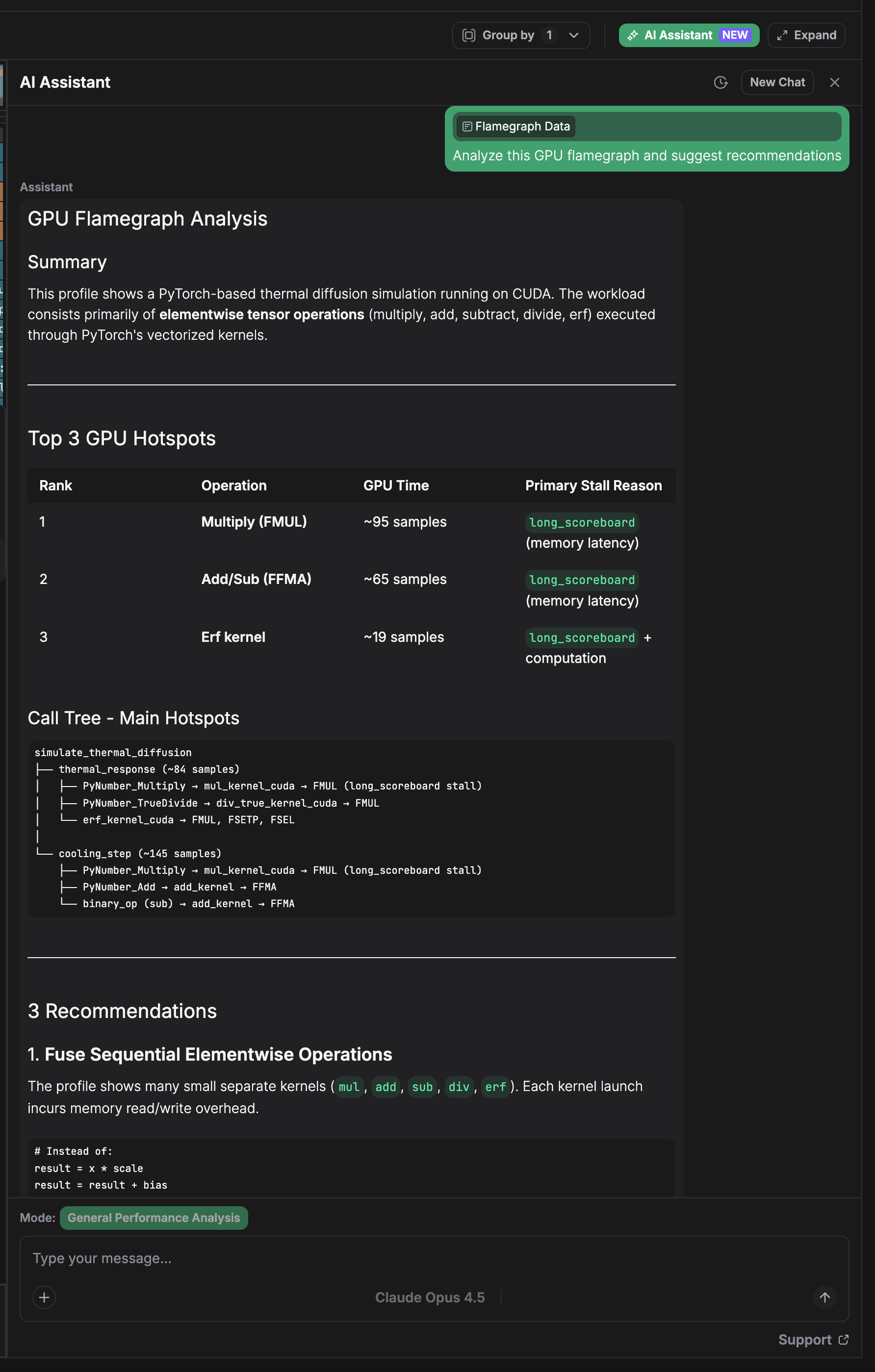
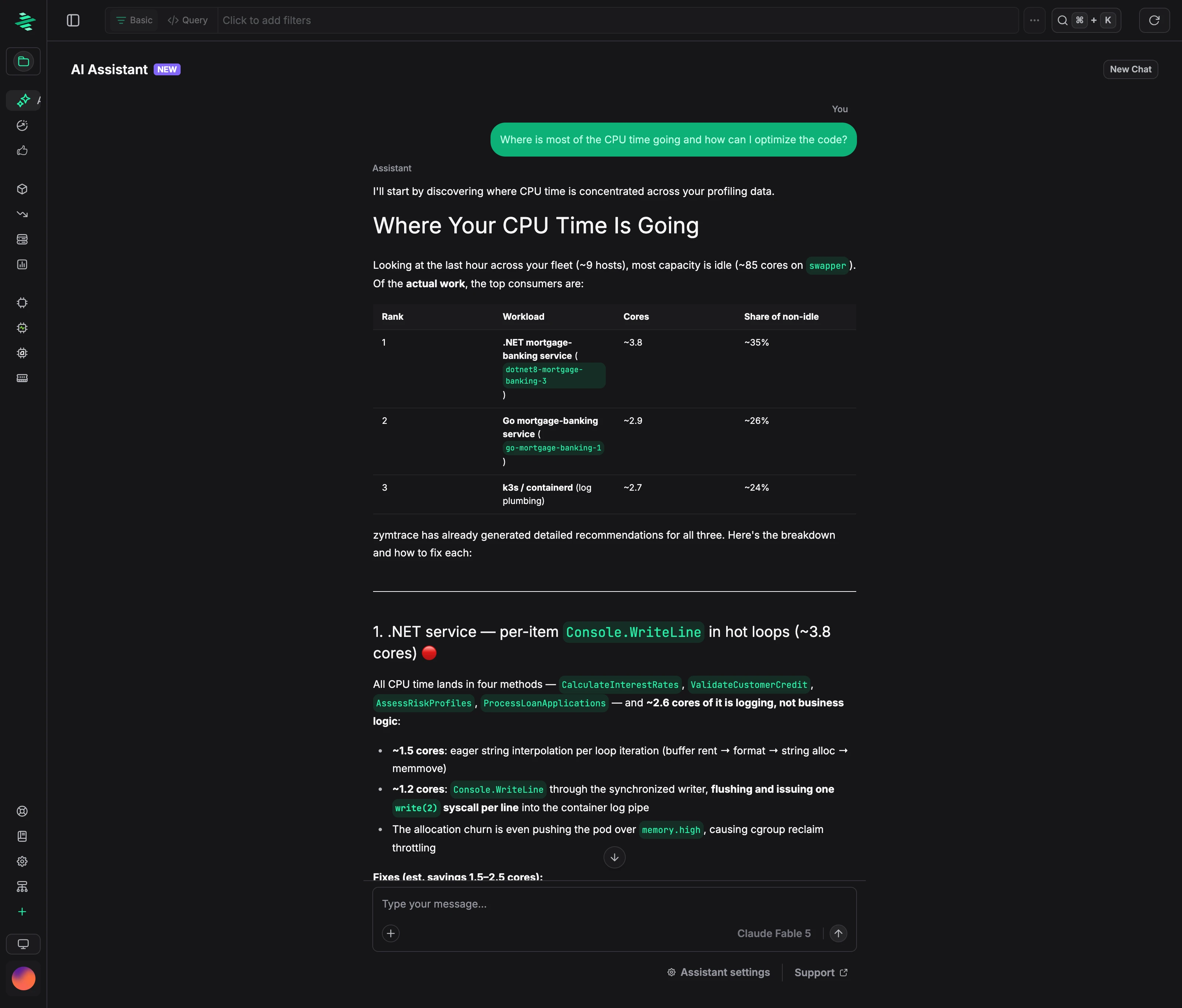 To start a conversation:
1. Open **AI Assistant** in the sidebar.
2. Choose an analysis mode: **General CPU Performance Analysis**, **General GPU Performance Analysis**, or **General Memory Allocation Analysis**.
3. Type a question, or pick one of the suggested prompts.
You can switch models from the model picker, attach files with **+**, and start over with **New Chat**.
## Flamegraph AI Assistant
The flamegraph AI Assistant analyzes the flamegraph on screen. Click **AI Assistant** above a CPU or GPU flamegraph to open it next to the flamegraph. The current flamegraph is attached to your message as **Flamegraph Data**.
To start a conversation:
1. Open **AI Assistant** in the sidebar.
2. Choose an analysis mode: **General CPU Performance Analysis**, **General GPU Performance Analysis**, or **General Memory Allocation Analysis**.
3. Type a question, or pick one of the suggested prompts.
You can switch models from the model picker, attach files with **+**, and start over with **New Chat**.
## Flamegraph AI Assistant
The flamegraph AI Assistant analyzes the flamegraph on screen. Click **AI Assistant** above a CPU or GPU flamegraph to open it next to the flamegraph. The current flamegraph is attached to your message as **Flamegraph Data**.
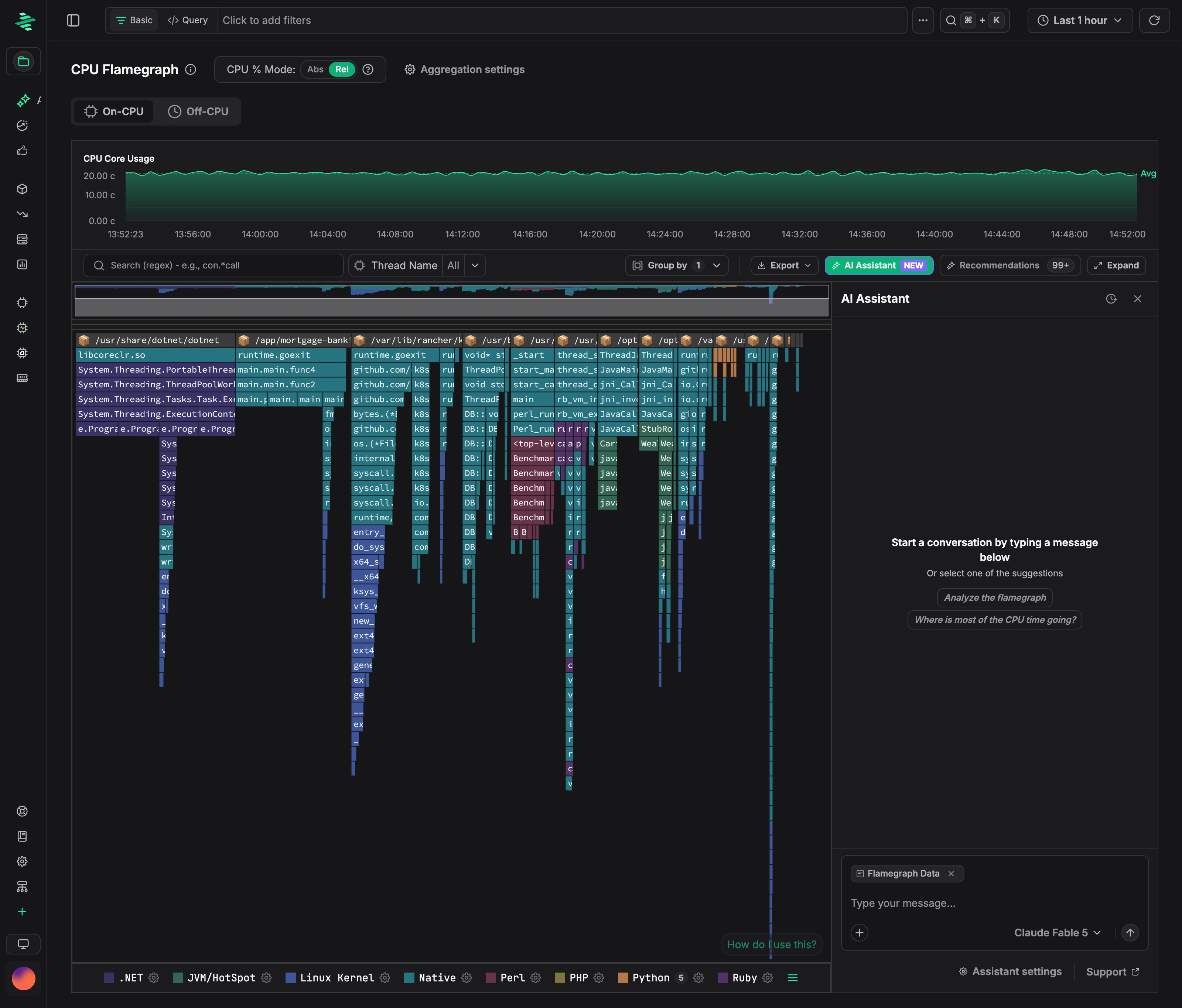 Ask a question or pick a suggestion such as **Analyze the flamegraph**.
:::tip Prefer your IDE or terminal?
Connect your own AI assistant to the same data with the [Zymtrace MCP server](../mcp/configure-mcp.md).
:::
---
# Zymtrace RESTful APIs
URL: https://docs.zymtrace.com/api/
# Zymtrace RESTful APIs
Every Zymtrace instance ships with a built-in **API Explorer**, an interactive REST API reference you can use to explore endpoints, read documentation, and send live requests directly from your browser.
## Opening the API Explorer
Click **API Explorer** in the top navigation bar of your Zymtrace instance.

The API is versioned under `/public/api/v1/` and organized into the following categories:
| Category | Description |
|---|---|
| `flamegraph` | Generate JSON-format flamegraphs for a project |
| `metrics` | Query CPU and GPU profiling metrics |
| `aggregate-stats` | Aggregate statistics by container, host, executable, and more |
| `aggregate-events` | Aggregate profiling events across your fleet |
| `events` | Fetch raw profiling events |
| `projects` | Create and manage projects |
| `users` | Manage user accounts and profiles |
| `auth` | Authentication and session management |
| `roles` | Role management |
| `permissions` | Permission management |
| `service-tokens` | Create and revoke API service tokens |
| `config` | System configuration |
| `secrets` | Secret management |
| `agent-config` | Profiler agent configuration |
| `audit` | Audit logs |
| `license` | License information |
## Authentication
If authentication is enabled on your instance, API requests require a bearer token. Generate a service token from **Profile → Account → Service Tokens** and use it as the bearer token. See [Service Tokens](../authentication/service-tokens.md) for step-by-step instructions.
Enter the token in the **Authorization** field at the top of the API Explorer, then use the **Test Request** button on any endpoint to send a live request.
## Example Request
Generate a JSON flamegraph for a project:
```bash
curl https://demo.zymtrace.com/public/api/v1/project/123e4567-e89b-12d3-a456-426614174000/flamegraph/json \
--request POST \
--header 'Content-Type: application/json' \
--header 'Authorization: Bearer
Ask a question or pick a suggestion such as **Analyze the flamegraph**.
:::tip Prefer your IDE or terminal?
Connect your own AI assistant to the same data with the [Zymtrace MCP server](../mcp/configure-mcp.md).
:::
---
# Zymtrace RESTful APIs
URL: https://docs.zymtrace.com/api/
# Zymtrace RESTful APIs
Every Zymtrace instance ships with a built-in **API Explorer**, an interactive REST API reference you can use to explore endpoints, read documentation, and send live requests directly from your browser.
## Opening the API Explorer
Click **API Explorer** in the top navigation bar of your Zymtrace instance.

The API is versioned under `/public/api/v1/` and organized into the following categories:
| Category | Description |
|---|---|
| `flamegraph` | Generate JSON-format flamegraphs for a project |
| `metrics` | Query CPU and GPU profiling metrics |
| `aggregate-stats` | Aggregate statistics by container, host, executable, and more |
| `aggregate-events` | Aggregate profiling events across your fleet |
| `events` | Fetch raw profiling events |
| `projects` | Create and manage projects |
| `users` | Manage user accounts and profiles |
| `auth` | Authentication and session management |
| `roles` | Role management |
| `permissions` | Permission management |
| `service-tokens` | Create and revoke API service tokens |
| `config` | System configuration |
| `secrets` | Secret management |
| `agent-config` | Profiler agent configuration |
| `audit` | Audit logs |
| `license` | License information |
## Authentication
If authentication is enabled on your instance, API requests require a bearer token. Generate a service token from **Profile → Account → Service Tokens** and use it as the bearer token. See [Service Tokens](../authentication/service-tokens.md) for step-by-step instructions.
Enter the token in the **Authorization** field at the top of the API Explorer, then use the **Test Request** button on any endpoint to send a live request.
## Example Request
Generate a JSON flamegraph for a project:
```bash
curl https://demo.zymtrace.com/public/api/v1/project/123e4567-e89b-12d3-a456-426614174000/flamegraph/json \
--request POST \
--header 'Content-Type: application/json' \
--header 'Authorization: Bearer 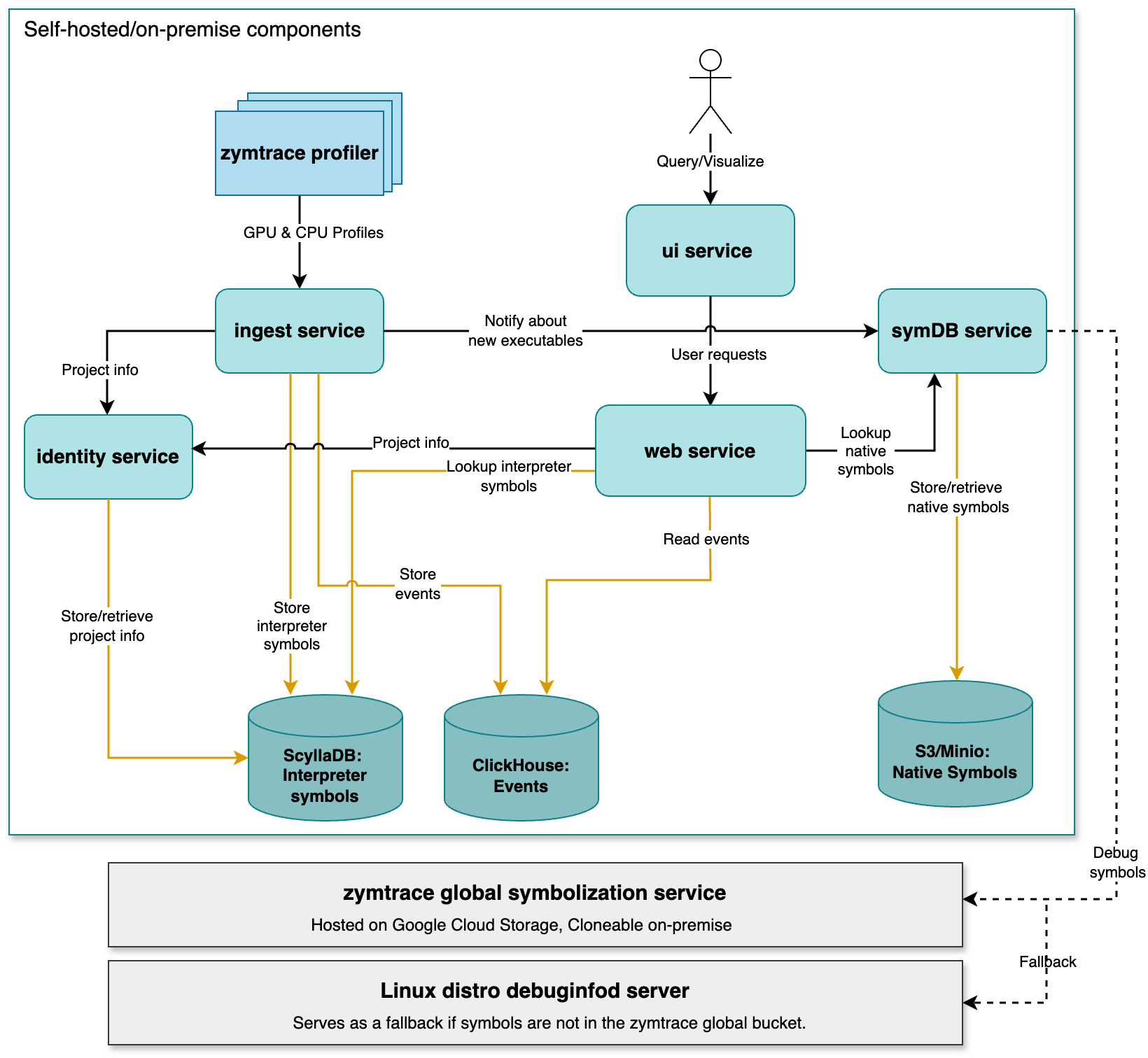
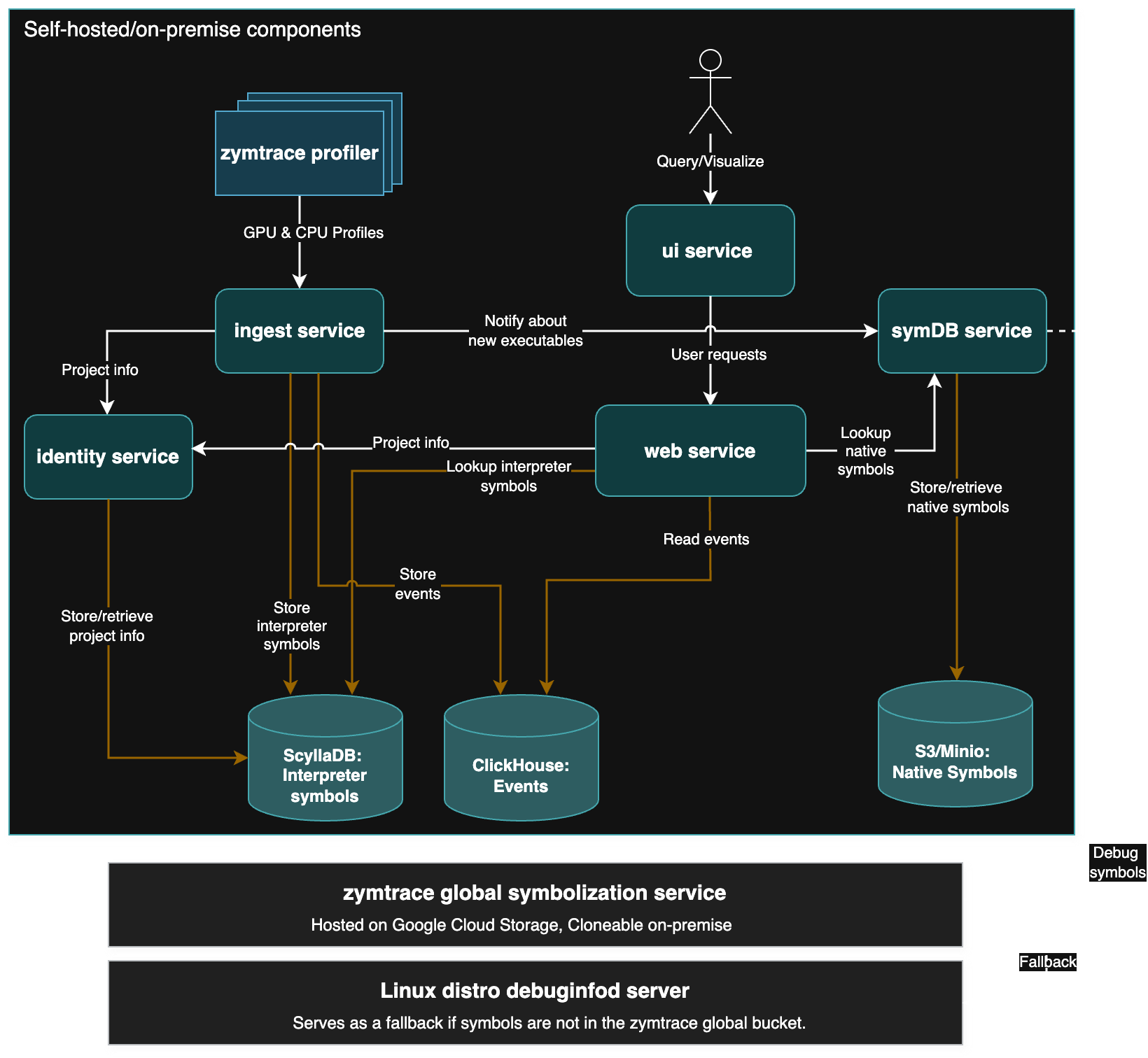 :::info
**Need a hosted Zymtrace backend?**
We can provision a dedicated cloud deployment for you. Email us at [team@zymtrace.com](mailto:team@zymtrace.com) or [request access here](https://www.zymtrace.com/getstarted)
:::
## Components overview
### Zymtrace profiler
The [Zymtrace profiler](./install/profiler/install-profiler.md) runs on each node, deployed either as a Kubernetes DaemonSet or as a standalone binary on a standard VM. It collects performance profiles of resource-intensive processes on the node, aggregates and compresses them, and sends them to the backend via gRPC. TLS is supported by default, with an option to disable it if needed.
Here's a more detailed description of how the profiler works:
:::info
**Need a hosted Zymtrace backend?**
We can provision a dedicated cloud deployment for you. Email us at [team@zymtrace.com](mailto:team@zymtrace.com) or [request access here](https://www.zymtrace.com/getstarted)
:::
## Components overview
### Zymtrace profiler
The [Zymtrace profiler](./install/profiler/install-profiler.md) runs on each node, deployed either as a Kubernetes DaemonSet or as a standalone binary on a standard VM. It collects performance profiles of resource-intensive processes on the node, aggregates and compresses them, and sends them to the backend via gRPC. TLS is supported by default, with an option to disable it if needed.
Here's a more detailed description of how the profiler works:
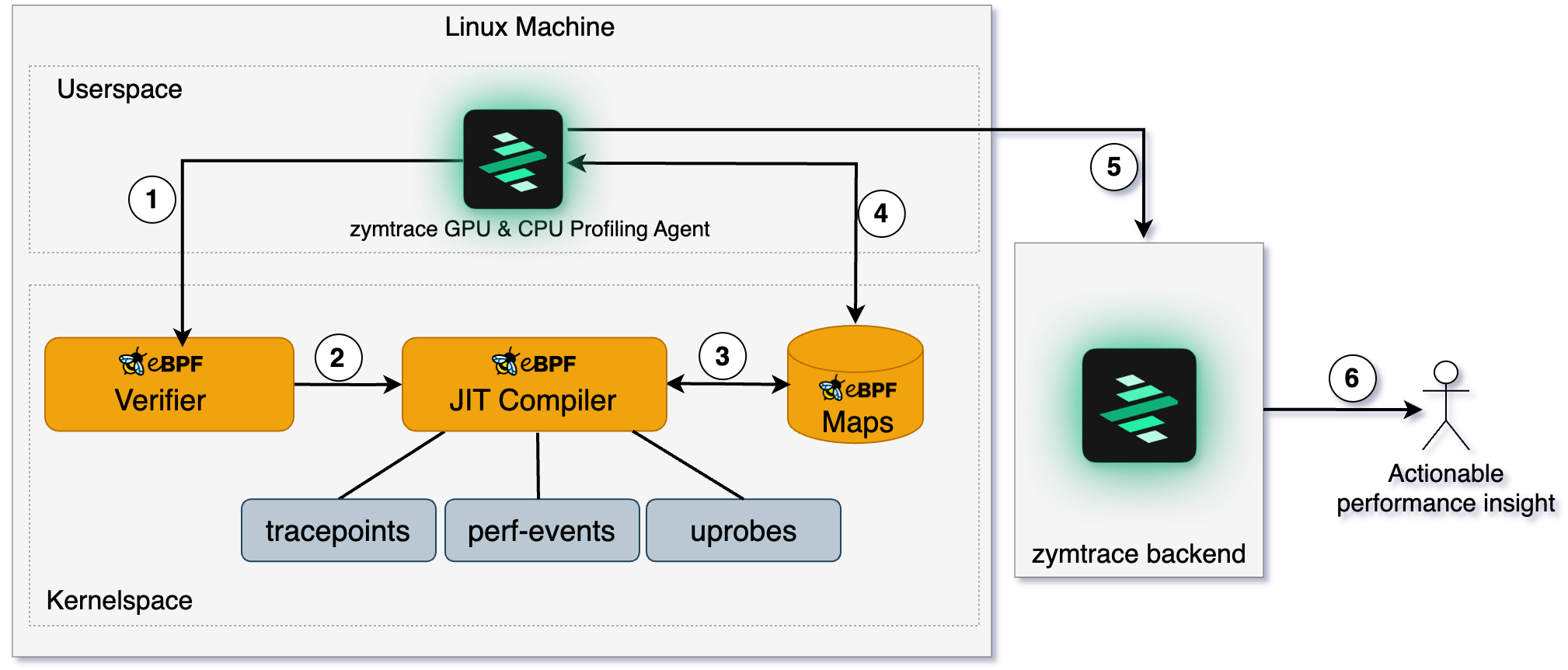
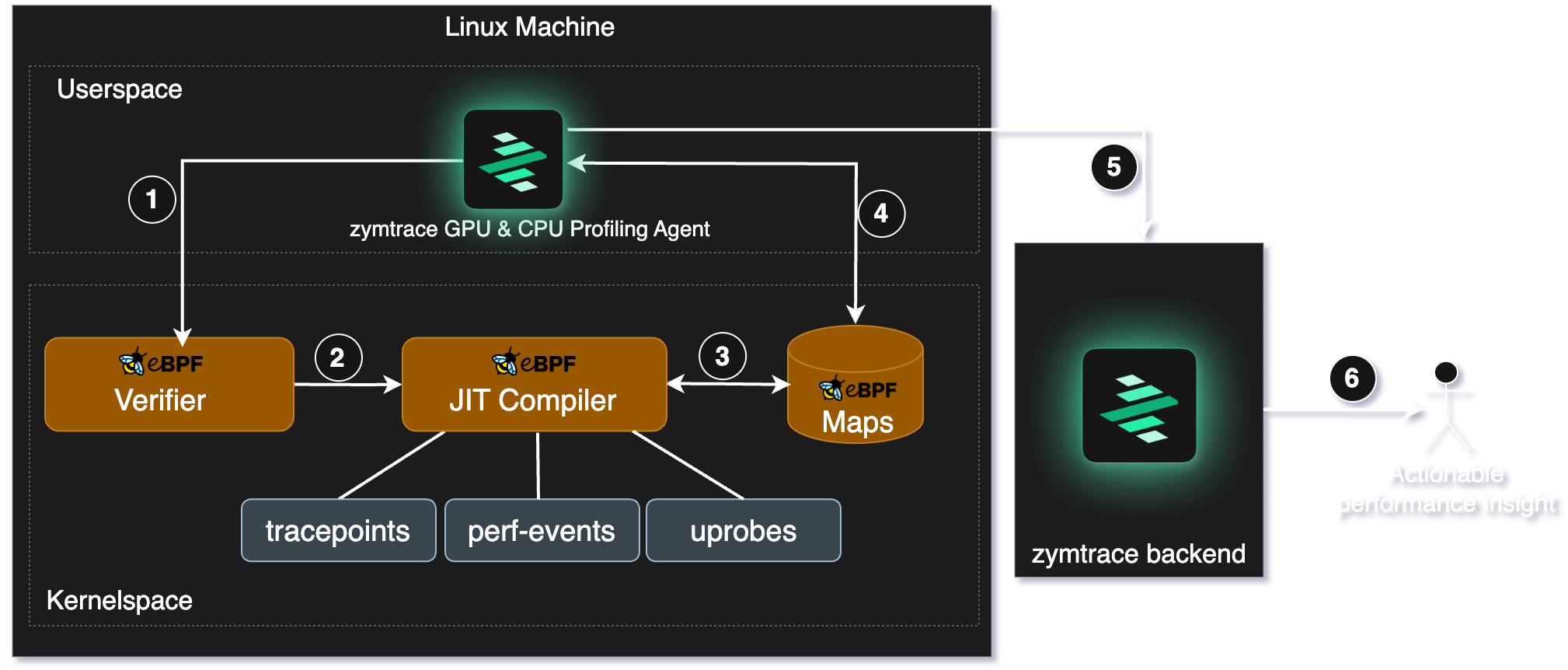 1. **Unwinder eBPF programs** are loaded into the kernel.
2. The kernel verifies the safety of the BPF program. If approved, the program is attached to probes and triggered upon specific events.
3. The eBPF programs collect data and pass it to userspace via **maps**.
4. The agent retrieves the collected data from maps. This data includes process-specific and interpreter-specific meta-information, which helps the eBPF unwinder programs perform mixed-stack unwinding across different languages (e.g., Python calling into C libraries).
5. The agent pushes stack traces, metrics, and metadata to the **Zymtrace gateway service** for routing to the appropriate backend services for analysis.
6. Easily identify & optimize the most inefficient functions across your entire infrastructure.
### Zymtrace GPU profiler
GPU utilization, temperature, power: those metrics are easy to collect, but they don't explain the inner workings of the GPU or why it is idling. That's why we didn't start with [NVML](https://developer.nvidia.com/management-library-nvml) or [DCGM](https://developer.nvidia.com/dcgm) metrics. We started deeper, closer to the hardware. That's where real insight lives, not just in metrics.
Zymtrace profiles NVIDIA CUDA and AMD ROCm workloads at the kernel level and correlates GPU activity with the CPU traces that launched those kernels, without requiring recompilation. For NVIDIA workloads, it also disassembles CUDA SASS mnemonics and exposes GPU stall reasons.
AWS Neuron accelerators, including Inferentia and Trainium, are also supported. Support for Google TPUs and Cerebras is coming soon.
**Learn more:** [GPU Profiler deep dive →](/gpu-profiler-architecture)
## Zymtrace backend services
The Zymtrace backend is designed to store, process and visualize profiling data efficiently. Below is an overview of the key backend services and their roles:
#### **gateway service**
The `gateway` service acts as the main entry point for all user requests, using Envoy Proxy for request routing and load balancing. It routes requests to the appropriate backend services (UI, ingest, symDB) and handles mTLS when configured.
#### **UI service**
The `UI` service serves the web-based user interface for Zymtrace, built with ReactJS and WASM. Users access the UI through the gateway service, which routes web requests to this service.
#### **ingest service**
The `ingest` service receives profiling data and metrics from the Zymtrace profiler via the gateway service, and stores them in ClickHouse for ultra-fast querying and analysis.
In addition to CPU and GPU profiling data, the ingest service handles metrics from:
- **GPU performance metrics**: utilization, memory, temperature, SM efficiency, SM occupancy, Tensor Core utilization, PCIe throughput
- **AWS Neuron**: metrics from Inferentia and Trainium accelerators
- **NVIDIA Dynamo / Triton**: inference server metrics
- **vLLM**: LLM serving metrics
- **SGLang**: structured generation serving metrics
- **Host metrics**: CPU, memory, disk throughput and latency, collected via eBPF rather than polling `/proc` — polling `/proc` is expensive due to repeated filesystem reads
Every metric data point is correlated to the underlying CPU and GPU profiles, so you can move directly from a metric anomaly to the exact code path responsible. Data is received over the [wire protocol](#wire-protocol).
#### **symDB service**
The `symDB` service handles symbol resolution upon request. It retrieves native symbols stored in S3/Minio or fetches them from the `global symbolization` service. This service is critical for converting raw profiling data into meaningful stack traces by resolving both native and interpreted symbols. **Learn more:** [Symbolization deep dive →](./symbols/symbolization.md)
#### **identity service**
Zymtrace provides the granularity to segregate your profiling data into different projects within an organization. The identity service currently manages these projects. It associates incoming profiling data from the `ingest` service with the correct project, laying the foundation for future user authentication and role-based access control.
#### **worker service**
The `worker` service currently handles the [Slack integration](./integrations/slack.md). It is not enabled by default, see [here](./install/backend/helm-docker.md#worker-service-beta) for how to enable it.
:::note
The `worker` service is currently in beta. To help ensure a smooth rollout, it is being released with a limited feature set. More functionality will be added soon.
:::
### Wire protocol
By default, the profiler communicates with the backend using a custom stateful wire protocol that is **6x more compute-efficient** than the OpenTelemetry Profiles proto. Because the protocol is stateful, the agent only transmits new information rather than re-sending context with every payload, which is what the stateless OTel proto requires. This keeps agent CPU overhead and network egress minimal at fleet scale.
You can switch between the custom Zymtrace protocol and OTel Profiles protocol at any time without losing data. See [Profiler ENV & CLI Args](/install/profiler/profiler-configuration). The OTel Profiles specification [recently reached alpha](https://opentelemetry.io/blog/2026/profiles-alpha/); the Zymtrace founders were core contributors, part of the team that donated the profiler and helped define the spec inside the OpenTelemetry project.
Zymtrace is fully OTel-compliant for resource attributes and metadata. All profiling data is tagged using OpenTelemetry resource attributes, usable directly in filters and queries.
:::tip
To switch to the OTel Profiles protocol, set `-zymtrace-protocol=false`. See [Profiler ENV & CLI Args](/install/profiler/profiler-configuration) for all configuration options.
:::
### Storage
| Storage | Purpose | |
|---|---|---|
| **ClickHouse** | Profiling events and analytics | [Guide](/databases/clickhouse) |
| **PostgreSQL** | User data, metadata, project configuration | [Guide](/databases/postgres) |
| **S3 / MinIO** | Native debug symbols | [Guide](/databases/object-storage) |
### MCP
Zymtrace implements the [Model Context Protocol](https://modelcontextprotocol.io/), letting AI agents in your IDE query profiling data using natural language. [Learn more →](/mcp/configure-mcp)
```bash
claude mcp add zymtrace \
--transport http \
https://your-zymtrace-instance.com/mcp \
--header "Authorization: Bearer YOUR_TOKEN_HERE"
```
### API
Every piece of data in Zymtrace is accessible via a REST API. Click **API Explorer** inside your Zymtrace instance to browse and test every endpoint interactively.

## Get started
### Zymtrace backend (Self-Hosted)
Refer to our [self-hosted installation guide](/install/backend/helm-docker) for detailed instructions.
### Zymtrace profiler
Refer to the [profiler host agent installation guide](/install/profiler/install-profiler) for more details.
---
# Admin CLI
URL: https://docs.zymtrace.com/authentication/admin-cli
# Admin CLI
The identity service ships with `zymtrace-cli`, an administrative tool for managing users and roles directly, without
logging in to the UI.
Use it if you:
- lost your admin password
- misconfigured OIDC provider
- have an account without the right roles
If you have shell access to the identity service (SSH to the host, or `kubectl exec` into the pod), you can restore
access with a few commands.
All operations are recorded in the audit log with `origin=cli`.
## Running the CLI
In Kubernetes deployments, execute the CLI inside the identity pod:
```bash
kubectl exec -it -n your-zymtrace zymtrace-identity-XXX-XX -- bin/zymtrace-cli --help
```
Find your identity pod name with `kubectl get pods -n
1. **Unwinder eBPF programs** are loaded into the kernel.
2. The kernel verifies the safety of the BPF program. If approved, the program is attached to probes and triggered upon specific events.
3. The eBPF programs collect data and pass it to userspace via **maps**.
4. The agent retrieves the collected data from maps. This data includes process-specific and interpreter-specific meta-information, which helps the eBPF unwinder programs perform mixed-stack unwinding across different languages (e.g., Python calling into C libraries).
5. The agent pushes stack traces, metrics, and metadata to the **Zymtrace gateway service** for routing to the appropriate backend services for analysis.
6. Easily identify & optimize the most inefficient functions across your entire infrastructure.
### Zymtrace GPU profiler
GPU utilization, temperature, power: those metrics are easy to collect, but they don't explain the inner workings of the GPU or why it is idling. That's why we didn't start with [NVML](https://developer.nvidia.com/management-library-nvml) or [DCGM](https://developer.nvidia.com/dcgm) metrics. We started deeper, closer to the hardware. That's where real insight lives, not just in metrics.
Zymtrace profiles NVIDIA CUDA and AMD ROCm workloads at the kernel level and correlates GPU activity with the CPU traces that launched those kernels, without requiring recompilation. For NVIDIA workloads, it also disassembles CUDA SASS mnemonics and exposes GPU stall reasons.
AWS Neuron accelerators, including Inferentia and Trainium, are also supported. Support for Google TPUs and Cerebras is coming soon.
**Learn more:** [GPU Profiler deep dive →](/gpu-profiler-architecture)
## Zymtrace backend services
The Zymtrace backend is designed to store, process and visualize profiling data efficiently. Below is an overview of the key backend services and their roles:
#### **gateway service**
The `gateway` service acts as the main entry point for all user requests, using Envoy Proxy for request routing and load balancing. It routes requests to the appropriate backend services (UI, ingest, symDB) and handles mTLS when configured.
#### **UI service**
The `UI` service serves the web-based user interface for Zymtrace, built with ReactJS and WASM. Users access the UI through the gateway service, which routes web requests to this service.
#### **ingest service**
The `ingest` service receives profiling data and metrics from the Zymtrace profiler via the gateway service, and stores them in ClickHouse for ultra-fast querying and analysis.
In addition to CPU and GPU profiling data, the ingest service handles metrics from:
- **GPU performance metrics**: utilization, memory, temperature, SM efficiency, SM occupancy, Tensor Core utilization, PCIe throughput
- **AWS Neuron**: metrics from Inferentia and Trainium accelerators
- **NVIDIA Dynamo / Triton**: inference server metrics
- **vLLM**: LLM serving metrics
- **SGLang**: structured generation serving metrics
- **Host metrics**: CPU, memory, disk throughput and latency, collected via eBPF rather than polling `/proc` — polling `/proc` is expensive due to repeated filesystem reads
Every metric data point is correlated to the underlying CPU and GPU profiles, so you can move directly from a metric anomaly to the exact code path responsible. Data is received over the [wire protocol](#wire-protocol).
#### **symDB service**
The `symDB` service handles symbol resolution upon request. It retrieves native symbols stored in S3/Minio or fetches them from the `global symbolization` service. This service is critical for converting raw profiling data into meaningful stack traces by resolving both native and interpreted symbols. **Learn more:** [Symbolization deep dive →](./symbols/symbolization.md)
#### **identity service**
Zymtrace provides the granularity to segregate your profiling data into different projects within an organization. The identity service currently manages these projects. It associates incoming profiling data from the `ingest` service with the correct project, laying the foundation for future user authentication and role-based access control.
#### **worker service**
The `worker` service currently handles the [Slack integration](./integrations/slack.md). It is not enabled by default, see [here](./install/backend/helm-docker.md#worker-service-beta) for how to enable it.
:::note
The `worker` service is currently in beta. To help ensure a smooth rollout, it is being released with a limited feature set. More functionality will be added soon.
:::
### Wire protocol
By default, the profiler communicates with the backend using a custom stateful wire protocol that is **6x more compute-efficient** than the OpenTelemetry Profiles proto. Because the protocol is stateful, the agent only transmits new information rather than re-sending context with every payload, which is what the stateless OTel proto requires. This keeps agent CPU overhead and network egress minimal at fleet scale.
You can switch between the custom Zymtrace protocol and OTel Profiles protocol at any time without losing data. See [Profiler ENV & CLI Args](/install/profiler/profiler-configuration). The OTel Profiles specification [recently reached alpha](https://opentelemetry.io/blog/2026/profiles-alpha/); the Zymtrace founders were core contributors, part of the team that donated the profiler and helped define the spec inside the OpenTelemetry project.
Zymtrace is fully OTel-compliant for resource attributes and metadata. All profiling data is tagged using OpenTelemetry resource attributes, usable directly in filters and queries.
:::tip
To switch to the OTel Profiles protocol, set `-zymtrace-protocol=false`. See [Profiler ENV & CLI Args](/install/profiler/profiler-configuration) for all configuration options.
:::
### Storage
| Storage | Purpose | |
|---|---|---|
| **ClickHouse** | Profiling events and analytics | [Guide](/databases/clickhouse) |
| **PostgreSQL** | User data, metadata, project configuration | [Guide](/databases/postgres) |
| **S3 / MinIO** | Native debug symbols | [Guide](/databases/object-storage) |
### MCP
Zymtrace implements the [Model Context Protocol](https://modelcontextprotocol.io/), letting AI agents in your IDE query profiling data using natural language. [Learn more →](/mcp/configure-mcp)
```bash
claude mcp add zymtrace \
--transport http \
https://your-zymtrace-instance.com/mcp \
--header "Authorization: Bearer YOUR_TOKEN_HERE"
```
### API
Every piece of data in Zymtrace is accessible via a REST API. Click **API Explorer** inside your Zymtrace instance to browse and test every endpoint interactively.

## Get started
### Zymtrace backend (Self-Hosted)
Refer to our [self-hosted installation guide](/install/backend/helm-docker) for detailed instructions.
### Zymtrace profiler
Refer to the [profiler host agent installation guide](/install/profiler/install-profiler) for more details.
---
# Admin CLI
URL: https://docs.zymtrace.com/authentication/admin-cli
# Admin CLI
The identity service ships with `zymtrace-cli`, an administrative tool for managing users and roles directly, without
logging in to the UI.
Use it if you:
- lost your admin password
- misconfigured OIDC provider
- have an account without the right roles
If you have shell access to the identity service (SSH to the host, or `kubectl exec` into the pod), you can restore
access with a few commands.
All operations are recorded in the audit log with `origin=cli`.
## Running the CLI
In Kubernetes deployments, execute the CLI inside the identity pod:
```bash
kubectl exec -it -n your-zymtrace zymtrace-identity-XXX-XX -- bin/zymtrace-cli --help
```
Find your identity pod name with `kubectl get pods -n 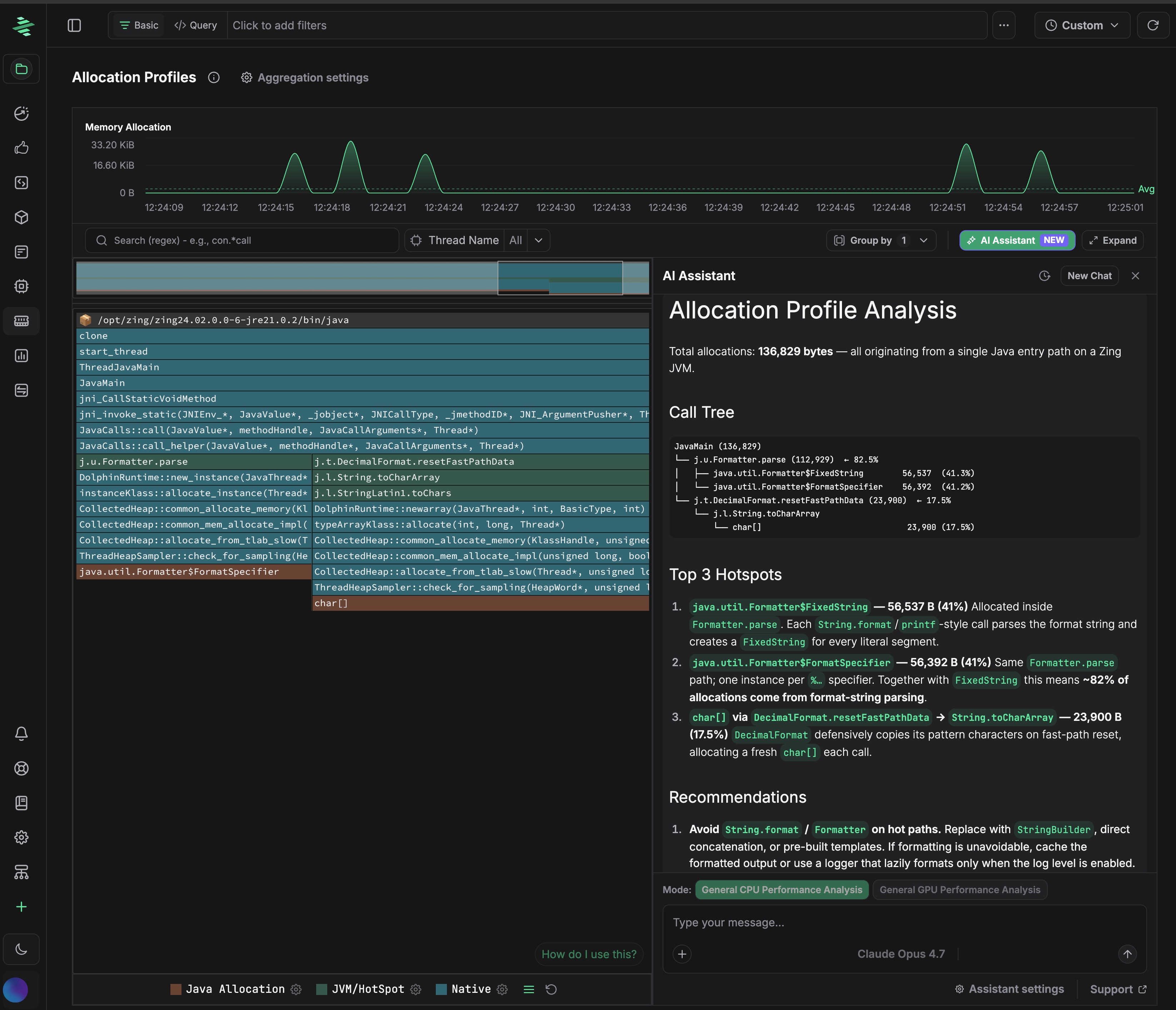
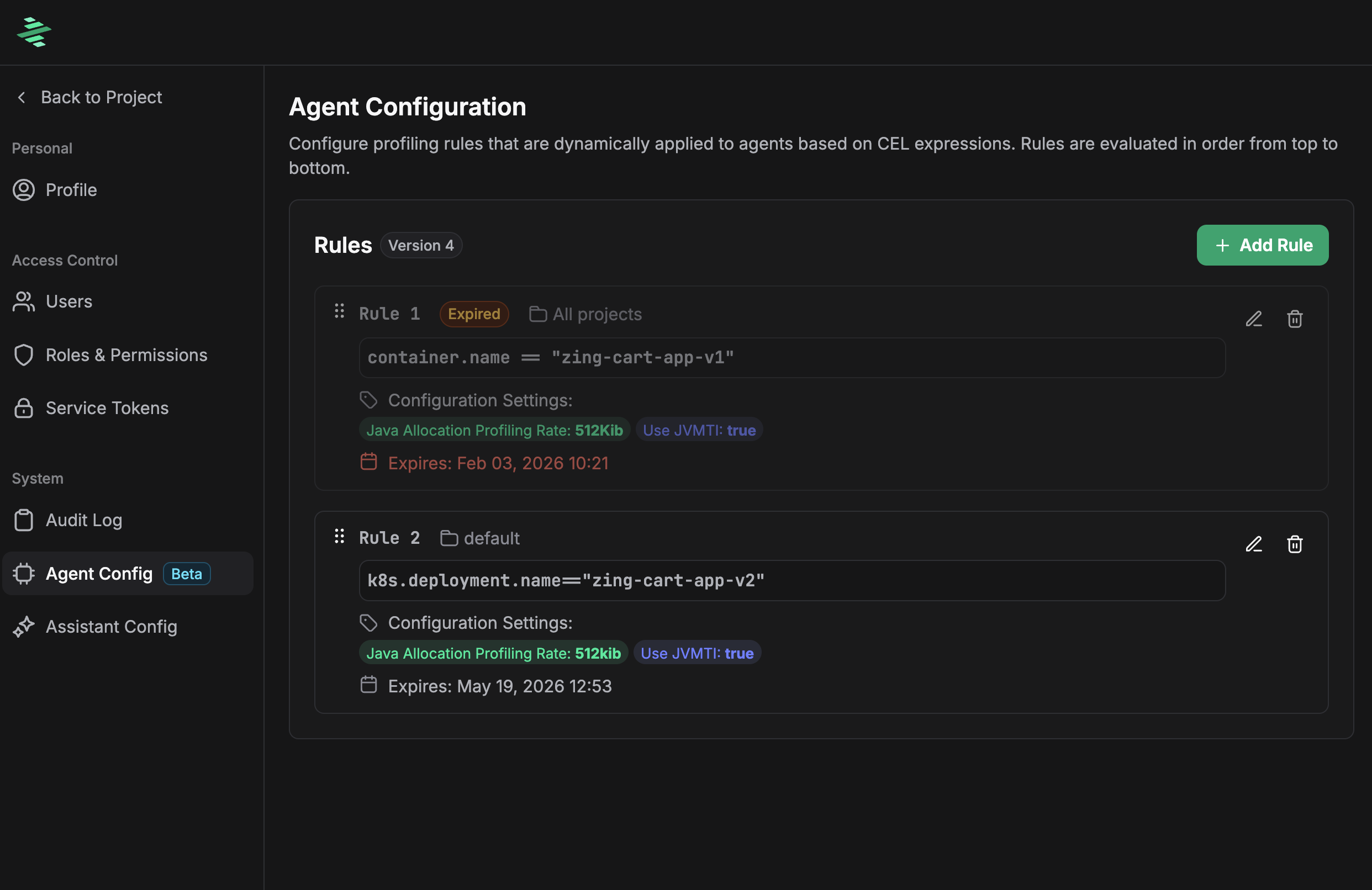

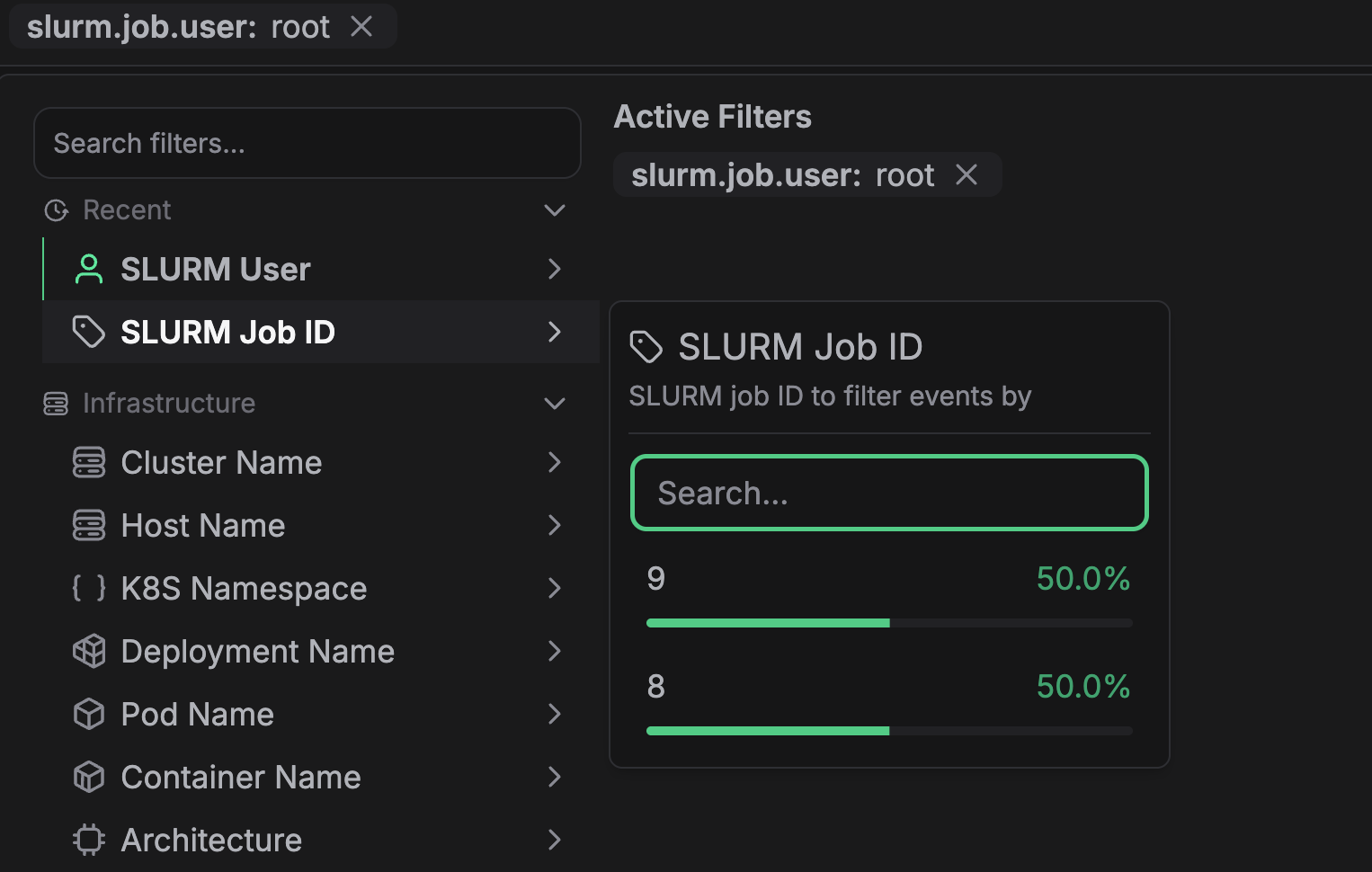 ## Filter Scope
Filters apply globally across, including:
- Efficiency IQ
- Top Functions
- Top Entities
- CPU Profiles
- GPU Profiles
Once applied, filters persist as you navigate between different views, allowing you to maintain focus on specific entities throughout your analysis.
---
# Using Zymtrace Flamegraphs
URL: https://docs.zymtrace.com/features/flamegraphs/flamegraph-controls
import Tabs from '@theme/Tabs';
import TabItem from '@theme/TabItem';
# Using the Flamegraph
The **Zymtrace** flamegraph is a *mixed-stack* flamegraph, meaning it visualizes call stacks across multiple runtimes. This power comes with complexity — the volume of data can be overwhelming — so we've designed controls to help reduce noise and clutter.
To analyze performance more effectively, use the [filters](../filtering-data.md) to narrow your view to specific workloads or areas of interest.
## Difference between GPU and CPU Flamegraphs
The main difference between CPU and GPU flamegraphs is the introduction of CUDA-specific frames: `CUDA Instruction Offset`, `CUDA Kernel`, `CUDA Kernel Launch`, `CUDA SASS Mnemonic`, and `CUDA Stall Reason`. Additionally, the measurement units differ—GPU flamegraphs use GPU time, while CPU flamegraphs use CPU time (both relative time and absolute CPU core usage). Refer to the [Unit Reference](../unit-reference.md) for detailed explanations. All other controls and features remain the same across both flamegraph types.
## Filter Scope
Filters apply globally across, including:
- Efficiency IQ
- Top Functions
- Top Entities
- CPU Profiles
- GPU Profiles
Once applied, filters persist as you navigate between different views, allowing you to maintain focus on specific entities throughout your analysis.
---
# Using Zymtrace Flamegraphs
URL: https://docs.zymtrace.com/features/flamegraphs/flamegraph-controls
import Tabs from '@theme/Tabs';
import TabItem from '@theme/TabItem';
# Using the Flamegraph
The **Zymtrace** flamegraph is a *mixed-stack* flamegraph, meaning it visualizes call stacks across multiple runtimes. This power comes with complexity — the volume of data can be overwhelming — so we've designed controls to help reduce noise and clutter.
To analyze performance more effectively, use the [filters](../filtering-data.md) to narrow your view to specific workloads or areas of interest.
## Difference between GPU and CPU Flamegraphs
The main difference between CPU and GPU flamegraphs is the introduction of CUDA-specific frames: `CUDA Instruction Offset`, `CUDA Kernel`, `CUDA Kernel Launch`, `CUDA SASS Mnemonic`, and `CUDA Stall Reason`. Additionally, the measurement units differ—GPU flamegraphs use GPU time, while CPU flamegraphs use CPU time (both relative time and absolute CPU core usage). Refer to the [Unit Reference](../unit-reference.md) for detailed explanations. All other controls and features remain the same across both flamegraph types.
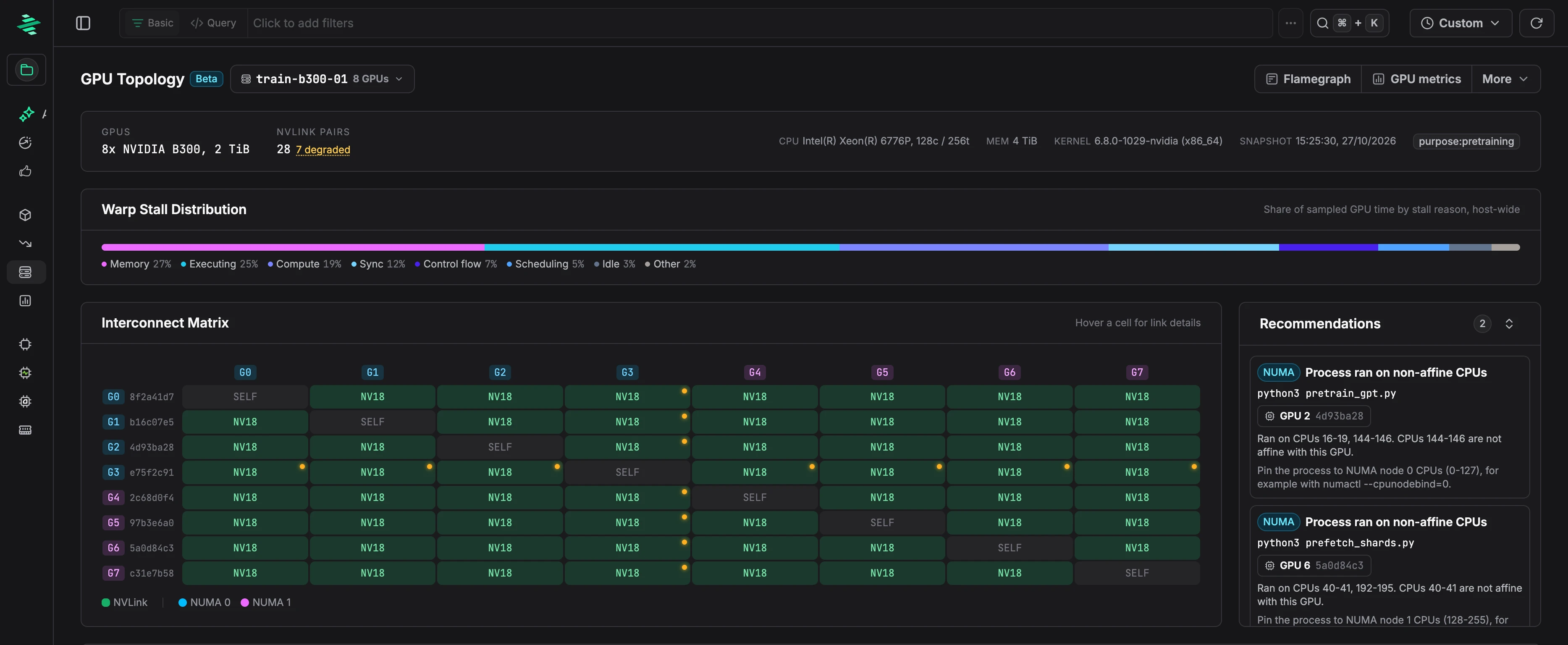 ## Host summary
Choose a host from the picker next to the title. The list shows each GPU host with its GPU model, GPU memory, and cluster.
The summary shows the GPUs, the number of NVLink pairs and how many are degraded, the CPU, memory, kernel version, and the host's tags.
## Warp Stall Distribution
This bar shows the share of sampled GPU time spent in each stall reason across all GPUs on the host, such as memory, compute, or synchronization.
## Interconnect Matrix
The matrix shows the connection between every pair of GPUs, using `nvidia-smi topo -m` notation: `NV1` to `NV18` for the number of bonded NVLinks, or the PCIe path `PIX`, `PXB`, `PHB`, `NODE`, or `SYS` when there's no NVLink. GPU labels are colored by NUMA node, and degraded links are marked.
Hover over or click a cell to see the link's lanes, TX and RX throughput, speed, and error rates: Flit CRC errors, replay errors, and link recoveries.
### Reading the matrix
- `NV18` means the pair has 18 bonded NVLinks, not that they're healthy. Check the cell's error rates and throughput.
- One degraded pair usually points to a single link. Degraded links across one GPU's whole row and column point to that GPU's port, cable, or switch path.
- A clean matrix with slow collectives points back to the workload. Check its profile.
- A `SYS` path or rising link errors point to the node. Fix the hardware before tuning code.
## Recommendations
Zymtrace lists topology problems found on the host, each with a fix:
- **NUMA placement:** when a process runs on CPUs that aren't on the same NUMA node as its GPU, Zymtrace shows which CPUs it used and how to pin it to the right node with `numactl`.
- **Interconnect:** when a link degrades or a GPU pair falls back to PCIe, Zymtrace names the affected GPU and its peers, and the next step, such as draining the node, reseating a link, or rechecking with `nvidia-smi topo -m`.
## NUMA Topology & GPU Details
GPUs are grouped by NUMA node, with the CPU threads and memory of each node. Click a GPU to expand it:
- **Device metadata:** UUID, framebuffer, NUMA node, NUMA-affine CPU threads, and NVLink lanes and version.
- **Live metrics:** utilization, memory used, power, temperature, and SM and memory clocks.
- **Workload bottlenecks:** stall reasons for the GPU's top kernels.
- **Device health:** ECC errors, retired pages, row remapping, XID errors, and PCIe error counters.
## Host summary
Choose a host from the picker next to the title. The list shows each GPU host with its GPU model, GPU memory, and cluster.
The summary shows the GPUs, the number of NVLink pairs and how many are degraded, the CPU, memory, kernel version, and the host's tags.
## Warp Stall Distribution
This bar shows the share of sampled GPU time spent in each stall reason across all GPUs on the host, such as memory, compute, or synchronization.
## Interconnect Matrix
The matrix shows the connection between every pair of GPUs, using `nvidia-smi topo -m` notation: `NV1` to `NV18` for the number of bonded NVLinks, or the PCIe path `PIX`, `PXB`, `PHB`, `NODE`, or `SYS` when there's no NVLink. GPU labels are colored by NUMA node, and degraded links are marked.
Hover over or click a cell to see the link's lanes, TX and RX throughput, speed, and error rates: Flit CRC errors, replay errors, and link recoveries.
### Reading the matrix
- `NV18` means the pair has 18 bonded NVLinks, not that they're healthy. Check the cell's error rates and throughput.
- One degraded pair usually points to a single link. Degraded links across one GPU's whole row and column point to that GPU's port, cable, or switch path.
- A clean matrix with slow collectives points back to the workload. Check its profile.
- A `SYS` path or rising link errors point to the node. Fix the hardware before tuning code.
## Recommendations
Zymtrace lists topology problems found on the host, each with a fix:
- **NUMA placement:** when a process runs on CPUs that aren't on the same NUMA node as its GPU, Zymtrace shows which CPUs it used and how to pin it to the right node with `numactl`.
- **Interconnect:** when a link degrades or a GPU pair falls back to PCIe, Zymtrace names the affected GPU and its peers, and the next step, such as draining the node, reseating a link, or rechecking with `nvidia-smi topo -m`.
## NUMA Topology & GPU Details
GPUs are grouped by NUMA node, with the CPU threads and memory of each node. Click a GPU to expand it:
- **Device metadata:** UUID, framebuffer, NUMA node, NUMA-affine CPU threads, and NVLink lanes and version.
- **Live metrics:** utilization, memory used, power, temperature, and SM and memory clocks.
- **Workload bottlenecks:** stall reasons for the GPU's top kernels.
- **Device health:** ECC errors, retired pages, row remapping, XID errors, and PCIe error counters.
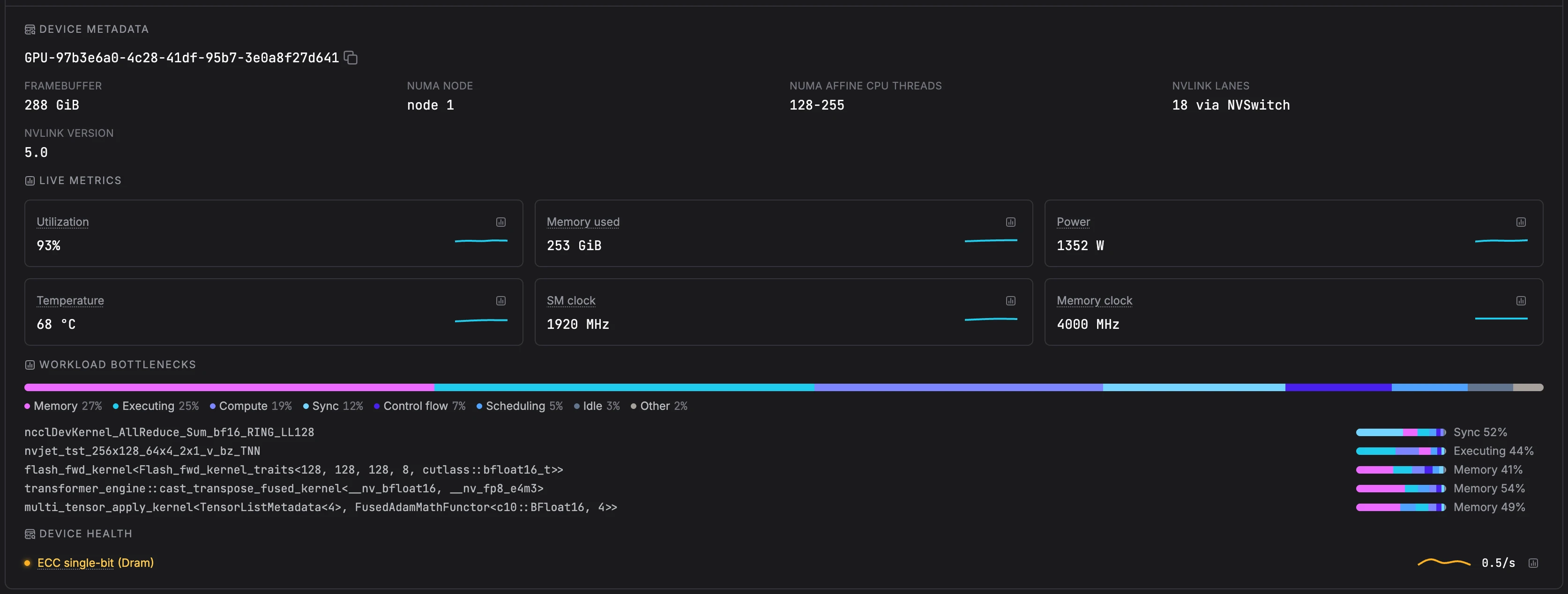 Each GPU links to its CUDA flamegraph, CUDA top functions, and GPU metrics. Use **More** for the host's health metrics, CPU flamegraph, and CPU and CUDA top functions.
For background and examples, see the blog post [GPU Topology Health: Zymtrace Adds the Missing Hardware Layer](https://zymtrace.com/article/gpu-topology-health/).
---
# Overview
URL: https://docs.zymtrace.com/features/
# Tutorial Overview
Welcome to Zymtrace! This guide covers all the features and capabilities that help you analyze performance, identify bottlenecks, and optimize your applications using continuous profiling data.
## Core Analysis Views
Zymtrace provides five main views for analyzing your application performance:
### [Efficiency IQ](efficiency-iq.md) - Your Performance Dashboard
Your main entry point showing:
- Overall compute utilization across your entire fleet
- Top 5 most expensive functions consuming CPU/GPU resources
- Top 5 entities (hosts, deployments, containers) by resource consumption
- Absolute vs relative CPU usage modes for infrastructure and workload analysis
**Perfect for:** Getting a quick system overview and identifying what needs attention first.
### [Top Functions](top-functions.md) - Function-Level Analysis
Identify the most resource-intensive functions across your applications:
- **CPU View:** Find functions consuming the most CPU time
- **GPU View:** Discover GPU kernels and CPU-side GPU operations
- **Sandwich View:** See callers and callees for any function to understand execution context
- Filter by language, service, or infrastructure component
**Perfect for:** Code-level optimization and understanding execution patterns.
### [GPU & CPU Flamegraphs](flamegraphs/) - Interactive Call Stack Visualization
Explore your application's execution flow with interactive flamegraphs:
- **Mixed-Stack Visualization:** See call stacks across multiple runtimes in a single view
- **Interactive Controls:** Pan, zoom, search, and focus on specific functions
- **CPU & GPU Profiles:** Analyze both CPU performance and GPU utilization patterns
- **Advanced Filtering:** Group by executable, script, host, or thread for targeted analysis
**Perfect for:** Understanding execution flow, identifying bottlenecks, and visualizing performance patterns across your entire stack.
### [Top Entities](top-entities.md) - Infrastructure Analysis
Strategic macro-level view of resource consumption:
- **Hosts:** See which machines are consuming the most resources
- **Namespaces/Pods:** Understand Kubernetes resource distribution
- **Containers:** Identify resource-heavy containers
- **Main Executables:** Track consumption by process or runtime
**Perfect for:** Infrastructure planning, resource allocation decisions, and finding system bottlenecks.
### [Diff Functions](diff.md) - Performance Comparison
Compare performance between different states:
- **Release Validation:** Before vs after deployment comparison
- **A/B Testing:** Compare feature variants or configurations
- **Blue/Green Deployments:** Validate performance during traffic migration
- **Optimization Tracking:** Measure the impact of code changes
**Perfect for:** Detecting regressions, validating optimizations, and measuring change impact.
## Essential Tools
### [Filtering Data](filtering-data.md) - Focus Your Analysis
Master the filtering system to slice and dice your data:
- **Click & Apply:** Quick filtering from dropdown menus
- **Query Mode:** Advanced filtering using CEL syntax and OTEL attributes
- **Global Filters:** Apply filters across all views consistently
### [Unit Reference](unit-reference.md) - Understanding Metrics
Essential guide to Zymtrace measurements:
- **CPU Modes:** Absolute vs relative percentage calculations
- **Time Metrics:** Self time vs total time explained
- **Core Units:** Millicores, cores, kilocores, and megacores
- **GPU Metrics:** Understanding GPU profiling data
## Recommended Workflow
Here's how to effectively use Zymtrace for performance analysis:
### 1. Start with Efficiency IQ
- Get an overview of your system's resource consumption
- Identify the top resource-consuming functions and entities
- Toggle between absolute and relative CPU modes based on your analysis goal
### 2. Apply Filtering
- Use entity filters to focus on specific services, environments, or time periods
- Combine multiple filters for precise analysis (e.g., specific pods + Python functions)
- Switch between click-and-apply and query mode based on complexity
### 3. Deep Dive Analysis
- **For code optimization:** Use Flamegraphs, Top Functions → Sandwich View
- **For infrastructure decisions:** Use Top Entities → drill Flamegraphs or Top functions
- **For release validation:** Use Diff to compare before/after states
:::info Need Help?
If you have questions or need assistance, reach out to us at [support@zymtrace.com](mailto:support@zymtrace.com) or join our community discussions.
:::
---
# Off-CPU Profiling
URL: https://docs.zymtrace.com/features/off-cpu-profiling
# Off-CPU Profiling
CPU profiles show where threads spend time running. Off-CPU profiles show where they spend time waiting: on locks, disk or network I/O, sleeps, or a free CPU. Use them when a service is slow but its CPU usage is low.
Each GPU links to its CUDA flamegraph, CUDA top functions, and GPU metrics. Use **More** for the host's health metrics, CPU flamegraph, and CPU and CUDA top functions.
For background and examples, see the blog post [GPU Topology Health: Zymtrace Adds the Missing Hardware Layer](https://zymtrace.com/article/gpu-topology-health/).
---
# Overview
URL: https://docs.zymtrace.com/features/
# Tutorial Overview
Welcome to Zymtrace! This guide covers all the features and capabilities that help you analyze performance, identify bottlenecks, and optimize your applications using continuous profiling data.
## Core Analysis Views
Zymtrace provides five main views for analyzing your application performance:
### [Efficiency IQ](efficiency-iq.md) - Your Performance Dashboard
Your main entry point showing:
- Overall compute utilization across your entire fleet
- Top 5 most expensive functions consuming CPU/GPU resources
- Top 5 entities (hosts, deployments, containers) by resource consumption
- Absolute vs relative CPU usage modes for infrastructure and workload analysis
**Perfect for:** Getting a quick system overview and identifying what needs attention first.
### [Top Functions](top-functions.md) - Function-Level Analysis
Identify the most resource-intensive functions across your applications:
- **CPU View:** Find functions consuming the most CPU time
- **GPU View:** Discover GPU kernels and CPU-side GPU operations
- **Sandwich View:** See callers and callees for any function to understand execution context
- Filter by language, service, or infrastructure component
**Perfect for:** Code-level optimization and understanding execution patterns.
### [GPU & CPU Flamegraphs](flamegraphs/) - Interactive Call Stack Visualization
Explore your application's execution flow with interactive flamegraphs:
- **Mixed-Stack Visualization:** See call stacks across multiple runtimes in a single view
- **Interactive Controls:** Pan, zoom, search, and focus on specific functions
- **CPU & GPU Profiles:** Analyze both CPU performance and GPU utilization patterns
- **Advanced Filtering:** Group by executable, script, host, or thread for targeted analysis
**Perfect for:** Understanding execution flow, identifying bottlenecks, and visualizing performance patterns across your entire stack.
### [Top Entities](top-entities.md) - Infrastructure Analysis
Strategic macro-level view of resource consumption:
- **Hosts:** See which machines are consuming the most resources
- **Namespaces/Pods:** Understand Kubernetes resource distribution
- **Containers:** Identify resource-heavy containers
- **Main Executables:** Track consumption by process or runtime
**Perfect for:** Infrastructure planning, resource allocation decisions, and finding system bottlenecks.
### [Diff Functions](diff.md) - Performance Comparison
Compare performance between different states:
- **Release Validation:** Before vs after deployment comparison
- **A/B Testing:** Compare feature variants or configurations
- **Blue/Green Deployments:** Validate performance during traffic migration
- **Optimization Tracking:** Measure the impact of code changes
**Perfect for:** Detecting regressions, validating optimizations, and measuring change impact.
## Essential Tools
### [Filtering Data](filtering-data.md) - Focus Your Analysis
Master the filtering system to slice and dice your data:
- **Click & Apply:** Quick filtering from dropdown menus
- **Query Mode:** Advanced filtering using CEL syntax and OTEL attributes
- **Global Filters:** Apply filters across all views consistently
### [Unit Reference](unit-reference.md) - Understanding Metrics
Essential guide to Zymtrace measurements:
- **CPU Modes:** Absolute vs relative percentage calculations
- **Time Metrics:** Self time vs total time explained
- **Core Units:** Millicores, cores, kilocores, and megacores
- **GPU Metrics:** Understanding GPU profiling data
## Recommended Workflow
Here's how to effectively use Zymtrace for performance analysis:
### 1. Start with Efficiency IQ
- Get an overview of your system's resource consumption
- Identify the top resource-consuming functions and entities
- Toggle between absolute and relative CPU modes based on your analysis goal
### 2. Apply Filtering
- Use entity filters to focus on specific services, environments, or time periods
- Combine multiple filters for precise analysis (e.g., specific pods + Python functions)
- Switch between click-and-apply and query mode based on complexity
### 3. Deep Dive Analysis
- **For code optimization:** Use Flamegraphs, Top Functions → Sandwich View
- **For infrastructure decisions:** Use Top Entities → drill Flamegraphs or Top functions
- **For release validation:** Use Diff to compare before/after states
:::info Need Help?
If you have questions or need assistance, reach out to us at [support@zymtrace.com](mailto:support@zymtrace.com) or join our community discussions.
:::
---
# Off-CPU Profiling
URL: https://docs.zymtrace.com/features/off-cpu-profiling
# Off-CPU Profiling
CPU profiles show where threads spend time running. Off-CPU profiles show where they spend time waiting: on locks, disk or network I/O, sleeps, or a free CPU. Use them when a service is slow but its CPU usage is low.
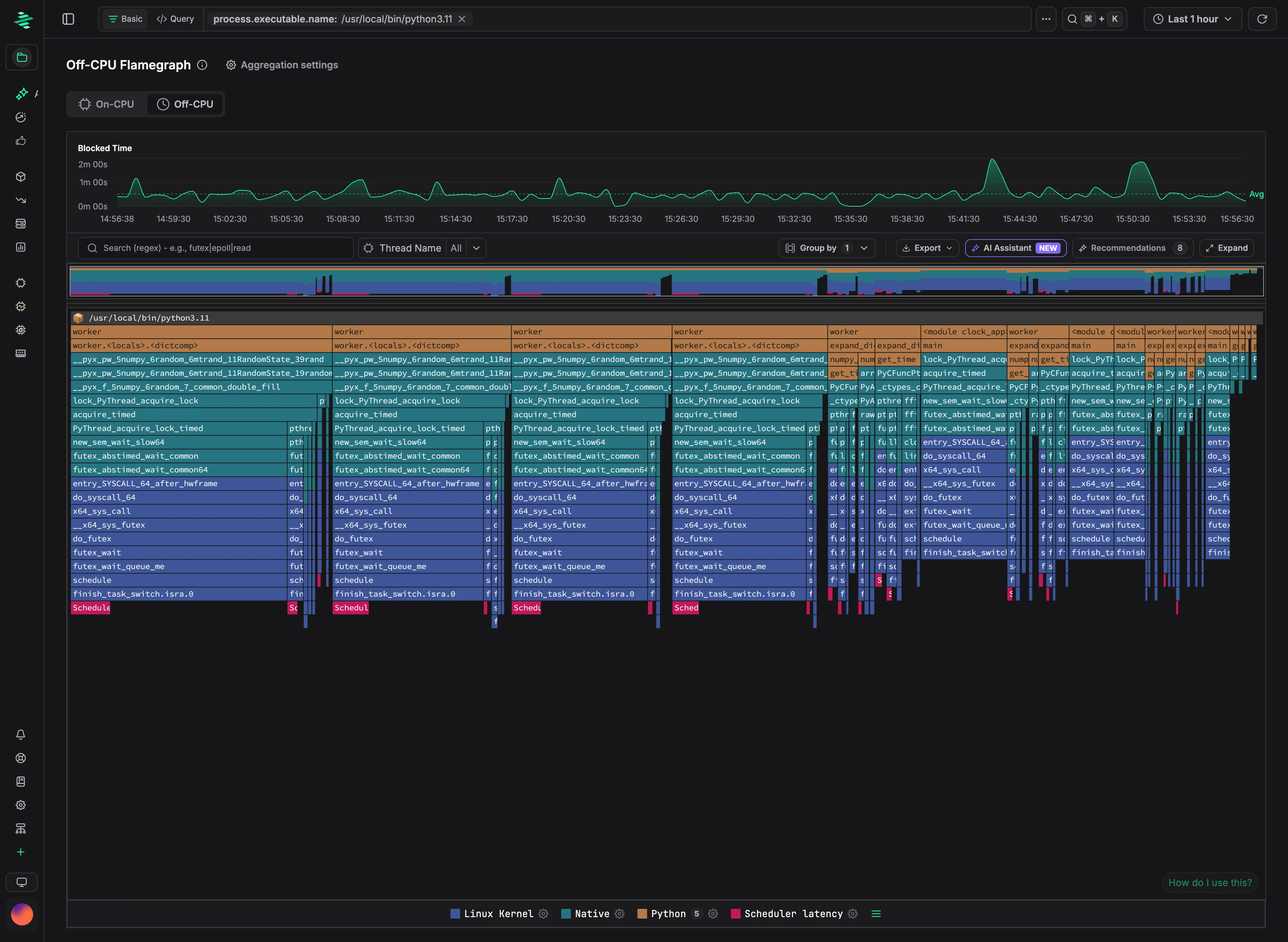 In this example, filtered to a Python application, most blocked time comes from worker threads waiting to acquire a lock (`lock_PyThread_acquire_lock` → `futex_wait`).
## Reading an off-CPU profile
Open **CPU → Flamegraph** and select the **Off-CPU** tab. The chart shows blocked time over the selected range, and frame widths in the flamegraph show blocked time instead of CPU time:
- **Blocked Time (total):** time threads spent off-CPU in a function and everything it called.
- **Blocked Time (self):** time threads spent off-CPU in the function itself.
The leaf frames show what threads were waiting on. For example, `futex` usually means a lock or condition variable, `epoll_wait` or `poll` means waiting for network or file I/O, and `nanosleep` means an explicit sleep. Follow the stack up to find the code that's waiting.
### Scheduler latency
**Scheduler latency** frames at the bottom of a stack show the time between a thread being woken up and actually running, that is, time spent waiting for a CPU. A large share of scheduler latency points to CPU contention on the host rather than slow I/O or locks. To hide these frames, click the settings icon next to **Scheduler latency** in the flamegraph legend, clear **Show Scheduler latency Frames**, and click **Apply**.
## Enabling off-CPU profiling
Off-CPU profiling is off by default. Enable it from the UI or with a profiler flag.
### From the UI
1. Go to **Settings → Agent Config** and open the **Off-CPU** tab.
2. Click **Add Rule**.
3. Enter a CEL expression for the hosts to profile, or leave it empty for all hosts.
4. Turn on **Off-CPU profiling**, optionally set an expiry, and click **Add rule**.
The change applies without restarting the profiler. Off-CPU profiling is a host-wide setting, so rules can target hosts but not individual processes.
In this example, filtered to a Python application, most blocked time comes from worker threads waiting to acquire a lock (`lock_PyThread_acquire_lock` → `futex_wait`).
## Reading an off-CPU profile
Open **CPU → Flamegraph** and select the **Off-CPU** tab. The chart shows blocked time over the selected range, and frame widths in the flamegraph show blocked time instead of CPU time:
- **Blocked Time (total):** time threads spent off-CPU in a function and everything it called.
- **Blocked Time (self):** time threads spent off-CPU in the function itself.
The leaf frames show what threads were waiting on. For example, `futex` usually means a lock or condition variable, `epoll_wait` or `poll` means waiting for network or file I/O, and `nanosleep` means an explicit sleep. Follow the stack up to find the code that's waiting.
### Scheduler latency
**Scheduler latency** frames at the bottom of a stack show the time between a thread being woken up and actually running, that is, time spent waiting for a CPU. A large share of scheduler latency points to CPU contention on the host rather than slow I/O or locks. To hide these frames, click the settings icon next to **Scheduler latency** in the flamegraph legend, clear **Show Scheduler latency Frames**, and click **Apply**.
## Enabling off-CPU profiling
Off-CPU profiling is off by default. Enable it from the UI or with a profiler flag.
### From the UI
1. Go to **Settings → Agent Config** and open the **Off-CPU** tab.
2. Click **Add Rule**.
3. Enter a CEL expression for the hosts to profile, or leave it empty for all hosts.
4. Turn on **Off-CPU profiling**, optionally set an expiry, and click **Add rule**.
The change applies without restarting the profiler. Off-CPU profiling is a host-wide setting, so rules can target hosts but not individual processes.
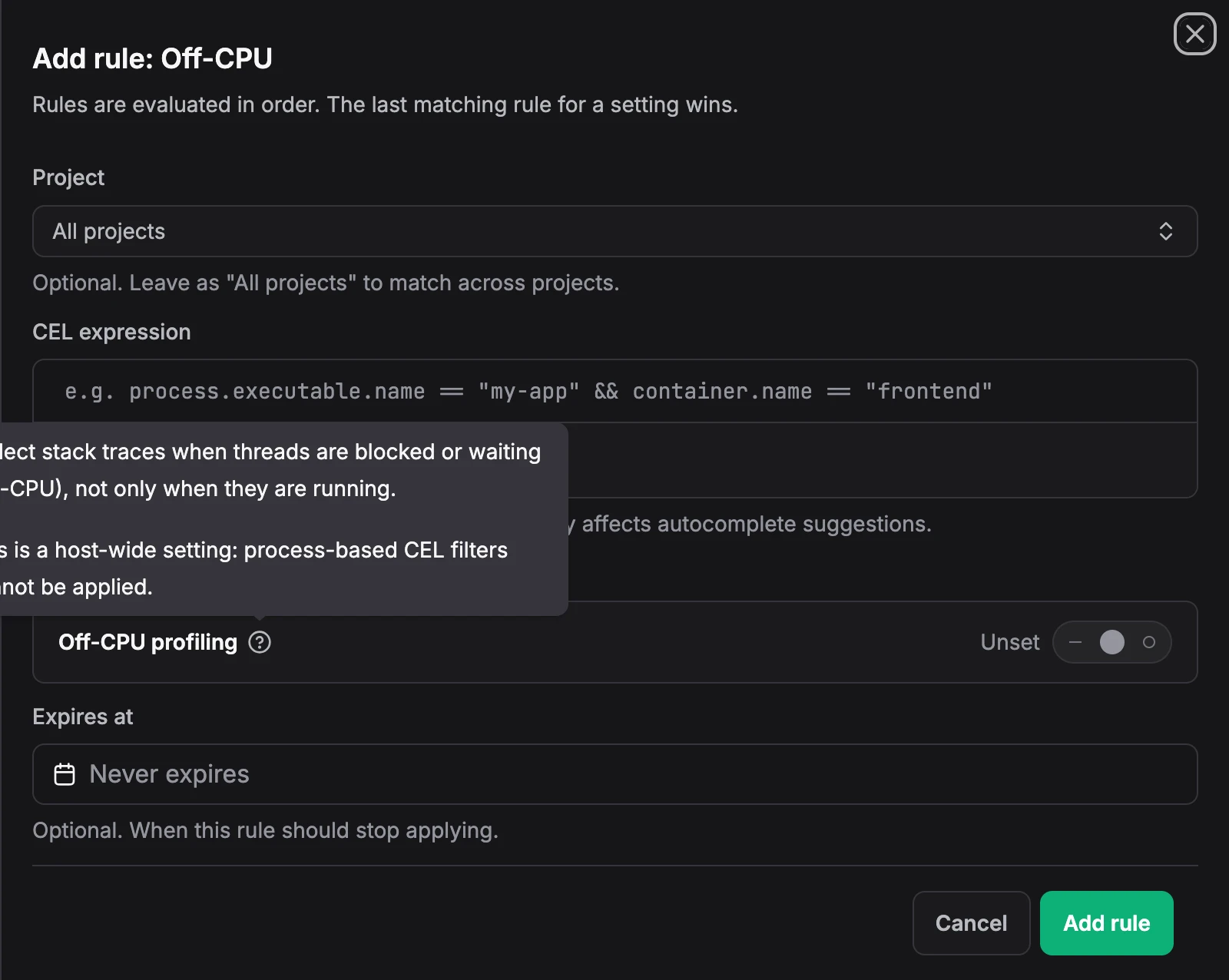 ### With a profiler flag
Pass `-enable-off-cpu` to the profiler, or set `ZYMTRACE_ENABLE_OFF_CPU=true`. With Helm, add it to `profiler.args`:
```bash
helm upgrade --install profiler zymtrace/profiler \
--namespace zymtrace \
--set profiler.args[0]="--collection-agent=ZYMTRACE_URL" \
--set profiler.args[1]="--enable-off-cpu"
```
| CLI Argument | Environment Variable | Description |
|--------------|---------------------|-------------|
| `-enable-off-cpu` | `ZYMTRACE_ENABLE_OFF_CPU` | Enables off-CPU profiling. Default is false. |
| `-off-cpu-sampling-rate` | `ZYMTRACE_OFF_CPU_SAMPLING_RATE` | Off-CPU sampling frequency in Hz. Setting a non-zero value also enables off-CPU profiling. Default is 19. |
See [Profiler ENV & CLI Args](../install/profiler/profiler-configuration.md) for all profiler options.
---
# Recommendations
URL: https://docs.zymtrace.com/features/recommendations
# Recommendations
Zymtrace continuously finds the code paths that burn the most CPU and GPU time, groups them by the application that runs them, and uses the AI model you've configured to write one ranked, evidence-backed performance report per application. Each report names the problem, points to the exact frames, and lists fixes with estimated savings in CPU cores or GPU time.
### With a profiler flag
Pass `-enable-off-cpu` to the profiler, or set `ZYMTRACE_ENABLE_OFF_CPU=true`. With Helm, add it to `profiler.args`:
```bash
helm upgrade --install profiler zymtrace/profiler \
--namespace zymtrace \
--set profiler.args[0]="--collection-agent=ZYMTRACE_URL" \
--set profiler.args[1]="--enable-off-cpu"
```
| CLI Argument | Environment Variable | Description |
|--------------|---------------------|-------------|
| `-enable-off-cpu` | `ZYMTRACE_ENABLE_OFF_CPU` | Enables off-CPU profiling. Default is false. |
| `-off-cpu-sampling-rate` | `ZYMTRACE_OFF_CPU_SAMPLING_RATE` | Off-CPU sampling frequency in Hz. Setting a non-zero value also enables off-CPU profiling. Default is 19. |
See [Profiler ENV & CLI Args](../install/profiler/profiler-configuration.md) for all profiler options.
---
# Recommendations
URL: https://docs.zymtrace.com/features/recommendations
# Recommendations
Zymtrace continuously finds the code paths that burn the most CPU and GPU time, groups them by the application that runs them, and uses the AI model you've configured to write one ranked, evidence-backed performance report per application. Each report names the problem, points to the exact frames, and lists fixes with estimated savings in CPU cores or GPU time.
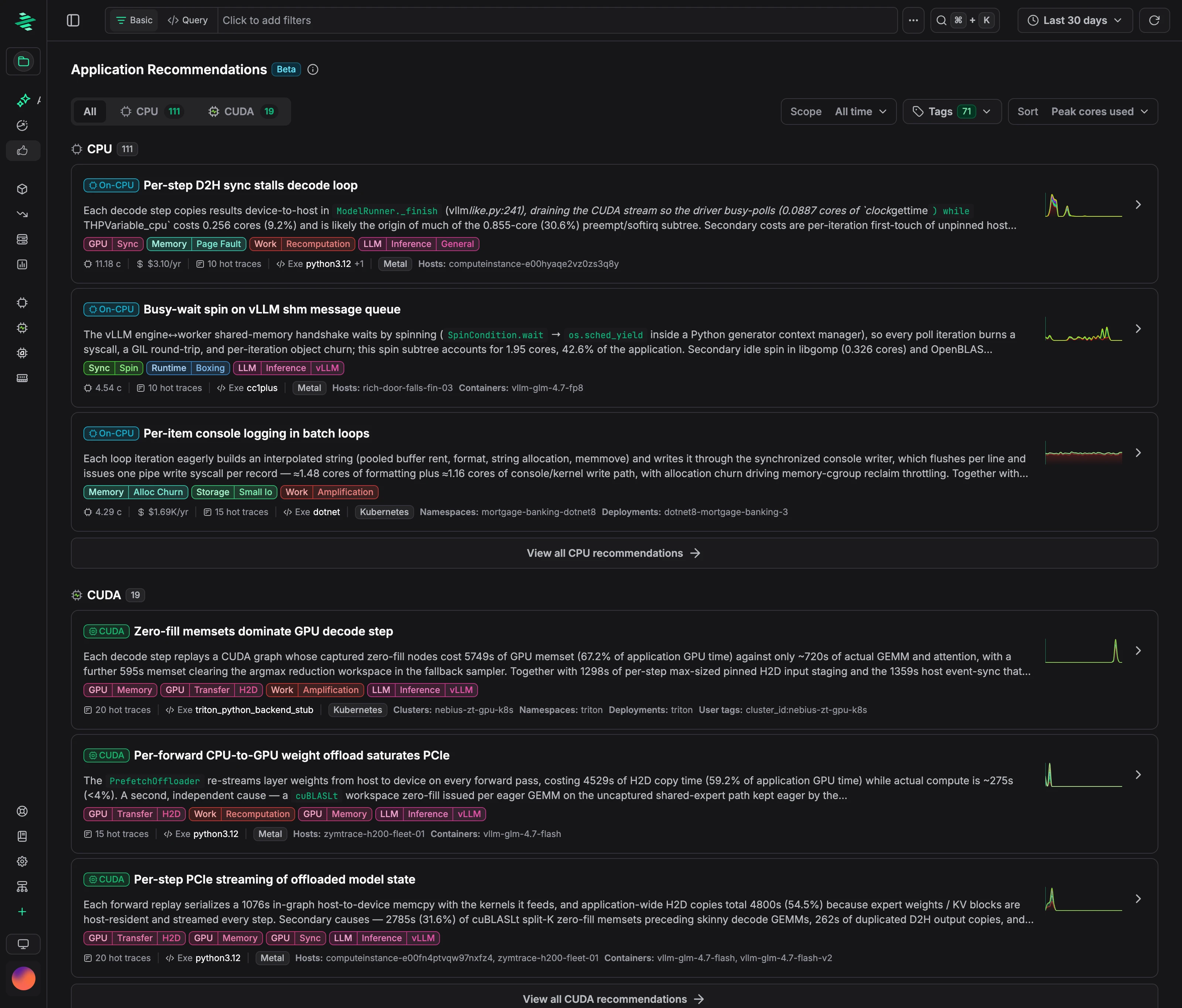 ## Recommendations or the AI Assistant?
| | Recommendations | AI Assistant |
| --- | --- | --- |
| How it runs | Automatically, in the background | On demand |
| Scope | The heaviest code paths across your fleet | The application or time window you choose |
| Best for | An up-to-date, ranked list of where CPU and GPU time goes | Investigating a specific service, incident, or time range |
An application gets a recommendation only when its code accounts for a meaningful share of the project's CPU or GPU time. For anything else, use the [AI Assistant](../ai-assistant/using-ai-assistant.md).
## CPU and CUDA recommendations
CPU and CUDA recommendations are generated separately and listed on their own tabs.
- **CPU:** ranked by CPU time. Savings are estimated in CPU cores.
- **CUDA:** ranked by the GPU time of the kernels each code path launched. The analysis covers both the launching code and the kernels, and savings are estimated in GPU time.
:::note
Recommendations for AMD ROCm are coming soon.
:::
## How it works
Recommendations run continuously. There's nothing to trigger, and new results usually appear within minutes.
```mermaid
flowchart LR
A[Find the heaviest
## Recommendations or the AI Assistant?
| | Recommendations | AI Assistant |
| --- | --- | --- |
| How it runs | Automatically, in the background | On demand |
| Scope | The heaviest code paths across your fleet | The application or time window you choose |
| Best for | An up-to-date, ranked list of where CPU and GPU time goes | Investigating a specific service, incident, or time range |
An application gets a recommendation only when its code accounts for a meaningful share of the project's CPU or GPU time. For anything else, use the [AI Assistant](../ai-assistant/using-ai-assistant.md).
## CPU and CUDA recommendations
CPU and CUDA recommendations are generated separately and listed on their own tabs.
- **CPU:** ranked by CPU time. Savings are estimated in CPU cores.
- **CUDA:** ranked by the GPU time of the kernels each code path launched. The analysis covers both the launching code and the kernels, and savings are estimated in GPU time.
:::note
Recommendations for AMD ROCm are coming soon.
:::
## How it works
Recommendations run continuously. There's nothing to trigger, and new results usually appear within minutes.
```mermaid
flowchart LR
A[Find the heaviest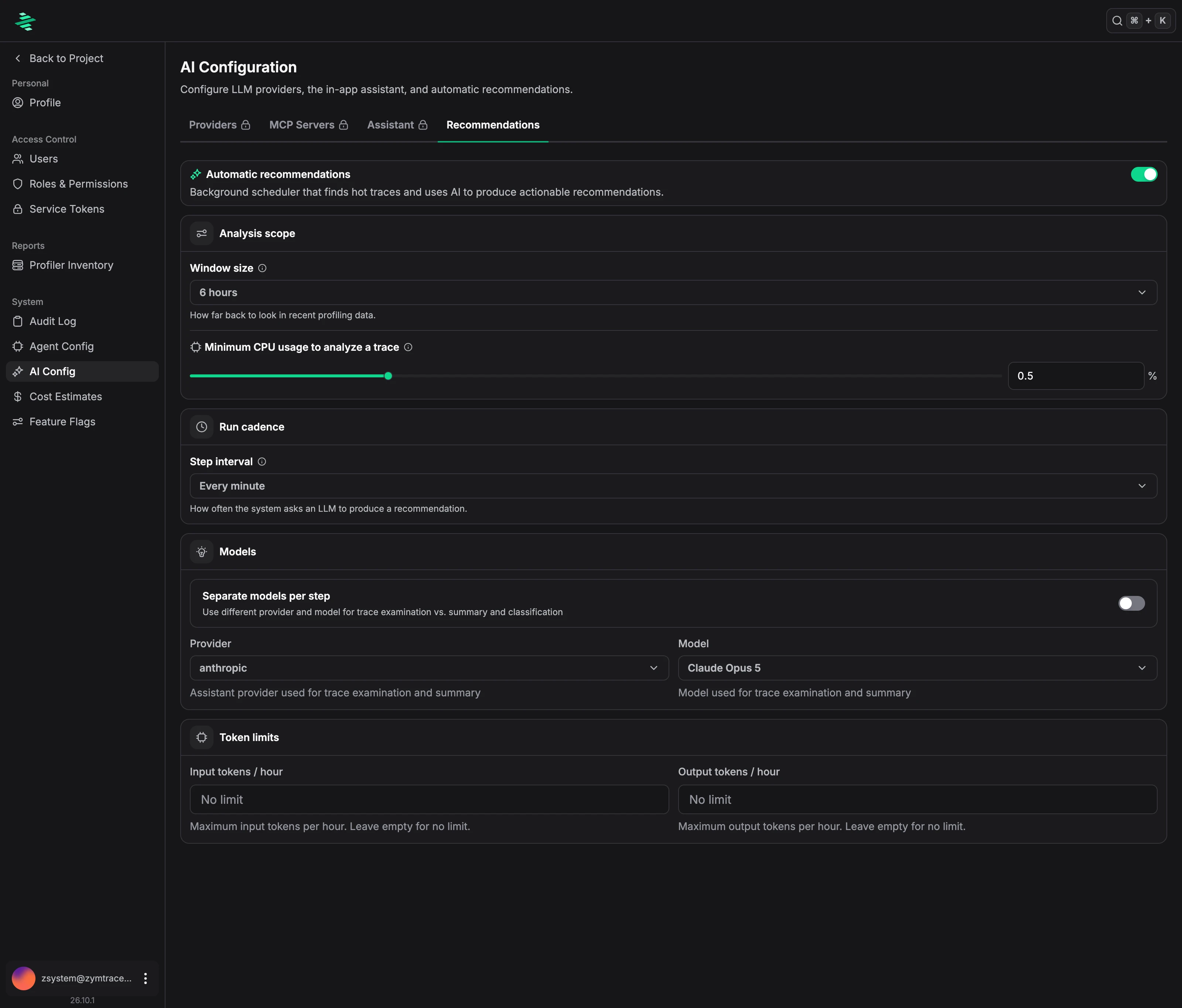 | Setting | Description |
| --- | --- |
| **Automatic recommendations** | Turns recommendations on or off. |
| **Window size** | How much recent profiling data to analyze. Default: 6 hours. |
| **Minimum CPU usage to analyze a trace** | The share of the project's CPU time a code path must use to be analyzed. Default: 0.5%. |
| **Step interval** | How often a new recommendation is produced. Default: every minute. |
| **Provider** and **Model** | The AI model that writes recommendations. |
| **Separate models per step** | Uses a different model for each analysis step. See [Reducing token cost](#reducing-token-cost). |
| **Token limits** | Maximum input and output tokens per hour. Leave empty for no limit. |
### Reducing token cost {#reducing-token-cost}
Each recommendation is produced in two steps:
- **Trace examination:** the in-depth analysis that produces the diagnosis and actions.
- **Summary and classification:** a short title, description, and tags.
Turn on **Separate models per step** to keep a strong model for trace examination and use a smaller, lower-cost model for the summary. This reduces token cost while the strong model still does the analysis. Use **Token limits** to cap spend.
## Reading a recommendation
Open **Recommendations** and choose the **CPU** or **CUDA** tab, or **All** for both. Recommendations are sorted by peak usage, so the heaviest applications come first.
| Setting | Description |
| --- | --- |
| **Automatic recommendations** | Turns recommendations on or off. |
| **Window size** | How much recent profiling data to analyze. Default: 6 hours. |
| **Minimum CPU usage to analyze a trace** | The share of the project's CPU time a code path must use to be analyzed. Default: 0.5%. |
| **Step interval** | How often a new recommendation is produced. Default: every minute. |
| **Provider** and **Model** | The AI model that writes recommendations. |
| **Separate models per step** | Uses a different model for each analysis step. See [Reducing token cost](#reducing-token-cost). |
| **Token limits** | Maximum input and output tokens per hour. Leave empty for no limit. |
### Reducing token cost {#reducing-token-cost}
Each recommendation is produced in two steps:
- **Trace examination:** the in-depth analysis that produces the diagnosis and actions.
- **Summary and classification:** a short title, description, and tags.
Turn on **Separate models per step** to keep a strong model for trace examination and use a smaller, lower-cost model for the summary. This reduces token cost while the strong model still does the analysis. Use **Token limits** to cap spend.
## Reading a recommendation
Open **Recommendations** and choose the **CPU** or **CUDA** tab, or **All** for both. Recommendations are sorted by peak usage, so the heaviest applications come first.
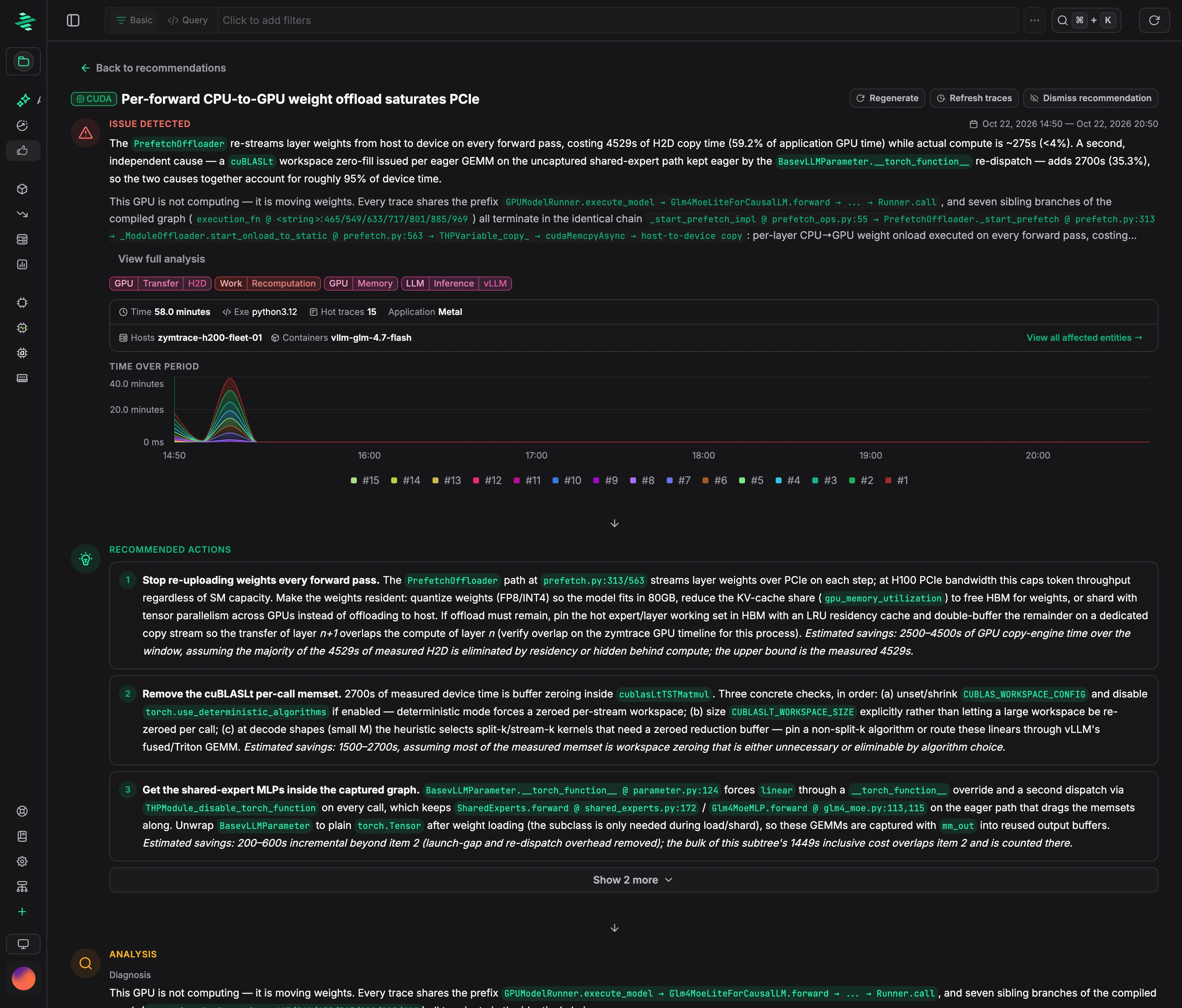 Each recommendation includes:
- **Issue detected:** what's wrong, where it runs, and the time range.
- **Usage over time:** CPU cores or GPU time for each hot trace.
- **Recommended actions:** ranked fixes with estimated savings.
- **Analysis:** the diagnosis and supporting evidence, with source locations.
- **Affected entities:** the clusters, deployments, pods, and hosts involved.
- **Technical details:** the model's confidence, lower-priority ideas, and the hot traces analyzed.
CPU recommendations use the same layout, with usage and savings in CPU cores and an estimated annual cost:
Each recommendation includes:
- **Issue detected:** what's wrong, where it runs, and the time range.
- **Usage over time:** CPU cores or GPU time for each hot trace.
- **Recommended actions:** ranked fixes with estimated savings.
- **Analysis:** the diagnosis and supporting evidence, with source locations.
- **Affected entities:** the clusters, deployments, pods, and hosts involved.
- **Technical details:** the model's confidence, lower-priority ideas, and the hot traces analyzed.
CPU recommendations use the same layout, with usage and savings in CPU cores and an estimated annual cost:
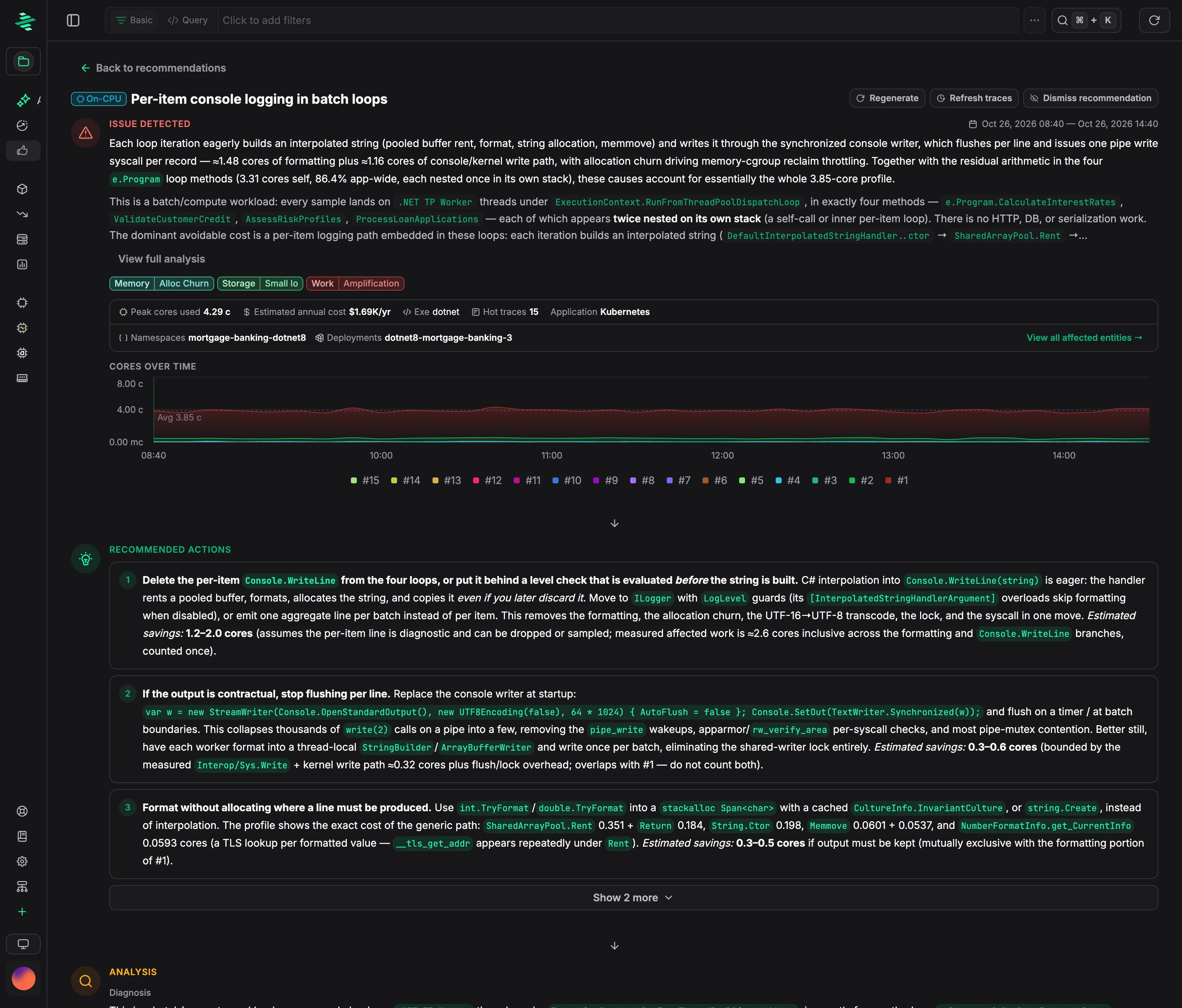 Each recommendation page has these actions:
| Action | Description |
| --- | --- |
| **Dismiss** / **Restore** | Hides or restores a recommendation. |
| **Regenerate** | Runs the analysis again. |
| **Refresh traces** | Re-collects the heaviest hot traces, then runs the analysis again. |
| **Suppress** | Excludes a hot trace you've accepted as expected cost. |
## Recommendations on flamegraphs
Every CPU and CUDA flamegraph has its own recommendations. Click **Recommendations** above the flamegraph to see the auto-generated recommendations that match your current filters.
To get a recommendation for what you're viewing right now, click **Generate recommendation**.
Each recommendation page has these actions:
| Action | Description |
| --- | --- |
| **Dismiss** / **Restore** | Hides or restores a recommendation. |
| **Regenerate** | Runs the analysis again. |
| **Refresh traces** | Re-collects the heaviest hot traces, then runs the analysis again. |
| **Suppress** | Excludes a hot trace you've accepted as expected cost. |
## Recommendations on flamegraphs
Every CPU and CUDA flamegraph has its own recommendations. Click **Recommendations** above the flamegraph to see the auto-generated recommendations that match your current filters.
To get a recommendation for what you're viewing right now, click **Generate recommendation**.
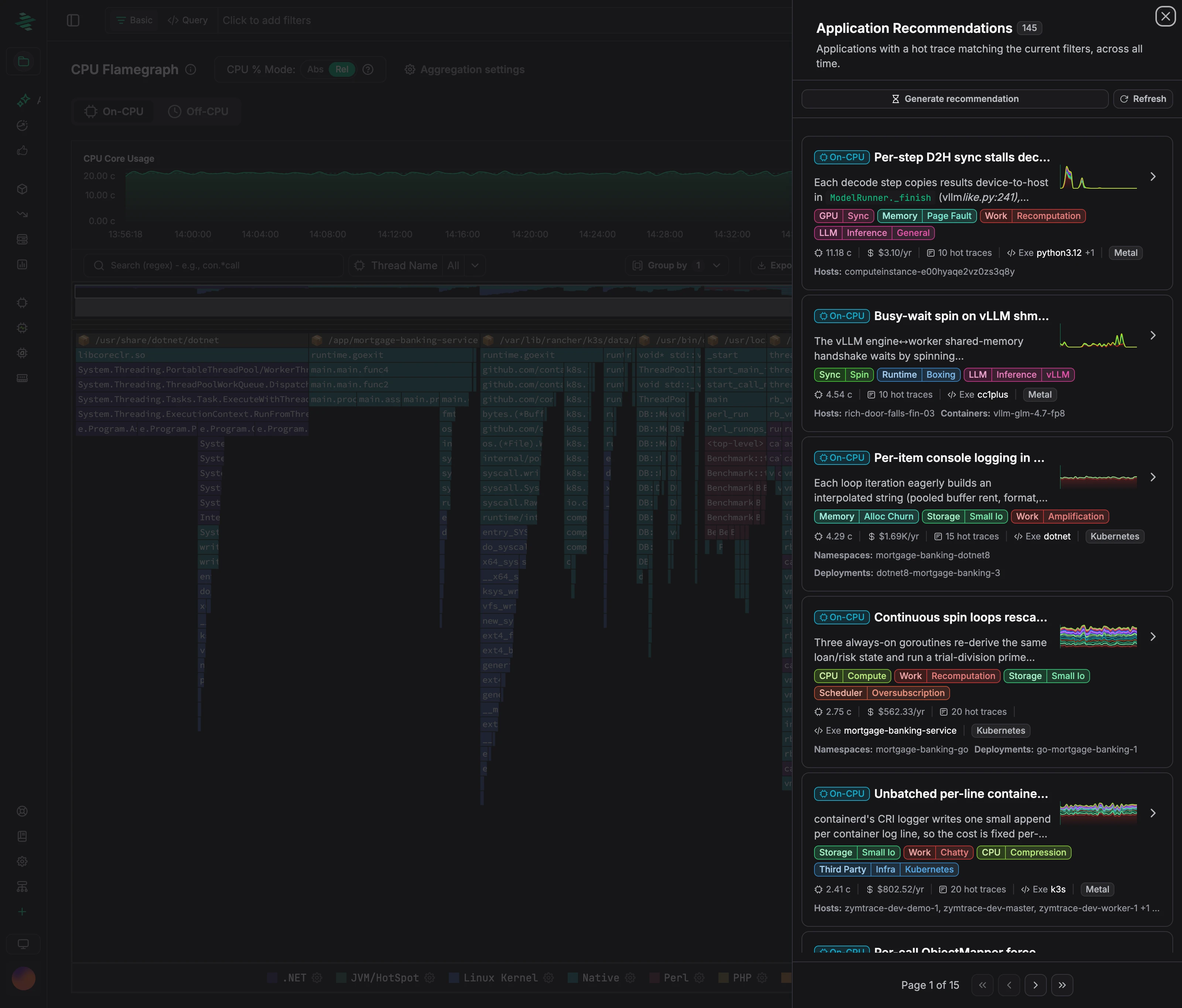 Recommendations also appear on the [Efficiency IQ](./efficiency-iq.md) dashboard and through the [Zymtrace MCP server](../mcp/index.md).
## Slack notifications
Send new recommendations to a Slack channel so your team sees them without opening Zymtrace. See [Slack](../integrations/slack.md).
## Limitations
- **Review before you act.** Each action includes its evidence and a confidence level. Savings are estimates.
- **On-CPU and CUDA only.** Off-CPU and allocation profiles aren't covered yet.
---
# K8s Resource IQ
URL: https://docs.zymtrace.com/features/right-sizing
# K8s Resource IQ
K8s Resource IQ compares the CPU and memory requests and limits of your Kubernetes containers with their observed usage. It shows how much requested capacity you can reclaim, which containers need more, and the values to apply.
Recommendations also appear on the [Efficiency IQ](./efficiency-iq.md) dashboard and through the [Zymtrace MCP server](../mcp/index.md).
## Slack notifications
Send new recommendations to a Slack channel so your team sees them without opening Zymtrace. See [Slack](../integrations/slack.md).
## Limitations
- **Review before you act.** Each action includes its evidence and a confidence level. Savings are estimates.
- **On-CPU and CUDA only.** Off-CPU and allocation profiles aren't covered yet.
---
# K8s Resource IQ
URL: https://docs.zymtrace.com/features/right-sizing
# K8s Resource IQ
K8s Resource IQ compares the CPU and memory requests and limits of your Kubernetes containers with their observed usage. It shows how much requested capacity you can reclaim, which containers need more, and the values to apply.
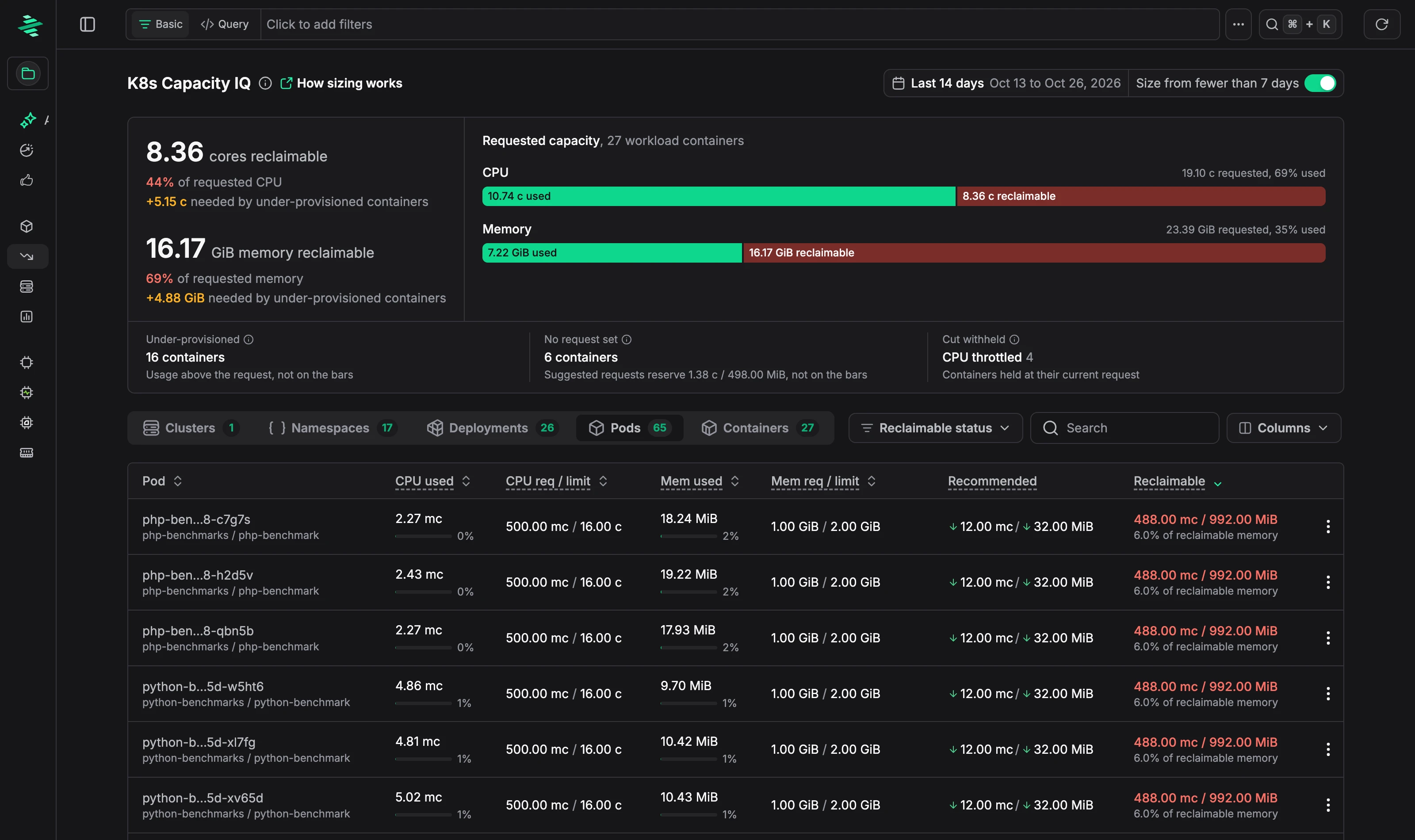 ## Capacity summary
- **Reclaimable CPU and memory:** capacity requested but not needed, as a total and as a share of what's requested. Capacity needed by under-provisioned containers is shown separately.
- **Requested capacity:** for CPU and memory, how much of the total request is used and how much can be reclaimed.
- **Under-provisioned:** containers that use more than they request.
- **No request set:** containers without a request, and how much the suggested requests would reserve.
- **Cut withheld:** containers where a reduction looked possible but isn't suggested, for example because they're CPU throttled. They keep their current request.
Group the table by **Clusters**, **Namespaces**, **Deployments**, **Pods**, or **Containers**. Each container row shows current usage, requests and limits, the **Recommended** request, and how much it frees up or needs.
## How sizing works
Suggestions are based on usage over the sizing window, the **Last 14 days** by default:
- **CPU** is sized from usage percentiles (P50, P90, and P99) across the window.
- **Memory** is sized from the working set: memory usage minus inactive page cache. Kernel memory counts; cached files don't.
- **Safety checks**, such as CPU pressure and daily memory peaks against the limit, can hold back a reduction.
A container is sized once it has at least 7 days with enough data.
### Getting suggestions sooner
Turn on **Size from fewer than 7 days** to size containers with less history. This is useful in the first 14 days after you deploy Zymtrace, or for new workloads, before a full sizing window is available. Suggestions based on fewer days reflect less of your traffic pattern, so review them before you apply them.
## Applying a suggestion
Open a row's menu and choose **View details** to see:
- **Recommendation:** current and suggested request and limit for CPU and memory, and a `resources` block to paste into your container spec. Suggestions can raise values as well as lower them. For example, a CPU-throttled container gets a higher CPU limit.
- **CPU usage per pod** and **Daily memory peaks** over the sizing window.
- **Live pods** seen in the last hour.
- **Sizing inputs** and **Evidence** behind the suggestion.
## Capacity summary
- **Reclaimable CPU and memory:** capacity requested but not needed, as a total and as a share of what's requested. Capacity needed by under-provisioned containers is shown separately.
- **Requested capacity:** for CPU and memory, how much of the total request is used and how much can be reclaimed.
- **Under-provisioned:** containers that use more than they request.
- **No request set:** containers without a request, and how much the suggested requests would reserve.
- **Cut withheld:** containers where a reduction looked possible but isn't suggested, for example because they're CPU throttled. They keep their current request.
Group the table by **Clusters**, **Namespaces**, **Deployments**, **Pods**, or **Containers**. Each container row shows current usage, requests and limits, the **Recommended** request, and how much it frees up or needs.
## How sizing works
Suggestions are based on usage over the sizing window, the **Last 14 days** by default:
- **CPU** is sized from usage percentiles (P50, P90, and P99) across the window.
- **Memory** is sized from the working set: memory usage minus inactive page cache. Kernel memory counts; cached files don't.
- **Safety checks**, such as CPU pressure and daily memory peaks against the limit, can hold back a reduction.
A container is sized once it has at least 7 days with enough data.
### Getting suggestions sooner
Turn on **Size from fewer than 7 days** to size containers with less history. This is useful in the first 14 days after you deploy Zymtrace, or for new workloads, before a full sizing window is available. Suggestions based on fewer days reflect less of your traffic pattern, so review them before you apply them.
## Applying a suggestion
Open a row's menu and choose **View details** to see:
- **Recommendation:** current and suggested request and limit for CPU and memory, and a `resources` block to paste into your container spec. Suggestions can raise values as well as lower them. For example, a CPU-throttled container gets a higher CPU limit.
- **CPU usage per pod** and **Daily memory peaks** over the sizing window.
- **Live pods** seen in the last hour.
- **Sizing inputs** and **Evidence** behind the suggestion.
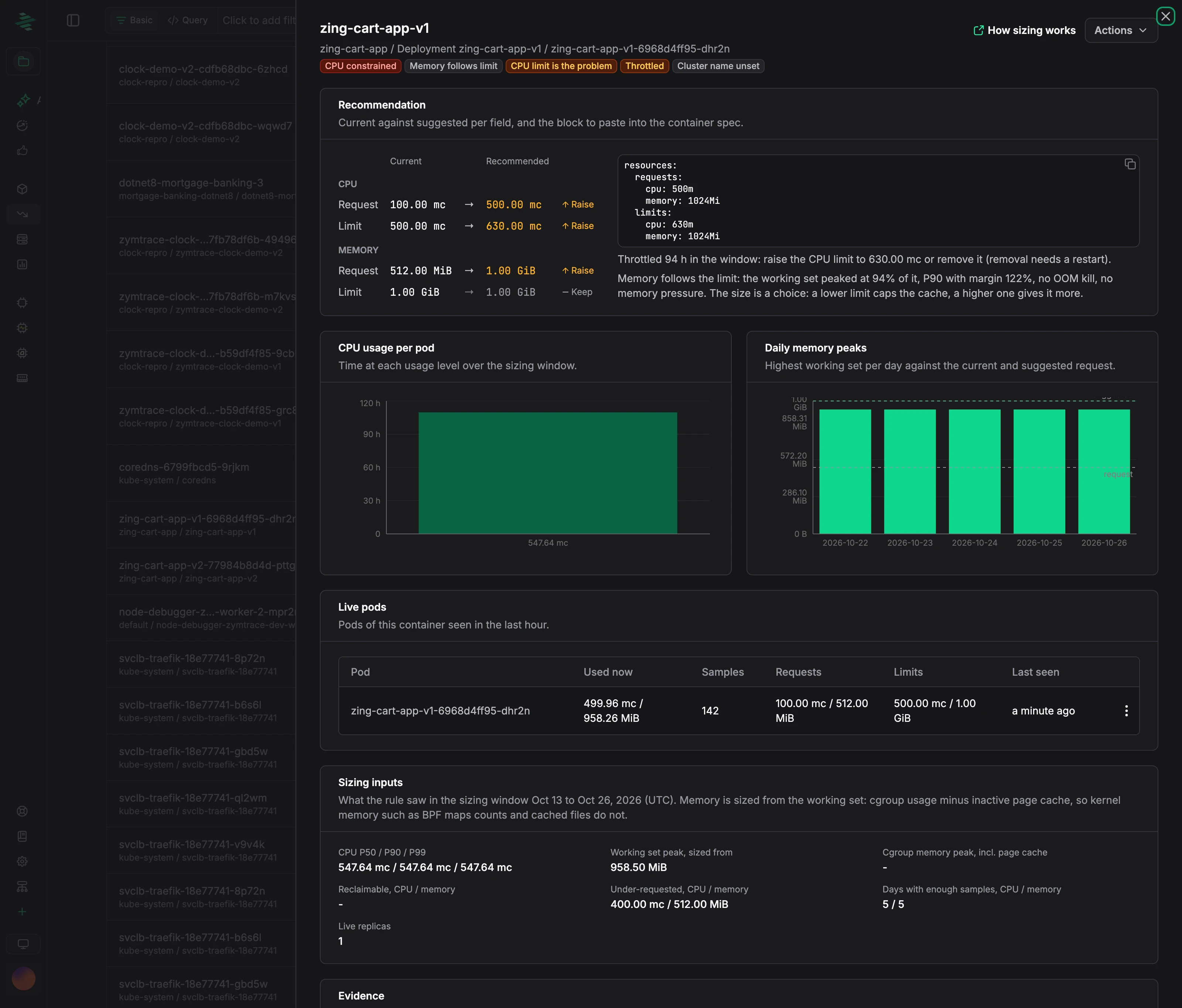 To copy the values directly, choose **Copy resources YAML** from the row menu. To see what's using the CPU, choose **Analyze with CPU Flamegraph** or **View CPU Top Functions**.
---
# Top Entities
URL: https://docs.zymtrace.com/features/top-entities
import Tabs from '@theme/Tabs';
import TabItem from '@theme/TabItem';
# Top Entities
The Top Entities view is your strategic starting point for continuous profiling. It provides a macro-level overview of performance data, grouped by infrastructure components across your entire system. This is your primary tool for understanding resource distribution and quickly identifying which part of your infrastructure is consuming the most compute.
## When to Use Top Entities?
This view allows you to answer high-level questions about resource consumption before diving into specific code optimization.
| Question | Value of Top Entities View |
| :--- | :--- |
| **"Which component is the bottleneck?"** | **Pinpoint Resource Hogs:** Instantly see which Host, Namespace, or Pod is consuming the highest percentage of CPU or GPU resources. |
| **"How are resources allocated across my apps?"** | **Validate Infrastructure Decisions:** Quickly confirm if your resource budgeting and horizontal scaling are working as expected across your entire fleet. |
| **"Where should I start optimizing?"** | **Prioritize Effort:** Drill down directly from the most resource-intensive entity to its **Top Functions** to find the exact code consuming the resources. |
| **"Which process is the root cause?"** | **Process-Level Analysis:** Use the **Main Executables** view to track resource consumption by language runtime or process name, regardless of where they run. |
## What is an Entity?
An **entity** in observability refers to any distinct object or component in your system that produces telemetry (profiles, metrics, logs, traces, or events) and can be observed, monitored, and analyzed.
In **Zymtrace**, entities are organized to provide both infrastructure and application context:
- **Hosts** – Physical or virtual machines running your workloads
- **Namespaces** – Kubernetes namespaces organizing your resources
- **Pods** – Kubernetes pods running your containers
- **Deployments** – Kubernetes deployments managing your applications
- **Containers** – Individual containers running your code
- **Main Executables** – The primary process executable
:::tip
**Click any entity to drill down into its [Top Functions](/features/top-functions)** or CPU/GPU flamegraphs, allowing you to move from infrastructure-level analysis to function-level optimization.
:::
To copy the values directly, choose **Copy resources YAML** from the row menu. To see what's using the CPU, choose **Analyze with CPU Flamegraph** or **View CPU Top Functions**.
---
# Top Entities
URL: https://docs.zymtrace.com/features/top-entities
import Tabs from '@theme/Tabs';
import TabItem from '@theme/TabItem';
# Top Entities
The Top Entities view is your strategic starting point for continuous profiling. It provides a macro-level overview of performance data, grouped by infrastructure components across your entire system. This is your primary tool for understanding resource distribution and quickly identifying which part of your infrastructure is consuming the most compute.
## When to Use Top Entities?
This view allows you to answer high-level questions about resource consumption before diving into specific code optimization.
| Question | Value of Top Entities View |
| :--- | :--- |
| **"Which component is the bottleneck?"** | **Pinpoint Resource Hogs:** Instantly see which Host, Namespace, or Pod is consuming the highest percentage of CPU or GPU resources. |
| **"How are resources allocated across my apps?"** | **Validate Infrastructure Decisions:** Quickly confirm if your resource budgeting and horizontal scaling are working as expected across your entire fleet. |
| **"Where should I start optimizing?"** | **Prioritize Effort:** Drill down directly from the most resource-intensive entity to its **Top Functions** to find the exact code consuming the resources. |
| **"Which process is the root cause?"** | **Process-Level Analysis:** Use the **Main Executables** view to track resource consumption by language runtime or process name, regardless of where they run. |
## What is an Entity?
An **entity** in observability refers to any distinct object or component in your system that produces telemetry (profiles, metrics, logs, traces, or events) and can be observed, monitored, and analyzed.
In **Zymtrace**, entities are organized to provide both infrastructure and application context:
- **Hosts** – Physical or virtual machines running your workloads
- **Namespaces** – Kubernetes namespaces organizing your resources
- **Pods** – Kubernetes pods running your containers
- **Deployments** – Kubernetes deployments managing your applications
- **Containers** – Individual containers running your code
- **Main Executables** – The primary process executable
:::tip
**Click any entity to drill down into its [Top Functions](/features/top-functions)** or CPU/GPU flamegraphs, allowing you to move from infrastructure-level analysis to function-level optimization.
:::
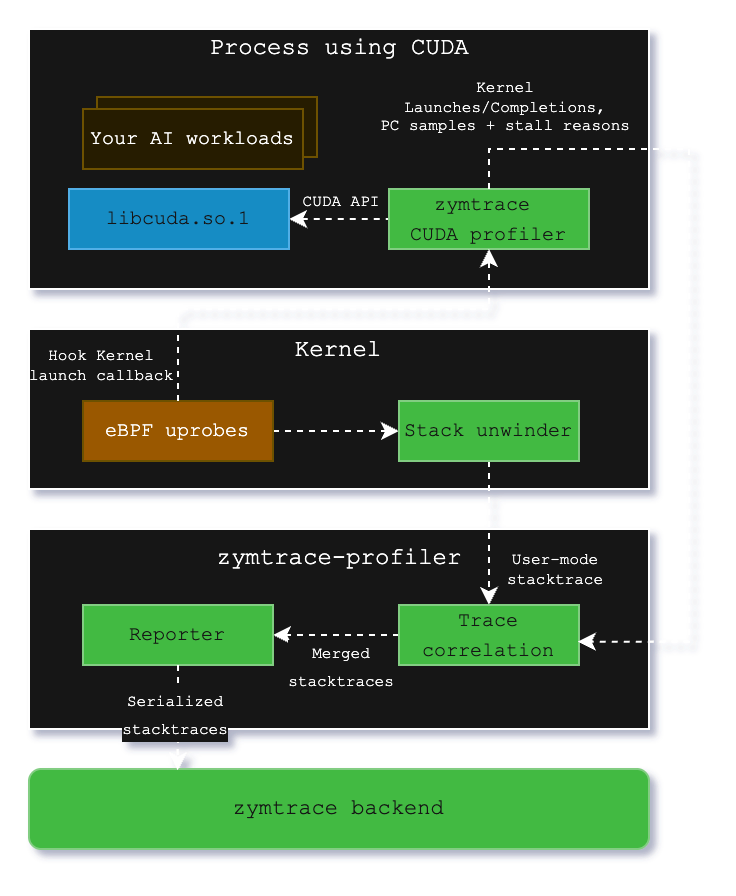
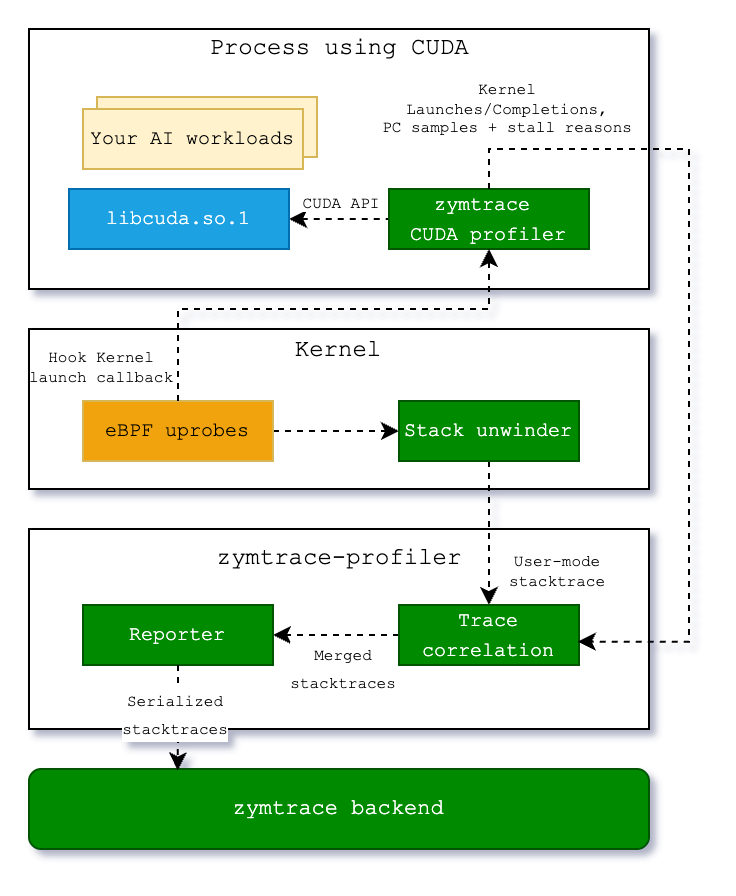 Within `libzymtracecudaprofiler.so`, we place callbacks on all `CUDA` functions that can launch a `CUDA` kernel. `zymtrace profiler` detects the CUDA profiler and places a `uprobe` on an exported function that is called each time that a kernel is launched. The `uprobe`, in turn, invokes the CPU stack unwinder that we're also using for CPU profiling in general. The `BPF` code additionally collects the necessary information about the kernel launch that is sent along with the stack trace to enable correlation with the data that is collected in the `CUDA` profiler library.
Once both the stack traces collected in `BPF` and the kernel launch/completion data arrive in `zymtrace profiler`, they are merged together and sent out as a single combined stack trace that spans from the user-mode code that enqueued the kernel into the CUDA kernel that got invoked on the GPU and, if enabled, the individual instructions and stall reasons.
These traces are then sent out to our backend, ready to be visualized as a flamegraph within our UI.
## Zymtrace AI flamegraph anatomy
The Zymtrace AI flamegraph displays stack traces from the CPU code down to the CUDA instruction offset. Our flamegraph renderer was built from the ground up in Rust and WebAssembly (WASM).
:::info
Refer to our blog post "[Zymtrace AI Flamegraph: Why We Ditched TypeScript for Rust and WebAssembly](https://zymtrace.com/article/zymtrace-ai-flamegraph/)" to learn more
:::
The diagram below shows the general execution flow of the Zymtrace AI flamegraph.
Within `libzymtracecudaprofiler.so`, we place callbacks on all `CUDA` functions that can launch a `CUDA` kernel. `zymtrace profiler` detects the CUDA profiler and places a `uprobe` on an exported function that is called each time that a kernel is launched. The `uprobe`, in turn, invokes the CPU stack unwinder that we're also using for CPU profiling in general. The `BPF` code additionally collects the necessary information about the kernel launch that is sent along with the stack trace to enable correlation with the data that is collected in the `CUDA` profiler library.
Once both the stack traces collected in `BPF` and the kernel launch/completion data arrive in `zymtrace profiler`, they are merged together and sent out as a single combined stack trace that spans from the user-mode code that enqueued the kernel into the CUDA kernel that got invoked on the GPU and, if enabled, the individual instructions and stall reasons.
These traces are then sent out to our backend, ready to be visualized as a flamegraph within our UI.
## Zymtrace AI flamegraph anatomy
The Zymtrace AI flamegraph displays stack traces from the CPU code down to the CUDA instruction offset. Our flamegraph renderer was built from the ground up in Rust and WebAssembly (WASM).
:::info
Refer to our blog post "[Zymtrace AI Flamegraph: Why We Ditched TypeScript for Rust and WebAssembly](https://zymtrace.com/article/zymtrace-ai-flamegraph/)" to learn more
:::
The diagram below shows the general execution flow of the Zymtrace AI flamegraph.
 Total GPU time for this pass is **98.5s**. Three problems are immediately visible.
**Problem 1: CPU is stalling the GPU in `_prepare_inputs`**
`_prepare_inputs` spends ~10.6s (10.7% of total) doing synchronous host-to-device copies for slot mapping and block table data. The flamegraph traces this directly to `BlockTable.convert_slot_mapping` and `lowest_bias_table`, which issue `cudaMemcpyAsync` calls that block the pipeline before each forward pass. The GPU sits idle waiting for data that the CPU could have staged earlier.
The fix: prefetch the block table and slot mapping to GPU memory before the forward pass begins, or keep them resident on device across steps rather than re-copying each iteration. Ensuring the source tensors use pinned memory (verifiable via `tensor.is_pinned()`) is a prerequisite for async copies to actually overlap with computation.
**Problem 2: Memory-bound GEMM in `compute_logits`**
The bf16 GEMM kernels in `compute_logits` account for ~5.4s, with 20% of that time stalled on `smsp__pcsamp_warps_issue_stalled_long_scoreboard` — warps waiting on L1TEX data dependencies to resolve. The kernel is issuing dependent memory loads faster than L1 can service them, causing the warp scheduler to stall. This points to a memory access pattern that is not cache-friendly for the current tile configuration.
**Problem 3: Suboptimal matmul tiling consuming 50% of GPU time**
`hal.matmul` is the single largest cost at ~50% of total GPU time. The flamegraph shows multiple competing tiling variants (`a16/a16`, `semgu`) being dispatched, which is a signal that vLLM's kernel selection is not converging on an optimal configuration for this batch size and model shape. Running vLLM's profiling-based kernel selection (`--enforce-eager` off, with a warmup sweep) to pre-select the best tiling for the deployment configuration would recover significant time here.
### GPU Time
The flamegraph tooltip contains GPU Time, broken down into total time and self time.
#### GPU Time (Total)
For `CPython` and `native` frames, Total GPU time indicates the GPU time (also shown as a relative percentage) consumed by `CUDA` kernels launched by the function (including its callees). For CUDA frames, it reflects the time spent executing the function's body.
#### GPU Time (Self)
For `CPython` and `native` frames, Self GPU time is always zero, as these frames are not executed on the GPU. For CUDA frames, Self GPU time reflects the time spent executing only the function's own body on the GPU. If PC sampling is enabled, timing is broken down into stall reasons, instructions, and PC offsets, with Self GPU time attributed only to offsets, enabling a fine-grained view of what happened during the kernel execution.
---
# AMD GPU Metrics & Profiles
URL: https://docs.zymtrace.com/gpu/amd/gpu-metrics
# AMD GPU Metrics & Profiles
AMD GPU metrics provide host-wide visibility into accelerator utilization, memory activity, power, temperature, and clocks. Use these metrics to identify an interesting host, device, or time window, then open the corresponding ROCm flamegraph to see the HIP kernels and CPU call stacks behind it.
- **Metrics** reveal trends and resource bottlenecks.
- **Profiling** attributes device time to HIP kernels, memory operations, synchronization, ROCTX ranges, and the CPU stacks that launched them.
## Requirements
- An x86_64 host using the `amdgpu` kernel driver
- A ROCm workload (ROCm 7.x or above)
- The zymtrace profiler running on the host with GPU support enabled by your license
- AMD SMI available to the profiler for metrics collection
- `libdrm_amdgpu.so.1` available for GPU names, memory metrics, and driver information
The profiler searches standard library paths automatically. Use `-amdsmi-path=/path/to/libamd_smi.so` or `-libdrm-path=/path/to/libdrm_amdgpu.so.1` only when the libraries are installed elsewhere.
## Enabling AMD GPU profiling
The profiler ships the ROCprofiler SDK and the zymtrace ROCm tool library. Start each ROCm workload with these environment variables so ROCprofiler loads the tool when the process starts:
```bash
ROCP_TOOL_LIBRARIES=/opt/zymtrace/profiler/libzymtracerocmprofiler.so
ROCPROFILER_REGISTER_LIBRARY=/opt/zymtrace/profiler/librocprofiler-sdk.so.1
```
For a containerized workload, mount the profiler's shared host directory and set both variables:
```bash
docker run \
-v /var/lib/zymtrace/profiler:/opt/zymtrace/profiler:ro \
-e ROCP_TOOL_LIBRARIES=/opt/zymtrace/profiler/libzymtracerocmprofiler.so \
-e ROCPROFILER_REGISTER_LIBRARY=/opt/zymtrace/profiler/librocprofiler-sdk.so.1 \
your-gpu-image
```
AMD profiling cannot attach to an already-running GPU process: the environment variables must be present when the ROCm process starts. The **Add Data** flow in the zymtrace UI generates deployment-specific Docker, Helm, and binary commands.
See the [GPU Profiler Environment Variables](/install/profiler/profiler-gpu-variables?gpu-vendor=amd) AMD tab for the complete reference of `ZYMTRACE_ROCMPROFILER__*` tuning variables.
## Available AMD GPU metrics
| Metric | Description | Unit |
|---|---|---|
| `hw.amd_gpu.utilization` | GPU engine utilization | % |
| `hw.amd_gpu.memory.activity` | Memory-controller activity | % |
| `hw.amd_gpu.multimedia.utilization` | Multimedia engine utilization | % |
| `hw.amd_gpu.memory.utilization` | VRAM currently in use | bytes |
| `hw.amd_gpu.power` | Current power usage | mW |
| `hw.amd_gpu.power_limit` | Configured power limit | mW |
| `hw.amd_gpu.temp` | GPU edge temperature, when the ASIC exposes an edge sensor | °C |
| `hw.amd_gpu.clock.graphics` | Current graphics clock | MHz |
| `hw.amd_gpu.clock.mem` | Current memory clock | MHz |
Metric availability depends on the GPU and AMD SMI support for that ASIC. Without `libdrm`, activity, power, temperature, and clock metrics can still be available, but GPU names, memory metrics, and driver information are unavailable.
See the [Metrics Reference](../metrics-reference.md#amd-gpu) for each metric's type, aggregation, and the chart it drives.
## Drilling down from metrics into ROCm profiles
Metrics, profiles, and CPU code are one connected workflow, not separate views. A typical investigation moves through three levels:
1. **Metrics.** Navigate to **Top Entities**, select an AMD GPU host, and inspect its metrics dashboard. A utilization, memory, power, temperature, or clock anomaly identifies the interesting device and time window. Clicking that data point scopes the analysis to it.
2. **ROCm profiles.** From the data point, open the ROCm flamegraph for that exact window. GPU time is broken down by HIP kernel, joined to the complete CPU call path that launched each one, from the application's Python frames through the framework and math libraries down to the kernel dispatch.
3. **The kernel and its launching CPU code.** Selecting a kernel frame opens its function details: the fully symbolized kernel name, its GPU time and share, its usage trend, the hosts it ran on, and the full CPU stack trace that launched it.
ROCm flamegraphs can contain:
- `rocm` frames for HIP kernel dispatches
- `rocm-memory` frames for memory copies and fills
- `rocm-sync` frames for synchronization operations
- `rocm-roctx` frames for ROCTX ranges
Profiles retain the GPU, stream, host process, and thread identity and are joined to the CPU stack that submitted the operation.
### Example: vLLM GPT-OSS on an MI325X
**Level 1: metrics.** The dashboard for an MI325X host serving vLLM GPT-OSS shows utilization, memory, power, temperature, and clock behavior. Any of these charts is a click away from the profile view for the same device and time window.
Total GPU time for this pass is **98.5s**. Three problems are immediately visible.
**Problem 1: CPU is stalling the GPU in `_prepare_inputs`**
`_prepare_inputs` spends ~10.6s (10.7% of total) doing synchronous host-to-device copies for slot mapping and block table data. The flamegraph traces this directly to `BlockTable.convert_slot_mapping` and `lowest_bias_table`, which issue `cudaMemcpyAsync` calls that block the pipeline before each forward pass. The GPU sits idle waiting for data that the CPU could have staged earlier.
The fix: prefetch the block table and slot mapping to GPU memory before the forward pass begins, or keep them resident on device across steps rather than re-copying each iteration. Ensuring the source tensors use pinned memory (verifiable via `tensor.is_pinned()`) is a prerequisite for async copies to actually overlap with computation.
**Problem 2: Memory-bound GEMM in `compute_logits`**
The bf16 GEMM kernels in `compute_logits` account for ~5.4s, with 20% of that time stalled on `smsp__pcsamp_warps_issue_stalled_long_scoreboard` — warps waiting on L1TEX data dependencies to resolve. The kernel is issuing dependent memory loads faster than L1 can service them, causing the warp scheduler to stall. This points to a memory access pattern that is not cache-friendly for the current tile configuration.
**Problem 3: Suboptimal matmul tiling consuming 50% of GPU time**
`hal.matmul` is the single largest cost at ~50% of total GPU time. The flamegraph shows multiple competing tiling variants (`a16/a16`, `semgu`) being dispatched, which is a signal that vLLM's kernel selection is not converging on an optimal configuration for this batch size and model shape. Running vLLM's profiling-based kernel selection (`--enforce-eager` off, with a warmup sweep) to pre-select the best tiling for the deployment configuration would recover significant time here.
### GPU Time
The flamegraph tooltip contains GPU Time, broken down into total time and self time.
#### GPU Time (Total)
For `CPython` and `native` frames, Total GPU time indicates the GPU time (also shown as a relative percentage) consumed by `CUDA` kernels launched by the function (including its callees). For CUDA frames, it reflects the time spent executing the function's body.
#### GPU Time (Self)
For `CPython` and `native` frames, Self GPU time is always zero, as these frames are not executed on the GPU. For CUDA frames, Self GPU time reflects the time spent executing only the function's own body on the GPU. If PC sampling is enabled, timing is broken down into stall reasons, instructions, and PC offsets, with Self GPU time attributed only to offsets, enabling a fine-grained view of what happened during the kernel execution.
---
# AMD GPU Metrics & Profiles
URL: https://docs.zymtrace.com/gpu/amd/gpu-metrics
# AMD GPU Metrics & Profiles
AMD GPU metrics provide host-wide visibility into accelerator utilization, memory activity, power, temperature, and clocks. Use these metrics to identify an interesting host, device, or time window, then open the corresponding ROCm flamegraph to see the HIP kernels and CPU call stacks behind it.
- **Metrics** reveal trends and resource bottlenecks.
- **Profiling** attributes device time to HIP kernels, memory operations, synchronization, ROCTX ranges, and the CPU stacks that launched them.
## Requirements
- An x86_64 host using the `amdgpu` kernel driver
- A ROCm workload (ROCm 7.x or above)
- The zymtrace profiler running on the host with GPU support enabled by your license
- AMD SMI available to the profiler for metrics collection
- `libdrm_amdgpu.so.1` available for GPU names, memory metrics, and driver information
The profiler searches standard library paths automatically. Use `-amdsmi-path=/path/to/libamd_smi.so` or `-libdrm-path=/path/to/libdrm_amdgpu.so.1` only when the libraries are installed elsewhere.
## Enabling AMD GPU profiling
The profiler ships the ROCprofiler SDK and the zymtrace ROCm tool library. Start each ROCm workload with these environment variables so ROCprofiler loads the tool when the process starts:
```bash
ROCP_TOOL_LIBRARIES=/opt/zymtrace/profiler/libzymtracerocmprofiler.so
ROCPROFILER_REGISTER_LIBRARY=/opt/zymtrace/profiler/librocprofiler-sdk.so.1
```
For a containerized workload, mount the profiler's shared host directory and set both variables:
```bash
docker run \
-v /var/lib/zymtrace/profiler:/opt/zymtrace/profiler:ro \
-e ROCP_TOOL_LIBRARIES=/opt/zymtrace/profiler/libzymtracerocmprofiler.so \
-e ROCPROFILER_REGISTER_LIBRARY=/opt/zymtrace/profiler/librocprofiler-sdk.so.1 \
your-gpu-image
```
AMD profiling cannot attach to an already-running GPU process: the environment variables must be present when the ROCm process starts. The **Add Data** flow in the zymtrace UI generates deployment-specific Docker, Helm, and binary commands.
See the [GPU Profiler Environment Variables](/install/profiler/profiler-gpu-variables?gpu-vendor=amd) AMD tab for the complete reference of `ZYMTRACE_ROCMPROFILER__*` tuning variables.
## Available AMD GPU metrics
| Metric | Description | Unit |
|---|---|---|
| `hw.amd_gpu.utilization` | GPU engine utilization | % |
| `hw.amd_gpu.memory.activity` | Memory-controller activity | % |
| `hw.amd_gpu.multimedia.utilization` | Multimedia engine utilization | % |
| `hw.amd_gpu.memory.utilization` | VRAM currently in use | bytes |
| `hw.amd_gpu.power` | Current power usage | mW |
| `hw.amd_gpu.power_limit` | Configured power limit | mW |
| `hw.amd_gpu.temp` | GPU edge temperature, when the ASIC exposes an edge sensor | °C |
| `hw.amd_gpu.clock.graphics` | Current graphics clock | MHz |
| `hw.amd_gpu.clock.mem` | Current memory clock | MHz |
Metric availability depends on the GPU and AMD SMI support for that ASIC. Without `libdrm`, activity, power, temperature, and clock metrics can still be available, but GPU names, memory metrics, and driver information are unavailable.
See the [Metrics Reference](../metrics-reference.md#amd-gpu) for each metric's type, aggregation, and the chart it drives.
## Drilling down from metrics into ROCm profiles
Metrics, profiles, and CPU code are one connected workflow, not separate views. A typical investigation moves through three levels:
1. **Metrics.** Navigate to **Top Entities**, select an AMD GPU host, and inspect its metrics dashboard. A utilization, memory, power, temperature, or clock anomaly identifies the interesting device and time window. Clicking that data point scopes the analysis to it.
2. **ROCm profiles.** From the data point, open the ROCm flamegraph for that exact window. GPU time is broken down by HIP kernel, joined to the complete CPU call path that launched each one, from the application's Python frames through the framework and math libraries down to the kernel dispatch.
3. **The kernel and its launching CPU code.** Selecting a kernel frame opens its function details: the fully symbolized kernel name, its GPU time and share, its usage trend, the hosts it ran on, and the full CPU stack trace that launched it.
ROCm flamegraphs can contain:
- `rocm` frames for HIP kernel dispatches
- `rocm-memory` frames for memory copies and fills
- `rocm-sync` frames for synchronization operations
- `rocm-roctx` frames for ROCTX ranges
Profiles retain the GPU, stream, host process, and thread identity and are joined to the CPU stack that submitted the operation.
### Example: vLLM GPT-OSS on an MI325X
**Level 1: metrics.** The dashboard for an MI325X host serving vLLM GPT-OSS shows utilization, memory, power, temperature, and clock behavior. Any of these charts is a click away from the profile view for the same device and time window.
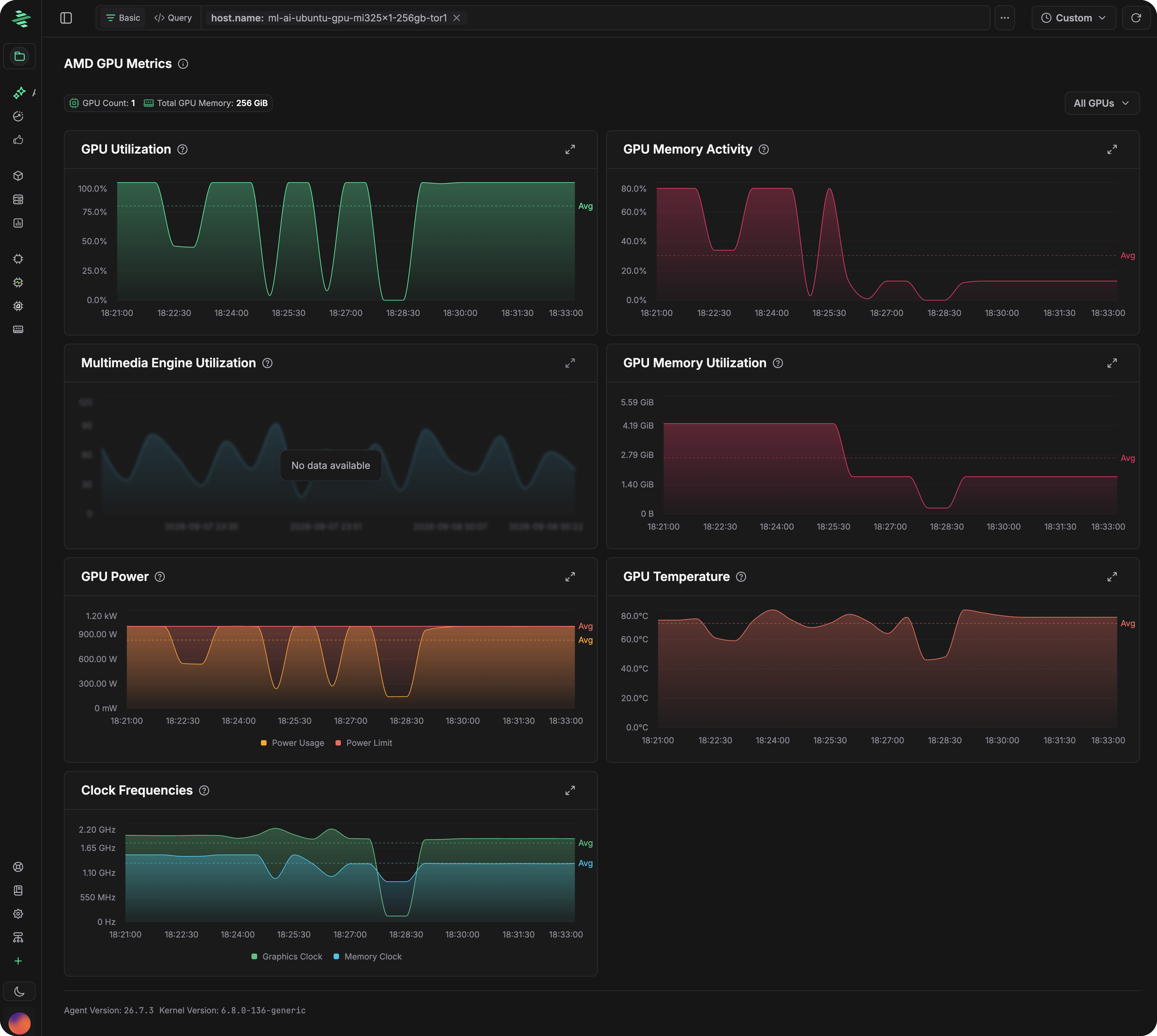 **Level 2: the ROCm flamegraph.** GPU time is attributed through the full launch path: the vLLM engine's Python frames (`EngineCore.step`, `GPUModelRunner.execute_model`), the PyTorch dispatcher, the rocBLAS/hipBLASLt stack (`hipblasLtMatmul`, `rocblaslt_matmul`, `TensileLite::hip::SolutionAdapter::launchKernels`), and finally the HIP kernels executing on the device. Every kernel sits directly under the CPU code that launched it.
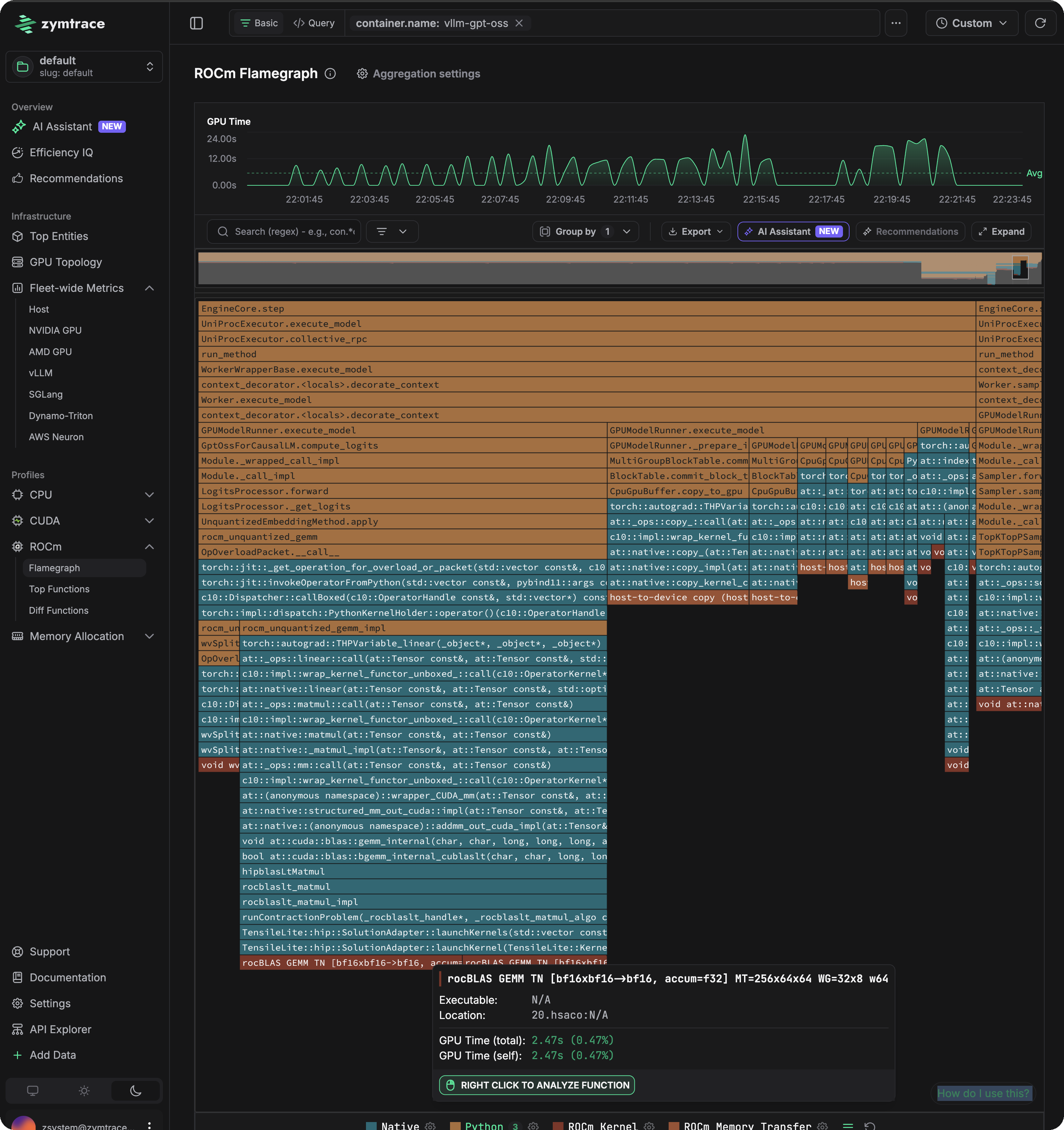 **Level 3: the kernel.** Selecting a kernel frame opens its function details. Here the kernel is the rocBLAS GEMM, shown with its fully symbolized name:
```
rocBLAS GEMM TN [bf16xbf16→bf16, accum=f32] MT=256x64x64 WG=32x8 w64
```
That one name tells you the transpose configuration (`TN`), the data types (BF16 inputs and output with FP32 accumulation), the macro-tile size (`MT=256x64x64`), and the workgroup shape (`WG=32x8`, wave64). The details panel adds the kernel's GPU time and share, its AMD GPU usage trend over the selected window, the hosts it ran on, and the complete CPU stack trace that launched it, from `EngineCore.step` at the top of the vLLM engine down to the dispatch: the exact application code responsible for the device time.
**Level 3: the kernel.** Selecting a kernel frame opens its function details. Here the kernel is the rocBLAS GEMM, shown with its fully symbolized name:
```
rocBLAS GEMM TN [bf16xbf16→bf16, accum=f32] MT=256x64x64 WG=32x8 w64
```
That one name tells you the transpose configuration (`TN`), the data types (BF16 inputs and output with FP32 accumulation), the macro-tile size (`MT=256x64x64`), and the workgroup shape (`WG=32x8`, wave64). The details panel adds the kernel's GPU time and share, its AMD GPU usage trend over the selected window, the hosts it ran on, and the complete CPU stack trace that launched it, from `EngineCore.step` at the top of the vLLM engine down to the dispatch: the exact application code responsible for the device time.
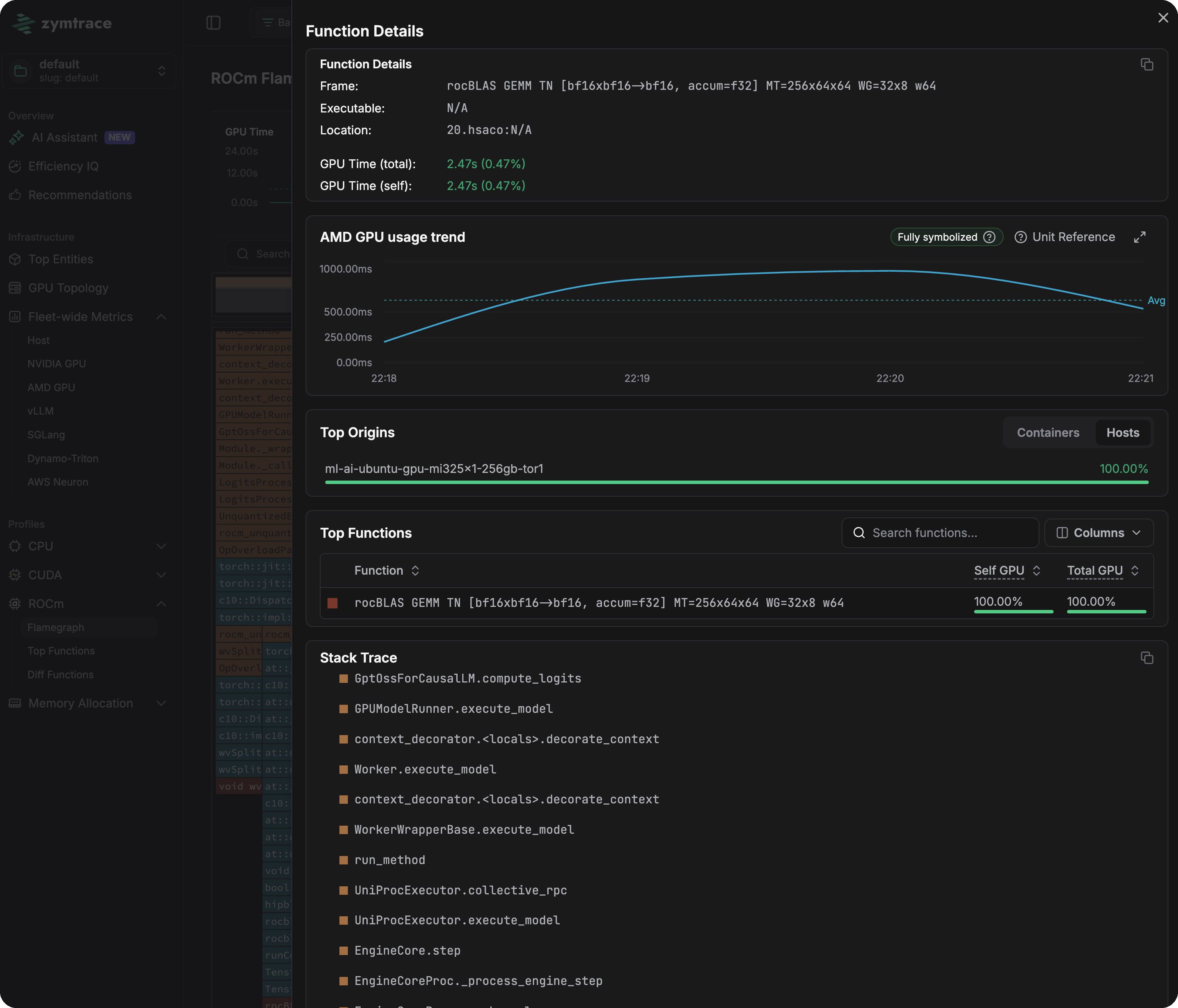 ## Roadmap
zymtrace is building AMD GPU support toward full parity with its NVIDIA capabilities. The following are on the roadmap for AMD GPUs:
- Per-process GPU utilization and memory metrics
- PCIe, NVLink or xGMI throughput metrics
- ECC, SM efficiency, occupancy, and Tensor Core metrics
- MIG-aware profiling
- Instruction-level PC sampling, ISA attribution, and stall reasons
- High-resolution GPU timeline
- AI recommendations for GPU profiles
---
# Inference Server Metrics
URL: https://docs.zymtrace.com/gpu/inference-server-metrics
# Inference Server Metrics
Zymtrace automatically detects and extracts application-level metrics from popular AI inference servers. These metrics complement [GPU metrics](/gpu/nvidia/gpu-metrics) and [CPU profiles](/gpu-profiler-architecture) by surfacing serving-layer performance data (throughput, queue depth, latency, cache efficiency, and more) directly alongside your profiling data. Collection is host-side and works the same on NVIDIA and AMD GPU nodes.
:::info Supported Inference Servers
- **[vLLM](https://github.com/vllm-project/vllm)**: [metrics collected](./metrics-reference#vllm)
- **[SGLang](https://github.com/sgl-project/sglang)**: [metrics collected](./metrics-reference#sglang)
- **[NVIDIA Dynamo-Triton](https://developer.nvidia.com/triton-inference-server)** (NVIDIA hosts): [metrics collected](./metrics-reference#triton)
:::
## How It Works
The profiler scrapes Prometheus-compatible metrics endpoints exposed by the inference server running on the same host. No changes to the inference server are required. The profiler automatically discovers the endpoint and begins collecting metrics at the interval configured by `-collect-metrics-interval` (default: 30s).
Collected metrics are forwarded to the Zymtrace backend alongside profiles and GPU metrics, making it possible to correlate high token latency or low cache hit rates directly with CPU and GPU profiling data.

## Enabling Inference Server Metrics
Each inference server has a dedicated flag. All three are **enabled by default**, so no extra configuration is needed when the profiler is running alongside a supported server.
| Inference Server | CLI Flag | Environment Variable | Default |
|-----------------|----------|---------------------|---------|
| vLLM | `-enable-vllm-metrics` | `ZYMTRACE_ENABLE_VLLM_METRICS` | `true` |
| SGLang | `-enable-sglang-metrics` | `ZYMTRACE_ENABLE_SGLANG_METRICS` | `true` |
| NVIDIA Dynamo-Triton | `-enable-triton-metrics` | `ZYMTRACE_ENABLE_TRITON_METRICS` | `true` |
To explicitly disable metrics collection for a specific server, set the flag to `false`:
```bash
# Disable only vLLM metrics
sudo ./zymtrace-profiler \
-collection-agent=gateway.company.com:443 \
-enable-vllm-metrics=false
```
Or via environment variable:
```bash
export ZYMTRACE_ENABLE_VLLM_METRICS=false
sudo ./zymtrace-profiler -collection-agent=gateway.company.com:443
```
## Configuration Reference
See the [Profiler ENV & CLI Args](/install/profiler/profiler-configuration) page for the full list of configuration options, including `-collect-metrics-interval` which controls how frequently all metrics (GPU, host, and inference server) are scraped.
## Viewing metrics
To view the inference metrics in Zymtrace, expand the **Fleet-wide Metrics** entry
in the sidebar, then select **vLLM**, **SGLang**, or **Dynamo-Triton**.
## Digging deeper with profiles
Metrics tell you *what* is slow, profiles tell you *why*. When a metric data point looks anomalous, you can jump straight to the GPU flamegraph for that moment in time.
Click any data point on a metric chart and select **Analyze with GPU flamegraph** from the pop-up menu. Zymtrace will open the flamegraph scoped to that exact timestamp, so you can immediately see which CUDA or HIP kernels were consuming resources when the metric spiked.
The flamegraph below is scoped to a vLLM GPT-OSS container. GPU time is attributed from the vLLM engine loop (`EngineCore.step`, `GPUModelRunner.execute_model`) through CUDA graph replays down to the MoE matmul kernels (`_matmul_ogs_NNT_bf16xbf16xmxfp4_16x256x128x2`) and their SASS instructions and stall reasons. The AI assistant panel analyzes the same data and ranks the hotspots, here flagging host-to-device copy overhead in `_prepare_inputs` as the top optimization opportunity.
## Roadmap
zymtrace is building AMD GPU support toward full parity with its NVIDIA capabilities. The following are on the roadmap for AMD GPUs:
- Per-process GPU utilization and memory metrics
- PCIe, NVLink or xGMI throughput metrics
- ECC, SM efficiency, occupancy, and Tensor Core metrics
- MIG-aware profiling
- Instruction-level PC sampling, ISA attribution, and stall reasons
- High-resolution GPU timeline
- AI recommendations for GPU profiles
---
# Inference Server Metrics
URL: https://docs.zymtrace.com/gpu/inference-server-metrics
# Inference Server Metrics
Zymtrace automatically detects and extracts application-level metrics from popular AI inference servers. These metrics complement [GPU metrics](/gpu/nvidia/gpu-metrics) and [CPU profiles](/gpu-profiler-architecture) by surfacing serving-layer performance data (throughput, queue depth, latency, cache efficiency, and more) directly alongside your profiling data. Collection is host-side and works the same on NVIDIA and AMD GPU nodes.
:::info Supported Inference Servers
- **[vLLM](https://github.com/vllm-project/vllm)**: [metrics collected](./metrics-reference#vllm)
- **[SGLang](https://github.com/sgl-project/sglang)**: [metrics collected](./metrics-reference#sglang)
- **[NVIDIA Dynamo-Triton](https://developer.nvidia.com/triton-inference-server)** (NVIDIA hosts): [metrics collected](./metrics-reference#triton)
:::
## How It Works
The profiler scrapes Prometheus-compatible metrics endpoints exposed by the inference server running on the same host. No changes to the inference server are required. The profiler automatically discovers the endpoint and begins collecting metrics at the interval configured by `-collect-metrics-interval` (default: 30s).
Collected metrics are forwarded to the Zymtrace backend alongside profiles and GPU metrics, making it possible to correlate high token latency or low cache hit rates directly with CPU and GPU profiling data.

## Enabling Inference Server Metrics
Each inference server has a dedicated flag. All three are **enabled by default**, so no extra configuration is needed when the profiler is running alongside a supported server.
| Inference Server | CLI Flag | Environment Variable | Default |
|-----------------|----------|---------------------|---------|
| vLLM | `-enable-vllm-metrics` | `ZYMTRACE_ENABLE_VLLM_METRICS` | `true` |
| SGLang | `-enable-sglang-metrics` | `ZYMTRACE_ENABLE_SGLANG_METRICS` | `true` |
| NVIDIA Dynamo-Triton | `-enable-triton-metrics` | `ZYMTRACE_ENABLE_TRITON_METRICS` | `true` |
To explicitly disable metrics collection for a specific server, set the flag to `false`:
```bash
# Disable only vLLM metrics
sudo ./zymtrace-profiler \
-collection-agent=gateway.company.com:443 \
-enable-vllm-metrics=false
```
Or via environment variable:
```bash
export ZYMTRACE_ENABLE_VLLM_METRICS=false
sudo ./zymtrace-profiler -collection-agent=gateway.company.com:443
```
## Configuration Reference
See the [Profiler ENV & CLI Args](/install/profiler/profiler-configuration) page for the full list of configuration options, including `-collect-metrics-interval` which controls how frequently all metrics (GPU, host, and inference server) are scraped.
## Viewing metrics
To view the inference metrics in Zymtrace, expand the **Fleet-wide Metrics** entry
in the sidebar, then select **vLLM**, **SGLang**, or **Dynamo-Triton**.
## Digging deeper with profiles
Metrics tell you *what* is slow, profiles tell you *why*. When a metric data point looks anomalous, you can jump straight to the GPU flamegraph for that moment in time.
Click any data point on a metric chart and select **Analyze with GPU flamegraph** from the pop-up menu. Zymtrace will open the flamegraph scoped to that exact timestamp, so you can immediately see which CUDA or HIP kernels were consuming resources when the metric spiked.
The flamegraph below is scoped to a vLLM GPT-OSS container. GPU time is attributed from the vLLM engine loop (`EngineCore.step`, `GPUModelRunner.execute_model`) through CUDA graph replays down to the MoE matmul kernels (`_matmul_ogs_NNT_bf16xbf16xmxfp4_16x256x128x2`) and their SASS instructions and stall reasons. The AI assistant panel analyzes the same data and ranks the hotspots, here flagging host-to-device copy overhead in `_prepare_inputs` as the top optimization opportunity.
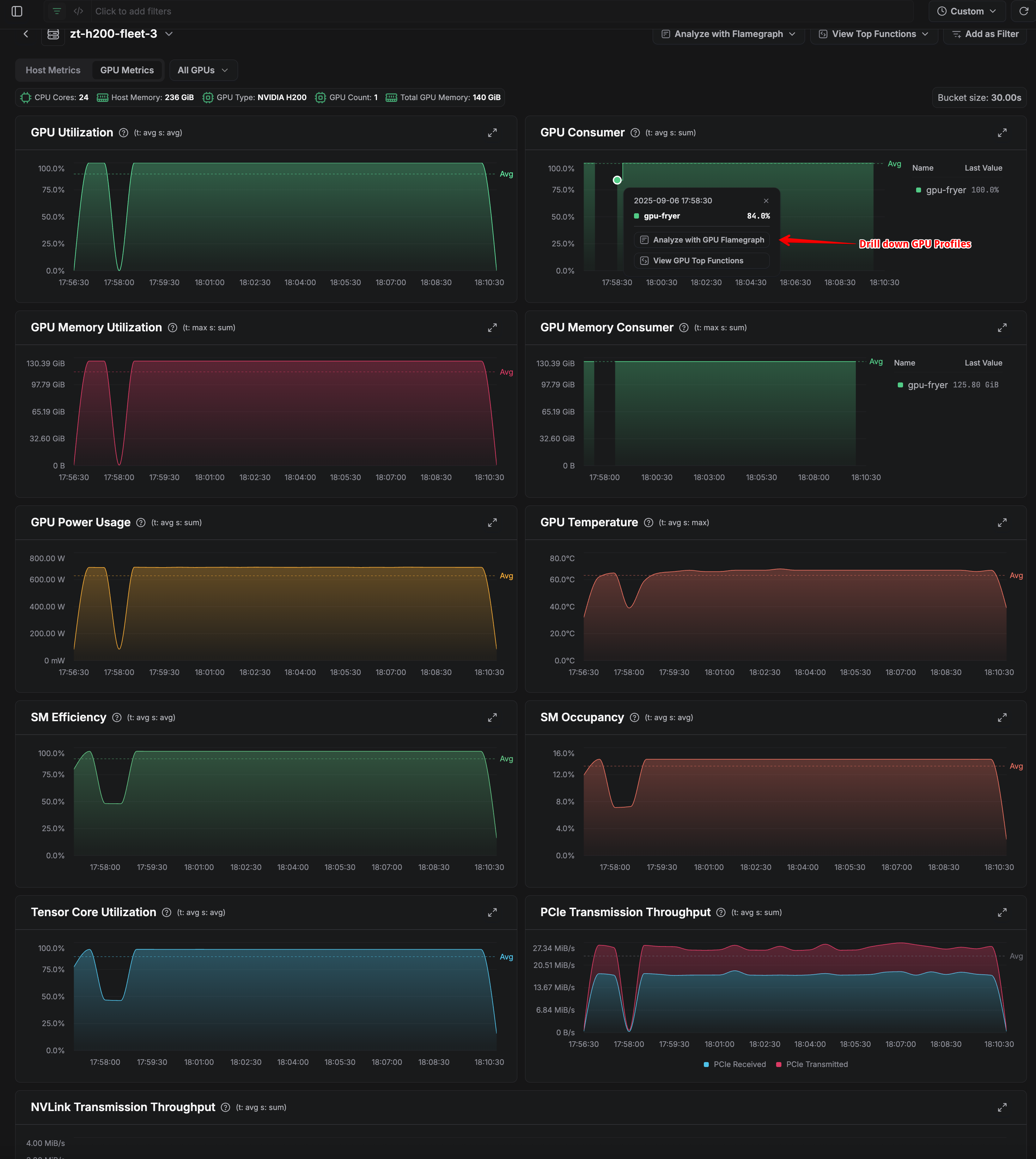 ## Available GPU Metrics {#available-gpu-metrics}
Zymtrace collects GPU metrics across four categories — **Performance** (GPU utilization and per-process consumers, SM efficiency/occupancy, Tensor Core utilization), **Memory** (VRAM utilization and per-process consumers), **Hardware** (power, temperature, clocks), and **Data Transfer** (PCIe, NVLink, and C2C throughput). SM Efficiency, SM Occupancy, and Tensor Core metrics are available only on data center GPUs (H100, H200, etc.).
For the complete list — every metric key, type, aggregation, and grouping dimension — see the **[Metrics Reference](../metrics-reference.md#nvidia-gpu)**.
## How GPU Metrics Collection Works
Zymtrace uses NVIDIA's NVML (NVIDIA Management Library) to collect GPU metrics. NVML provides a C API for monitoring and managing NVIDIA GPU devices, enabling us to gather real-time performance, utilization, and health data directly from the GPU hardware.
## Using GPU Metrics with GPU Profiles
Once GPU metrics are enabled, you can navigate to **Top Entities** and select your GPU host to see the metrics dashboard. This view displays real-time and historical data across all categories, giving insight into patterns in utilization, memory usage, and power consumption. By examining these trends, you can identify anomalies that might indicate performance issues. Clicking on specific data points then allows you to drill down into detailed GPU profiles.
## Available GPU Metrics {#available-gpu-metrics}
Zymtrace collects GPU metrics across four categories — **Performance** (GPU utilization and per-process consumers, SM efficiency/occupancy, Tensor Core utilization), **Memory** (VRAM utilization and per-process consumers), **Hardware** (power, temperature, clocks), and **Data Transfer** (PCIe, NVLink, and C2C throughput). SM Efficiency, SM Occupancy, and Tensor Core metrics are available only on data center GPUs (H100, H200, etc.).
For the complete list — every metric key, type, aggregation, and grouping dimension — see the **[Metrics Reference](../metrics-reference.md#nvidia-gpu)**.
## How GPU Metrics Collection Works
Zymtrace uses NVIDIA's NVML (NVIDIA Management Library) to collect GPU metrics. NVML provides a C API for monitoring and managing NVIDIA GPU devices, enabling us to gather real-time performance, utilization, and health data directly from the GPU hardware.
## Using GPU Metrics with GPU Profiles
Once GPU metrics are enabled, you can navigate to **Top Entities** and select your GPU host to see the metrics dashboard. This view displays real-time and historical data across all categories, giving insight into patterns in utilization, memory usage, and power consumption. By examining these trends, you can identify anomalies that might indicate performance issues. Clicking on specific data points then allows you to drill down into detailed GPU profiles.
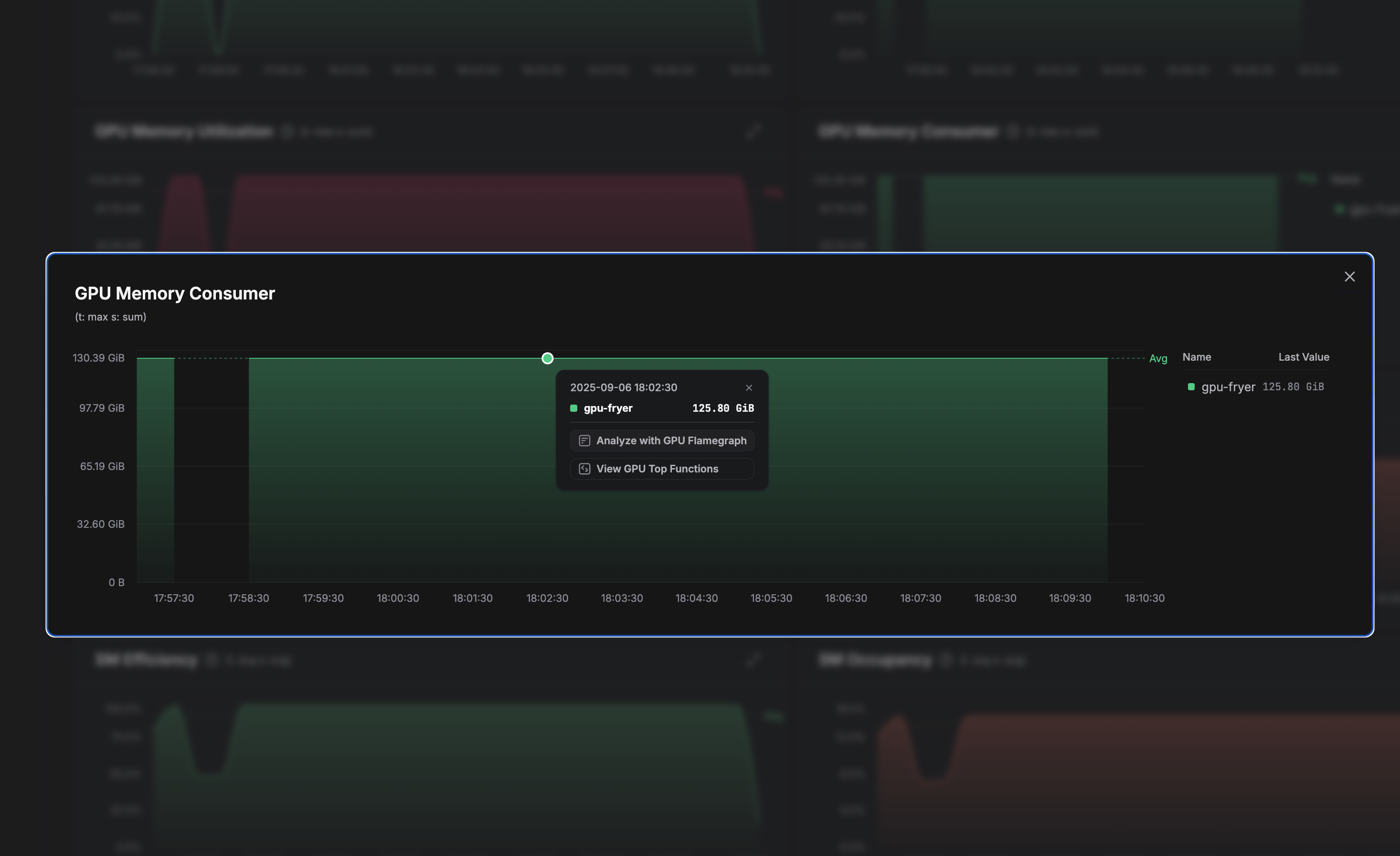 For more granular investigation, the metrics also provide process-level breakdowns. Expanding individual metric widgets shows which processes are consuming the most resources. For example, in our analysis, Hugging Face's [GPU Fryer](https://github.com/huggingface/gpu-fryer) consumes roughly 90% of available GPU memory. This immediately suggests a hypothesis: high memory pressure could be contributing to performance degradation. Metrics like this guide the investigation toward examining memory allocation patterns and kernel execution characteristics for the process in question.
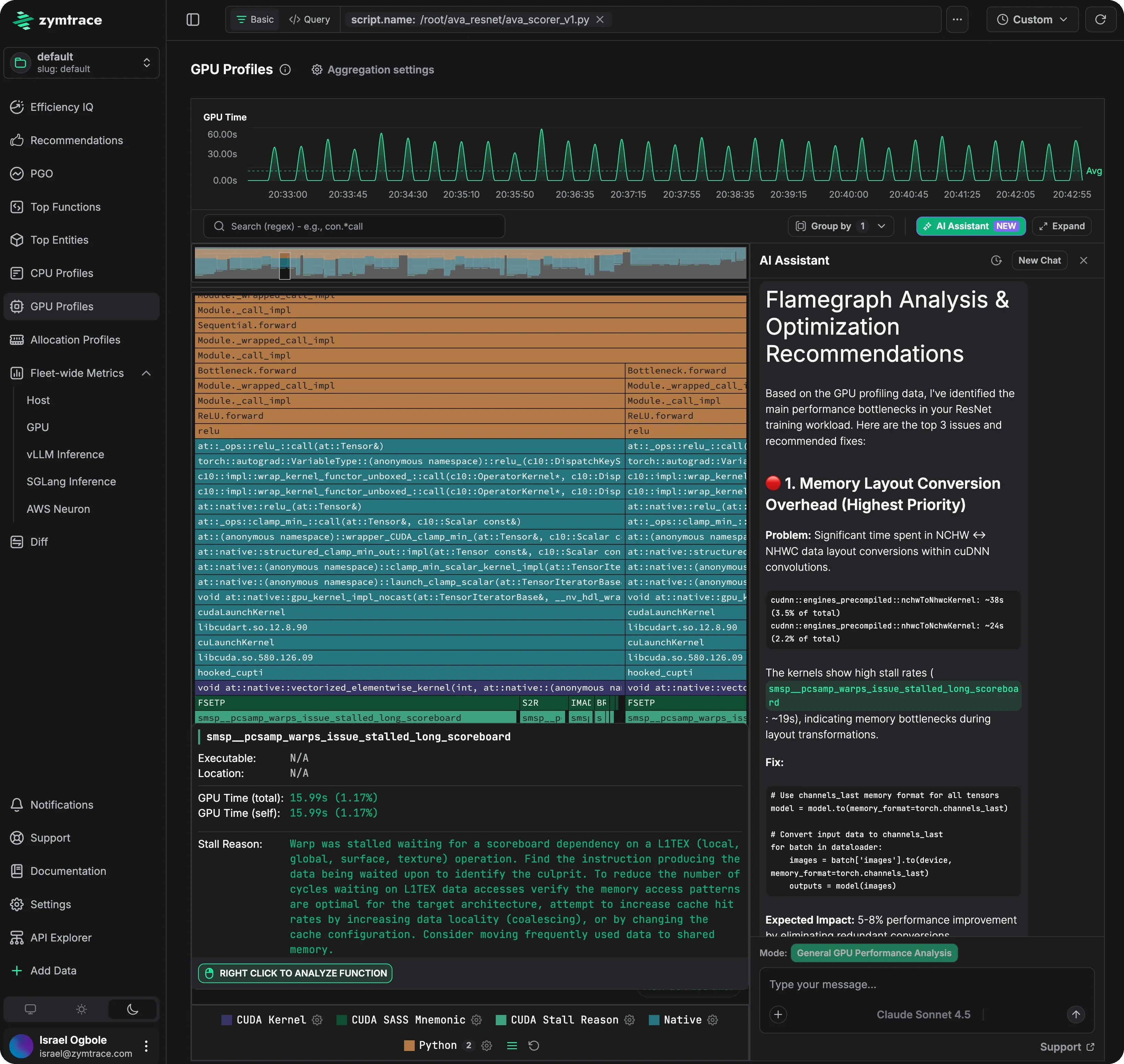 Clicking on the relevant data point, you can analyze the data with GPU profiles. The flamegraph above is scoped to a PyTorch ResNet inference script (`script.name: /root/ava_resnet/ava_scorer_v1.py`) and attributes GPU time through the full launch path: the Python module stack (`Sequential.forward`, `Bottleneck.forward`, `ReLU.forward`), the ATen operators behind it (`at::_ops::relu_`, `clamp_min_`), the CUDA runtime and driver (`cudaLaunchKernel`, `cuLaunchKernel`), and finally the CUDA kernel:
```
at::native::vectorized_elementwise_kernel
```
Below the kernel, the flamegraph continues to the instruction level: SASS mnemonics such as `FSETP`, `S2R`, and `IMAD`, and the PC-sampling stall reasons behind them. The selected stall reason here is `smsp__pcsamp_warps_issue_stalled_long_scoreboard`, accounting for 15.99s (1.17%) of GPU time. It means warps were stalled waiting on a scoreboard dependency for an L1TEX (local, global, surface, or texture) memory operation: the kernel is memory-bound on this path.
The built-in AI assistant analyzes the same flamegraph and turns the observation into an actionable recommendation. In this run it flags memory-layout conversion overhead (the `nchwToNhwcKernel` and `nhwcToNchwKernel` cuDNN kernels, roughly 5.7% of total GPU time combined) and suggests running the model in `torch.channels_last` memory format to eliminate the conversions, with an expected end-to-end improvement of 5 to 8%.
## Understanding the Metrics
### Performance Metrics
**GPU Utilization** provides the overall percentage of time your GPU is actively processing workloads. This is a key indicator of how well your GPU resources are being utilized.
**GPU Consumer** breaks down GPU utilization by process, helping you identify which applications or workloads are consuming the most GPU resources.
**SM Efficiency** measures how effectively the Streaming Multiprocessors are being utilized. It indicates the percentage of cycles where the SM has one or more of its assigned warps actively making progress in their execution. Low efficiency might indicate suboptimal kernel configurations or inefficient memory access patterns.
**SM Occupancy** shows the percentage of maximum possible threads that are active on the SMs. While higher occupancy often correlates with better performance, this isn't always the case.
**Tensor Core Utilization** is particularly important for AI/ML workloads, as it shows how well you're leveraging the specialized hardware designed for these operations.
### Memory Metrics
**GPU Memory Utilization** shows how much of your GPU's VRAM is currently in use. Monitoring this metric helps prevent out-of-memory errors and optimize memory allocation strategies.
**GPU Memory Consumer** provides a breakdown of memory usage by process, helping identify which applications consume the most memory.
### Hardware Metrics
**GPU Power Usage** and **GPU Temperature** are crucial for understanding the thermal and power characteristics of your workloads. These metrics help with capacity planning and thermal management strategies.
### Data Transfer Metrics
**PCIe Transmission Throughput** measures data movement between the GPU and system memory, which can become a bottleneck for data-intensive workloads.
**NVLink Transmission Throughput** (available on supported hardware) measures high-speed GPU-to-GPU communication, which is critical for multi-GPU workloads.
---
# MIG-Aware GPU Profiling
URL: https://docs.zymtrace.com/gpu/nvidia/mig-support
# MIG-Aware GPU Profiling
Zymtrace supports NVIDIA Multi-Instance GPU (MIG) devices. When MIG is enabled on a GPU, Zymtrace automatically detects the MIG topology and profiles each instance independently, with no additional configuration required.
## What is MIG?
NVIDIA's [Multi-Instance GPU (MIG)](https://www.nvidia.com/en-us/technologies/multi-instance-gpu/) technology partitions a single physical GPU into up to seven fully isolated instances, each with its own dedicated high-bandwidth memory, cache, and compute cores. MIG is available on Hopper, Blackwell, and Rubin architectures.
MIG is commonly used in multi-tenant AI inference clusters where multiple models or users share the same hardware. Each MIG instance operates with full hardware-level isolation, ensuring that workloads on one slice cannot interfere with workloads on another.
Clicking on the relevant data point, you can analyze the data with GPU profiles. The flamegraph above is scoped to a PyTorch ResNet inference script (`script.name: /root/ava_resnet/ava_scorer_v1.py`) and attributes GPU time through the full launch path: the Python module stack (`Sequential.forward`, `Bottleneck.forward`, `ReLU.forward`), the ATen operators behind it (`at::_ops::relu_`, `clamp_min_`), the CUDA runtime and driver (`cudaLaunchKernel`, `cuLaunchKernel`), and finally the CUDA kernel:
```
at::native::vectorized_elementwise_kernel
```
Below the kernel, the flamegraph continues to the instruction level: SASS mnemonics such as `FSETP`, `S2R`, and `IMAD`, and the PC-sampling stall reasons behind them. The selected stall reason here is `smsp__pcsamp_warps_issue_stalled_long_scoreboard`, accounting for 15.99s (1.17%) of GPU time. It means warps were stalled waiting on a scoreboard dependency for an L1TEX (local, global, surface, or texture) memory operation: the kernel is memory-bound on this path.
The built-in AI assistant analyzes the same flamegraph and turns the observation into an actionable recommendation. In this run it flags memory-layout conversion overhead (the `nchwToNhwcKernel` and `nhwcToNchwKernel` cuDNN kernels, roughly 5.7% of total GPU time combined) and suggests running the model in `torch.channels_last` memory format to eliminate the conversions, with an expected end-to-end improvement of 5 to 8%.
## Understanding the Metrics
### Performance Metrics
**GPU Utilization** provides the overall percentage of time your GPU is actively processing workloads. This is a key indicator of how well your GPU resources are being utilized.
**GPU Consumer** breaks down GPU utilization by process, helping you identify which applications or workloads are consuming the most GPU resources.
**SM Efficiency** measures how effectively the Streaming Multiprocessors are being utilized. It indicates the percentage of cycles where the SM has one or more of its assigned warps actively making progress in their execution. Low efficiency might indicate suboptimal kernel configurations or inefficient memory access patterns.
**SM Occupancy** shows the percentage of maximum possible threads that are active on the SMs. While higher occupancy often correlates with better performance, this isn't always the case.
**Tensor Core Utilization** is particularly important for AI/ML workloads, as it shows how well you're leveraging the specialized hardware designed for these operations.
### Memory Metrics
**GPU Memory Utilization** shows how much of your GPU's VRAM is currently in use. Monitoring this metric helps prevent out-of-memory errors and optimize memory allocation strategies.
**GPU Memory Consumer** provides a breakdown of memory usage by process, helping identify which applications consume the most memory.
### Hardware Metrics
**GPU Power Usage** and **GPU Temperature** are crucial for understanding the thermal and power characteristics of your workloads. These metrics help with capacity planning and thermal management strategies.
### Data Transfer Metrics
**PCIe Transmission Throughput** measures data movement between the GPU and system memory, which can become a bottleneck for data-intensive workloads.
**NVLink Transmission Throughput** (available on supported hardware) measures high-speed GPU-to-GPU communication, which is critical for multi-GPU workloads.
---
# MIG-Aware GPU Profiling
URL: https://docs.zymtrace.com/gpu/nvidia/mig-support
# MIG-Aware GPU Profiling
Zymtrace supports NVIDIA Multi-Instance GPU (MIG) devices. When MIG is enabled on a GPU, Zymtrace automatically detects the MIG topology and profiles each instance independently, with no additional configuration required.
## What is MIG?
NVIDIA's [Multi-Instance GPU (MIG)](https://www.nvidia.com/en-us/technologies/multi-instance-gpu/) technology partitions a single physical GPU into up to seven fully isolated instances, each with its own dedicated high-bandwidth memory, cache, and compute cores. MIG is available on Hopper, Blackwell, and Rubin architectures.
MIG is commonly used in multi-tenant AI inference clusters where multiple models or users share the same hardware. Each MIG instance operates with full hardware-level isolation, ensuring that workloads on one slice cannot interfere with workloads on another.
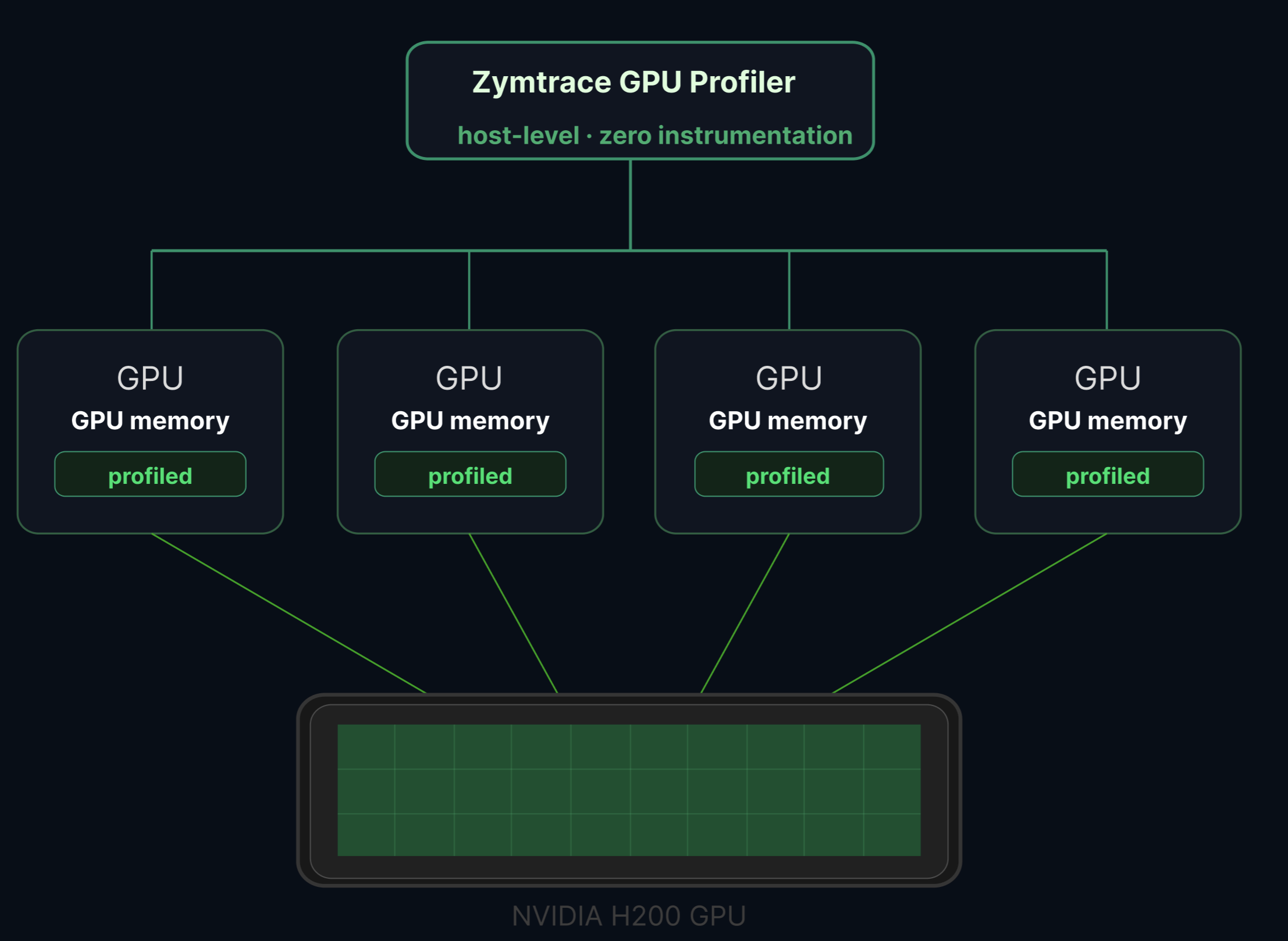 ## How it works
Zymtrace detects MIG topology automatically from the host. If MIG is enabled, each instance appears as a separate device in the Zymtrace UI with its own:
- **GPU utilization** metrics
- **Memory utilization** metrics
- **Tensor Core utilization** metrics
- **Full-stack GPU flamegraphs** attributed to that specific instance
From any MIG instance, you can drill directly into a GPU flamegraph scoped to that slice: CPU call stacks correlated with GPU kernel activity, attributed to the exact MIG profile running your workload.
:::tip No configuration needed
MIG detection is fully automatic. No code changes, no sidecars, no instrumentation, and no additional flags are required. If MIG is enabled on the host, Zymtrace sees it.
:::
## Requirements
- NVIDIA GPU with MIG support (Hopper, Blackwell, or Rubin architecture)
- MIG mode enabled on the GPU
- [GPU metrics](/gpu/nvidia/gpu-metrics) enabled in the Zymtrace profiler (on by default)
## Enabling MIG profiling
MIG support is included automatically when GPU metrics are enabled, which is the default. Follow the standard [GPU metrics setup](/gpu/nvidia/gpu-metrics#enabling-gpu-metrics); on NVIDIA hosts the only flag you may need is NVML discovery (`--nvml-auto-scan` or `--nvml-path`).
See the [installation guide](/install/profiler/install-profiler) for Helm, Docker, binary, and systemd instructions.
## Using MIG metrics
Once deployed on a node with MIG-enabled GPUs, navigate to **Top Entities** and select your GPU host. Each MIG instance appears as a separate device in the metrics dashboard, showing per-instance utilization, memory, and Tensor Core metrics.
Clicking on a specific MIG instance lets you drill down into the GPU flamegraph for that slice, enabling you to identify exactly which kernels or CPU code paths are responsible for performance issues on that particular instance.
## How it works
Zymtrace detects MIG topology automatically from the host. If MIG is enabled, each instance appears as a separate device in the Zymtrace UI with its own:
- **GPU utilization** metrics
- **Memory utilization** metrics
- **Tensor Core utilization** metrics
- **Full-stack GPU flamegraphs** attributed to that specific instance
From any MIG instance, you can drill directly into a GPU flamegraph scoped to that slice: CPU call stacks correlated with GPU kernel activity, attributed to the exact MIG profile running your workload.
:::tip No configuration needed
MIG detection is fully automatic. No code changes, no sidecars, no instrumentation, and no additional flags are required. If MIG is enabled on the host, Zymtrace sees it.
:::
## Requirements
- NVIDIA GPU with MIG support (Hopper, Blackwell, or Rubin architecture)
- MIG mode enabled on the GPU
- [GPU metrics](/gpu/nvidia/gpu-metrics) enabled in the Zymtrace profiler (on by default)
## Enabling MIG profiling
MIG support is included automatically when GPU metrics are enabled, which is the default. Follow the standard [GPU metrics setup](/gpu/nvidia/gpu-metrics#enabling-gpu-metrics); on NVIDIA hosts the only flag you may need is NVML discovery (`--nvml-auto-scan` or `--nvml-path`).
See the [installation guide](/install/profiler/install-profiler) for Helm, Docker, binary, and systemd instructions.
## Using MIG metrics
Once deployed on a node with MIG-enabled GPUs, navigate to **Top Entities** and select your GPU host. Each MIG instance appears as a separate device in the metrics dashboard, showing per-instance utilization, memory, and Tensor Core metrics.
Clicking on a specific MIG instance lets you drill down into the GPU flamegraph for that slice, enabling you to identify exactly which kernels or CPU code paths are responsible for performance issues on that particular instance.
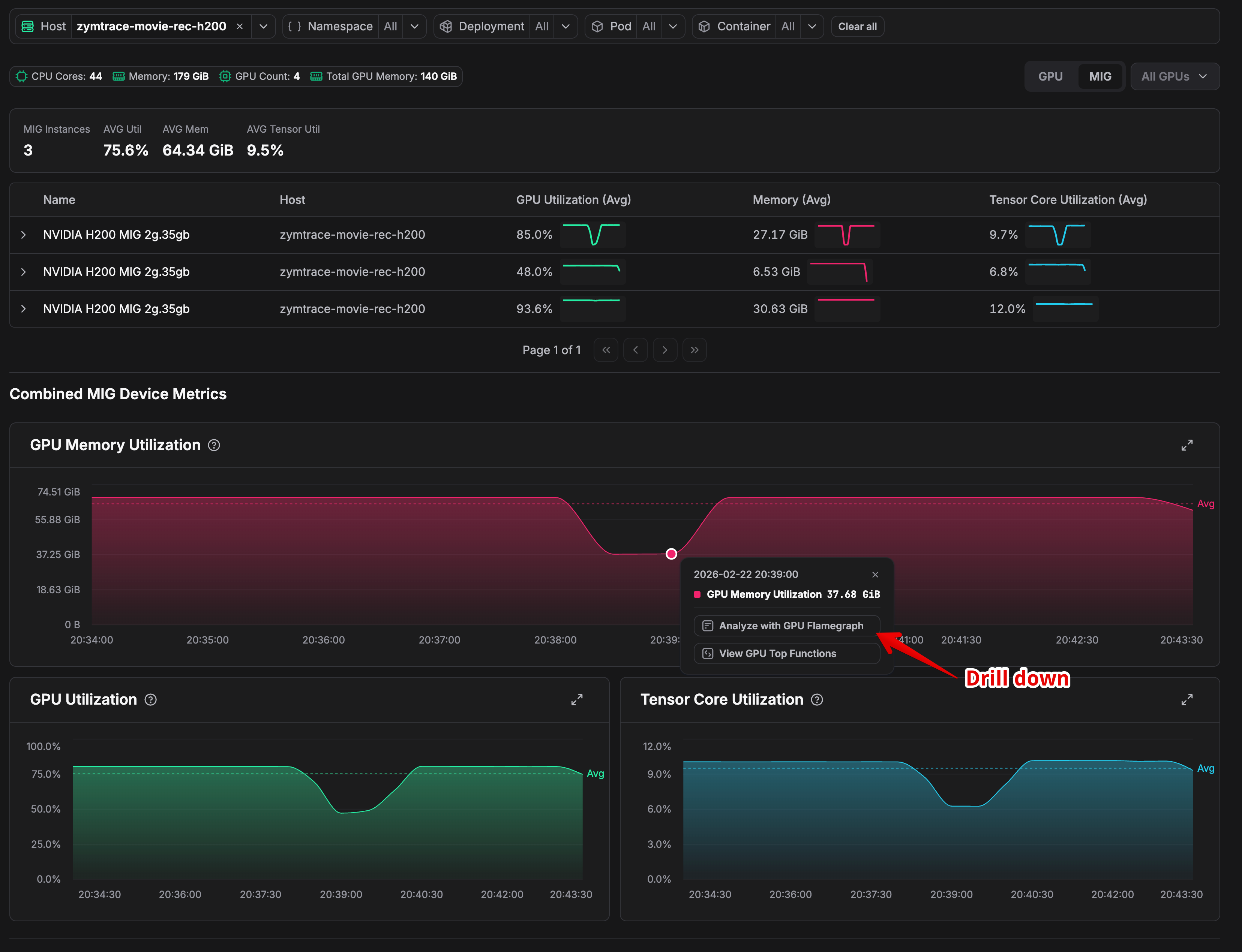 ### Example
Consider three H200 `2g.35gb` MIG instances on the same node running at 85%, 48%, and 93.6% GPU utilization. Averaged at the physical GPU level, they appear reasonable. But the instance at 48% is severely underutilizing its allocated resources. A per-instance flamegraph surfaces exactly what is causing it to leave performance on the table.
## Related
- [GPU Metrics & Profiles](/gpu/nvidia/gpu-metrics) — Enabling and using GPU metrics
- [GPU Profiler Architecture](/gpu-profiler-architecture) — How CUDA profiling works in Zymtrace
- [GPU Profiler Environment Variables](/install/profiler/profiler-gpu-variables) — Configuration reference for GPU profiling
---
# GPU Timeline
URL: https://docs.zymtrace.com/gpu/nvidia/timeline
# GPU Timeline
The timeline view plots what each GPU was doing, moment to moment, over a short window: the CUDA kernels launched on every stream and how much GPU memory each process held. Use it to line up a memory spike with the work running at that moment, or to see how work is distributed across streams and GPUs.
Unlike the [GPU metrics](/gpu/nvidia/gpu-metrics) dashboard, which trends utilization and memory over long ranges, the timeline is a high-resolution, per-kernel view meant for zooming into a few seconds of activity.
:::info Beta feature, requires high-resolution profiling
The timeline is in **Beta**. It is populated only while **high-resolution profiling** is enabled, which has **high overhead** — turn it on for short windows and scope it to the specific hosts or pods you are investigating. See [Enabling high-resolution profiling](#enabling-high-resolution-profiling) below.
:::
## Enabling high-resolution profiling
High-resolution profiling is **off by default**. When enabled, it collects per-kernel-launch CUDA events with nanosecond precision instead of aggregating them, and samples GPU memory far more often than the default `-collect-metrics-interval`. The denser memory sampling increases the volume of memory series sent over the wire and stored.
Enable it from a rule under **Settings → Agent Config**:
1. Open **Settings → Agent Config** and click **+ Add Rule**.
2. Scope the rule with a CEL expression to the process, container, or host you want to inspect.
3. Turn on the **High-Resolution Profiling** setting.
4. Set an expiry so profiling stops on its own. High-resolution rules require one.
:::warning Keep the window short
Per-kernel collection is expensive. High-resolution profiling records every kernel launch instead of sampling them, so its cost scales with your launch rate. On a high-throughput workload it takes roughly 400mc of extra CPU for the profiled scope, on top of the baseline cost in the [profiler resource guide](/install/profiler/profiler-resource-guide). Enable it just long enough to capture the behavior you are chasing, on as narrow a scope as possible, then let the rule expire.
:::
## Opening the timeline
The timeline lives behind an overview chart showing high-resolution event density over your selected range.
Brush a sub-window on that chart to load its detail.
The profiler builds the timeline for that slice and renders it.
If the brushed window holds too many events, the view reports **"Too many events to load"** instead of rendering.
Select a shorter interval, or narrow the query, and try again.
If a range shows **"No high-resolution data in this range"**, high-resolution profiling was not active for those hosts during that time.
Enable it (see above) and capture a fresh window.
## Reading the timeline
### Example
Consider three H200 `2g.35gb` MIG instances on the same node running at 85%, 48%, and 93.6% GPU utilization. Averaged at the physical GPU level, they appear reasonable. But the instance at 48% is severely underutilizing its allocated resources. A per-instance flamegraph surfaces exactly what is causing it to leave performance on the table.
## Related
- [GPU Metrics & Profiles](/gpu/nvidia/gpu-metrics) — Enabling and using GPU metrics
- [GPU Profiler Architecture](/gpu-profiler-architecture) — How CUDA profiling works in Zymtrace
- [GPU Profiler Environment Variables](/install/profiler/profiler-gpu-variables) — Configuration reference for GPU profiling
---
# GPU Timeline
URL: https://docs.zymtrace.com/gpu/nvidia/timeline
# GPU Timeline
The timeline view plots what each GPU was doing, moment to moment, over a short window: the CUDA kernels launched on every stream and how much GPU memory each process held. Use it to line up a memory spike with the work running at that moment, or to see how work is distributed across streams and GPUs.
Unlike the [GPU metrics](/gpu/nvidia/gpu-metrics) dashboard, which trends utilization and memory over long ranges, the timeline is a high-resolution, per-kernel view meant for zooming into a few seconds of activity.
:::info Beta feature, requires high-resolution profiling
The timeline is in **Beta**. It is populated only while **high-resolution profiling** is enabled, which has **high overhead** — turn it on for short windows and scope it to the specific hosts or pods you are investigating. See [Enabling high-resolution profiling](#enabling-high-resolution-profiling) below.
:::
## Enabling high-resolution profiling
High-resolution profiling is **off by default**. When enabled, it collects per-kernel-launch CUDA events with nanosecond precision instead of aggregating them, and samples GPU memory far more often than the default `-collect-metrics-interval`. The denser memory sampling increases the volume of memory series sent over the wire and stored.
Enable it from a rule under **Settings → Agent Config**:
1. Open **Settings → Agent Config** and click **+ Add Rule**.
2. Scope the rule with a CEL expression to the process, container, or host you want to inspect.
3. Turn on the **High-Resolution Profiling** setting.
4. Set an expiry so profiling stops on its own. High-resolution rules require one.
:::warning Keep the window short
Per-kernel collection is expensive. High-resolution profiling records every kernel launch instead of sampling them, so its cost scales with your launch rate. On a high-throughput workload it takes roughly 400mc of extra CPU for the profiled scope, on top of the baseline cost in the [profiler resource guide](/install/profiler/profiler-resource-guide). Enable it just long enough to capture the behavior you are chasing, on as narrow a scope as possible, then let the rule expire.
:::
## Opening the timeline
The timeline lives behind an overview chart showing high-resolution event density over your selected range.
Brush a sub-window on that chart to load its detail.
The profiler builds the timeline for that slice and renders it.
If the brushed window holds too many events, the view reports **"Too many events to load"** instead of rendering.
Select a shorter interval, or narrow the query, and try again.
If a range shows **"No high-resolution data in this range"**, high-resolution profiling was not active for those hosts during that time.
Enable it (see above) and capture a fresh window.
## Reading the timeline
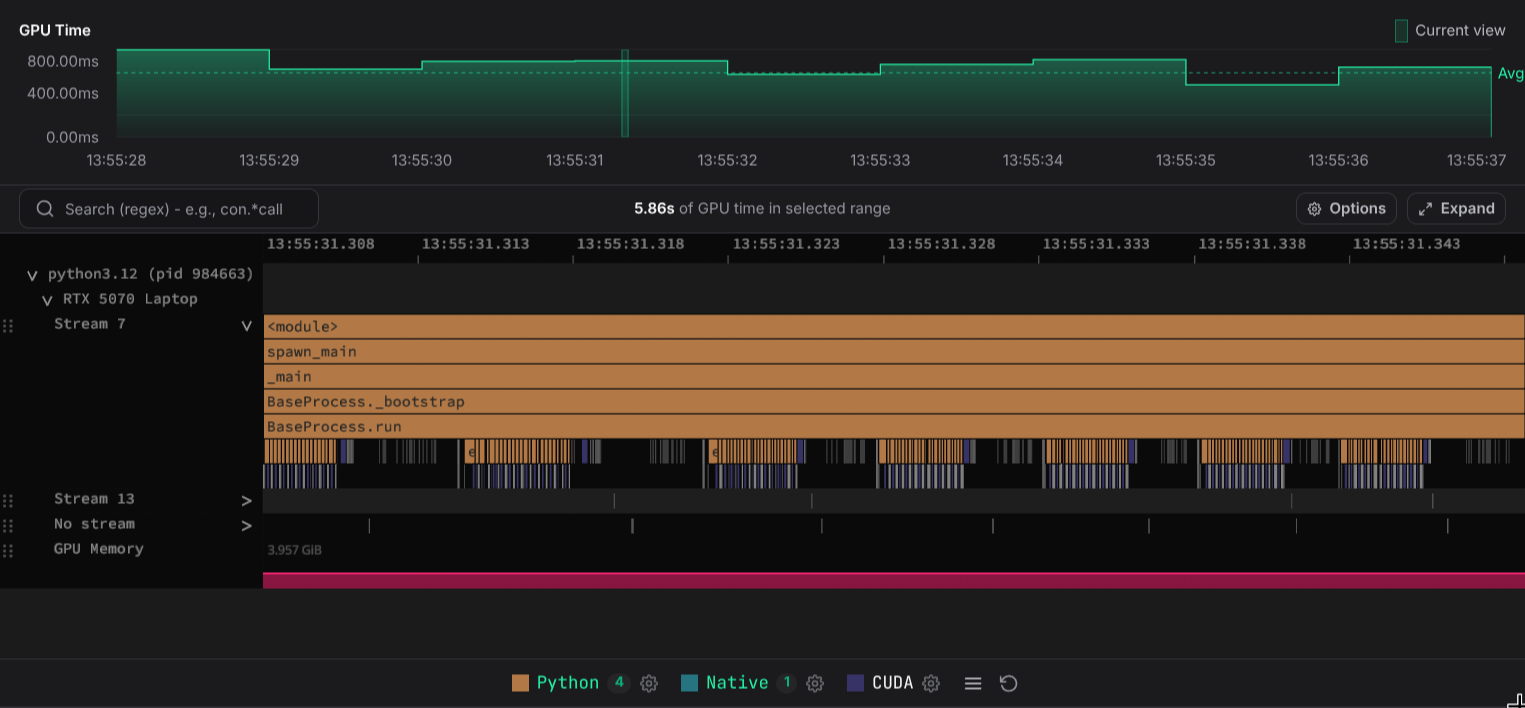 Tracks are grouped top-down by **process**, then by **GPU**, then by the streams on that GPU:
```
my-training-job (pid 4812) ← process
GPU 0 ← GPU on that process
Stream 7 ← CUDA stream: kernel launches
Stream 13
GPU Memory ← memory the process held on that GPU
GPU 1
Stream 7
GPU Memory
```
- **Process** groups every GPU a single process touched, labeled with the executable name and pid.
- **GPU** groups the lanes for one physical GPU (or MIG instance). Turn on [Show GPU UUID](#timeline-options) to display the device UUID beneath the GPU name.
- **Stream** lanes show the CUDA kernel launches on that stream, laid out on the shared time axis. Pan and zoom to move through the window.
- **GPU Memory** lanes show how much memory the process held on that GPU over time.
## The leaf indicator {#leaf-indicator}
A kernel launch can be far shorter than one pixel at the zoom level you are looking at. It still draws, but as a sliver that is easy to miss entirely.
Every stream lane carries a thin green strip along its bottom edge.
The strip marks each horizontal position holding a **leaf**, meaning a frame with no frame drawn beneath it (i.e. CUDA operations).
Marks are at least 2 pixels wide, so a leaf too narrow to spot in the rows above still registers in the strip.
Adjacent marks merge, so a dense run of leaves reads as one continuous bar.
Read the strip as a map of where the innermost work actually sits, then zoom into a marked position to resolve the spans behind it.
What counts as a leaf and what doesn't, respects what is currently filtered out.
Hiding frame kinds from the legend or typing in the search box turns shallower frames into leaves, and the strip follows.
A [collapsed](#collapsing-lanes-and-groups) lane keeps its strip, and the strip **still marks leaves that the lane's row budget dropped**.
A collapsed lane therefore keeps telling you where its innermost frames are, even when it does not display them.
A leaf whose start and end timestamps are equal still gets a mark. GPU memory lanes have no strip.
## The GPU memory graph
Each **GPU Memory** lane draws the sampled memory series as a filled area under a line.
Under high-resolution profiling the series is sampled many times per second, so short-lived allocation spikes are visible rather than averaged away.
Hover any point to read its timestamp and byte value.
By default the lane's vertical scale spans the minimum and maximum of the whole captured series, so its height is comparable as you pan.
Enable **Scale GPU memory to current view** to rescale the graph to only what is visible, which exaggerates small variations within the current window.
## Timeline options {#timeline-options}
Open the **Options** popover (gear icon) above the timeline to change how the timeline is drawn. **Reset** restores every default below.
Tracks are grouped top-down by **process**, then by **GPU**, then by the streams on that GPU:
```
my-training-job (pid 4812) ← process
GPU 0 ← GPU on that process
Stream 7 ← CUDA stream: kernel launches
Stream 13
GPU Memory ← memory the process held on that GPU
GPU 1
Stream 7
GPU Memory
```
- **Process** groups every GPU a single process touched, labeled with the executable name and pid.
- **GPU** groups the lanes for one physical GPU (or MIG instance). Turn on [Show GPU UUID](#timeline-options) to display the device UUID beneath the GPU name.
- **Stream** lanes show the CUDA kernel launches on that stream, laid out on the shared time axis. Pan and zoom to move through the window.
- **GPU Memory** lanes show how much memory the process held on that GPU over time.
## The leaf indicator {#leaf-indicator}
A kernel launch can be far shorter than one pixel at the zoom level you are looking at. It still draws, but as a sliver that is easy to miss entirely.
Every stream lane carries a thin green strip along its bottom edge.
The strip marks each horizontal position holding a **leaf**, meaning a frame with no frame drawn beneath it (i.e. CUDA operations).
Marks are at least 2 pixels wide, so a leaf too narrow to spot in the rows above still registers in the strip.
Adjacent marks merge, so a dense run of leaves reads as one continuous bar.
Read the strip as a map of where the innermost work actually sits, then zoom into a marked position to resolve the spans behind it.
What counts as a leaf and what doesn't, respects what is currently filtered out.
Hiding frame kinds from the legend or typing in the search box turns shallower frames into leaves, and the strip follows.
A [collapsed](#collapsing-lanes-and-groups) lane keeps its strip, and the strip **still marks leaves that the lane's row budget dropped**.
A collapsed lane therefore keeps telling you where its innermost frames are, even when it does not display them.
A leaf whose start and end timestamps are equal still gets a mark. GPU memory lanes have no strip.
## The GPU memory graph
Each **GPU Memory** lane draws the sampled memory series as a filled area under a line.
Under high-resolution profiling the series is sampled many times per second, so short-lived allocation spikes are visible rather than averaged away.
Hover any point to read its timestamp and byte value.
By default the lane's vertical scale spans the minimum and maximum of the whole captured series, so its height is comparable as you pan.
Enable **Scale GPU memory to current view** to rescale the graph to only what is visible, which exaggerates small variations within the current window.
## Timeline options {#timeline-options}
Open the **Options** popover (gear icon) above the timeline to change how the timeline is drawn. **Reset** restores every default below.
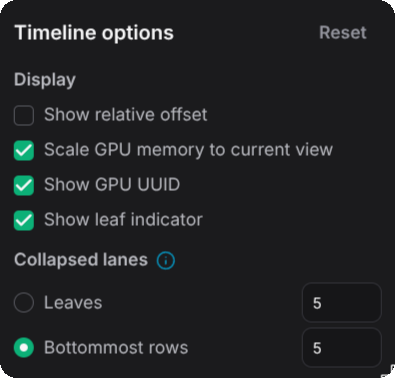 The popover above is showing a customized panel rather than the shipped defaults. Every default is stated below.
### Display
| Option | Default | Effect |
|---|---|---|
| **Show relative offset** | On | Label the time axis as an offset from the start of the window. Turn it off to read absolute wall-clock timestamps instead. |
| **Scale GPU memory to current view** | On | Rescale every GPU memory graph to the min/max of the visible range, updating live as you pan and zoom. When off, the scale spans the whole captured series, which keeps lane heights comparable while you move around. |
| **Show GPU UUID** | On | Add a second header line under each GPU group carrying its device UUID. Useful when one host exposes several identical GPU models. |
| **Show leaf indicator** | On | Draw the [leaf indicator](#leaf-indicator) strip along the bottom of every stream lane. Turn it off to give each lane back the 5 pixels of height the strip occupies. |
### Collapsed lanes {#collapsed-lanes-option}
A [collapsed](#collapsing-lanes-and-groups) stream lane cannot show its whole stack, so these settings decide which part of it survives. One row is one level of the stack. The number beside each mode is how many rows that mode gets.
#### Bottommost rows
This is the default. It counts up from the deepest stack in the lane and keeps that many rows. Nesting stays intact, so a frame three levels above the lane's deepest leaf still sits three rows above it. A stack that ends above the cut is not drawn at all, so a shallow call path can vanish while a deeper one beside it stays.
Reach for it when you want the collapsed lane to read as the bottom slice of the expanded lane, with depth still meaningful across the whole lane.
#### Leaves
This places every frame by its distance to the deepest leaf beneath it. Each stack's innermost frame lands on the bottom row and its callers stack upward from there. A frame drops out once its distance to the deepest leaf in its own subtree reaches the row count.
Reach for it when stack depth varies a lot across the window, because every span keeps its innermost frame no matter how shallow its stack is.
#### The two modes side by side
Take a lane holding two stacks, `A → B → C` and `D → E`, with both modes set to 2 rows.
```mermaid
block-beta
columns 8
t1["expanded lane, depth 3"]:2 space t2["bottommost rows, 2"]:2 space t3["leaves, 2"]:2
A["A"] D["D"] space A1["A"] D1["D"] space A2["A"] space
B["B"] E["E"] space B1["B"] E1["E"] space B2["B"] D2["D"]
C["C"] space space C1["C"] space space C2["C"] E2["E"]
classDef kept fill:var(--ifm-color-primary),stroke:var(--ifm-color-primary-darkest),color:var(--ifm-font-color-base-inverse)
classDef cut fill:var(--ifm-color-emphasis-300),stroke:var(--ifm-color-emphasis-500),color:var(--ifm-font-color-base)
classDef title fill:none,stroke:none,color:var(--ifm-font-color-base)
class A,B,C,D,E,B1,E1,C1,B2,D2,C2,E2 kept
class A1,D1,A2 cut
class t1,t2,t3 title
```
`A` never survives in either mode. The two modes differ on the shallow stack:
- **Bottommost rows** cuts at one fixed depth for the whole lane, so `D` is gone and `E` keeps its absolute depth, leaving the bottom row of that stack empty.
- **Leaves** anchors each stack's innermost frame to the bottom row, so `D → E` survives whole.
#### Row count
Both modes default to 5 rows, and each mode remembers its own number, so switching modes does not overwrite the other value.
The number must be at least 1 and at most the depth of the deepest stack currently loaded. A value outside that range is rejected with an error on the input and the lane keeps its previous setting.
That upper bound is not fixed for the session. It tracks the deepest lane in the whole timeline, so it grows while chunks stream in. Hiding frame kinds from the legend or typing in the search box re-packs the rows, which lowers the depth and pulls the cap down with it.
## Reordering lanes
Stream and GPU memory lanes carry a drag grip (the dotted handle on the left of each lane's label). Drag a lane up or down to reorder it **within its GPU group** — for example, to place the **GPU Memory** lane directly beside the stream you are comparing it against. Neighboring lanes shift aside as the dragged lane's edge passes them, and drop into place when you release.
Lanes can only be reordered among their siblings under the same GPU; you cannot move a lane into a different process or GPU.
## Collapsing lanes and groups {#collapsing-lanes-and-groups}
- Click a **process** or **GPU** header to collapse its subtree and hide everything beneath it.
- Click a **stream** lane's caret (on the right) to collapse it. The lane keeps the number of rows set under [Collapsed lanes](#collapsed-lanes-option), with function names still readable, so it costs much less vertical space while staying legible.
- When a collapsed lane is deeper than its row budget, a **… N more levels collapsed** banner sits on top of its rows. Click the banner to expand that lane back to its full depth.
---
# SLURM-Aware GPU Profiling
URL: https://docs.zymtrace.com/gpu/slurm
# SLURM-Aware GPU Profiling
[SLURM](https://slurm.schedmd.com/) is how most distributed GPU clusters run training and
inference: many jobs from many users, packed onto shared nodes, with a single job often
spanning dozens of nodes and hundreds of GPUs. Zymtrace tags every GPU kernel, CPU sample,
and metric with the SLURM job that produced it, including its ID, name, and owner, so a
distributed job that fans out across the whole cluster still shows up as one job. This works
the same for NVIDIA and AMD nodes. You can slice flamegraphs and metrics by job or user
across every node it touches, with no changes to your job scripts.
The popover above is showing a customized panel rather than the shipped defaults. Every default is stated below.
### Display
| Option | Default | Effect |
|---|---|---|
| **Show relative offset** | On | Label the time axis as an offset from the start of the window. Turn it off to read absolute wall-clock timestamps instead. |
| **Scale GPU memory to current view** | On | Rescale every GPU memory graph to the min/max of the visible range, updating live as you pan and zoom. When off, the scale spans the whole captured series, which keeps lane heights comparable while you move around. |
| **Show GPU UUID** | On | Add a second header line under each GPU group carrying its device UUID. Useful when one host exposes several identical GPU models. |
| **Show leaf indicator** | On | Draw the [leaf indicator](#leaf-indicator) strip along the bottom of every stream lane. Turn it off to give each lane back the 5 pixels of height the strip occupies. |
### Collapsed lanes {#collapsed-lanes-option}
A [collapsed](#collapsing-lanes-and-groups) stream lane cannot show its whole stack, so these settings decide which part of it survives. One row is one level of the stack. The number beside each mode is how many rows that mode gets.
#### Bottommost rows
This is the default. It counts up from the deepest stack in the lane and keeps that many rows. Nesting stays intact, so a frame three levels above the lane's deepest leaf still sits three rows above it. A stack that ends above the cut is not drawn at all, so a shallow call path can vanish while a deeper one beside it stays.
Reach for it when you want the collapsed lane to read as the bottom slice of the expanded lane, with depth still meaningful across the whole lane.
#### Leaves
This places every frame by its distance to the deepest leaf beneath it. Each stack's innermost frame lands on the bottom row and its callers stack upward from there. A frame drops out once its distance to the deepest leaf in its own subtree reaches the row count.
Reach for it when stack depth varies a lot across the window, because every span keeps its innermost frame no matter how shallow its stack is.
#### The two modes side by side
Take a lane holding two stacks, `A → B → C` and `D → E`, with both modes set to 2 rows.
```mermaid
block-beta
columns 8
t1["expanded lane, depth 3"]:2 space t2["bottommost rows, 2"]:2 space t3["leaves, 2"]:2
A["A"] D["D"] space A1["A"] D1["D"] space A2["A"] space
B["B"] E["E"] space B1["B"] E1["E"] space B2["B"] D2["D"]
C["C"] space space C1["C"] space space C2["C"] E2["E"]
classDef kept fill:var(--ifm-color-primary),stroke:var(--ifm-color-primary-darkest),color:var(--ifm-font-color-base-inverse)
classDef cut fill:var(--ifm-color-emphasis-300),stroke:var(--ifm-color-emphasis-500),color:var(--ifm-font-color-base)
classDef title fill:none,stroke:none,color:var(--ifm-font-color-base)
class A,B,C,D,E,B1,E1,C1,B2,D2,C2,E2 kept
class A1,D1,A2 cut
class t1,t2,t3 title
```
`A` never survives in either mode. The two modes differ on the shallow stack:
- **Bottommost rows** cuts at one fixed depth for the whole lane, so `D` is gone and `E` keeps its absolute depth, leaving the bottom row of that stack empty.
- **Leaves** anchors each stack's innermost frame to the bottom row, so `D → E` survives whole.
#### Row count
Both modes default to 5 rows, and each mode remembers its own number, so switching modes does not overwrite the other value.
The number must be at least 1 and at most the depth of the deepest stack currently loaded. A value outside that range is rejected with an error on the input and the lane keeps its previous setting.
That upper bound is not fixed for the session. It tracks the deepest lane in the whole timeline, so it grows while chunks stream in. Hiding frame kinds from the legend or typing in the search box re-packs the rows, which lowers the depth and pulls the cap down with it.
## Reordering lanes
Stream and GPU memory lanes carry a drag grip (the dotted handle on the left of each lane's label). Drag a lane up or down to reorder it **within its GPU group** — for example, to place the **GPU Memory** lane directly beside the stream you are comparing it against. Neighboring lanes shift aside as the dragged lane's edge passes them, and drop into place when you release.
Lanes can only be reordered among their siblings under the same GPU; you cannot move a lane into a different process or GPU.
## Collapsing lanes and groups {#collapsing-lanes-and-groups}
- Click a **process** or **GPU** header to collapse its subtree and hide everything beneath it.
- Click a **stream** lane's caret (on the right) to collapse it. The lane keeps the number of rows set under [Collapsed lanes](#collapsed-lanes-option), with function names still readable, so it costs much less vertical space while staying legible.
- When a collapsed lane is deeper than its row budget, a **… N more levels collapsed** banner sits on top of its rows. Click the banner to expand that lane back to its full depth.
---
# SLURM-Aware GPU Profiling
URL: https://docs.zymtrace.com/gpu/slurm
# SLURM-Aware GPU Profiling
[SLURM](https://slurm.schedmd.com/) is how most distributed GPU clusters run training and
inference: many jobs from many users, packed onto shared nodes, with a single job often
spanning dozens of nodes and hundreds of GPUs. Zymtrace tags every GPU kernel, CPU sample,
and metric with the SLURM job that produced it, including its ID, name, and owner, so a
distributed job that fans out across the whole cluster still shows up as one job. This works
the same for NVIDIA and AMD nodes. You can slice flamegraphs and metrics by job or user
across every node it touches, with no changes to your job scripts.
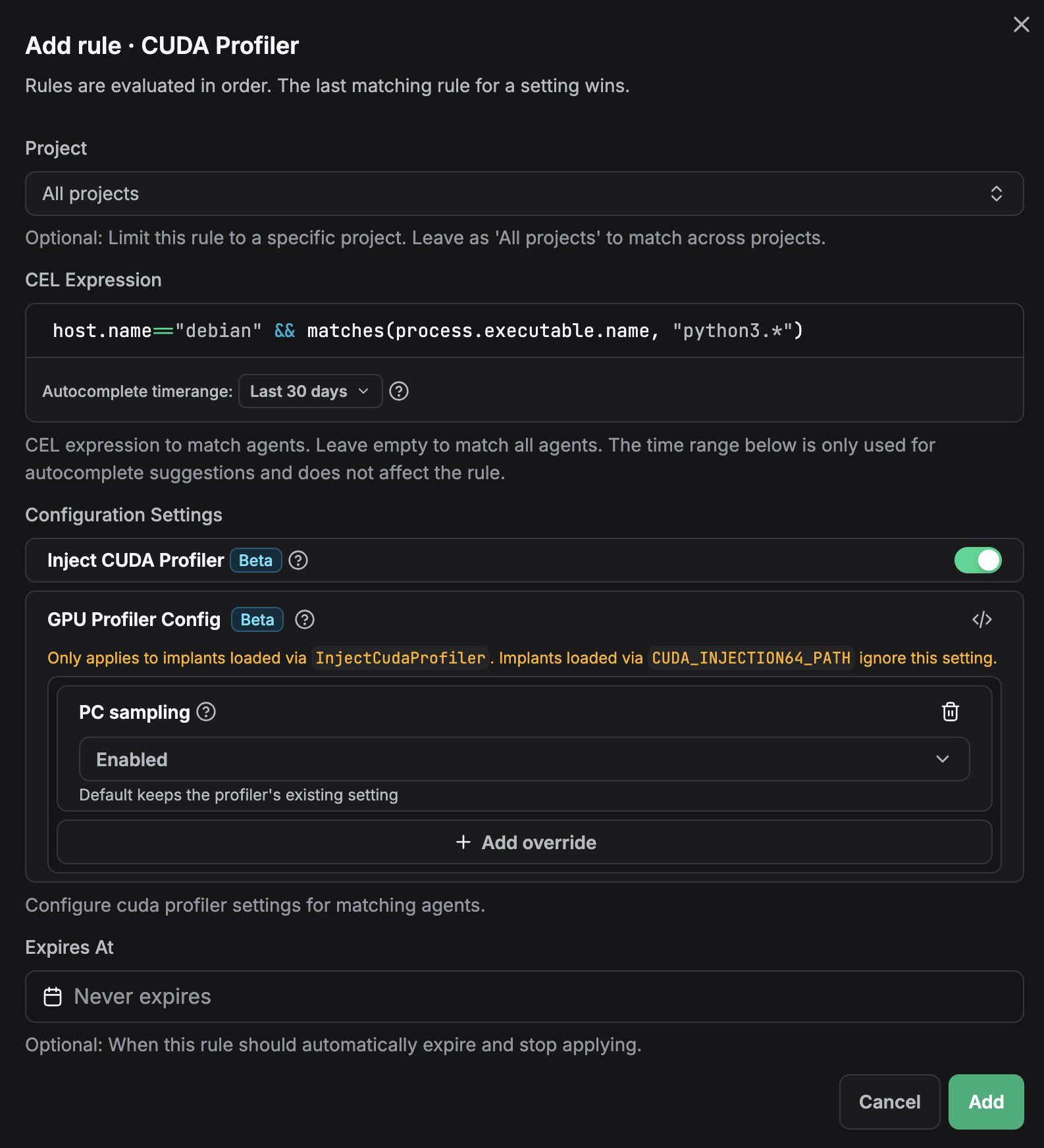 :::warning
NVTX is not supported in this mode, please use the manual injection mode if you need NVTX support.
:::
### Manual Injection via Environment Variables {#manual-injection}
The traditional approach uses `CUDA_INJECTION64_PATH` (and optionally `NVTX_INJECTION64_PATH`) to preload the profiler library into each process. This method still works and is useful when UI-based injection is not available.
Choose the configuration method that matches your deployment:
:::warning
NVTX is not supported in this mode, please use the manual injection mode if you need NVTX support.
:::
### Manual Injection via Environment Variables {#manual-injection}
The traditional approach uses `CUDA_INJECTION64_PATH` (and optionally `NVTX_INJECTION64_PATH`) to preload the profiler library into each process. This method still works and is useful when UI-based injection is not available.
Choose the configuration method that matches your deployment:
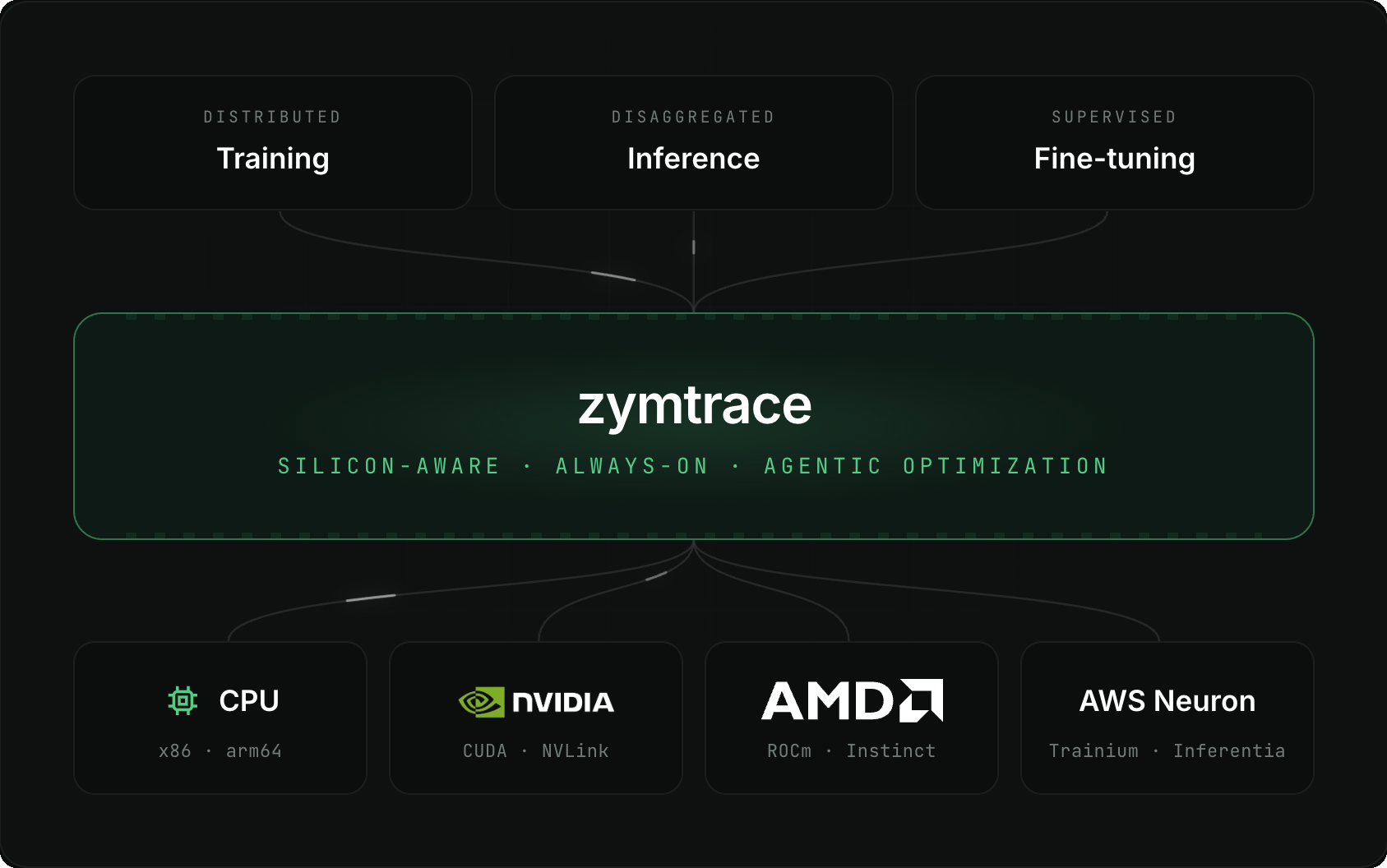 ## GPU topology health
When a performance problem isn't in your code, it's in your hardware. Zymtrace surfaces GPU health, topology, and interconnect issues that waste the compute you paid for:
- **NVLink health**: CRC, replay, and recovery per link
- **ECC and XID**: memory and driver errors, fleet-wide
- **NUMA affinity**: catch non-affine CPU placement
- **Actionable recommendations**: not just an alert
See [GPU Topology](./features/gpu-topology.md).
## GPU topology health
When a performance problem isn't in your code, it's in your hardware. Zymtrace surfaces GPU health, topology, and interconnect issues that waste the compute you paid for:
- **NVLink health**: CRC, replay, and recovery per link
- **ECC and XID**: memory and driver errors, fleet-wide
- **NUMA affinity**: catch non-affine CPU placement
- **Actionable recommendations**: not just an alert
See [GPU Topology](./features/gpu-topology.md).
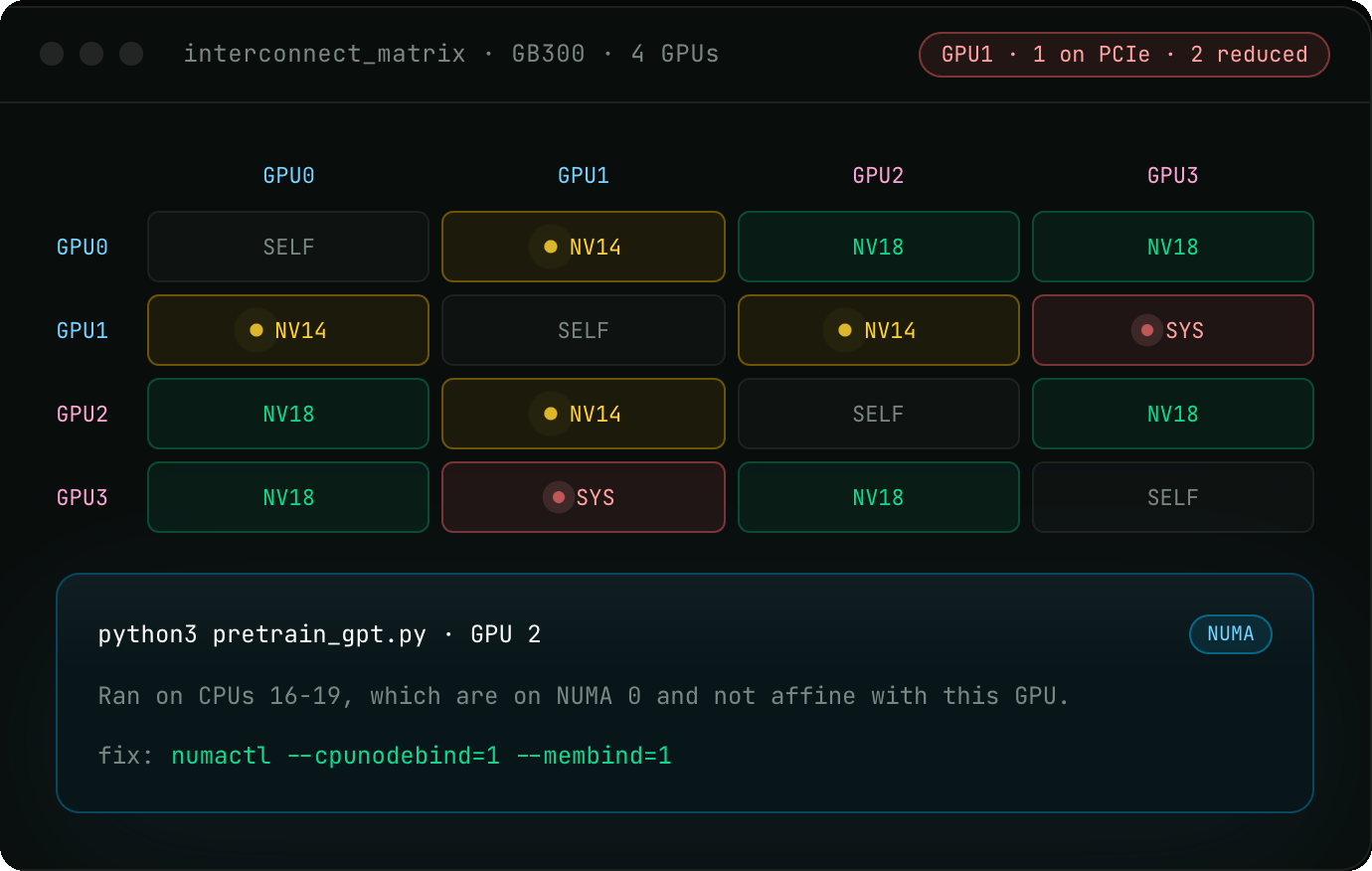 ## Inference, training, and everything underneath
Use Zymtrace to debug and optimize inference and training on the engines you already use, from vLLM and SGLang to distributed training, so you maximize throughput per GPU, per watt.
### Disaggregated inference, end to end
Metrics and profiles collected from the inference engines themselves, across prefill and decode, on heterogeneous accelerators. Drill from a dip in token throughput straight into the stall behind it. See [Inference Server Metrics](/gpu/inference-server-metrics).
## Inference, training, and everything underneath
Use Zymtrace to debug and optimize inference and training on the engines you already use, from vLLM and SGLang to distributed training, so you maximize throughput per GPU, per watt.
### Disaggregated inference, end to end
Metrics and profiles collected from the inference engines themselves, across prefill and decode, on heterogeneous accelerators. Drill from a dip in token throughput straight into the stall behind it. See [Inference Server Metrics](/gpu/inference-server-metrics).
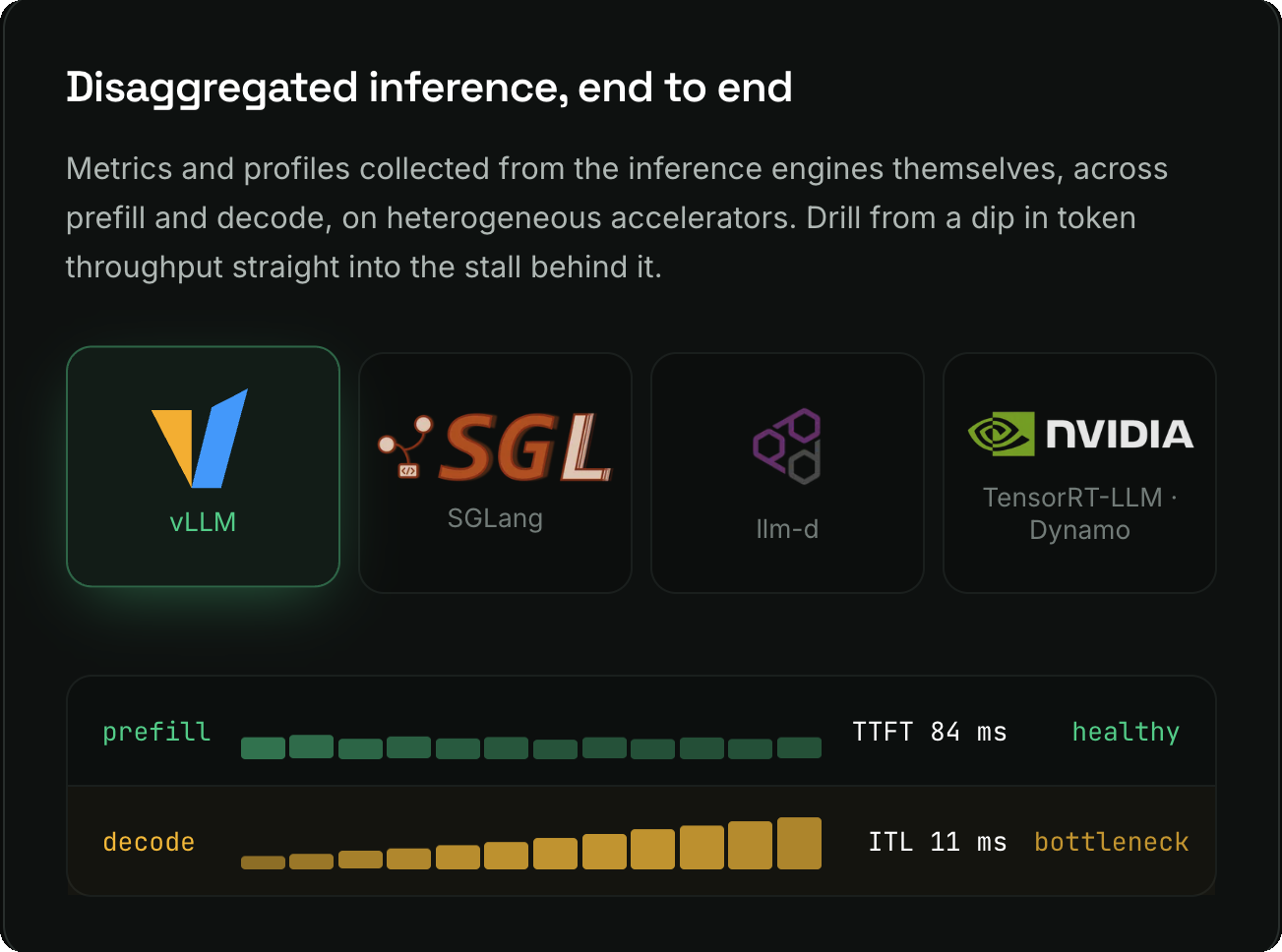 ### Training and distributed runs
One execution flow across the CPU/GPU boundary, from Python down to the exact GPU instruction. Attribute everything to owners: [SLURM jobs](/gpu/slurm), [MIG instances](/gpu/nvidia/mig-support), Kubernetes namespaces, containers, and custom tags, across [multi-GPU, multi-host fleets](/gpu/multi-gpu).
### Whole-system profiling, every language
Continuous profiles of every process on the box, compiled and interpreted alike, with automatic symbolization of native and GPU frames. See [Supported Languages](/install/requirements/supported-languages).
### Training and distributed runs
One execution flow across the CPU/GPU boundary, from Python down to the exact GPU instruction. Attribute everything to owners: [SLURM jobs](/gpu/slurm), [MIG instances](/gpu/nvidia/mig-support), Kubernetes namespaces, containers, and custom tags, across [multi-GPU, multi-host fleets](/gpu/multi-gpu).
### Whole-system profiling, every language
Continuous profiles of every process on the box, compiled and interpreted alike, with automatic symbolization of native and GPU frames. See [Supported Languages](/install/requirements/supported-languages).
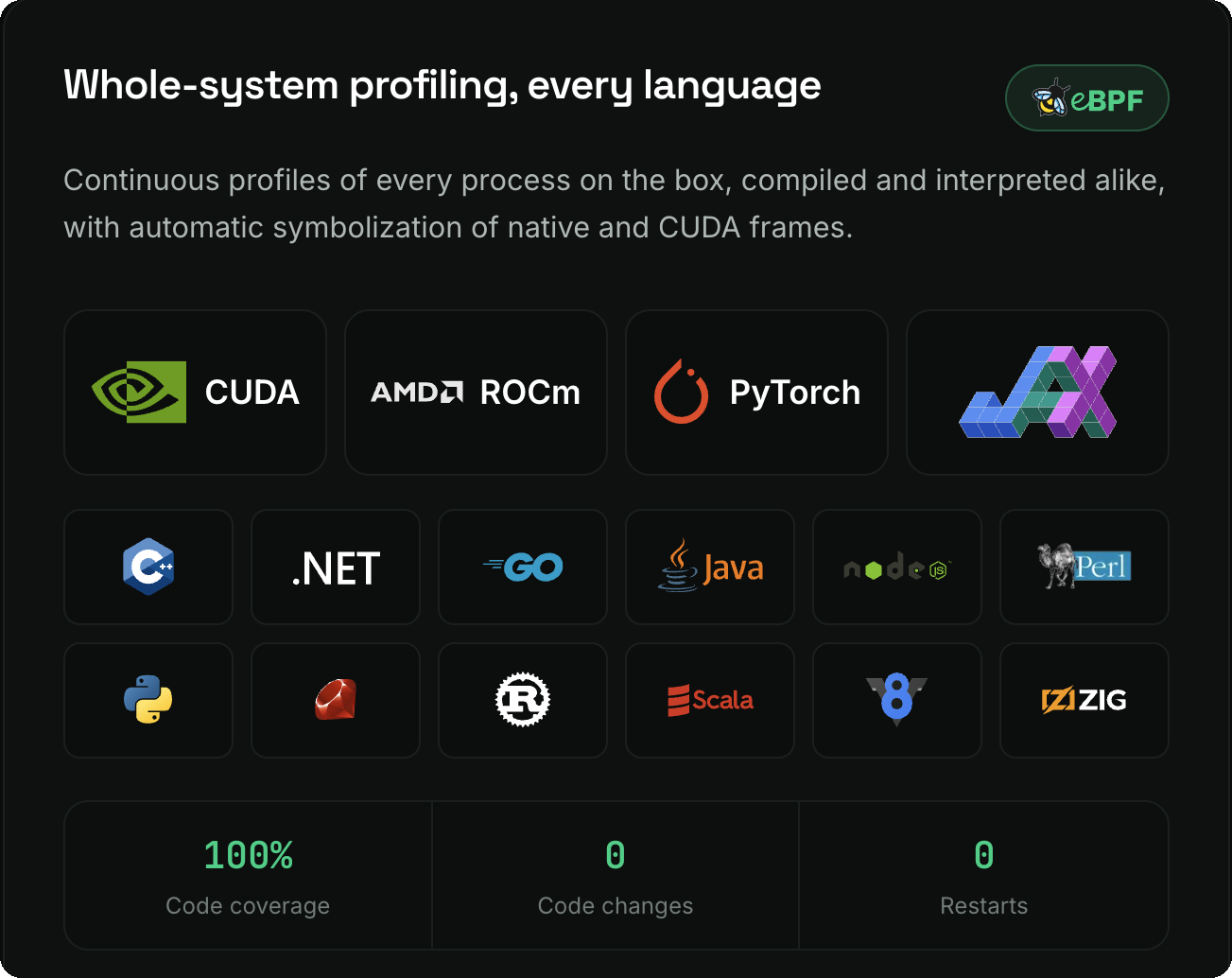 ### Recommendations built on top
Everything above feeds one ranked list: what to change, why it matters, and where to apply it.
## Tracing starts where execution starts: the CPU
Most GPU clusters run under 40% utilization, and the bottleneck is rarely the hardware. Zymtrace picks up execution on the CPU with eBPF and traces it down to the accelerator. An MRI for your stack: it exposes the bottlenecks hiding between the layers, with minimal overhead.
### Recommendations built on top
Everything above feeds one ranked list: what to change, why it matters, and where to apply it.
## Tracing starts where execution starts: the CPU
Most GPU clusters run under 40% utilization, and the bottleneck is rarely the hardware. Zymtrace picks up execution on the CPU with eBPF and traces it down to the accelerator. An MRI for your stack: it exposes the bottlenecks hiding between the layers, with minimal overhead.
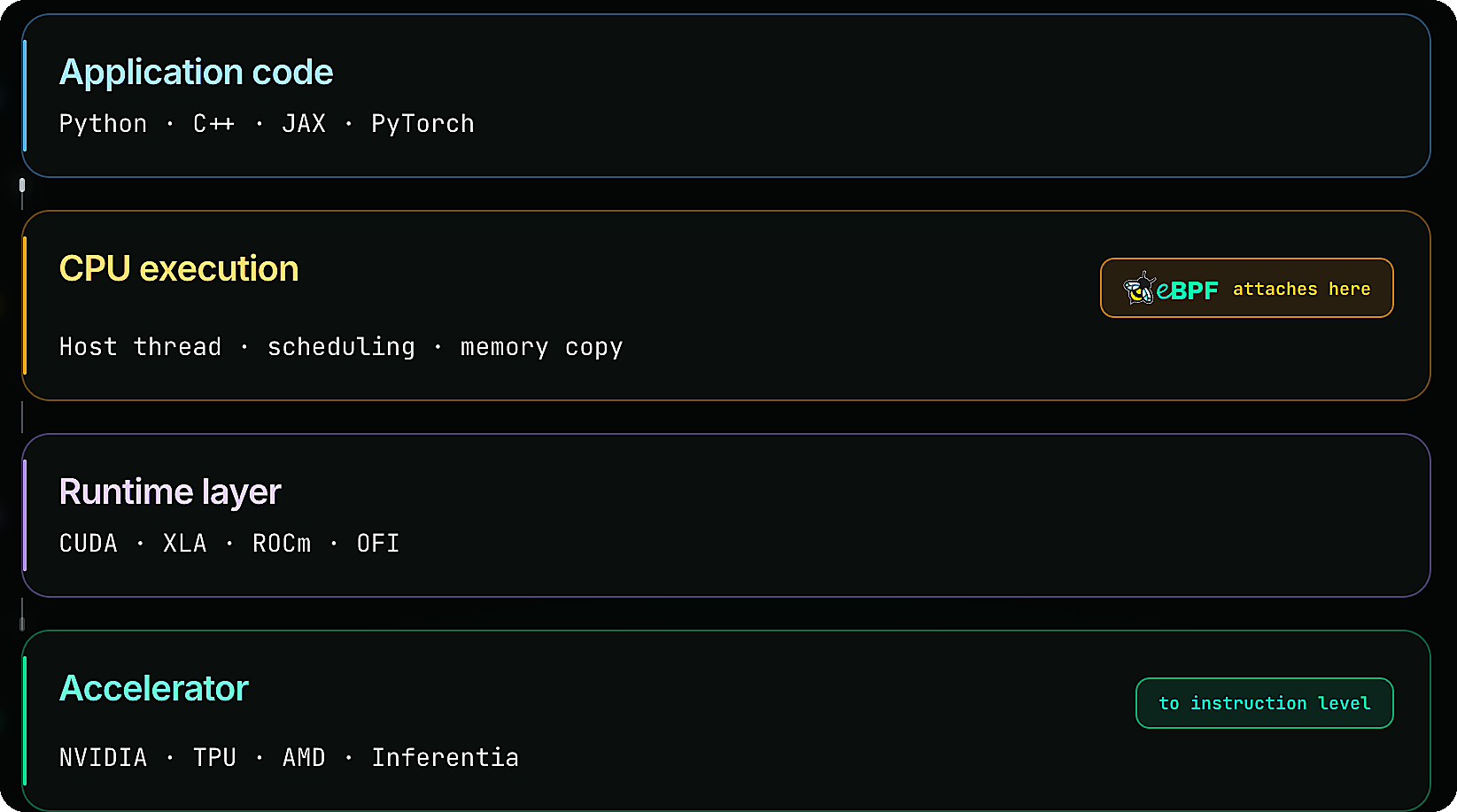 Refer to the [architecture page](architecture.md) for the system design, and the [GPU Profiler Architecture](/gpu-profiler-architecture) for how GPU profiling works across silicon vendors.
## Profile-guided agentic optimization
Zymtrace enriches coding agents with performance data over [MCP](/mcp), so they find the bottleneck and open a pull request:
- **MCP server**: flamegraphs, top functions, and GPU metrics exposed as MCP tools. Any MCP-capable agent can query production directly.
- **Agent skills**: [ready-made skills](/ai-assistant/agent-skills) teach your coding agent the whole optimization workflow: rank consumers, read flamegraphs, interpret stall reasons, apply the fix.
- **AI assistant**: the built-in [assistant](/ai-assistant) reads flamegraphs and produces ranked hotspots with concrete fixes.
## Deploys into your existing stack, unchanged
No re-architecting. No code changes. The agent drops into whatever you already run.
- **Acceleration**: any NVIDIA GPU supported by CUDA 12.x and above, including Blackwell, Grace Blackwell, Hopper, and Grace Hopper ([full list](/system-requirements#supported-gpus)); AMD ROCm 7.x and above; and AWS Neuron. Google TPUs and Cerebras coming soon.
- **ML Frameworks**: PyTorch, JAX
- **CPU Profiling**: Python, C/C++, Java, Go, Rust, Node.js, Ruby, PHP, .NET, Perl
- **Environments**: Cloud, containers, Kubernetes, SLURM, on-premises
## Open standards, no lock-in
Zymtrace is self-hosted. Your profiling data lives in your infrastructure, in databases you control. You can bring existing instances for all three storage backends:
| Storage | Purpose | |
|---|---|---|
| **ClickHouse** | Profiling events and analytics | [Guide](/databases/clickhouse) |
| **PostgreSQL** | User data, metadata, project configuration | [Guide](/databases/postgres) |
| **S3 / MinIO** | Native debug symbols | [Guide](/databases/object-storage) |
Because the data is in your ClickHouse, you can query it with SQL at any time, independently of the Zymtrace UI.
Every piece of data visible in the UI is also accessible via a REST API. Click **API Explorer** inside your Zymtrace instance to browse and test every endpoint interactively.
**OpenTelemetry:** Zymtrace is built by the team that pioneered, open-sourced, and donated the eBPF profiler to OpenTelemetry. The founders were core contributors to the [OTel Profiles specification](https://opentelemetry.io/blog/2026/profiles-alpha/) (recently reached alpha) and helped define it inside the OpenTelemetry project. Zymtrace is fully OTel-compliant for resource attributes and metadata. By default the profiler uses a custom wire protocol that is 6x more compute-efficient than the OTel Profiles proto; you can switch between the Zymtrace and OTel Profiles protocol at any time without losing data. See [Profiler ENV & CLI Args](/install/profiler/profiler-configuration).
## Get started
- [Quick Start](/getting-started): backend plus profiler in three steps with Helm or Docker Compose
- [GPU Profiler Quick Start](/install/profiler/gpu-profiler-quick-start): profile your first GPU workload in minutes
- [Install with an AI assistant](/ai-assistant/agent-skills): let Claude Code, Codex, or Cursor run the install for you
---
# Configure MCP
URL: https://docs.zymtrace.com/mcp/configure-mcp
```mdx-code-block
import Tabs from '@theme/Tabs';
import TabItem from '@theme/TabItem';
```
# Configure MCP
## Prerequisites
Before you begin, ensure you have:
- Zymtrace backend running (version `25.11.0` or higher)
- MCP-compatible AI assistant (Claude Desktop/Code, Cursor, Cody, etc.)
- Authentication credentials (if auth is enabled on your deployment)
## Find Your MCP Endpoint
Your MCP server endpoint is your Zymtrace gateway URL + `/mcp`:
```
https://zymtrace.company.com/mcp
```
Replace `zymtrace.company.com` with your actual Zymtrace deployment URL.
## Get Authentication Credentials
If your Zymtrace deployment has authentication enabled, you need a bearer token. See the [MCP Token guide](./mcp-token) for detailed instructions on obtaining an MCP token.
If authentication is disabled, you can skip this step.
## Configure Your AI Assistant
Refer to the [architecture page](architecture.md) for the system design, and the [GPU Profiler Architecture](/gpu-profiler-architecture) for how GPU profiling works across silicon vendors.
## Profile-guided agentic optimization
Zymtrace enriches coding agents with performance data over [MCP](/mcp), so they find the bottleneck and open a pull request:
- **MCP server**: flamegraphs, top functions, and GPU metrics exposed as MCP tools. Any MCP-capable agent can query production directly.
- **Agent skills**: [ready-made skills](/ai-assistant/agent-skills) teach your coding agent the whole optimization workflow: rank consumers, read flamegraphs, interpret stall reasons, apply the fix.
- **AI assistant**: the built-in [assistant](/ai-assistant) reads flamegraphs and produces ranked hotspots with concrete fixes.
## Deploys into your existing stack, unchanged
No re-architecting. No code changes. The agent drops into whatever you already run.
- **Acceleration**: any NVIDIA GPU supported by CUDA 12.x and above, including Blackwell, Grace Blackwell, Hopper, and Grace Hopper ([full list](/system-requirements#supported-gpus)); AMD ROCm 7.x and above; and AWS Neuron. Google TPUs and Cerebras coming soon.
- **ML Frameworks**: PyTorch, JAX
- **CPU Profiling**: Python, C/C++, Java, Go, Rust, Node.js, Ruby, PHP, .NET, Perl
- **Environments**: Cloud, containers, Kubernetes, SLURM, on-premises
## Open standards, no lock-in
Zymtrace is self-hosted. Your profiling data lives in your infrastructure, in databases you control. You can bring existing instances for all three storage backends:
| Storage | Purpose | |
|---|---|---|
| **ClickHouse** | Profiling events and analytics | [Guide](/databases/clickhouse) |
| **PostgreSQL** | User data, metadata, project configuration | [Guide](/databases/postgres) |
| **S3 / MinIO** | Native debug symbols | [Guide](/databases/object-storage) |
Because the data is in your ClickHouse, you can query it with SQL at any time, independently of the Zymtrace UI.
Every piece of data visible in the UI is also accessible via a REST API. Click **API Explorer** inside your Zymtrace instance to browse and test every endpoint interactively.
**OpenTelemetry:** Zymtrace is built by the team that pioneered, open-sourced, and donated the eBPF profiler to OpenTelemetry. The founders were core contributors to the [OTel Profiles specification](https://opentelemetry.io/blog/2026/profiles-alpha/) (recently reached alpha) and helped define it inside the OpenTelemetry project. Zymtrace is fully OTel-compliant for resource attributes and metadata. By default the profiler uses a custom wire protocol that is 6x more compute-efficient than the OTel Profiles proto; you can switch between the Zymtrace and OTel Profiles protocol at any time without losing data. See [Profiler ENV & CLI Args](/install/profiler/profiler-configuration).
## Get started
- [Quick Start](/getting-started): backend plus profiler in three steps with Helm or Docker Compose
- [GPU Profiler Quick Start](/install/profiler/gpu-profiler-quick-start): profile your first GPU workload in minutes
- [Install with an AI assistant](/ai-assistant/agent-skills): let Claude Code, Codex, or Cursor run the install for you
---
# Configure MCP
URL: https://docs.zymtrace.com/mcp/configure-mcp
```mdx-code-block
import Tabs from '@theme/Tabs';
import TabItem from '@theme/TabItem';
```
# Configure MCP
## Prerequisites
Before you begin, ensure you have:
- Zymtrace backend running (version `25.11.0` or higher)
- MCP-compatible AI assistant (Claude Desktop/Code, Cursor, Cody, etc.)
- Authentication credentials (if auth is enabled on your deployment)
## Find Your MCP Endpoint
Your MCP server endpoint is your Zymtrace gateway URL + `/mcp`:
```
https://zymtrace.company.com/mcp
```
Replace `zymtrace.company.com` with your actual Zymtrace deployment URL.
## Get Authentication Credentials
If your Zymtrace deployment has authentication enabled, you need a bearer token. See the [MCP Token guide](./mcp-token) for detailed instructions on obtaining an MCP token.
If authentication is disabled, you can skip this step.
## Configure Your AI Assistant
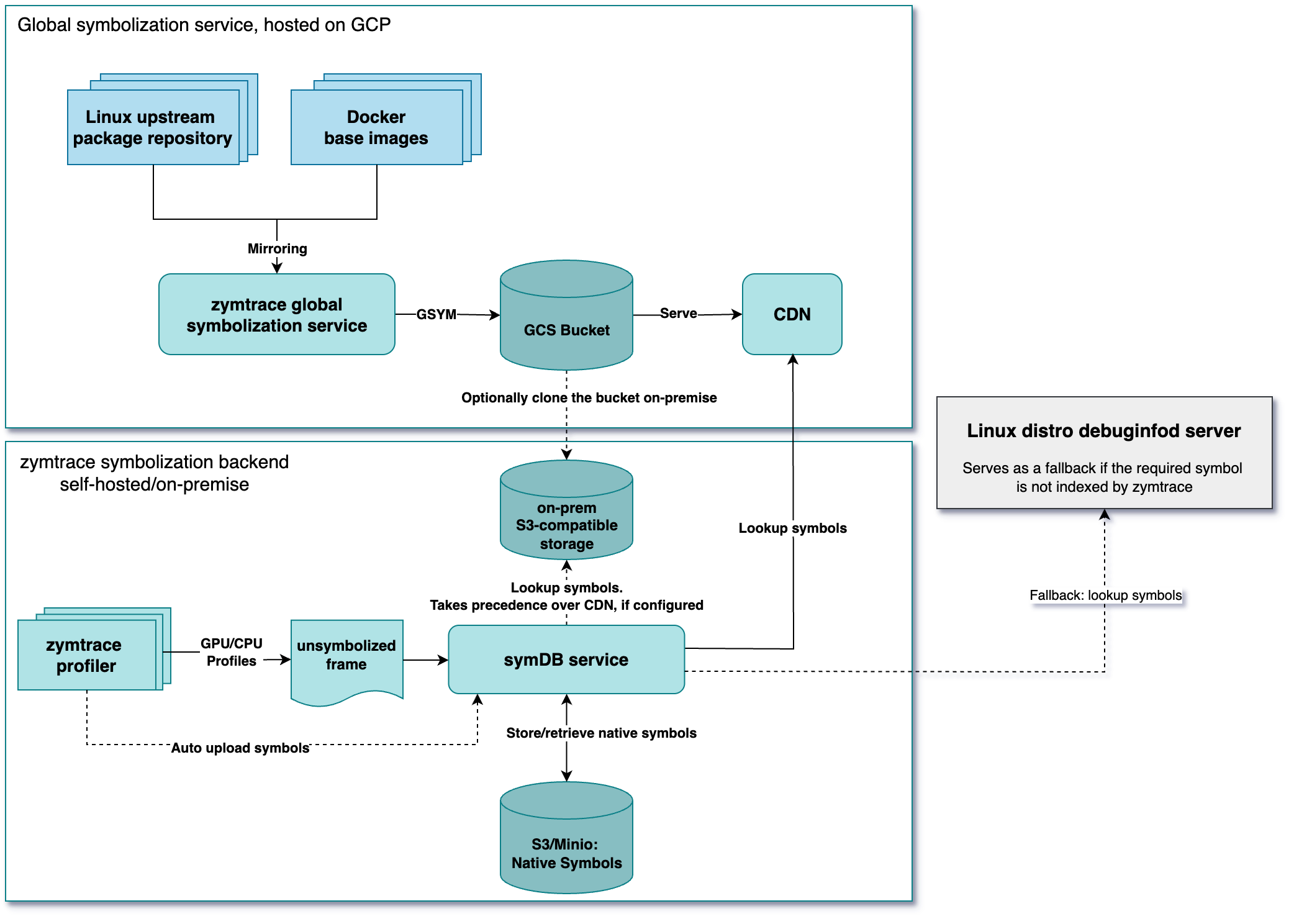
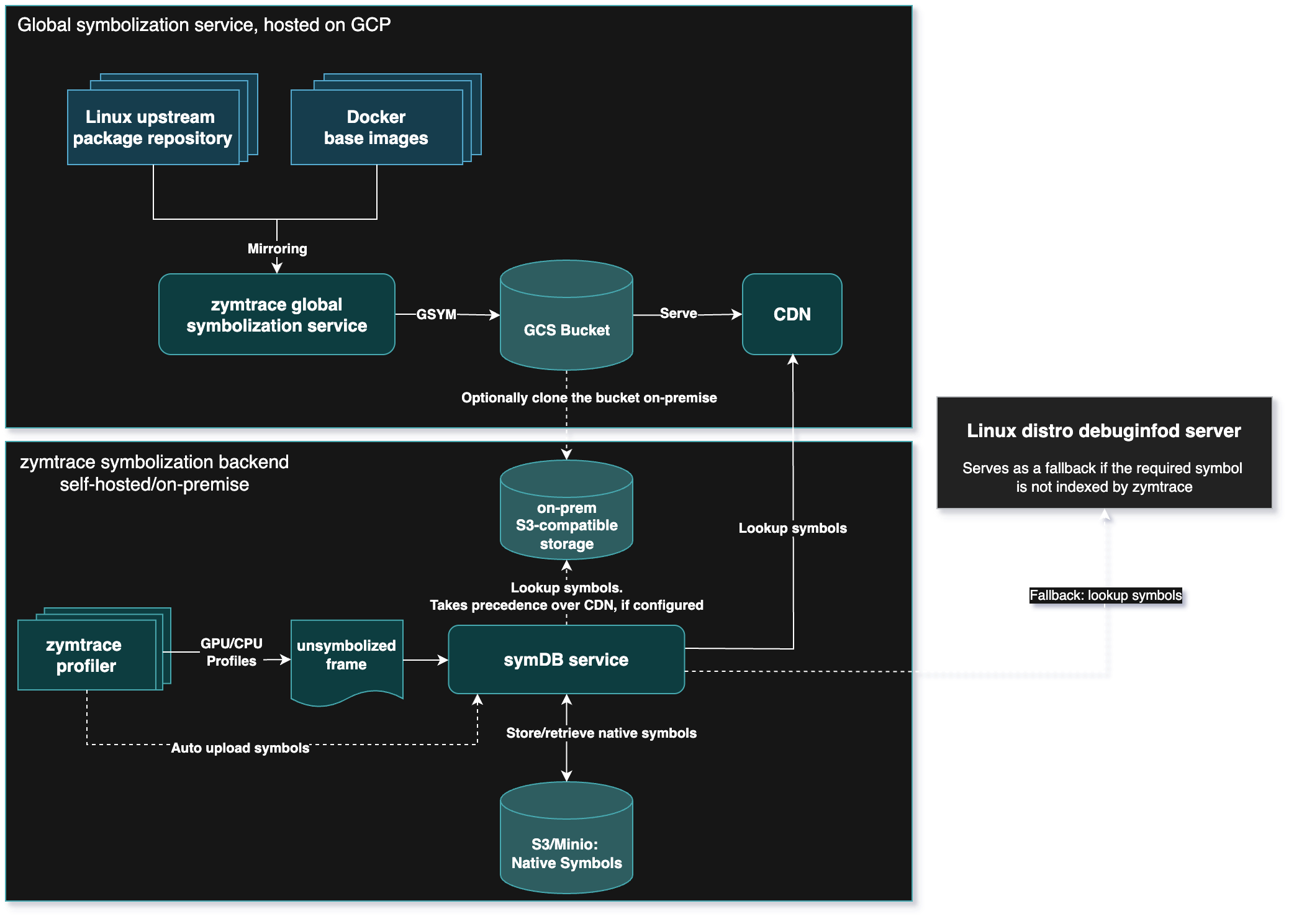 ## Manual symbol upload
For proprietary software or when you need to ensure optimal symbol quality, Zymtrace provides a command-line tool for manual symbol upload. This approach offers several advantages:
- **Maximum quality:** Manual upload uses DWARF symbols by default, providing complete file names, function names, and line numbers
- **Proprietary software support:** Upload symbols for internal applications not covered by the global service
- **CI/CD integration:** Automate symbol uploads as part of your build and deployment pipeline
- **Version control:** Ensure symbols match your exact binary versions
- **Custom control:** Override automatic symbolization with your preferred symbols
The manual upload process can be run on-demand for immediate needs or integrated into CI/CD pipelines for automated symbol management. The tool extracts symbols from all available sources and merges them to provide comprehensive coverage.
This process is documented in detail on the [uploading symbols](./upload-symbols.md) page.
## Choosing the right approach
The three-tier symbolization system works together to provide a great symbolization experience.
- **Start with automatic upload** for immediate, zero-configuration symbolization
- **Leverage global symbolization** for extensive coverage of common libraries and system components
- **Use manual upload** for proprietary software, optimal quality, or CI/CD integration
In most cases, the automatic upload and global symbolization service provide excellent coverage with minimal effort. Manual upload is recommended when you need guaranteed symbol quality or are working with proprietary binaries not covered by the global service.
---
# upload-symbols
URL: https://docs.zymtrace.com/symbols/upload-symbols
# Upload Native Symbols
:::info
Uploading custom symbols is only necessary if the debug symbols are manually stripped from your binaries. If your executables retain their debug information, Zymtrace can automatically extract and use these symbols without manual upload.
:::
Zymtrace requires debug symbols to display function names and line numbers in traces from applications written in languages that compile to native code (C, C++, Rust, Go).
- **C/C++** applications must be built with debug symbols (`-g`) for symbolization to work.
- **Rust** applications must be built with `debug = "line-tables-only"` (or a higher debug level that also includes line tables).
- **Go** binaries do not require any special compiler flags and include debug information even if the executable is fully stripped.
The `zymtrace-cli upload-symbols` subcommand allows you to upload debug symbols from both stripped and unstripped executables.
:::tip Authentication
If your Zymtrace instance has authentication enabled, you'll need a service token to upload symbols. See [Service Tokens](../authentication/service-tokens) for setup instructions.
To authenticate, set the `ZYMTRACE_SERVICE_TOKEN` environment variable with your service token:
```bash
ZYMTRACE_SERVICE_TOKEN='your-token' ./zymtrace-cli upload-symbols ...
```
:::
## Download zymtrace-cli
First, download the `zymtrace-cli` tool.
```mdx-code-block
import Tabs from '@theme/Tabs';
import TabItem from '@theme/TabItem';
```
## Manual symbol upload
For proprietary software or when you need to ensure optimal symbol quality, Zymtrace provides a command-line tool for manual symbol upload. This approach offers several advantages:
- **Maximum quality:** Manual upload uses DWARF symbols by default, providing complete file names, function names, and line numbers
- **Proprietary software support:** Upload symbols for internal applications not covered by the global service
- **CI/CD integration:** Automate symbol uploads as part of your build and deployment pipeline
- **Version control:** Ensure symbols match your exact binary versions
- **Custom control:** Override automatic symbolization with your preferred symbols
The manual upload process can be run on-demand for immediate needs or integrated into CI/CD pipelines for automated symbol management. The tool extracts symbols from all available sources and merges them to provide comprehensive coverage.
This process is documented in detail on the [uploading symbols](./upload-symbols.md) page.
## Choosing the right approach
The three-tier symbolization system works together to provide a great symbolization experience.
- **Start with automatic upload** for immediate, zero-configuration symbolization
- **Leverage global symbolization** for extensive coverage of common libraries and system components
- **Use manual upload** for proprietary software, optimal quality, or CI/CD integration
In most cases, the automatic upload and global symbolization service provide excellent coverage with minimal effort. Manual upload is recommended when you need guaranteed symbol quality or are working with proprietary binaries not covered by the global service.
---
# upload-symbols
URL: https://docs.zymtrace.com/symbols/upload-symbols
# Upload Native Symbols
:::info
Uploading custom symbols is only necessary if the debug symbols are manually stripped from your binaries. If your executables retain their debug information, Zymtrace can automatically extract and use these symbols without manual upload.
:::
Zymtrace requires debug symbols to display function names and line numbers in traces from applications written in languages that compile to native code (C, C++, Rust, Go).
- **C/C++** applications must be built with debug symbols (`-g`) for symbolization to work.
- **Rust** applications must be built with `debug = "line-tables-only"` (or a higher debug level that also includes line tables).
- **Go** binaries do not require any special compiler flags and include debug information even if the executable is fully stripped.
The `zymtrace-cli upload-symbols` subcommand allows you to upload debug symbols from both stripped and unstripped executables.
:::tip Authentication
If your Zymtrace instance has authentication enabled, you'll need a service token to upload symbols. See [Service Tokens](../authentication/service-tokens) for setup instructions.
To authenticate, set the `ZYMTRACE_SERVICE_TOKEN` environment variable with your service token:
```bash
ZYMTRACE_SERVICE_TOKEN='your-token' ./zymtrace-cli upload-symbols ...
```
:::
## Download zymtrace-cli
First, download the `zymtrace-cli` tool.
```mdx-code-block
import Tabs from '@theme/Tabs';
import TabItem from '@theme/TabItem';
```