Using the AI Assistant
Zymtrace has two built-in AI assistants:
| General AI Assistant | Flamegraph AI Assistant | |
|---|---|---|
| Where | AI Assistant in the sidebar | AI Assistant button above a CPU or GPU flamegraph |
| Scope | All profiling data in the project, through the Zymtrace MCP server | The flamegraph you're viewing |
| Best for | Open questions across your fleet: "Where is most of the CPU time going?" | Explaining and optimizing a specific profile |
Both use the AI provider configured in Configure AI Assistant.
General AI Assistant
The general AI Assistant is a built-in client for the Zymtrace MCP server. It works like connecting Claude Code or another MCP client from your terminal, with no setup. Ask a question and it finds the relevant workloads, pulls the profiling data it needs, and uses existing recommendations where they apply.
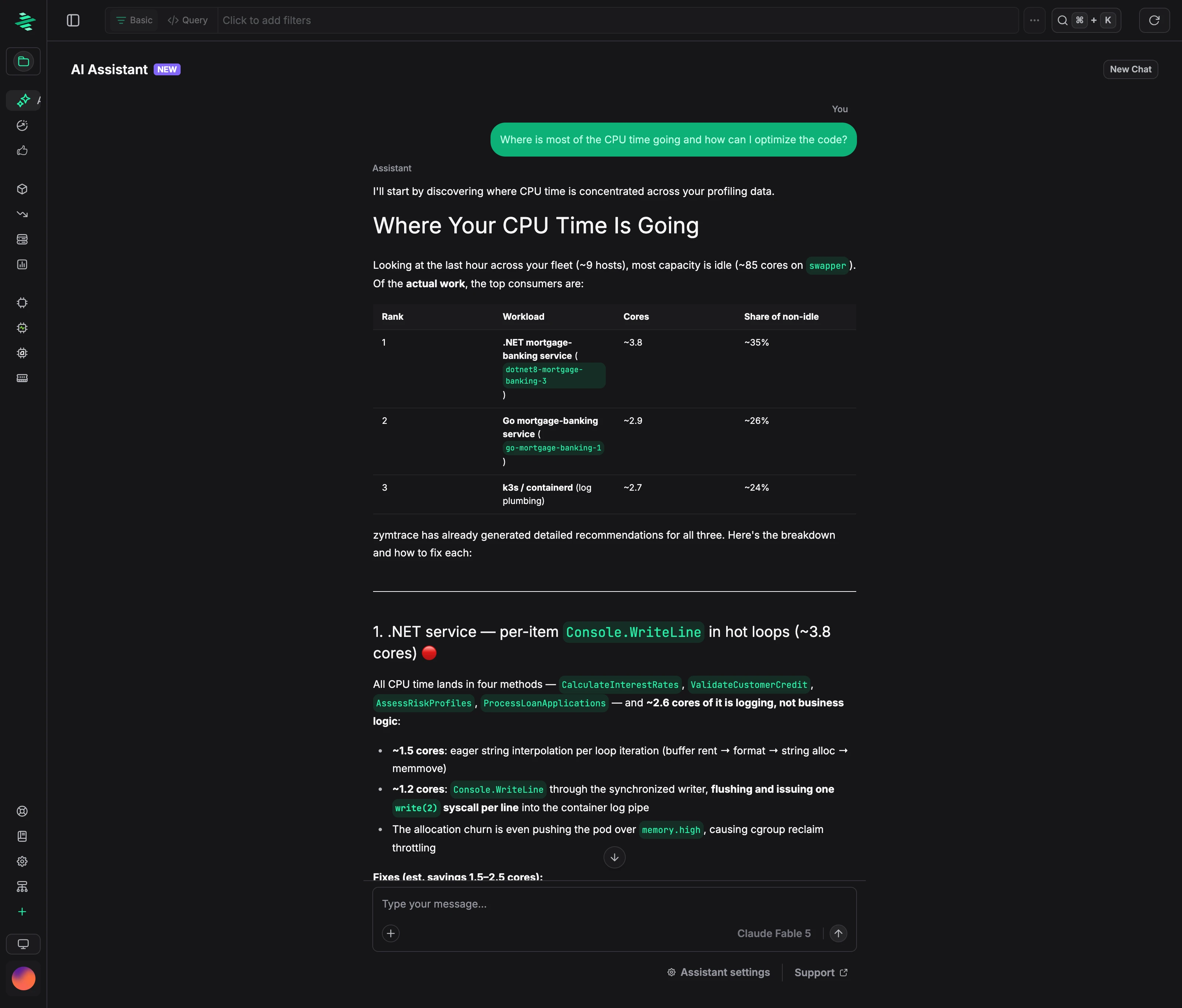
To start a conversation:
- Open AI Assistant in the sidebar.
- Choose an analysis mode: General CPU Performance Analysis, General GPU Performance Analysis, or General Memory Allocation Analysis.
- Type a question, or pick one of the suggested prompts.
You can switch models from the model picker, attach files with +, and start over with New Chat.
Flamegraph AI Assistant
The flamegraph AI Assistant analyzes the flamegraph on screen. Click AI Assistant above a CPU or GPU flamegraph to open it next to the flamegraph. The current flamegraph is attached to your message as Flamegraph Data.
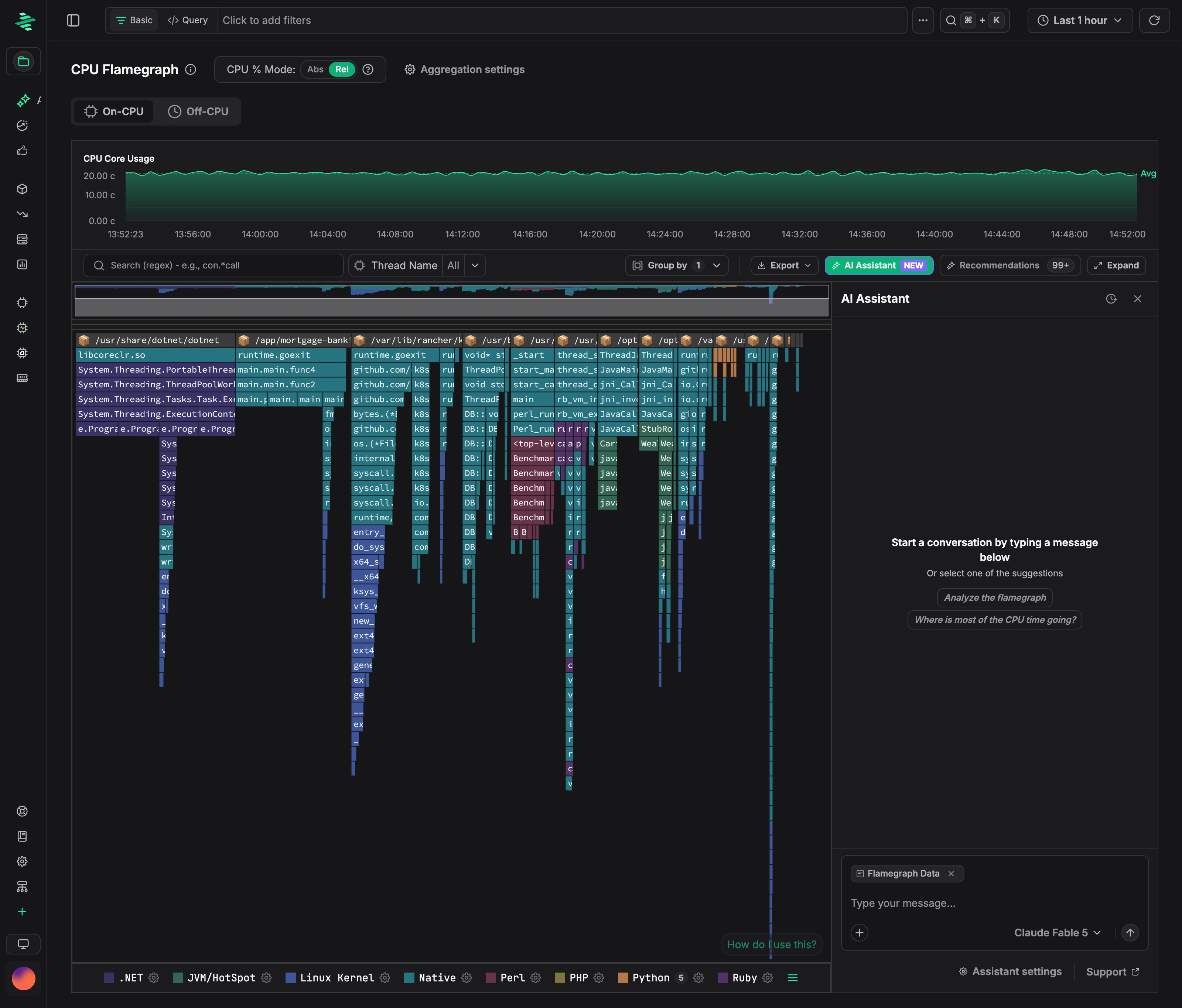
Ask a question or pick a suggestion such as Analyze the flamegraph.
Connect your own AI assistant to the same data with the Zymtrace MCP server.