Recommendations
Zymtrace continuously finds the code paths that burn the most CPU and GPU time, groups them by the application that runs them, and uses the AI model you've configured to write one ranked, evidence-backed performance report per application. Each report names the problem, points to the exact frames, and lists fixes with estimated savings in CPU cores or GPU time.
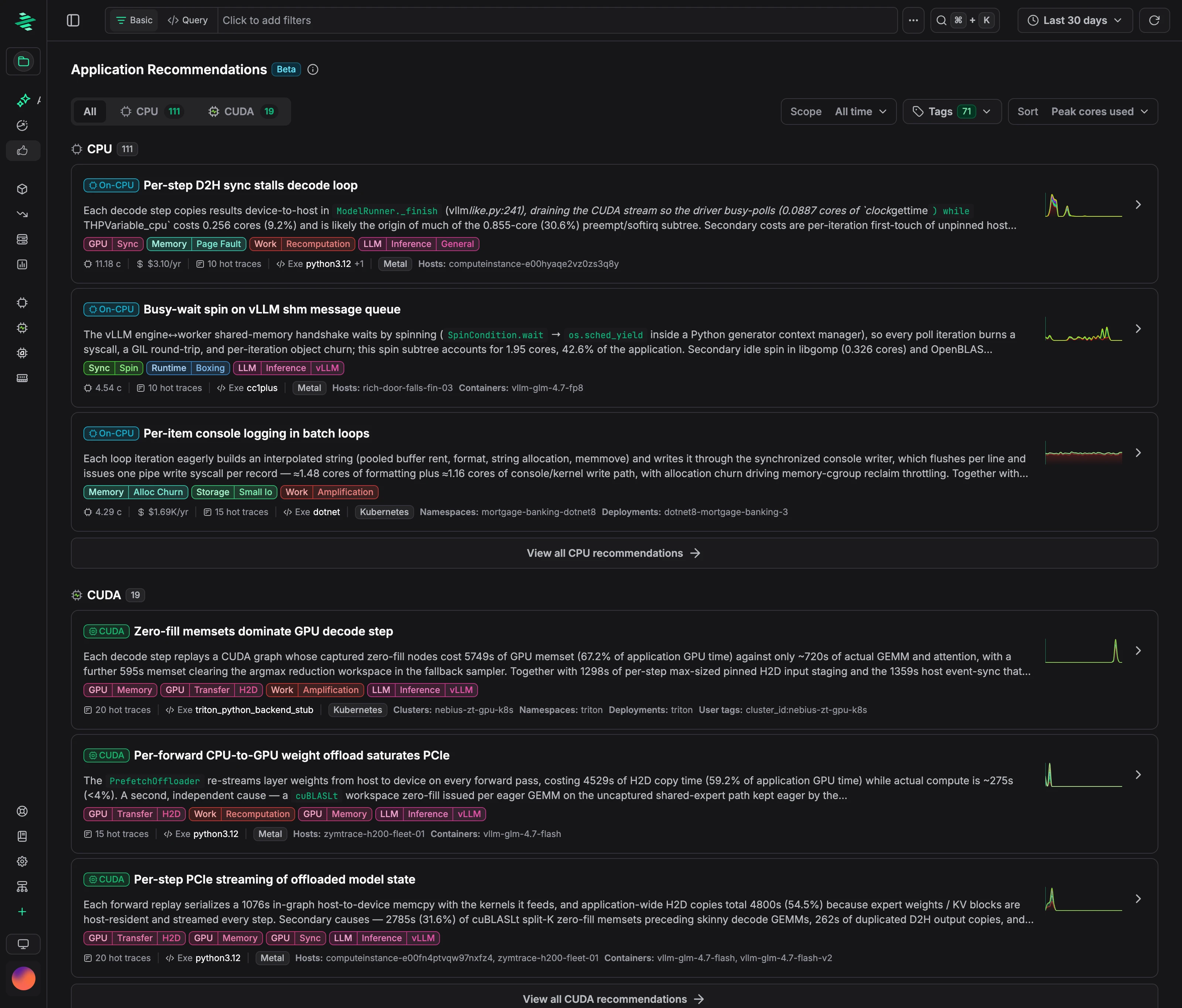
Recommendations or the AI Assistant?
| Recommendations | AI Assistant | |
|---|---|---|
| How it runs | Automatically, in the background | On demand |
| Scope | The heaviest code paths across your fleet | The application or time window you choose |
| Best for | An up-to-date, ranked list of where CPU and GPU time goes | Investigating a specific service, incident, or time range |
An application gets a recommendation only when its code accounts for a meaningful share of the project's CPU or GPU time. For anything else, use the AI Assistant.
CPU and CUDA recommendations
CPU and CUDA recommendations are generated separately and listed on their own tabs.
- CPU: ranked by CPU time. Savings are estimated in CPU cores.
- CUDA: ranked by the GPU time of the kernels each code path launched. The analysis covers both the launching code and the kernels, and savings are estimated in GPU time.
Recommendations for AMD ROCm are coming soon.
How it works
Recommendations run continuously. There's nothing to trigger, and new results usually appear within minutes.
- Find: Zymtrace identifies the code paths (hot traces) that use the most CPU or GPU time.
- Group: hot traces are grouped by application: a Kubernetes deployment, a container, or an executable. An application that runs in several clusters gets one recommendation.
- Analyze: the AI model reviews the call trees, source locations, and most expensive functions, then writes a diagnosis and ranked actions with estimated savings.
- Update: recommendations are regenerated automatically as the workload changes.
Enabling recommendations
Configure recommendations in Settings → AI Config → Recommendations. They use the AI provider set up in Configure AI Assistant.
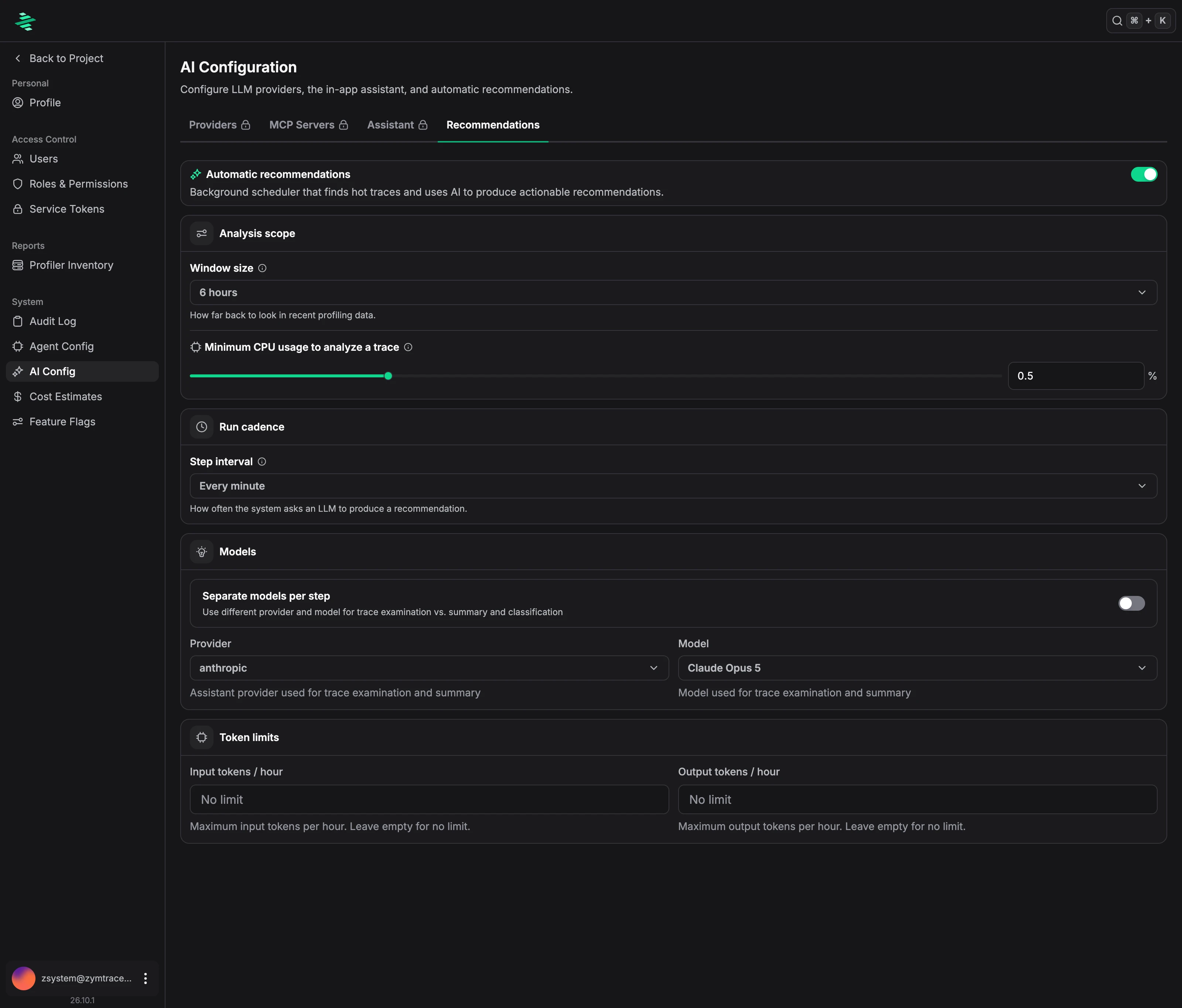
| Setting | Description |
|---|---|
| Automatic recommendations | Turns recommendations on or off. |
| Window size | How much recent profiling data to analyze. Default: 6 hours. |
| Minimum CPU usage to analyze a trace | The share of the project's CPU time a code path must use to be analyzed. Default: 0.5%. |
| Step interval | How often a new recommendation is produced. Default: every minute. |
| Provider and Model | The AI model that writes recommendations. |
| Separate models per step | Uses a different model for each analysis step. See Reducing token cost. |
| Token limits | Maximum input and output tokens per hour. Leave empty for no limit. |
Reducing token cost
Each recommendation is produced in two steps:
- Trace examination: the in-depth analysis that produces the diagnosis and actions.
- Summary and classification: a short title, description, and tags.
Turn on Separate models per step to keep a strong model for trace examination and use a smaller, lower-cost model for the summary. This reduces token cost while the strong model still does the analysis. Use Token limits to cap spend.
Reading a recommendation
Open Recommendations and choose the CPU or CUDA tab, or All for both. Recommendations are sorted by peak usage, so the heaviest applications come first.
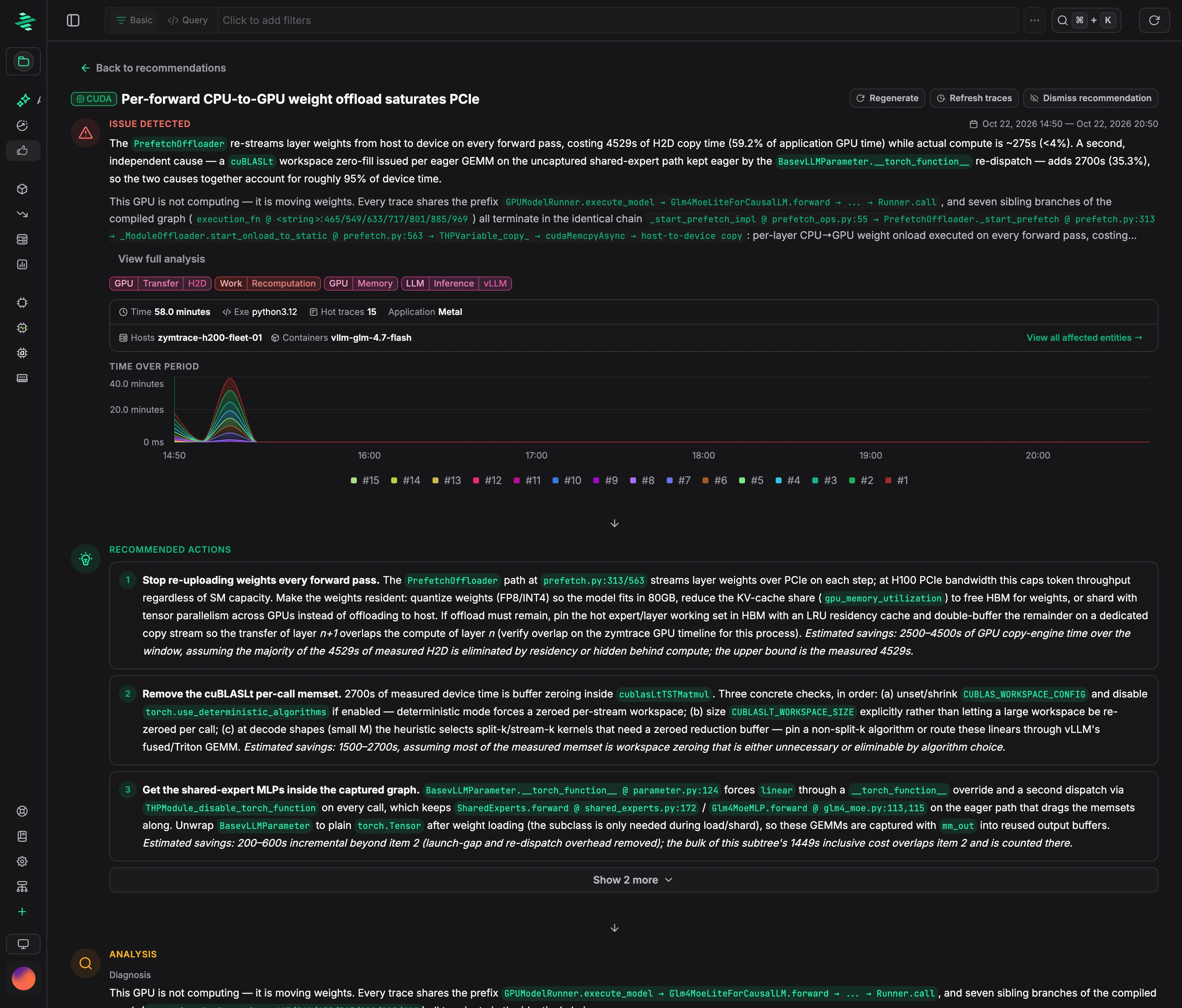
Each recommendation includes:
- Issue detected: what's wrong, where it runs, and the time range.
- Usage over time: CPU cores or GPU time for each hot trace.
- Recommended actions: ranked fixes with estimated savings.
- Analysis: the diagnosis and supporting evidence, with source locations.
- Affected entities: the clusters, deployments, pods, and hosts involved.
- Technical details: the model's confidence, lower-priority ideas, and the hot traces analyzed.
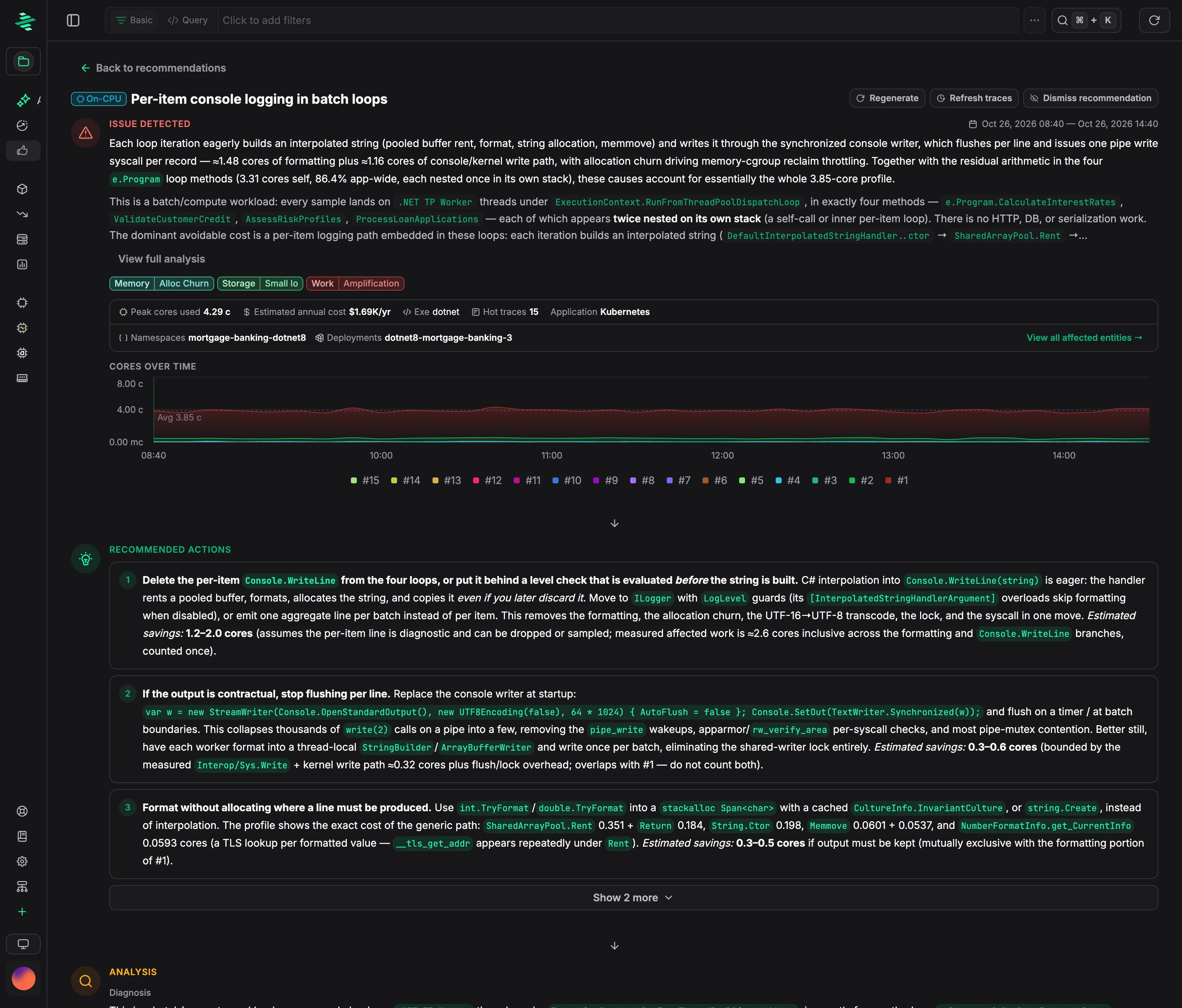
CPU recommendations use the same layout, with usage and savings in CPU cores and an estimated annual cost:
Each recommendation page has these actions:
| Action | Description |
|---|---|
| Dismiss / Restore | Hides or restores a recommendation. |
| Regenerate | Runs the analysis again. |
| Refresh traces | Re-collects the heaviest hot traces, then runs the analysis again. |
| Suppress | Excludes a hot trace you've accepted as expected cost. |
Recommendations on flamegraphs
Every CPU and CUDA flamegraph has its own recommendations. Click Recommendations above the flamegraph to see the auto-generated recommendations that match your current filters.
To get a recommendation for what you're viewing right now, click Generate recommendation.
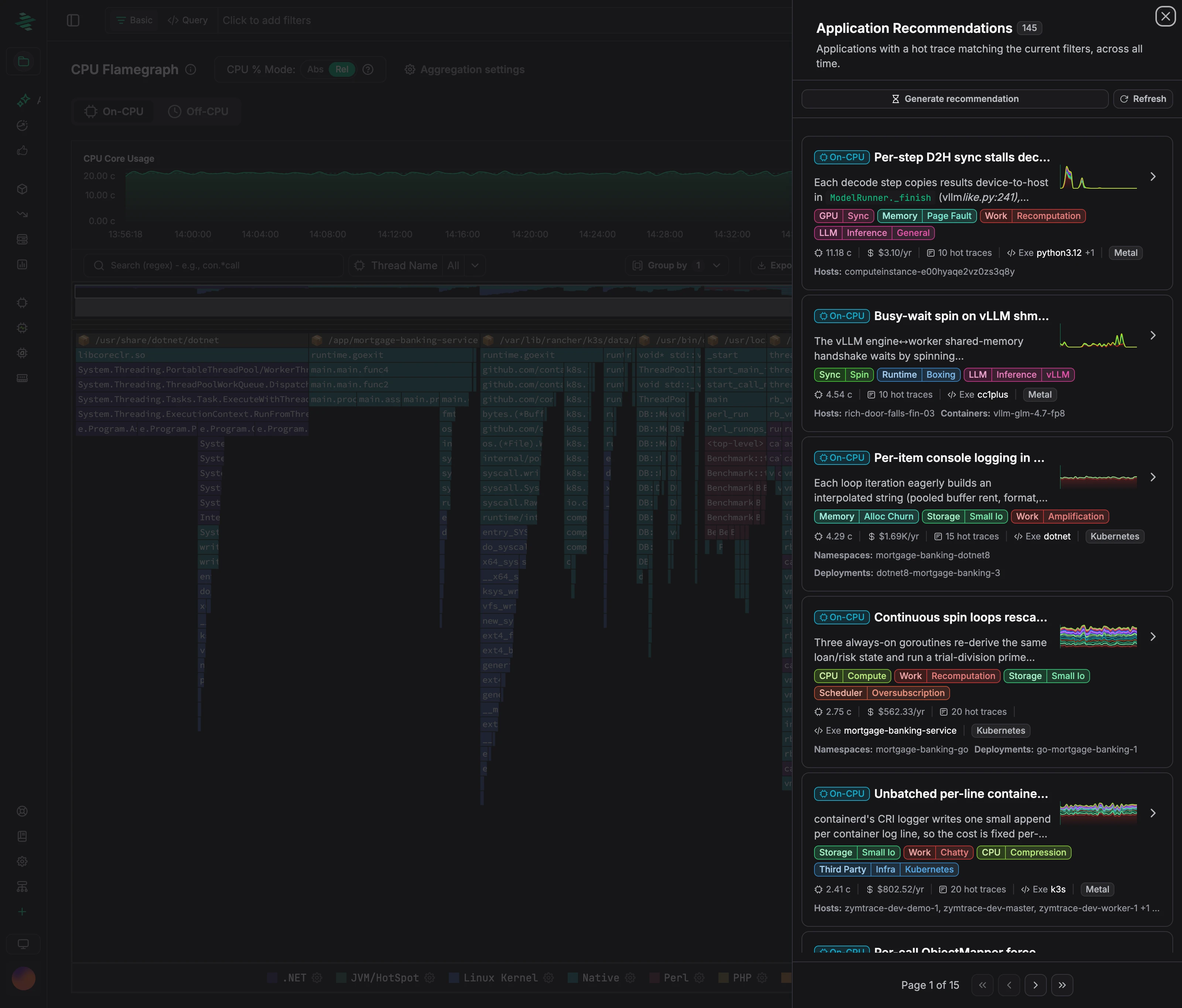
Recommendations also appear on the Efficiency IQ dashboard and through the Zymtrace MCP server.
Slack notifications
Send new recommendations to a Slack channel so your team sees them without opening Zymtrace. See Slack.
Limitations
- Review before you act. Each action includes its evidence and a confidence level. Savings are estimates.
- On-CPU and CUDA only. Off-CPU and allocation profiles aren't covered yet.