Off-CPU Profiling
CPU profiles show where threads spend time running. Off-CPU profiles show where they spend time waiting: on locks, disk or network I/O, sleeps, or a free CPU. Use them when a service is slow but its CPU usage is low.
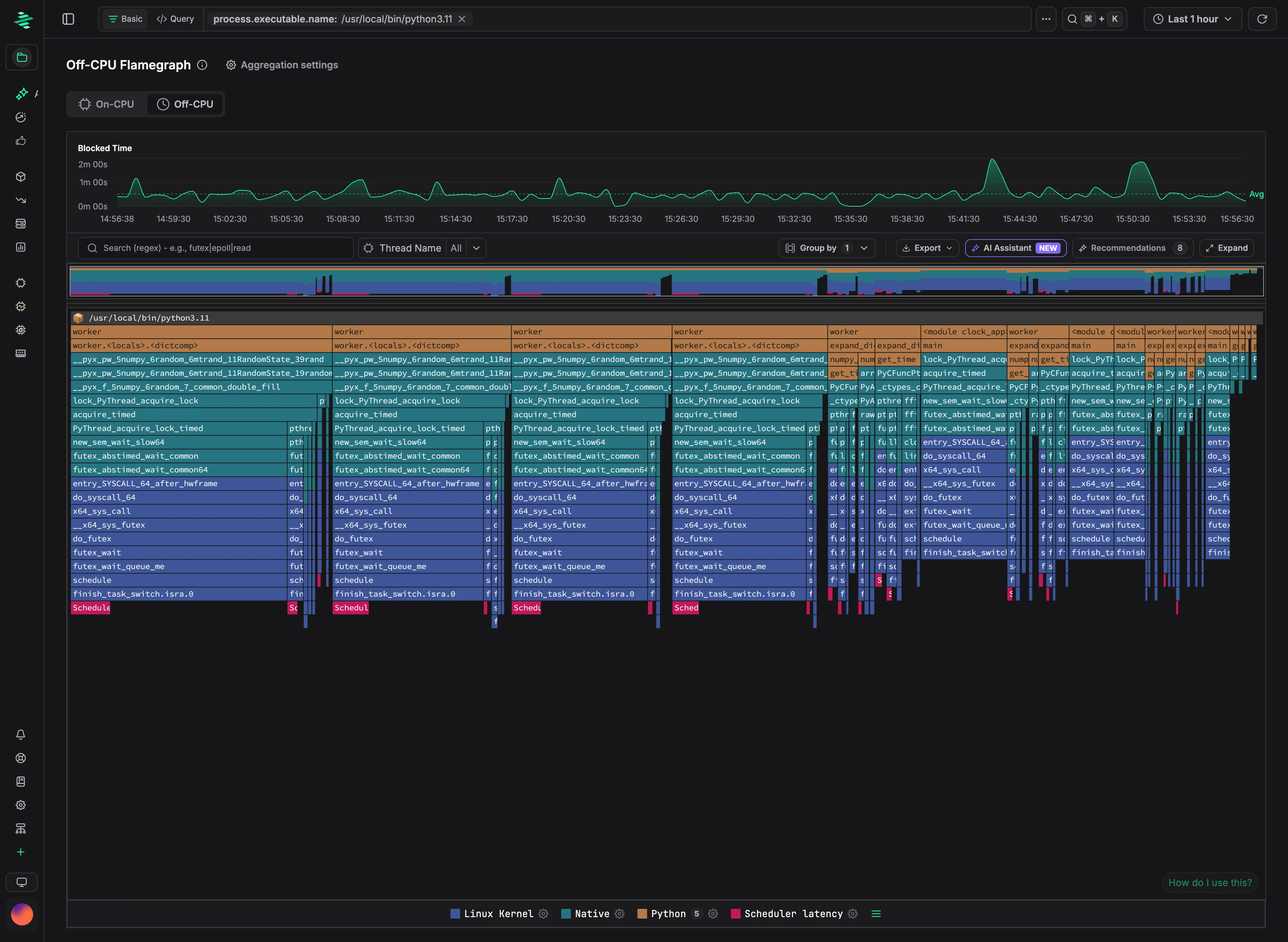
In this example, filtered to a Python application, most blocked time comes from worker threads waiting to acquire a lock (lock_PyThread_acquire_lock → futex_wait).
Reading an off-CPU profile
Open CPU → Flamegraph and select the Off-CPU tab. The chart shows blocked time over the selected range, and frame widths in the flamegraph show blocked time instead of CPU time:
- Blocked Time (total): time threads spent off-CPU in a function and everything it called.
- Blocked Time (self): time threads spent off-CPU in the function itself.
The leaf frames show what threads were waiting on. For example, futex usually means a lock or condition variable, epoll_wait or poll means waiting for network or file I/O, and nanosleep means an explicit sleep. Follow the stack up to find the code that's waiting.
Scheduler latency
Scheduler latency frames at the bottom of a stack show the time between a thread being woken up and actually running, that is, time spent waiting for a CPU. A large share of scheduler latency points to CPU contention on the host rather than slow I/O or locks. To hide these frames, click the settings icon next to Scheduler latency in the flamegraph legend, clear Show Scheduler latency Frames, and click Apply.
Enabling off-CPU profiling
Off-CPU profiling is off by default. Enable it from the UI or with a profiler flag.
From the UI
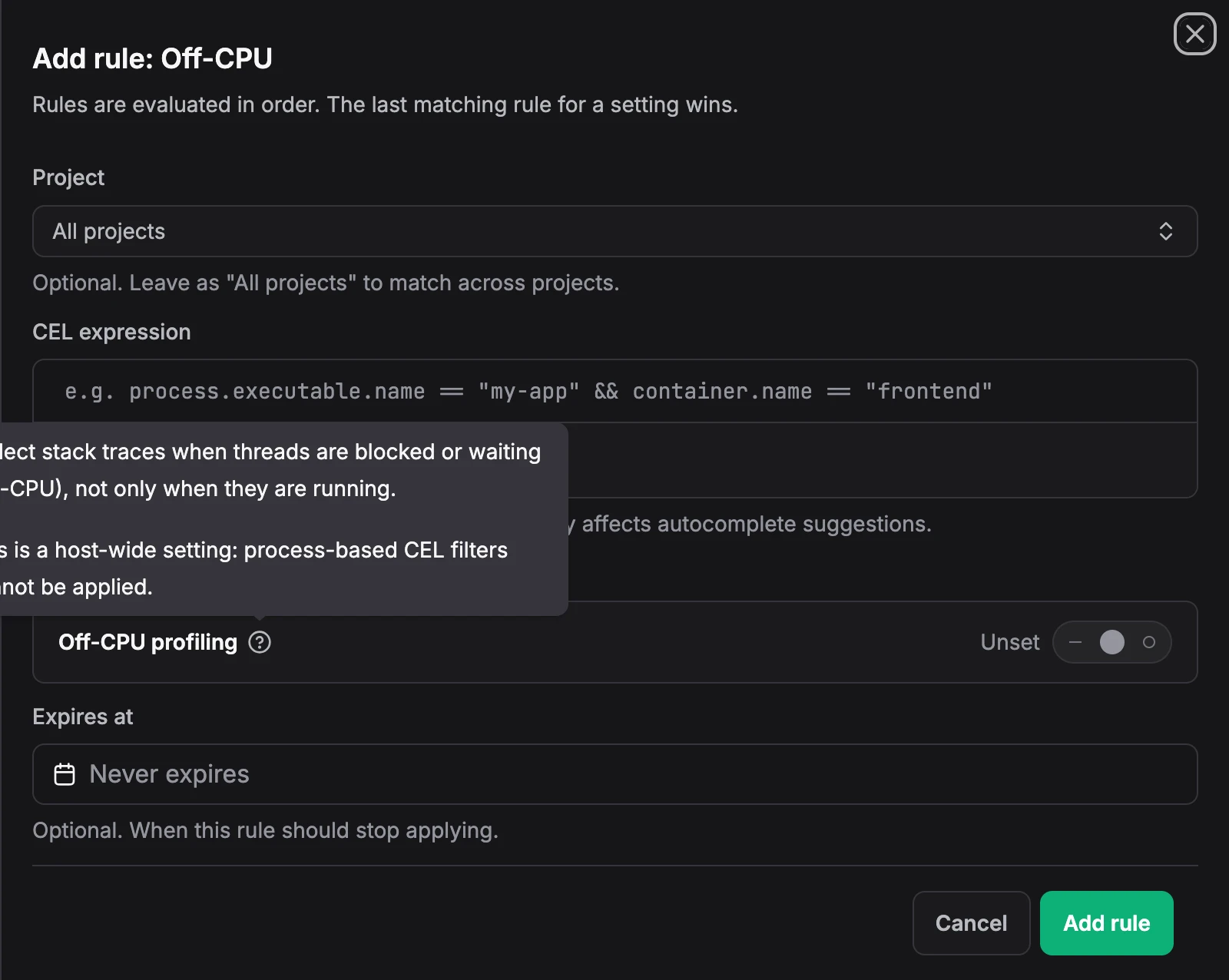
- Go to Settings → Agent Config and open the Off-CPU tab.
- Click Add Rule.
- Enter a CEL expression for the hosts to profile, or leave it empty for all hosts.
- Turn on Off-CPU profiling, optionally set an expiry, and click Add rule.
The change applies without restarting the profiler. Off-CPU profiling is a host-wide setting, so rules can target hosts but not individual processes.
With a profiler flag
Pass -enable-off-cpu to the profiler, or set ZYMTRACE_ENABLE_OFF_CPU=true. With Helm, add it to profiler.args:
helm upgrade --install profiler zymtrace/profiler \
  --namespace zymtrace \
  --set profiler.args[0]="--collection-agent=ZYMTRACE_URL" \
  --set profiler.args[1]="--enable-off-cpu"
| CLI Argument | Environment Variable | Description |
|---|---|---|
-enable-off-cpu | ZYMTRACE_ENABLE_OFF_CPU | Enables off-CPU profiling. Default is false. |
-off-cpu-sampling-rate | ZYMTRACE_OFF_CPU_SAMPLING_RATE | Off-CPU sampling frequency in Hz. Setting a non-zero value also enables off-CPU profiling. Default is 19. |
See Profiler ENV & CLI Args for all profiler options.